Have you ever wished you could use your Nintendo Switch Pro Controller with your Android phone or tablet? Maybe you’ve tried tapping away at on-screen controls, but it just doesn’t feel right. Or perhaps you’ve thought about buying a separate controller just for your Android device, but that seems like an unnecessary expense.
Well, here’s some good news: if you have a Nintendo Switch Pro Controller, you already own a great controller for your Android games. It’s just one of the many ways to enhance your Android gaming experience.
Many people don’t realize this, but that comfortable, familiar controller can work with your phone or tablet, too.
The problem is that it’s not always clear how to connect these devices. You might be worried it’s complicated or that you need special technical skills. Don’t worry – it’s actually pretty simple once you know how.
In this guide, you’ll learn exactly how to pair your Nintendo Switch Pro Controller with your Android device. We’ll walk you through the process step by step, using language that’s easy to understand.
By the end, you’ll be ready to enjoy your favorite Android games with the controller you already know and love. Ready to upgrade your mobile gaming experience?
How to connect your Nintendo Switch Pro Controller to your Android device
You can easily pair your Nintendo Switch Pro Controller with your Android phone or tablet. If your device runs Android 10 or later, it’s even simpler.
If you’re new to Android, don’t worry – setting up and customizing your Android phone is pretty straightforward.
- Open your Android device’s settings.
- Find and tap on “Bluetooth” (it might be under “Connected devices“).
- Turn on Bluetooth if it’s not already on. Check this guide to help with this.
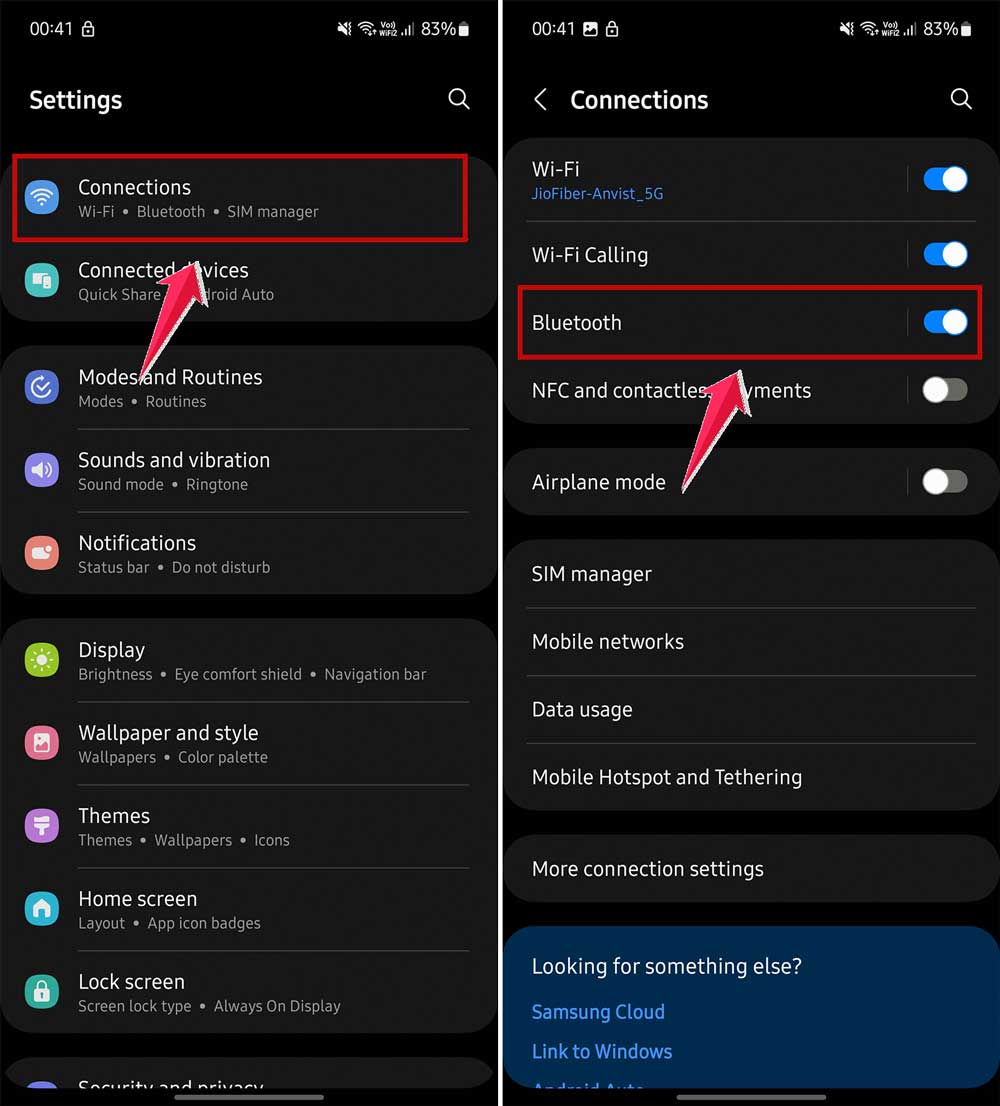
- Look for an option to pair a new device.
- On your Pro Controller, find the small pairing button on top.
- Press and hold this button until you see four green lights flashing at the bottom of the controller.
- Go back to your Android device’s Bluetooth settings.
- You should see “Pro Controller” in the list. Tap on it.
- If you don’t see it, try refreshing the list.
- Tap “Pair” to connect your controller.

If you’re having trouble:
- Make sure the controller’s lights are still flashing. If not, press the pairing button again.
- Check if your Android device needs a software update. We’ve found it works well with Android 12 and 13, but there might be some issues with Android 11.
Using your Pro Controller with Android games
Not all Android games work with controllers, but more and more are adding support. This is especially true for games that started on PCs or consoles and moved to mobile. If you use cloud gaming services like xCloud, the Pro Controller might not be officially supported, but it often works well if you connect it with a USB cable.
To get the most out of your Pro Controller, try it with different games. Some will work better than others. Keep experimenting, and you’ll find the perfect setup for your favorite games!
Remember, your experience might vary depending on your device and the games you play. But with a bit of patience, you can create a great gaming setup using your Nintendo Switch Pro Controller on your Android device.
The takeaway
Connecting your Nintendo Switch Pro Controller to your Android device can really improve your mobile gaming experience. It’s not as hard as you might think, and it opens up new ways to enjoy your favorite games.
Remember, you can connect the controller using Bluetooth or a use USB cable to connect. Both methods are pretty simple once you know the steps. Don’t worry if it doesn’t work right away – sometimes it takes a bit of troubleshooting, especially with older Android versions.
Not every Android game indeed works with controllers. But don’t let that discourage you! More and more games are adding controller support, especially as bigger console and PC games come to mobile. Try out different games and see which ones work best for you.
The most important thing is to experiment and have fun. Your Nintendo Switch Pro Controller can make playing games on your phone or tablet feel more like console gaming. So give it a try – you might be surprised at how much it improves your gaming experience!