Are you concerned about your phone’s battery life? Or maybe you’re worried about security and want to reduce potential vulnerabilities.
Perhaps you simply don’t use Bluetooth that often and want to simplify your settings. Whatever your reason, turning off Bluetooth on your phone is a simple process.
In this guide, you’ll learn how to disable Bluetooth on both Android phones and iPhones. Whether you’re using a recent version of Android or iOS, we’ve got you covered.
Let’s walk through the easy steps to take control of your phone’s Bluetooth settings right now.
How to quickly turn off Bluetooth on your iPhone
Sometimes, you need to disconnect your Bluetooth devices fast. Maybe your headphones are connecting to the wrong device, or you just want to save some battery. Here’s how you can do it in seconds:
- Open your Control Center by swiping down from the top-right corner.
- Look for the Bluetooth icon and tap it. This will turn the icon gray.
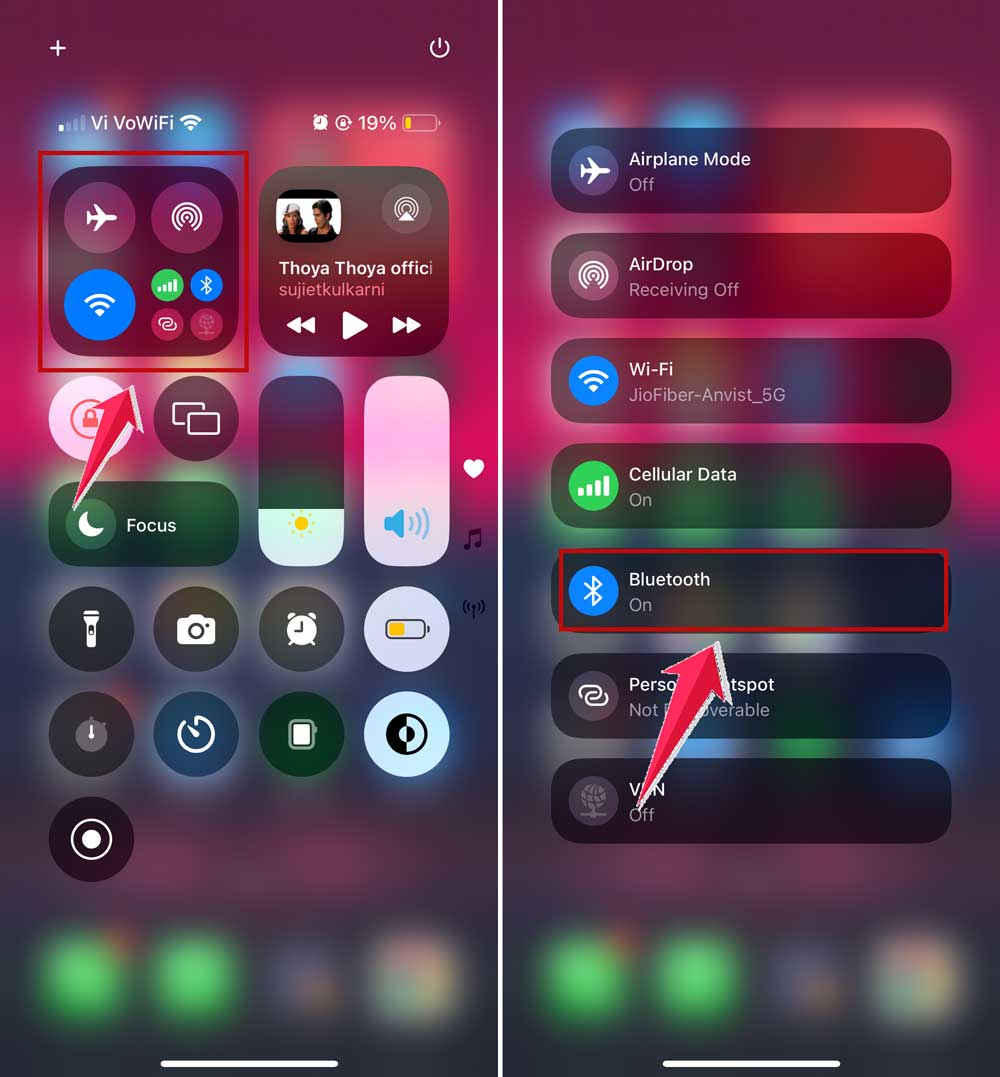
When you do this, your iPhone will disconnect from most Bluetooth devices until the next day. But keep in mind that some Apple devices, like your Apple Watch, will stay connected. If you talk with your friends, you can customize your Memoji for a more personalized experience.
How to turn off Bluetooth completely on your iPhone
If you want to turn off Bluetooth for a longer time, you can do that too. Here’s how:
- Open your Settings app.
- Tap on Bluetooth.
- Toggle the Bluetooth switch to off.
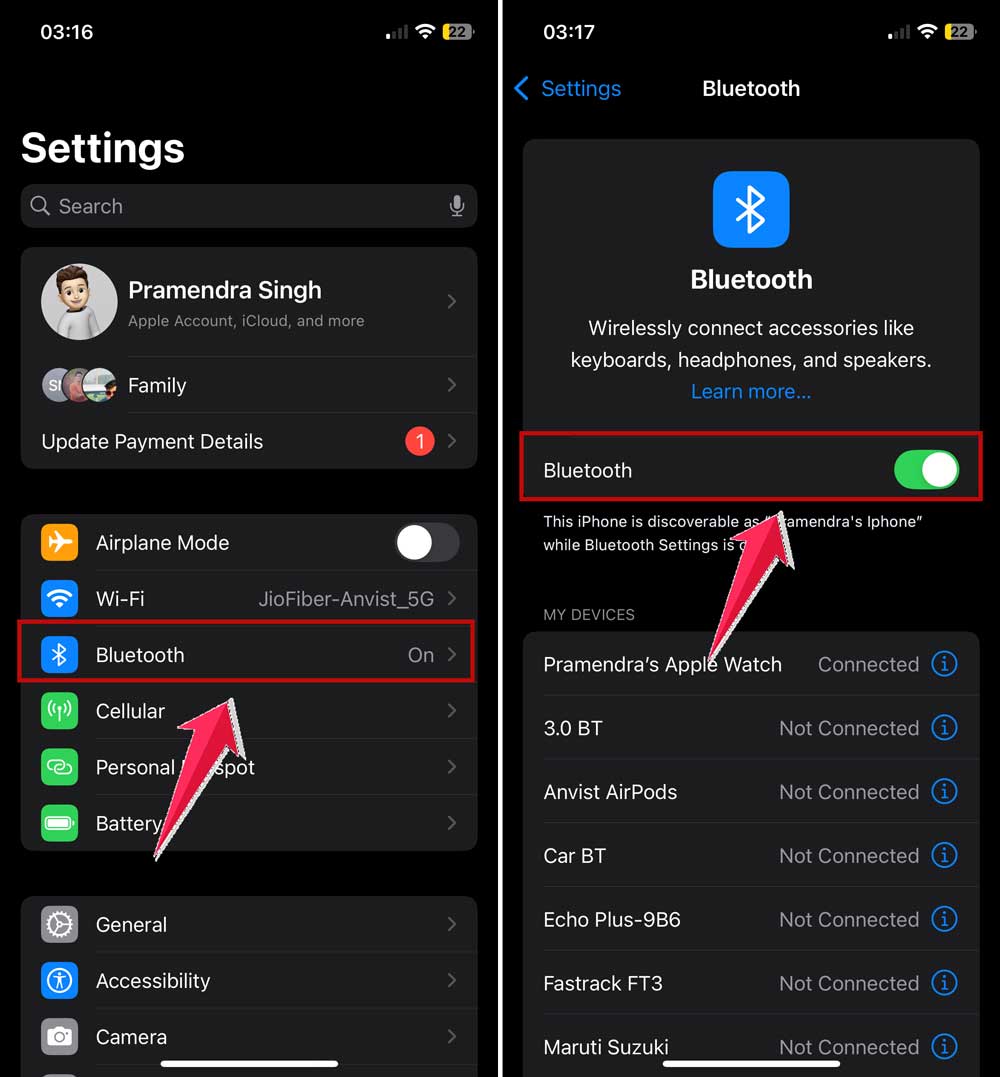
This will turn off Bluetooth completely. Just remember, some features like AirDrop and Find My iPhone use Bluetooth, so they won’t work when it’s off.
How to turn off Bluetooth on your Android phone
Want to turn off Bluetooth on your Android phone? It’s easy, and you’ve got a couple of ways to do it. Here’s how:
1. Quick way to turn off Bluetooth
- Swipe down from the top of your screen. This opens your quick settings.
- Look for the Bluetooth icon. It might look like a B-shaped symbol.
- Tap the Bluetooth icon to turn it off. The icon should change color or appear dimmed.

This method is great when you want to turn off Bluetooth quickly, like when you’re about to board a plane.
2. Turn off Bluetooth completely
If you want to make sure Bluetooth stays off, you can do it through your phone’s settings:
- Open your phone’s Settings app.
- Look for Connected Devices or Connections.
- Tap on Bluetooth.
- Switch off the Bluetooth toggle.
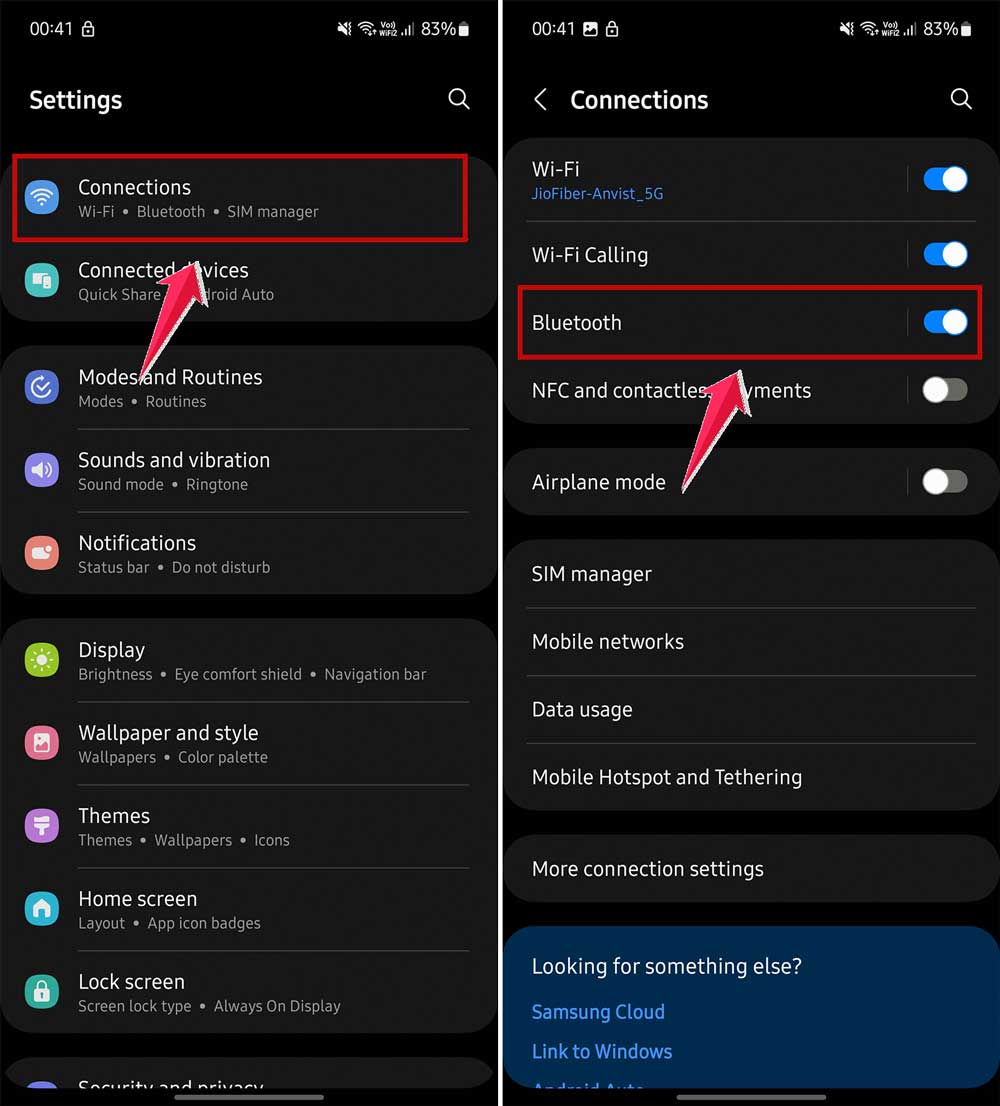
This way, Bluetooth will stay off until you turn it back on. While you’re in your settings, you might want to explore other ways to optimize your battery life, as Bluetooth isn’t the only feature that can drain your power.
Remember, turning off Bluetooth can save your battery life. It’s a good idea when you’re not using any Bluetooth devices like wireless headphones or speakers.
The takeaway
Now that you know how to manage Bluetooth on your phone, you’re in control of a feature that affects your device’s battery life and security. Whether you’re using an iPhone or Android, you’ve got easy options to handle your Bluetooth connections.
For a quick fix, just use your phone’s quick settings – that’s the Control Center on iPhone or Status Bar on Android. A simple tap and you’re done. When you want Bluetooth off for longer, head into your phone’s settings app. It’s straightforward and gives you more control.
Don’t worry about turning Bluetooth on and off – it’s safe and simple. In fact, it can help your phone run better. The key thing to remember is this: managing your Bluetooth is an easy way to extend battery life and boost security.
So, next time you’re not using Bluetooth, why not turn it off? Your phone will thank you, and you might notice it lasts longer between charges. Give it a try and see how it works for you! And if you’re looking for more ways to customize your Android experience, check out our guide on using Nova Launcher.