Did you know that over 70% of smartphone users worldwide use Android devices? That’s a lot of people texting and chatting every day!
Have you ever found yourself in a situation where you can’t receive messages from someone important? It might be because you accidentally blocked them.
This can happen more easily than you think, especially when you’re trying to manage unwanted contacts.
Blocking someone on your Android phone is a useful feature to avoid spam or unwanted communication.
But sometimes, you might block the wrong person or change your mind about a blocked contact. When this happens, you need to know how to unblock them.
In this guide, you’ll learn how to unblock text messages on your Android phone. I’ll walk you through the process step by step, using simple instructions that anyone can follow. Ready to get those messages flowing again?
How to unblock text messages on your Android device
Method 1: Using the Phone app (Standard Android)
- Open the Phone app on your home screen.
- Tap the menu icon (usually three dots or lines) in the top right corner.
- Find and tap on “Settings” or “Call settings”.
- Look for “Blocked numbers” or “Block list” or anything similar to these and tap on it.
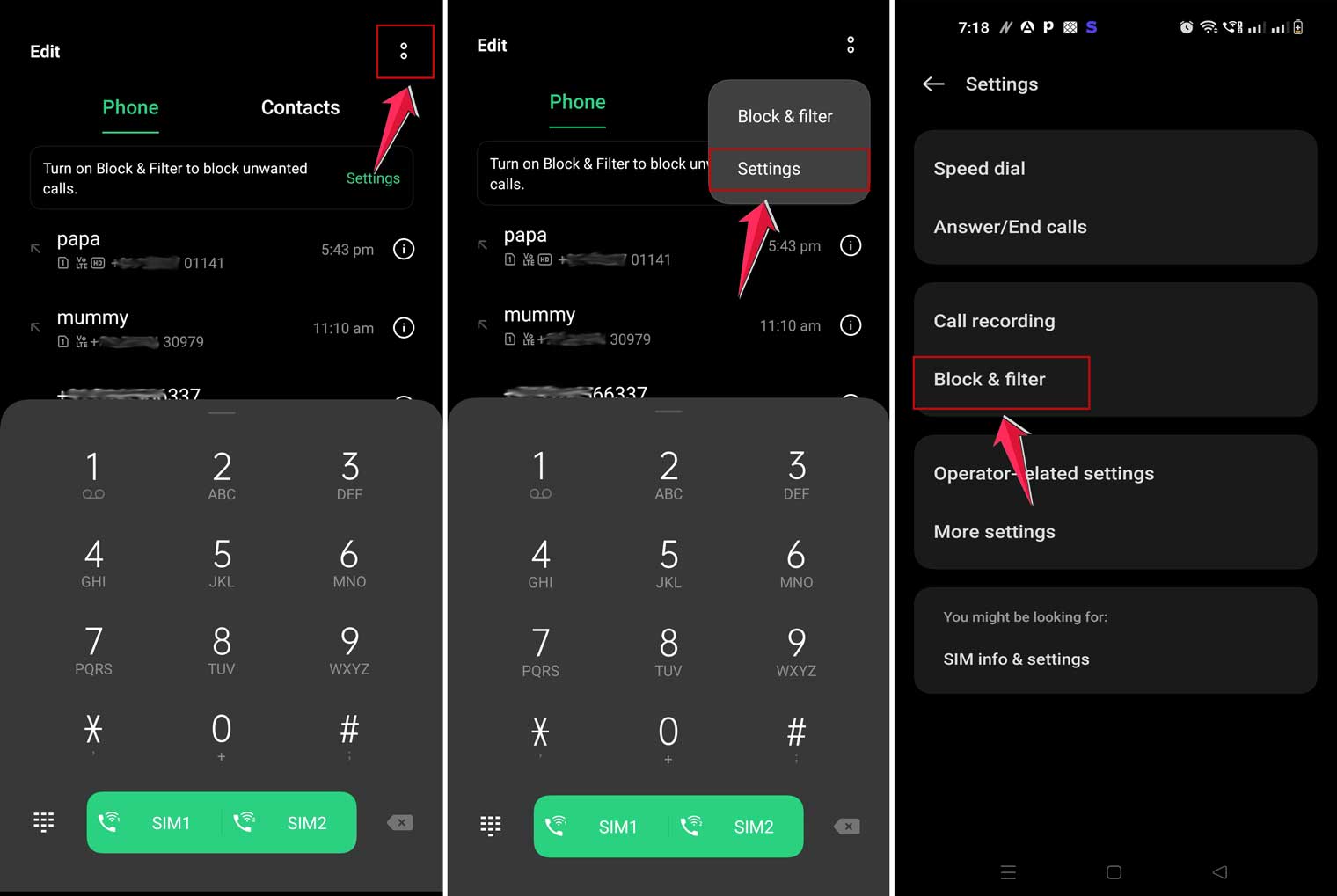
- You’ll see a list of all blocked numbers. Tap on it to open.
- Tap on the number you want to unblock.
- Now tap the “Unblock” or “Remove” option and confirm if prompted.

Method 2: Using the Messaging app (Standard Android)
- Open your default messaging app from the home screen.
- Tap the menu icon or profile icon (often three dots or lines) in the top right corner.
- Select “Settings” or “More settings” or anything related to settings or blocked items

- Look for “Blocked contacts” or “Blocked numbers” and tap on it.
- You’ll see a list of blocked numbers.
- Tap on the number you want to unblock.
- Select “Unblock” or tap the trash can icon to remove it from the block list.

Method 3: For Samsung phones
- Open the Phone app on your Samsung device.
- Tap the three-dot menu in the top right corner.
- Select “Settings”.
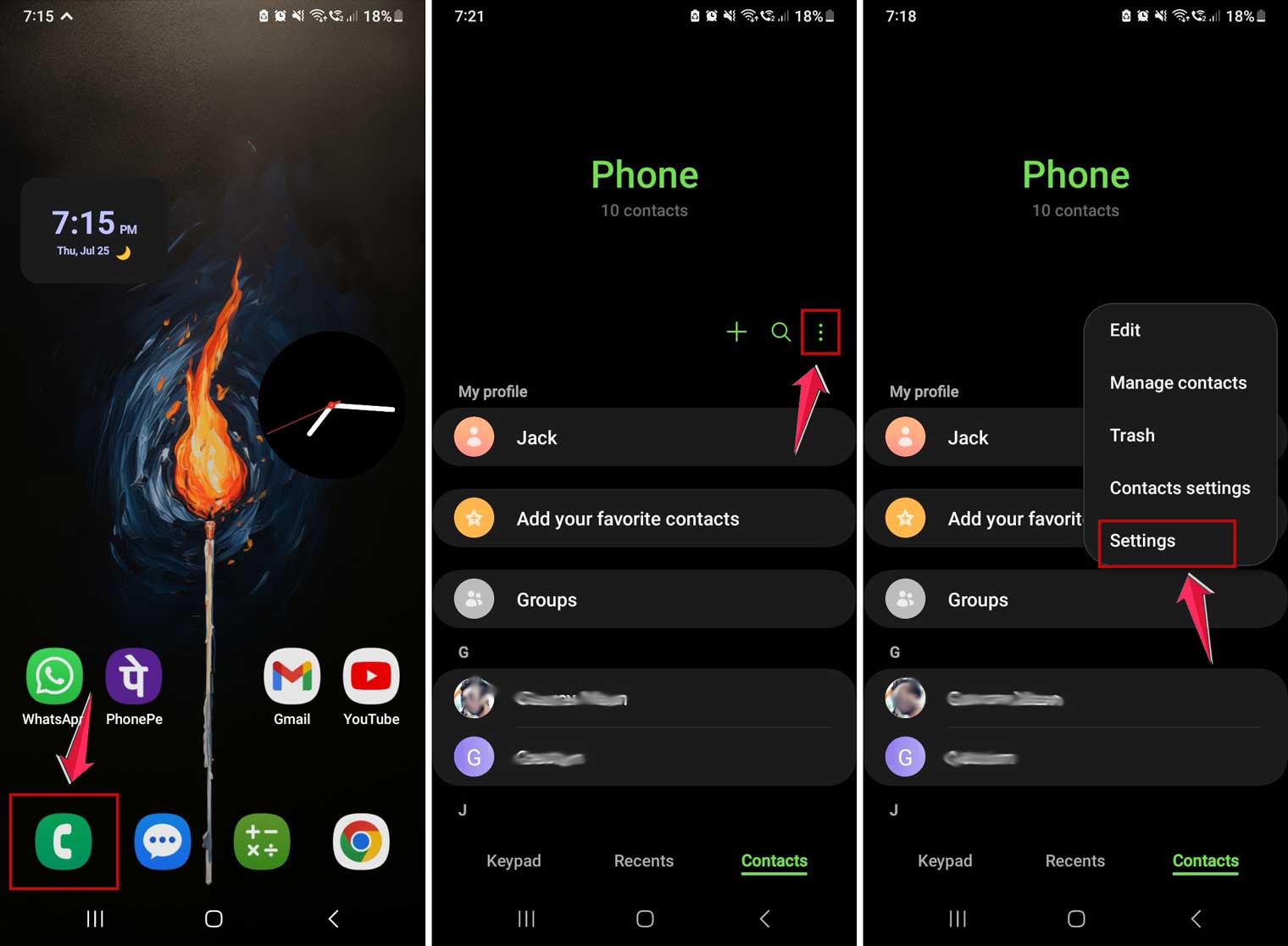
- Tap on “Block numbers”.
- You’ll see your list of blocked numbers.
- Tap the minus (-) icon next to the number you want to unblock.

The takeaway
Blocking someone on your Android phone by mistake can be frustrating, but don’t worry – it’s easy to fix.
We’ve looked at two simple ways to unblock text messages: one using the Phone app and another using the Messaging app.
Both methods are straightforward. You just need to open the right app, find the list of blocked numbers or messages, and then unblock the person you want to hear from again. The trick is to remember which app you used to block them in the first place.
Some people think that once you block a number, you can’t undo it. That’s not true! You can always unblock someone if you change your mind. It’s your phone, and you’re in charge of who can contact you.
The most important thing to remember is that it’s okay to adjust your settings. Whether you blocked someone by accident or on purpose, you can always change it back.
With these simple steps, you can make sure you’re getting messages from everyone you want to hear from.
Have you ever had to unblock someone on your Android? How did it go? Let us know in a comment!