Outlook is a popular email service used by millions of people every day. But did you know that forgetting to sign out of your account can put your personal information at risk? This is especially true if you’re using a shared computer at work, school, or a public place.
Think of your Outlook account like your personal diary. You wouldn’t want just anyone to read it, right? When you stay signed in, it’s like leaving that diary open on a table where others can see it. Anyone who uses the computer after you might be able to read your emails or send messages pretending to be you.
Don’t worry if you’re not sure how to sign out properly. In this article, you’ll learn the simple steps to sign out of your Outlook account. Whether you’re using a public computer or your own device, these easy tips will help keep your emails and personal information safe from prying eyes.
4 simple ways to sign out of your Outlook account
Signing out of Outlook is important for keeping your emails safe. Here are four different ways to do it, depending on what device you’re using:
1. How to sign out on the Outlook website
When you’re using Outlook in a web browser, it’s easy to sign out:
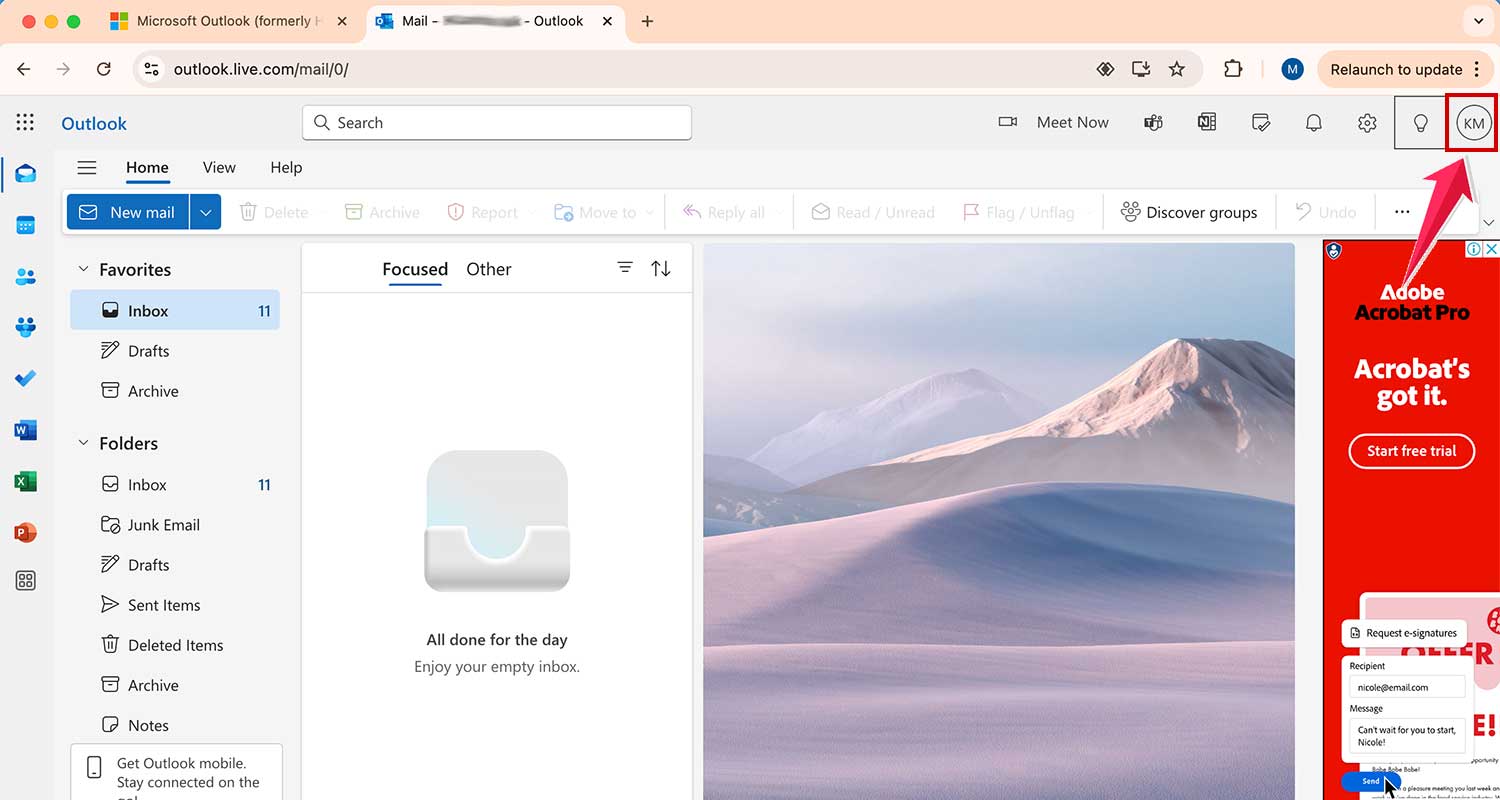
- Look for your profile picture in the top right corner of the page.
- Click on your picture to open the Account Manager.
- Find the “Sign Out” button and click it.
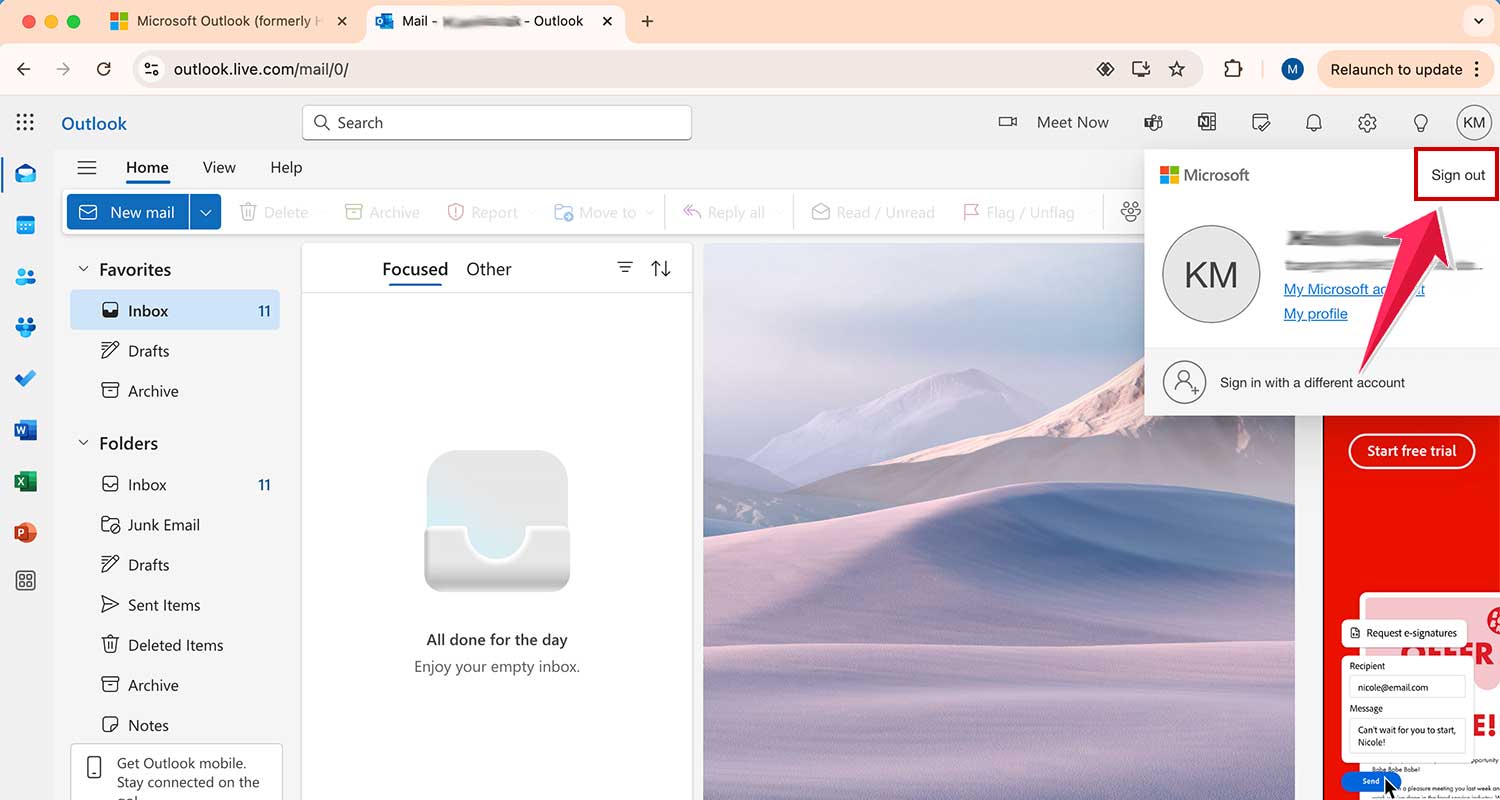
That’s it! You’re now safely signed out. This is especially important if you’re using a shared computer.
2. How to sign out of Outlook on Windows
If you’re using the Outlook app on a Windows computer, remember that signing out here will also sign you out of all Microsoft Office apps. If you use other Microsoft services, delete a Google Calendar if you’re transitioning between platforms.
- Open the Outlook app on your computer.
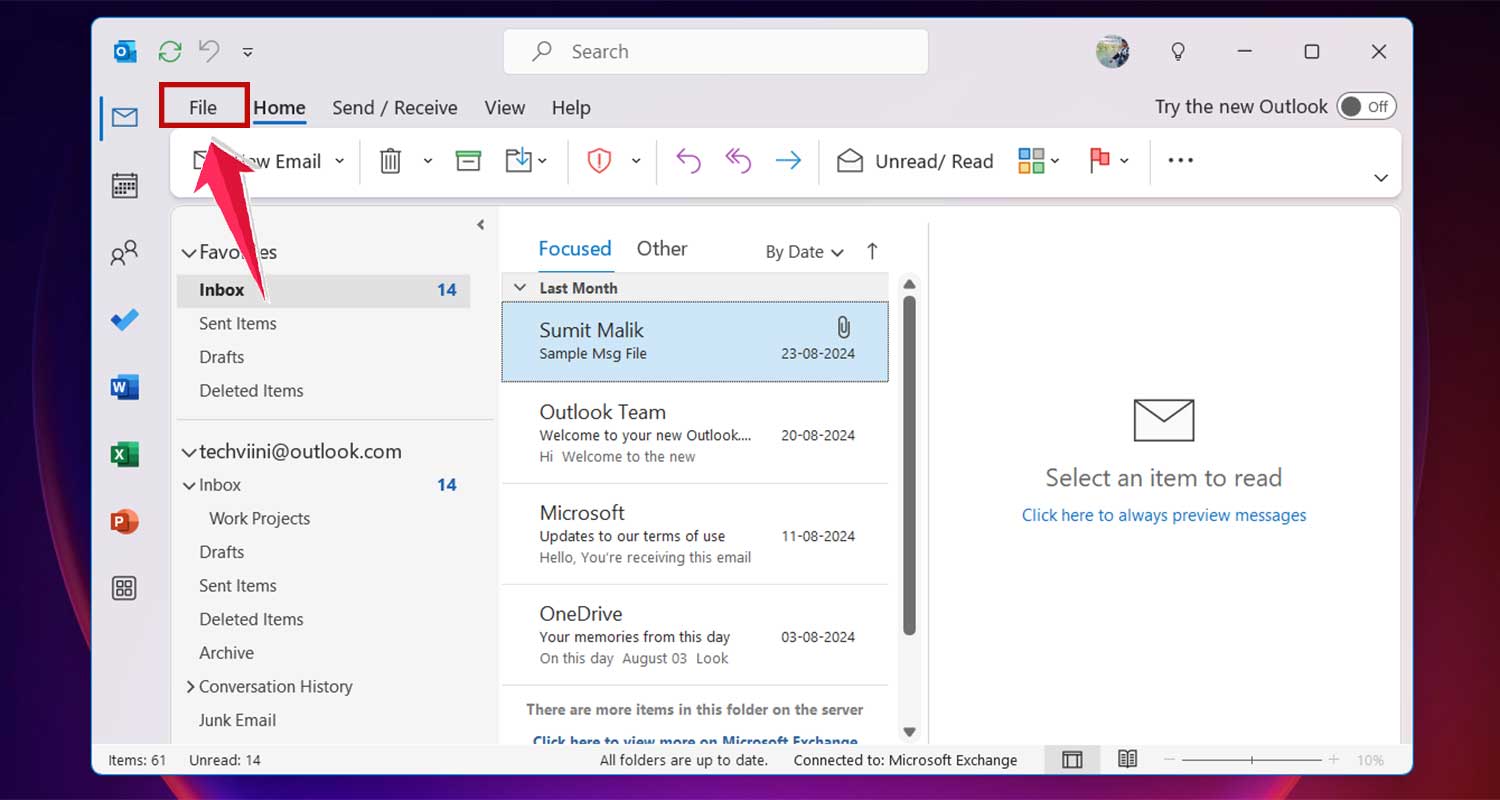
- Click on the “File” tab at the top of the window.
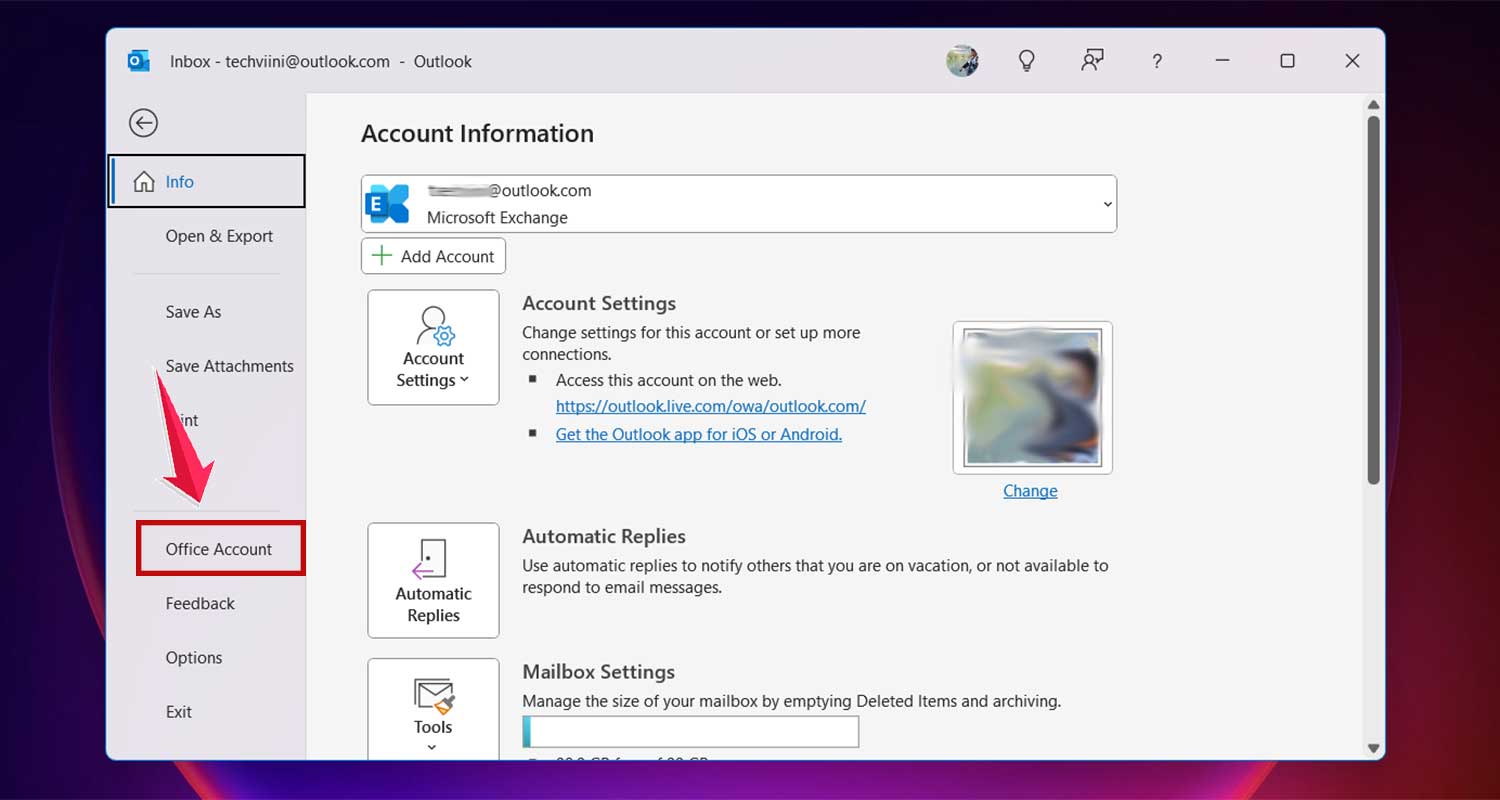
- Look for “Office Account” or just “Account” in the left-hand menu and click it.
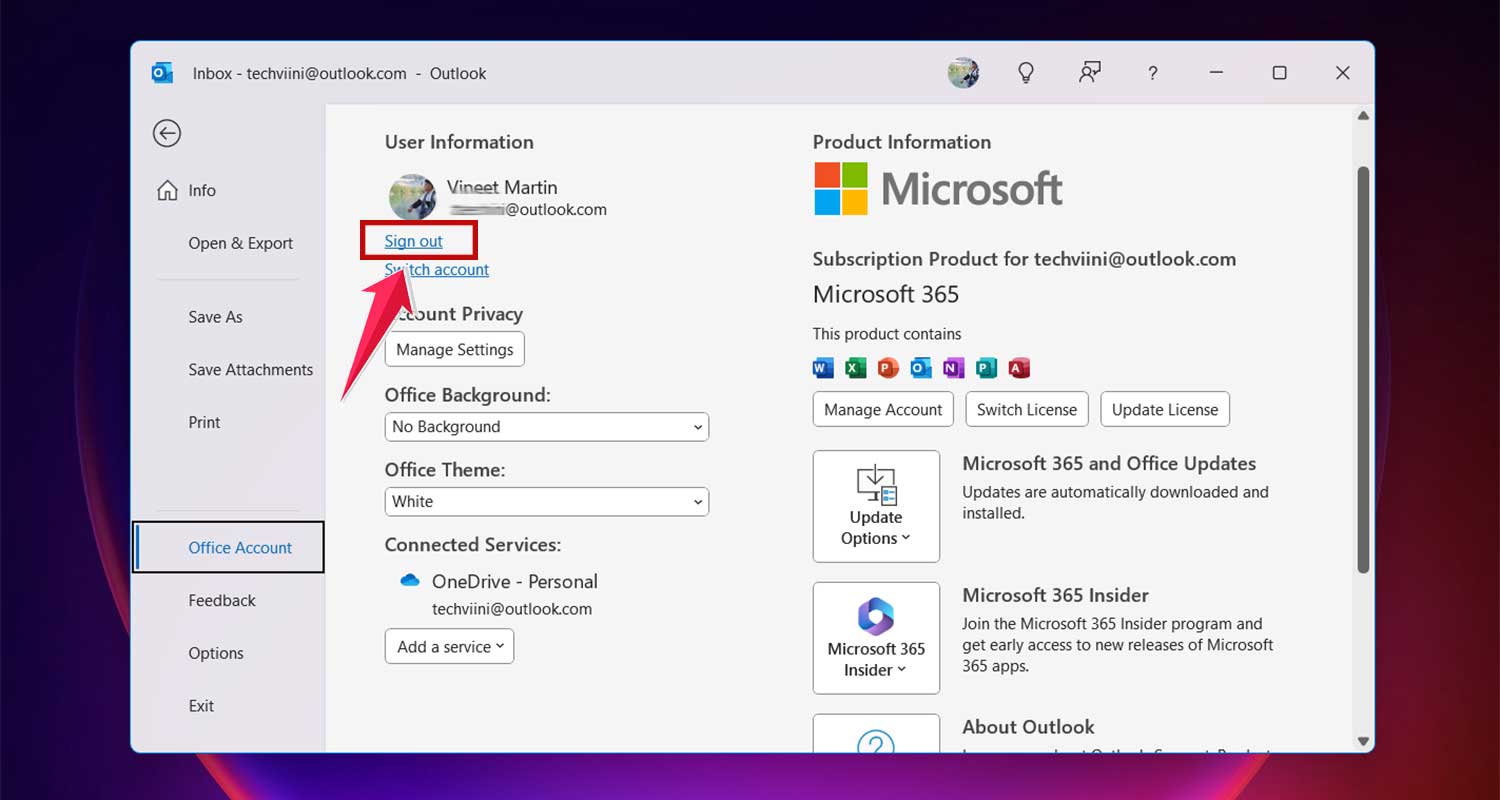
- Under “User Information,” you’ll see a “Sign out” option. Click that.
3. How to sign out of Outlook on a Mac
For Mac users, the process is a bit different:
- Open the Outlook app on your Mac.
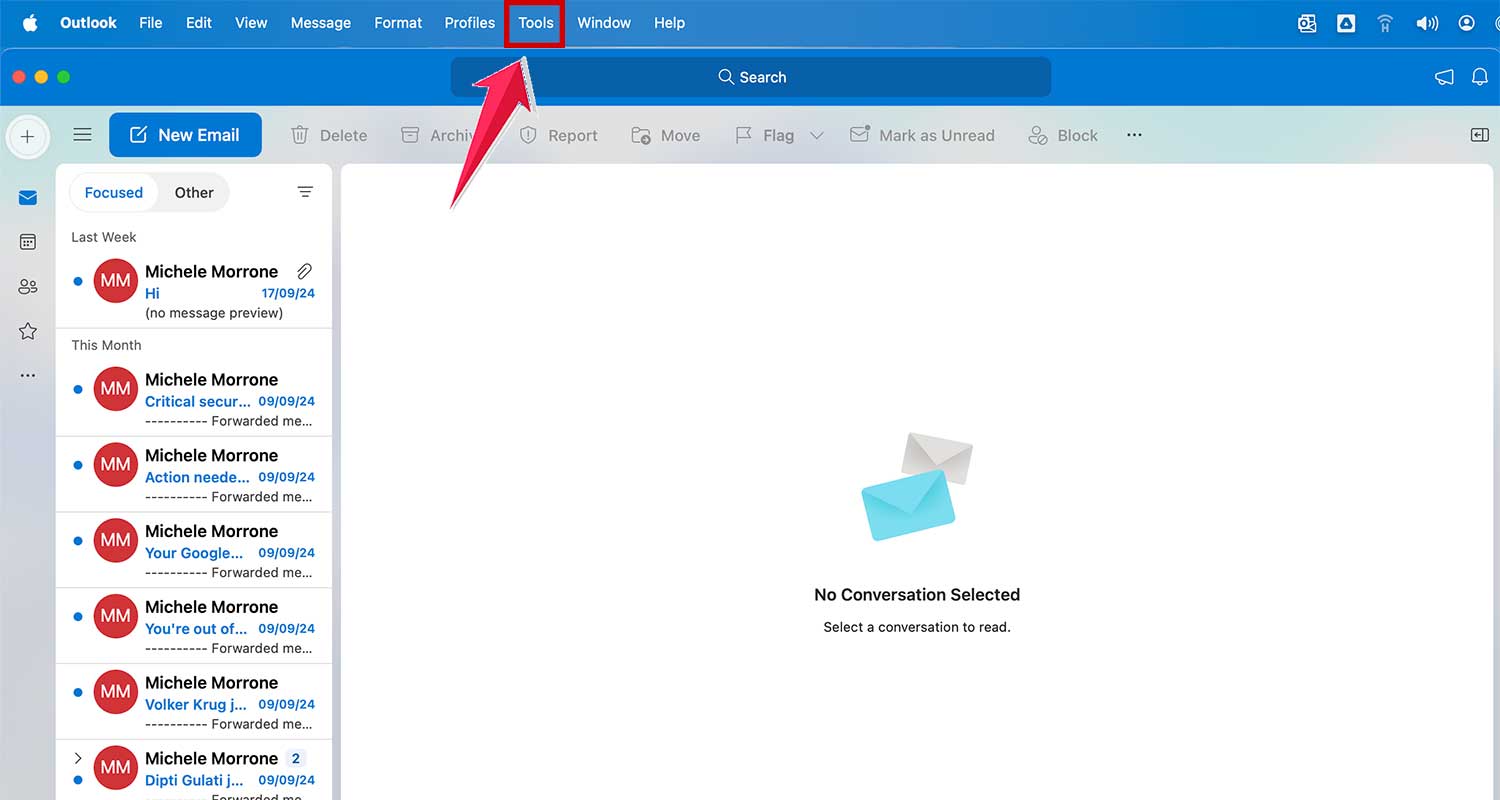
- Go to the “Tools” menu at the top of your screen.
- Click on “Accounts” from the drop-down menu.
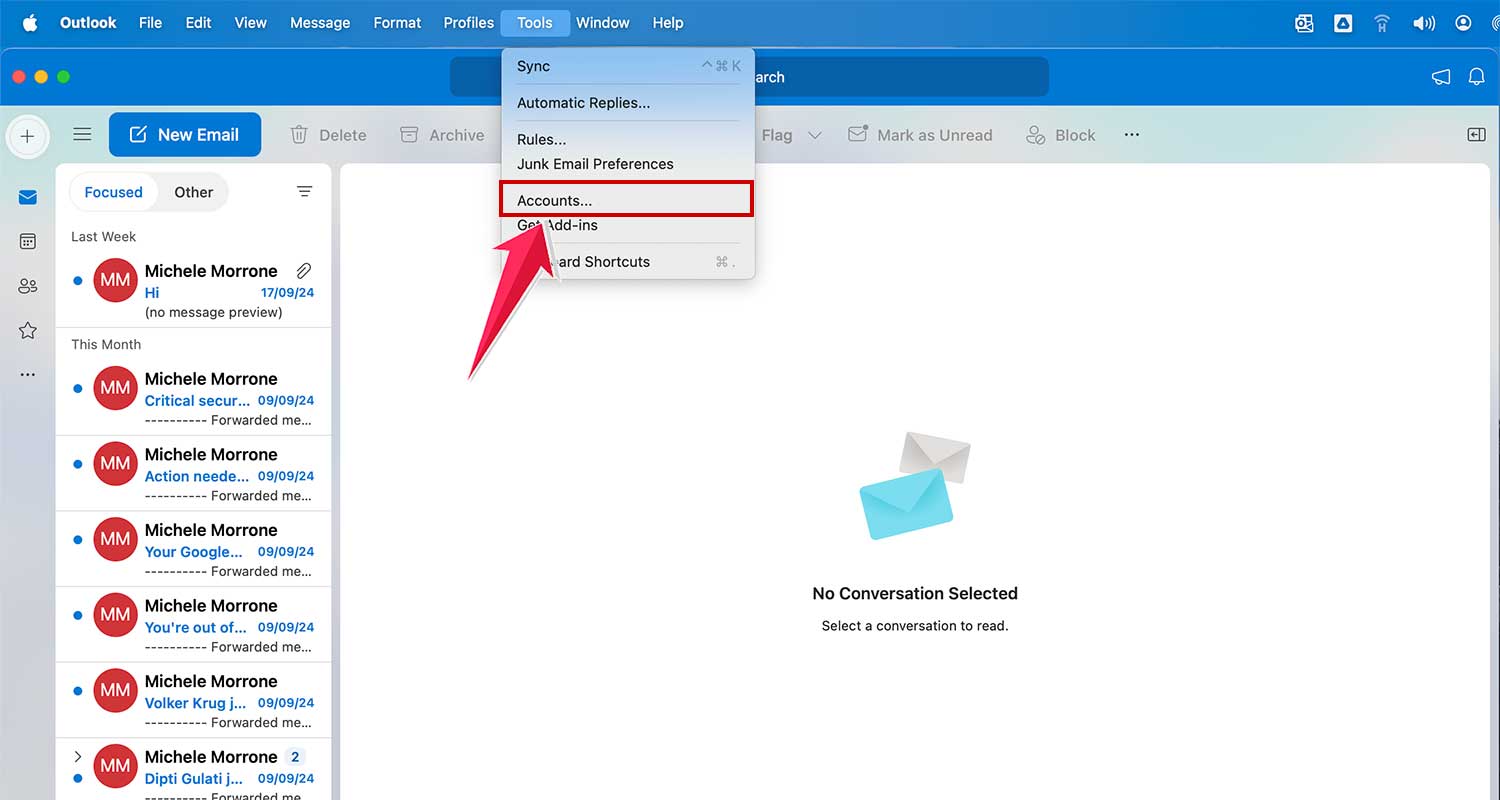
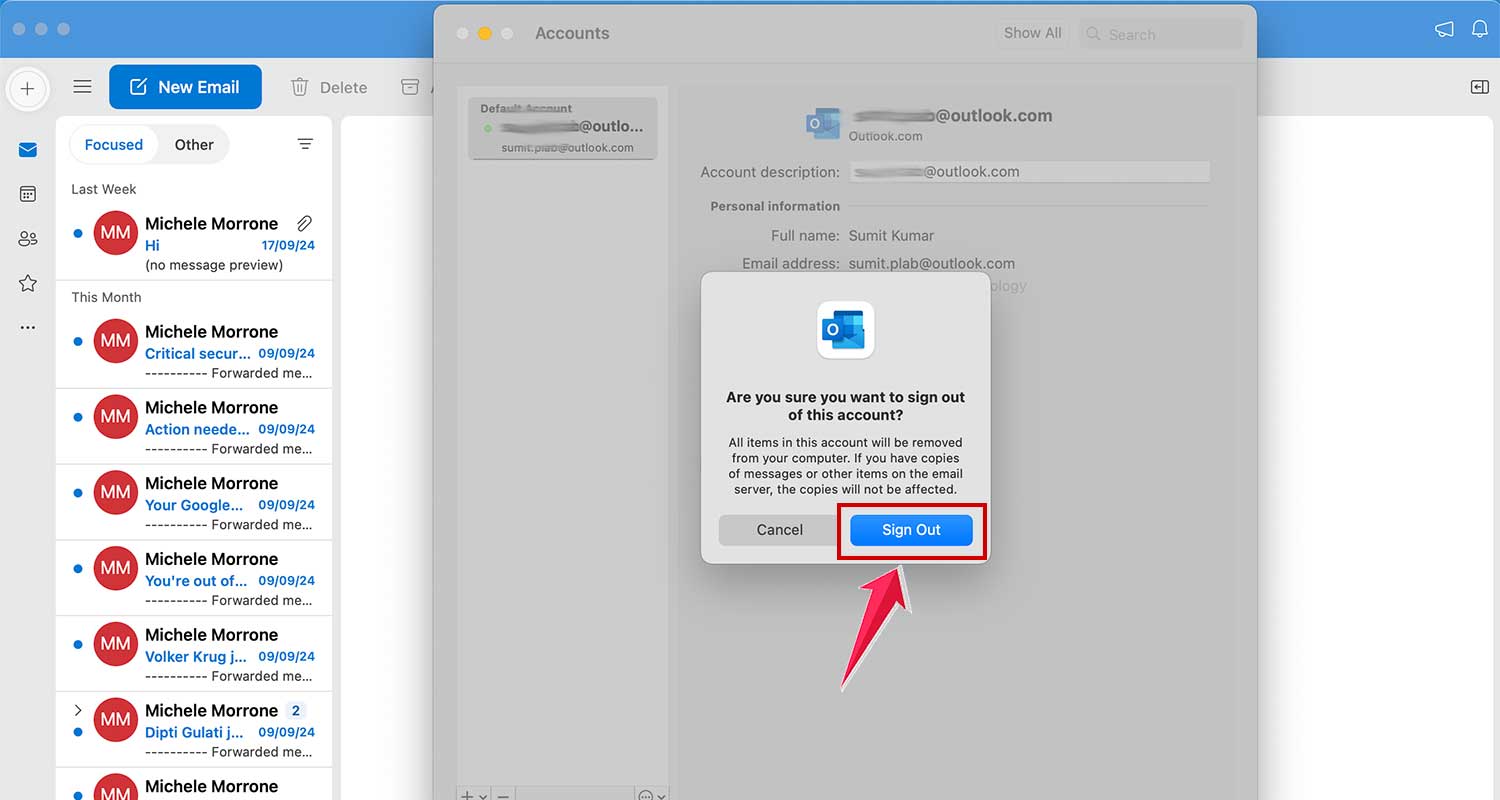
- In the new window, select the email account you want to sign out from on the left side.
- Click the dash icon at the bottom left.

- Then click “Sign Out” to confirm.
4. How to sign out of the Outlook mobile app
On your phone or tablet, you actually need to remove the account to sign out:
- Tap the Home icon in the top left corner of the app.
- Tap the gear-shaped “Settings” button at the bottom.
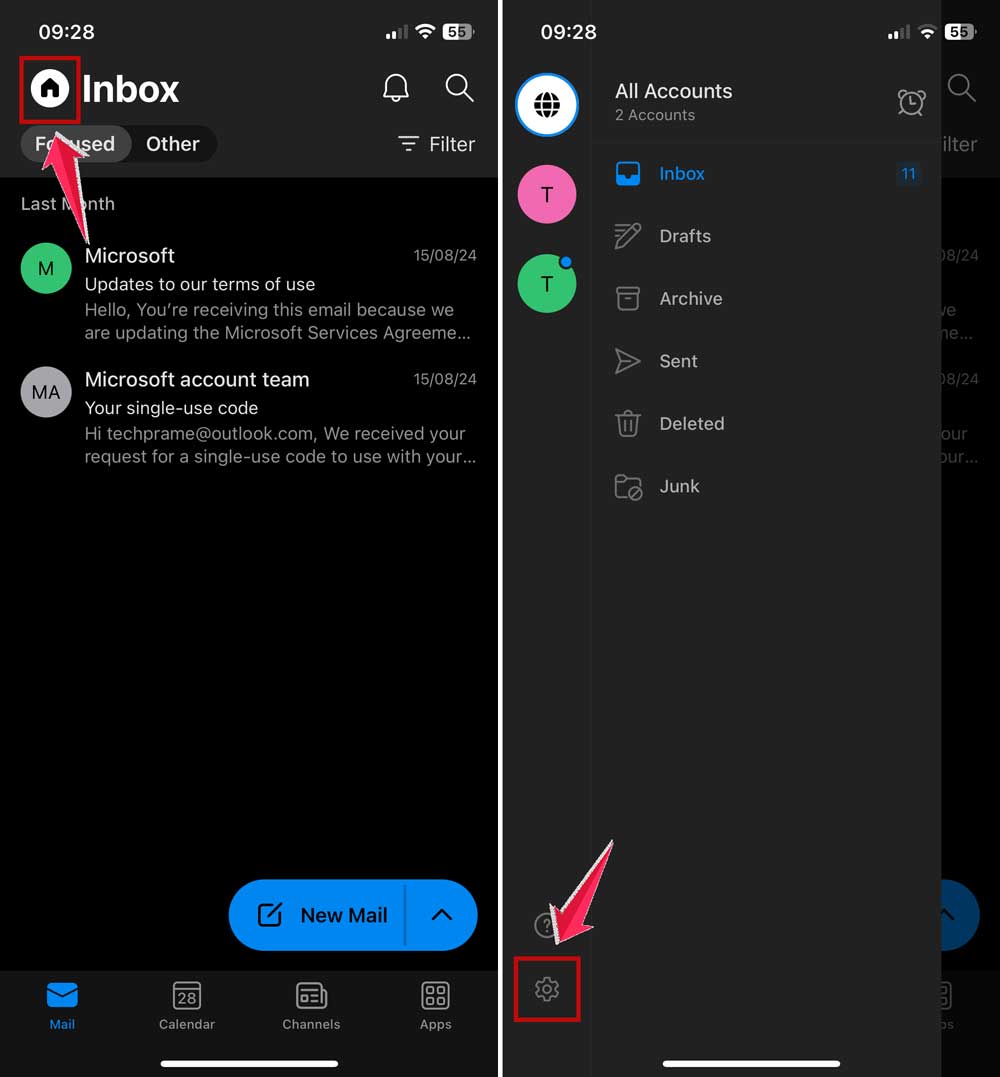
- Click on the Accounts and choose the account you want to sign out of.

- Scroll down and tap “Remove Account.”
- When asked, “Remove account?” tap “Remove” to confirm.
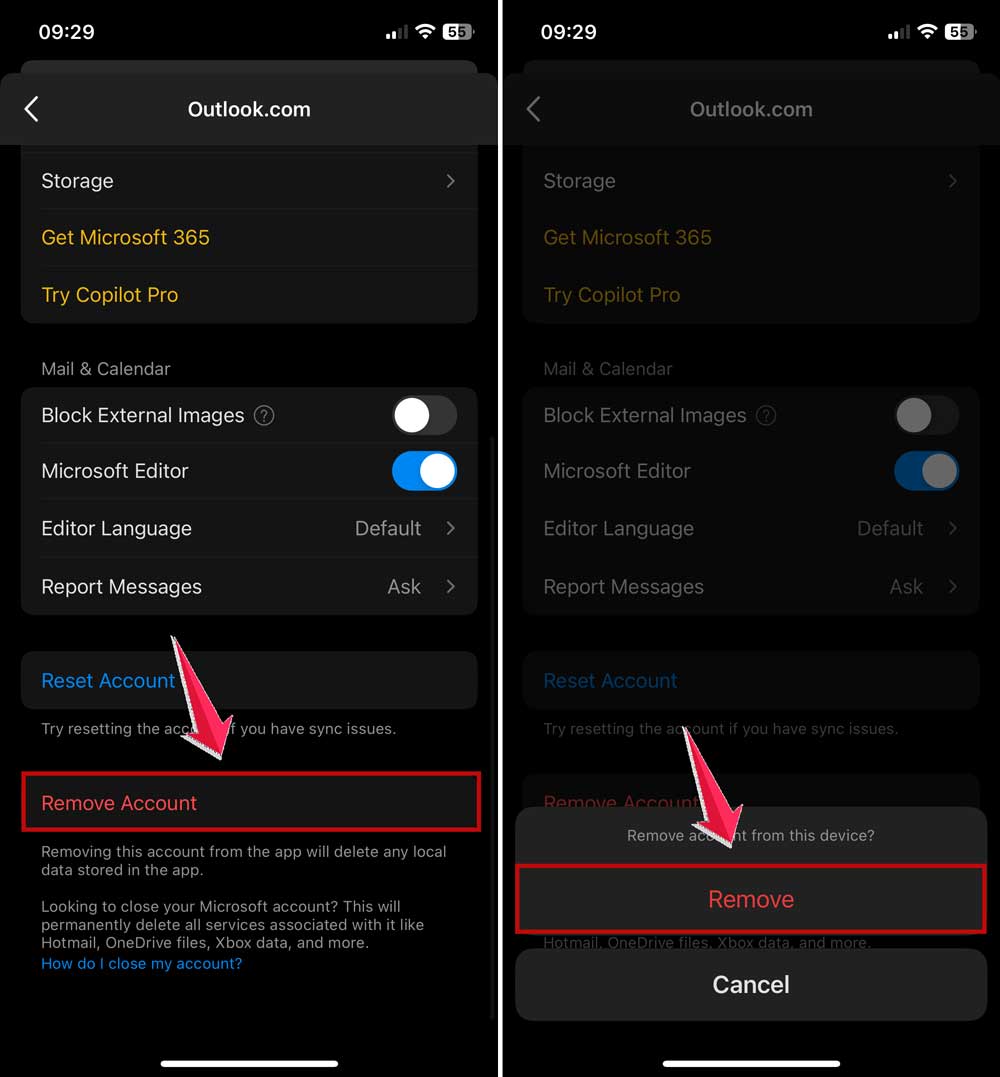
Don’t worry – this only removes the account from your device. It doesn’t delete your actual email account.
Remember, signing out is an easy way to keep your emails private, especially if you’re using a shared device or a public computer.
How to check if you’re still signed in to Outlook on other devices
To check if you’re still signed in elsewhere:
- Go to the Outlook security page on a web browser.
- Sign in with your Microsoft account.
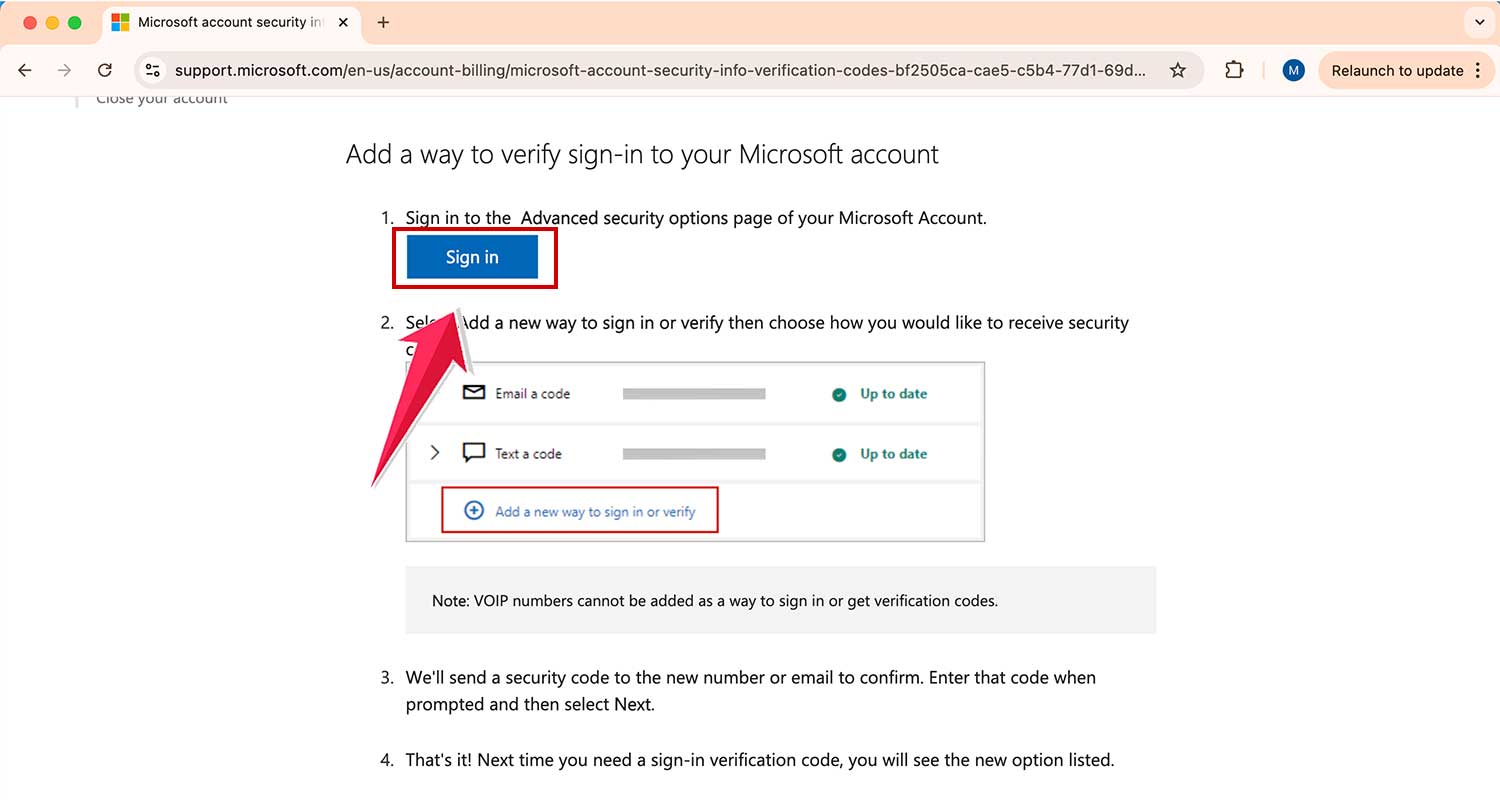
- Look for the “View activity” or “Devices” section.

- You’ll see a list of devices where your account is currently active.

- If you spot any unfamiliar devices, go back and scroll down to the bottom.
- Now tap on Sign out everywhere, which will sign you out of all devices.

This process helps you maintain control over your account access across multiple devices. It’s similar to how you might access Samsung Notes on a PC – you want to ensure your data is only accessible where you intend it to be.
What to do when Outlook won’t let you sign out
If you’re having trouble signing out:
- Try clearing your browser cache and cookies. Clear cache data on your Android phone can resolve app-related problems as well.
- Restart the Outlook app or your web browser.
- Check for any pending updates for the app or your operating system.
- Try signing out using incognito or private browsing mode.
- If all else fails, change your password – this will force a sign-out on all devices.
These steps can help resolve most sign-out issues you might encounter.
The takeaway
Keeping your Outlook account safe is all about remembering to sign out. It’s easy to forget, but it’s really important, especially if you’re using a computer or device that other people can access.
We’ve covered how to sign out on different devices – your computer, your phone, and when you’re using Outlook on a website. Each way is a bit different, but they all do the same thing: they keep your emails and personal information private. Remember, on your phone, you actually need to remove the account to fully sign out.
Some people think just closing the app or browser is enough, but it’s not. Always take that extra step to sign out completely. It only takes a few seconds, but it can save you from a lot of trouble.
By making signing out a habit, you’re taking a simple but powerful step to protect your digital life. It’s part of good overall digital hygiene, which includes practices like blocking websites on Google Chrome to enhance your online security and productivity.
So next time you finish checking your emails, take that moment to sign out. Your future self will thank you for being so careful with your information.
We’d love to hear your thoughts on this. How do you keep your email account secure? Share your tips in the comments below.