If you love the convenience of Samsung Notes on your smartphone for jotting down ideas, creating images, or recording voice memos, you might wonder if you can enjoy the same functionality on your PC.
Unfortunately, Samsung Notes isn’t automatically available on Windows PCs like it is on Samsung devices. But don’t worry!
This guide will walk you through the simple steps to access and use Samsung Notes on your PC.
We’ll also share expert tips on syncing your notes across devices, ensuring that your digital notepad is always at your fingertips, whether you’re on your phone or computer.
Keep in mind, having a backup of your Samsung Notes makes the process much smoother!
Can You Use Samsung Notes on A PC?
Absolutely! While Samsung Notes is not a built-in feature on Windows computers, you can certainly bring this handy tool to your PC.
For users of Windows 10 and Windows 11, the solution is simple: download Samsung Notes directly from the Microsoft Store.
Mac users aren’t left out either—you can access your Samsung Notes through Microsoft OneNote.
For the best experience and to ensure the security of your notes, it’s advisable to use the app on a device linked to your Samsung account.
How to Access Samsung Notes On A PC?
#1 Download the Samsung Notes App Through the Microsoft Store
Ready to sync your Samsung Notes to your Windows PC? The quickest route is through the Microsoft Store. Let’s break down the steps:
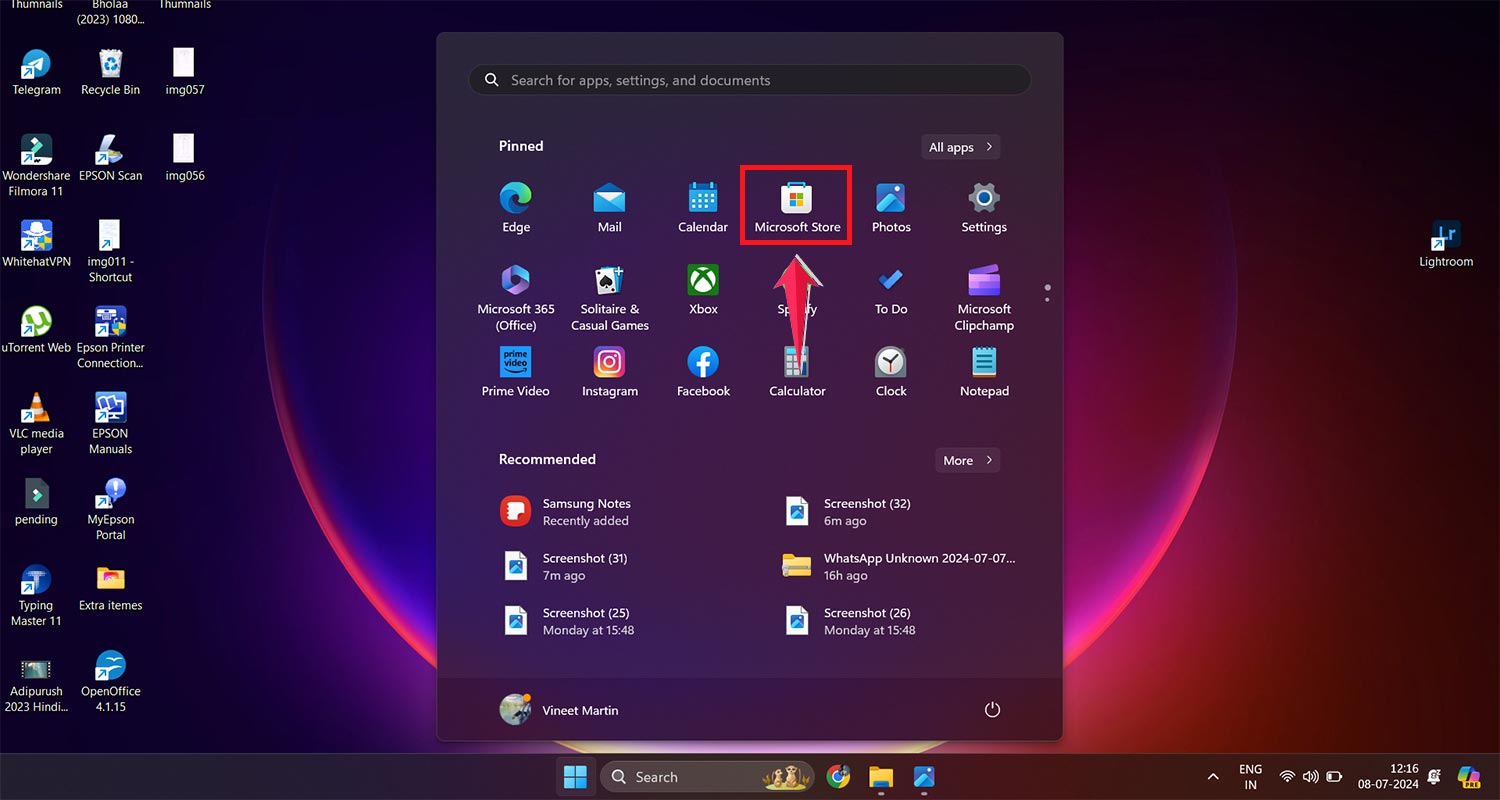
1. Find the Microsoft Store: Can’t see it on your taskbar? No problem—just type “Microsoft Store” in the search bar and hit Enter.
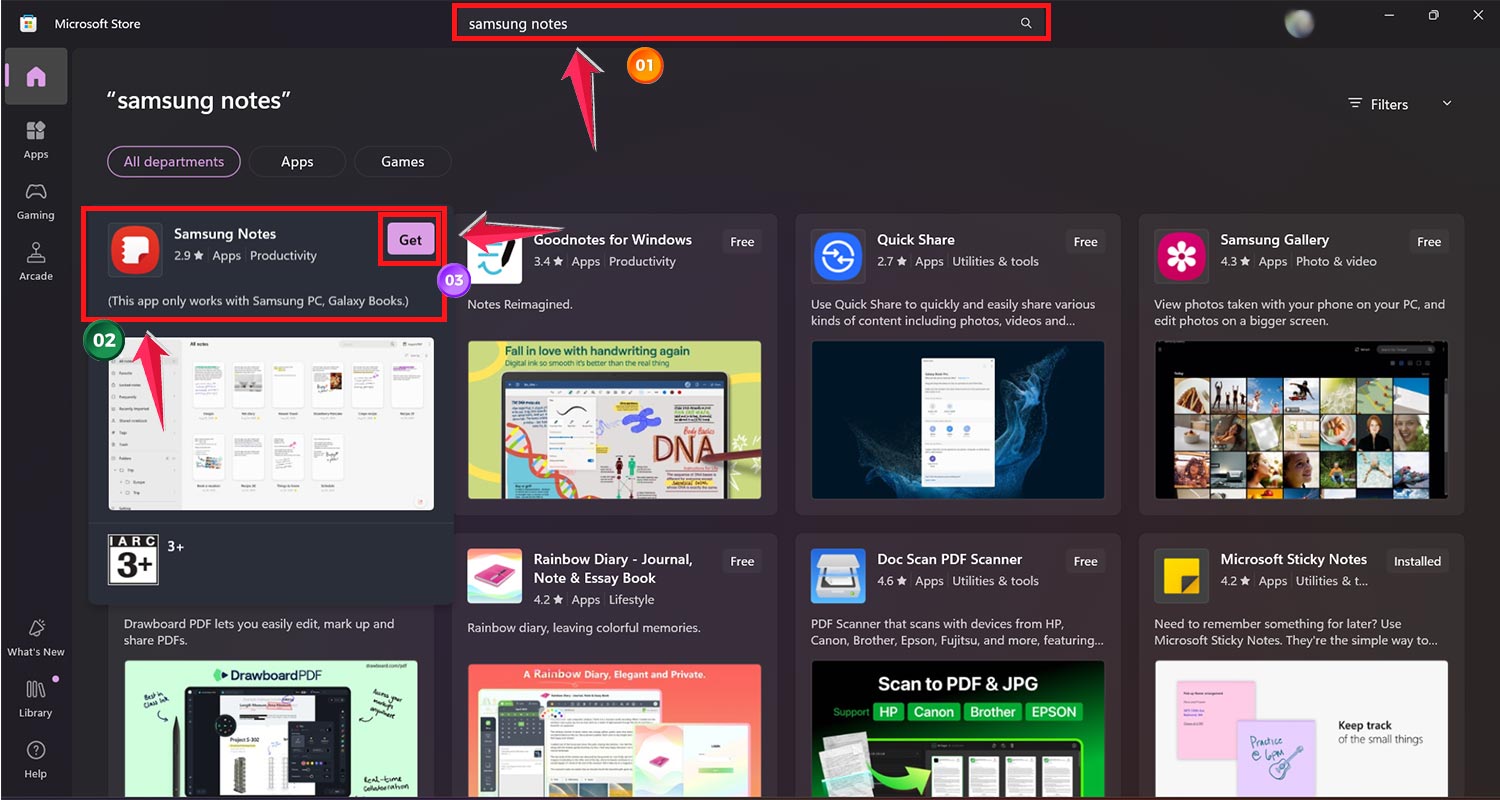
2. Search for Samsung Notes: Once in the store, pop “Samsung Notes” into the search field. Click on the app when it pops up in the results.
3. Install the App: Hit the ‘Get‘ button to download. If it’s your first time installing,
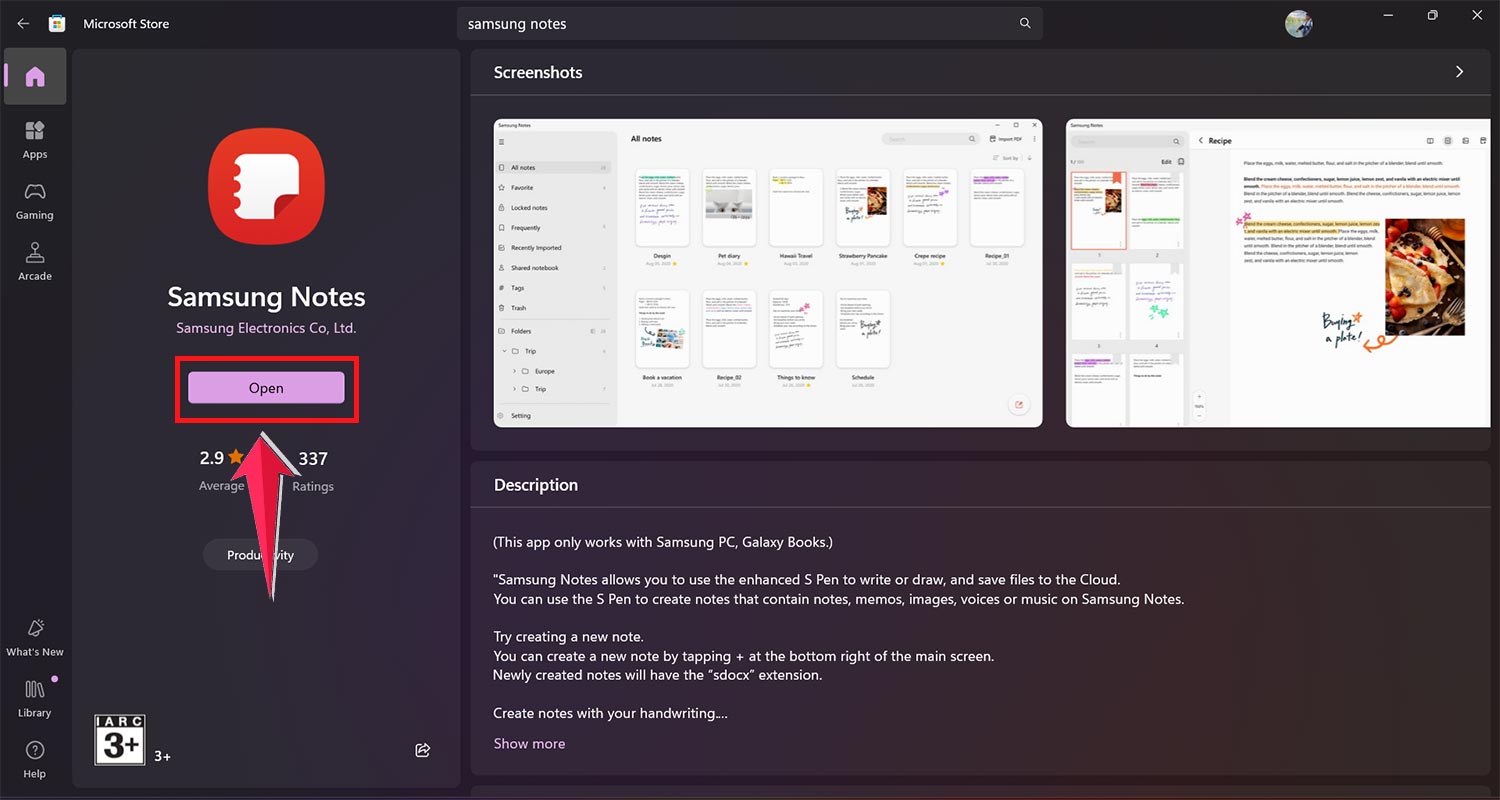
4. This button will change to ‘Open‘ once the app is installed, letting you dive right into Samsung Notes!
Having trouble spotting the ‘Get’ button? If you’ve installed the app before, peek in the Library section at the bottom-left of the store—you might just need to click ‘Install’ again.
Looking for another way to install it? Don’t worry; we’ve got you covered with an alternative method just below!
#2 Access Samsung Notes Using the Command Prompt On PC
If the Microsoft Store route doesn’t pan out, you can flex a bit of tech muscle using the Command Prompt. Here’s how to get Samsung Notes installed:
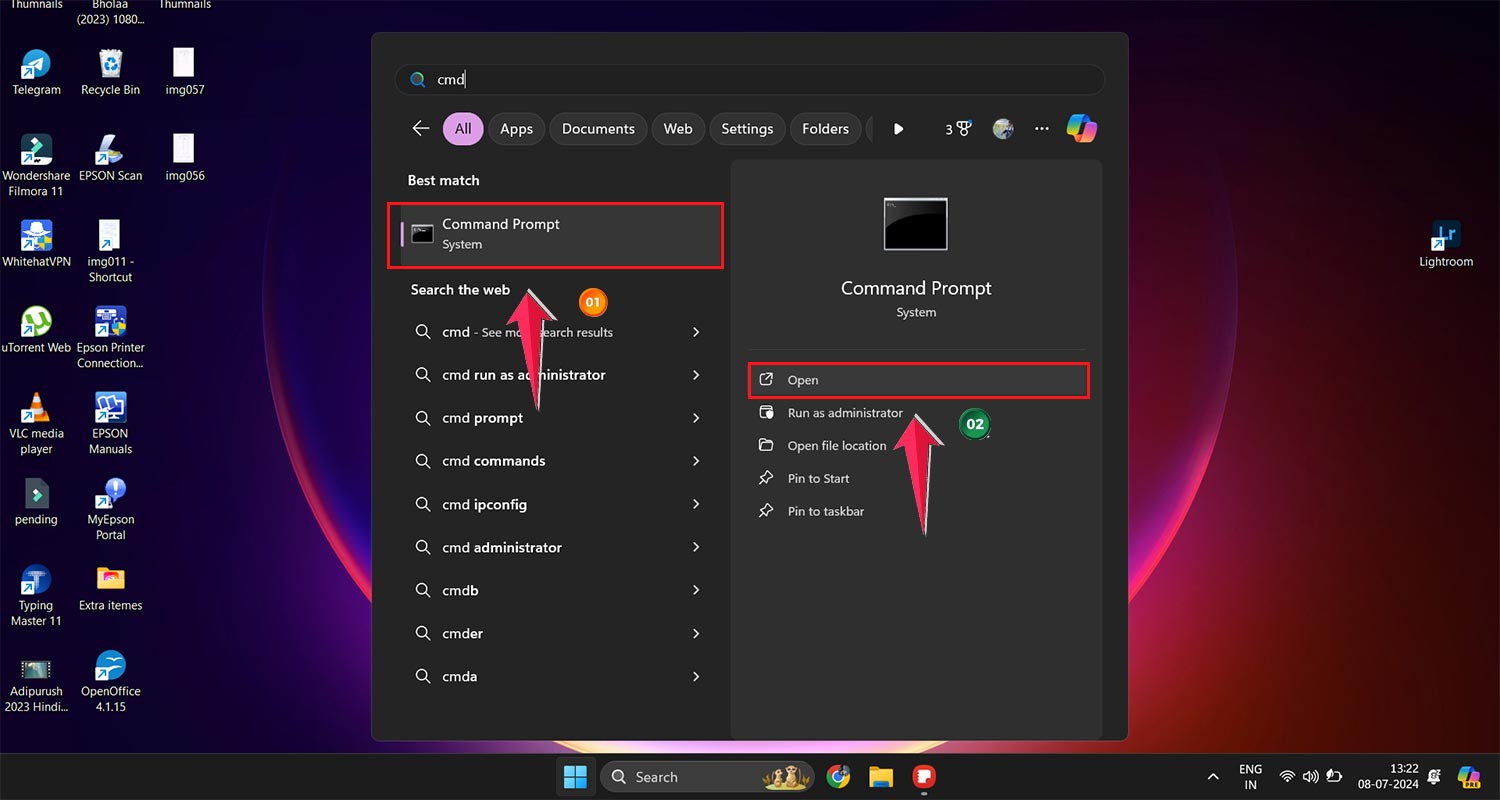
1. Open Command Prompt: Quick tip—search for ‘cmd’ in the search bar at the bottom of your screen and open it. If you’re new to using the command line, don’t worry – it’s similar to working with a Linux terminal on your Android device.
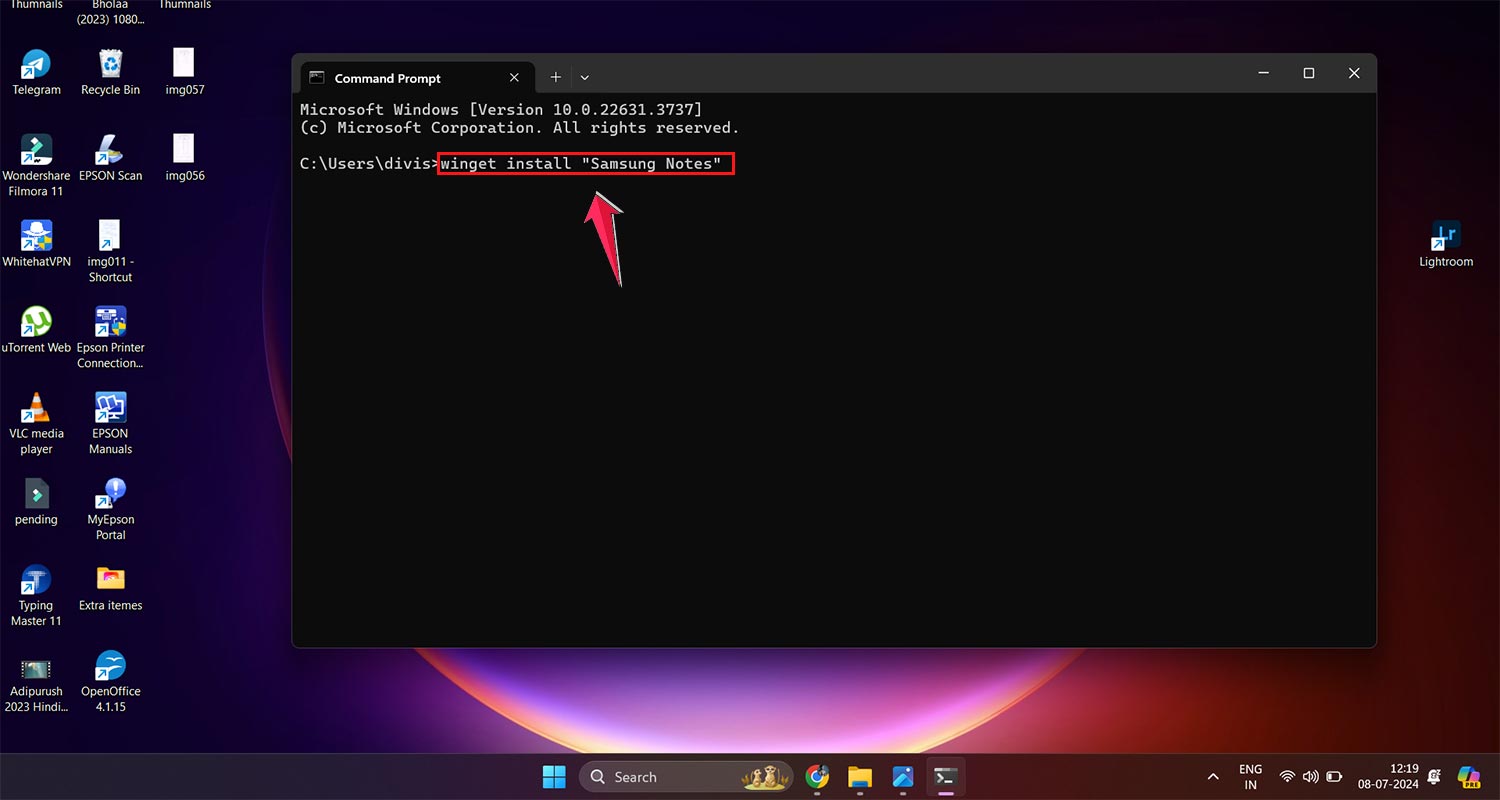
2. Run the Installation Command: Type winget install "Samsung Notes" and hit Enter. Don’t forget the quotation marks around Samsung Notes!
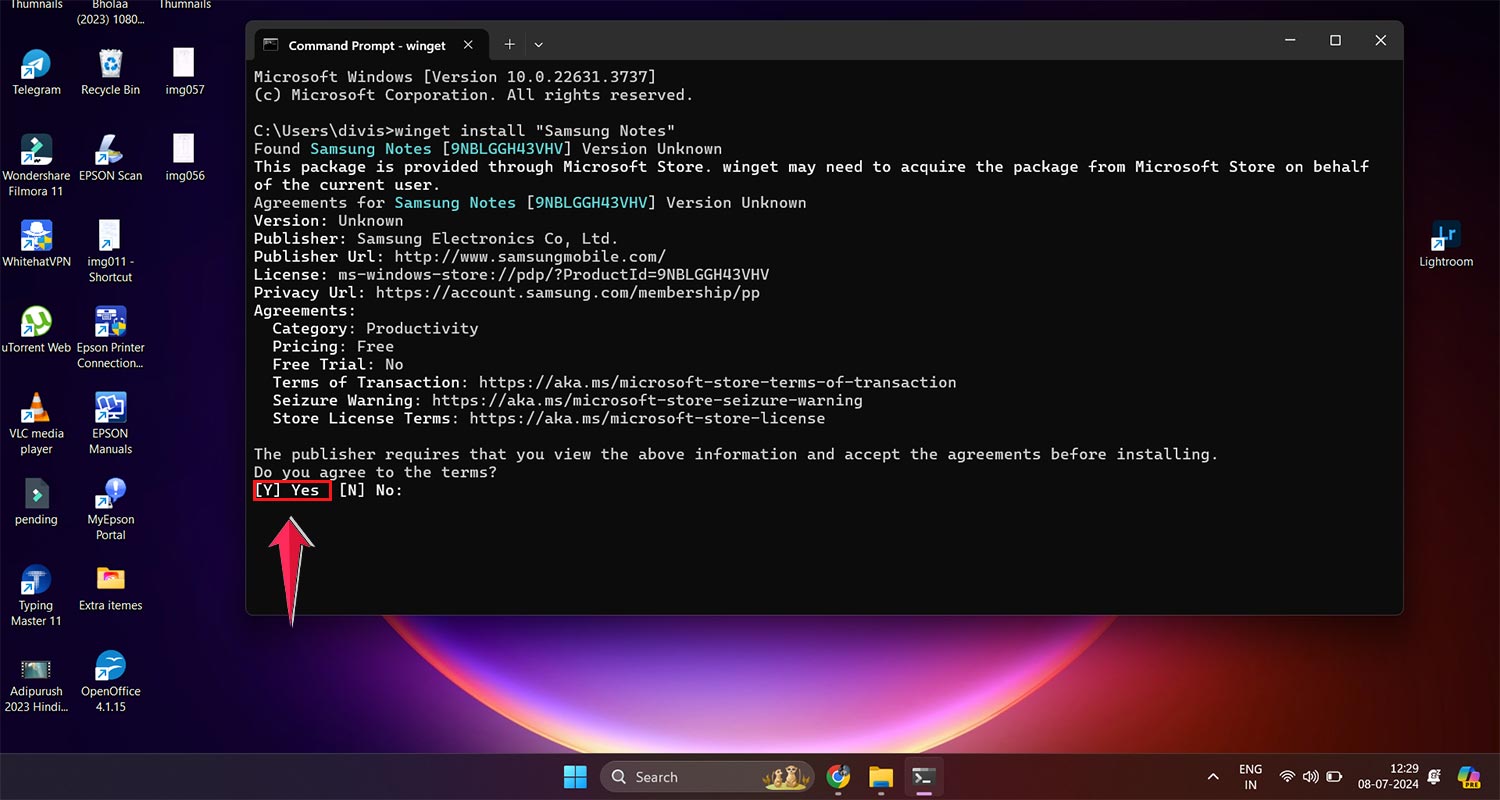
3. Accept the Terms: When prompted, type ‘Y’ and press Enter to agree to the terms and conditions.
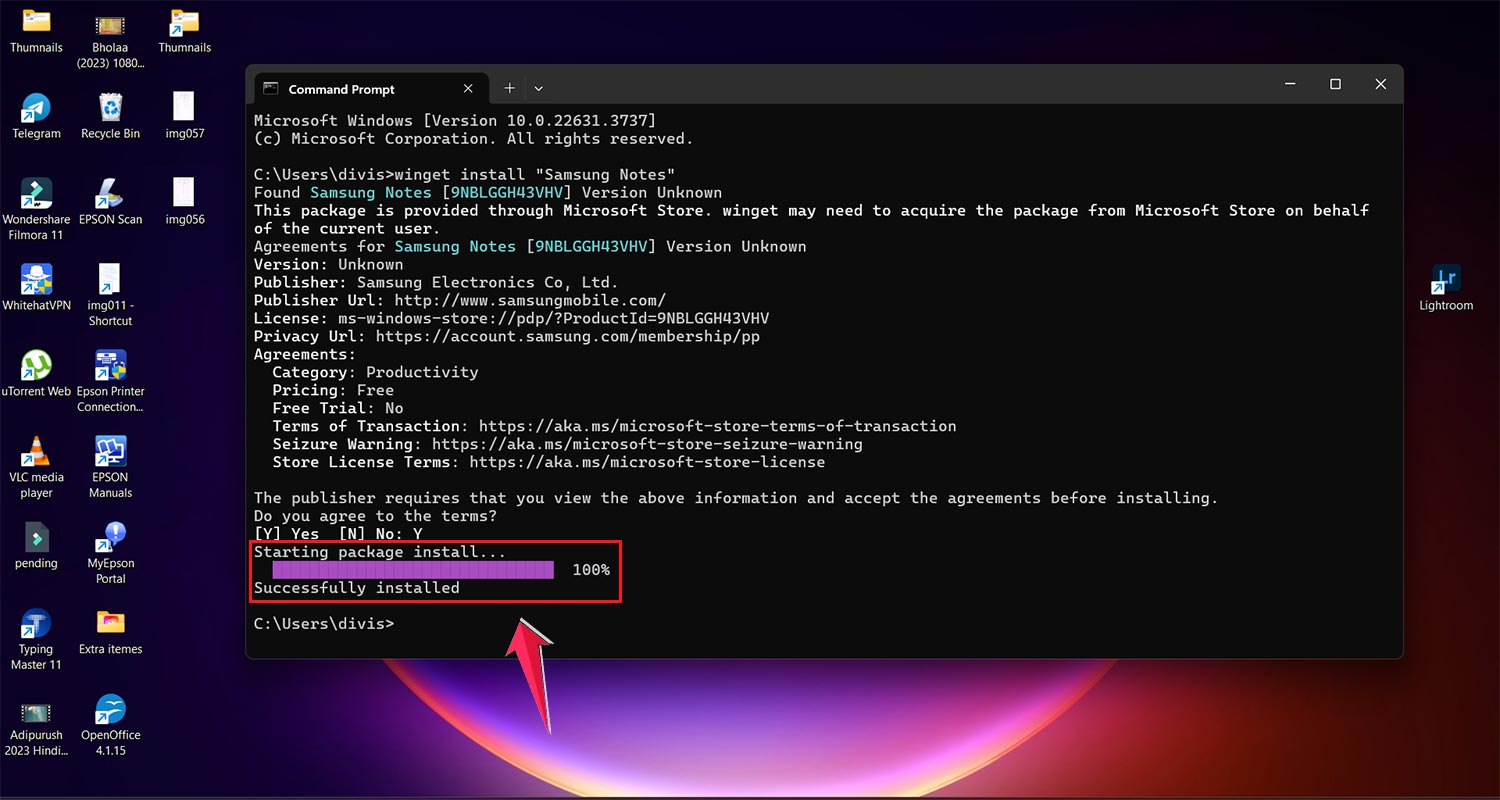
4. Monitor the Installation: Keep an eye on the blue progress bar to check how the installation is going.
5. Launch Samsung Notes: Once it’s installed, you might see a notification pop up. Click it to open the app, or just search for Samsung Notes in your taskbar or Start menu.
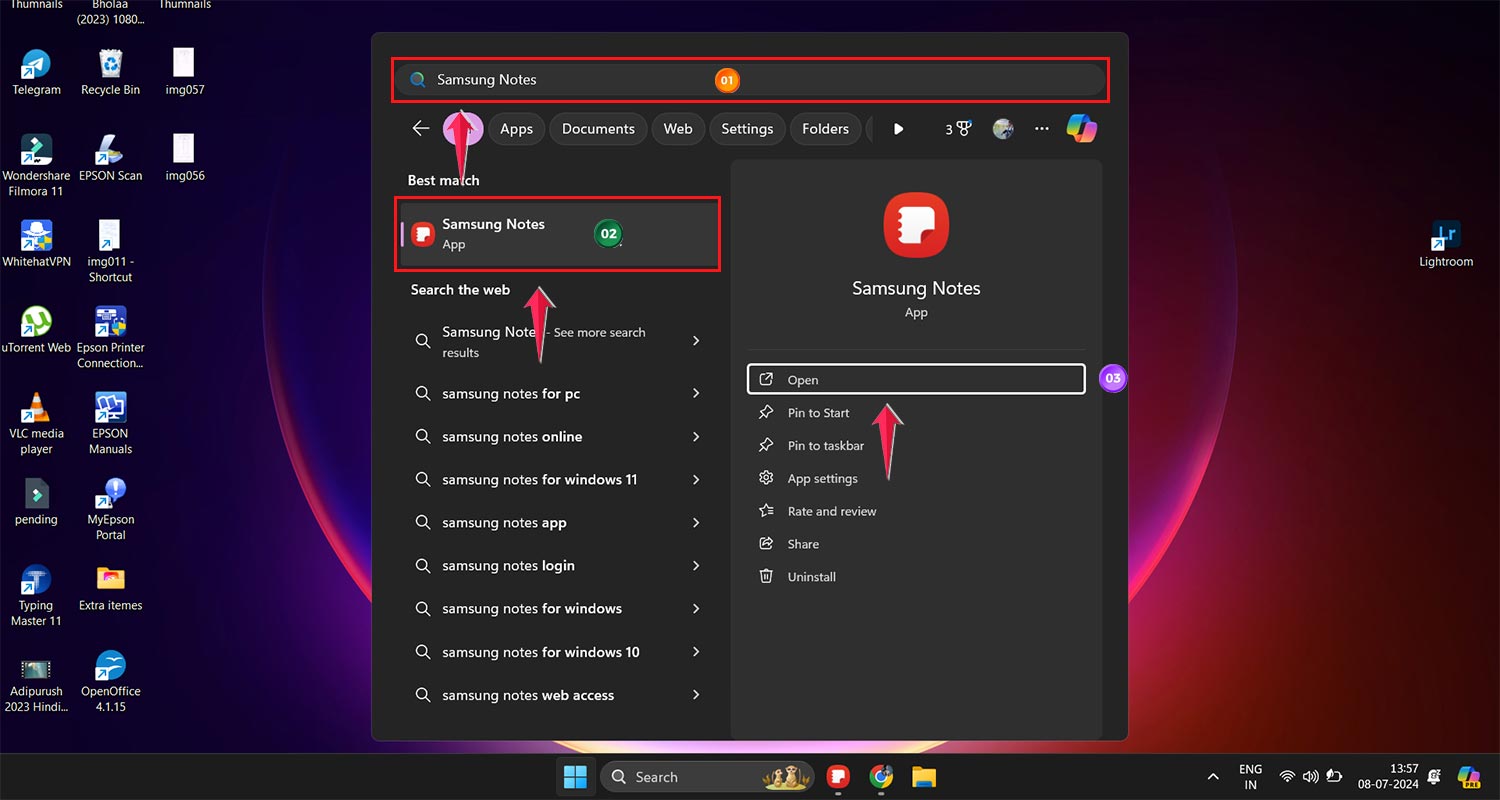
Make sure to sign in to your account to sync up your notes, or hit ‘Skip’ if you prefer to start with a fresh slate.
#3 Use OneNote Integration On Your PC
Syncing your Samsung Notes with OneNote, thanks to the partnership between Samsung and Microsoft, means you can access your notes on both Windows and Mac systems.
Let’s walk through the setup process:
- Start on Your Phone: Open Samsung Notes and tap the hamburger menu in the top left corner.
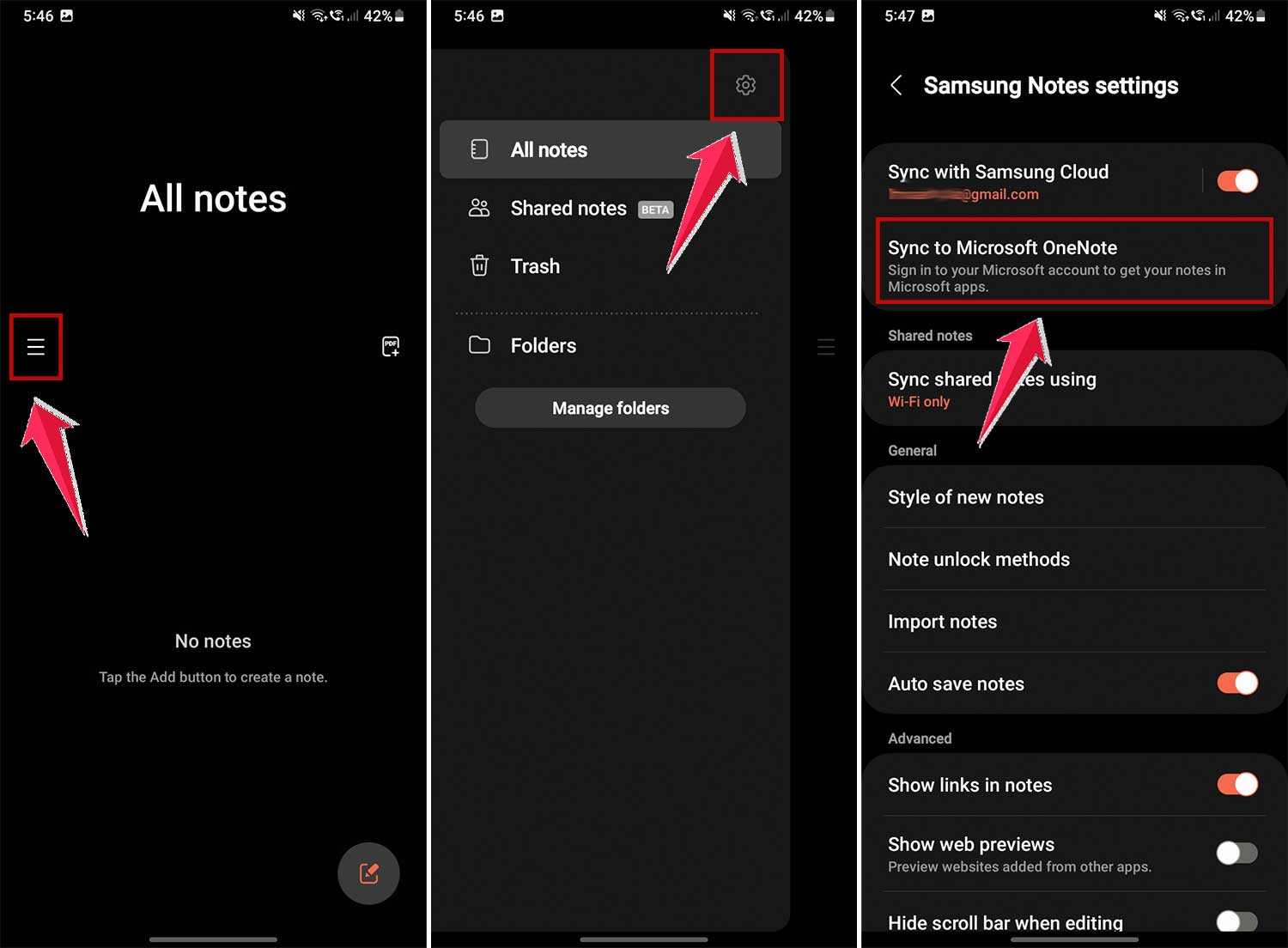
- Enable Syncing: Head to Settings and select Sync to Microsoft OneNote.
- Complete Setup: Follow the on-screen prompts. Your Microsoft account ID appearing under this option confirms the linkage.
By default, Samsung Notes syncs all folders to OneNote, but you can customize this:
- Adjust Settings in Samsung Notes: Return to the settings menu in Samsung Notes.
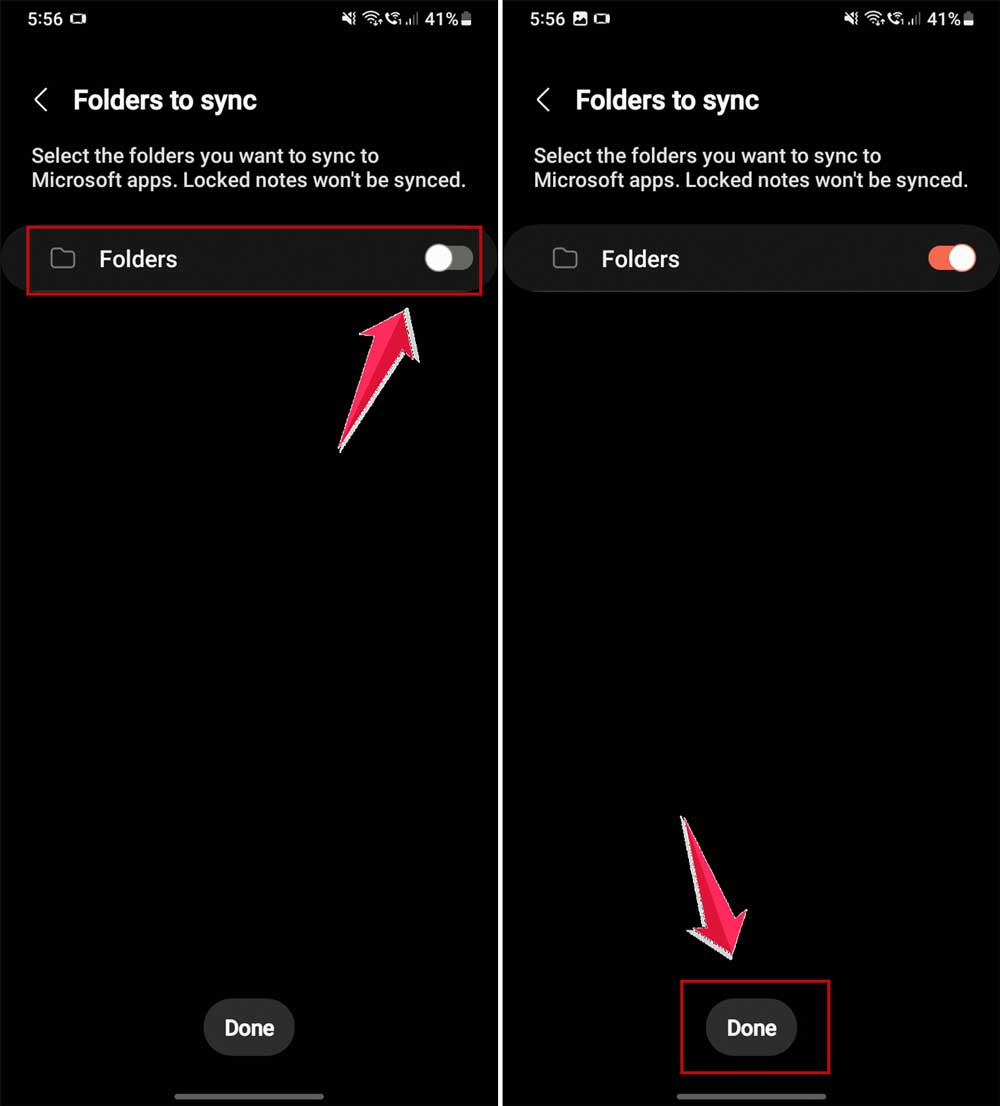
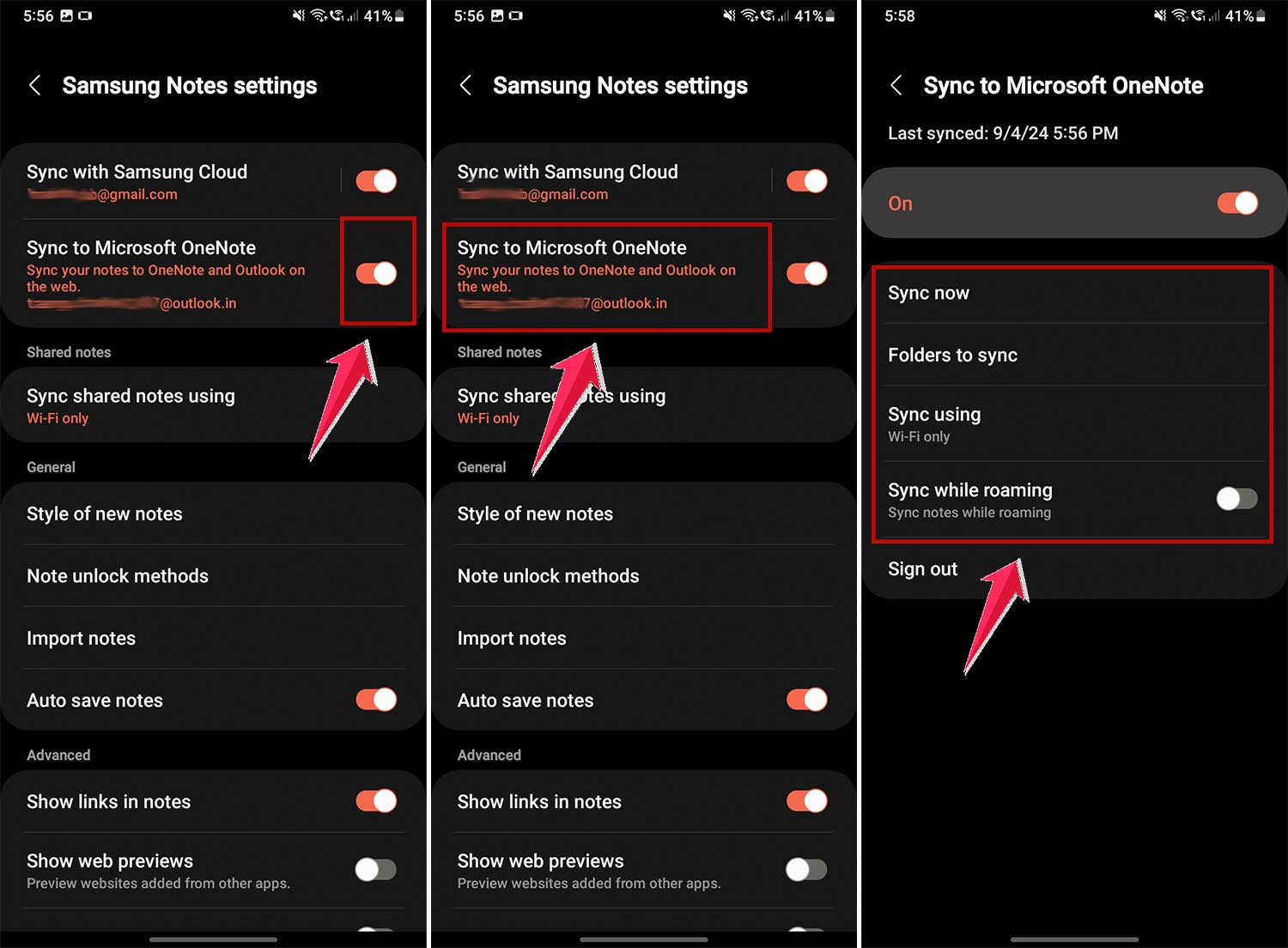
- Tweak Sync Preferences: Opt for Sync to Microsoft OneNote. Here, you can see the last sync status, modify settings, and choose specific folders to sync. Remember, locked notes won’t be included.
- Select Specific Folders: Decide which folders you want to sync to ensure only relevant notes transfer to OneNote.
After syncing your notes to OneNote, accessing them on your Windows PC is simple:
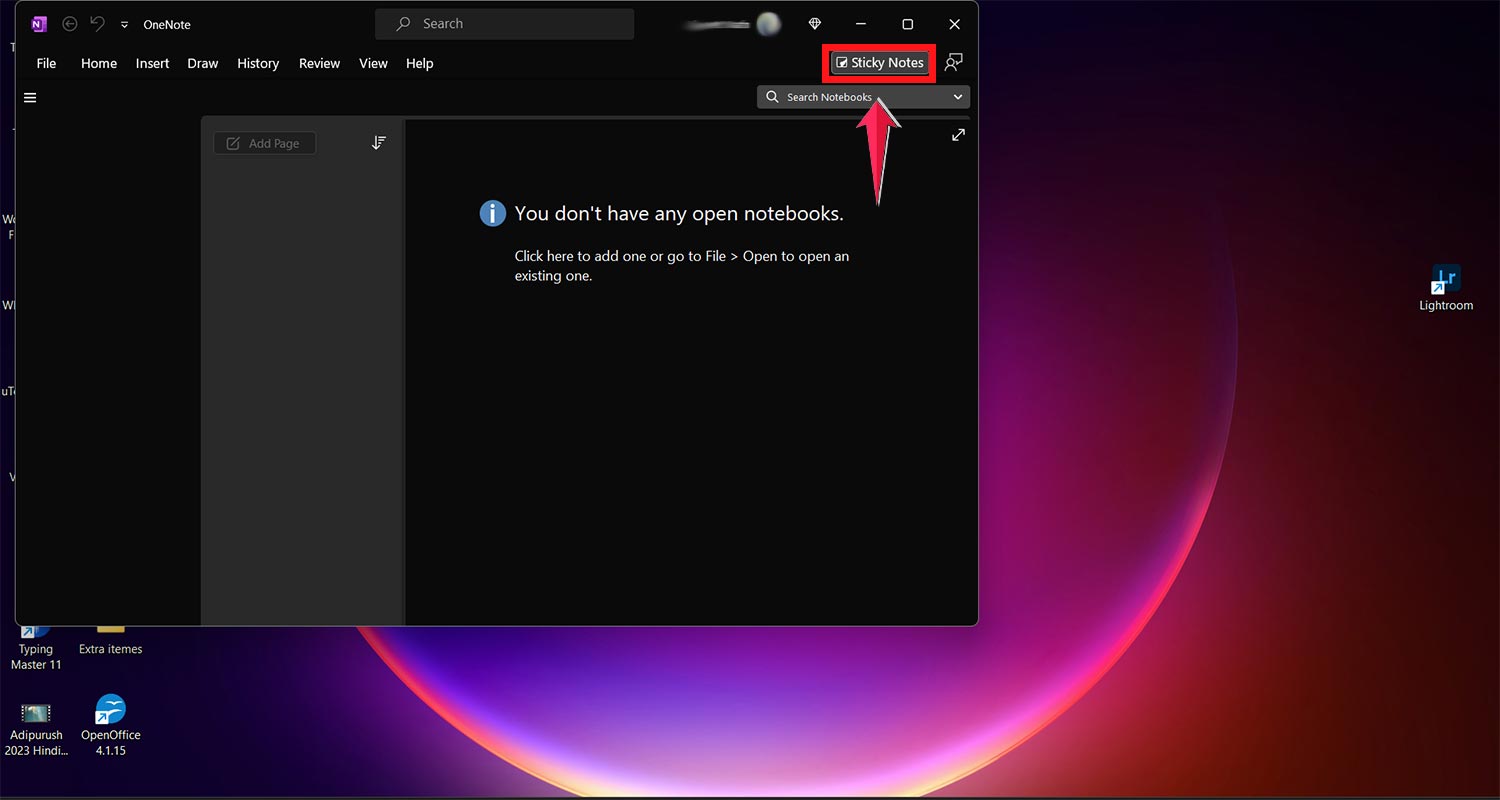
1. Open OneNote: Launch the application.
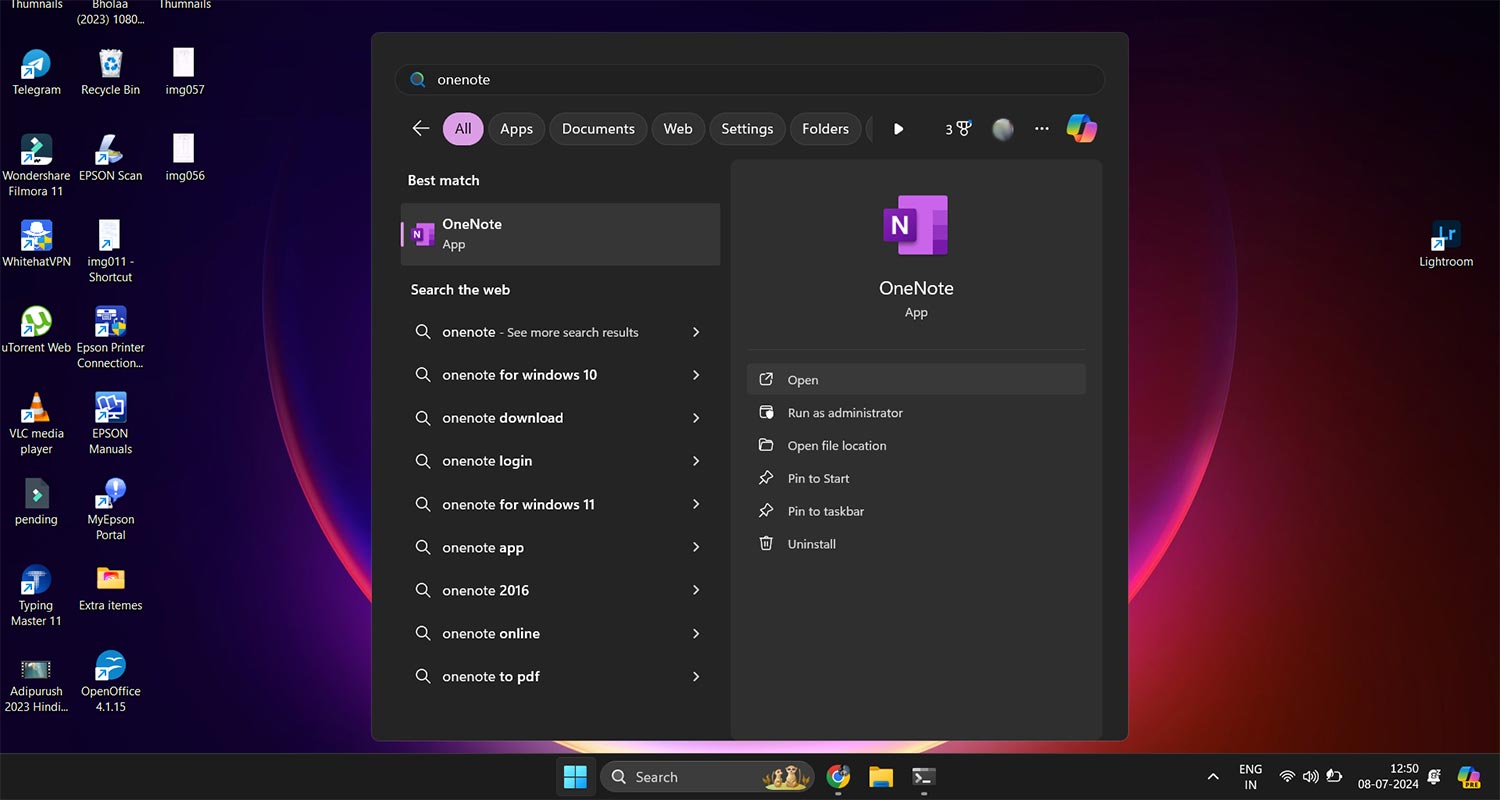
2. Find Your Feed: Click on your feed in the top-right corner to view your sticky notes and synced Samsung Notes.
For those preferring web access:
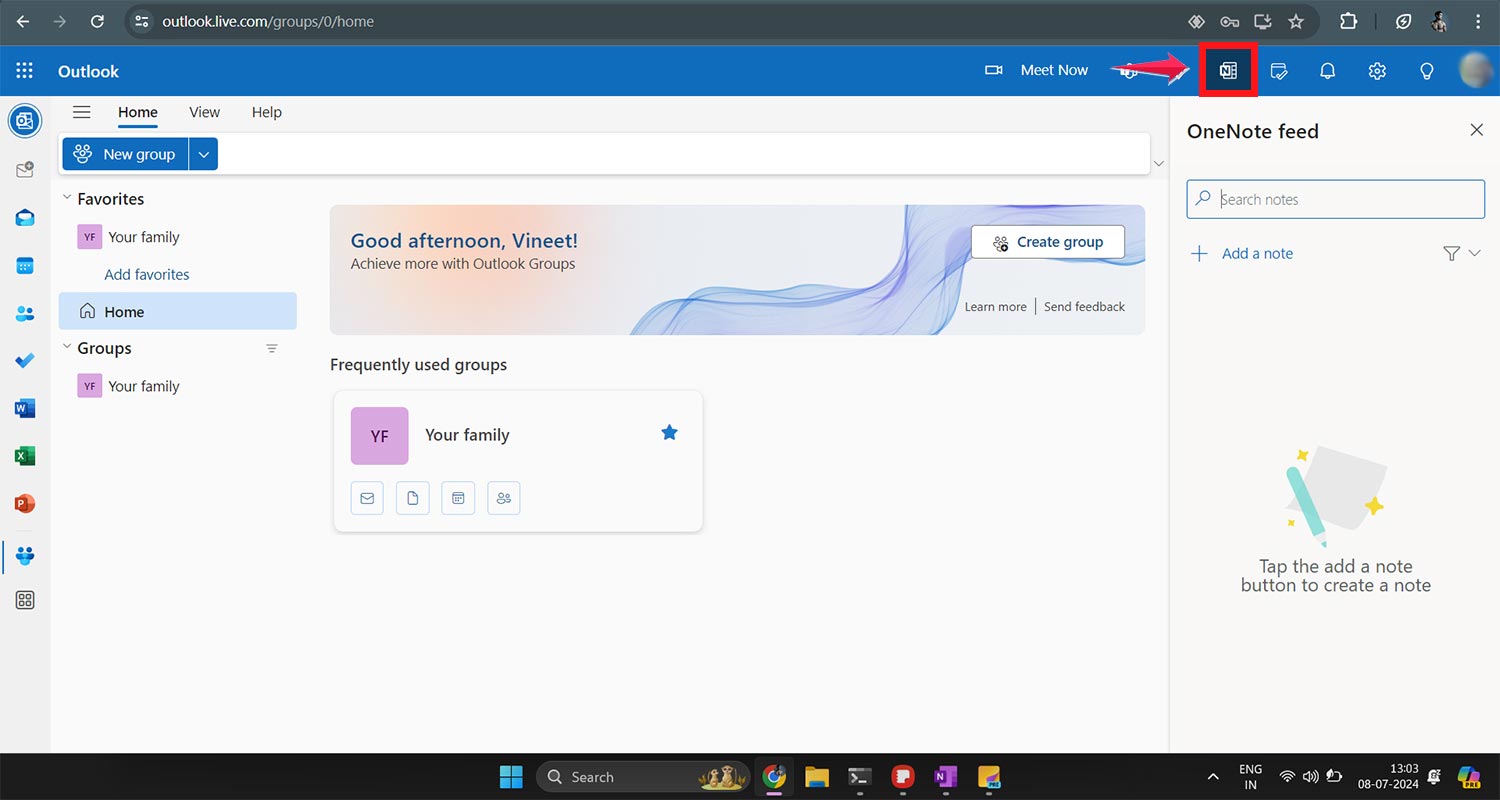
- Go to Outlook Web: Navigate to the Outlook website and sign in with your Microsoft account.
- Access OneNote Feed: Select the OneNote Feed at the top to review your OneNote notes, Samsung Notes, and sticky notes all in one place.
While integrating Samsung Notes with OneNote offers considerable convenience, there are some quirks to be aware of.
For example, locked notes do not sync, and you cannot edit your synced notes or create new entries directly from OneNote or Outlook on the desktop.
These limitations might require some adjustments in how you manage and interact with your notes across platforms.
How to Synchronize Samsung Notes from Phone or Tablet to PC
Keeping your notes accessible across all your devices is essential, especially when switching from mobile to desktop.
Let’s dive into how you can seamlessly sync your Samsung Notes from your phone or tablet to your PC!
- Open Samsung Notes on Your PC: Start by launching the Samsung Notes app and head over to Settings.
- Enable Cloud Sync: Click on Sync with Samsung Cloud. Here, you’ll need to input your Samsung account details. Ensure that the Sync option is activated to keep your notes updated across all devices.
- Check Your Phone Settings: On your Samsung device, launch Samsung Notes, tap the Menu (those three horizontal lines), and select Settings. Make sure that the “Sync to Samsung Cloud” is turned on. You might need to log into your Samsung account again if it asks.
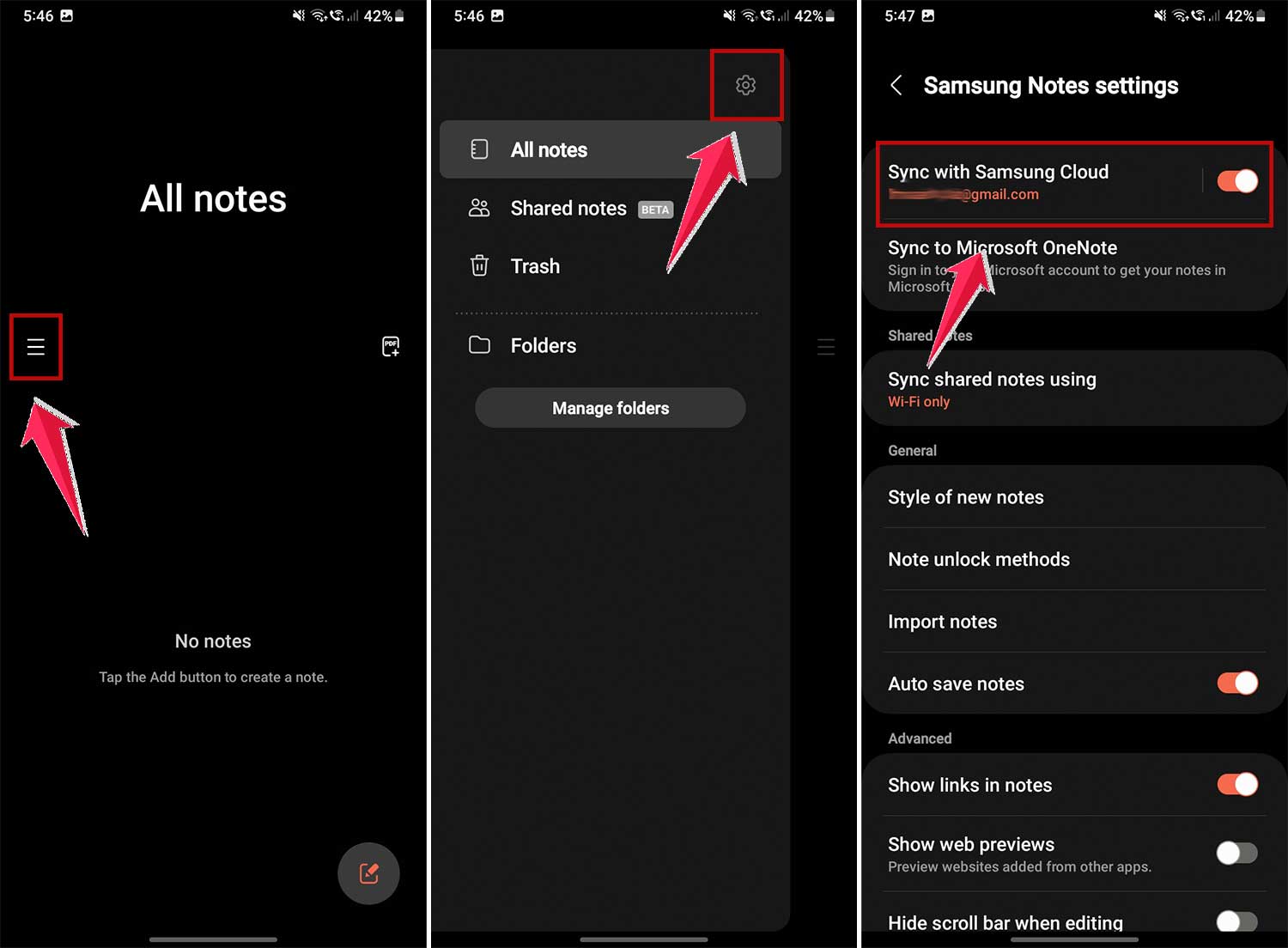
By setting up these options, your notes should automatically update across any devices signed into your Samsung account.
If your notes aren’t syncing as expected to your PC, or if you’re using a Mac, there’s another robust solution via Microsoft OneNote.
It’s almost as easy as sharing your location on your Android device – just a few taps and you’re connected!
Sync Samsung Notes via Microsoft OneNote:
- Set Up on Your Phone or Tablet: Open Samsung Notes, tap on Menu, then head to Settings. Here, choose Sync to Microsoft OneNote and follow the on-screen prompts to log into your Microsoft account. If you don’t have one, you’ll need to set that up first.
- Grant Access: You’ll need to allow OneNote to access your Samsung Notes. This step involves selecting which folders or files you want to sync. Simply toggle them on to include them in the sync.
- Activate Sync: Ensure that the Sync to Microsoft Office Note switch is enabled. For immediate sync or specific management through Microsoft OneNote, go back and select Sync to Microsoft OneNote and configure your preferred settings.
- Access on Your PC: Open the Microsoft OneNote app on your computer and click the Open Feed icon. This will display your synced Samsung notes.
Following these guidelines, you’ll have a comprehensive and cohesive note-taking system that bridges your mobile and desktop environments, ensuring you’re always connected to your thoughts and tasks, no matter where you are!
In Conclusion To
In Summary, whether you opt for the straightforward approach through the Microsoft Store or get a bit technical with the Command Prompt, setting up Samsung Notes on your Windows device is a breeze.
Each method provides a swift and efficient way to keep your notes neatly organized and synchronized across your devices.
Don’t be intimidated by the technical steps; these instructions are here to ensure a smooth setup process.
Now that you’re equipped with the know-how, why not install Samsung Notes and start boosting your productivity today?
Dive into its features and elevate your note-taking game! How did the setup go for you? Drop a comment below with your experiences or any tips you might have discovered along the way!