Is your tablet refusing to turn on? Don’t panic! It’s usually not the end of the line for your device.
There are a handful of simple solutions that might just wake it back up. It’s not unlike troubleshooting apps that keep crashing on your Android phone – sometimes the fix is simpler than you’d think.
The guide has steps for a quick recharge and more detailed fixes. It’s packed with steps that work for any tablet. This includes Android tablets from Samsung, Huawei, and Google, and Apple iPads.
Plus, we’ll sprinkle in some specific tips for different models. Ready to bring your tablet back to life? Let’s dive in!
Why Is My Tablet Not Charging or Turning On?
Take a deep breath. This is more common than you might think. And, there are several reasons why it’s happening. Let’s unpack them together:
- Faulty Charger or Damaged Cable: Often, it’s as simple as a problem with the charger or cable. These can wear out over time or suffer damage that prevents them from delivering power effectively.
- Dirty or Damaged Charge Port: Check the charge port on your tablet. Just like clearing cache data on your Android can solve software issues, cleaning your charge port can resolve hardware problems. Dirt or debris can block the connection. Even a little moisture can interfere, especially if your tablet is labeled as waterproof. A gentle cleaning might just do the trick.
- Device Freeze: Sometimes, tablets just freeze. They’re on, but stuck in a dormant state, refusing to wake up or show any signs of life.
- Software Bugs: Software isn’t perfect. Glitches can prevent your tablet from turning on, even if everything else is in tip-top shape.
- Broken Screen: Here’s a sneaky one—your tablet might be on, but if the screen is damaged, you wouldn’t know it because it can’t display anything.
- Extreme Temperatures: Tablets are sensitive to their environment. Too hot or too cold, and they might shut down for self-preservation.
While these issues might sound technical, don’t worry—many of them have straightforward fixes. Let’s explore what you can do next, so you can avoid a trip to the repair shop if possible.
How Do You Fix a Tablet That Won’t Turn On?
Got a tablet that’s giving you the silent treatment? Whether it’s been inactive for a while or just suddenly stopped responding, don’t stress. Here’s how you can breathe life back into it:
#1 Charge It Properly
Plug in your tablet using the original charger. Let it charge for a while and try to power it on while it’s still connected.
If you’re curious about charging speeds, you might want to learn how to know if your iPhone is fast charging – it’s always good to understand your devices better.
If there’s no luck there, swap to a charger you know works well—maybe one you’ve used on a different device.
This can rule out any issues with the charger itself, as faulty chargers are a common cause of power problems.
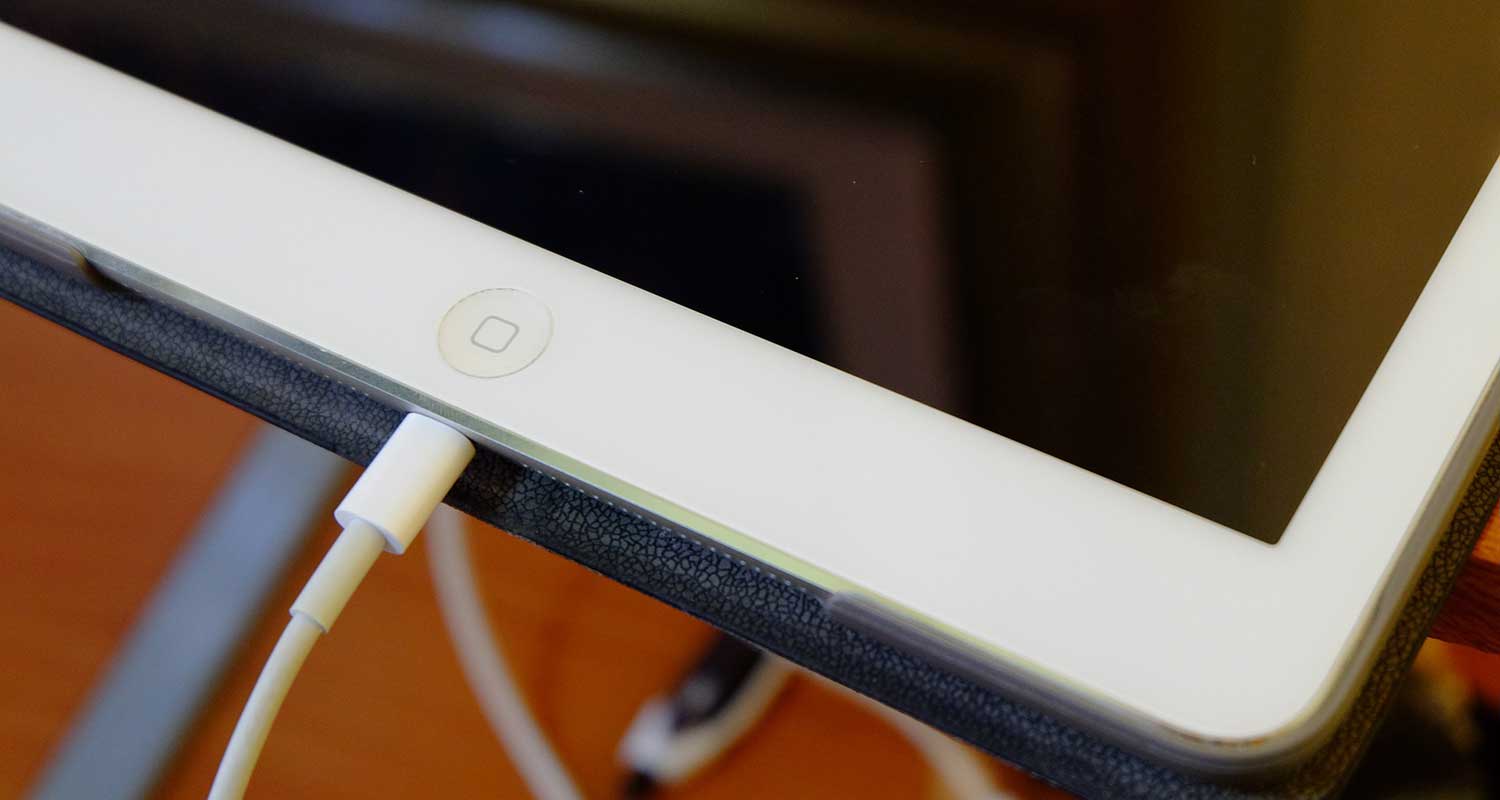
#2 Inspect and Clean the Charging Port
Ports can accumulate lint, dust, and other tiny debris that can block the connection. Carefully clean the charging port. Use a lint-free cloth dampened with isopropyl alcohol. Be gentle and thorough—this can often resolve what seems like a serious problem but is actually just a dirty port.
#3 Check the Environment
Tablets are sensitive to extreme temperatures. If it’s too hot or too cold, they might shut down.
Move your tablet to a room with a moderate temperature and give it some time to adjust. Avoid direct sunlight and overly cold areas during this time.
#4 Power Cycle Your Tablet
If it feels like your tablet is frozen, a power cycle might kickstart it back to life. If you can remove the battery, do so for a few seconds and then reinsert it.
If the battery is non-removable, press and hold the power button for about a minute. Check the tablet’s manual for any specific instructions regarding a power cycle for your particular model.
#5 Connect to a Computer
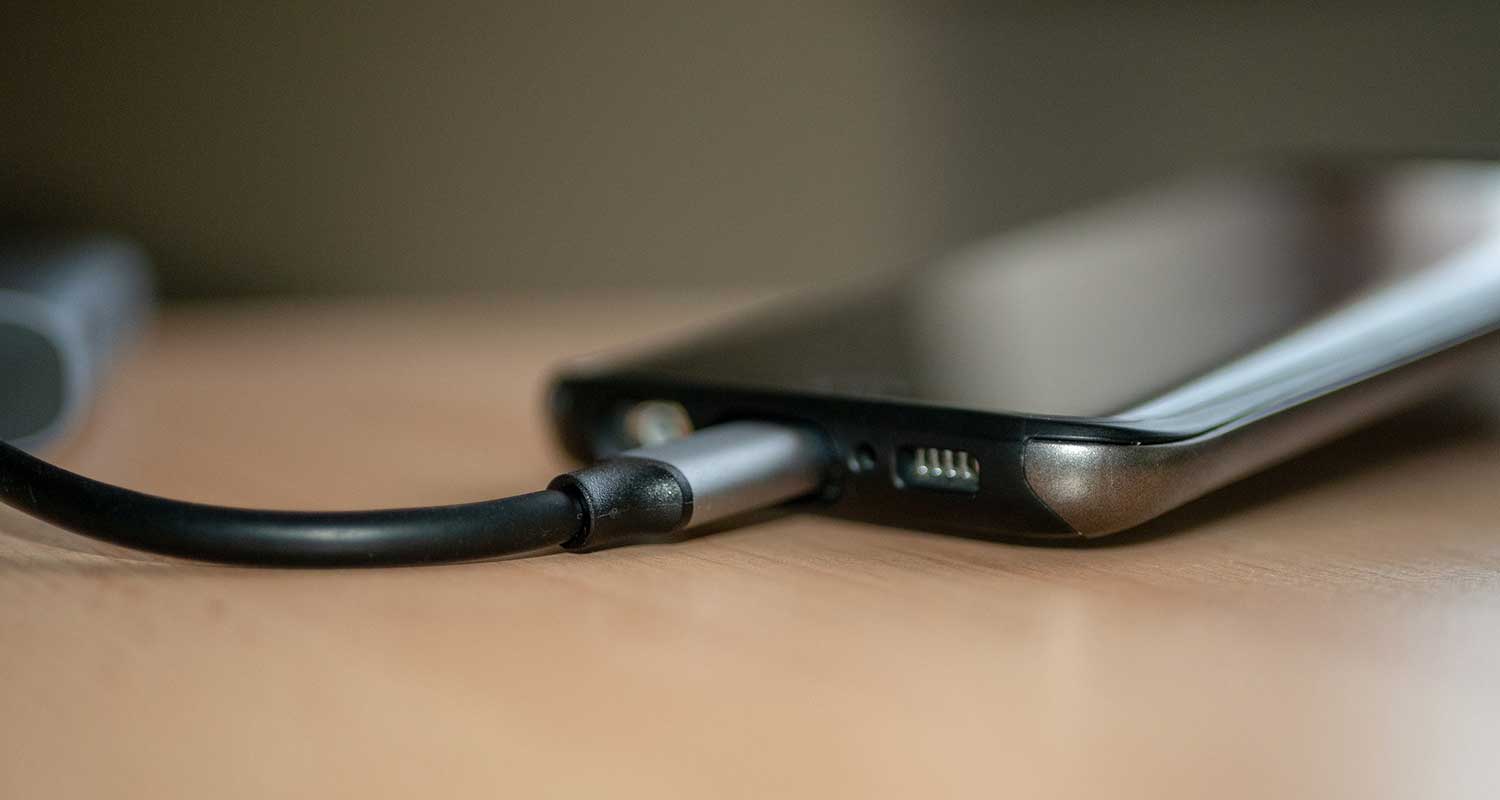
Sometimes, connecting your tablet to a computer can help. If the computer recognizes the tablet, it suggests the device is still operational. You can also use any manufacturer-provided software to troubleshoot system issues at this stage.
It’s similar to how you might connect your Android phone to Alexa for additional functionality – linking devices can often solve problems or unlock new features.
#6 Use an Unbricking Tool
If you suspect your Android tablet is “bricked” (meaning it’s become as unresponsive as a brick), look into unbricking tools. These can be a lifeline for reviving your device or at least helping to recover important data.
#7 Factory Reset
If all else fails, a factory reset might be necessary. This will erase all data on your tablet. So, you must have backups of your important files if possible. A reset can often clear up software glitches that stop a tablet from turning on.
Conclusion
In conclusion, if your tablet won’t turn on or charge, don’t rush to declare it dead. There are many simple steps you can take. They are effective for troubleshooting and potentially fixing the issue at home.
Start with the basics. Make sure your tablet is well charged with the right equipment. Also, check the charging port for any obstructions or dirt. Remember, environmental conditions are important. Extreme temperatures can hurt your tablet’s performance.
If simple methods don’t work, try techniques. For example, try power cycling, connecting to a computer, or using unbricking tools.
And remember, if all else fails, a factory reset might be the fresh start your device needs. But, it’s best to save this step for last due to data loss.
By learning these troubleshooting methods and how to use them, you’ll save a trip to the repair shop. You’ll also make your tablet live longer and be more useful. Here’s to keeping your digital companion alive and well for all your needs!
And once you’ve got your tablet working again, why not explore some new ways to use it? For instance, did you know you can use Apple iCloud on your Android device? The possibilities are endless!