Are you sitting there, squinting at your bright YouTube screen, wondering if there’s a better way to watch your favorite videos? You’re not alone. Millions of people search for ways to make YouTube easier on the eyes, especially during those late-night viewing sessions.
YouTube’s dark mode is the answer you’ve been looking for, but you might not know how to turn it on. Don’t worry – we’ve got you covered. Whether you’re on your phone, tablet, or computer, this guide will walk you through the simple steps to enable dark mode right now.
By the time you finish reading this article, you’ll know exactly how to transform your YouTube experience into a more comfortable, eye-friendly version. Say goodbye to that harsh white background and hello to a sleek, dark interface that’s perfect for any time of day or night.
Ready to give your eyes a break? Let’s dive in and get your YouTube dark mode up and running in just a few clicks.
Why use YouTube dark mode?
Before we get into the nitty-gritty of enabling dark mode, let’s talk about why you might want to use it:
1. Dark mode reduces eye strain
When you’re watching videos in low-light conditions, the bright white background of YouTube’s default theme can be harsh on your eyes. Dark mode significantly reduces this strain by lowering the overall brightness of the interface.
This makes it much more comfortable to watch videos at night or in dimly lit rooms without feeling like you’re staring into a spotlight.
2. Dark mode enhances your viewing experience
Many users report that dark mode provides a better overall viewing experience, especially during extended watching sessions.
The darker background helps the video content stand out more, potentially making it easier to focus on what you’re watching. It can also create a more immersive viewing environment, similar to watching a movie in a darkened theater.
3. Dark mode can save battery life on some devices
If you’re using a device with an OLED screen, such as many high-end smartphones, enabling dark mode can actually help conserve battery life.
This is because OLED screens can turn off individual pixels when displaying black, which uses less power than displaying bright colors or white. While the savings may be modest, every bit helps if you’re trying to extend your device’s battery life.
4. Dark mode looks sleek and modern
Let’s be honest – one of the reasons many people love dark mode is simply that it looks cool. The dark interface gives YouTube a more modern and sophisticated appearance. It can make your viewing experience feel more premium and up-to-date with current design trends.
Now that you’re convinced, let’s learn how to turn on this eye-saving feature!
How to enable YouTube dark mode on desktop
Whether you’re using a Windows PC, Mac, or Chromebook, the process for enabling dark mode on YouTube’s website is the same. Here’s how to do it:
- Go to youtube.com and sign in to your account (if you haven’t already).
- Click on your profile picture in the top-right corner of the screen.
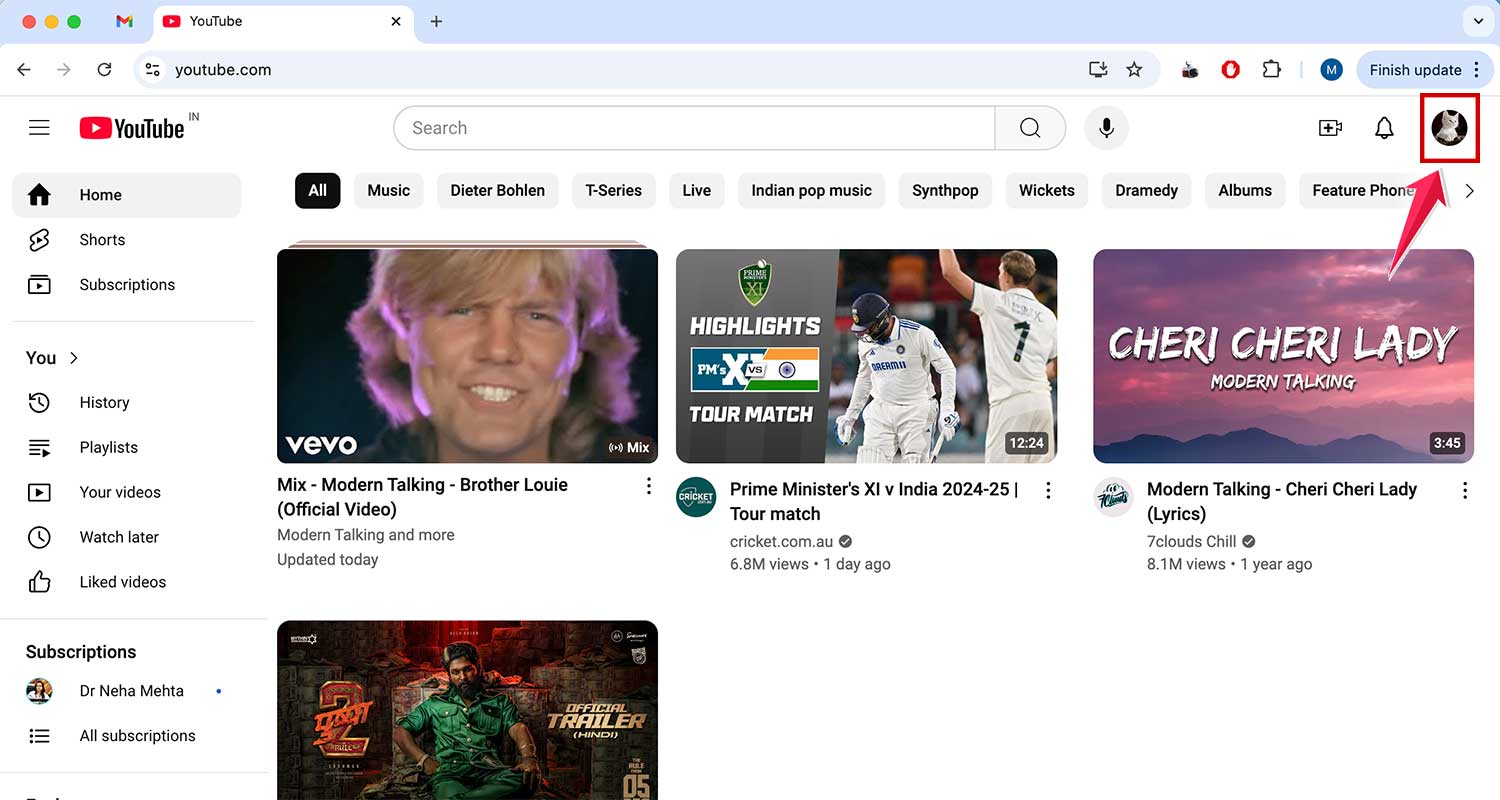
- In the dropdown menu, look for “Appearance: Device theme” and click on it.

- You’ll see three options: “Use device theme,” “Dark theme,” and “Light theme.”
- Select “Dark theme” to switch to dark mode immediately.

Voila! Your YouTube interface should now be sporting a sleek, dark look. If you ever want to switch back, just follow the same steps and choose “Light theme” or “Use device theme” to match your system settings.
Pro tip: If you’re not signed in, you can still access these settings by clicking the three-dot menu (⋮) in the top-right corner instead of your profile picture.
How to enable YouTube dark mode on iPhone and iPad
For all you Apple fans out there, here’s how to turn on dark mode in the YouTube app on your iOS devices:
- Open the YouTube app on your iPhone or iPad.
- Tap your profile picture in the top-right corner.

- Scroll down and tap “Settings.”
- Click on the “General” section

- Then tap “Appearance.”
- Choose “Dark theme” to enable dark mode.

It’s that simple! Your YouTube app will now be easier on the eyes, perfect for those midnight YouTube rabbit holes we all fall into sometimes.
How to turn on YouTube dark mode on Android devices
Android users, we haven’t forgotten about you! Here’s how to enable dark mode on your Android smartphones and tablets:
- Launch the YouTube app on your Android device.
- Tap your profile icon in the top-right corner.
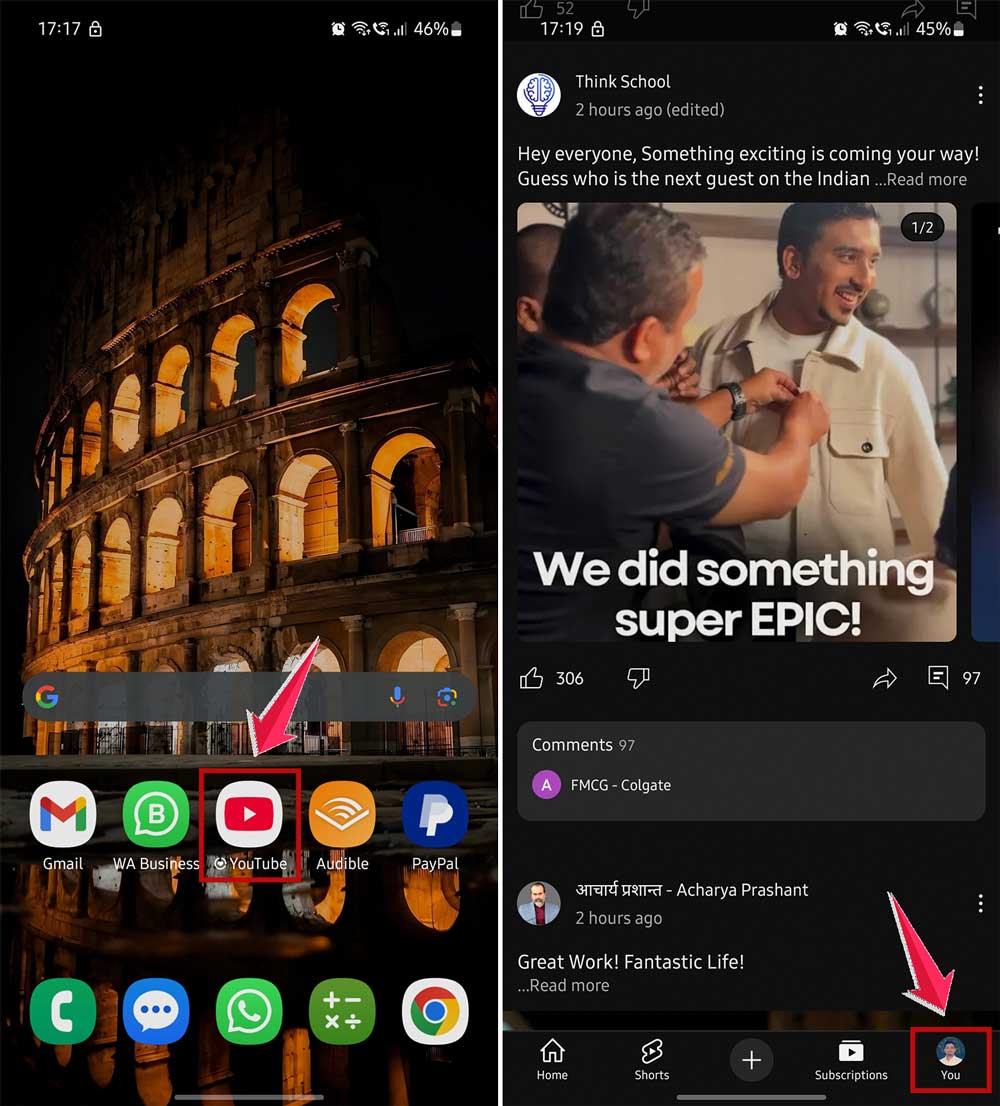
- Tap “Settings.”
- Select “General.”
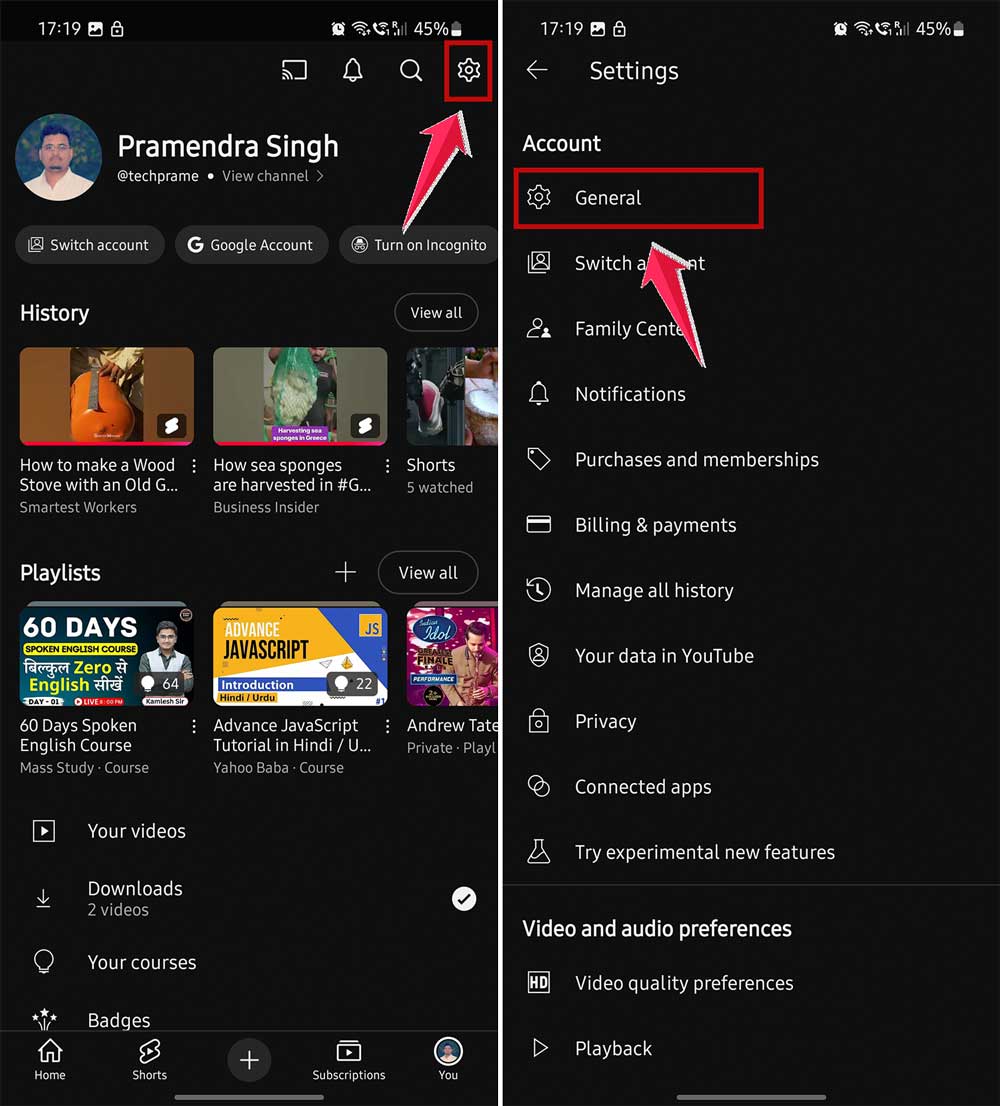
- Tap “Appearance.”
- Choose “Dark theme” to switch to dark mode.

And there you have it! Your YouTube app on Android should now be rocking that sleek, dark look.
Tips for using YouTube dark mode
Now that you know how to enable dark mode across all your devices, here are some tips to enhance your YouTube experience:
1. Sync YouTube’s theme with your device settings
On most devices, you can set YouTube to follow your system-wide theme settings. This means YouTube will automatically switch between light and dark mode based on your device’s settings. It’s a great way to ensure your YouTube experience always matches your overall device theme.
2. Give dark mode time to grow on you
If dark mode feels strange at first, don’t give up right away. Many users find they prefer it after a few days of use. Your eyes need time to adjust to the new look, so give it a chance before deciding if it’s right for you.
3. Fine-tune your screen brightness
Even with dark mode on, you might want to adjust your screen brightness for the best viewing experience. This is especially important at night when lower brightness can further reduce eye strain.
4. Consider using blue light filters
For even more eye comfort, try using a blue light filter app or your device’s built-in night mode alongside YouTube’s dark theme. These tools can help reduce the blue light emitted by your screen, which may interfere with your sleep patterns.
5. Remember the importance of blinking
This might sound obvious, but we often forget to blink when staring at screens. Dark mode or not, remember to give your eyes regular breaks and blink often to keep your eyes moist and comfortable.
Troubleshooting YouTube dark mode
If you’re having trouble with dark mode, here are some common issues and their solutions:
1. Dark mode keeps turning off
If dark mode doesn’t stay on, make sure you’re signed in to your YouTube account and that your app is up to date. These are often the culprits behind dark mode not sticking.
2. The dark mode option is missing
Can’t find the dark mode option? Try updating your YouTube app or clearing the app’s cache. This can often bring back missing options or settings.
3. Dark mode isn’t dark enough
Some users find YouTube’s dark mode isn’t dark enough. While there’s no official “pitch black” mode, you can use third-party browser extensions on desktop for an even darker experience.
4. Videos look strange in dark mode
If videos look odd in dark mode, try adjusting your device’s brightness or contrast settings. This can often help balance the look of videos against the dark background.
By following these tips and troubleshooting steps, you can ensure you’re getting the best possible experience with YouTube’s dark mode.
The takeaway
You came here looking for a way to make YouTube easier on your eyes, and now you have the solution at your fingertips. Dark mode isn’t just a cool feature – it’s a game-changer for your viewing experience.
Remember, enabling dark mode is quick and easy. On your computer, just click your profile picture and look for “Appearance.”
On your phone or tablet, head to Settings, then General, and find the Appearance option. In seconds, you can transform your YouTube interface from bright white to soothing dark.
Don’t fall for the myth that dark mode is only useful at night. It can make your viewing more comfortable at any time of day, potentially save your battery life, and even help reduce eye strain during those marathon video sessions.
So what are you waiting for? Go ahead and try YouTube dark mode right now. Your eyes will thank you, and you might just find yourself enjoying your favorite content even more. Happy viewing, and enjoy your new, eye-friendly YouTube experience!