Are you tired of stumbling upon unwanted websites on your Android phone or tablet? Well, you’re in luck!
Today, we’re going to walk you through some simple ways to block those pesky sites and keep your browsing experience safe and clean.
Whether you’re looking to boost your productivity, protect your kids, or just avoid certain corners of the internet, we’ve got you covered. It’s all about taking control of your digital experience, much like using Nova Launcher to customize your Android interface.
We’ll explore how you can use security apps, website blockers, and firewalls to take control of your online world.
Don’t worry – you don’t need to be a tech whiz to follow along. Let’s get started on making your Android browsing experience better!
How to Block Websites On Android Phone or Tablet?
Whether you’re trying to boost your productivity, protect your kids, or just avoid distractions, blocking websites can be really helpful.
Let’s walk through some simple methods you can use to take control of your browsing experience.
#1 Using a Security App for More Than Just Blocking
One of the easiest ways to block websites is by using a security app. These apps do more than just keep unwanted sites away – they also protect your device from viruses and other online threats.
For example, let’s look at Mobile Security and Antivirus from Trend Micro.

Here’s what it can do for you:
- Block websites you don’t want to see.
- Check new apps for viruses before you install them.
- Let you know if an app might share your personal information.
- Help you find your phone if you lose it.
- Protect you from text message scams.
The best part? Many of these features are free. If you want to use parental controls, there’s a cost after a trial period, but it might be worth it for the extra peace of mind.
Speaking of protecting your device, did you know you can also check if someone is spying or tracking your Android phone?
To block a website using this app:
- Open the app and look for “Parental Controls“.
- Set up a PIN or password.

- Turn on the “Website Filter“.

- Give the app the permissions it needs.
- Choose the age setting for parental controls.
- Go to “Blocked List“.

- Then tap on “Add“.
- Type in the website’s name and address, then save it.

#2 Using a Website Blocker to Stay Focused
If you find yourself getting distracted by certain websites, a website blocker like BlockSite can be really helpful.
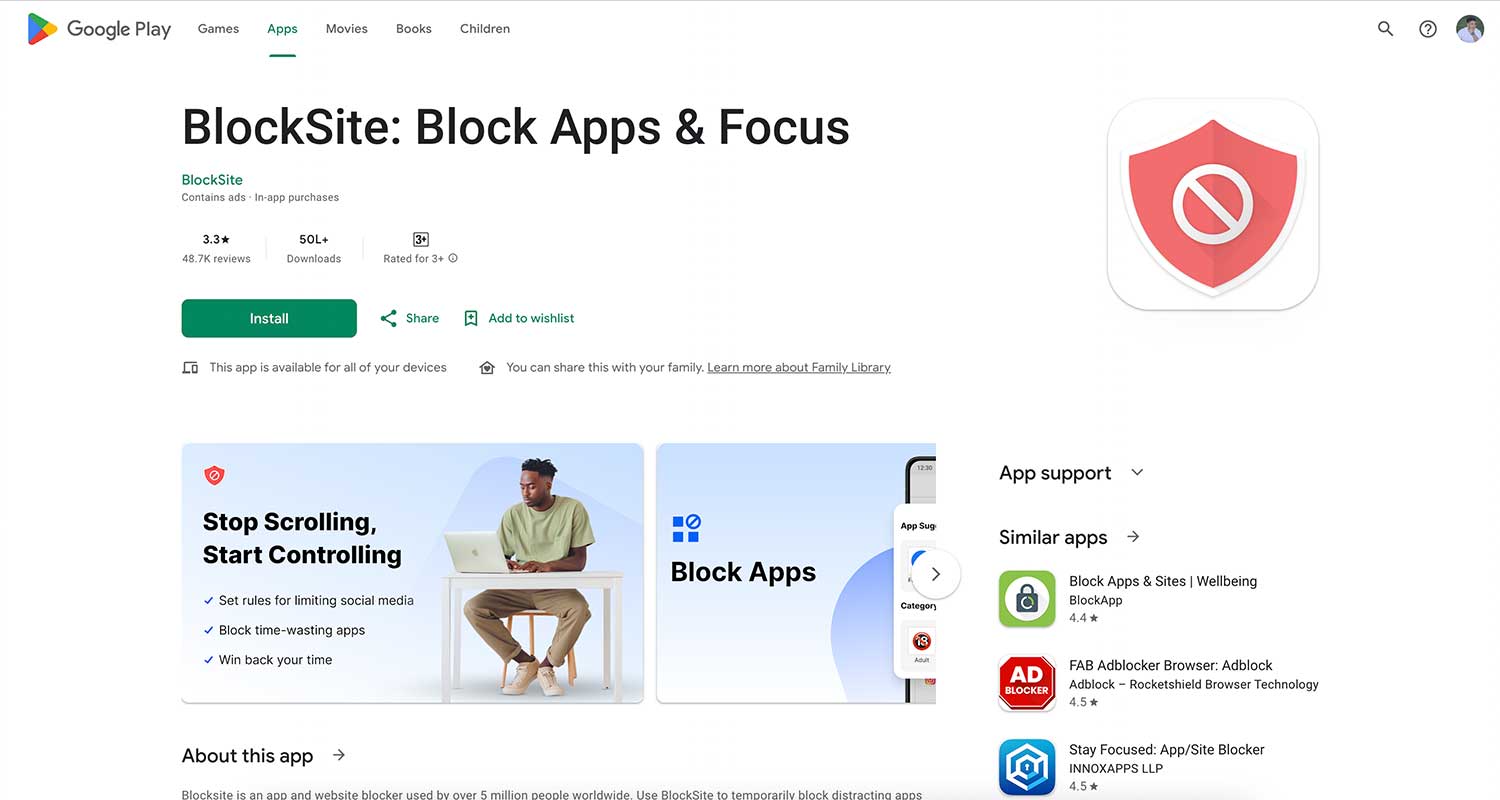
It lets you control when and where you can use specific apps and websites. This can be especially useful if you’re trying to make your Android faster and more efficient.
Here’s what it can do:
- Set up work hours and break times.
- Choose when to block websites and apps.
- Keep your settings private with a password.
- Remind you of what you should be doing instead of browsing.
BlockSite is free to try, but if you want to block lots of sites and get rid of ads, you’ll need to pay a small fee.
To block a website with BlockSite:
- Tap “Create” at the bottom of the app.
- Type in the website address or pick from the suggestions.

- Click Next and Set the times and days when you want the site blocked.
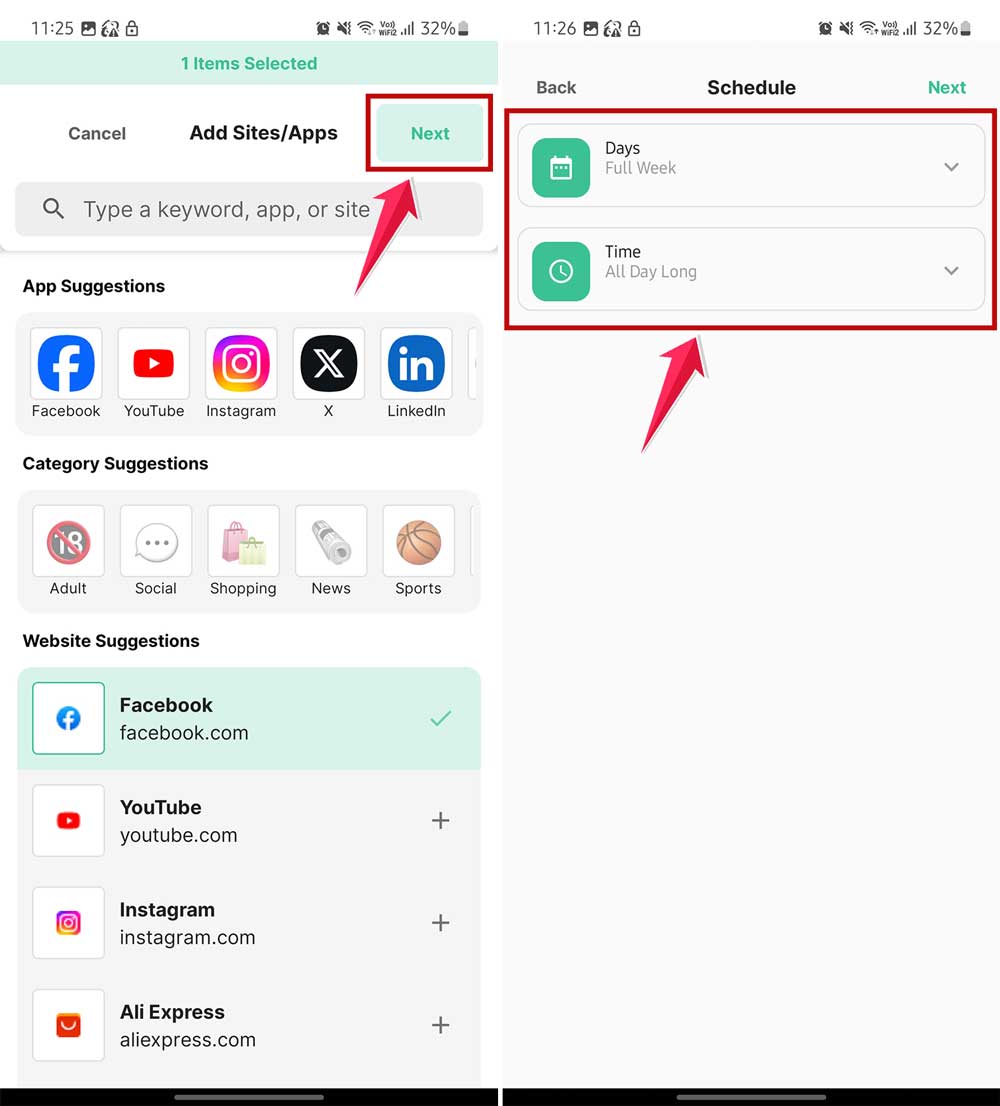
- Give your rule a name and choose an icon.
- Tap “Done” to add it to your block list.

#3 Using a Firewall for Extra Protection
Think of a firewall as a protective shield for your device. It helps keep out unwanted internet traffic.
For Android, it’s best to use a “no-root firewall” so you don’t have to make complicated changes to your device. This is similar to how you might stop Android apps from running in the background to improve performance.
One good option is Rethink by Celzero.
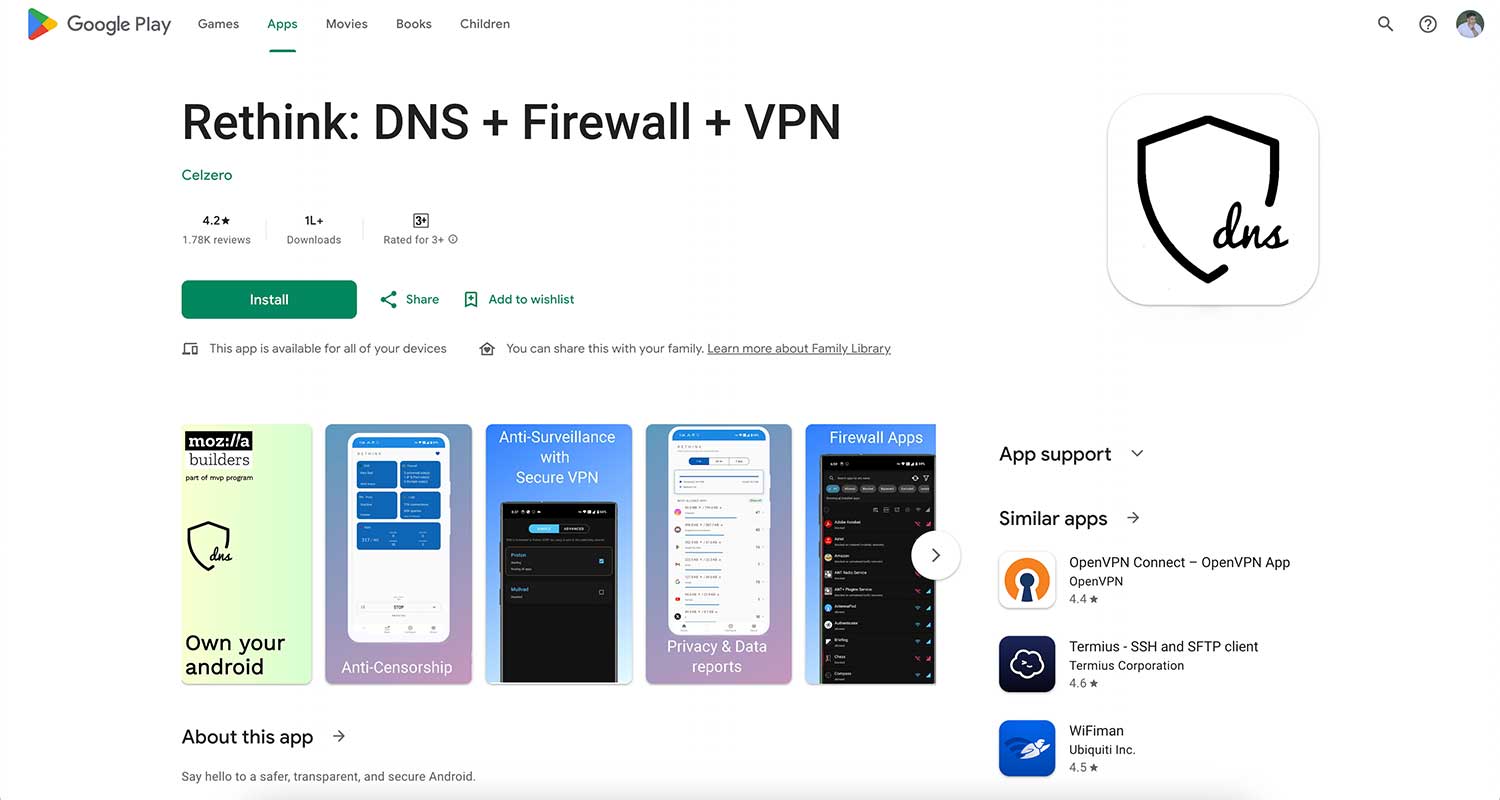
It’s free and offers:
- A way to see which websites your apps are contacting.
- Protection against online threats.
- The ability to block specific websites, IP addresses, and more.
To block a website using Rethink:
- Open the app and go to the “Configure” section.
- Tap on “Firewall“.
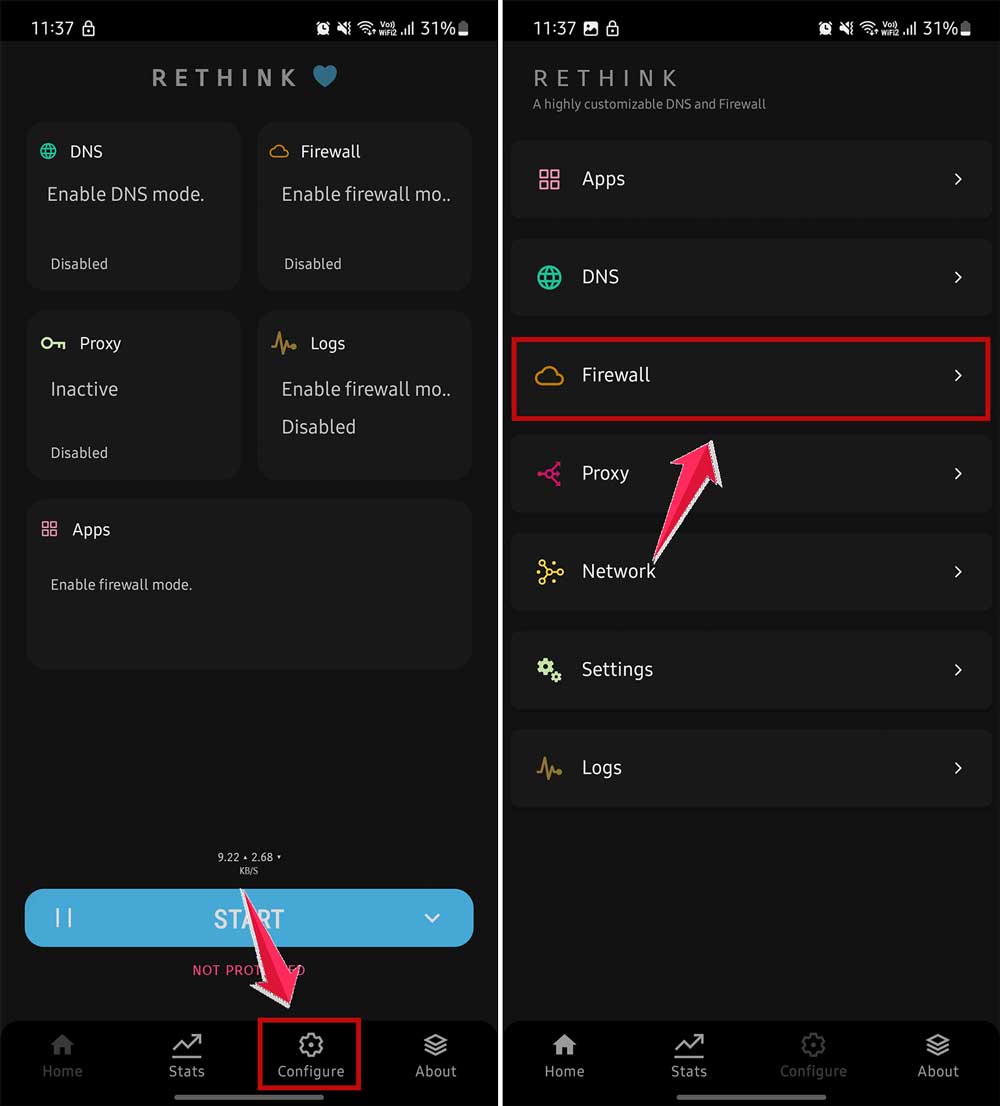
- Then click on “IP & Port rules“.
- Look for “Domain rules“.

- Then tap on the plus sign.
- Type in the website address and choose “Block“.

Remember, these are just a few ways to block websites on your Android device. You can choose the method that works best for you.
The important thing is that you now have the tools to make your browsing experience safer and more focused.
In Conclusion To
Now, you’ve got the tools to keep unwanted websites off your Android device. It’s not complicated, and you don’t need to be a tech expert to do it.
Remember, the goal is to make your online world safer and more productive.
You can choose the method that works best for you, whether you want to protect your personal information, avoid distractions, or create a safer browsing environment for your family.
By taking these simple steps, you’re making your Android experience better. You’re in charge of what you see online, and that’s a powerful thing. So why wait?
Pick an app that suits your needs and start enjoying a cleaner, more secure online world today. And while you’re at it, why not learn how to clear cache data on your Android for an even smoother browsing experience?