

Imagine this: You’re scrolling through your phone when you suddenly realize you’ve forgotten your best friend’s birthday. Again. Sound familiar? Don’t worry, you’re not alone.
In today’s fast-paced world, keeping track of important dates can be a real challenge. But here’s the good news: your Google Calendar can be your memory’s best friend.
You’ve probably searched for this topic because you want an easy way to manage birthdays. Maybe you’re tired of relying on social media reminders or sticky notes. Or perhaps you’ve just missed one too many special occasions. Whatever your reason, you’re in the right place.
In this guide, you’ll learn how to automatically add birthdays to your Google Calendar. This simple trick will transform the way you remember important dates.
No more forgotten birthdays, no more last-minute panic. By the time you finish reading, you’ll have a foolproof system that works quietly in the background, keeping you on top of every celebration.
How to add the Birthdays calendar to your Google Calendar
- Open your Google Calendar.
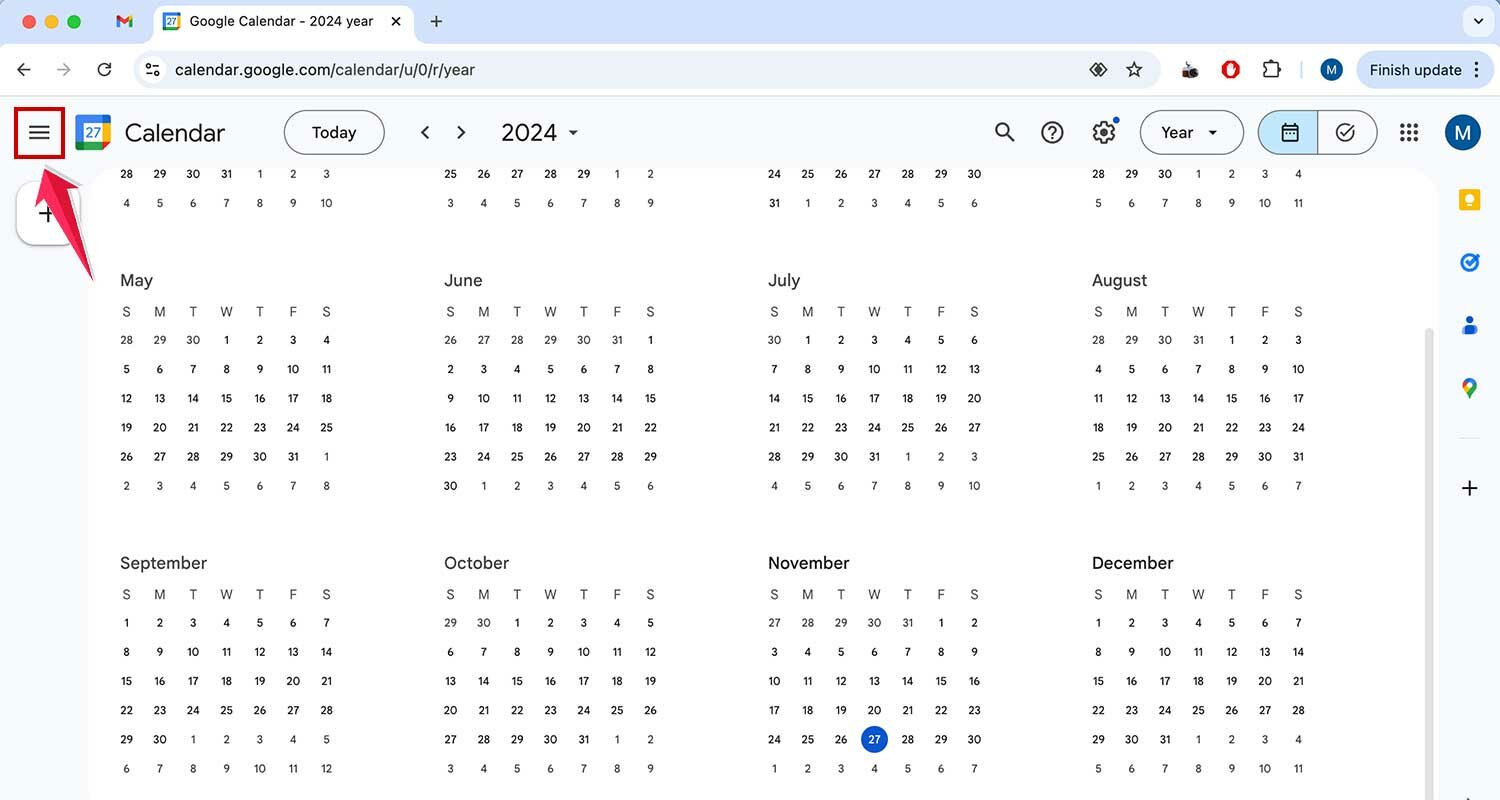
- Look for the menu icon (three horizontal lines) in the upper-left corner. Click on it.
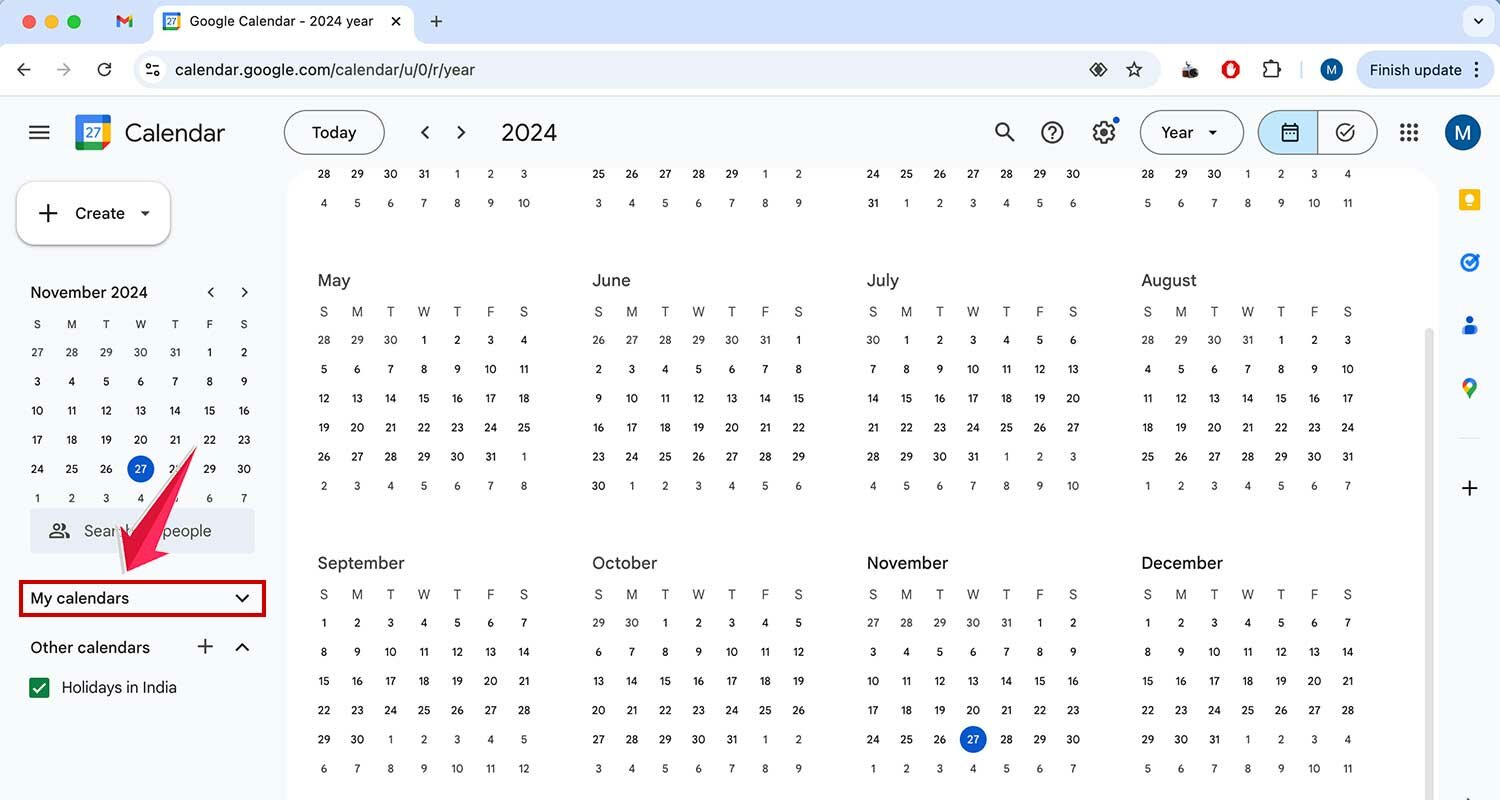
- Find the “My calendars” section. If you don’t see it, click the little arrow next to it to expand the options.
- Look for “Birthdays” in the list. If you see it, simply click on it to activate it.
- If you can’t find “Birthdays”, look for “Contacts” instead and select that.
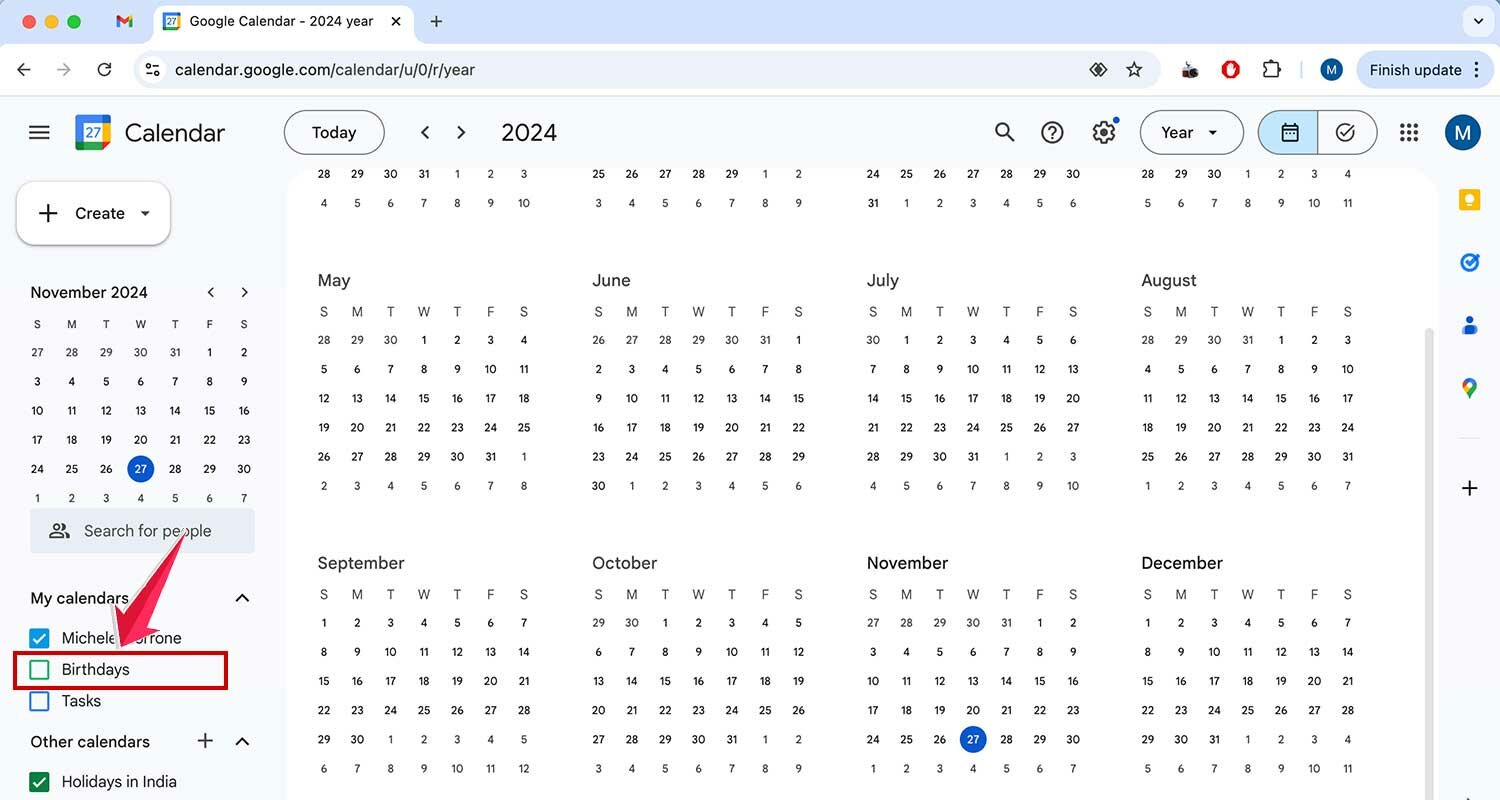
That’s it! Now, your Google Calendar will display birthdays from your Google Contacts. You’ll see these special dates right alongside your other events.
Remember, this feature only works with birthdays you’ve added to your Google Contacts. So make sure your contacts’ information is up to date.
With this simple setup, you’ll always be on top of those important celebrations. No more forgotten birthdays!
The takeaway
You’ve now learned how to never miss a birthday again using Google Calendar. It’s a simple yet powerful way to stay on top of those important dates.
By syncing your Google Contacts with your calendar, you’ve created a reliable system that works quietly in the background. No more relying on your memory or scrambling at the last minute. Your calendar now does the remembering for you.
This small change can make a big difference in your relationships. Being the person who always remembers birthdays shows you care. And now, with your calendar set up, you can focus on making those celebrations special.
Remember, technology is here to make our lives easier. By using this feature, you’re doing just that. So go ahead, enjoy being the friend who never forgets. Your loved ones will appreciate it, and you’ll feel more organized and thoughtful.
What do you think about using Google Calendar for birthdays? Has this been helpful? I’d love to hear your thoughts in the comments below.

