Did you know that the average smartphone user spends over 3 hours a day on their device? With so much time spent on our screens, it’s important to make the most of our mobile experience.
Have you ever wished you could use multiple apps at once on your Android phone? Or maybe you’ve encountered a frustrating “screen overlay” error when trying to grant permissions to an app? These are common issues that many Android users face, but there’s a solution.
Android offers a feature called “Display Over Other Apps” that can solve these problems. This feature allows certain apps to appear on top of others, creating a more flexible and efficient user experience. In this article, you’ll learn how to enable this feature and what to do if it’s not working properly.
By the end of this guide, you’ll be able to multitask like a pro on your Android device and troubleshoot common display issues. Let’s dive in and unlock the full potential of your smartphone!
What is Display Over Other Apps?
Have you ever wanted to use two apps at the same time on your Android phone? That’s exactly what the “Display Over Other Apps” feature allows you to do. Imagine watching a video while chatting with a friend or checking your calendar while writing an email. It’s like having a small window of one app floating on top of another.
In the past, Android phones could only do one thing at a time on the screen. You might have been able to listen to music while browsing the web, but you couldn’t see both apps at once. Now, if you have an Android device running version 10 or higher, you can view and interact with two apps on the same screen. This is great for getting more done and making better use of your phone’s screen space.
How does Draw Over Other Apps work?
“Draw Over Other Apps” is a special permission that lets one app appear on top of another. Normally, Android decides which app you see on your screen. But when you give an app this permission, it can pop up even when you’re using something else.
This feature is really handy for multitasking. For example, you could have a small calculator floating on your screen while you’re working on a budget spreadsheet. Or you might have a notes app visible while you’re reading an article. It saves you from constantly switching between apps.
What can you do with Display Over Other Apps?
This feature opens up a whole new way of using your phone. Here are some cool things you can do:
- Get quick info: See important updates from one app while using another.
- Respond fast: Reply to messages without leaving your current app.
- Browse easily: Some apps let you view web pages in a floating window.
- Customize your experience: Adjust how the floating apps look and work.
To use these features, you’ll need to give permission to the apps you want to use this way. It’s a simple process, and it can make using your phone much more efficient.
Remember, this feature is all about making your life easier. It lets you do more with your phone without the hassle of constantly switching between apps. Give it a try, and you might be surprised at how much it can improve your Android experience!
How to activate Display Over Other Apps
Want to start using the Display Over Other Apps feature on your Android device? Here’s how you can do it:
- Open your phone’s “Settings” app. You can usually find this by swiping down from the top of your screen and tapping the gear icon.
- Look for “Apps” or “Applications” in the settings menu. Tap on it to open.

- Tap the three dots or “More options” in the top right corner.
- Select “Special access” from the dropdown menu.
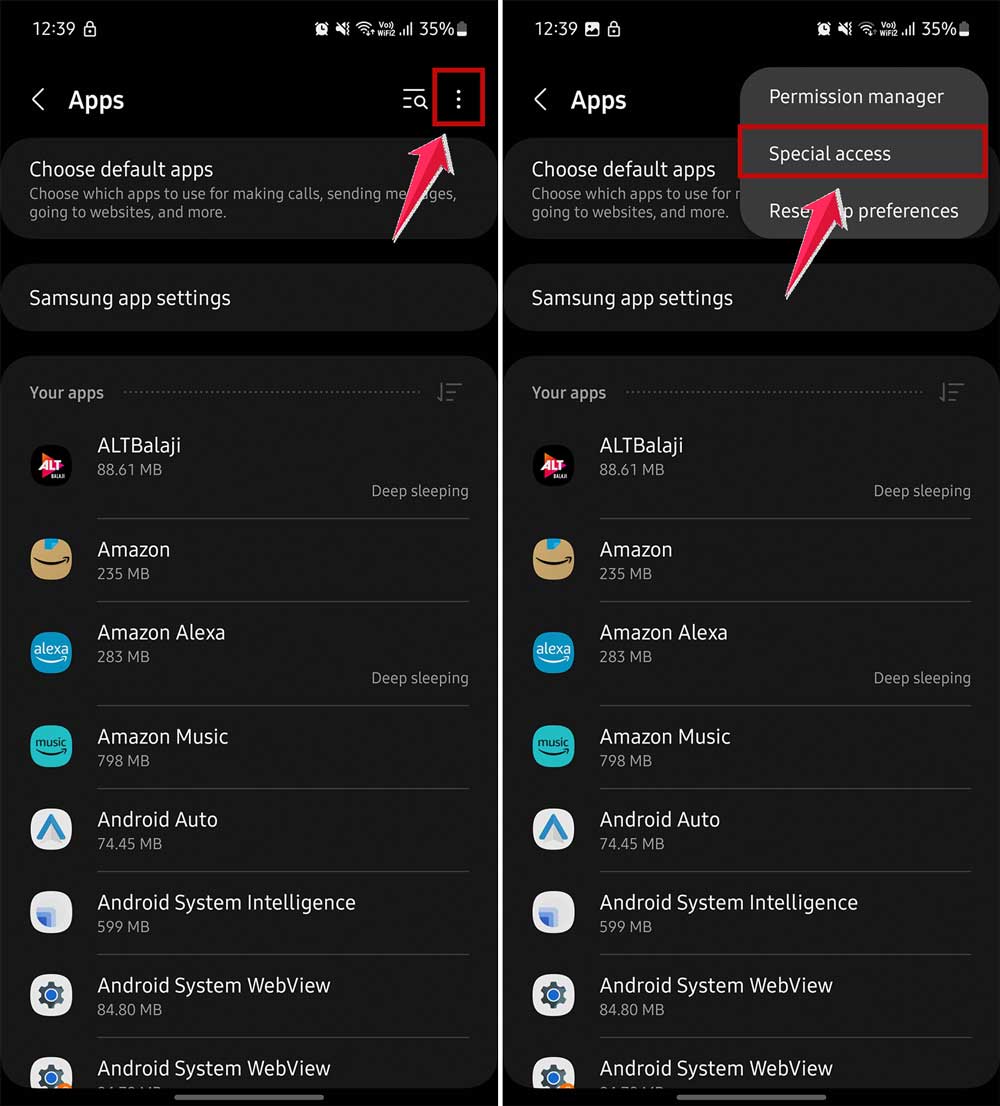
- In this section, you’ll see an option called “Display Over Other Apps” or “Appear on top.” Tap on this.
- You’ll see a list of all your apps. Find the app you want to permit to float over other apps.
- Tap on the app, and you’ll see a toggle switch labeled “Allow display over other apps” or something similar. Turn this switch on.

That’s it! You’ve now given that app permission to appear on top of other apps.
Remember, you might need to do this for each app you want to use this way. Also, the exact wording might be a bit different depending on your phone model and Android version. But don’t worry – the general idea is the same, and you should be able to find these options easily.
Why isn’t Display Over Other Apps working on your phone?
Is your phone refusing to let apps float on top of others? Don’t worry, you’re not alone. Let’s figure out why this is happening and how you can fix it.
1. Your Android version might be too old
If you’re using an older Android phone, you might not have this feature. Here’s what to do:
- Android 4: Check the App Manager for permission settings.
- Android 5: Look in App Access settings.
- Android 6 or newer: You should have this feature built-in.
2. Your permissions might be turned off
For safety, your phone often turns this feature off for new apps. To fix this:
- Go to your phone’s Settings.
- Then, find and tap on the Apps.
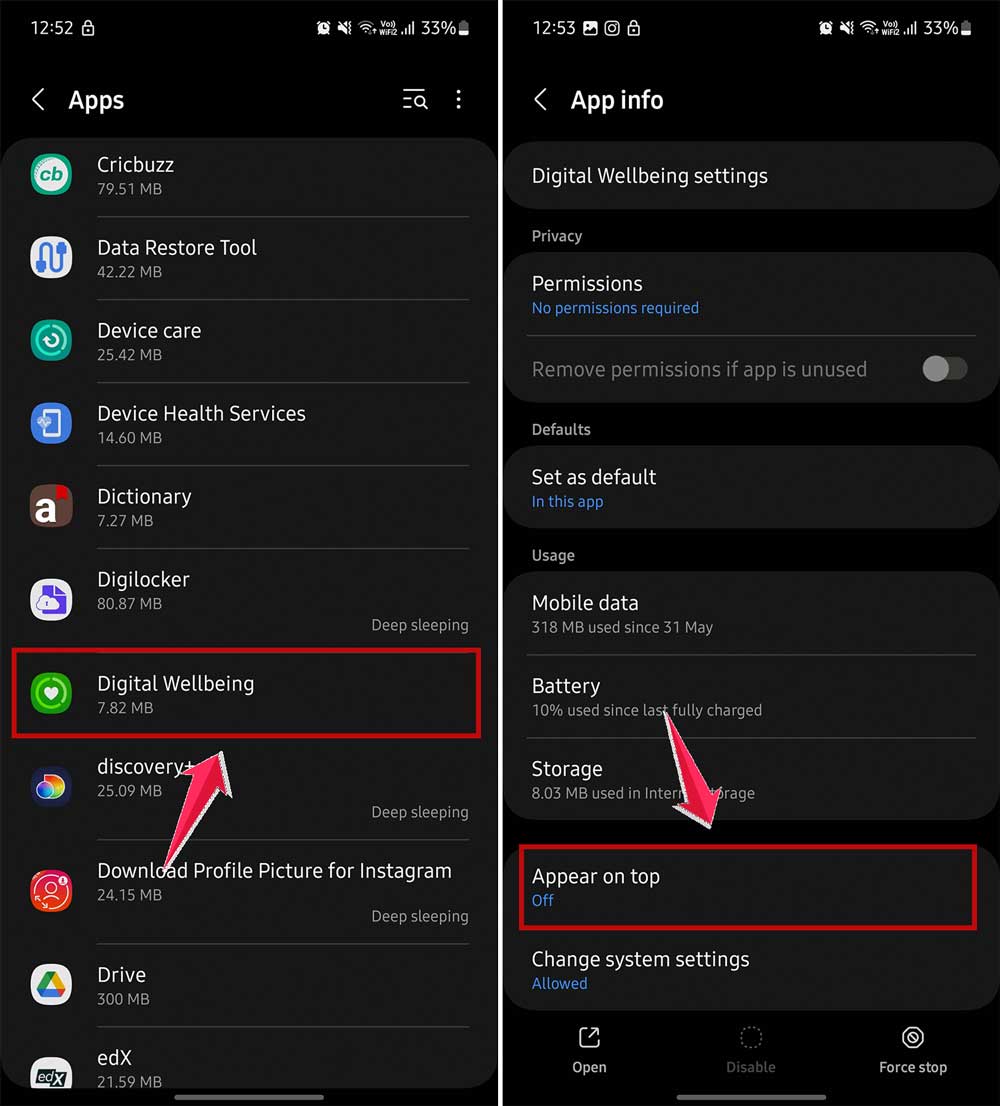
- Find the app you want to use and click on it.
- Scroll down and turn on the “Display over other apps” or “Appear on top” permission.
Remember, only do this for apps you trust!
3. You’re seeing a “screen overlay detected” message
This usually means a new app doesn’t have the right permissions. Here’s how to fix it:
- Go to Settings > Apps & notifications > Special app access.
- Tap on “Display over other apps” or “Appear on top”.
- Find your app and turn on the permission.
4. Some apps don’t allow overlays
Some apps, especially games or security-focused ones, don’t let you use this feature. In this case:
- Try finding an alternative app that does work with overlays.
- Or, see if you can at least allow notifications to appear over other apps.
Still not working? Don’t give up! These steps can vary a bit depending on your phone model. If you’re stuck, try looking up your specific phone model online or check your user manual. With a little persistence, you’ll get those apps floating in no time!
The takeaway
The Display Over Other Apps feature on Android can be a game-changer for how you use your phone. It lets you do more at once, like chatting while watching a video. But sometimes, it doesn’t work as expected.
We’ve looked at why this might happen and how to fix it. Often, it’s just a matter of turning on the right permissions or updating your phone. Remember, this feature works best on newer Android phones, so if you have an older model, you might not have it.
One thing to keep in mind: while this feature is great for multitasking, it’s not always safe to use with every app. Be careful about using it with banking apps or when you’re typing in passwords. It’s better to be safe than sorry.
The main thing to take away is that Display Over Other Apps can make your phone much more useful, but you need to use it wisely. Don’t be afraid to try it out – just remember to only give permissions to apps you trust. With a little practice, you’ll be multitasking like a pro in no time!
What do you think about this feature? Have you tried using it on your phone? Let me know in a comment below!