Did you know that by 2025, 5G networks are expected to cover one-third of the world’s population? It’s an impressive leap in mobile technology. But what happens when your phone can’t connect to this lightning-fast network?
While we’re on the topic of improving your phone’s performance, you might also be interested in these tips to make your Android phone faster.
If you’ve ever found yourself staring at your phone, wondering why the 5G icon is nowhere to be seen, you’re not alone. This frustrating issue can leave you feeling stuck in the digital slow lane. It’s a common problem that can stem from various causes, from network availability to device settings.
In this article, you’ll discover why your 5G network might vanish and, more importantly, how to bring it back. We’ll walk through some simple, effective solutions that don’t require a degree in rocket science. Whether you’re tech-savvy or not, you’ll find easy-to-follow tips to get your phone back online and running at top speed.
So, if you’re ready to say goodbye to those “No Service” blues, let’s dive in and get your 5G connection back on track.
Why can’t you connect to a 5G network?
1. Your phone might be experiencing a temporary glitch: Just like any technology, sometimes your phone’s connection to the 5G network can hiccup. This doesn’t mean there’s anything seriously wrong – it’s often just a small, fixable issue that’s causing the problem.
2. You might be out of range of a 5G tower: 5G networks, while expanding rapidly, don’t yet have the same coverage as 4G networks. If you’re in an area with limited 5G coverage, your phone might struggle to find a signal. This is especially common in rural areas or when you’re traveling.
3. The nearest 5G tower could be having problems: Sometimes, the issue isn’t with your phone at all. The 5G tower in your area might be undergoing maintenance or experiencing technical difficulties. In these cases, you’ll need to wait for the network provider to resolve the issue.
4. Your phone might not be compatible with the available 5G network: Not all 5G networks are created equal. There are different types of 5G technology, and your phone might not support the specific type used in your area. This is more common with older 5G-capable phones or when traveling internationally.
How to fix it when your 5G network doesn’t show up
Let’s dive into some practical solutions to get your 5G connection back up and running. Don’t worry if the first few methods don’t work – we’ve got plenty of options to try.
1. Toggle airplane mode on and off
This is a quick and easy fix that often does the trick. It’s like giving your phone’s network connection a little shake to wake it up. Here’s how:
- Swipe down from the top of your screen to open the quick settings panel.
- Find the airplane icon and tap it to turn it on.
- Wait about 10 seconds.
- Tap the airplane icon again to turn it off.

Give your phone a minute to reconnect. You might just see that 5G icon pop back up. While you’re adjusting your network settings, you might also want to know how to turn off your phone’s Bluetooth permanently if you’re not using it.
2. Restart your phone
If the airplane mode trick didn’t work, let’s try the old “turn it off and on again” method. It’s simple but effective:
For iPhone:
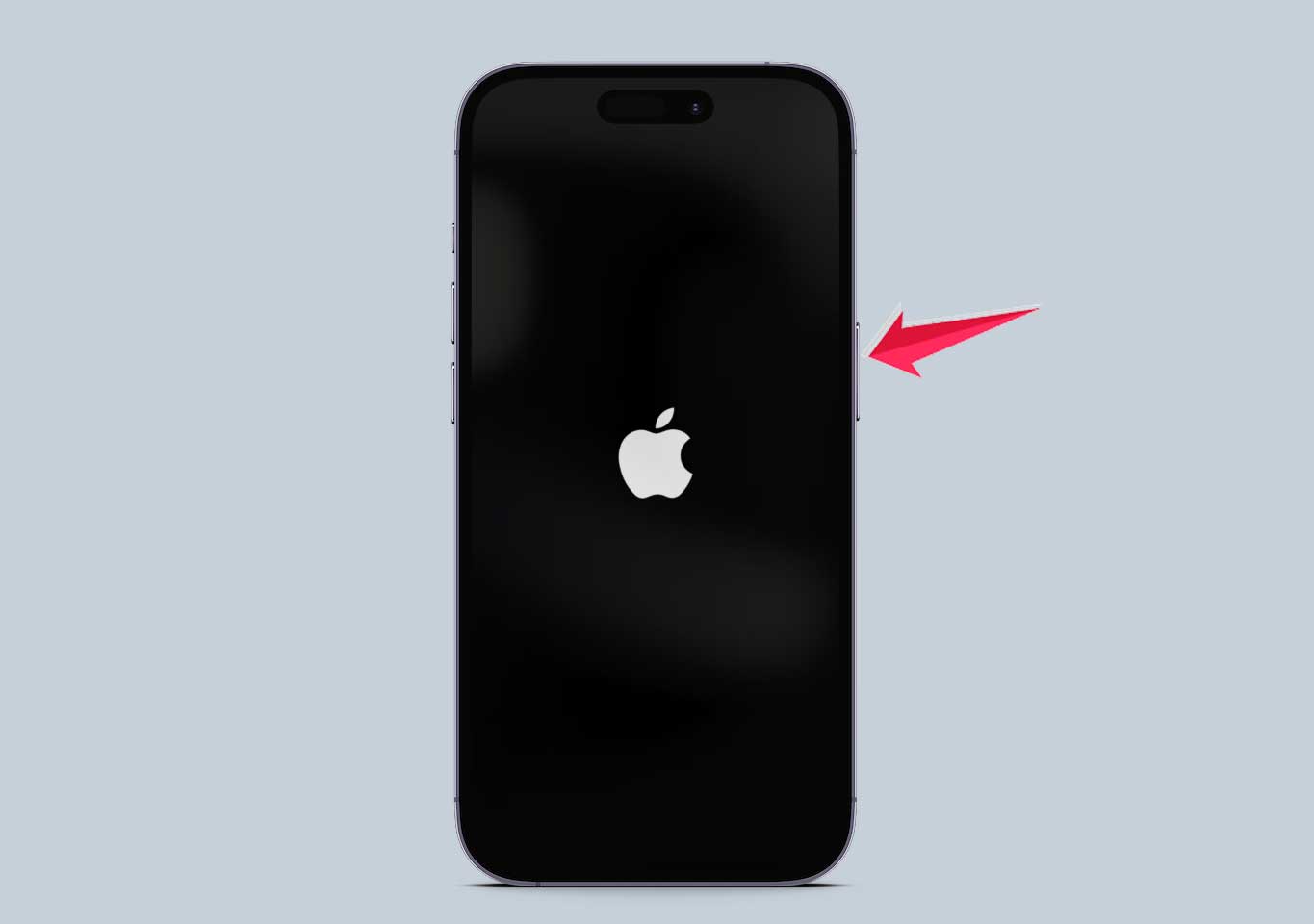
- Press and hold the side button and either volume button until you see “slide to power off”.
- Slide to power off, wait 30 seconds, then press and hold the side button to turn it back on.
For most Android phones:
- Press and hold the power button until you see the power menu.

- Tap “Restart” or “Reboot”.

3. Check if you’re in a 5G coverage area
5G is still spreading its wings, so to speak. Your area might not have full coverage yet. Pop over to your carrier’s website and check their coverage map. If you’re in a 5G dead zone, your phone will automatically switch to 4G or LTE. Don’t worry – as 5G expands, you’ll likely see better coverage soon.
In the meantime, if you need to share your connection, here’s how to set up a mobile hotspot on your Android phone.
4. Make sure your plan includes 5G
It’s worth double-checking that your plan includes 5G access. Most modern plans do, but it never hurts to be sure. Give your carrier a quick call or check your plan details online. If 5G isn’t included, they might be able to upgrade you on the spot.
5. Try toggling 5G on or off in your settings
Sometimes, manually switching 5G off and on can kick things back into gear. Here’s how:
For iPhone:
- Go to Settings > Cellular > Cellular Data Options.

- Tap “Voice & Data”.
- Try switching between “5G Auto” and “4G”.

For Android (steps may vary):
- Go to Settings > Connections > Mobile networks.

- Tap “Network mode”.
- Select an option that includes or excludes 5G as needed.

6. Update your phone’s operating system
Keeping your phone up-to-date is crucial. Those updates often include fixes for connectivity issues. Here’s how to check:
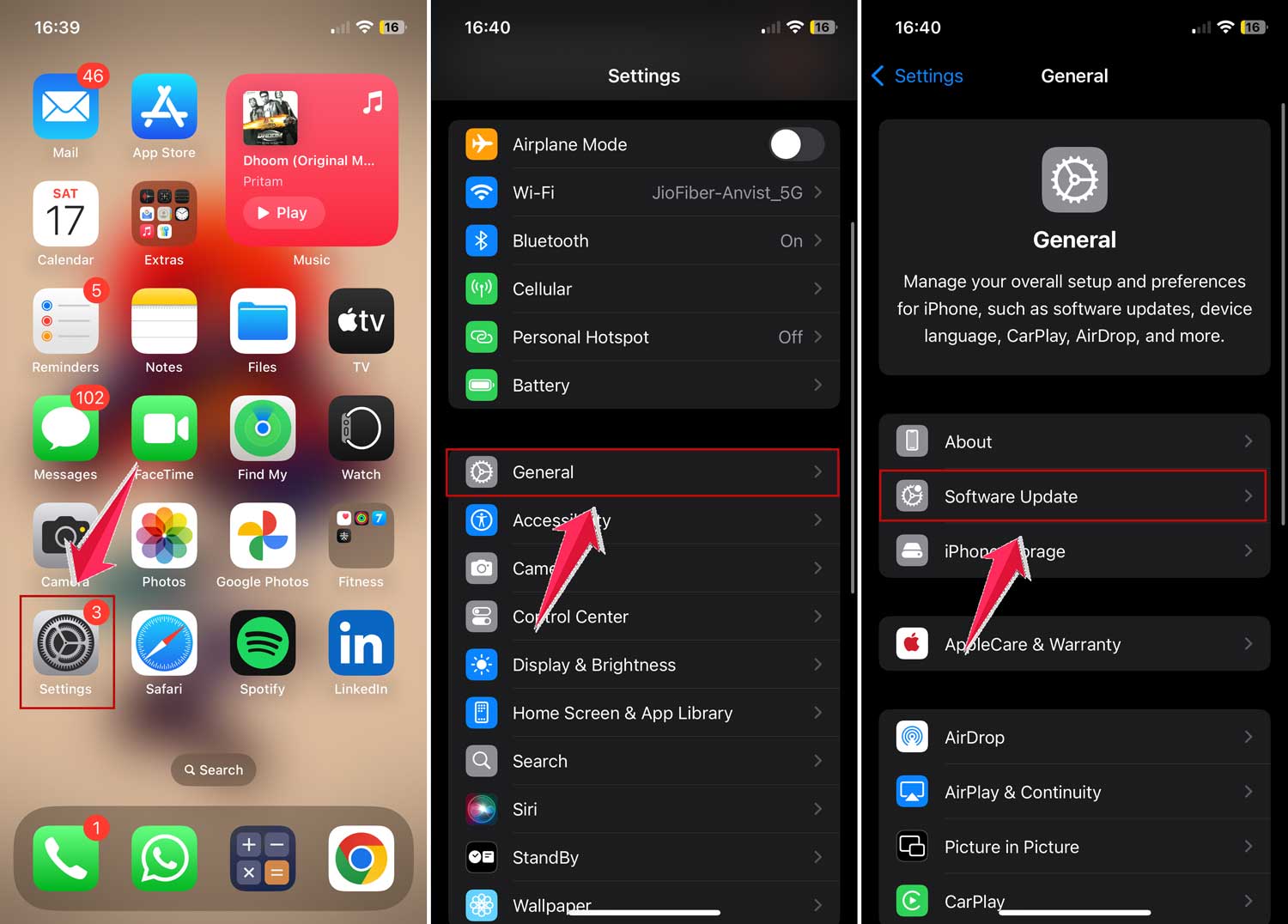
For iPhone:
- Go to Settings > General > Software Update.
- If an update is available, tap “Download and Install”.
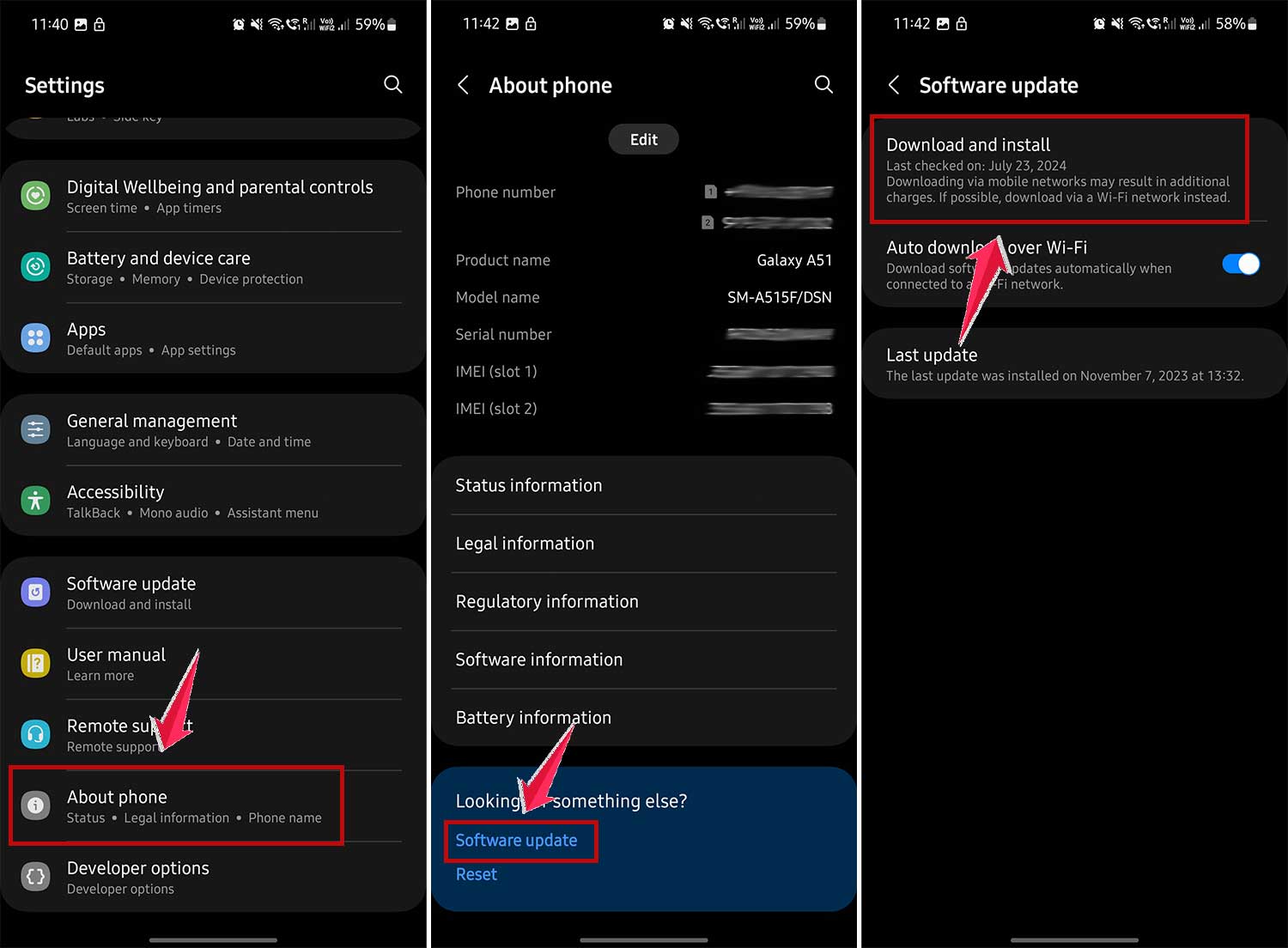
For Android:
- Go to Settings > About Phone > Software update.
- Tap “Check for update” or “Download and install”
After updating, you might want to clear your cache data to ensure optimal performance.
7. Reseat your SIM card
Sometimes, your SIM card just needs a little nudge:
- Turn off your phone.
- Locate the SIM card tray (usually on the side of your phone).
- Use the SIM ejector tool or a paper clip to pop out the tray.
- Remove the SIM card, wait a few seconds, then put it back.
- Push the tray back in and turn your phone on.
8. Verify that your phone is 5G-capable
Not all phones can connect to 5G networks, especially older models. Check your phone’s specifications online or in the settings to confirm it supports 5G. If your phone was made before 2019, it might not have 5G capability.
9. Contact your service provider
If you’ve tried all these steps and still can’t connect to 5G, it’s time to call in the cavalry. Your mobile service provider can check for network issues and offer personalized solutions.
10. Consider a factory reset as a last resort
This is the nuclear option – it’ll erase everything on your phone. Only do this if you’ve tried everything else and are sure your phone should be connecting to 5G. Remember to back up your data first!
11. Check with your phone’s manufacturer
If all else fails, there might be a hardware issue. Reach out to your phone’s manufacturer for support or to discuss repair options.
Remember, 5G is still evolving. Be patient and persistent in your troubleshooting. If you’re in a 5G area with a 5G-capable device, one of these methods should get you connected. Happy browsing!
The takeaway
Struggling with 5G connectivity can be frustrating, but don’t worry – there are plenty of ways to get back online. We’ve explored various solutions, from quick fixes like toggling airplane mode to more involved steps like updating your phone’s software.
The key is to start with the simplest solutions and work your way up. Check your coverage, restart your phone, and make sure your plan includes 5G. If those don’t work, dive into your phone’s settings or consider reseating your SIM card. Remember, not all phones support 5G, so it’s worth checking if yours is compatible.
One common misconception is that 5G should work perfectly everywhere. In reality, 5G networks are still expanding, and coverage can be spotty in some areas. If you’re having persistent issues, it might be due to your location rather than your phone.
Ultimately, the most important thing is to be patient and persistent. 5G technology is still evolving, and sometimes troubleshooting takes time. If you’ve tried everything and still can’t connect, don’t hesitate to reach out to your service provider or phone manufacturer for help.
With a bit of effort, you’ll be enjoying lightning-fast 5G speeds in no time! And while you’re exploring your phone’s settings, it might be a good time to review how to use Android app permissions to ensure your apps are functioning correctly.
What do you think about this conclusion? Feel free to share your thoughts in a single line.