I get it. You opened Snapchat, wanted to see those fun old Stories from a trip or a special day—and poof—they’re nowhere to be found.
It’s like flipping through a photo album and realizing half the pages are missing. Frustrating, right?
Sometimes Snapchat updates things, and suddenly, what used to be simple becomes a bit confusing.
Or maybe your Stories disappeared because they weren’t saved. Either way, it feels like losing tiny pieces of your past. And that’s not okay.
But don’t worry. You’re not alone in this, and the good news? There are ways to bring those memories back.
In this guide, I’ll walk you through simple, clear steps to help you find your old Snapchat Stories and Memories. No tech talk. Just real help, one step at a time.
So, if you’re ready to get back those snaps that made you laugh, smile, or even tear up—let’s do this together.
Why You Might Not See Your Old Snapchat Stories
Let’s talk about why your Stories might be missing in the first place. Knowing the reason helps you fix it faster.
1. Snapchat Updates Keep Changing the App
Snapchat updates often. And when it does, the layout or features might shift around. One day, you know where everything is, and the next, it’s like a new app.
That’s why you might not see your Stories where they used to be. But hang tight, we’ll figure it out.
2. Stories Might Be Deleted Automatically
Here’s the thing—Snapchat doesn’t keep Stories forever. If you didn’t save them to Memories or your phone, they could be gone.
Some Stories just expire after 24 hours unless you save them. So, if they aren’t in your Memories, they might’ve been deleted.
3. Your Settings Might Be Hiding Them
Sometimes, it’s not Snapchat’s fault—it’s the settings. If you didn’t turn on Memories or backup, your Snaps might not be saved at all.
Or maybe you switched phones and forgot to re-enable backup. Either way, checking your settings is a smart move.
So if your Stories are missing, it’s likely one of these three things: app updates, auto-deletion, or settings.
But don’t worry. You’re about to learn how to check each one and fix it.
Your Guide to Finding Old Snapchat Stories & Memories
Alright, let’s go step by step and bring back those snaps. I’ll keep it simple and walk with you through each part.
#1 First, Check Your Snapchat Settings
Let’s start with the basics. If your settings aren’t right, Snapchat won’t save anything, and that’s a problem.
Here’s what you need to do:
- Open Snapchat and tap your profile icon in the top-left corner.
- Tap the gear icon in the top-right to open Settings.

- Scroll down and tap on Memories.
- Make sure “Auto-Save to My Story Snaps” is turned on.

If it was off before, that’s likely why your Stories weren’t saved. But now that it’s on, any future Snaps will be safe. So that’s a win already.
#2 Swipe Up to Search Through Your Memories
Now, let’s check the part of Snapchat where saved Snaps live—Memories.
Here’s how to get there:
- From the camera screen, just swipe up.
- This opens your Memories section.
- Use the search bar at the top to find Snaps by keyword, date, or even location.

Scroll through and see what’s there. If you’ve been saving Snaps in the past, this is where they’ll show up. It’s like your personal Snapchat album.
#3 Make Sure Snapchat’s Backup Is On
If you’ve switched phones recently or reinstalled the app, backup becomes super important. Let’s check if your Snaps are backed up.
Here’s what to do:
- Go to Settings again.

- Tap Memories.
- Look under Backup Progress and make sure Smart Backup is enabled.
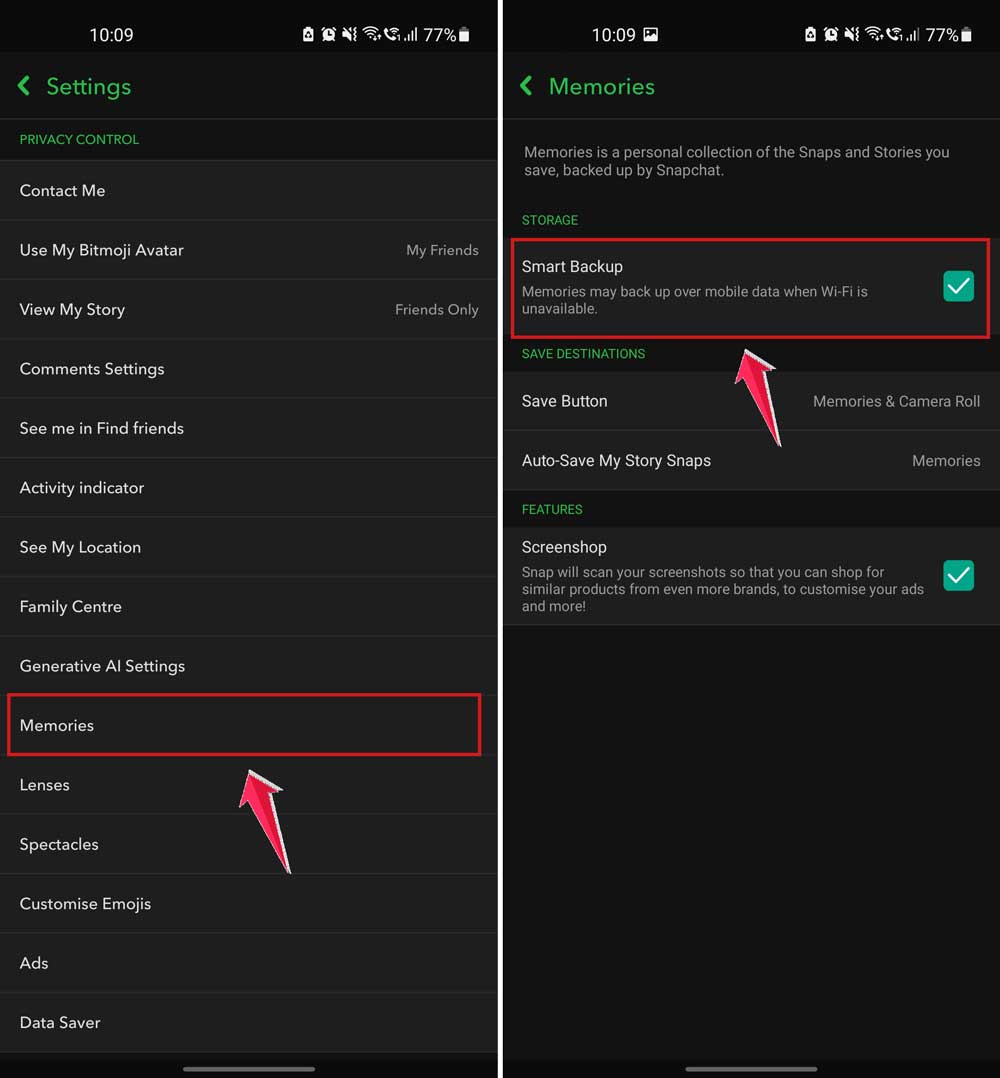
If it says “Complete,” you’re good to go. If it’s still backing up, give it a few minutes. Once done, your Snaps will be safe even if you lose or change your phone.
#4 Request Your Snapchat Data from the Website
Still can’t find something you know you saved? Let’s dig deeper. Snapchat lets you request a full copy of your data.
Here’s how:
- On a browser, go to the Snapchat Accounts page and log in.
- Click on “My Data”.
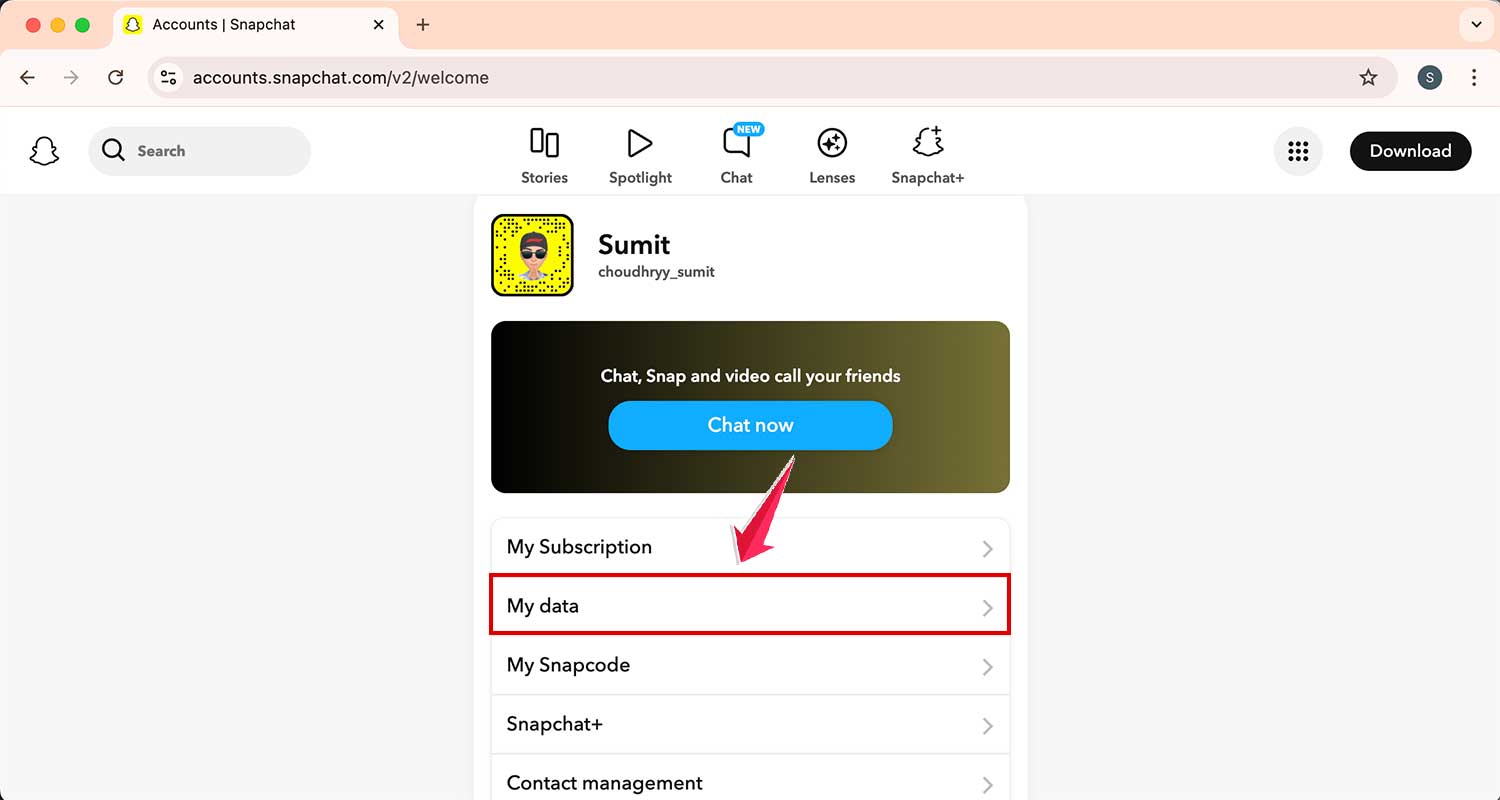
- Then scroll down to Request Data.
- Snapchat will send you a download link via email once it’s ready.

This file can include message history, Memories, and more. It’s like your Snapchat archive. You might just find the Snap you’ve been looking for here.
Extra Tips to Keep Your Snaps Safe Going Forward
Now that you’ve done the hard part, let’s make sure you don’t lose any more memories. These tips will help you stay organized and protected.
1. Make a Habit of Saving Important Snaps
Some Snaps are just too good to lose, right? So every time you catch a moment that matters, hit that Save button. It only takes a second, and it keeps your memory safe.
2. Use a Strong Password to Protect Your Account
You don’t want anyone snooping around your Snaps. So, make sure your Snapchat password is strong. Use a mix of letters, numbers, and symbols. Something only you know.
3. Back Up to Your Phone Regularly
Even with Snapchat saving stuff, it’s smart to have a second copy. Every now and then, go to Memories and save Snaps to your device or a cloud storage app. That way, you’re covered no matter what.
4. Organize Snaps with Archive Folders
Too many Snaps? Try organizing them. You can make folders in Memories for different events or themes. It makes finding stuff way easier later.
5. Stay Updated with Snapchat Features
Snapchat loves rolling out new tools and features. Every time there’s an update, take a few minutes to explore what’s new. You might find an even better way to save or manage your Snaps.
The Takeaway
Losing Snapchat Stories or Memories feels bad—but now you know how to find them. From checking your settings to digging through Memories and even requesting your data, you’ve got a full toolbox to bring those Snaps back.
A common myth is that once a Snap is gone, it’s gone forever. But that’s not always true. Many times, they’re just hidden or not backed up properly. And now, you know exactly where to look and what to do.
So, go ahead—apply these steps, and bring back those fun, silly, or special moments. And hey, if you’ve got a question or want to share your success, drop a comment below. I’m here to help!