Are you trying to share photos with a friend sitting next to you, but you’re out of data? Or maybe you want to transfer files between your own devices without dealing with cables or cloud services? You’re in the right place.
Bluetooth is a free and easy solution that’s probably already on your devices. It lets you send files wirelessly without using the internet. No need for data, Wi-Fi, or any special apps.
You might be wondering, “Is it complicated?” Not at all. If you can turn on a light switch, you can use Bluetooth. It’s built into most smartphones, tablets, and computers, just waiting for you to tap into its potential.
In this guide, you’ll learn how to use Bluetooth to transfer files between your devices. We’ll walk you through each step, from turning it on to sending your first file.
By the time you’re done reading, you’ll be sharing photos, documents, and more without a second thought.
What is Bluetooth file transfer, and how does it work?
Ever wanted to share a file with someone sitting next to you without dealing with emails or messaging apps? That’s where Bluetooth file transfer comes in handy.
It’s a simple way to send files wirelessly between devices that are close to each other. Here’s what you need to know.
1. It works with many devices: You can use Bluetooth file transfer with your smartphone, tablet, laptop, or desktop computer. No need for special apps – it’s built right into your device.
2. Keep an eye on compatibility: While Bluetooth is pretty common, there’s a catch. You can’t directly send files between iPhones and Android phones using Bluetooth. If you’re moving from Android to iPhone, you’ll need to use Apple’s Move to iOS app instead.
3. Check your settings: Most devices that support Bluetooth file transfer have a setting called Bluetooth Share or something similar. Make sure it’s turned on if you’re having trouble.
4. Chromebook users, you’re covered too: If you use a Chromebook, you’ve got a feature called Nearby Share. It’s like Bluetooth file transfer but works specifically with other Chromebooks and Android devices.
Bluetooth file transfer is great for quickly sharing photos, documents, or other files with people nearby. Just remember, it works best between devices with the same operating system (like Android to Android or iPhone to iPhone).
How to turn on Bluetooth on your device
Ready to start sharing files with Bluetooth? First, you need to turn it on. Don’t worry, it’s easy! Here’s how to do it:
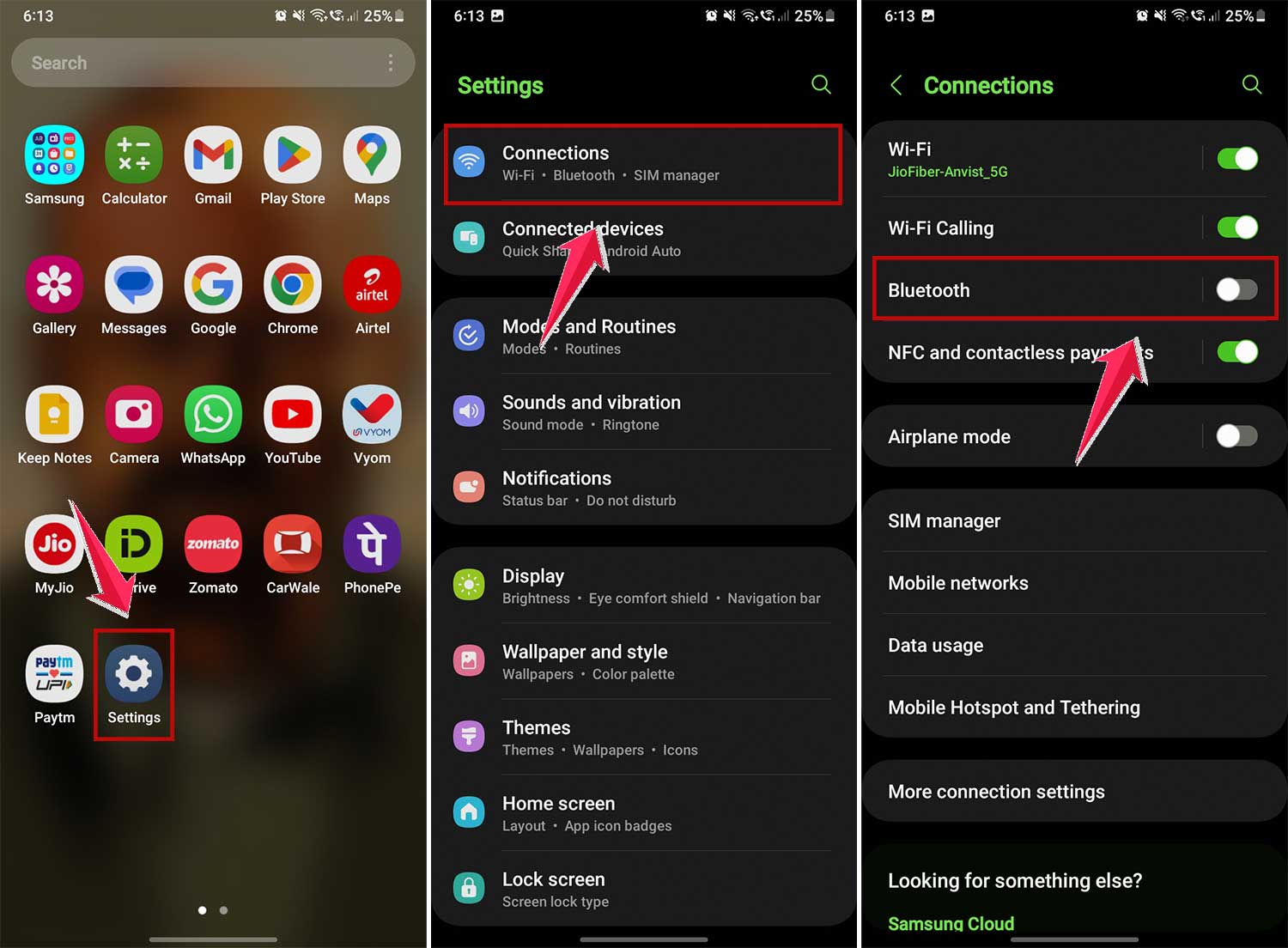
1. If you have an Android phone
- Find the Settings app on your phone. It usually looks like a gear or cog.
- Look for something called “Connected devices” or “Connections“. Tap on that.
- You might see “Bluetooth” right away. If not, tap on “Connection preferences” and then “Bluetooth“.
- Now, just flip the switch next to Bluetooth to turn it on. It’s that simple!
2. If you have an iPhone or iPad
- Open the Settings app.
- Scroll down a bit until you see “Bluetooth“.
- Tap on it, then flip the switch to turn Bluetooth on.
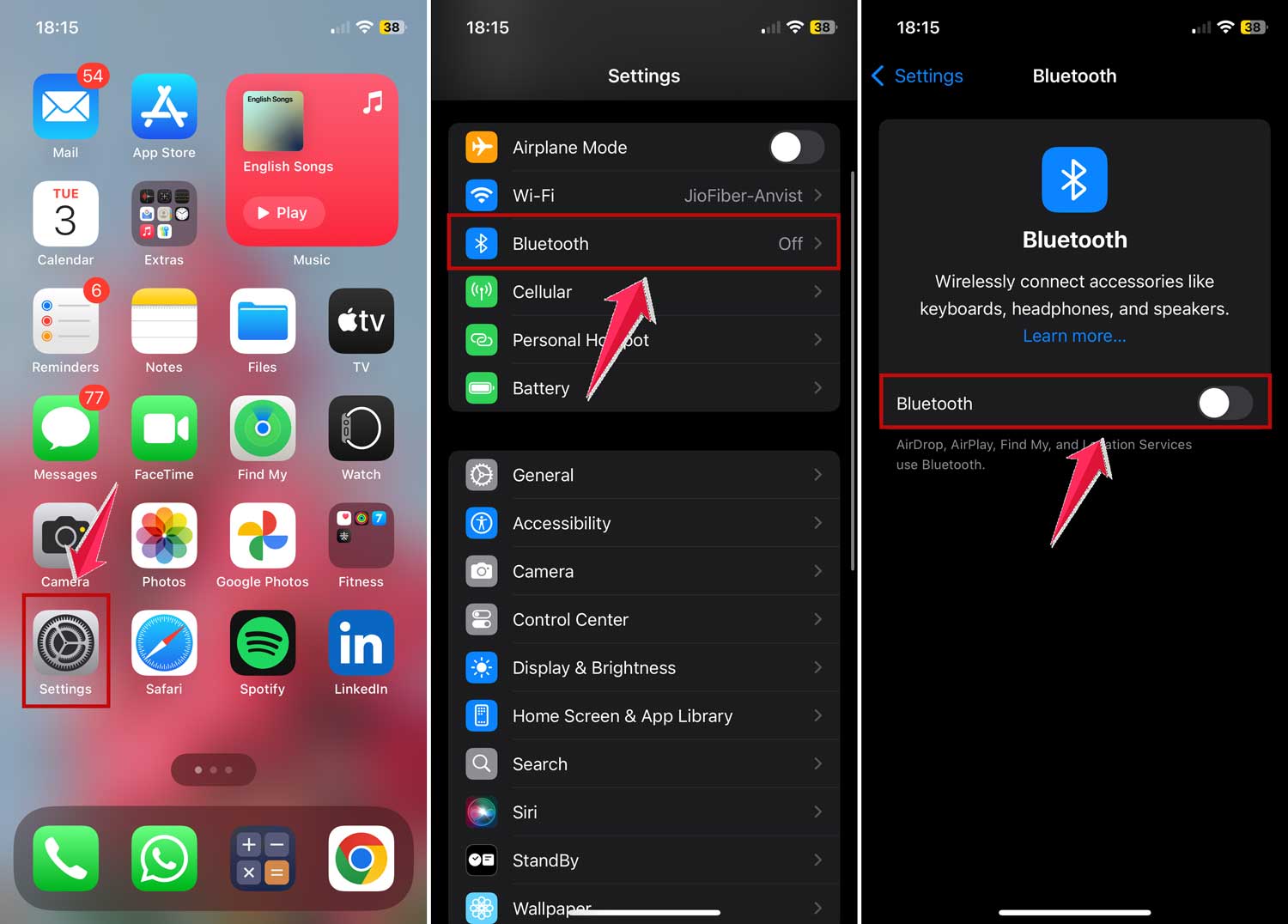
And that’s it! Your device is now ready to connect and share files using Bluetooth.
How to send files from your phone or tablet
Need to share a photo or document from your phone without using your data? Bluetooth is here to help. Here’s how to send files from your smartphone or tablet:
- On Android, look for “Files” or “My Files“. iPhone users, you’ll use AirDrop, which works similarly.
- Tap and hold to choose one or more files.
- It usually looks like a dot with arrows coming out of it.
- Now click on the Share icon in the bottom menu.
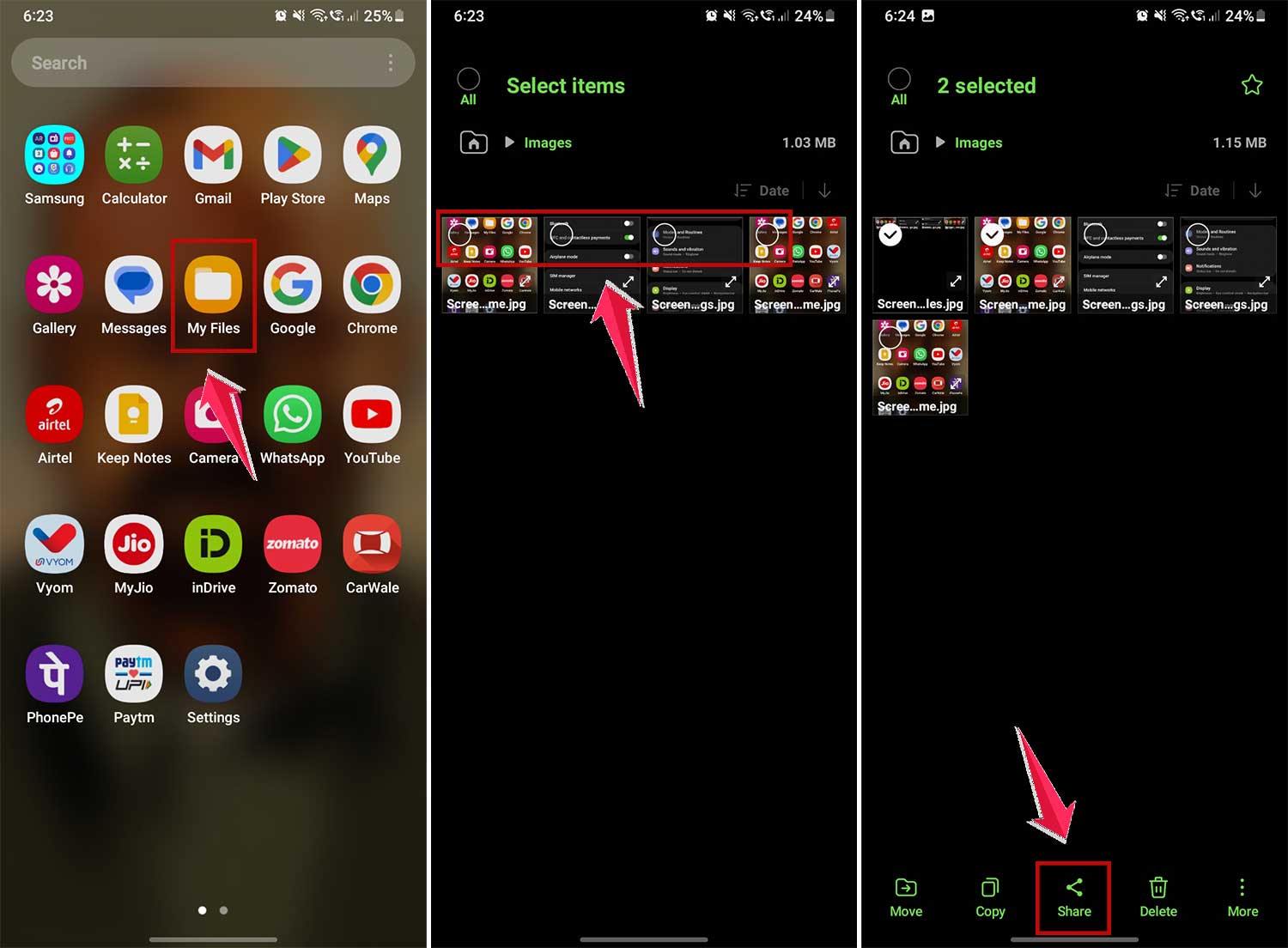
- Then scroll right and choose “More” in the options in the share list.
- From the sharing options, tap Bluetooth. Your device might ask you to turn it on if it’s not already active.
- Select the device you want to send your files to.

- The receiver needs to accept the transfer on their device. If they miss it, you might need to try again.
- Once sent, the receiver will need to save the files to a folder on their device.
That’s it! You’ve just shared files without using any data. Simple, right?
How to send files from your computer
Want to send files from your computer to your phone or another device? Here’s how:
- Open File Explorer on your Windows PC.
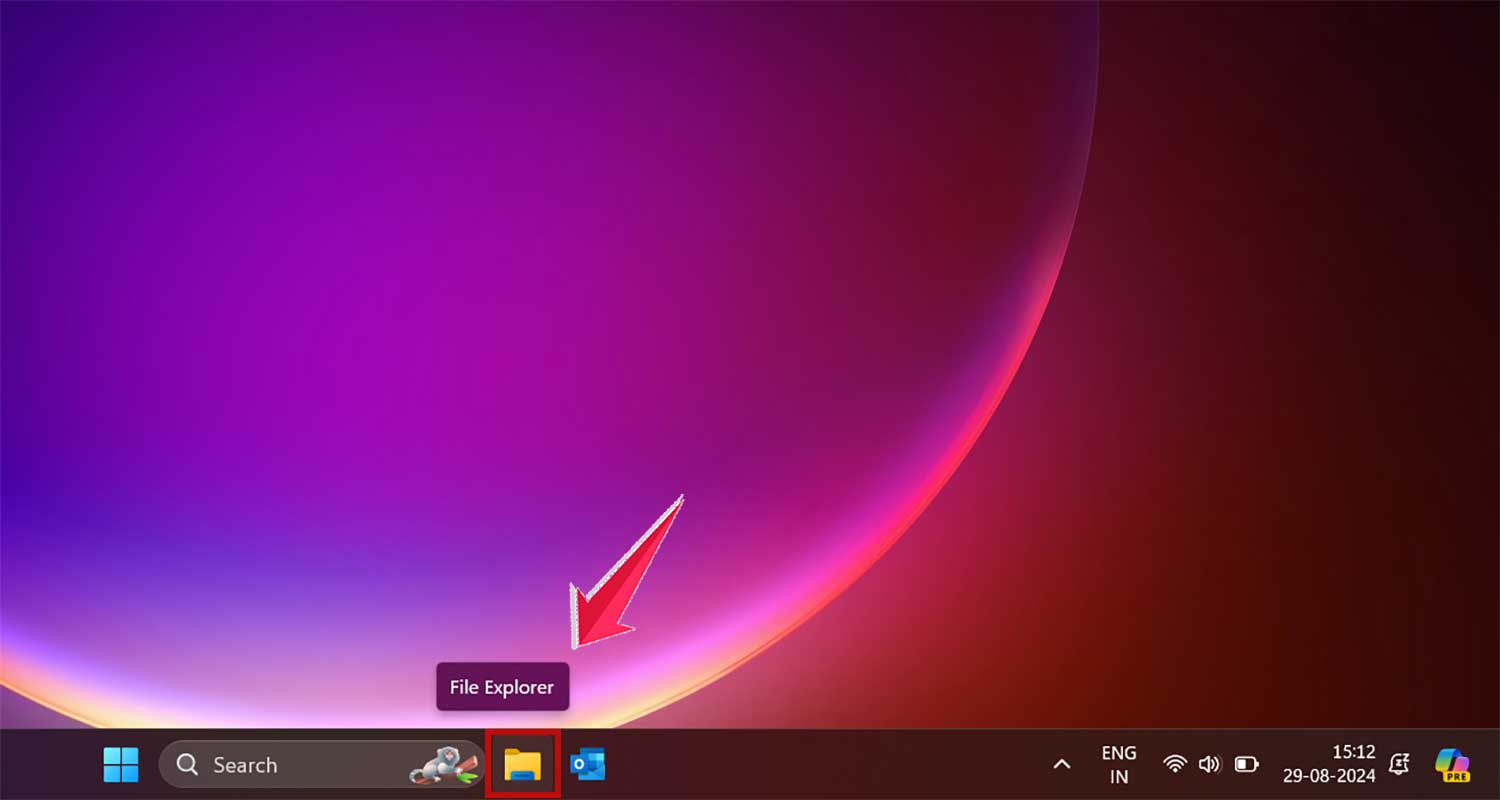
- Find the files you want to send.
- Choose your files, then right-click on them.
- On Windows 11, you might need to click “Show more options” first.
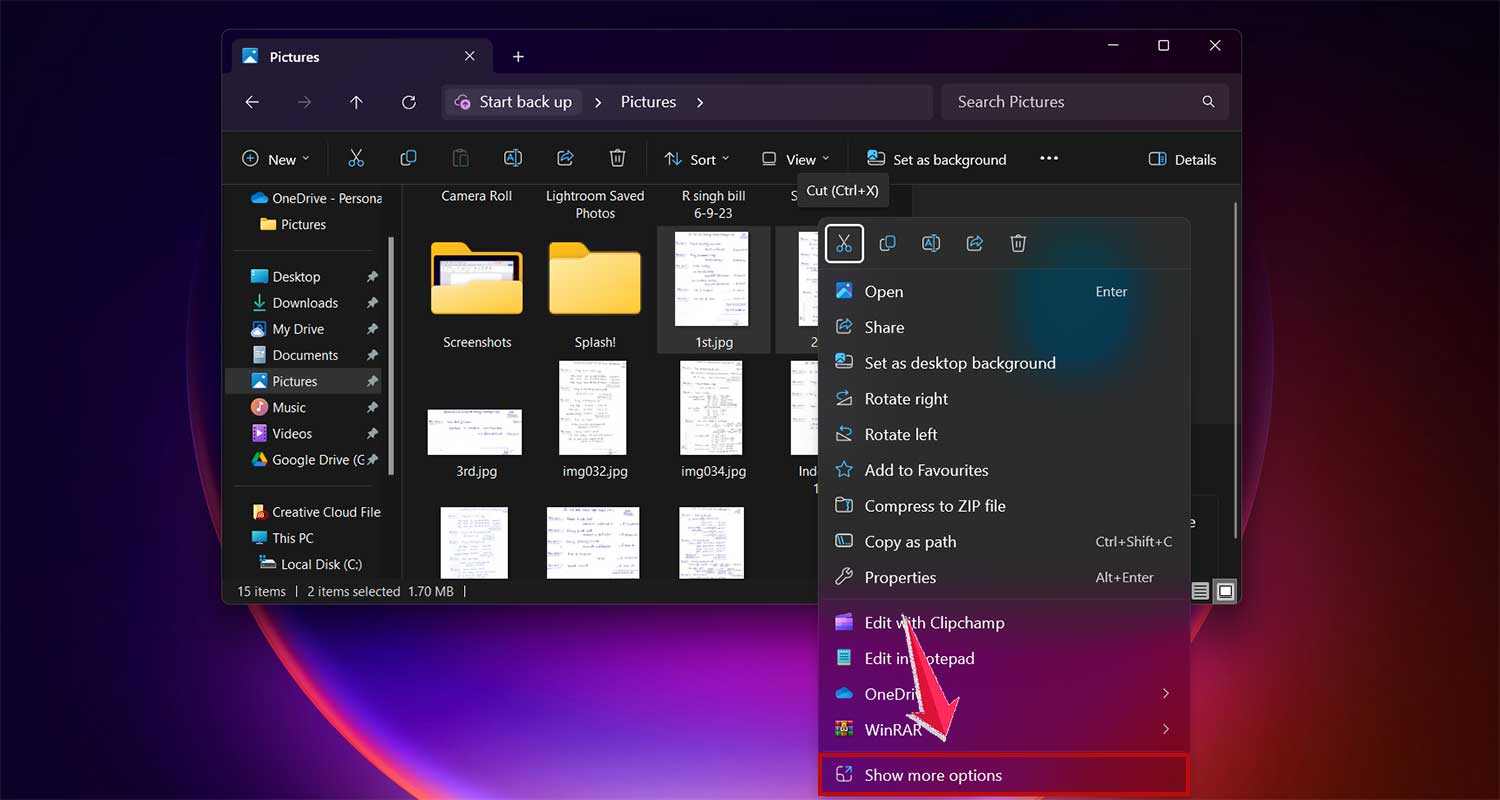
- Look for “Send to” then “Bluetooth Device“.

- Select the device you’re sending to and click “Next”.
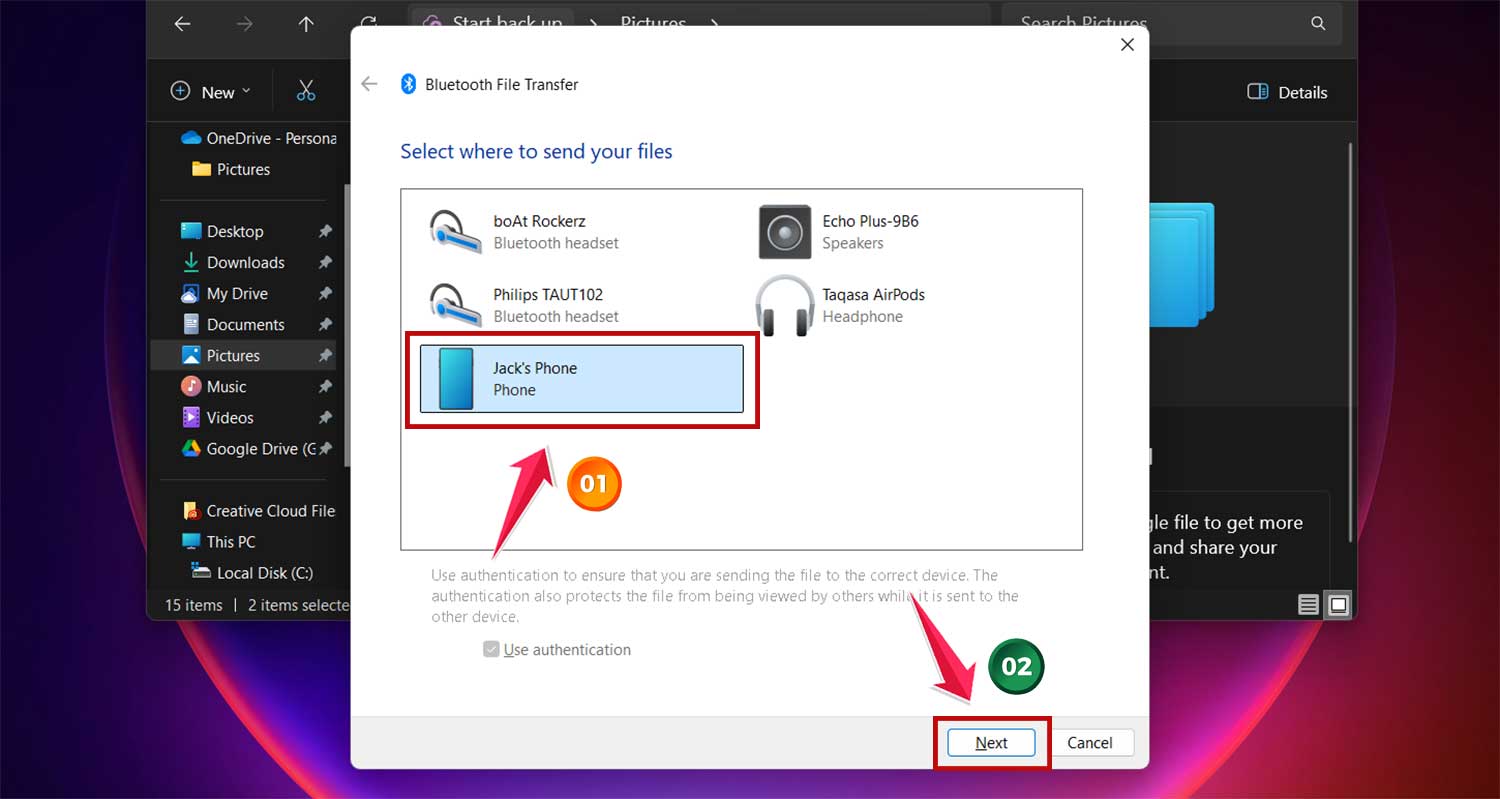
- The receiving device will get a notification. Make sure to tap “Accept” to receive the files.
- Transfer time depends on file size.
- Once sent, you’ll see a message on your computer. Click “Finish” to close it.
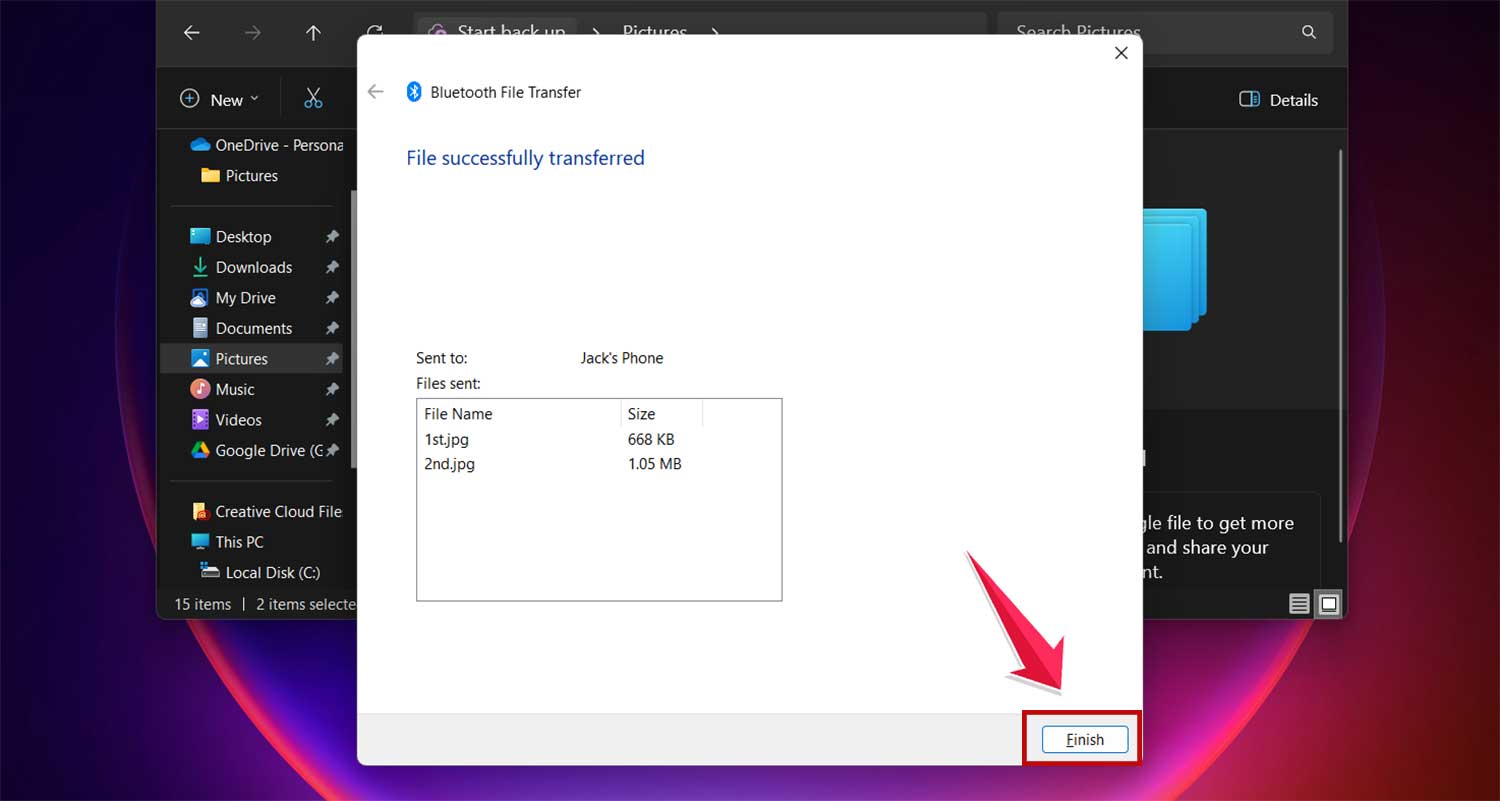
Now, you can easily share files between your devices without worrying about data usage or Wi-Fi. It’s perfect for quickly sharing photos, documents, or any other files when you’re with friends or moving content between your own devices.
Remember, Bluetooth works best for nearby devices, typically within about 30 feet. For larger files or longer distances, you might want to consider other options like cloud services or email.
Should you use Bluetooth to send files?
Wondering if Bluetooth is the best way to share files? Let’s break it down for you:
Why Bluetooth might be your go-to:
- No cables needed: Just turn on Bluetooth and you’re ready to go.
- No internet required: Perfect for when you’re off the grid or trying to save data.
- No apps to download: It’s already built into your device.
- Works almost anywhere: Unlike Wi-Fi or cell signals, Bluetooth works in more places.
But keep in mind:
- It’s not the fastest: If you’re in a hurry, a USB cable is usually quicker.
- It works best for smaller files: Sending large videos might take a while.
- It’s for nearby devices: You’ll need to be close to the other device.
How fast is Bluetooth?
Bluetooth has gotten faster over the years:
- Older versions: About 0.25 MB per second.
- Newer versions: Up to 6 MB per second.
What does this mean for you? An average photo (about 8 MB) might take about 3 seconds to send. A larger file, like a 1 GB video, could take around 7 minutes.
What can you send with Bluetooth?
Almost anything! Documents, photos, videos, music – you name it. The only catch is that the receiving device needs to be able to open the file type you’re sending.
Tips for smoother Bluetooth transfers:
- Disconnect other Bluetooth devices: Turn off your wireless headphones or speakers first.
- Send files one at a time: Some devices don’t like it when you send too many at once.
- Keep devices close: The closer, the better. Try to keep them within a few feet of each other.
- Close unnecessary apps: This can help speed things up.
- Restart if needed: If you’re having trouble, try turning Bluetooth off and on again.
The takeaway
So, you’ve made it through our guide on Bluetooth file transfer. Pretty neat stuff, right? Here’s the bottom line: Bluetooth is your go-to solution for quick, easy file sharing when you’re near the person you want to share with.
Remember, it’s not about being the fastest—it’s about convenience. No need for Wi-Fi, data, or tangled cables. Just turn on Bluetooth, select your file, and send it over. It’s perfect for sharing photos, documents, or even music with friends sitting next to you.
Don’t let the tech jargon scare you off. Bluetooth is simpler than you might think. Give it a shot next time you need to share something. You might be surprised at how easy and useful it is. So, why not try it out? Your phone’s ready and waiting.
FAQ
What is Bluetooth file transfer?
Bluetooth file transfer is a method that allows you to wirelessly send files between devices such as smartphones, tablets, and computers using Bluetooth technology. It doesn’t require an internet connection, cables, or additional apps.
Can I transfer any type of file using Bluetooth?
Yes, you can transfer almost any type of file over Bluetooth, including documents, photos, videos, music, and apps. The receiving device must have the appropriate software to open and manage the file type.
Why can’t I use Bluetooth to transfer files between iOS and Android devices?
Due to system limitations, iOS and Android devices do not support direct file transfers via Bluetooth. Alternatives like Apple’s Move to iOS app or third-party file transfer apps are recommended for transferring files between these platforms.
How do I turn on Bluetooth on my device?
The steps vary by device:
- Android: Open Settings > Connections > Bluetooth and toggle it on.
- iPhone/iPad: Open Settings, find Bluetooth, and switch it on.
- Windows and Mac: Refer to specific guides for detailed instructions on enabling Bluetooth.
What are the advantages of using Bluetooth over other file transfer methods?
Bluetooth is beneficial for its simplicity and minimal requirements—it doesn’t need a cable, Wi-Fi network, or data connection. However, it is generally slower than other methods like USB or Wi-Fi Direct.
How fast is Bluetooth file transfer?
The speed depends on the Bluetooth version:
- Bluetooth 2.x: Up to 0.25 MB/s
- Bluetooth 3.x and 4.x: Up to 3 MB/s
- Bluetooth 5.x: Up to 6 MB/s Transferring small files like photos can be quick, but larger files may take significantly longer compared to other technologies like USB or Wi-Fi.