Ever fired off an email and instantly wished you could take it back? Maybe you clicked “send” too fast, spotted a typo, or—yikes—sent it to the wrong person. That sinking feeling? Yep, we’ve all had it.
It’s totally normal to panic when you realize your email was missing an attachment or had the wrong information. Don’t worry—we’ve all been there. Mistakes happen. We’re human, after all.
Now here’s the good part. Gmail has a built-in “Undo Send” feature. That means you can actually stop an email from going out, even after you hit send. Sounds like magic, right?
Stick with me. I’ll walk you through exactly how to use Gmail’s unsend email feature, step by step. You’ll also get a few handy tips to avoid email disasters in the first place. Ready? Let’s make emailing stress-free.
Why You Might Need to Unsend an Email
Hitting Send Too Soon Happens
We’ve all done it. You’re typing fast, maybe juggling a few things, and boom—you hit “send” before you meant to. It’s okay. It happens more than you think. The important thing is knowing how to catch it before it’s too late.
Realizing a Typo or Wrong Info
You send the email, then look back and spot a huge typo. Or maybe you typed the wrong date, name, or number. It’s not the end of the world—but it sure feels awkward. Luckily, Gmail gives you a small window to fix it.
Ouch, Wrong Recipient!
Ever sent an email to the wrong person? Maybe you clicked the wrong name, or autocomplete fooled you. That mini heart attack is real. But Gmail’s undo feature can help you stop it before it lands in the wrong inbox.
Missing Details or Attachments
You hit “send” and suddenly remember, you forgot the attachment! Or maybe a key point you meant to include. We’ve all been there. The good news? You’ve got a few seconds to pull that email back.
So yeah, these email slip-ups are super common. But with Gmail, you’ve got tools to fix them before they turn into bigger problems. Let’s walk through how it works.
How to Unsend an Email in Gmail
Alright, let’s get into the part you really came for—how to actually unsend an email in Gmail. It’s quick, it’s simple, and once you set it up, it’ll be your new best friend.
#1 Turn On the Undo Send Feature
First things first, we need to make sure the “Undo Send” option is enabled in your Gmail settings. Don’t worry, it only takes a minute.
Here’s how to do it:
- Open Gmail on your computer.
- Click the gear icon in the top right corner and select “See all settings.”
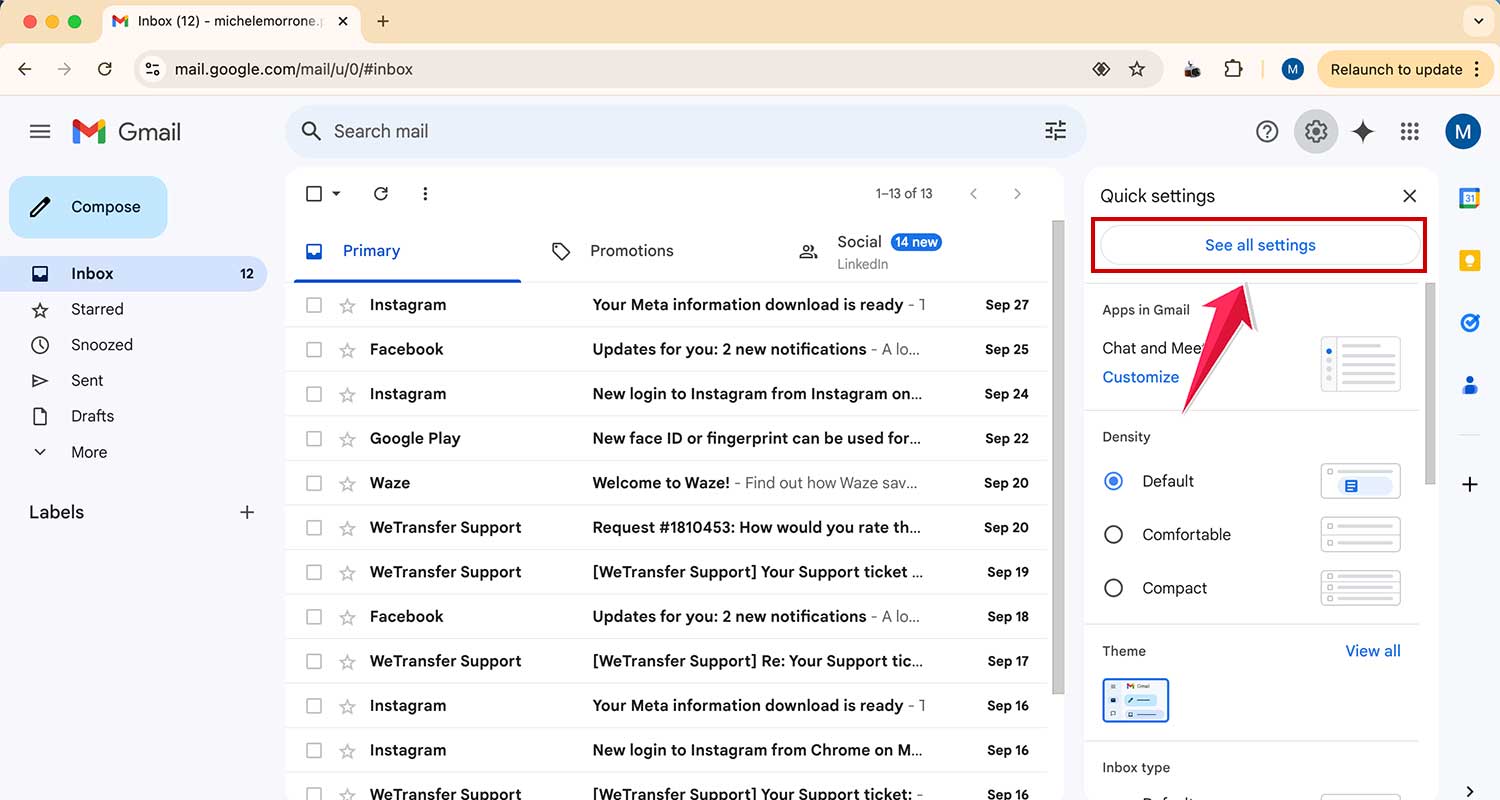
- In the “General” tab, scroll until you see “Undo Send.”
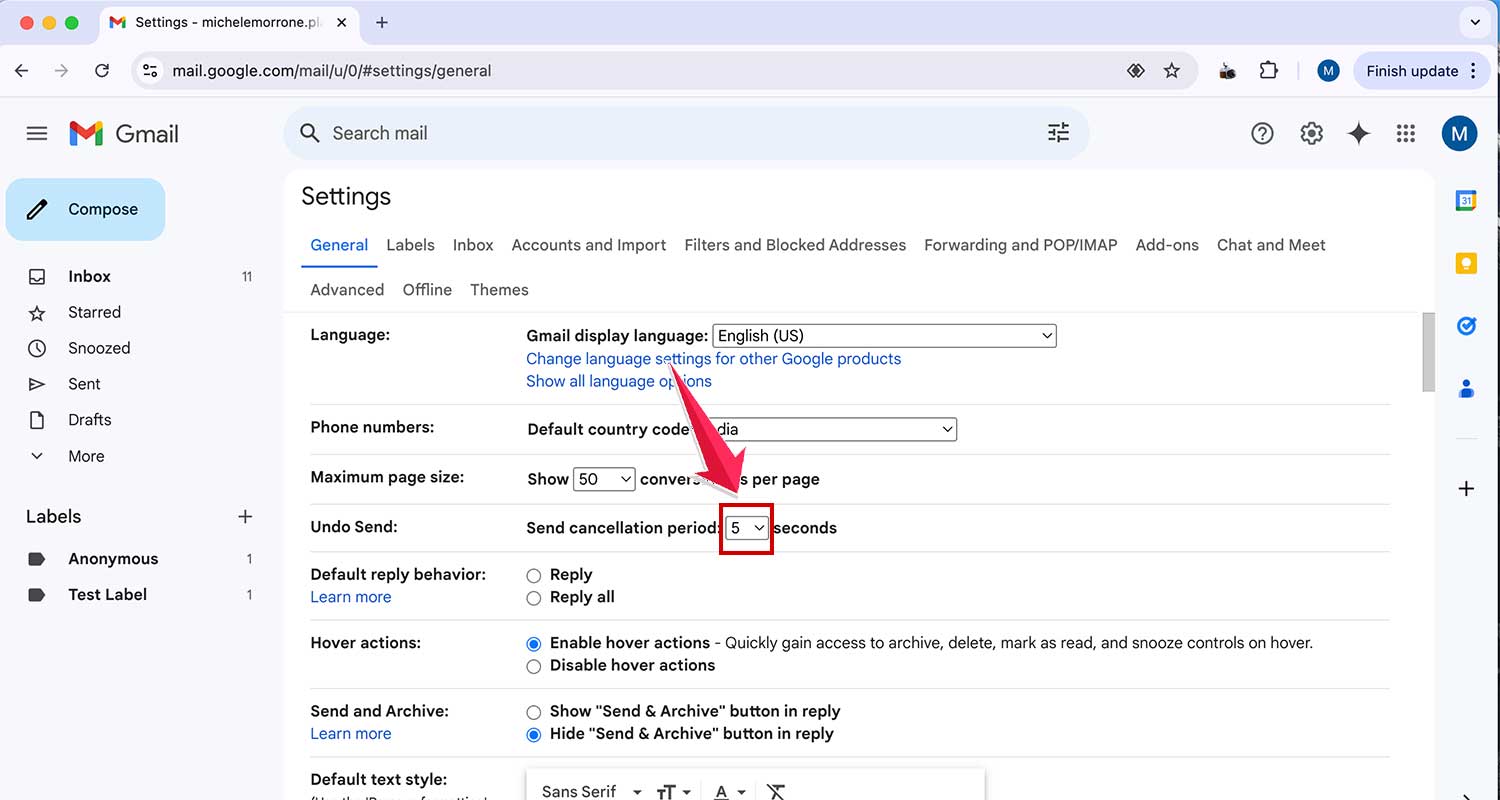
- Choose a cancellation period—you can pick 5, 10, 20, or 30 seconds.
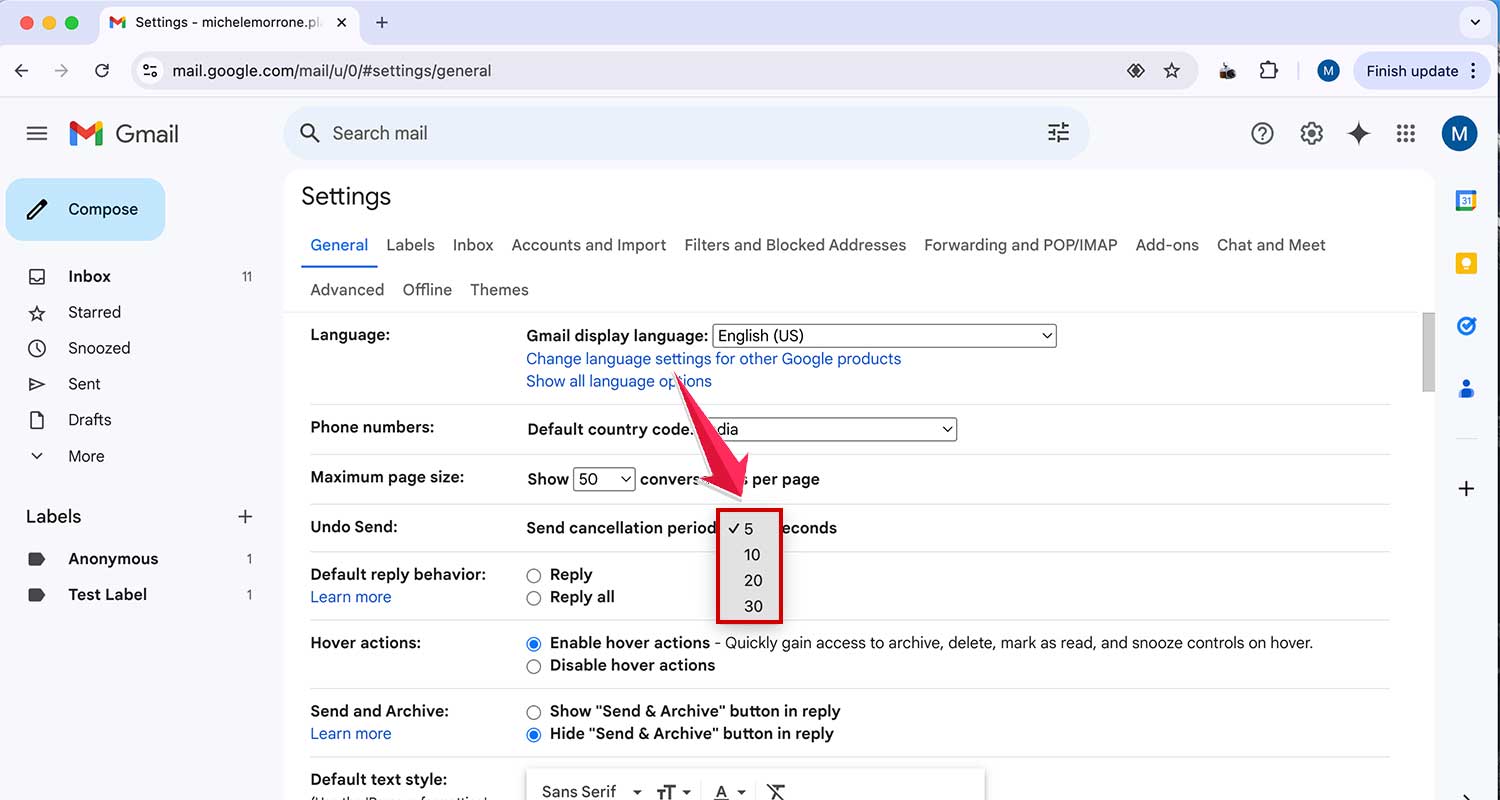
- Scroll to the bottom and click “Save Changes.”
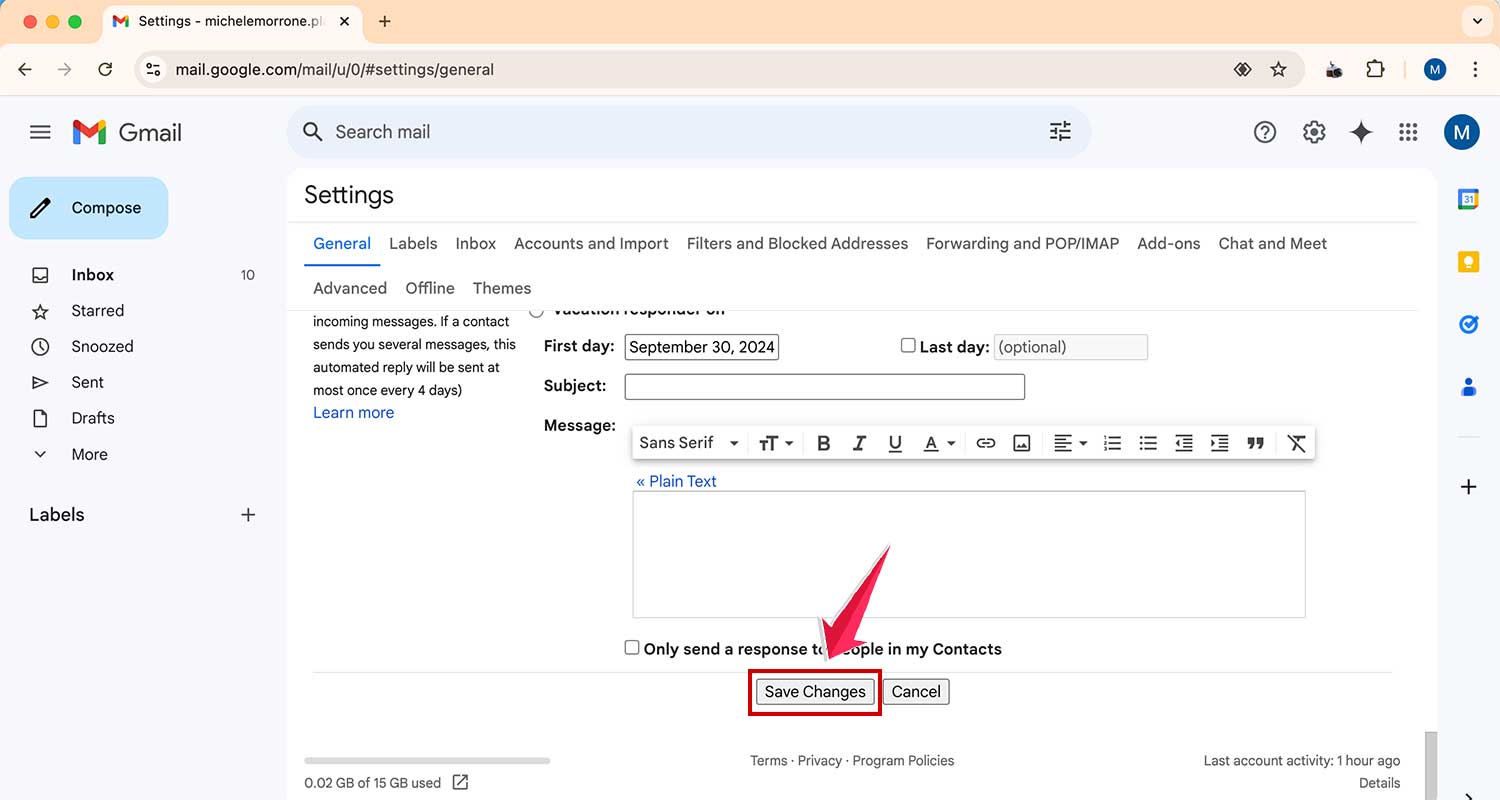
Now, every time you send an email, you’ll see a small box in the bottom left corner that says “Undo.” Click it within the time you set, and your email will be pulled back. Just like that.
#2 Give Yourself More Time to Undo
Worried that 5 seconds isn’t enough? Yeah, me too. Let’s change that to 30 seconds so you’ve got more breathing room.
Here’s what to do:
- Go back into Settings > See all settings.
- Under the “Undo Send” section, select 30 seconds as your cancellation time.

- Don’t forget to click “Save Changes.”
Now you’ve got half a minute to catch any mistakes. That’s plenty of time to realize you forgot an attachment or typed the wrong name.
#3 Be Ready to Click “Undo” Fast
Once you hit send, you’ll see the “Undo” prompt pop up at the bottom left of your screen. But it doesn’t stay there long, so you’ve got to move fast.
Here’s how to stay alert:
- After hitting send, keep your eyes on the screen for the “Undo” option.

- Click it before the timer runs out. Once it’s gone, the email is gone too.
- If you’re using Gmail on mobile, the “Undo” option appears at the bottom too—just tap it quickly.

Practice makes perfect. The more you use it, the faster your reflexes will get. You’ll be dodging email mistakes like a pro in no time.
#4 Use Gmail on Desktop for Better Control
The undo feature works best on Gmail’s desktop version. It’s more visible, and you can act faster. If you’re doing serious emailing, try to use your computer instead of your phone when possible. It just gives you more room to work with.
#5 Undo Send Doesn’t Work Forever
Let’s be clear—this isn’t a time machine. Once the cancellation window passes, you can’t take the email back. That’s why it’s so important to set that 30-second window and stay alert.
Also, if your email includes sensitive info or you sent it to the wrong company or person, and you missed the undo window, your best bet is to send a follow-up email explaining the mistake. It’s not ideal, but it shows accountability.
Bonus Tips to Avoid Email Mistakes
Always Double-Check Before Sending
Take a deep breath and scan your email. Look for typos, missing attachments, and double-check who you’re sending it to. A 10-second review can save you from a lot of awkward follow-ups later.
Use Drafts to Pause and Review
If you’re unsure, save it as a draft. Come back after a few minutes—or even the next day. You’ll often catch things you missed the first time around.
Schedule Emails Instead of Sending Right Away
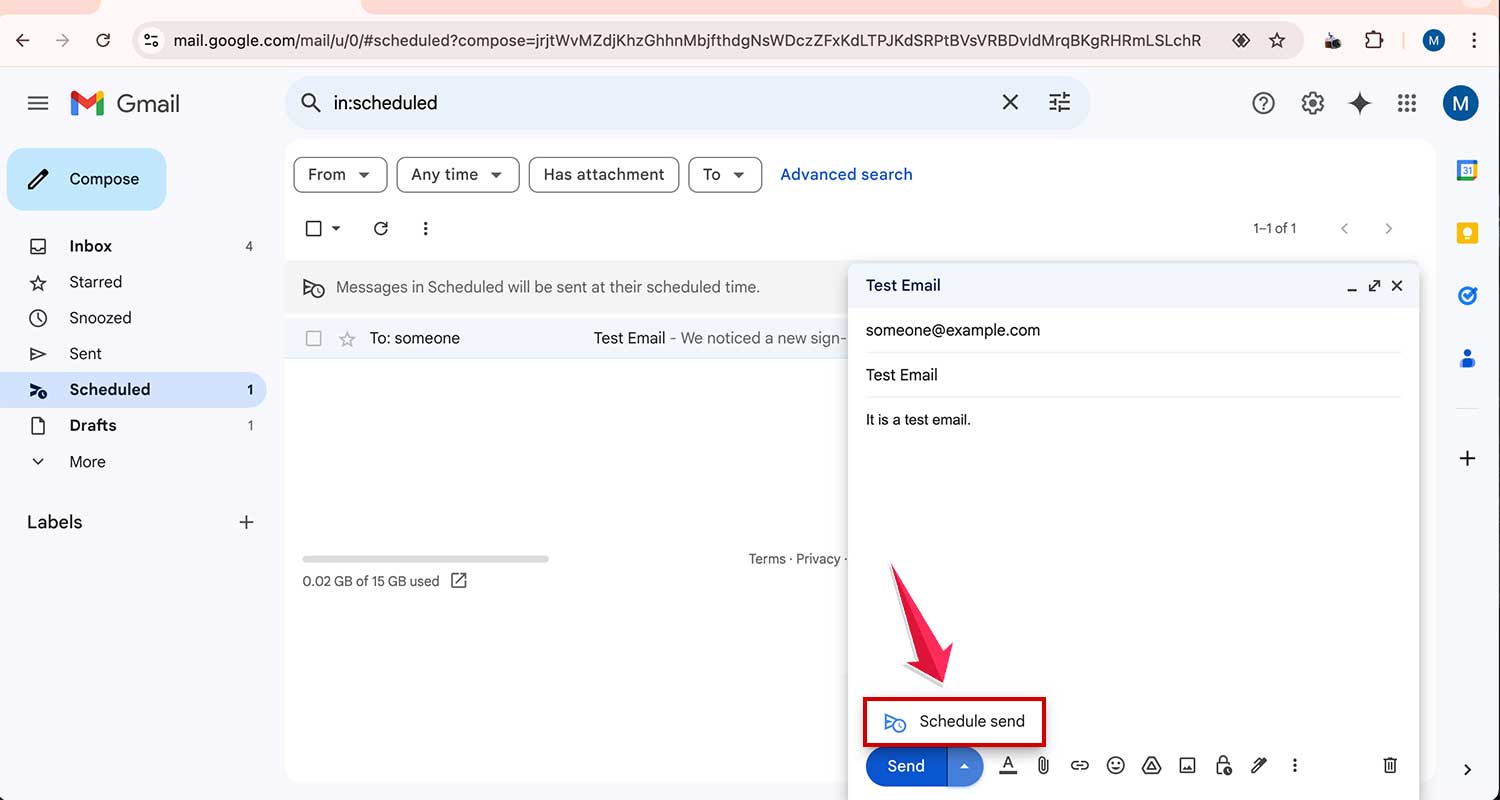
Use Gmail’s “Schedule send” feature. You can write your email now, but set it to send later. That gives you more time to review and edit it if needed.
Create a Quick Checklist
Keep a small list near your workspace. Something like: “Attachment? Correct name? Right email?” It’s a simple habit that can prevent big mistakes.
Clean Up Your Contacts
Delete outdated or duplicate contacts. Label your contacts clearly so you don’t accidentally email the wrong person. It’s a small task that makes a big difference.
The Takeaway
Look, email mistakes happen. You’re not the only one who’s hit “send” too soon or sent something to the wrong person. It’s part of being human. But the good news is, Gmail gives you a second chance with its “Undo Send” feature.
By setting your cancellation window to 30 seconds and staying alert, you’ve got a real shot at catching those slip-ups.
Plus, using drafts, scheduling, and double-checking can reduce the chances of needing that undo button in the first place.
So go ahead—email with confidence. You’ve got the tools, the tips, and now the know-how.
And if you’ve got any tricks of your own, I’d love to hear them. Drop a comment below!