Google Duo/Meet has become a popular choice for video and audio calls on smartphones. It’s easy to use and even offers a web version for your computer. Whether you want to have a quick chat with a friend or join a group call, Google Duo/Meet aims to make your video calling experience smooth and enjoyable.
But what if you want to try something new? Many other apps out there can help you stay connected. If you decide to explore different options, you might want to remove Google Duo/Meet from your phone. This can free up some space on your device, giving you room to try out new apps.
In this guide, you’ll learn how to uninstall Google Duo/Meet from your Android phone. We’ll walk you through the process step by step so you can easily make space for new apps that catch your interest.
Is Google Duo/Meet Still Around? What You Need to Know About Uninstalling?
Google Duo/Meet, as you know it, is changing. In 2022, Google started merging Duo with Google Meet to create a unified video-calling app. If you have Duo/Meet on your phone, you might have noticed it’s now called “Google Meet.” Don’t worry – it still has all the features you loved about Duo, plus some new ones from Meet.
But what if you don’t use the app anymore or prefer other video calling services? You might want to uninstall it to free up space on your device. Whether you’re using an Android phone, iPhone, or iPad, this guide will walk you through the process of removing the app.
Even if you decide to keep the new Google Meet (formerly Duo), knowing how to uninstall apps is always useful for managing your phone’s storage. Let’s dive into the steps for different devices and situations.
How to Uninstall Google Duo on Android
#1 Uninstalling Google Duo/Meet
If you’ve downloaded Google Duo/Meet from the Google Play Store, uninstalling it is a breeze. Just follow these simple steps:
- Open Your Settings: Start by tapping on the ‘Settings‘ icon on your Android device.
- Head to Apps & Notifications: Next, select ‘Apps & Notifications‘ from the settings menu.
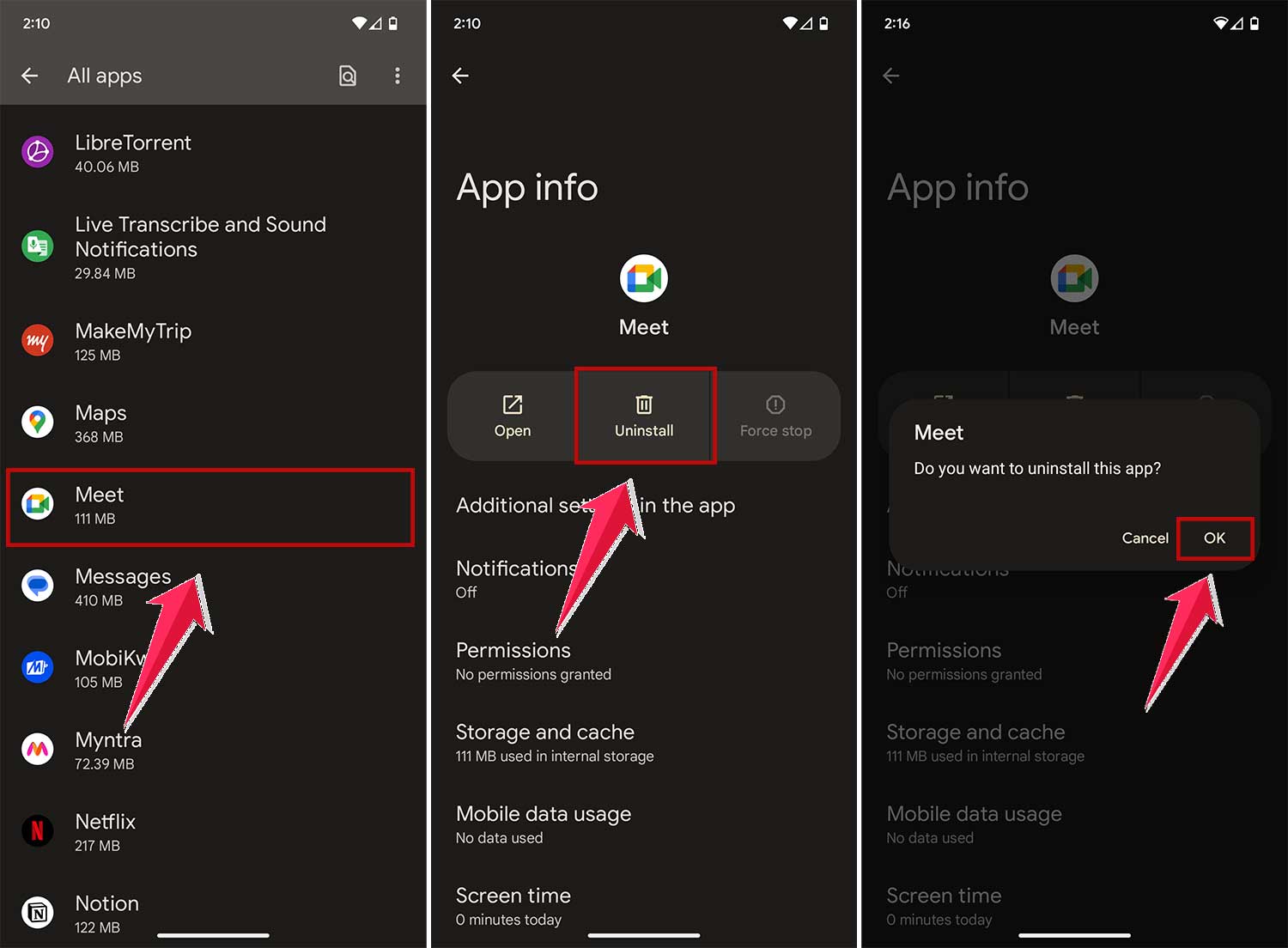
- Find Google Duo/Meet: Click on ‘SEE ALL APPS‘ to view all the applications installed on your device. Scroll through and find the Google Duo/Meet app.

- Time to Uninstall: Once you’ve located Google Duo/Meet, tap on it and then select ‘UNINSTALL.’
- Confirm Your Action: A prompt will appear asking for confirmation. Click on ‘OK‘ to finalize the uninstallation process.
#2 Disabling Pre-Installed Google Duo/Meet
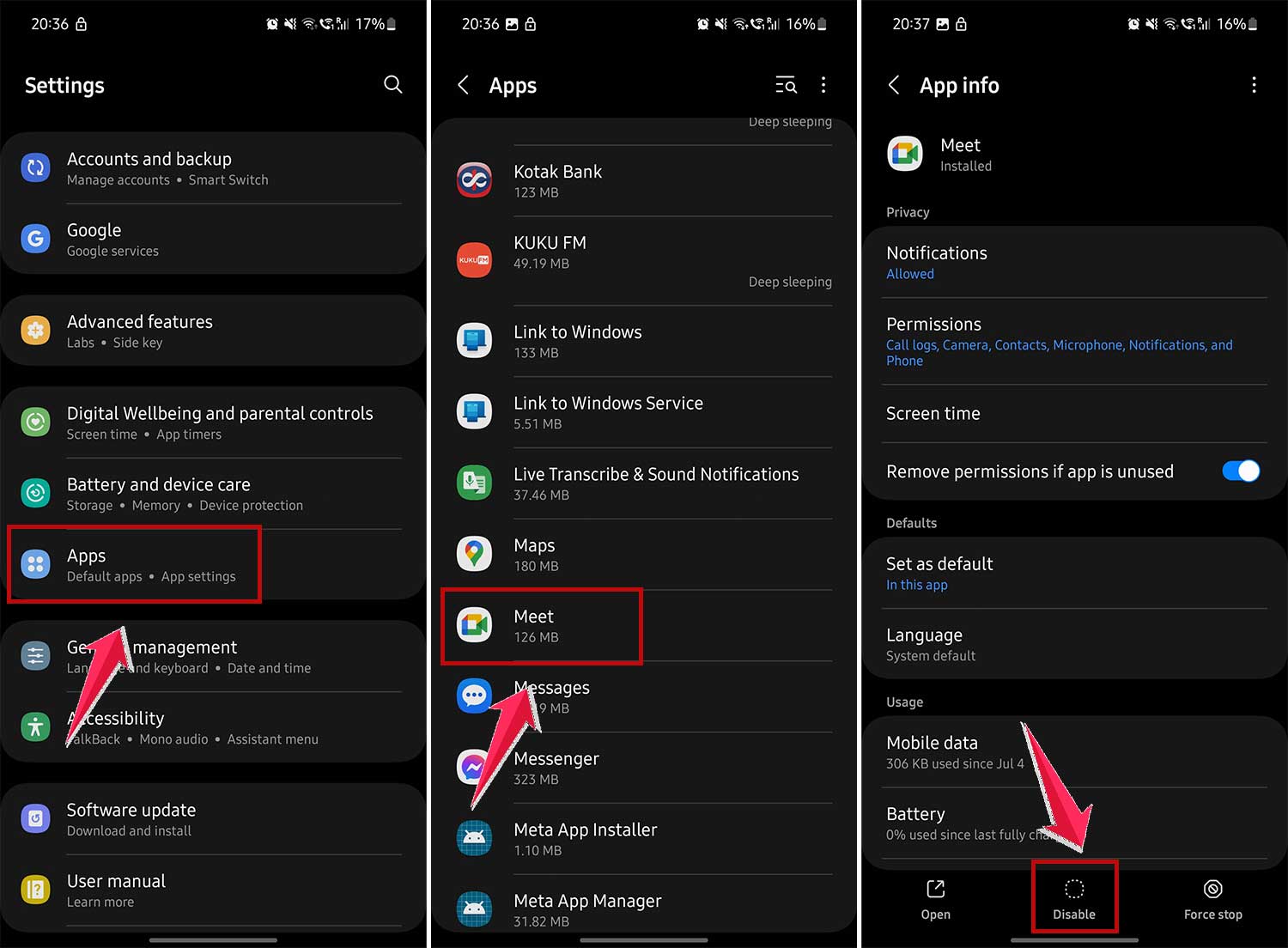
In case Google Duo/Meet came pre-installed on your device, you won’t be able to uninstall it, but you can disable it to stop it from running in the background:
- Access Settings: Again, start by opening the ‘Settings‘ app on your Android device.
- Navigate to Apps & Notifications: Look for ‘Apps & Notifications‘ in the settings and tap on it.
- Locate Duo/Meet: Find the Duo/Meet app in the list or search for it.
- Disable the App: Select ‘Duo/Meet‘ and then choose the ‘DISABLE‘ option. This will stop the app from operating on your device.
How to Uninstall Google Duo/Meet on iPhone/iPad
Whether it’s your iPhone or iPad, you can easily uninstall the Google Duo/Meet app. It can be done right from your home screen. Just follow these easy steps:
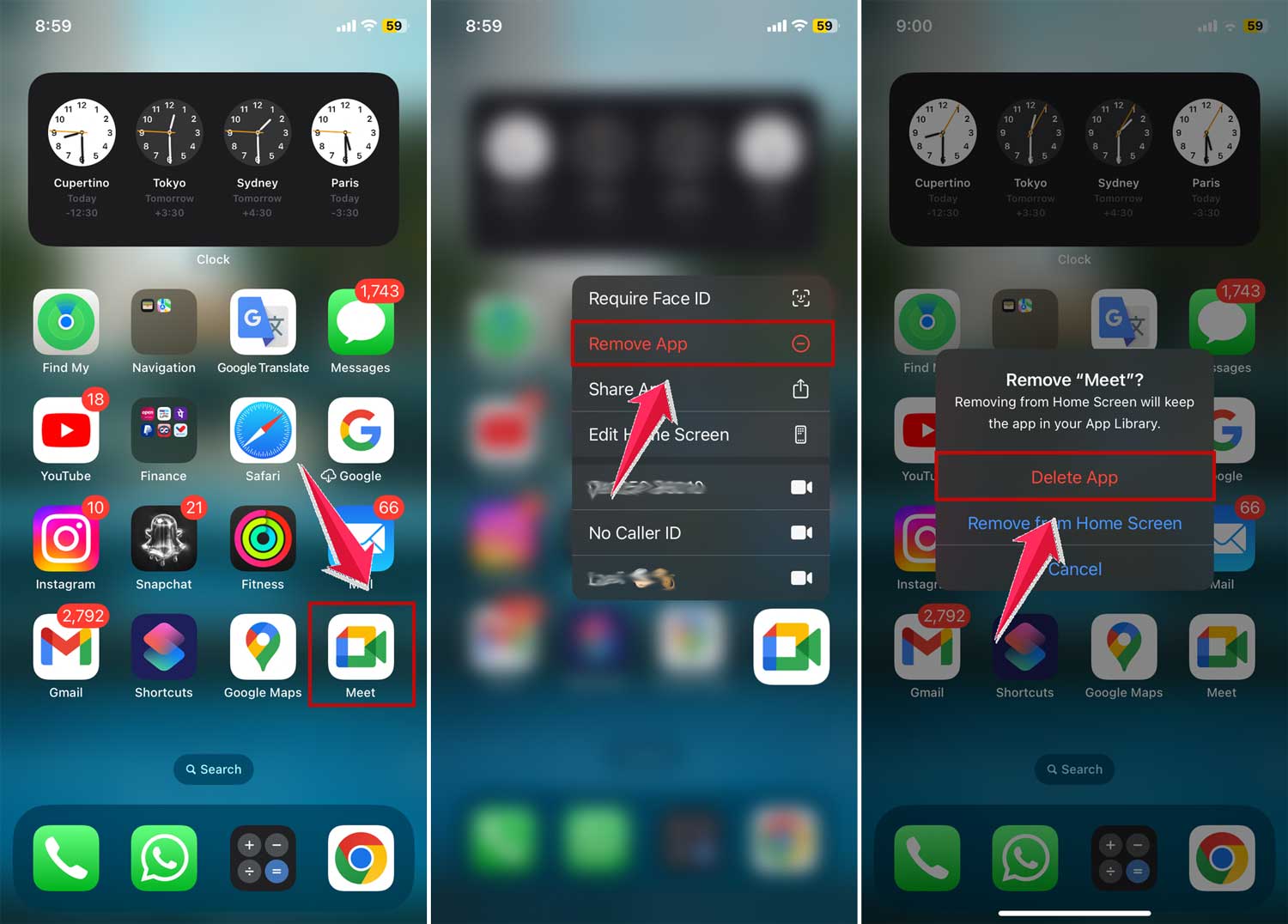
- Start by Long-Pressing the Duo/Meet App Icon: Locate the Google Duo/Meet app on your iOS device. Then, press and hold the app icon. After a moment, a menu will pop up.
- Tap on ‘Delete App’: In the menu that appears, select ‘Delete App.’ This option will initiate the process to remove Google Duo/Meet from your device.
- Confirm the Deletion: A prompt will appear asking you to confirm your decision. Tap on ‘Delete’ to confirm. This will permanently remove the Google Duo/Meet app from your iPhone or iPad.
Just a couple of taps, and you’ve successfully freed up some space on your device by removing an app you no longer need.
How To Delete your Google Duo/Meet account
Sometimes, just uninstalling the Google Duo/Meet app isn’t enough, especially if you plan to use a different Google account or mobile number with the app.
In such cases, it’s a good idea to delete your Google Duo/Meet account. This process is applicable for both Android and iOS devices, as well as the web version of Google Duo. Let’s walk through the steps:
#1 For Android and iOS Devices:
- Open the Google Duo/Meet App: Start by launching the Google Duo/Meet app on your device.
- Access the Menu: Tap on the three-dot menu icon, usually located at the top right corner of the app.
- Go to Settings: From the menu, select ‘Settings’ and then navigate to the ‘Calling Settings’.
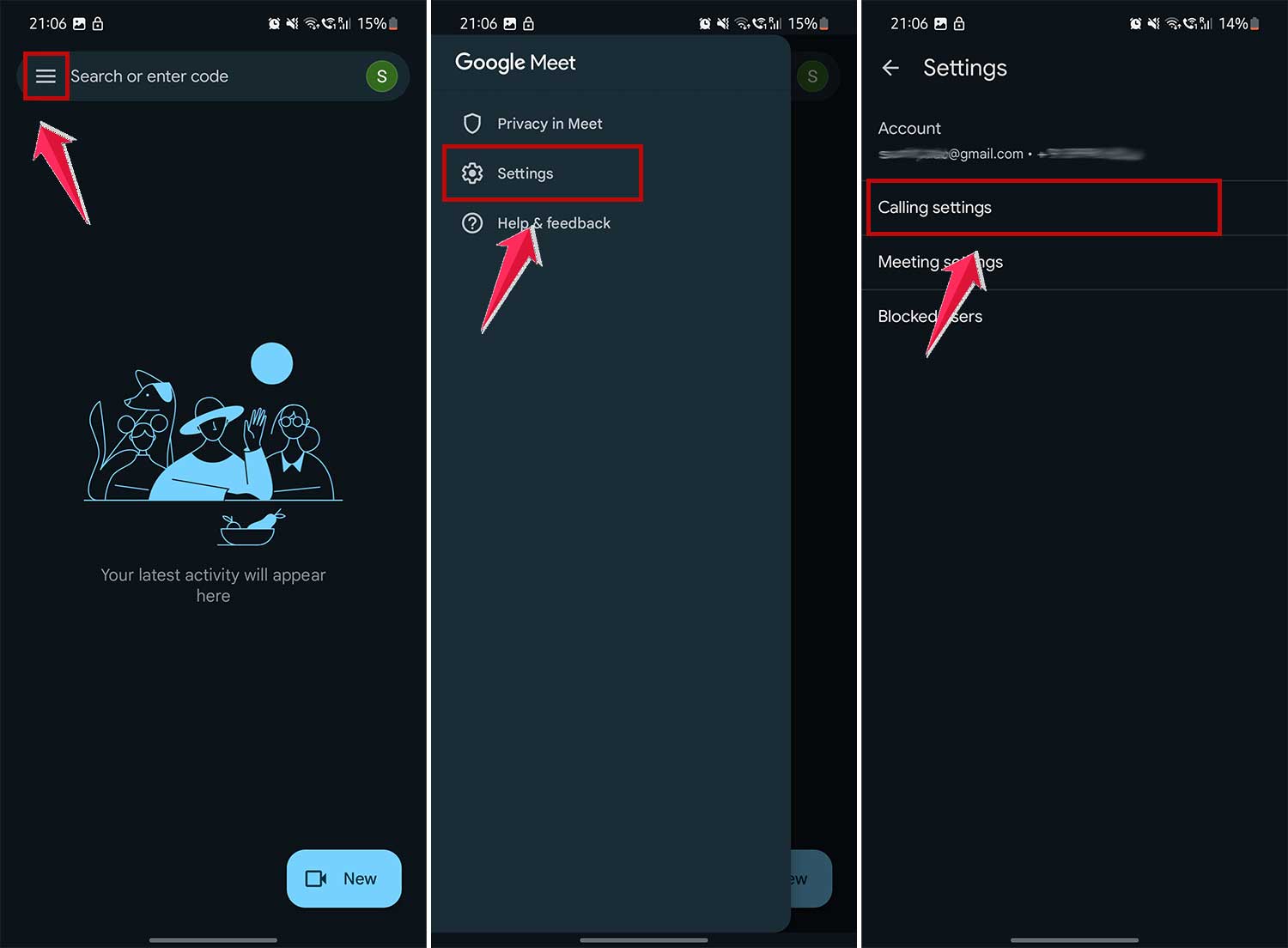
- Click on Calling Account: Tap on the “Calling Account”
- Delete Duo/Meet Account: In the Calling Account section, you will find the option ‘Delete Calling account.’ Tap on it.
- Confirm Deletion: Finally, confirm your action by tapping on ‘Delete.’ This will permanently remove your Google Duo/Meet account.

#2 For the Web Version:
You can’t delete a Google Duo/Meet account on the web. If you still want to delete your Google Duo/Meet account on the web, then you have to delete your entire Google account.
Important to Remember:
- Uninstalling the Google Duo/Meet app will not delete your account. Your call history and other account details are stored with your Google account.
- If you wish to completely remove your presence from Google Duo/Meet, follow the account deletion steps above.
- Deletion is permanent, so make sure you really want to remove your Google Duo/Meet account before proceeding.
These steps ensure that if you’re moving on from Google Duo/Meet, you’re doing it cleanly and completely, leaving no digital traces behind.
In Conclusion
There you have it! Whether you’re looking to uninstall the Google Duo/Meet app from your Android or iOS device, disable it, or even take the extra step of deleting your Google Duo account entirely, you’re now equipped with all the know-how you need. We’ve walked through each process step-by-step, ensuring it’s simple and stress-free.
Remember, while Google Duo/Meet is a fantastic tool for staying connected, there are numerous other options out there. If you decide to explore these alternatives, freeing up space by uninstalling or disabling Duo/Meet or even removing your account can help keep your digital life tidy and organized.
This guide aimed to make these processes as clear and straightforward as possible. With this knowledge, you can confidently manage your Google Duo/Meet app and account, ensuring your digital communication tools align perfectly with your needs and preferences.