Ever feel like Gmail is trying to finish your sentences before you’re even done thinking? It’s like a friend who keeps interrupting you mid-sentence.
That’s pretty much what Smart Compose does. And while it can be helpful sometimes, it doesn’t always get your tone or what you’re really trying to say.
Maybe you’re writing something personal, or you just want to express yourself in your own words. Then suddenly Gmail suggests something that feels totally off. It’s like it’s reading from a script you didn’t write.
And don’t even get me started on autocorrect. It changes the words you meant to write, especially if you’re using names, technical terms, or writing in another language. Annoying, right?
But here’s the good news — you can turn these features off. Yep, you can take back control and type exactly how you want.
I’ll walk you through each step, whether you’re using Gmail on your computer or your phone. Let’s get started and make Gmail work for you, not the other way around.
Why This Might Be Bugging You
So, why does this even matter? Let’s talk about the little things that make a big difference when you’re writing emails.
You Like Typing Without Interruptions
Sometimes, you just want to sit down and write. No distractions. No suggestions popping up. But then Gmail jumps in, trying to finish your sentence. It throws off your rhythm. Makes you stop and rethink what you were going to say.
You Want to Say Things Your Way
Your tone, your words — they matter. Gmail’s suggestions can make your message sound robotic or just not like you. And when you’re writing something important or emotional, that really matters.
Gmail Doesn’t Match Your Style
Let’s be honest — Smart Compose doesn’t always get it right. You might like using casual words, or maybe you’re more formal. Either way, Gmail can’t always keep up with how you speak or write. And that can make your emails feel… off.
Autocorrect Changes What You Meant
This one’s the worst. You’re typing a name or a technical word, and autocorrect jumps in and changes it. Suddenly, you’re sending emails with the wrong info. It’s frustrating, especially when you’re working fast or switching between languages.
Luckily, you don’t have to live with this. Let’s go over how to turn this stuff off and get back to writing your way.
How to Turn Off Gmail Smart Compose & Autocorrect
Alright, let’s fix this. I’ll walk you through turning off Smart Compose and Autocorrect, step by step. Whether you’re on a computer or your phone, the process is simple. Let’s get your settings just right.
#1 Turn Off Smart Compose on Your Computer
If you mostly use Gmail on your desktop or laptop, start here. Turning this off will stop Gmail from throwing in random suggestions while you type.
Here’s how you do it:
- Sign in to your Gmail account.
- Click the gear icon at the top-right corner to open Settings.

- Click See all settings.
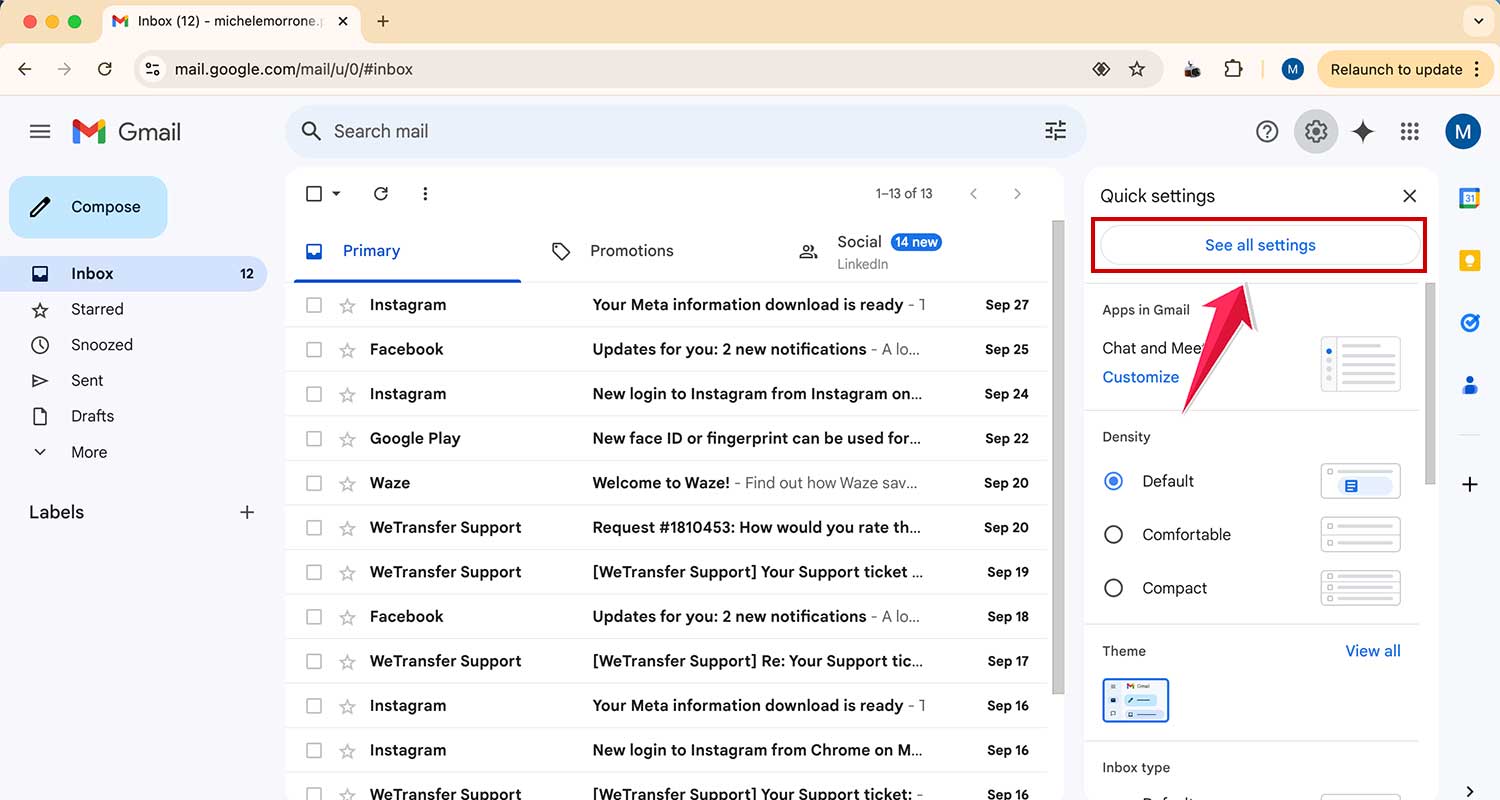
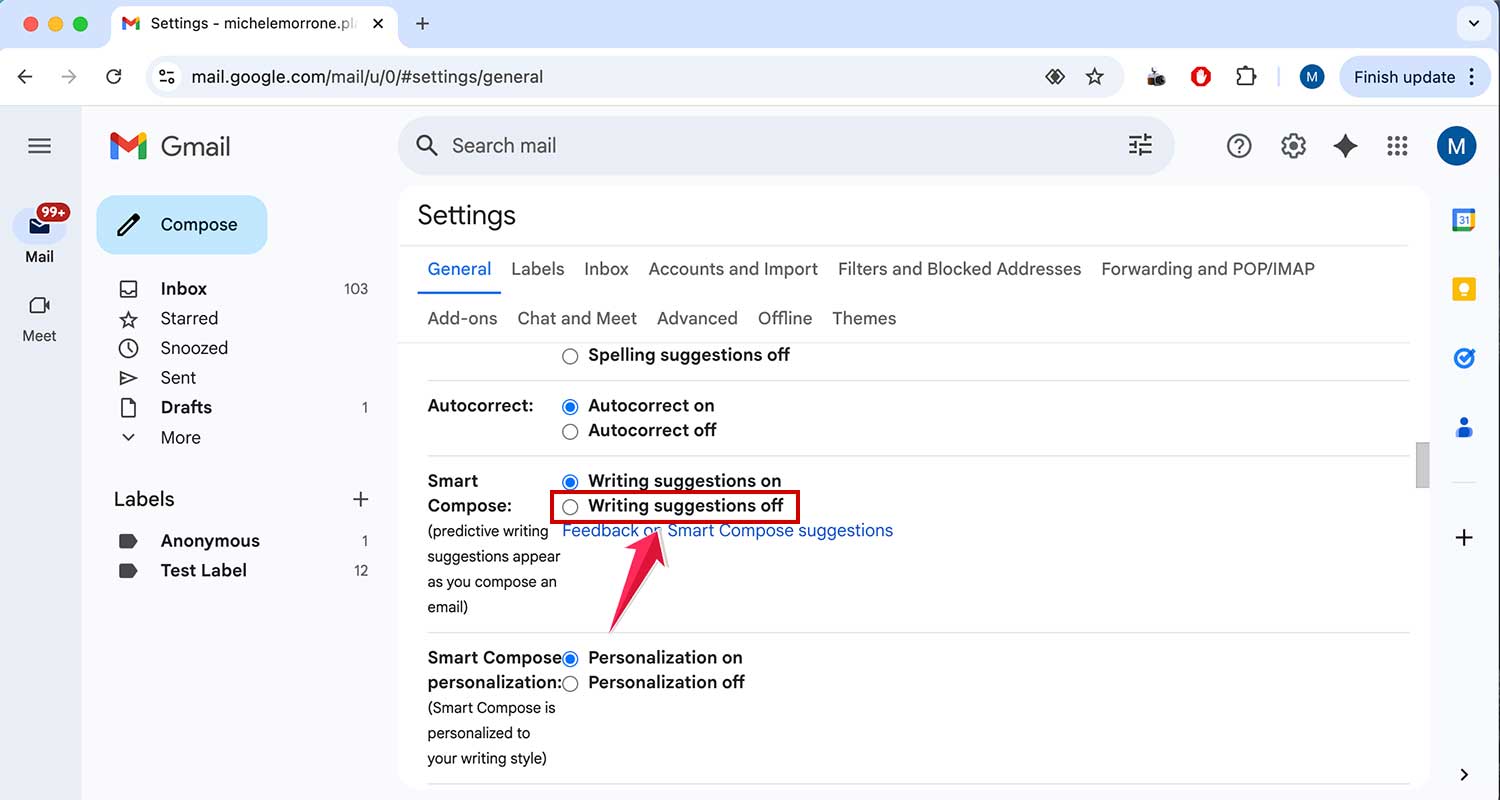
- In the General tab, scroll down to find Smart Compose.
- Select Writing suggestions off.
- Scroll all the way down and click Save Changes.
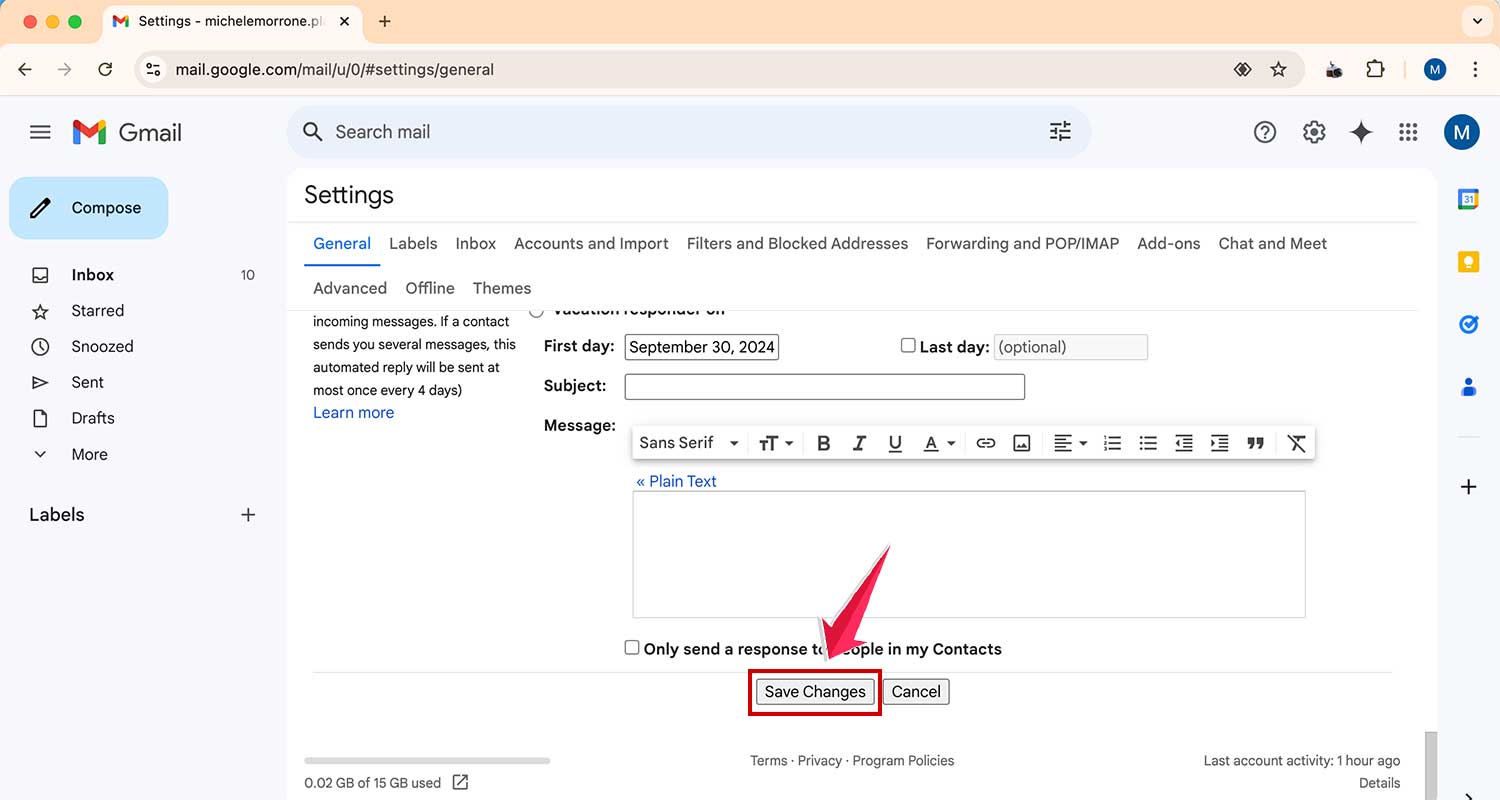
That’s it. No more interruptions while you’re trying to write your message.
#2 Turn Off Autocorrect in Gmail
Next up — autocorrect. If Gmail keeps changing your words, especially when they’re spelled right, it’s time to stop that.
Here’s what you need to do:
- Open Gmail and click the gear icon.
- Select See all settings.
- Go to the General tab.

- Scroll down, find Autocorrect, and choose “Autocorrect off.”

Now Gmail won’t change your words without asking first. Much better, right?
#3 Turn Off Smart Compose and Autocorrect on Mobile
Do you use Gmail on your phone a lot? Let’s fix that too. You don’t want random suggestions while you’re typing on the go either.
Follow these steps on your phone:
- Open the Gmail app.
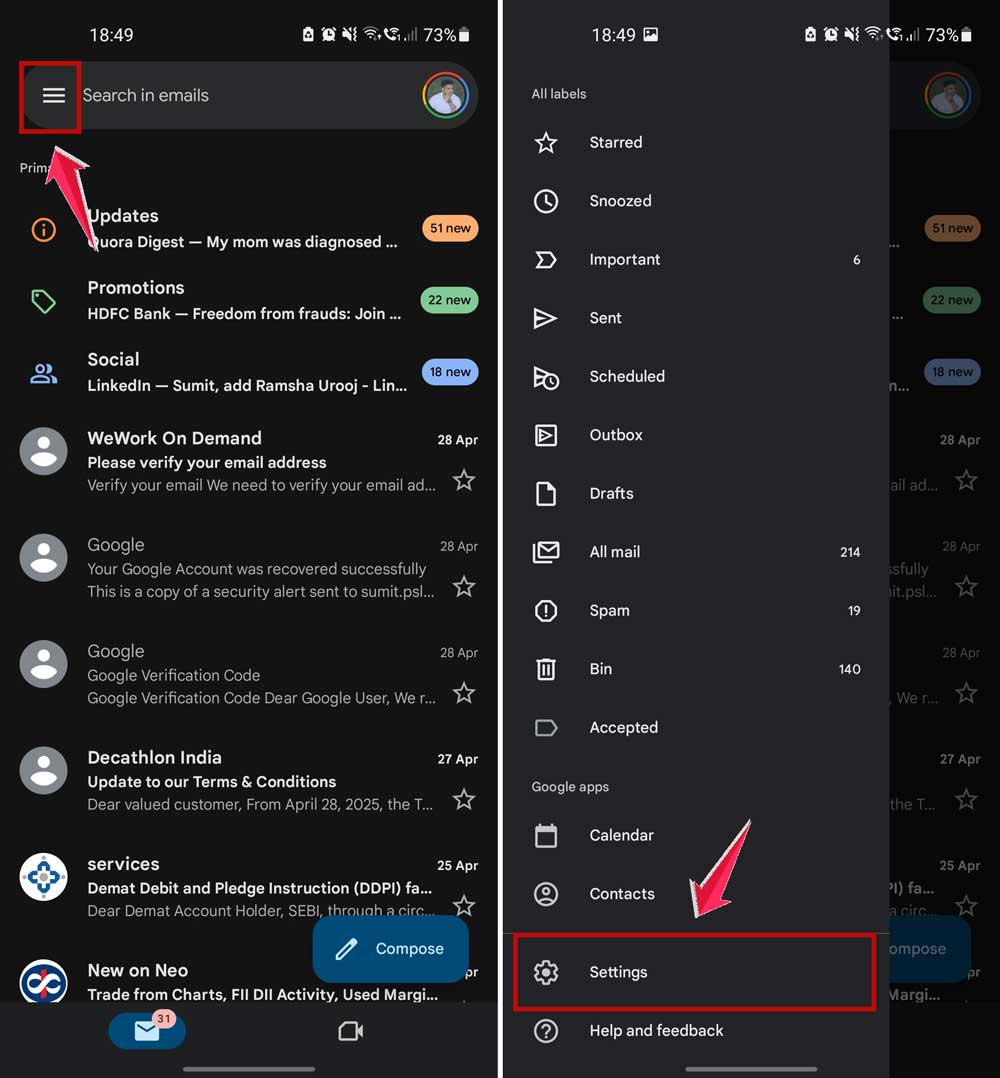
- Tap the three-line menu icon in the top left.
- Scroll down and tap Settings.
- Select your email account.
- Under the General section, tap Smart Compose and turn it off.
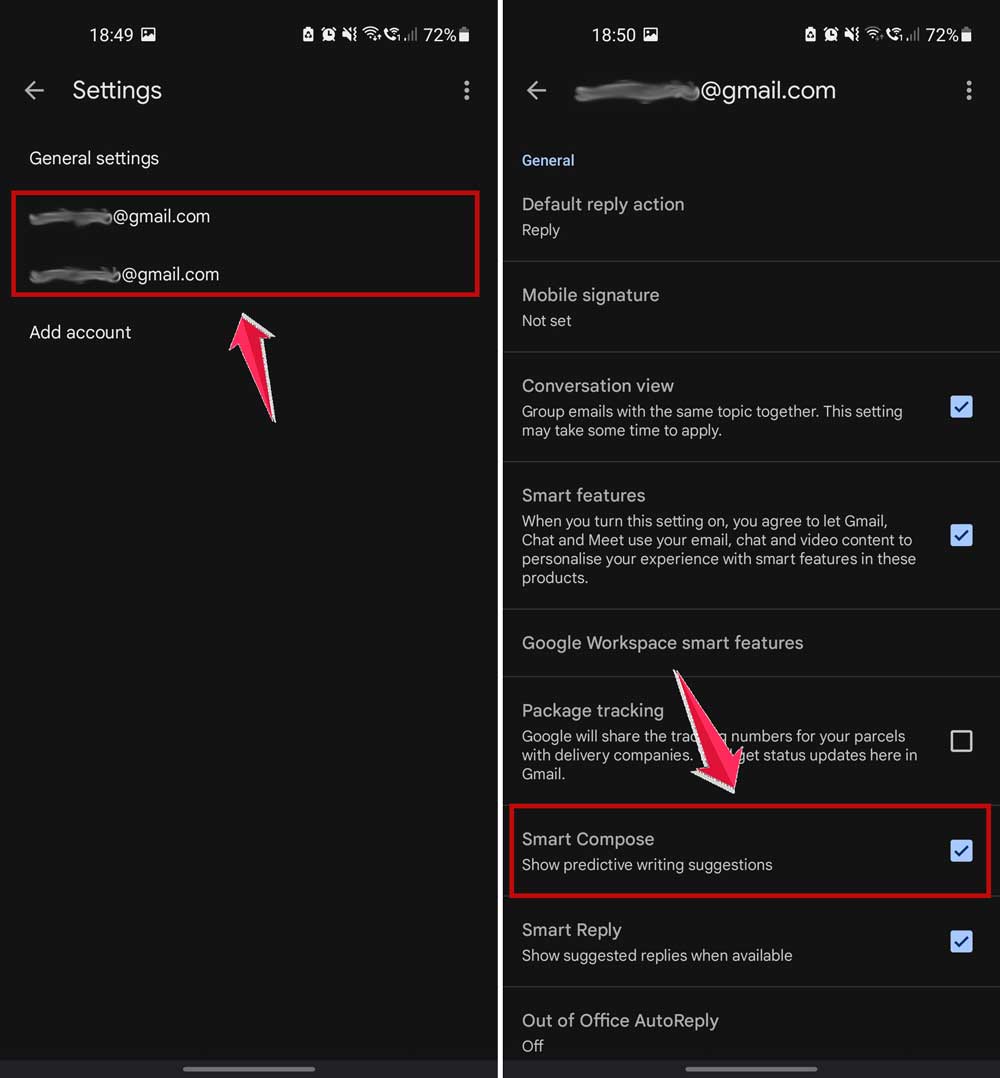
- For autocorrect, check your keyboard settings or input tools. This might vary depending on your phone model.
- Make sure your changes are saved and synced.
Now your phone won’t try to outsmart you either. You’re in charge again.
Extra Tips to Make Writing Easier
Want to go a bit further? Here are a few more things you can do to make your email writing smooth and stress-free.
1. Customize Suggestions to Fit You
If you don’t mind a few suggestions, you can train Gmail to get better. Accept the ones you like and ignore the ones you don’t. Gmail picks up on your habits over time. It’s not perfect, but it helps.
2. Use Keyboard Shortcuts
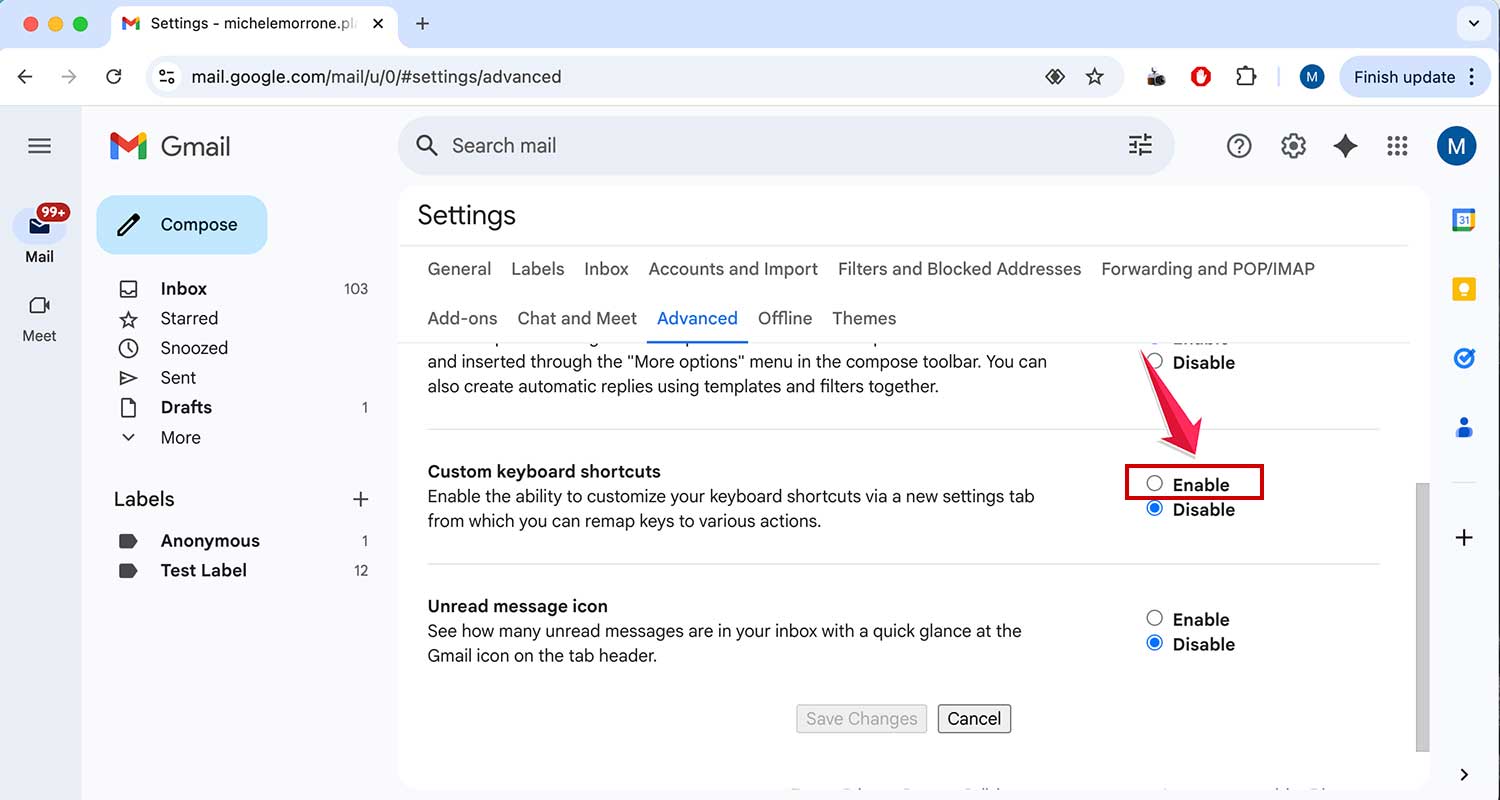
Shortcuts can help you write faster and skip over annoying features. To enable them:
- Go to Gmail Settings.
- Click the Advanced tab.

- Turn on Keyboard Shortcuts.
Once you learn the basics, writing emails becomes quicker and easier.
3. Manage Other Writing Settings
There’s more than just Smart Compose and Autocorrect. You can also play with grammar suggestions, spell check, and highlight tools. Try different settings and see what works best for your style.
4. Keep Your Gmail Updated
Make sure your app and Gmail settings are always up to date. Updates often bring better features or allow more control over suggestions. It’s a small thing, but it helps a lot.
5. Reduce Other Distractions
While you’re at it, turn off unnecessary email notifications. This way, you can focus more on writing and less on getting pulled away by pop-ups.
The Takeaway
So, yeah — Gmail trying to guess what you’re going to say can be a bit much. It’s okay to want your emails to sound like you.
Turning off Smart Compose and Autocorrect is a simple way to take back control. You don’t have to deal with weird suggestions or words being changed without your say.
Now that you know how to switch those settings off — on desktop and mobile, you can write the way you want. No interruptions. No guessing games. Just your thoughts, your tone, your words.
Try it out and see how much better it feels. If you found this guide helpful, or if you’ve got your own tips to share, drop a comment below. I’d love to hear how it worked out for you!