Imagine you’re trying to save important transaction details or a crucial conversation on your phone, but the app won’t let you take a screenshot. Frustrating, isn’t it? You’re not alone in this.
Every day, thousands of Android users face this exact problem. You see that message: “Taking screenshots isn’t allowed by the app or your organization.” It’s like the app is putting up a digital wall between you and your information.
This often happens with banking apps, secure messaging platforms, or apps handling sensitive data. They’re trying to protect your privacy, which is great.
But sometimes, you really need that screenshot for your records or to share important details quickly.
Here’s the good news: there’s a clever workaround. In this guide, you’ll learn a simple trick to capture screenshots even when apps try to stop you.
By the time you finish reading, you’ll have a new skill to use whenever you need to save what’s on your screen. Let’s dive in and solve this problem together.
How can you capture screenshots when apps try to block you?
1. Use Google Assistant
One of the easiest ways to bypass screenshot restrictions is by using Google Assistant. Here’s how you can do it:
- Open the app where you want to take a screenshot.
- Activate Google Assistant by saying “Hey Google” or by pressing and holding the home button.
- Ask Google Assistant to “take a screenshot” or tap the keyboard icon and type the command.
- Google Assistant will capture the screen and give you options to share or edit the screenshot.
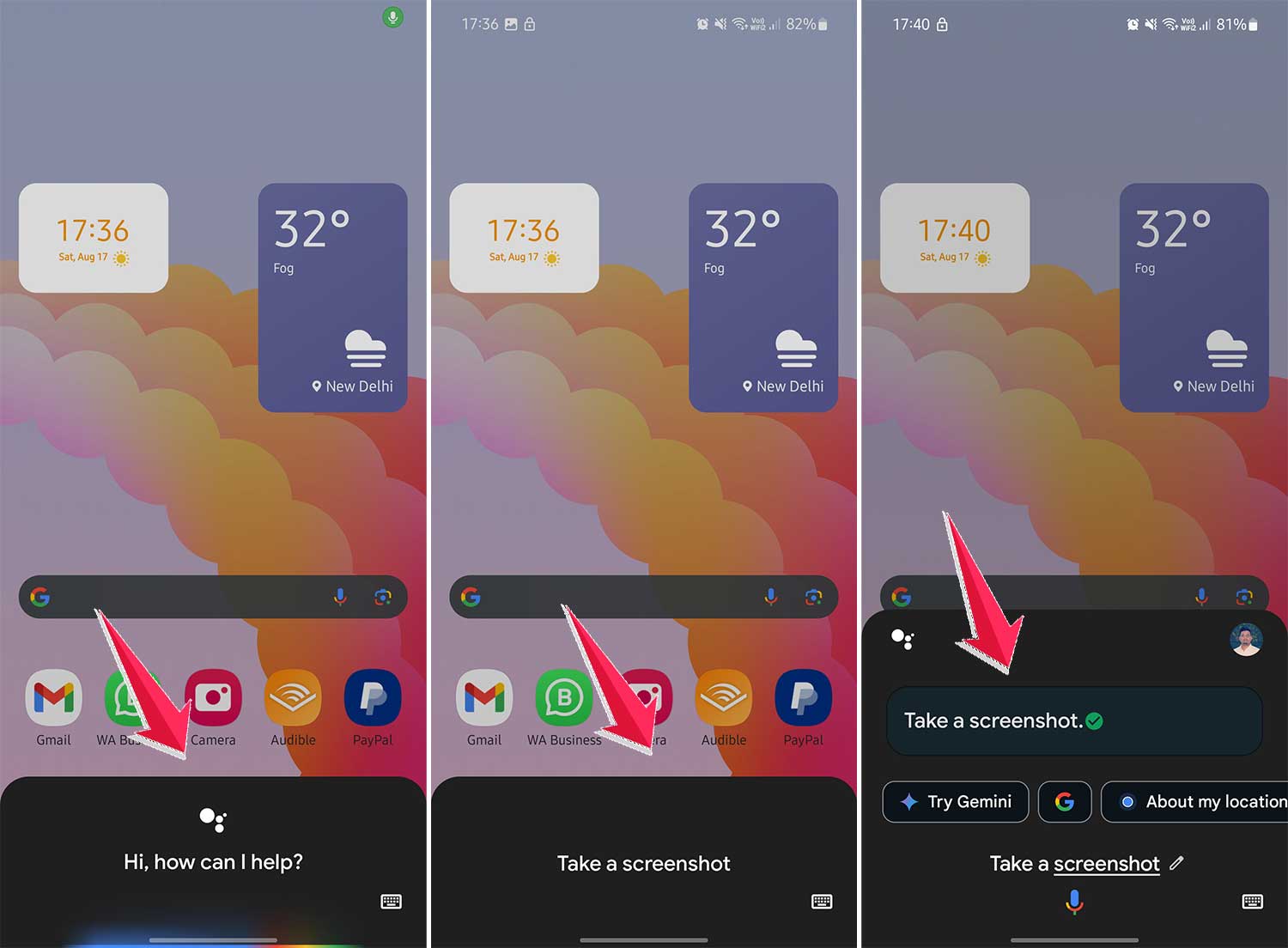
This method works because Google Assistant operates independently of the app you’re using. It’s like having a helpful friend take a picture of your screen for you.
2. Use screen recording
If Google Assistant doesn’t work, you can try screen recording:
- Open your phone’s quick settings panel by swiping down from the top of your screen.
- Look for the “Screen Record” option. If you don’t see it, you might need to add it to your quick settings.
- Start the screen recording before opening the app you want to capture.
- Navigate to the screen you want to capture.
- Stop the recording.
- You can then watch the video and take a screenshot of the frame you need.

This method is a bit roundabout, but it’s effective when other options fail.
3. Use a third-party app
There are apps designed specifically to bypass screenshot restrictions. However, be cautious when using these, as they might require special permissions or even root access to your device. Always download apps from trusted sources and read reviews before installing.
4. Using another phone to take a picture of your screen
Sometimes, the simplest solutions are the best! If you’re in a pinch and need to capture something from an app that’s blocking screenshots, why not go old school? Here’s how to do it right:
- Find a Spare Phone: Got an extra phone lying around? Perfect. That’s all you need.
- Capture the Moment: Just point the camera of the second phone at your screen and take a picture. Make sure you get a clear shot of what you need.
- Mind the Data: If you’re capturing sensitive information, be careful. Once you’ve done what you need with the photo, make sure to delete it from the other phone. Safety first – you don’t want any private or sensitive data falling into the wrong hands.
Remember, while these methods can help you capture screenshots, it’s important to respect privacy and copyright laws. Only use these techniques when you have a legitimate reason and the right to capture and share the content.
The takeaway
Now you know how to capture those tricky screenshots, even when apps try to stop you. Let’s recap what we’ve learned and why it matters to you.
You’ve got several ways to work around that frustrating “screenshots aren’t allowed” message. Whether you choose Google Assistant, screen recording, or simply using another phone, you have options that don’t require complicated tech skills.
They’re meant to help you save important information for personal use, not to misuse sensitive data. Always consider why an app might be blocking screenshots – it’s often to protect your privacy.
The key thing to remember is that you’re not helpless when an app blocks screenshots. You have the tools to capture what you need when you need it.
So the next time you encounter that annoying restriction, you’ll know exactly what to do. Don’t let screenshot blocks hold you back from saving the information that matters to you!