Let’s be real. That sinking feeling you get when your mobile data runs out way before the month ends? Not fun. And those extra charges?
Even worse. But don’t worry, you’re not alone. And the good news? You can fix it.
Here’s the thing. Most of us don’t realize how much data we’re using until it’s too late. Maybe you’re on a limited plan.
Maybe your phone quietly uses data in the background. Either way, surprise bills are never welcome.
Why does this matter so much? Well, your phone is your lifeline. You use it to get directions, watch videos, scroll through social media, and even work.
If your data runs out too soon, it’s like hitting a dead end. Managing your data smartly means no more surprises—and a lot more peace of mind.
Stick with me here. By the end of this guide, you’ll know how to set up data warnings and auto-limits. It’s super easy. And trust me, it’ll make your life so much easier. Ready? Let’s go!
Why your mobile data disappears faster than you think
Alright. Let’s talk about why your mobile data keeps running out. It’s usually a mix of a few things. Let’s break it down.
1. Surprise charges aren’t fun
Ever opened your phone bill and said, “Wait, what?!” Yeah, it happens. And it’s usually because you didn’t realize how much data you were burning through.
Knowing your data limit is the first step. If you don’t know it, you can’t control it. And mobile carriers? They’re more than happy to charge you extra when you go over.
2. Got a limited data plan? No worries
Not everyone has unlimited data. In fact, most people don’t. And that’s okay. You just need to make that limited plan work for you.
Setting limits on your data helps you stretch it out. It’s like having a small bag of chips—you want it to last till movie night, right?
3. Spikes happen—and they’re sneaky
One minute you’re fine. The next, boom—you’re out of data. What happened?
Streaming videos, automatic app updates, big downloads…they all eat data fast.
Keeping an eye on your usage helps you catch these spikes before they wreck your month.
So, don’t worry. We’re going to fix this together. Let’s make sure you’re the boss of your data—not the other way around.
How to set mobile data warning and auto-limit
Managing mobile data sounds complicated, but it’s really not. In fact, it’s super simple. You just need to know where to look and what to set. I’ll walk you through it step-by-step.
#1 Check your current data usage
First things first—you need to know where you stand right now. Let’s check how much data you’ve already used.
Here’s how you do it:
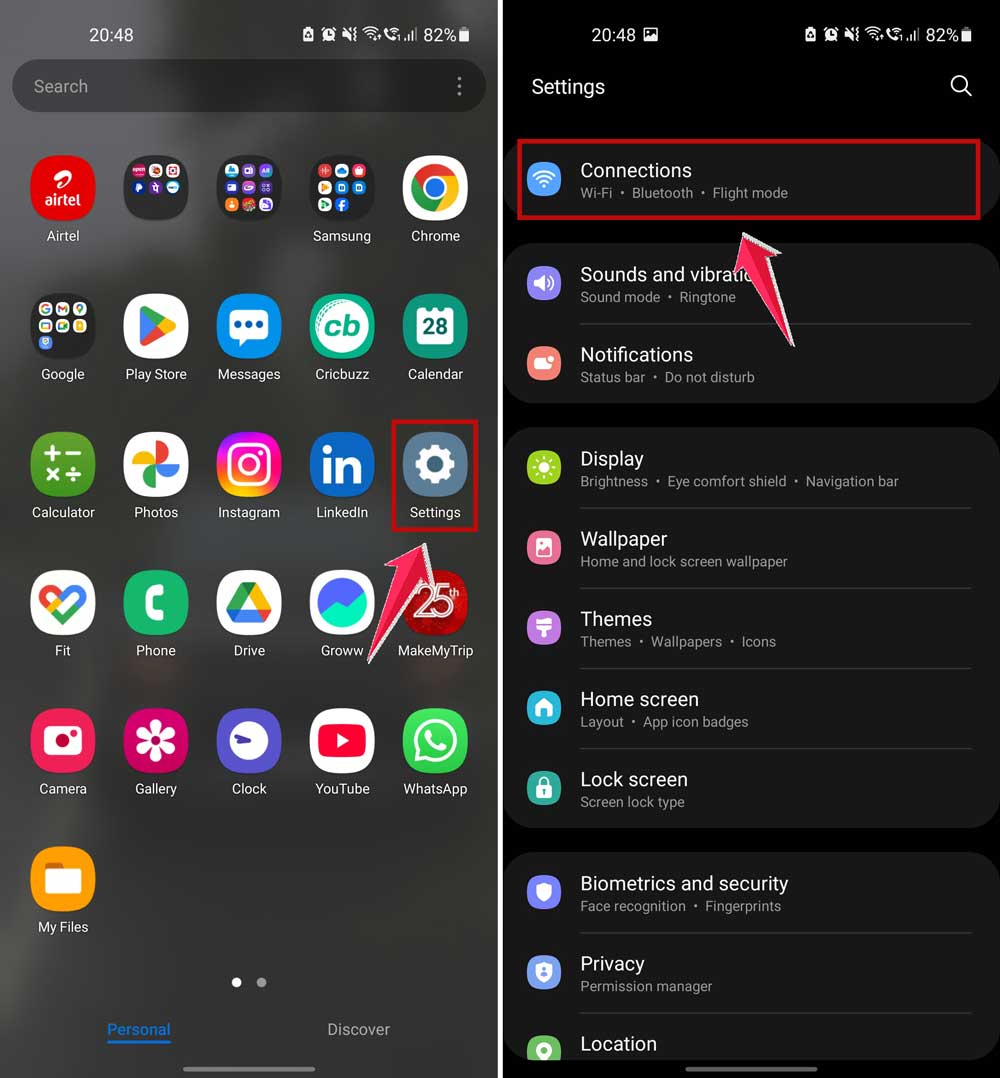
- Open your phone’s settings. Look for the little gear icon.
- Tap on “Connections“.
- Tap “Data Usage“.
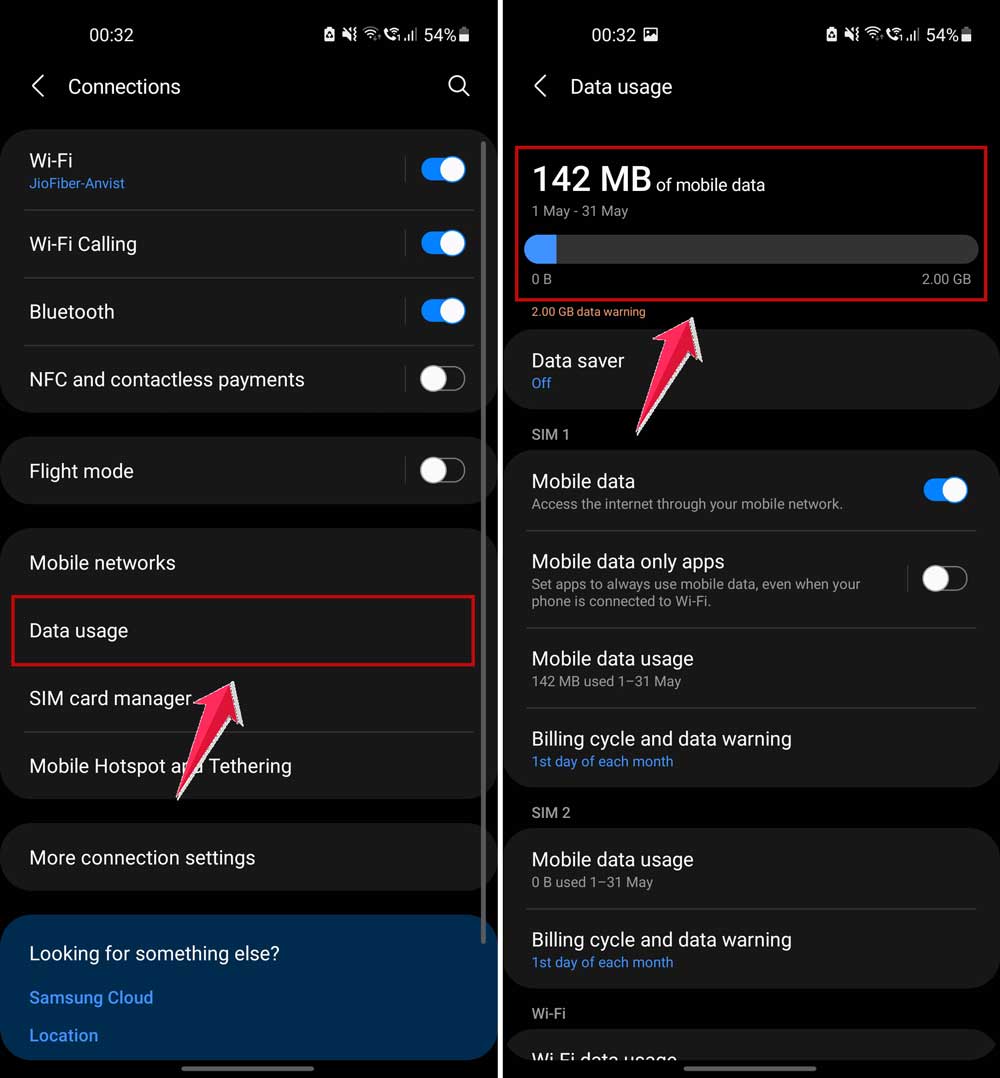
Now you can see how much data you’ve used this month. You’ll also see which apps are using the most. Handy, right?
#2 Set a data warning
Now, let’s set up a little warning sign before you hit your limit. Think of it like a speed bump—you’ll slow down before you go too far.
Here’s what you need to do:
- Go back to “Connection” in settings.
- Tap “Data Usage“.
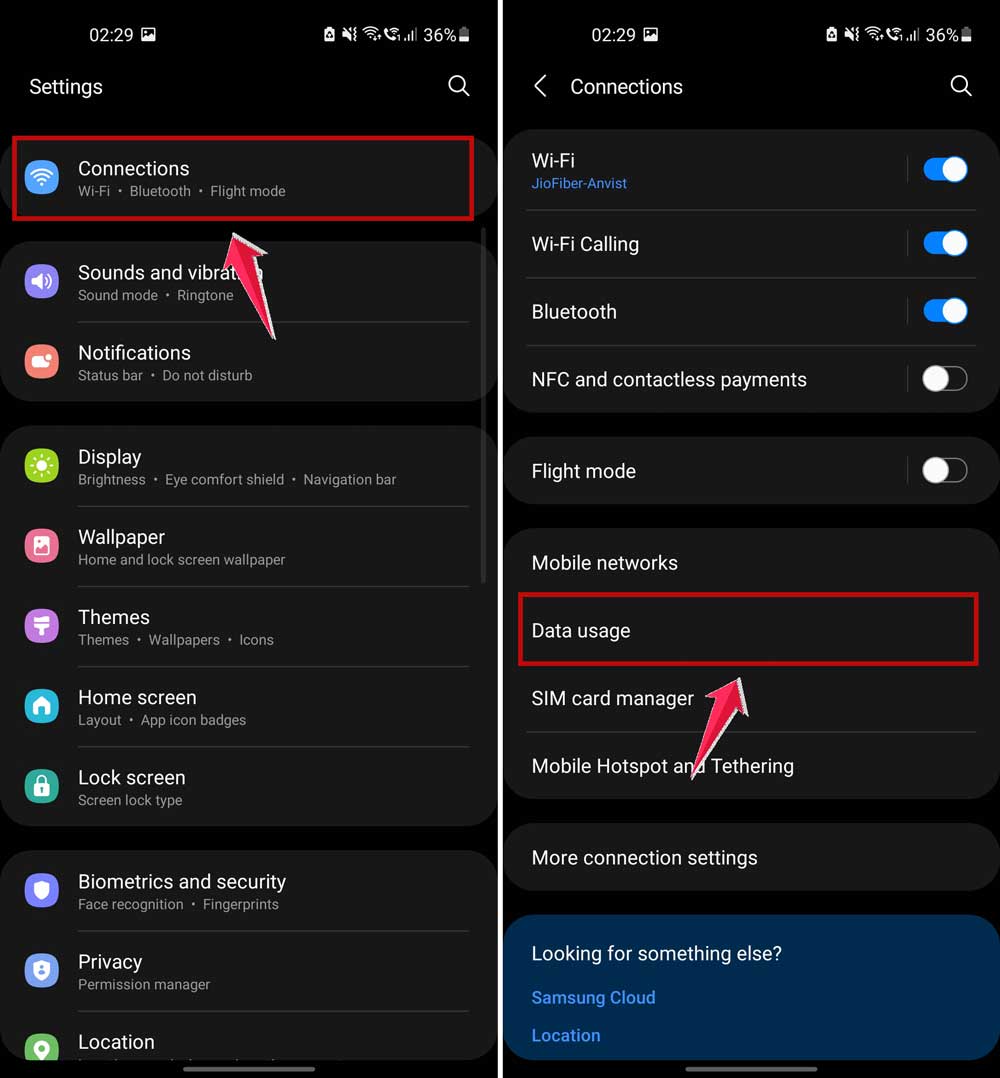
- Tap on “Data Warning & Limit“.
- Turn on “Set Data Warning“.
- Pick a number, something like 80% of your plan.
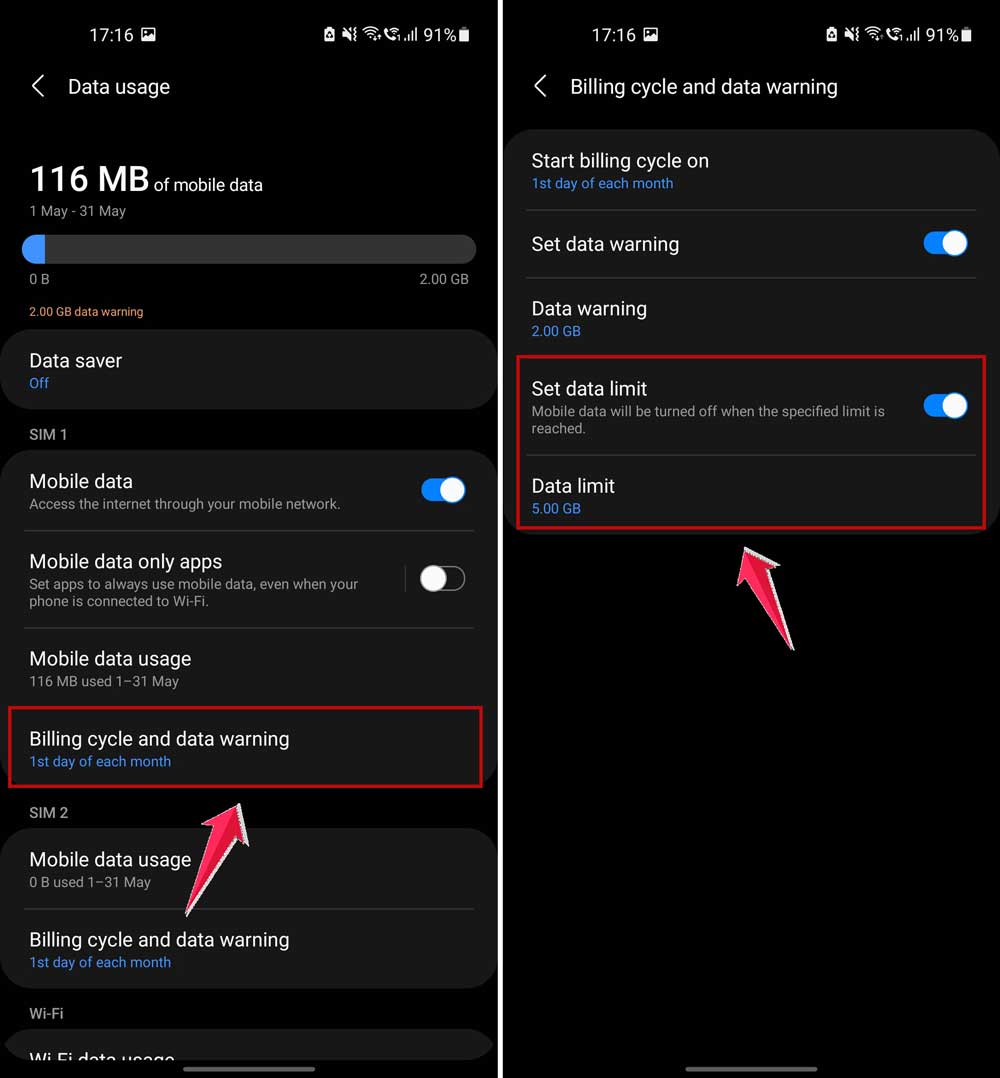
So if you have 5GB a month, set the warning at 4GB. When you hit that, your phone will alert you.
Pretty smart, right? No more guessing.
#3 Set an auto-limit on your data
Now, let’s take it a step further. Let’s make sure you don’t go over your limit at all.
Here’s how:
- Stay in “Data Warning & Limit” settings.
- Turn on “Set Data Limit“.
- Set the maximum data you want to use (a bit less than your full plan is smart).
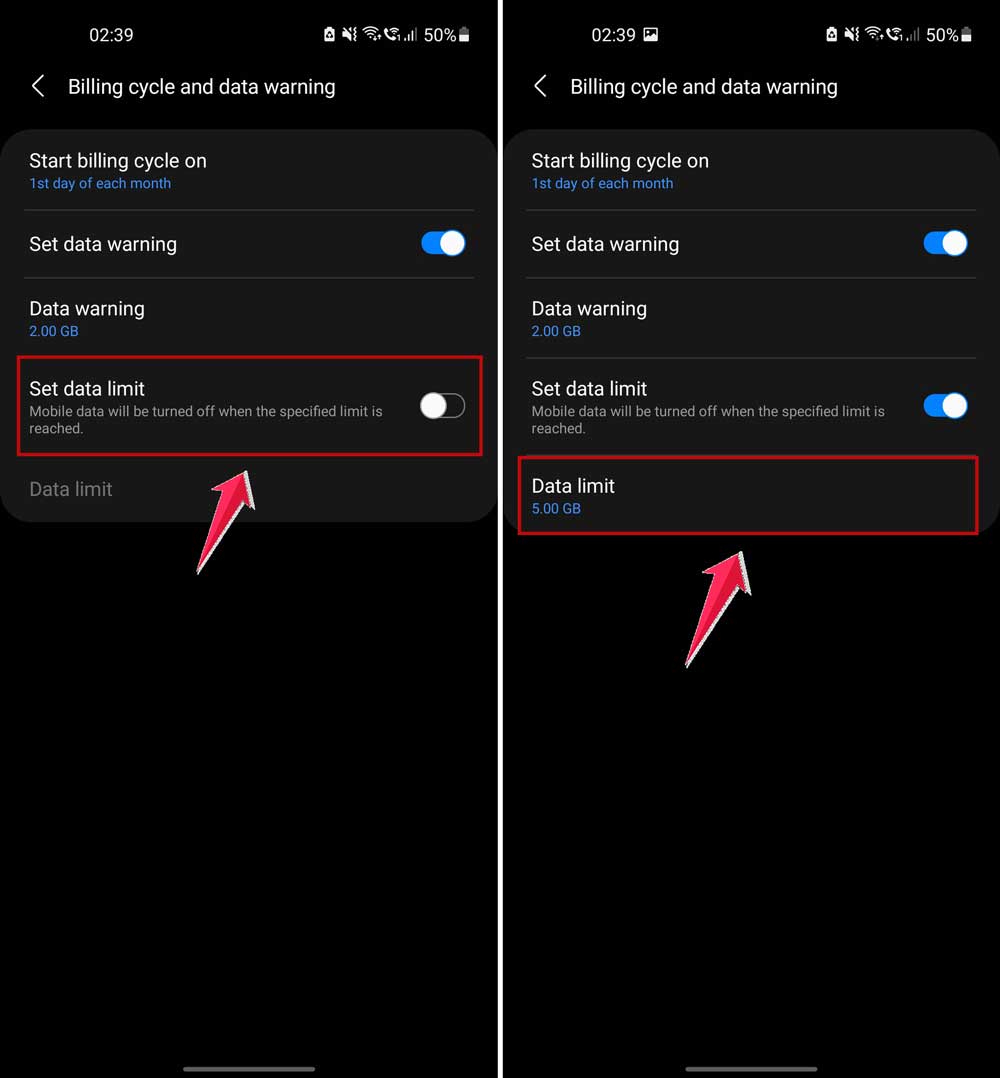
When you hit that number, your phone will automatically shut off mobile data. No extra charges. No nasty surprises.
Simple. Easy. Done.
Some extra tips to save even more data
Alright, now that you’ve got warnings and limits set up, let’s level up. These tips will help you save even more data—and you won’t even notice the difference.
#4 Track data usage per app
Some apps are sneaky. They use a ton of data without you even opening them.
Here’s what you do:
- Go back to your “Data Usage” screen.
- Tap “Mobile data usage“.
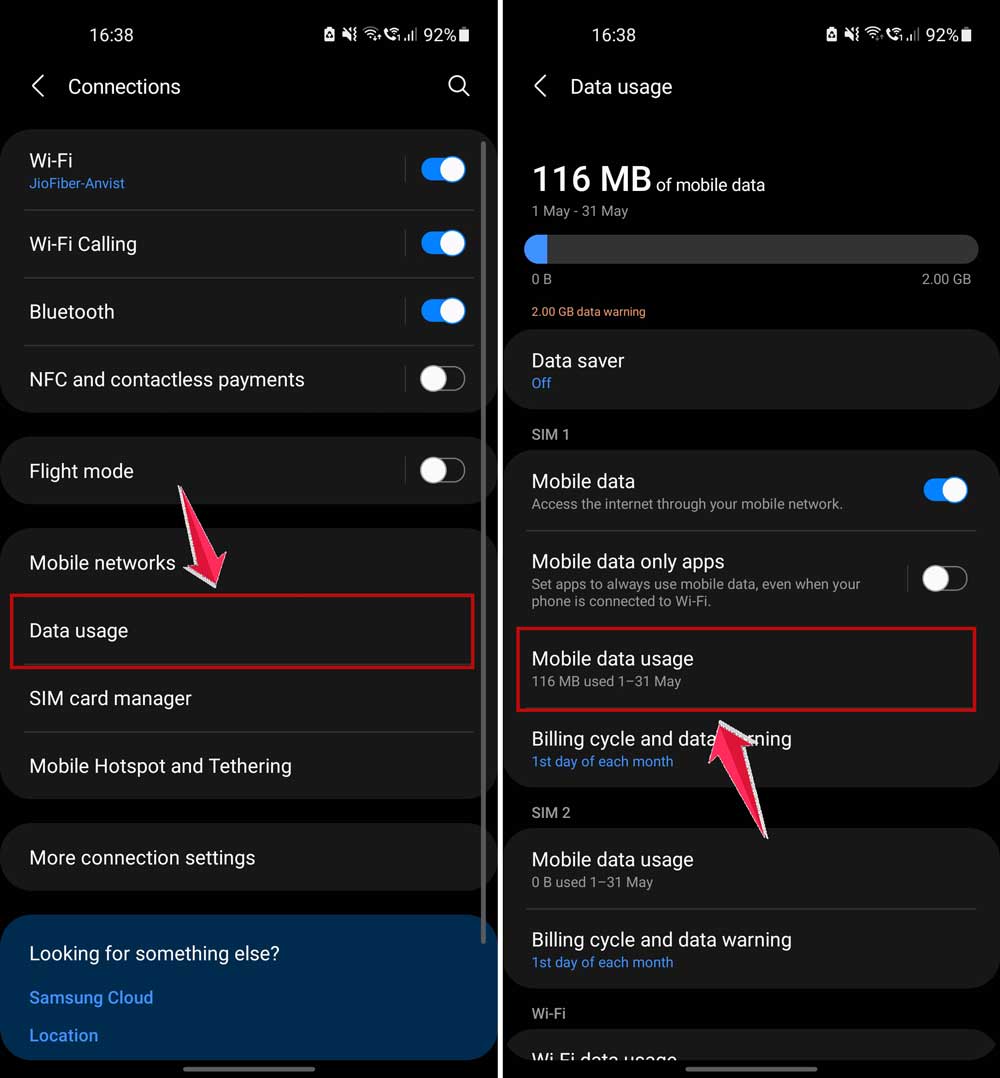
- Look at the list of apps and how much data they’re using.
- Tap any app that’s using a lot.
- Turn off background data for that app.
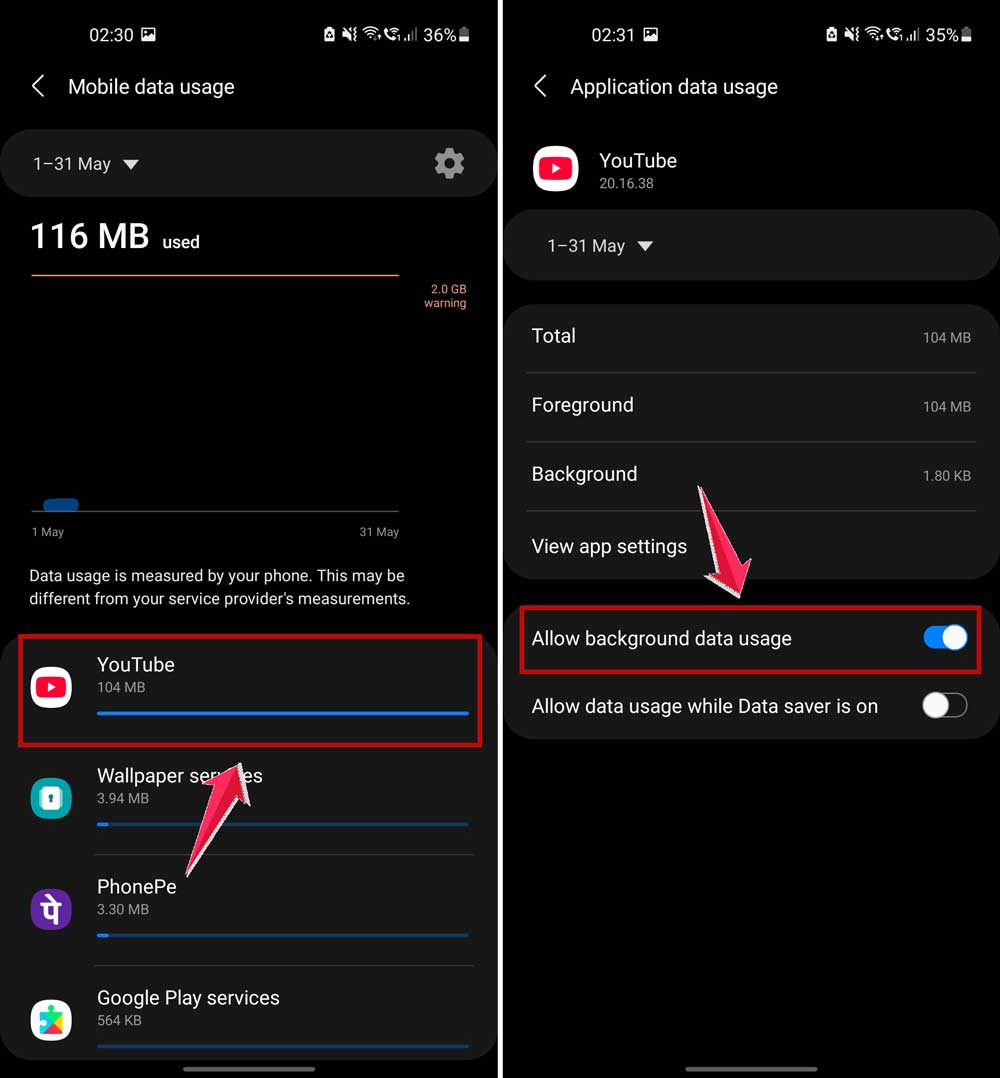
Now, that app can’t use data unless you open it. Perfect for saving big chunks of data.
#5 Use Wi-Fi whenever you can
This one’s obvious, but it makes a huge difference. Wi-Fi doesn’t count against your mobile data at all.
Here’s what to do:
- Turn on Wi-Fi at home, work, coffee shops—wherever you trust the network.
- Go to Wi-Fi settings and set it to connect automatically to trusted networks.
Easy win. Your mobile data will last way longer.
#6 Update your data settings regularly
Things change. Maybe you’re using more apps. Maybe your carrier changed your plan.
It’s smart to check your settings once a month:
- Open Data Usage settings.
- Adjust your warning and limit if needed.
Keeping everything updated means you stay in control.
#7 Use Data Saver mode
Most phones have a “Data Saver” mode. It limits how much data apps can use when they’re running in the background.
Here’s how to turn it on:
- Open Settings.
- Tap on “Connections“.
- Tap on “Data Usage“.
- Tap on “Data Saver“.
- Turn it ON.

Boom. Huge data savings with one simple switch.
#8 Turn off auto-updates over mobile data
App updates are important, sure. But they don’t need to happen over mobile data.
Here’s what to do:
- Open your App Store or Play Store.
- Go to Settings.
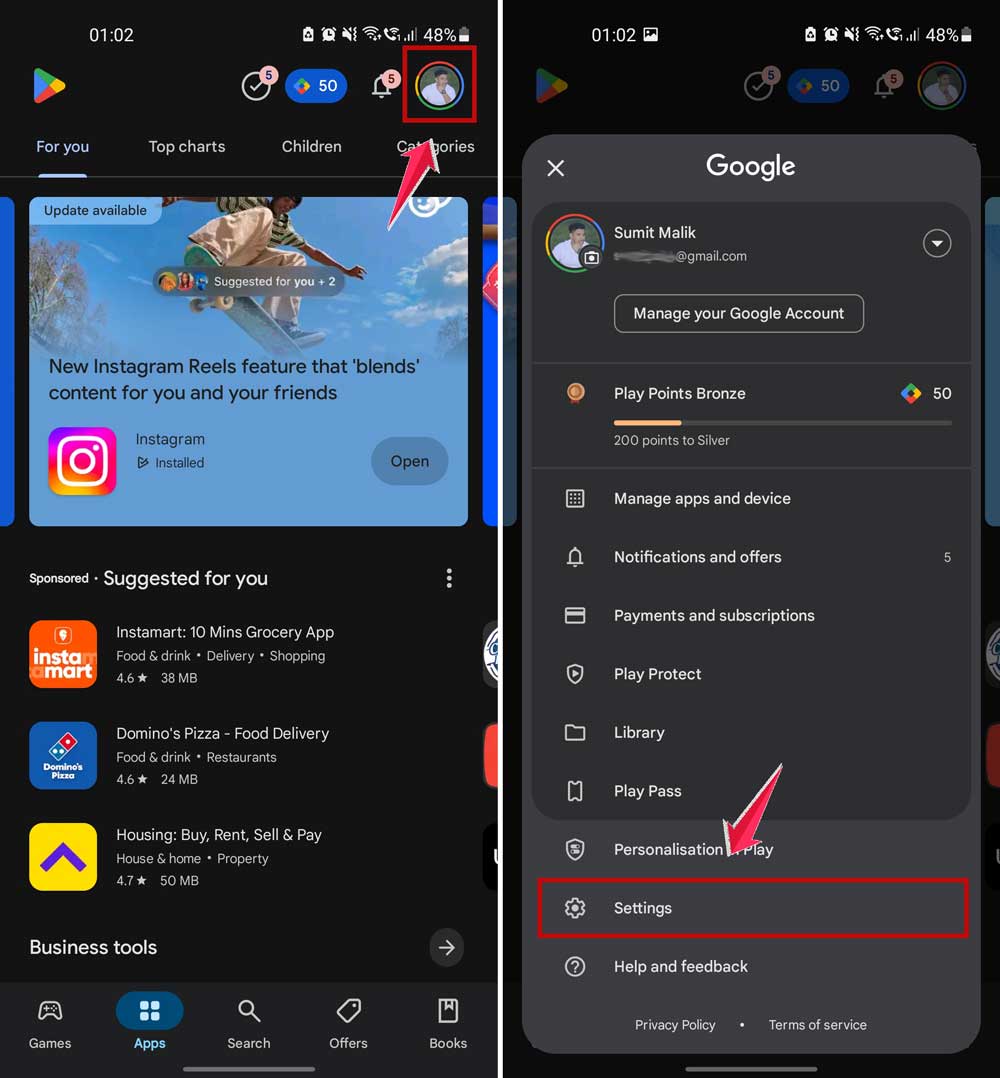
- Set updates to happen over Wi-Fi only.
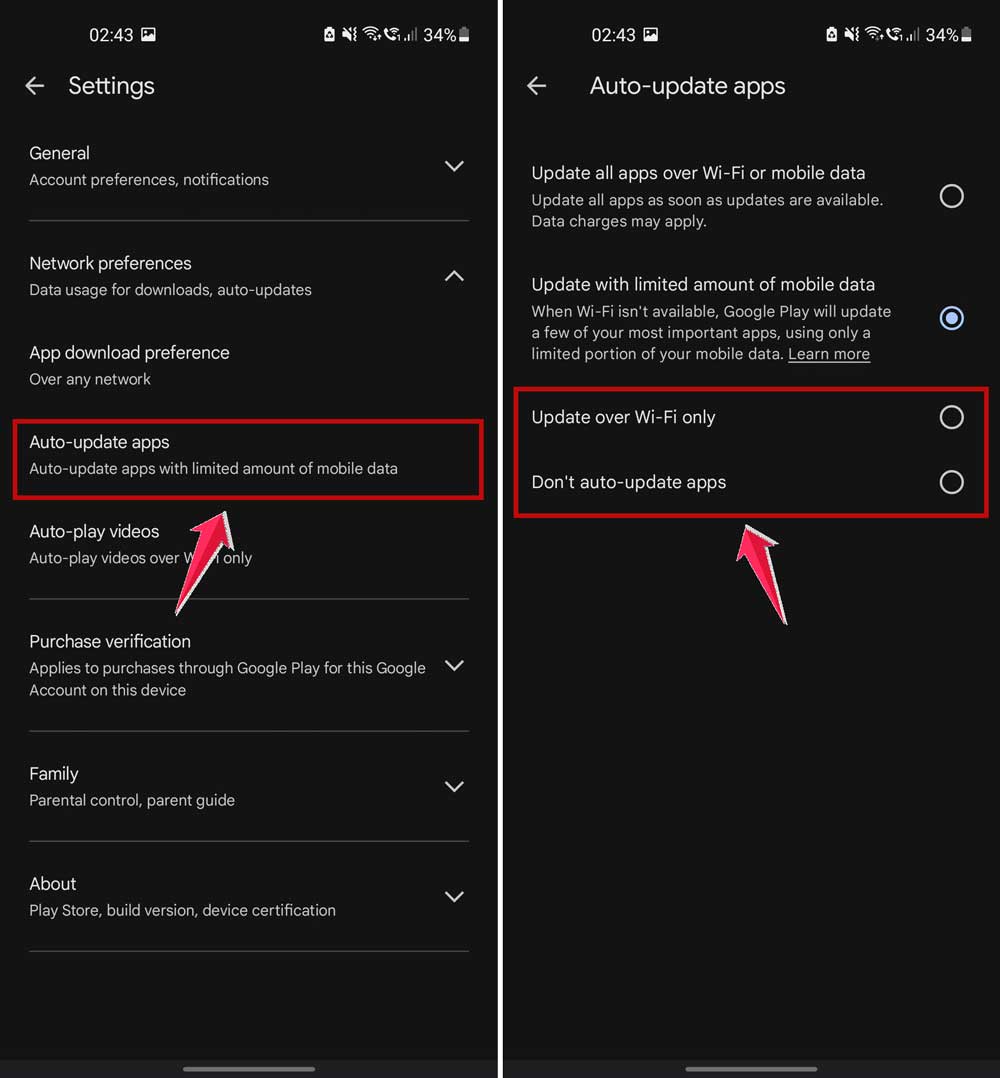
Now, your apps will wait until you’re on Wi-Fi to update. No more surprise data drains.
#9 Compress your browser data
If you browse a lot, you can save a ton of data by compressing web pages.
If you’re using Chrome:
- Open Chrome.
- Go to Settings.
- Look for “Lite Mode” and turn it ON.
Lite Mode in Chrome for Android, formerly known as Data Saver, was a feature designed to reduce data usage by compressing web pages before they loaded. This helped users save on mobile data costs and improved page load times.
However, with the release of Chrome M100, Google has announced the discontinuation of Lite Mode on Android.
#10 Restrict background app activity/refresh
Apps love refreshing even when you’re not using them. Let’s stop that.
Here’s how:
- Open your phone’s Settings.
- Go to “Apps“.
- Choose apps you don’t need to refresh all the time.
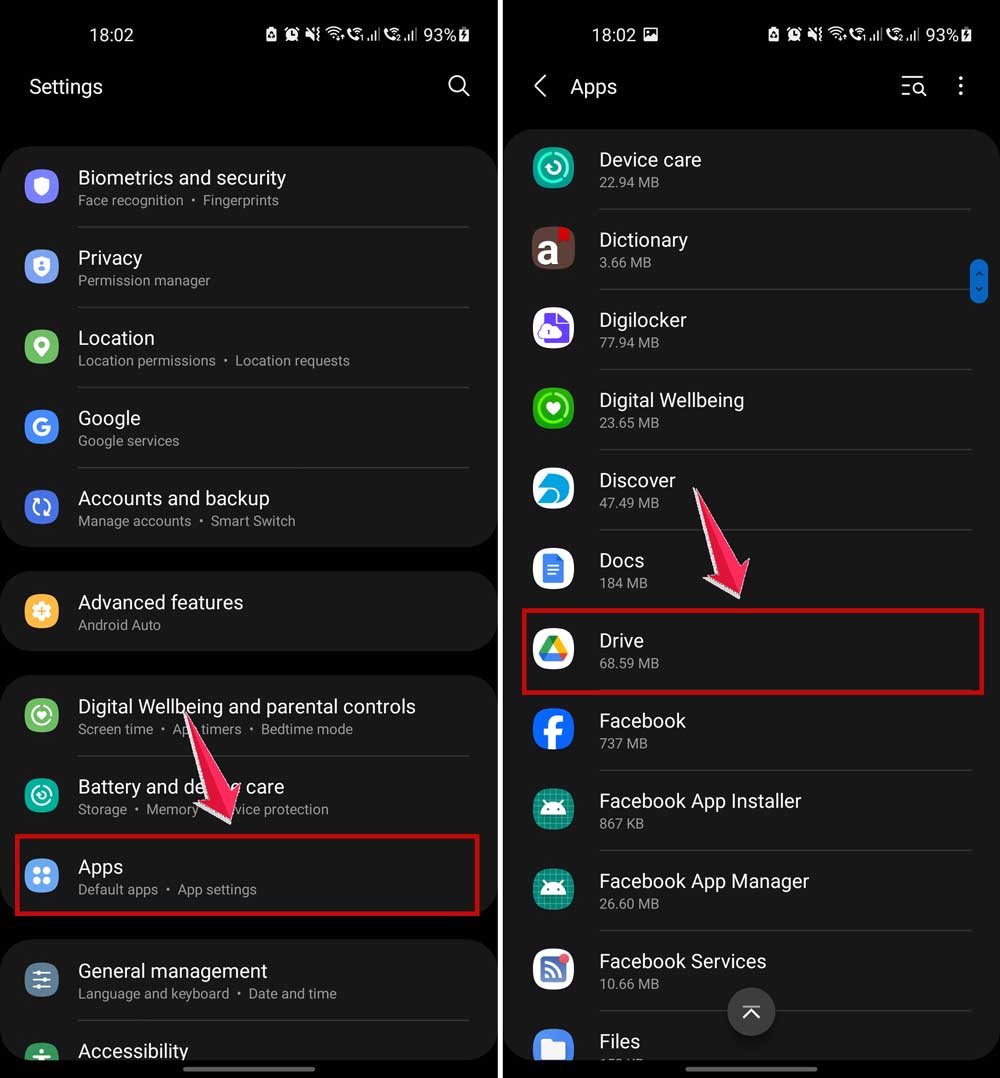
- Tap Battery.
- Turn off background activity/refresh.
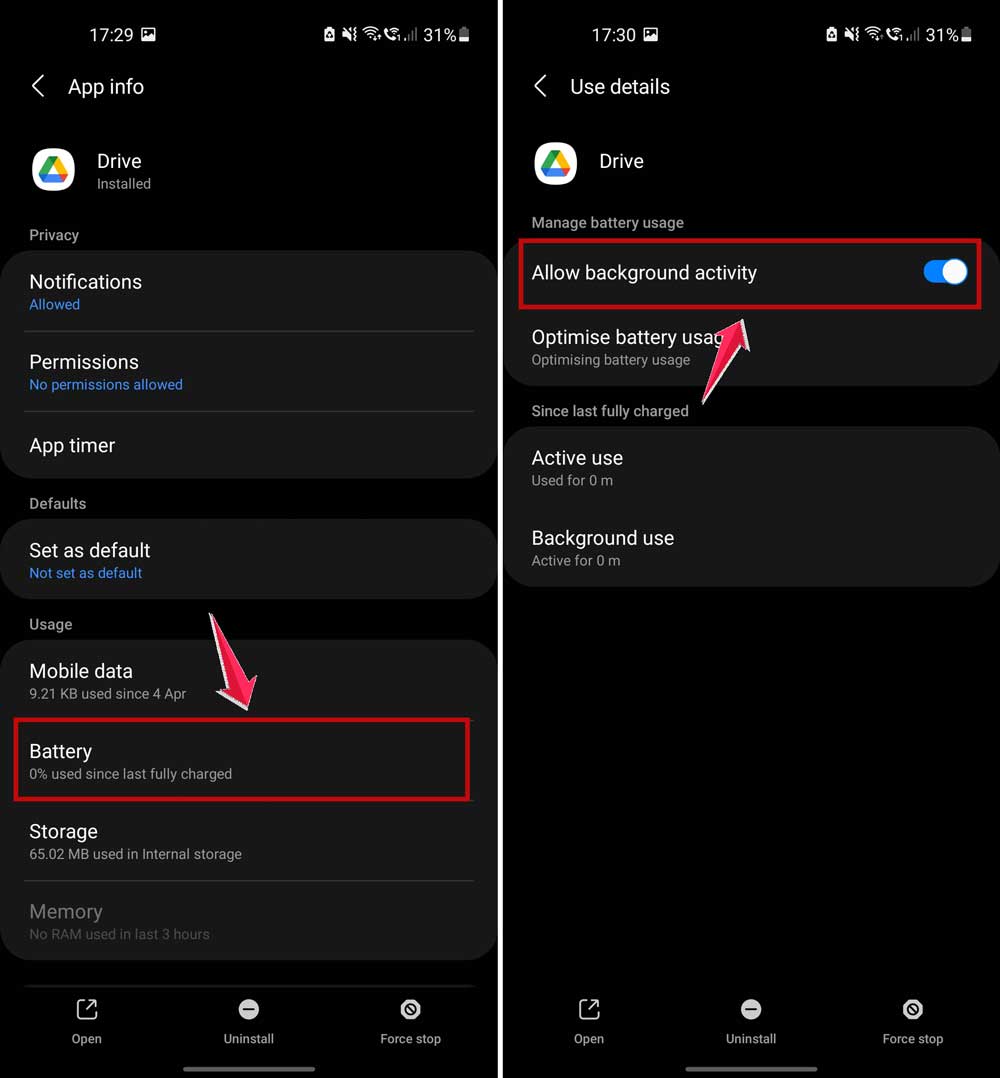
Your data will thank you.
The takeaway
Running out of mobile data is the worst. But now you know how to stop it before it happens.
Setting data warnings and an auto-limit is the easiest way to stay in control. No more surprise charges. No more guessing games.
A lot of people think they can’t manage their data. But you? You’ve got the tools now. And they’re simple enough to set up in just a few minutes.
Give these steps a try today. You’ll see the difference by the end of the month—and your wallet will thank you too.
Got any other tips to save mobile data? Or maybe a question? Share it in the comments below! I’d love to hear from you.