


Sharing your thoughts on other people’s posts is a great way to engage on X (the platform formerly known as Twitter).
Whether you’re using your computer or your phone, it’s easy to add your own comments when you share someone else’s post.
This guide will walk you through the process step by step. You’ll learn how to do this on the X website and the X app for both iPhones and Android phones.
Let’s get started with making your voice heard on X!
What Is a Quote Tweet?
When you use X, you’re not limited to just sharing your own thoughts. You can also highlight what others are saying in a way that adds your own perspective.
This is where sharing a “Quote Tweet” or post with comments comes in handy.
When you share someone’s post, you have two main options:
- Simple Share: This is when you pass along someone’s post exactly as it is. Your followers will see the original post, and they’ll know you shared it.
- Share with Comments: This is a more interactive way to share. You can add your own thoughts or reactions to the original post. It’s like saying, “Hey, look at this interesting post, and here’s what I think about it.”
How Quote Tweets Are Useful
Quote Tweets are a dynamic tool on X, perfect for injecting your voice into trending discussions.
Not only do they let you provide context by referencing the topic you’re discussing, but they also offer a platform to revisit and reflect on your past tweets.
Imagine bringing an old tweet back to life because it suddenly becomes relevant again. Quote Tweets make this possible!
Moreover, they’re fantastic for spotlighting tweets that feature compelling news, videos, or photos.
By adding your commentary, you can share why these pieces caught your eye and why they matter. It’s all about making connections and sharing insights that resonate with your followers!
How to Quote Tweet (Or How to Retweet With Comment)
Jump into lively discussions or share your insights on trending topics with Quote Tweeting, a key interaction on this social media platform. Ready to dive in?
Here’s how to make your voice heard on X through Quote Tweets:
#1 How to Quote Tweet or Post Using the X Website
- Access: Head to the X website and log in.
- Choose: Find a tweet you want to amplify and click the Repost icon, which looks like a square made from two arrows.

- Engage: Click on Quote. A dialog box will pop up.

- Comment: Type your thoughts in the text box provided.

- Share: Hit Post to post. Now, your followers can see your Quote Tweet or Post!

#2 How to Quote Tweets from the X App
- Open: Launch the app and sign in.
- Select: Navigate to a tweet you wish to comment on and tap the Repost icon.
- Activate: From the pop-up menu, choose Quote.
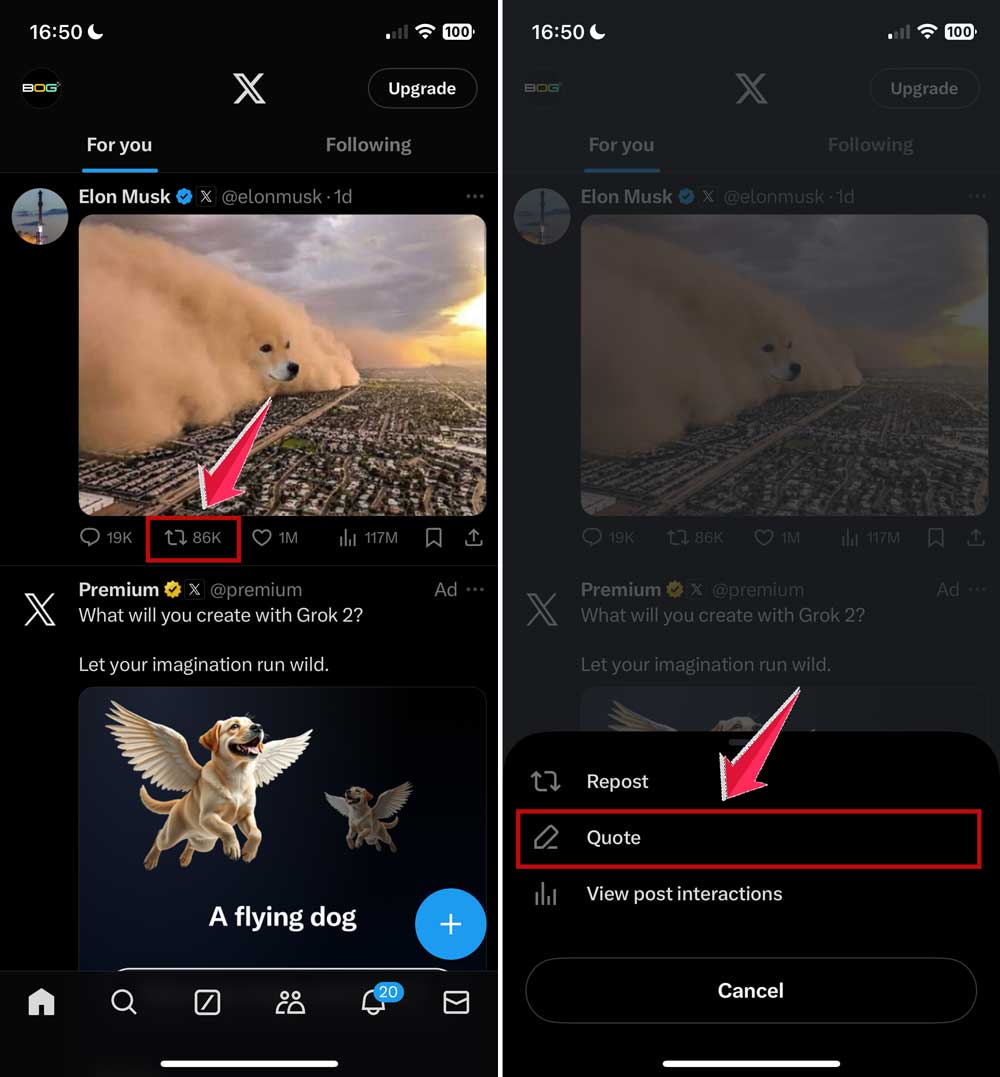
- Express: On the next screen, type your comment above the chosen tweet.
- Post: Tap Post on the upper-right to share your Quote Tweet with your followers.

This method not only boosts your engagement but also allows you to put your stamp on the conversations that matter.
In Conclusion To
Sharing posts with your comments is a powerful way to engage on X. It lets you join conversations, share your ideas, and connect with others.
Whether you’re using your computer or your phone, it’s easy to add your voice to the mix. So why not give it a try?
Start sharing posts with your thoughts today, and watch how it transforms your X experience.
You might be surprised at the conversations you start and the connections you make.


