Have you ever felt like your Spotify music doesn’t sound as good as it should? Maybe you’ve compared it to a friend’s Apple Music or noticed that your favorite song doesn’t have the same punch it used to. You might be wondering if it’s your headphones, your phone, or if Spotify is just not up to par.
The truth is, Spotify can sound fantastic, but it might need a little help from you. Many users don’t realize that the app’s default settings aren’t always optimized for the best sound quality. Spotify tries to balance quality with data usage, which means you might not be getting the full potential of your music.
But don’t worry – you don’t need to switch to a different service or buy expensive new headphones. The solution could be as simple as adjusting a few settings within the Spotify app itself.
In this article, you’ll learn how to make the most of your Spotify listening experience. We’ll show you how to tweak sound quality settings and use the equalizer to bring out the best in your music. Whether you’re using basic earbuds or high-end headphones, these tips can help you enjoy your tunes more.
Ready to fall in love with your music all over again? Let’s dive in and explore how to make Spotify sound its best on your device.
How to boost your Spotify sound on mobile
Ever felt like your favorite tunes on Spotify aren’t hitting quite right? You’re not alone. With a few simple tweaks, you can make your music sound much better.
Here’s how to enhance your Spotify listening experience on your mobile device.
1. Turn off Data Saver for better quality
First, let’s make sure you’re not accidentally limiting your sound quality:
- Open the Spotify app.

- Tap your profile picture in the top left corner.
- Go to “Settings and privacy“.

- Find the “Data Saver” section.
- Toggle off the “Save Data” option.
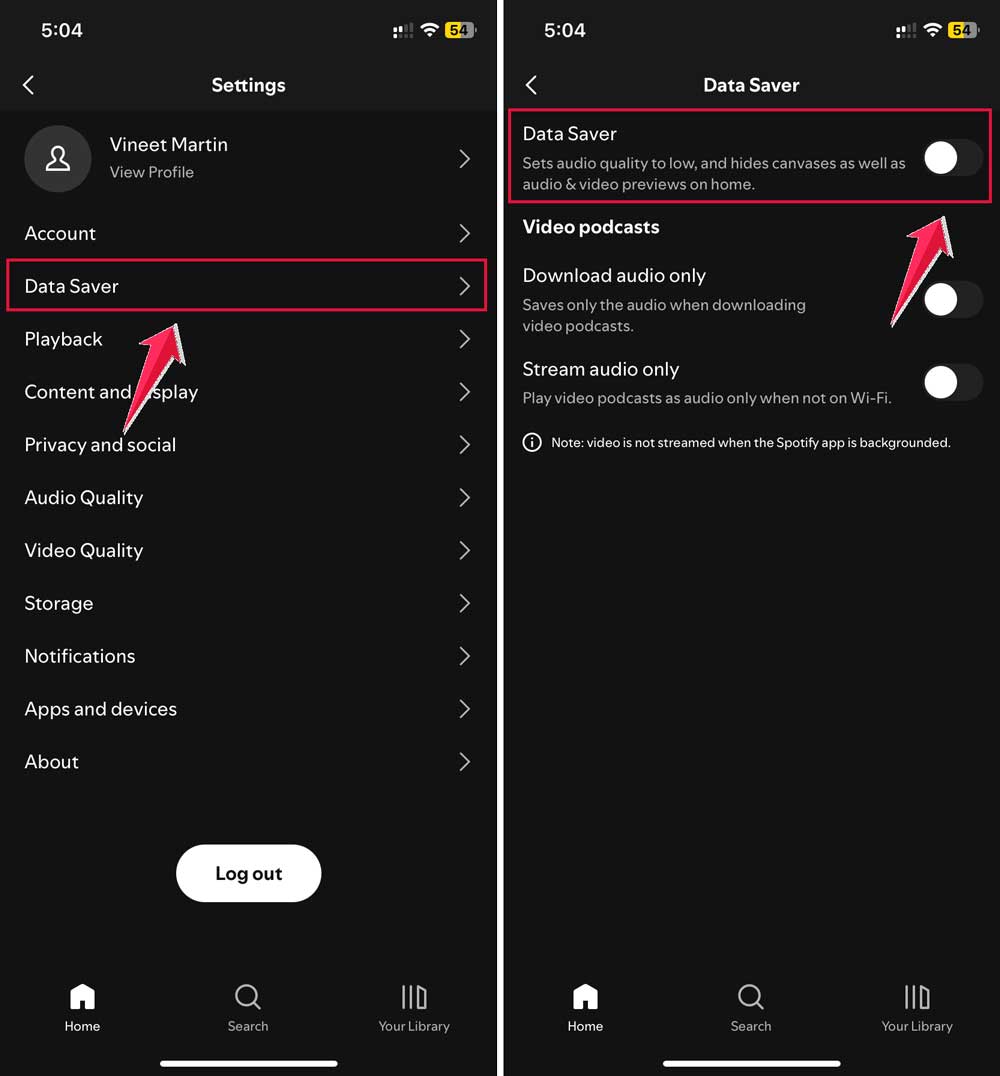
This feature helps save data but reduces your music quality. Only keep it on if you’re really worried about data usage or have a weak network connection.
2. Maximize your audio quality
Spotify offers different audio quality levels:
- Low: 24 kbps.
- Normal: 96 kbps.
- High: 160 kbps.
- Very High: 320 kbps (only for Spotify Premium users).
To get the best sound:
- Go back to “Profile“.
- Click on “Settings and privacy“.
- Click on “Audio Quality”.
- Scroll to “WiFi streaming” and “Cellular streaming“.
- Change these from “Automatic” to “Very High” or at least “High“.
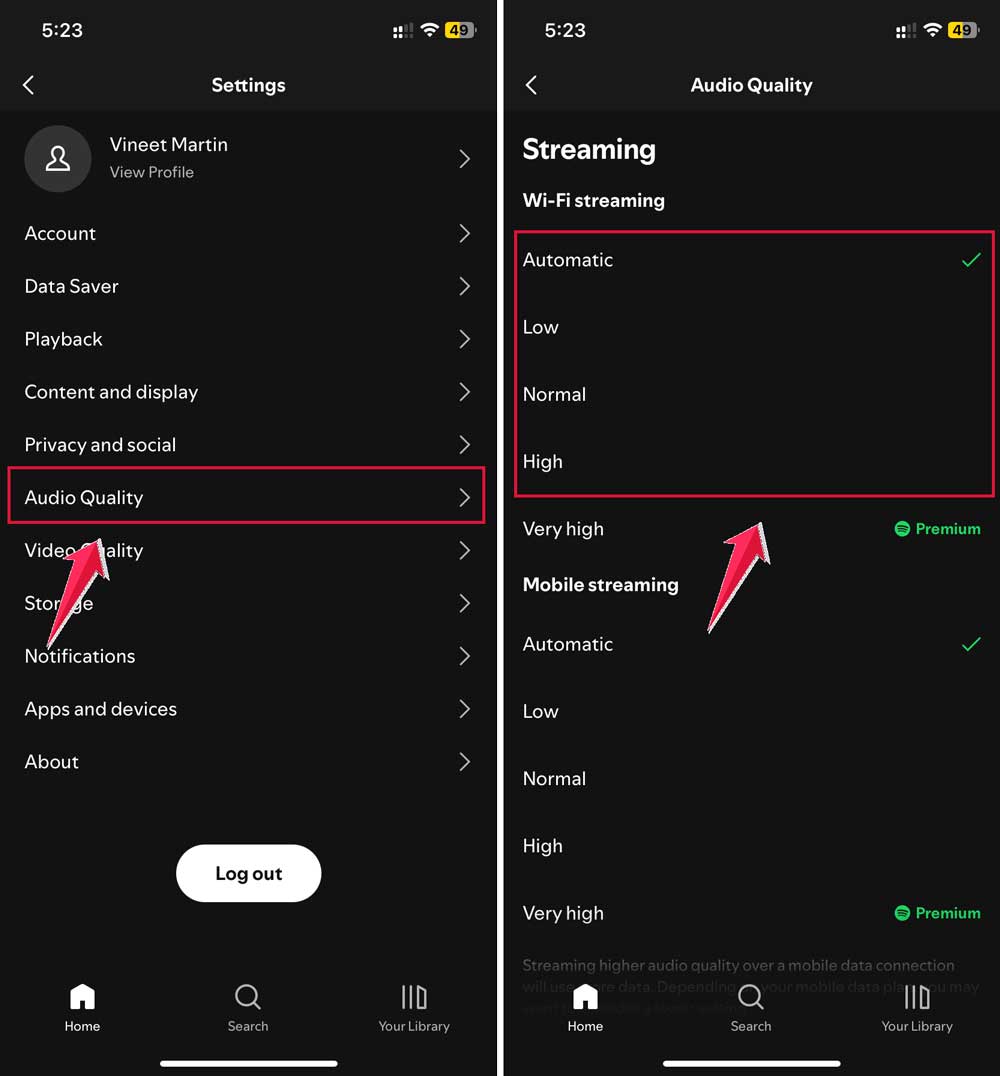
If you’re concerned about data usage on cellular, try the “Auto adjust quality” feature. It changes the streaming quality based on your connection strength.
3. Even out volume levels
Tired of some songs blasting while others whisper? Here’s how to fix that:
- In “Settings and privacy” then Click on “Playback”.
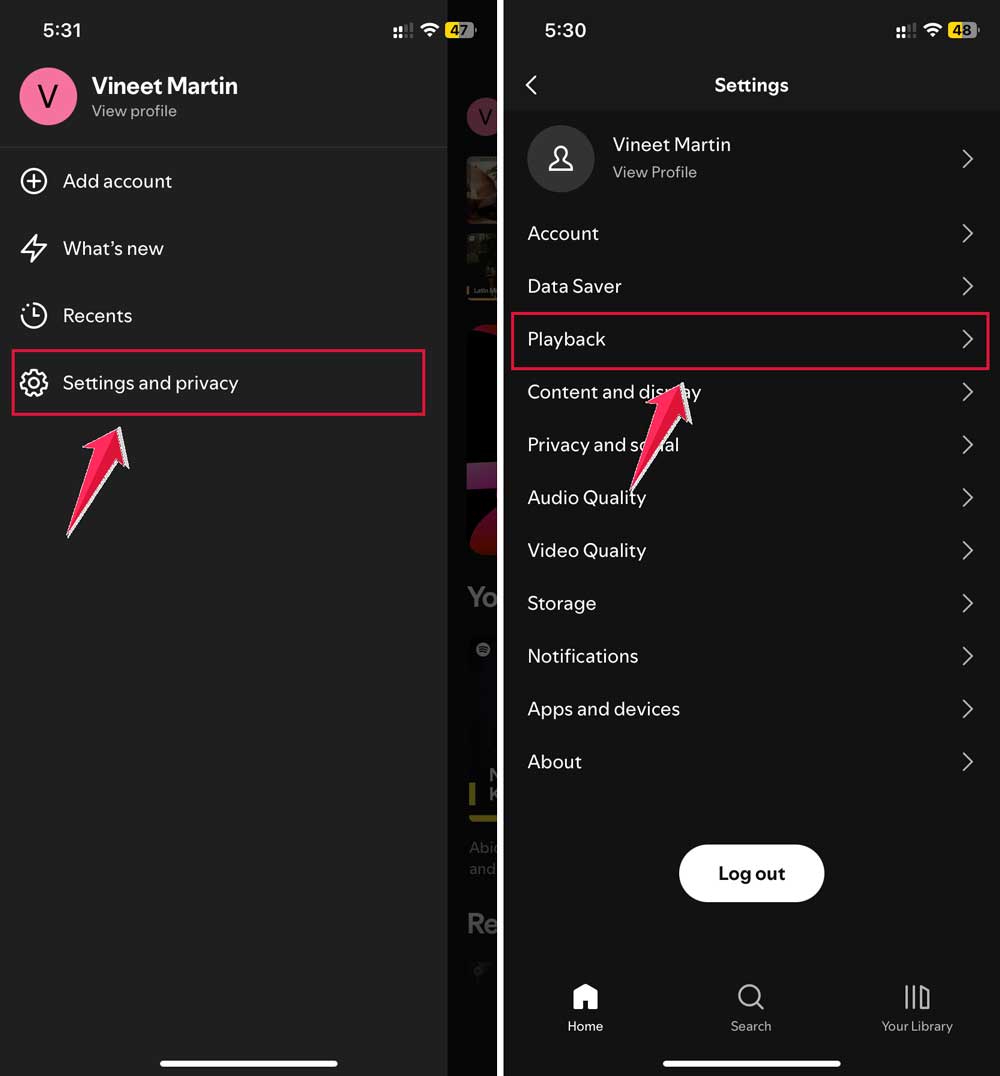
- Find “Normalize volume” and turn it on
- Adjust the “Volume level” setting:
- Loud: Good for noisy places, but might reduce quality a bit.
- Normal: Best for everyday listening.
- Quiet: Perfect for calm environments.
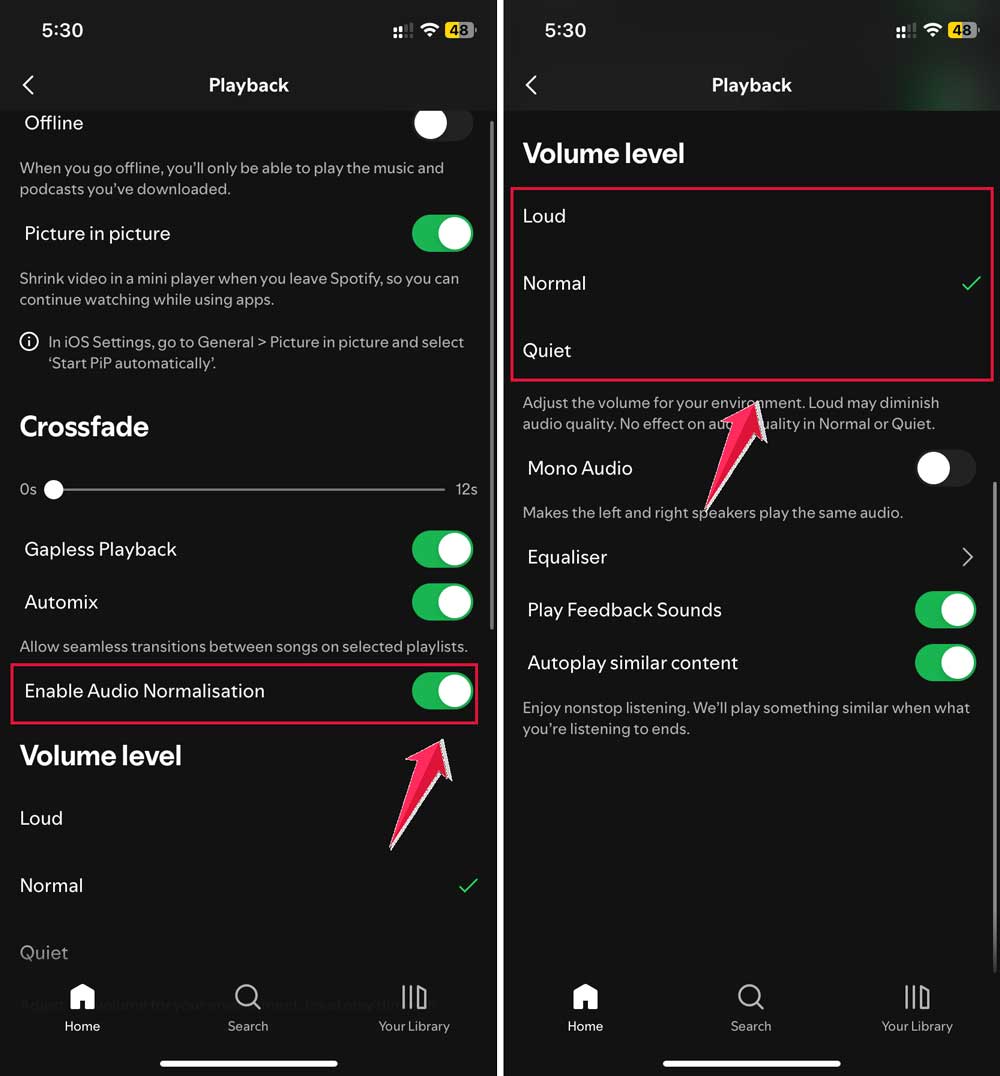
Remember, if you often listen in noisy places, noise-cancelling headphones might be a better option than always using the “Loud” setting.
How to boost your Spotify sound on desktop
Want to get the most out of your Spotify listening experience on your computer? Here’s how you can tweak your settings for the best possible sound:
1. Maximize your audio quality
To get the highest quality sound from Spotify on your desktop:
- Open the Spotify desktop app.

- Click your profile picture in the top right corner.
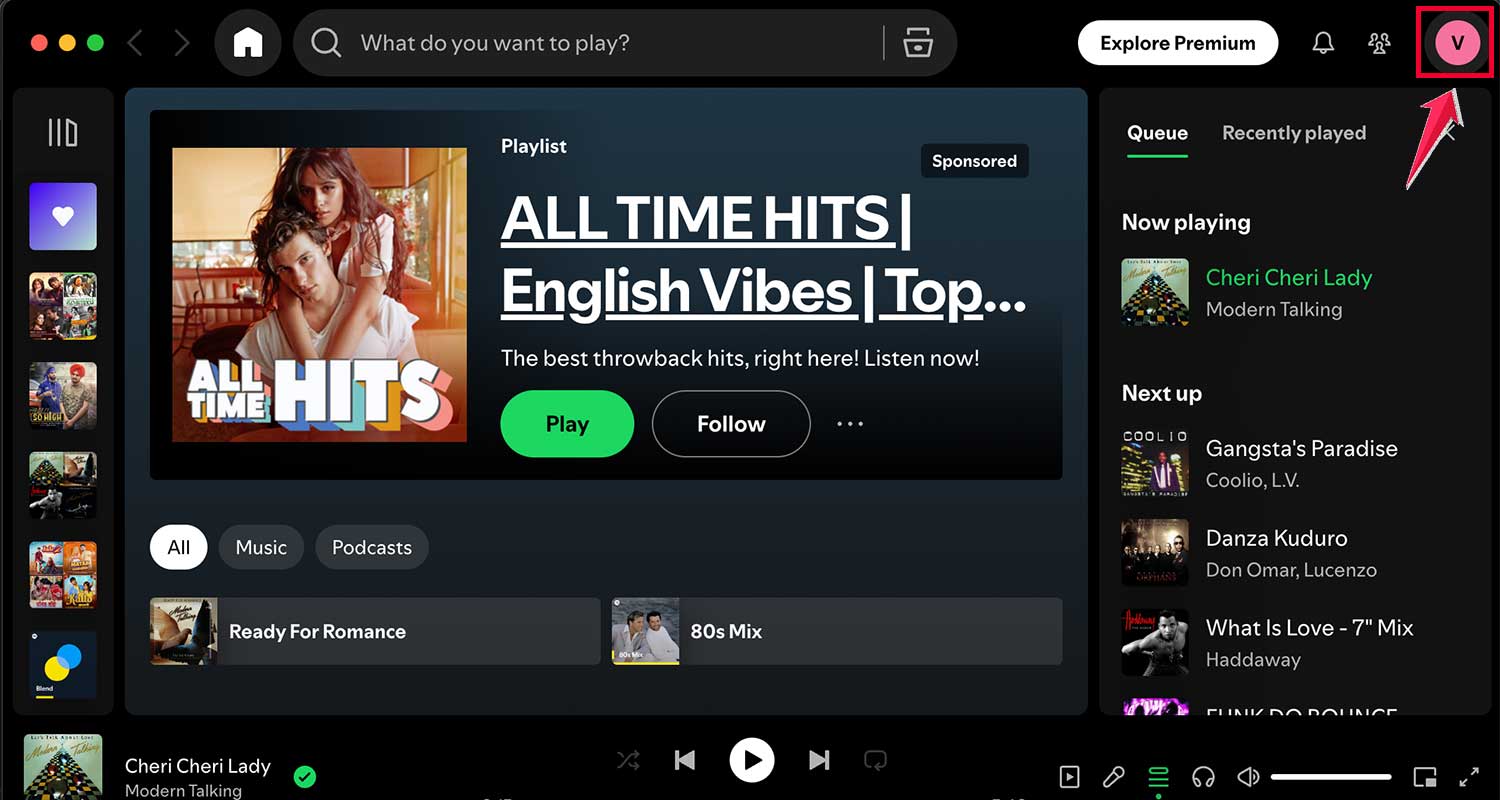
- Go to “Settings“.

- Scroll down to the “Audio quality” section.
- You’ll see these options:
- Low: 24 kbps.
- Normal: 96 kbps.
- High: 160 kbps.
- Very High: 320 kbps (only for Spotify Premium users).
- Choose “Very High” for the best sound quality.

Remember, the “Very High” option is only available if you have Spotify Premium. If you don’t, “High” is your best choice.
2. Balance out your volume levels
Tired of adjusting the volume between songs? Here’s how to keep things consistent:
- In the same “Audio quality” section, find “Normalize volume” and turn it on.

- Adjust the “Volume level” setting to fit your environment:
- Loud: Good for noisy places, but might slightly reduce quality.
- Normal: Best for everyday listening.
- Quiet: Perfect for peaceful settings.

These adjustments will help make your Spotify desktop experience more enjoyable. Your music will sound clearer and more consistent, letting you focus on enjoying your favorite tunes without distractions.
How to change Spotify equalizer settings on mobile
Want to take your Spotify listening experience to the next level? Let’s explore how to adjust the equalizer settings on different devices. This can help you customize the sound to match your preferences or enhance specific genres.
1. For Android users
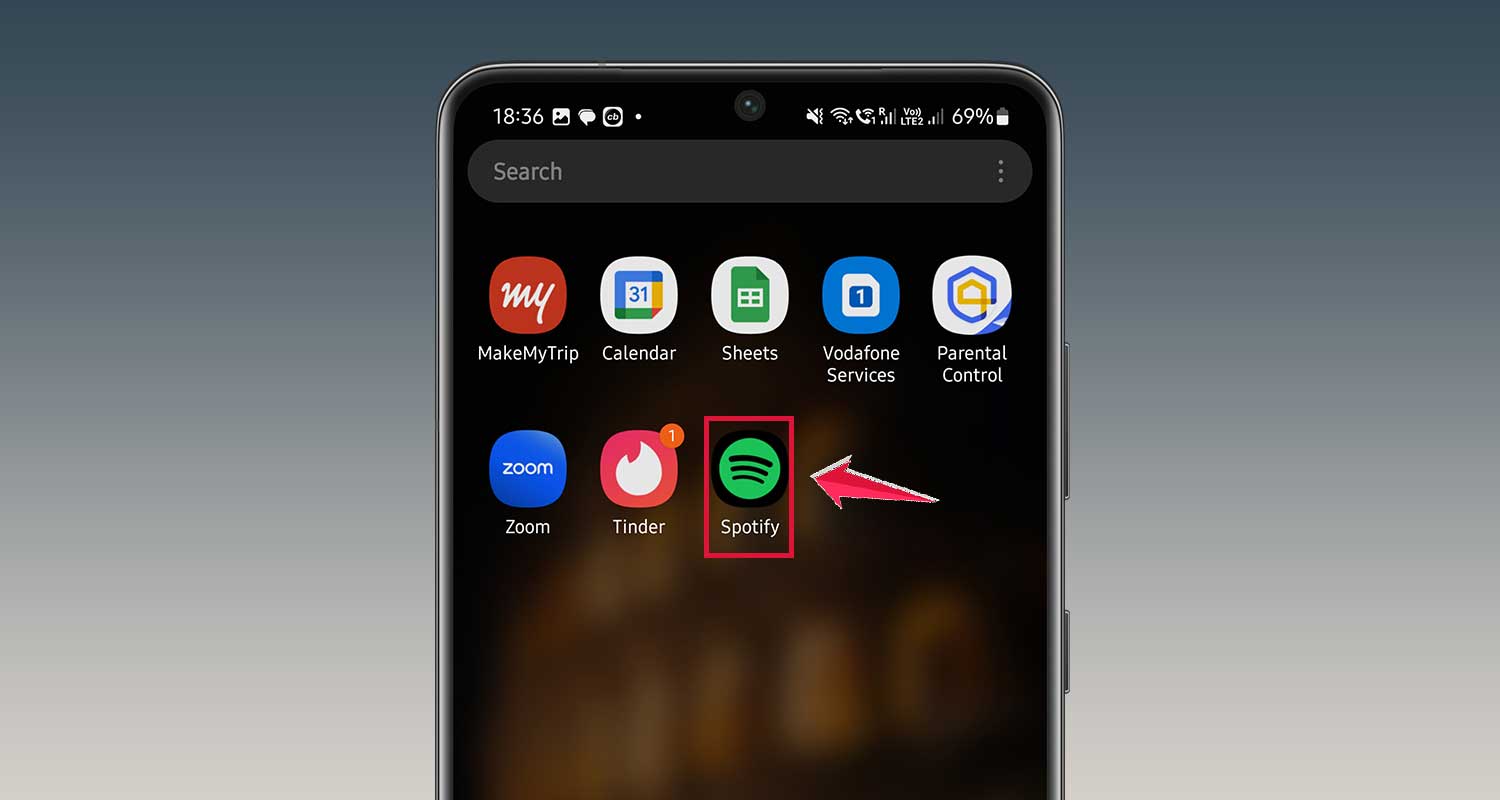
- Open the Spotify app on your Android device.
- Tap the Profile in the top-right corner to access Settings and privacy.
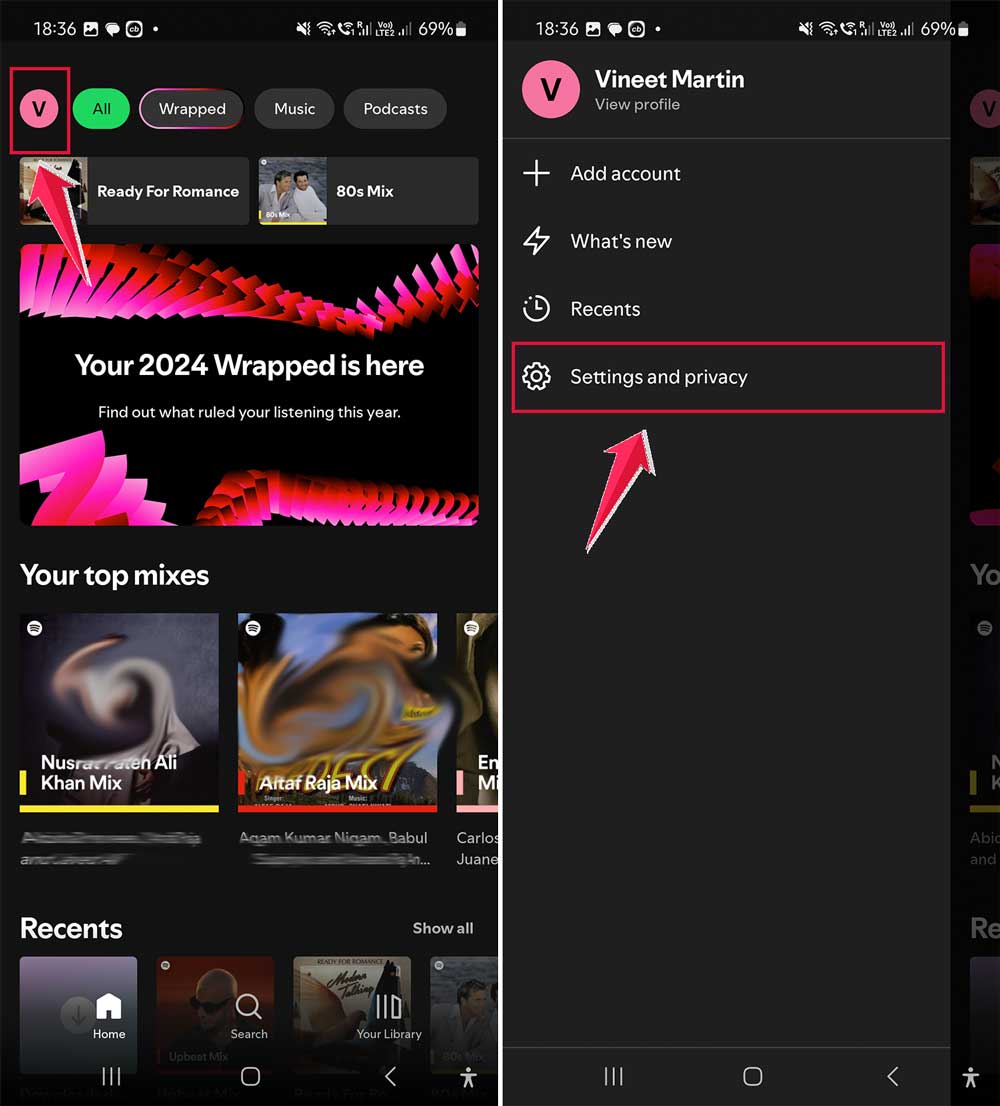
- Scroll down until you find the Playback section.
- Tap on Equalizer Options.
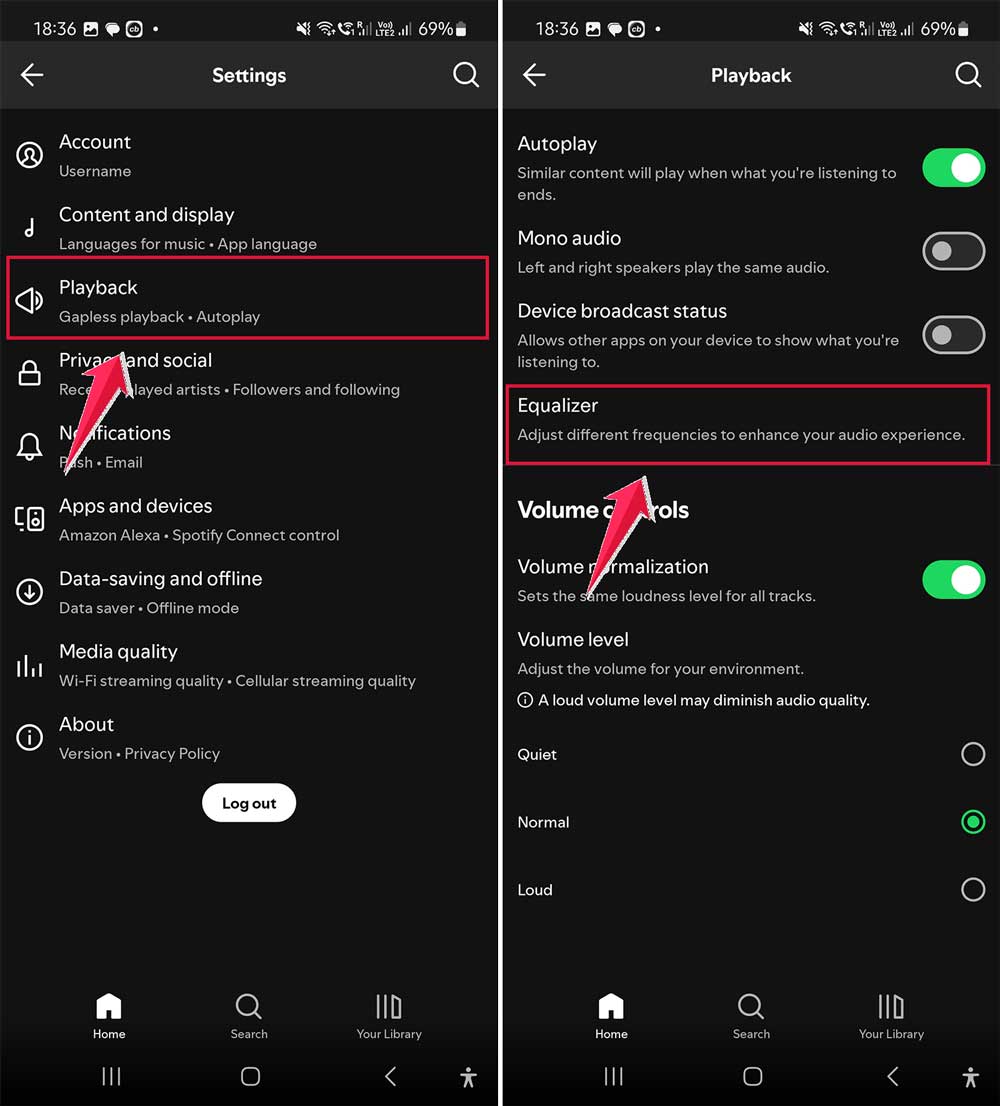
- Tap on Equalizer to open the sound adjustment options.

Note: If you don’t see the Equalizer option, don’t worry. Some Android devices don’t support this feature natively. Here’s what you can do:
- Download a third-party app like Equalizer FX from the Google Play Store.
- Once installed, you should see preset options like rock, pop, jazz, or dance.
- You can also manually adjust bass, mids, and treble to create your perfect sound.
Remember, each genre of music might benefit from different equalizer settings. For example, you might want more bass for hip-hop or clearer highs for classical music.
2. For iOS users
- Launch the Spotify app on your iPhone or iPad.
- Navigate to Settings and Privacy.
- Tap on Playback to access audio settings.
- Select Equalizer within the Playback settings.

iOS Spotify comes with a built-in equalizer that offers various presets. Here’s what you can do:
- Choose from preset options that match different music styles.
- Manually adjust frequency ranges by moving the sliders.
- Turn the equalizer on or off for both music and podcasts separately.
Experiment with these settings to find what sounds best to you. Keep in mind that a bass-heavy setting that’s great for music might not be ideal for podcasts.
3. For desktop users
While the Spotify web player doesn’t offer equalizer options, the desktop app does. Here’s how to access it:
- Open the Spotify desktop application.
- Click your profile picture located in the top right corner.
- Navigate to Settings in the dropdown menu.
- Scroll down to the Playback section.
- Look for the Equalizer options.

- Click the dropdown menu next to Preset to
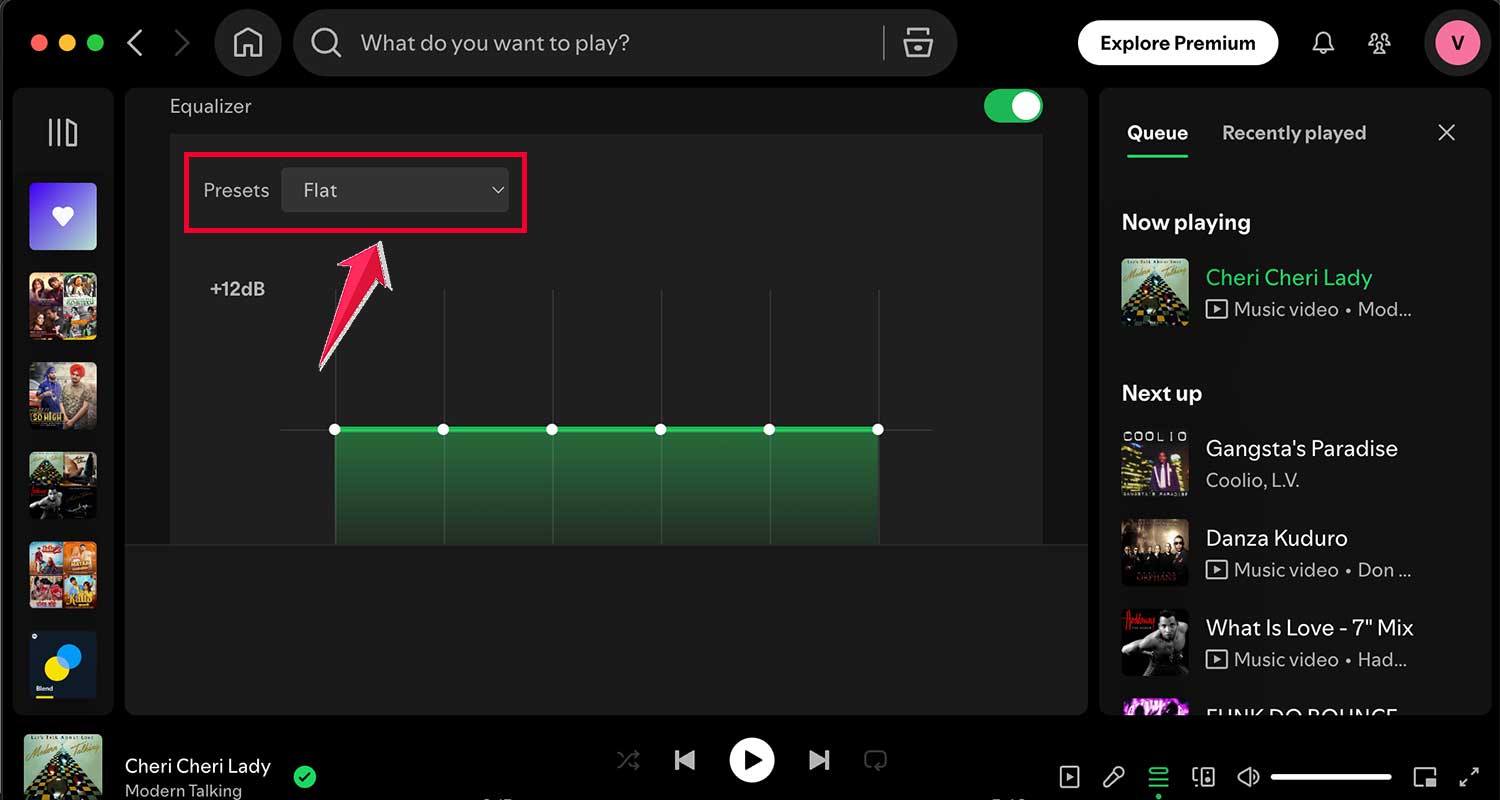
- Select from various audio settings.

For more precise control:
- Click and drag points along the frequency range to make manual adjustments.
- If you’re not happy with your changes, simply click Reset to start over.
This feature is particularly useful for tailoring your sound to different genres or compensating for the characteristics of your speakers or headphones.
The takeaway
Many Spotify users don’t realize they can greatly improve their listening experience with a few simple adjustments. By tweaking some settings in the app, you can make your music sound much better on both mobile devices and computers.
The main solutions involve turning off the data saver, setting audio quality to the highest level available, and using the equalizer to fine-tune the sound. These changes can make your music clearer, more balanced, and more enjoyable. You don’t need expensive equipment – just a few minutes to adjust your Spotify settings.
A common misconception is that you need to be tech-savvy to improve your Spotify sound. In reality, these adjustments are easy to make and don’t require any special knowledge. Anyone can do it!
The most important takeaway is this: don’t settle for default settings. Take a few moments to optimize your Spotify app, and you’ll be amazed at how much better your music can sound. Your favorite songs are waiting to be rediscovered – go ahead and give them the sound quality they deserve!
We’d love to hear your thoughts! How did these tips work for you? Share your experience in a comment below.