Your data’s disappearing again, huh? You check your phone bill or your data usage, and it feels like it just vanished. I get it.
It’s frustrating, like losing your keys for the hundredth time. And those sneaky background apps? Yeah, they’re often the ones to blame. But don’t worry. We’ll figure this out together.
The issue is pretty simple. Apps love to run in the background when you’re not paying attention. They sneak in auto-updates, pull in ads, load trackers, and gobble up your data like it’s a buffet.
Some apps are just built to be huge data hogs. If you’re keeping an eye on your phone bill or trying to stretch your limited plan, this really matters.
And here’s the thing. If you don’t keep these apps in check, they’ll keep draining your data.
You might end up with extra charges, slower speeds, or even spotty service when you need it most. It’s not just annoying—it hits your wallet too.
But hey, I’ve got your back. We’re going to dive into some super-easy fixes. You’ll keep those apps in line without breaking a sweat.
Plus, you’ll save your precious data along the way. Ready? Good. Let’s get started!
Why Is Your Mobile Data Disappearing?
Alright, let’s dive into why your data’s disappearing. It’s happening before you even know it. Let’s break it down.
1. Apps Running Behind the Scenes
You’ve got apps lurking in the background, using data even when you’re not looking.
They love to update themselves, check for new content, and download stuff without asking. It’s like they think they own your data. We’ll need to keep an eye on them.
2. Auto-Updates Stealing Data
Those pesky auto-updates? They’re major data thieves. Your apps refresh without warning, downloading new versions and updates.
Sure, it’s convenient. But it’s also costly in terms of data. And if you’re not careful, it adds up fast.
3. Apps Designed as Data Hogs
Some apps, especially social media and streaming ones, are just greedy.
They’re designed to pull in tons of data because they constantly feed you images, videos, and ads. If we don’t manage them, your data will flow away like water from a leaking tap.
4. Ads and Trackers
Finally, ads and trackers in apps are like little data mosquitoes. They never sleep. They keep sipping away your data, showing you ads, and tracking your behavior every second.
Knowing these causes gives us the power to fix them. And trust me, we’re going to fix them, one by one. You’re not alone here. Let’s tame those data goblins together!
How to Limit Background Data Usage for Specific Apps
Now, let’s get practical. We’re diving into how to stop those apps from gobbling up your data without asking. Ready? Let’s go!
#1: Disable Background Data for Apps on Android
First, let’s cut down data usage by shutting down background apps. They’re often the real troublemakers.
Here’s how you do it:
- Open your Settings.
- Tap on Connections.
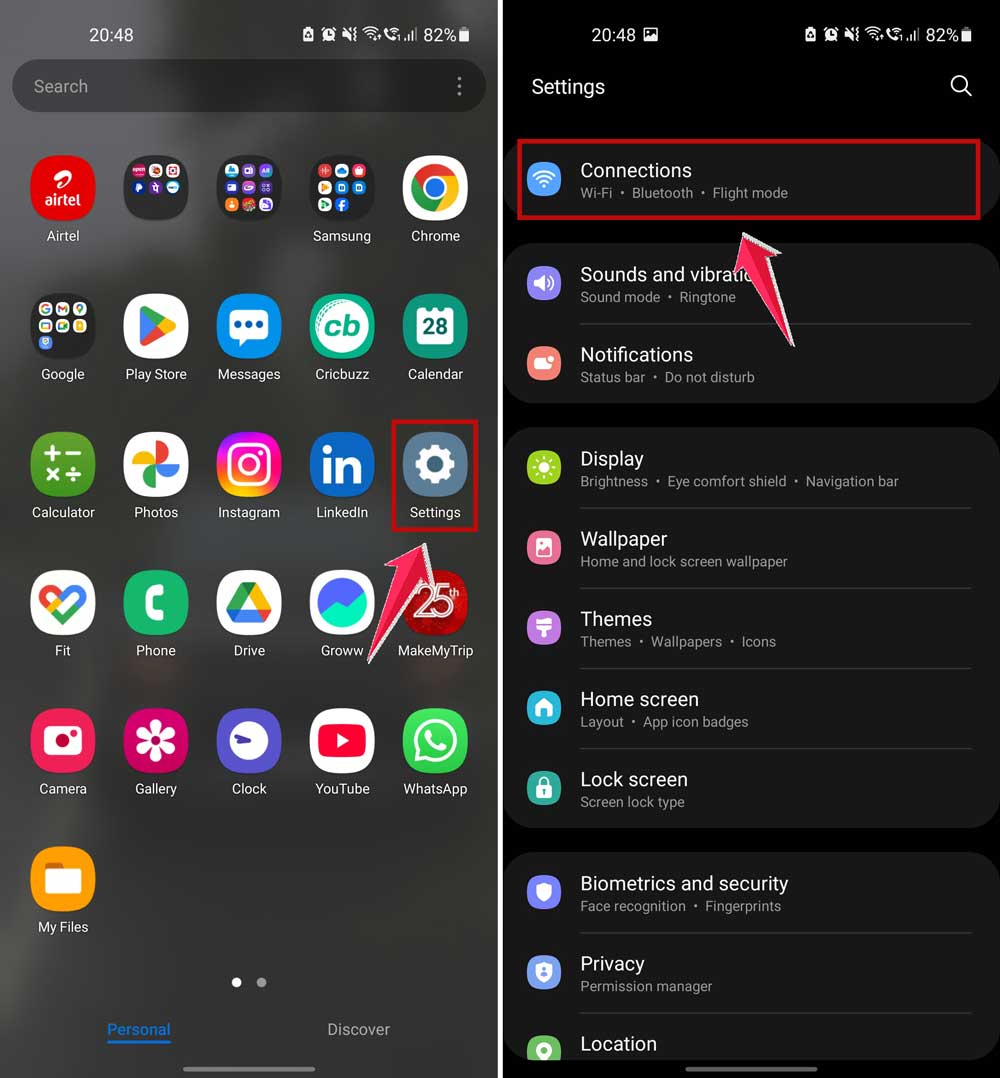
- Tap on Data usage.
- Then go into Mobile data usage.
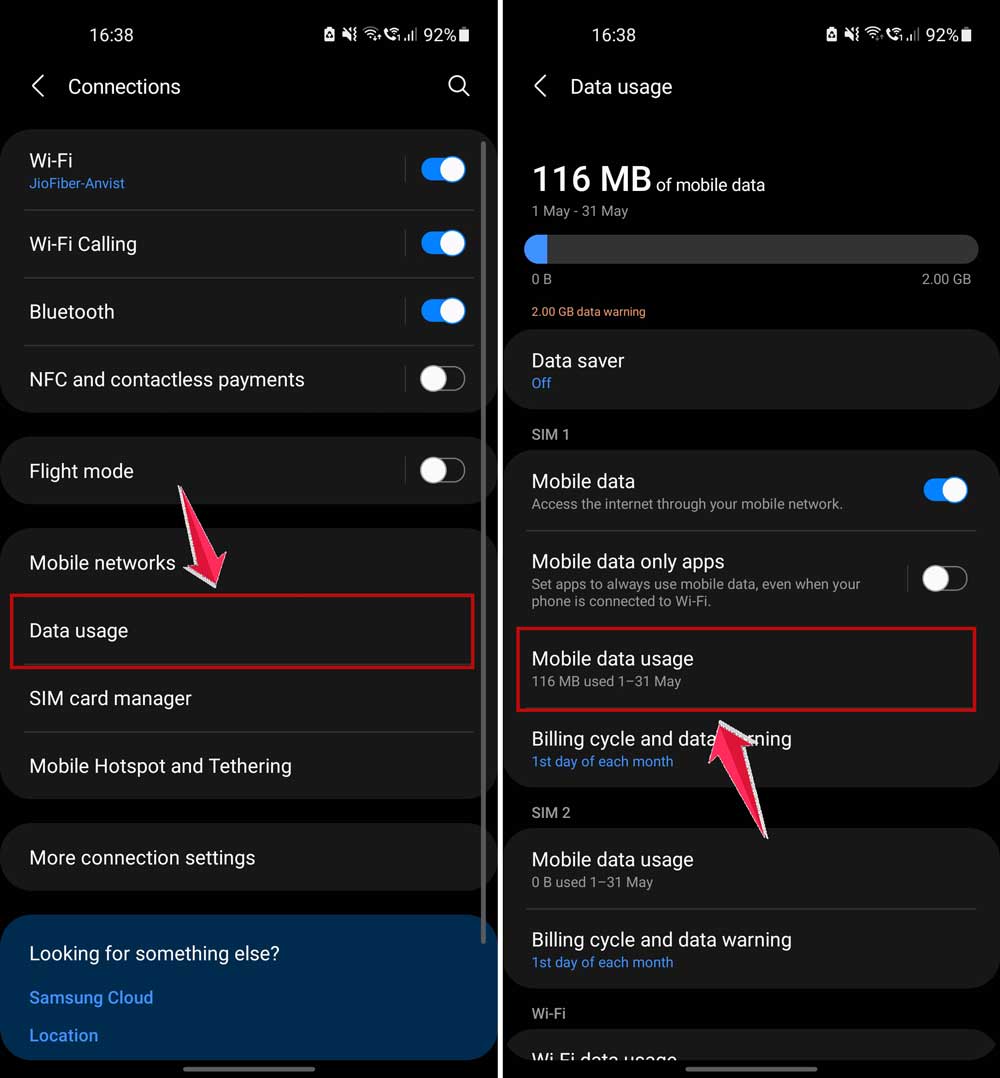
- Tap on an app that’s using too much data.
- Turn off the toggle for Background data.
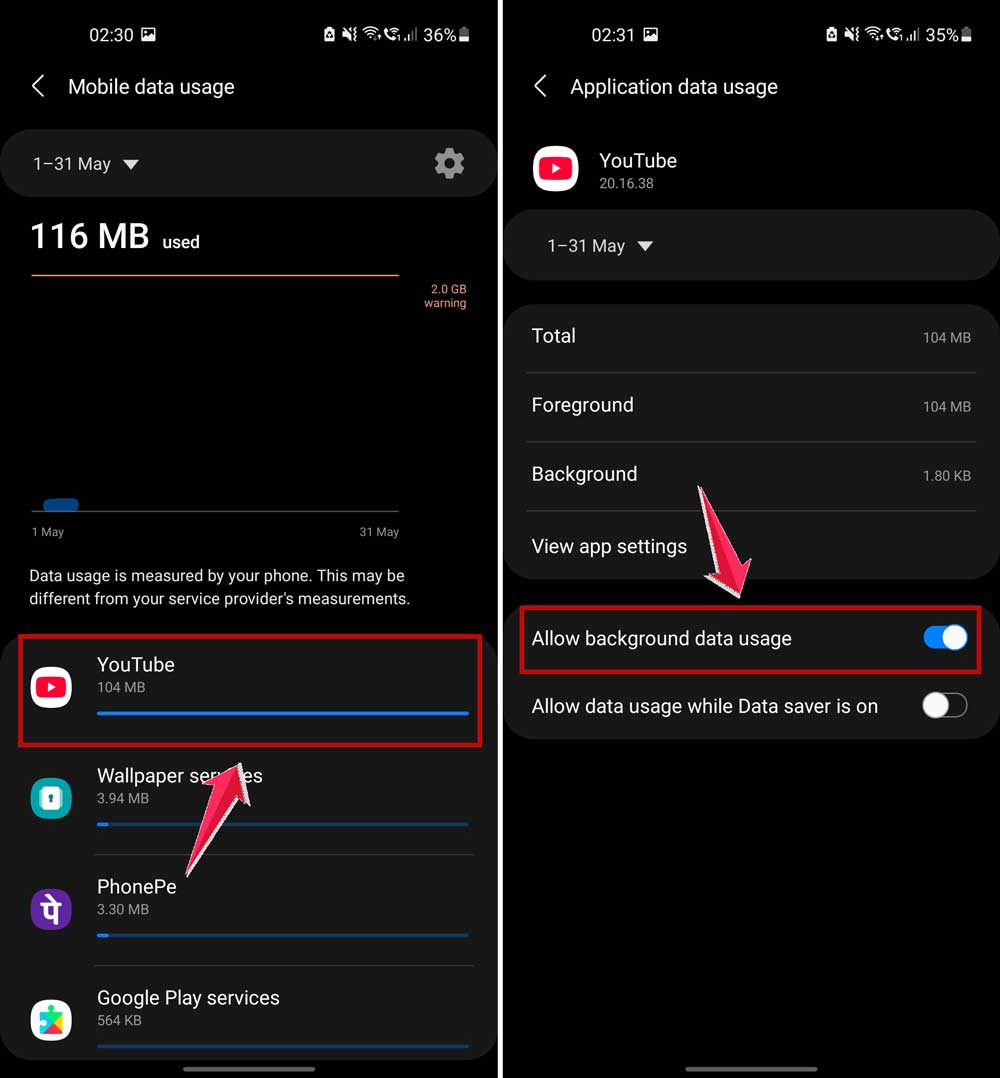
And just like that, you’ve stopped the sneakiest apps from using your data behind your back!
#2: Limit Background Data for iOS
Alright, iPhone users, it’s your turn. We’ll show those apps who’s boss.
Follow these steps:
- Open your Settings.
- Tap on General.

- Find and tap Background App Refresh.
- Pick the apps you want to control.
- Switch off Background App Refresh.
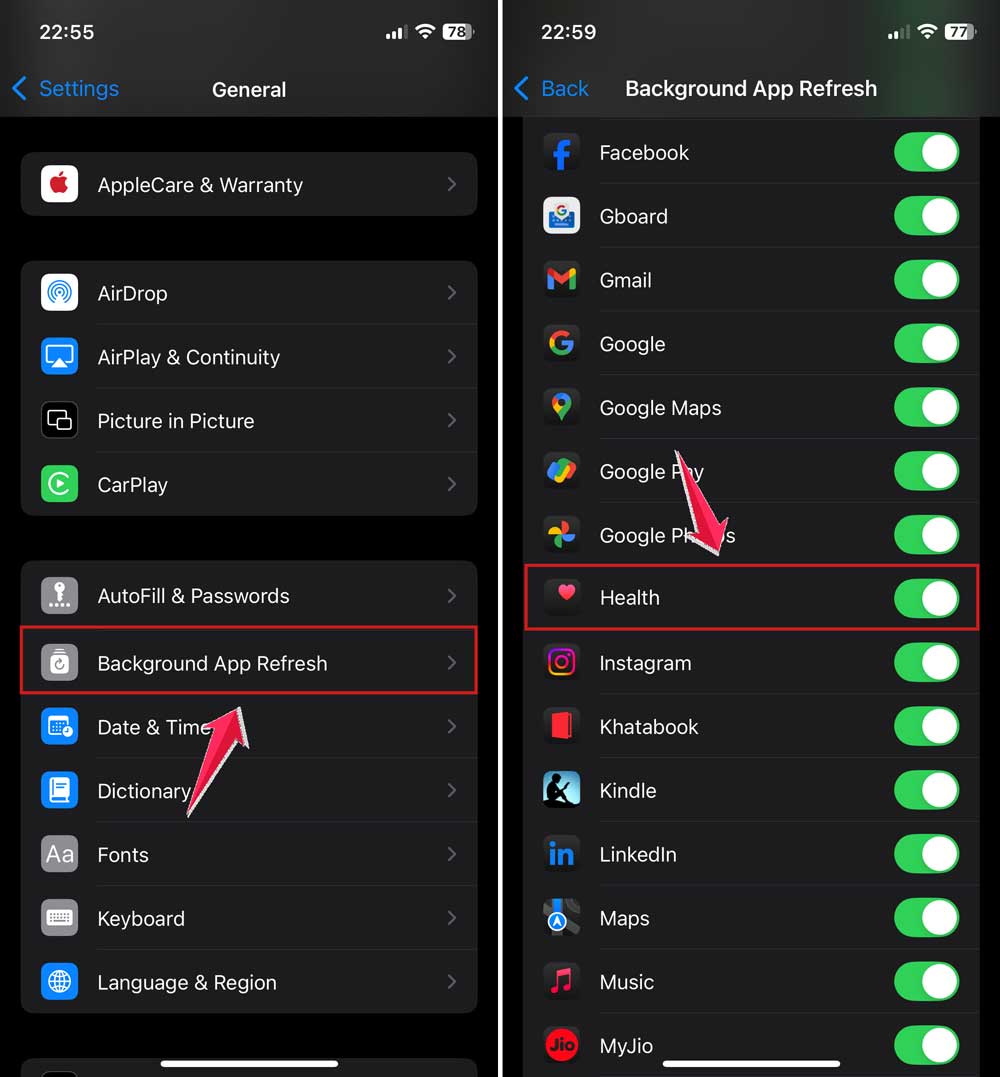
That’s it! Your iPhone will now keep a tighter grip on background data.
#3: Turn On Data Saver Mode on Android
Now, let’s put a shield over your data with Data Saver mode. It’s like giving your data a personal bodyguard.
Here’s what you do:
- Go to Settings.
- Tap on Connections.
- Tap on Data usage.
- Tap Data Saver.
- Turn on Enable.

Feels good, right? Your data can now breathe a little easier.
#4: Limit Data Usage for Specific Apps on iPhone
Back to iPhones for a second. Some apps just need a little tough love.
Here’s how:
- Go to Settings > Apps.
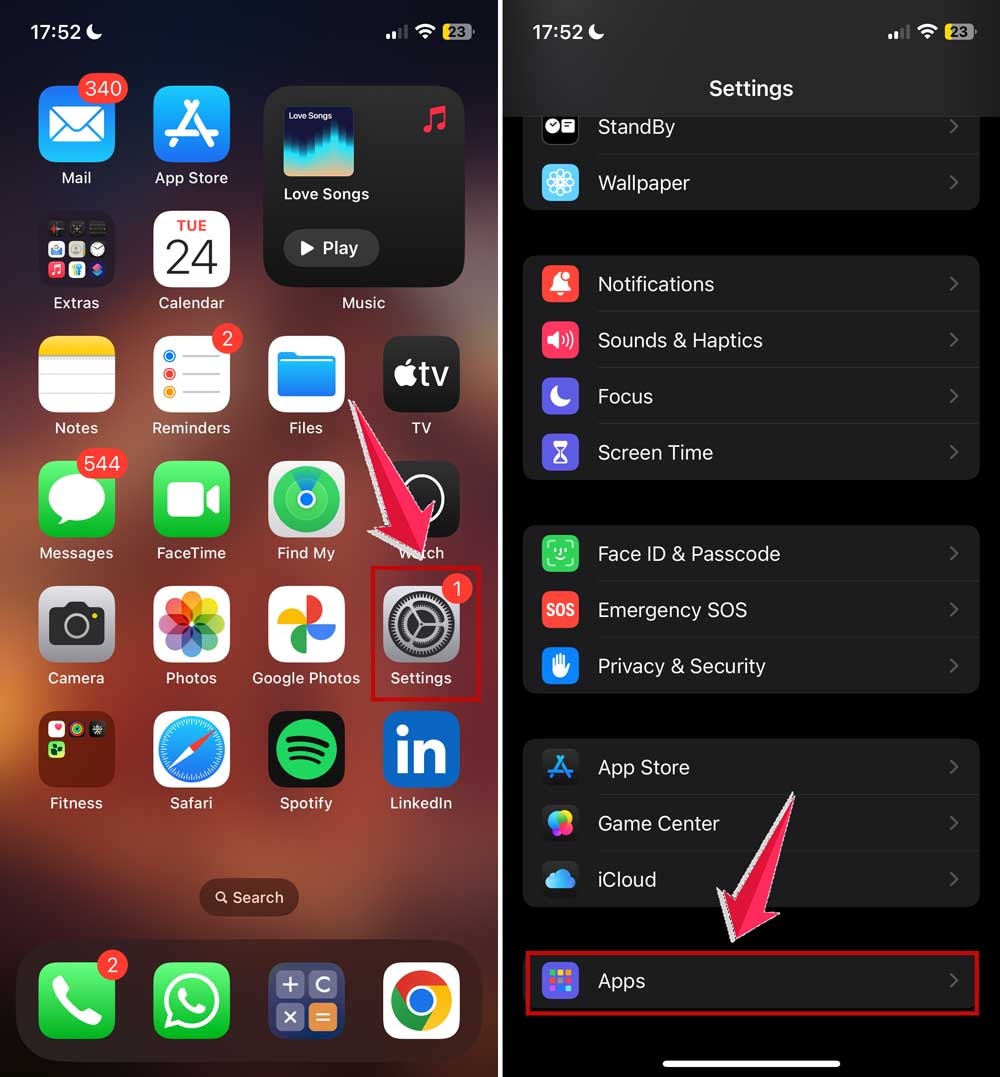
- Scroll down to find the app you want to limit.
- Turn off Cellular Data for that app.
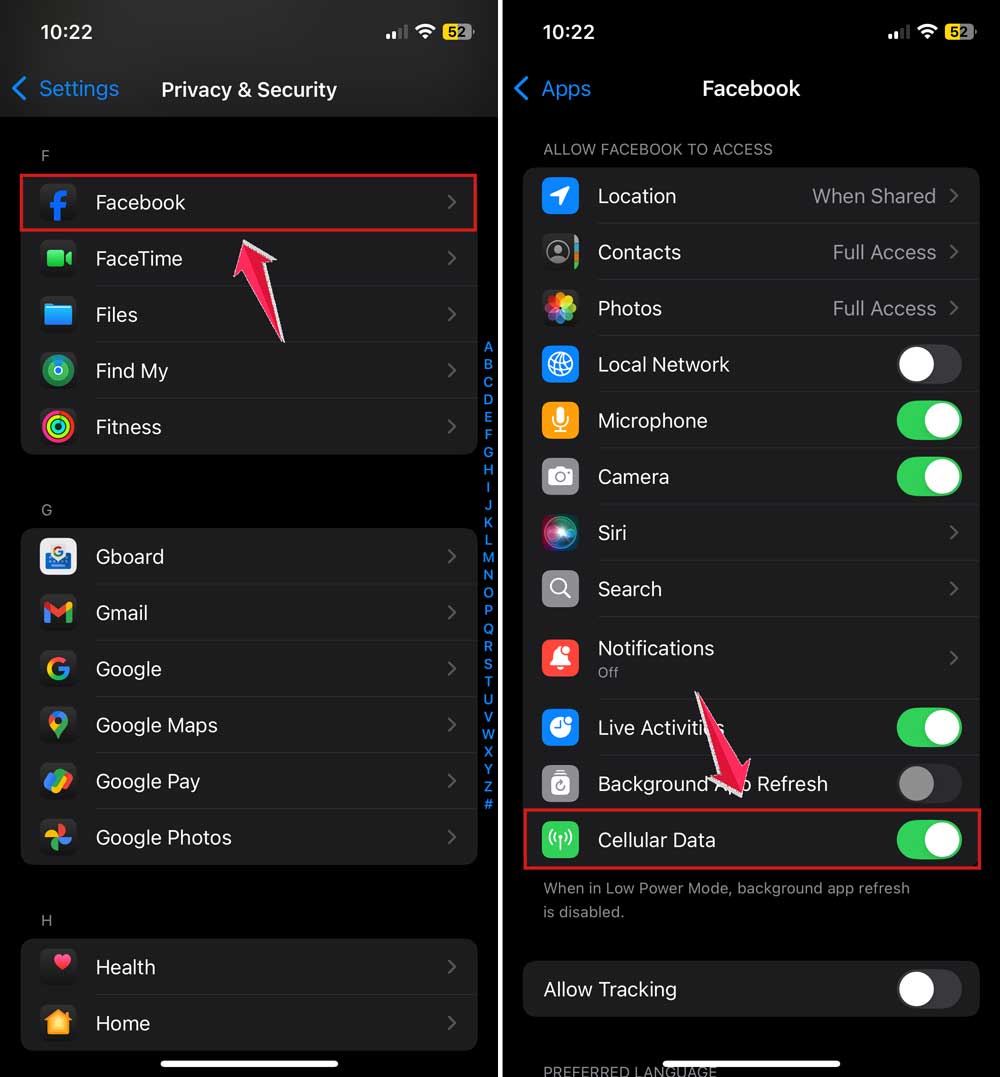
If it can wait for Wi-Fi, it should. You’ll feel lighter already, knowing your data isn’t slipping away.
Extra Tips to Manage Background Data Better
You’re doing great so far. But let’s go the extra mile to protect your data even more.
#1: Update Apps Over Wi-Fi Only
Auto-updates can drain your data fast. Let’s make sure they happen only when you’re on Wi-Fi.
- Open your Play Store or App Store settings.
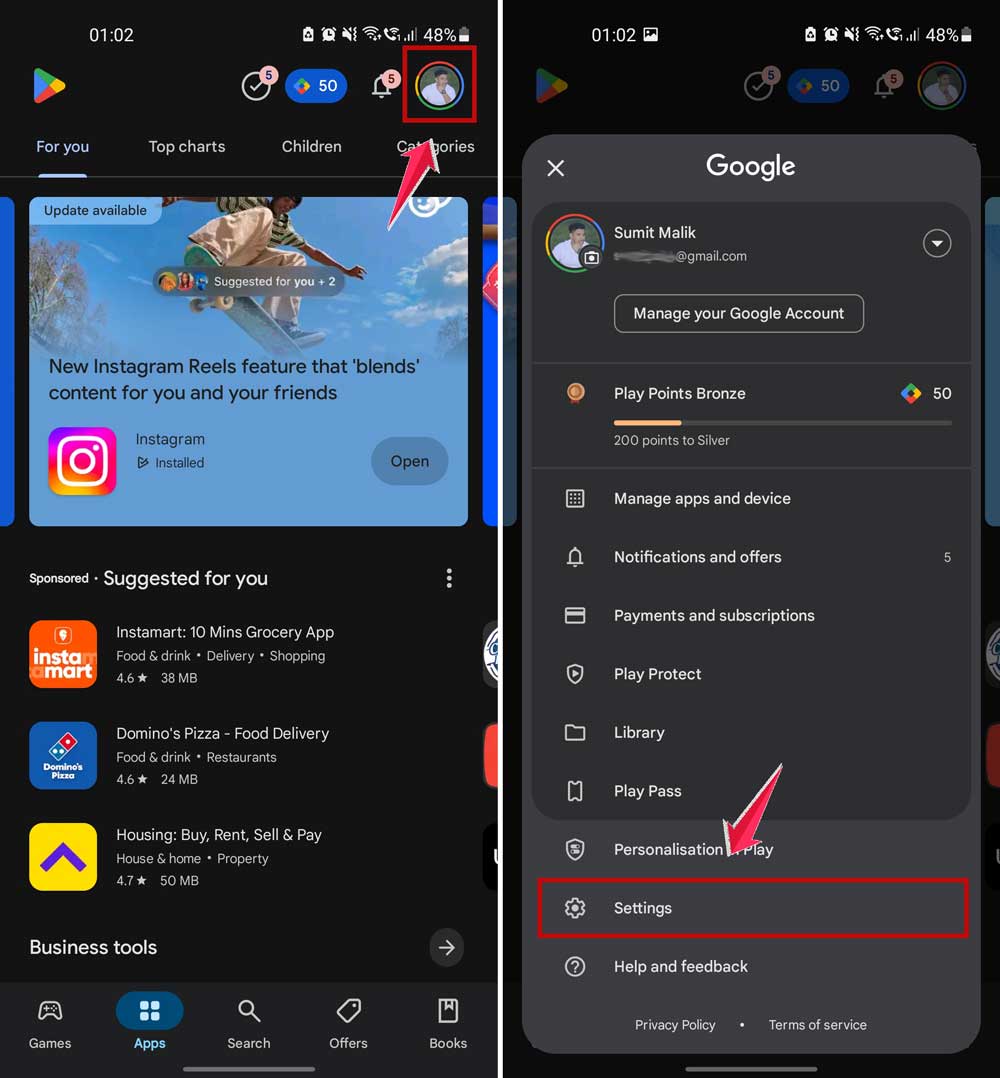
- Find the Auto-update apps setting.
- Set it to Over Wi-Fi only or Don’t auto-update apps.
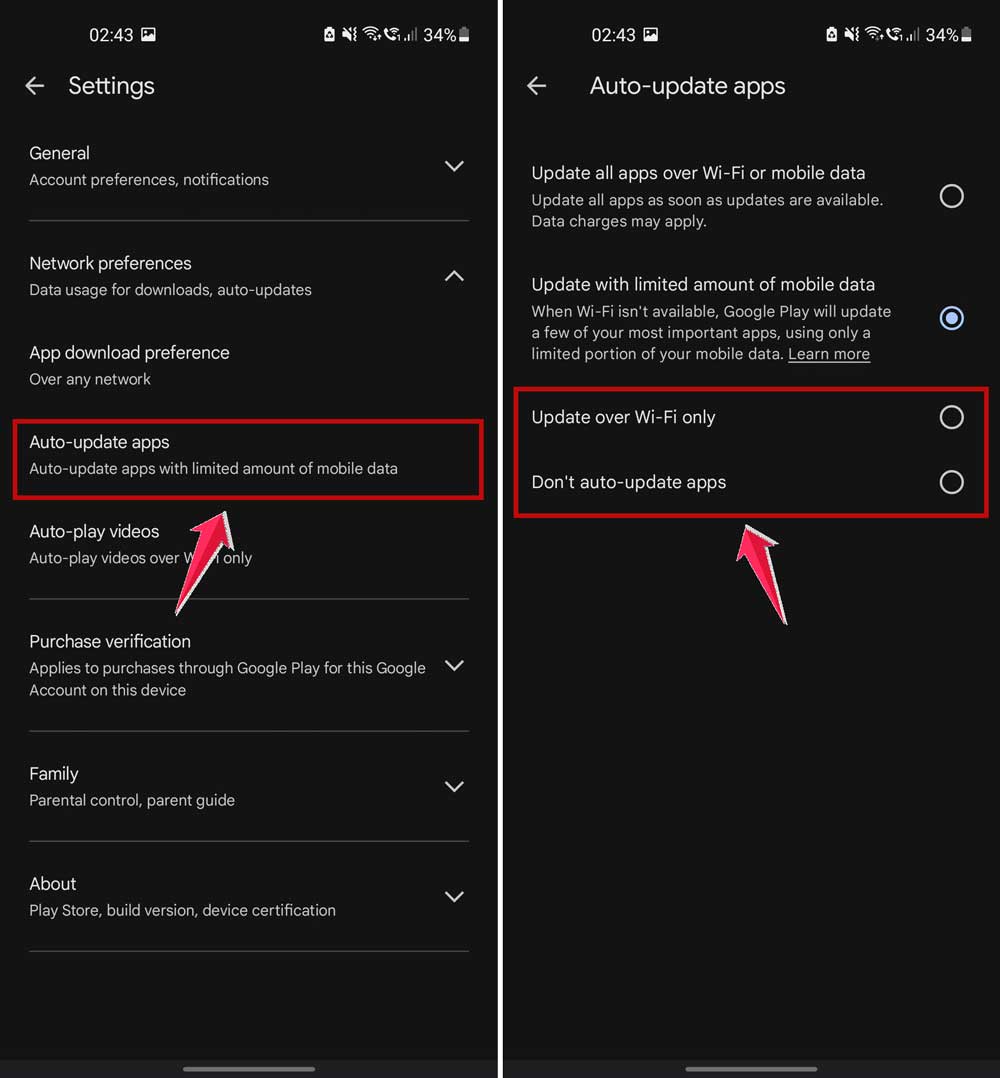
Now, you don’t have to worry about surprise updates eating your data.
#2: Control Your Sync Settings
Apps love to sync whenever they feel like it. But you’re the boss now.
- Go to Settings.
- Find Accounts or Accounts and Backup.

- Adjust the sync settings for each account.
Set them to sync less often, or only when you open the app. It saves data and even your battery!
#3: Try Using Lite Apps
Some apps have “Lite” versions made to save data. They still give you what you need but without all the extra junk.
Look for apps like Facebook Lite or Messenger Lite in the app store. They’re worth it if you want to cut down data use.
#4: Check App Permissions
Some apps sneak around with permissions you didn’t even realize you gave them.
- Open Settings.
- Tap Apps or App Management.
- Tap on each app one by one.
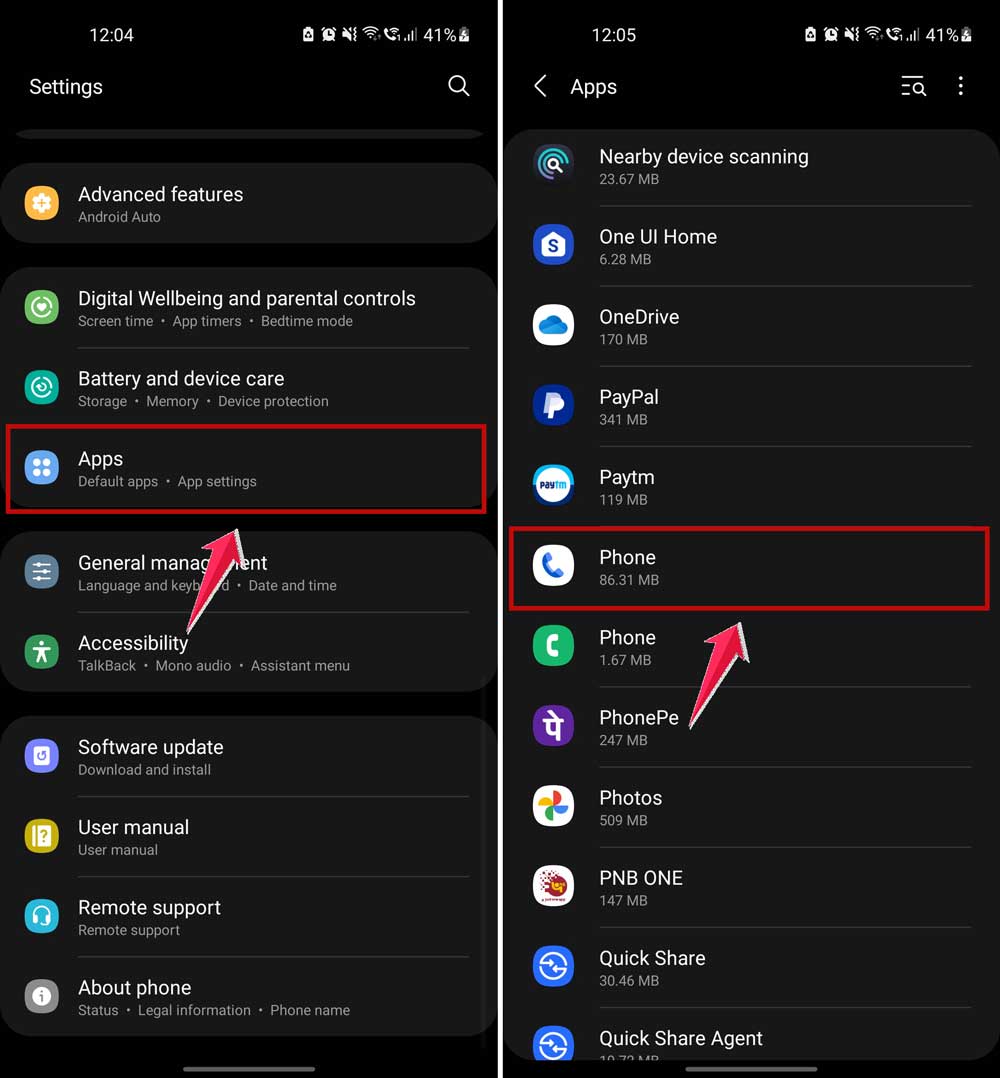
- Go into Permissions.
- Revoke anything that doesn’t make sense.
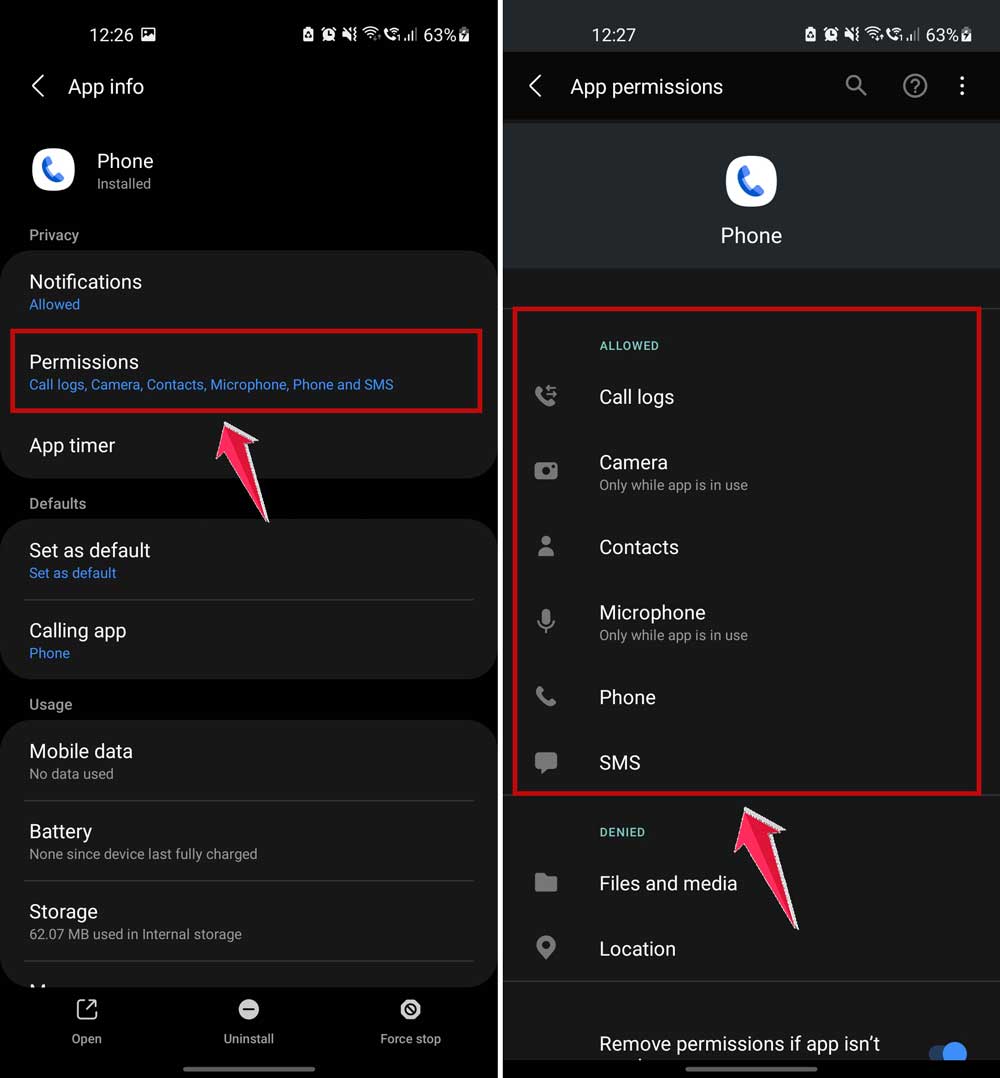
Fewer permissions means fewer sneaky background activities.
#5: Use a VPN with Data Restriction
Finally, consider using a VPN that blocks ads and trackers. Some VPNs come with built-in data restriction features.
They help manage your data, block unnecessary stuff, and keep you safer online. It’s a win-win.
The Takeaway
So, your data’s been sneaking away, caught up in the web of background apps. It’s a pain, I know. But now, you’ve got the tools you need to stop it.
Turning off background data on Android, setting Data Saver mode, and managing app permissions are total game-changers.
And no, you don’t need to be a tech wizard to do it. You just need a little know-how—and now you have it.
Put these fixes into action today. Watch your data usage drop. Watch your phone bill stay in check. And most importantly, enjoy the peace of mind that comes with being in control.
Got questions? Need more tips? Drop a comment below—I’m here to help!