

Did you know that the average smartphone user has over 2,100 photos stored on their device? That’s a lot of memories – and potentially some private ones too.
In today’s digital age, your phone is like a pocket-sized photo album. It’s great for sharing fun moments with friends and family, but not every picture is meant for everyone’s eyes. Maybe you have some surprise party plans, gift ideas, or just personal photos you’d rather keep to yourself.
The good news is that whether you have an Android phone or an iPhone, there are easy ways to hide your private photos. You don’t need to be a tech expert to protect your personal images. In this article, you’ll learn simple methods to keep your private pictures safe from prying eyes.
We’ll walk you through how to use your phone’s built-in features to hide photos, and we’ll also explore some trustworthy apps that can give you extra privacy. By the end, you’ll know exactly how to keep your personal moments personal, no matter what type of phone you’re using.
How to hide photos on an Android phone with Google Photos
Google Photos isn’t just great for finding, sharing, and editing your pictures; it also offers a secure way to hide your private photos and videos with its Locked Folder feature. Let’s walk through how to set this up and start hiding your media!
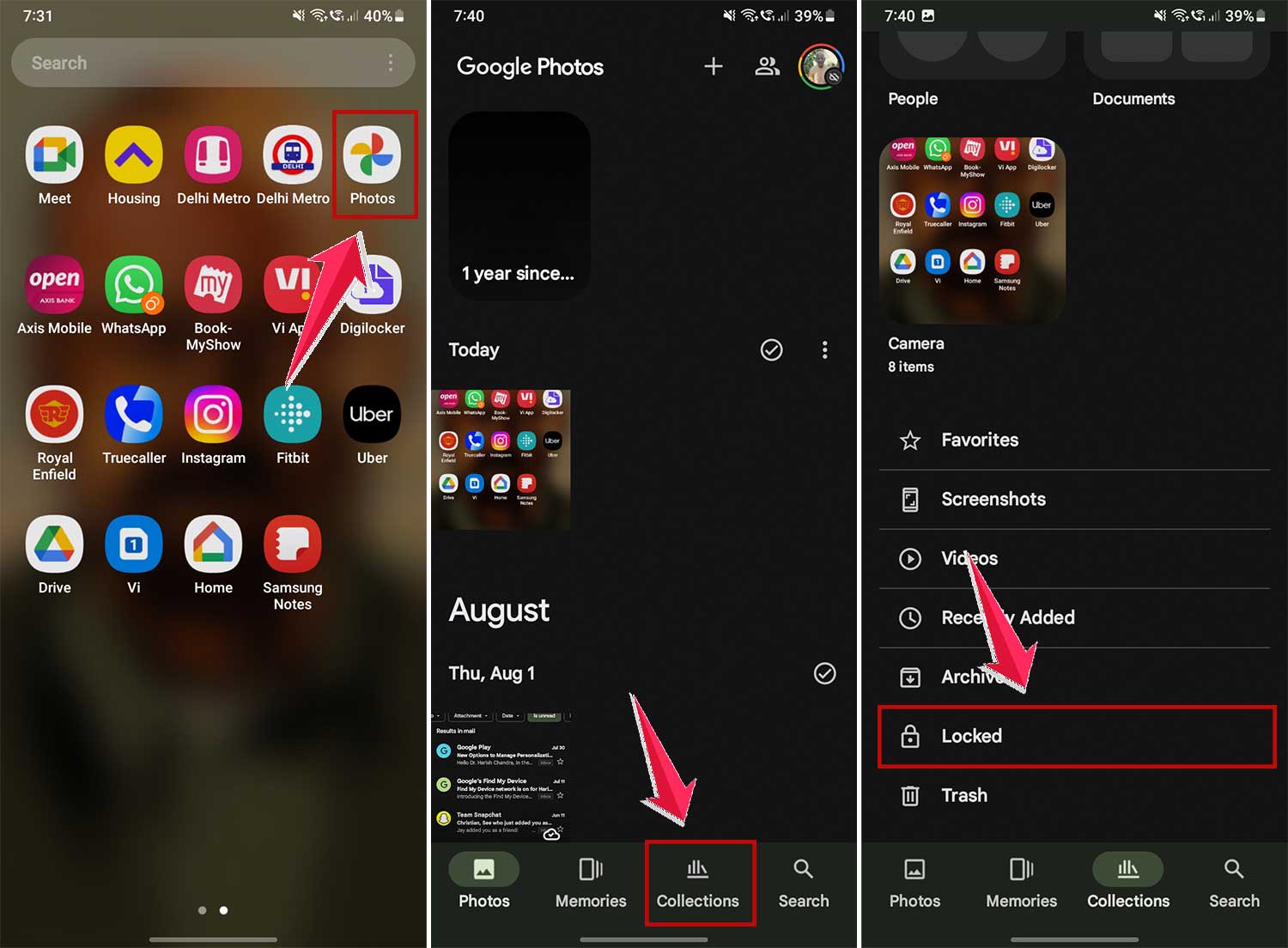
1. Set up your Locked Folder
- Open the Google Photos app on your Android phone.
- Tap the Memories tab at the bottom of the screen.
- Scroll down to find the Locked Folder. Click on it.
- Tap Get Started or Set up Locked Folder and follow the prompts.
- Secure your folder using your PIN, password, or fingerprint.
2. Hide your photos
Now that your Locked Folder is ready, here’s how to hide your private photos:
- Go to the Photos tab in Google Photos.
- Find the photo you want to hide and press and hold it. You can select multiple photos if you like.
- Swipe left the menu at the bottom of the screen.
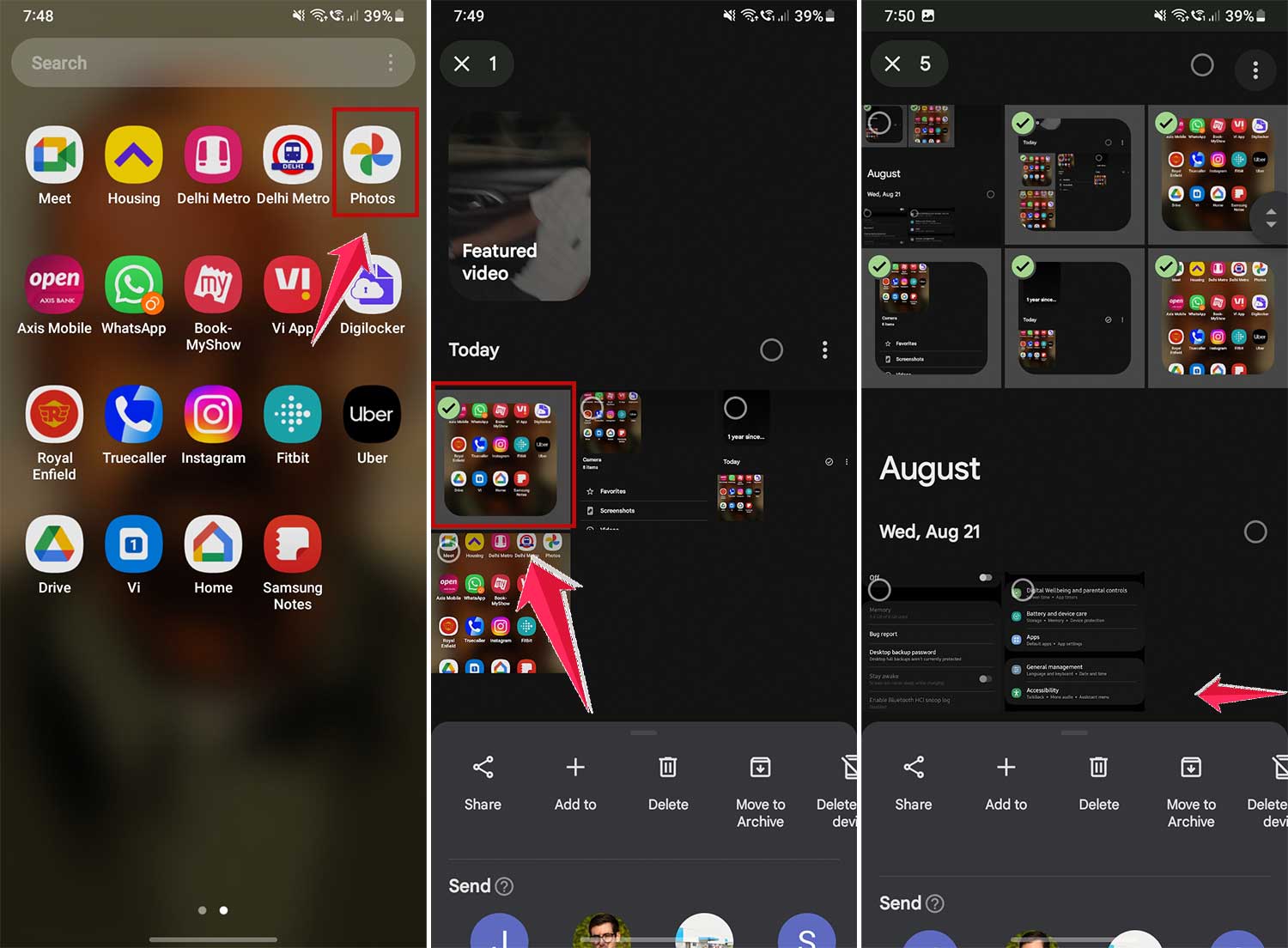
- Then choose Move to Locked Folder.
- Now click on Move to confirm your choice.

3. View your hidden photos
When you want to look at your hidden photos:
- Open Google Photos.
- Tap the Memories tab.
- Find the Locked Folder and click on it.
- Use your fingerprint or PIN to access your hidden photos.
Remember, Google Photos doesn’t automatically back up the contents of your Locked Folder. If you want these photos saved online, you’ll need to turn on backup in your settings.
How to hide photos on an Android phone using the Files app
Do you know that Files by Google app? It’s probably already on your phone, and it’s got a neat feature called Safe Folder. It’s perfect for hiding away those photos you’d rather keep to yourself. Here’s how you can use it:
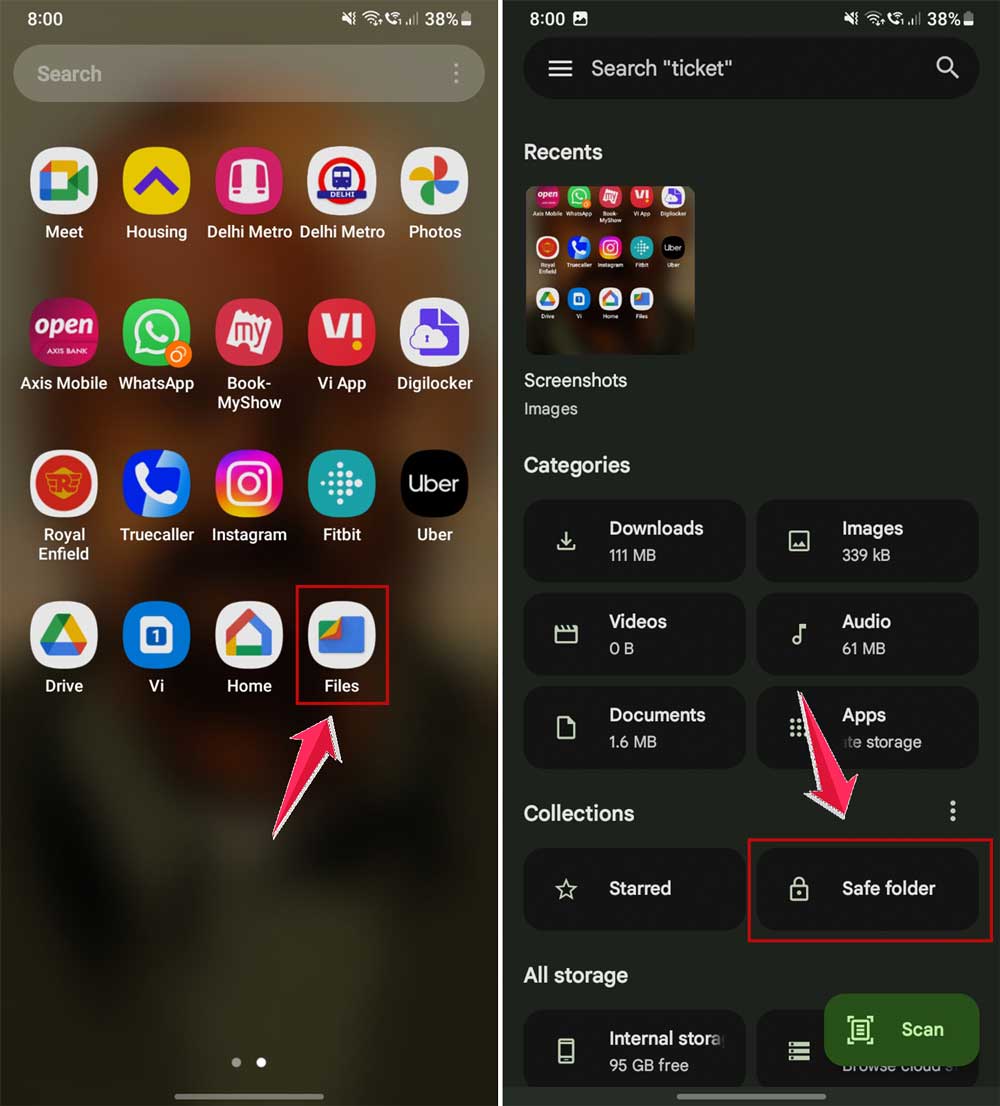
1. Set up your Safe Folder
- Find the Files app on your phone and open it up.
- Look for the Safe folder and give it a tap.
- Now, you’ll need to set up a secret code. You can choose a four-digit PIN or a pattern lock. Pick whichever feels easiest for you to remember but hard for others to guess.
- Follow the steps on your screen to finish setting it up.
2. Hide your photos
Once you’ve got your Safe Folder all set up, here’s how to start hiding your photos:
- Go back to the Files home screen.
- Find where your photos are stored. They might be in “Images” or “Downloads”.
- When you see the photo, you want to hide, press, and hold on to it.

- You can select more than one if you want.
- See those three dots in the top right corner. Tap on those.
- Choose Move to Safe Folder.

And just like that, your photos are tucked away, safe and sound!
Remember, only you can get into this folder with your PIN or pattern. It’s like having a secret vault right on your phone. Pretty cool, right?
How to hide photos on your Samsung Galaxy phone
Samsung Galaxy phones come with a feature called Secure Folder, powered by Samsung Knox, which provides an extra layer of security. Here’s how to set it up and start hiding your private media:
1. Set Up Secure Folder
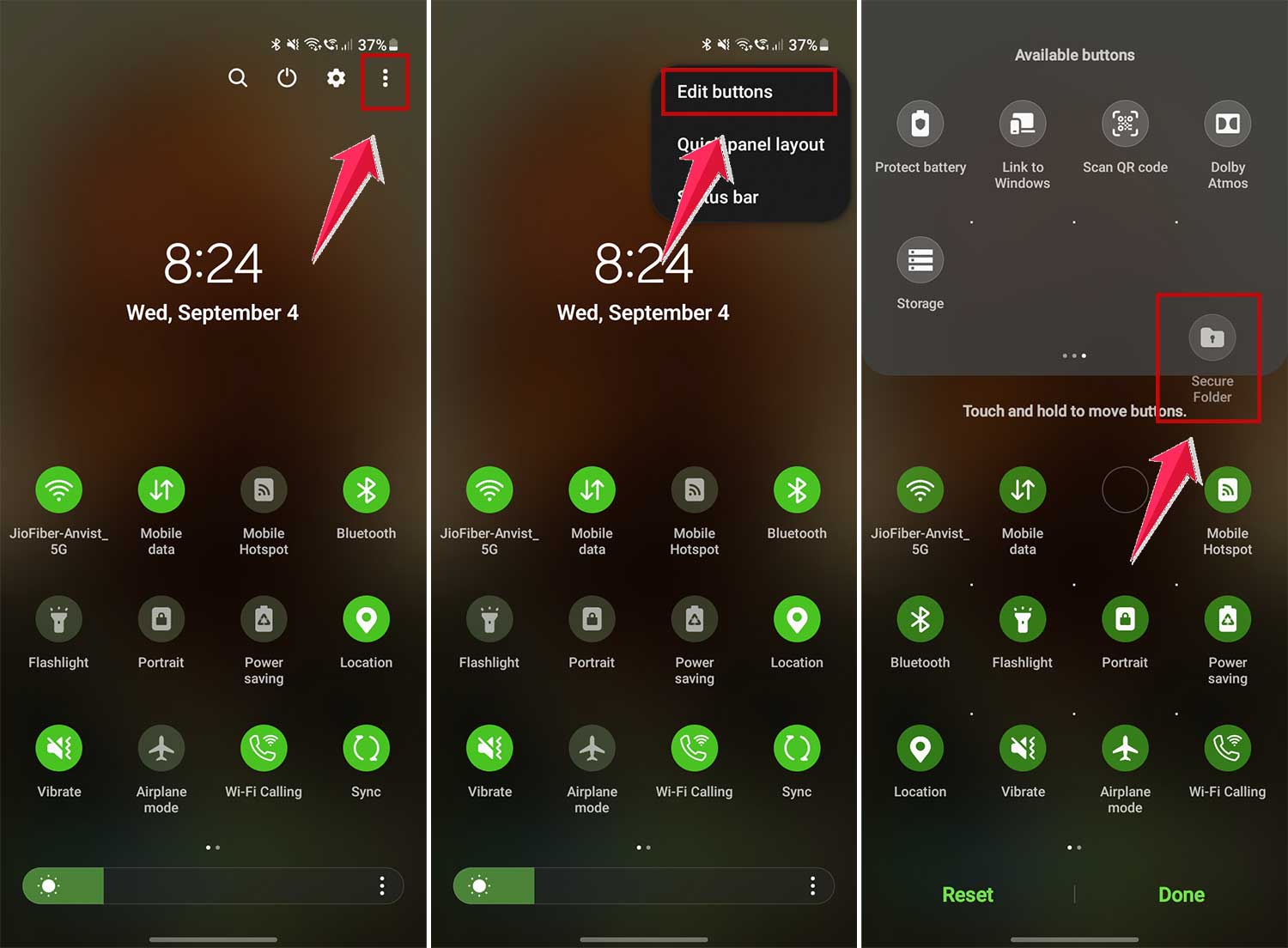
- Swipe down from the top of your screen to open the notification center.
- Swipe down again to expand the quick toggles menu.
- Tap the Secure Folder icon to start setting it up.
- Secure it with a four-digit PIN.

- If the Secure Folder toggle isn’t visible, tap the three-dot menu at the top, select Edit buttons, and drag the Secure Folder icon to your quick toggles for easy access.
2. Add Media to Secure Folder
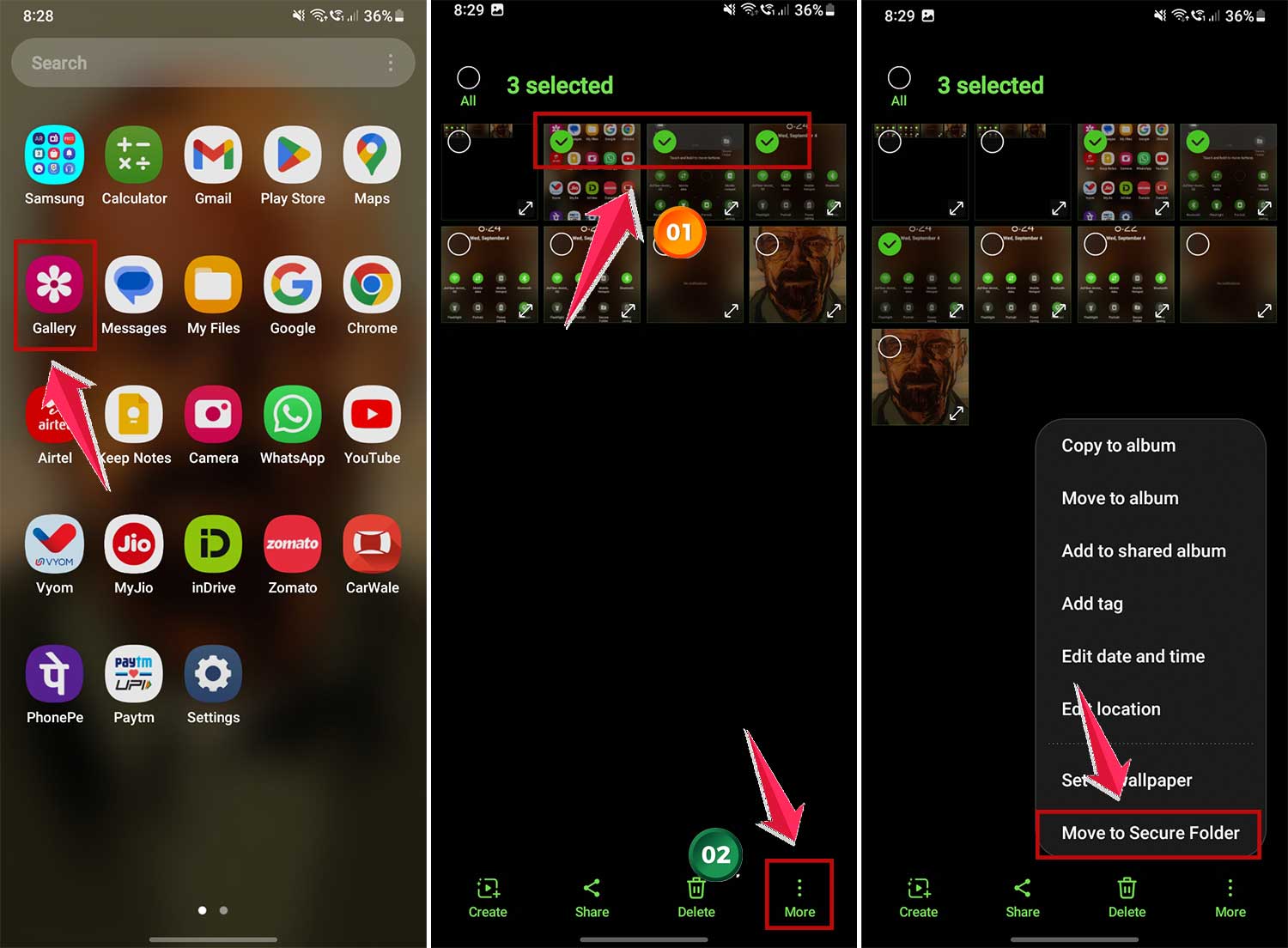
- Open the Gallery app on your Samsung Galaxy phone.
- Select the photos or videos you want to hide.
- Tap More at the bottom of the screen.
- Choose Move to Secure Folder. The selected media will now disappear from your Gallery and move to the Secure Folder.
3. Access Hidden Media
- To view your hidden photos and videos, first make Secure Folder visible from quick settings.
- Then open the Secure Folder from your app drawer.
- Authenticate using the PIN you set up.
- Inside, tap the Gallery app to see all your hidden media.

This feature ensures that all your private media is safely hidden away from the usual phone environment, offering peace of mind that only you can access these with the right authentication.
Use third-party apps to hide photos on Android phone or tablet
The Google Play Store offers a variety of apps to hide your private media, but it’s important to choose trustworthy apps. Here are three highly recommended apps that can help keep your photos and videos safe:
1. Vaulty
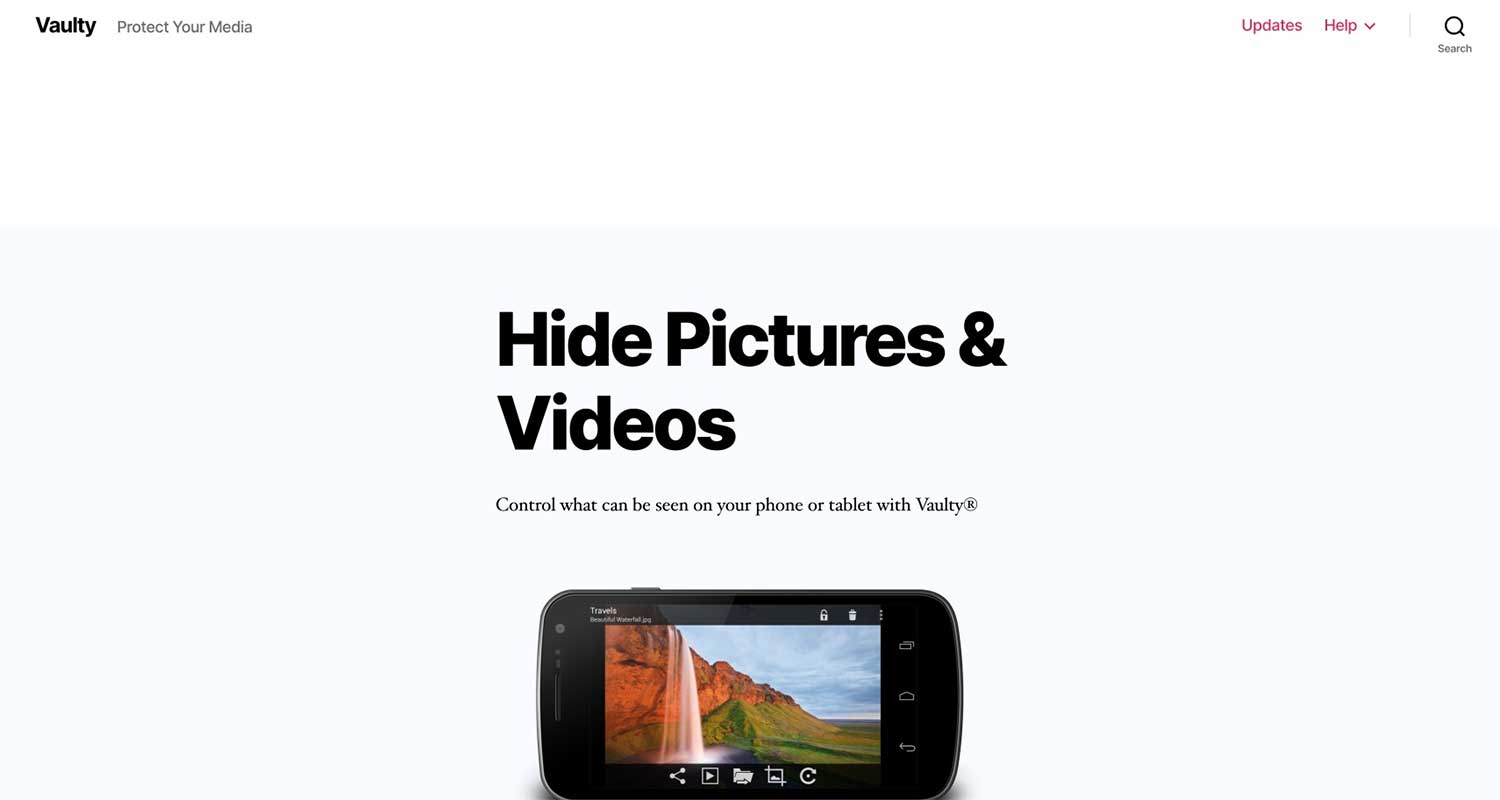
This app is like a secret safe for your photos. Here’s what makes it cool:
- You can lock it with a PIN or your fingerprint.
- You can create different “vaults” for different types of photos.
- It has a sneaky mode where it looks like a calculator. Clever, huh?
- If someone tries to snoop, it’ll take their picture. Caught red-handed!
- You can even store important documents in it, not just photos.
2. LockMyPix
This one’s all about keeping your photos super secure:
- It uses strong encryption to protect your files.
- If you have a newer Pixel phone, you can unlock it with your face.
- It has a fake vault you can show if someone pressures you to open the app.
- You can make it look like a calculator or radio app to keep it hidden.
3. Gallery Vault

This app is great for hiding and protecting all your private stuff:
- It encrypts your photos and videos to keep them safe.
- You can hide the app icon so no one knows it’s there.
- It has a fake passcode feature – if someone makes you open it, you can show them fake content instead.
- You can use your fingerprint to open it quickly and securely.
How to hide photos on iPhone
You don’t need third-party apps to hide your private photos and videos on your iPhone. The default Photos app allows you to securely hide them right within the app. Here’s how to do it:
- Open the Photos app on your iPhone.
- Tap the Select button at the top of the screen.
- Choose the photos and videos you want to hide.
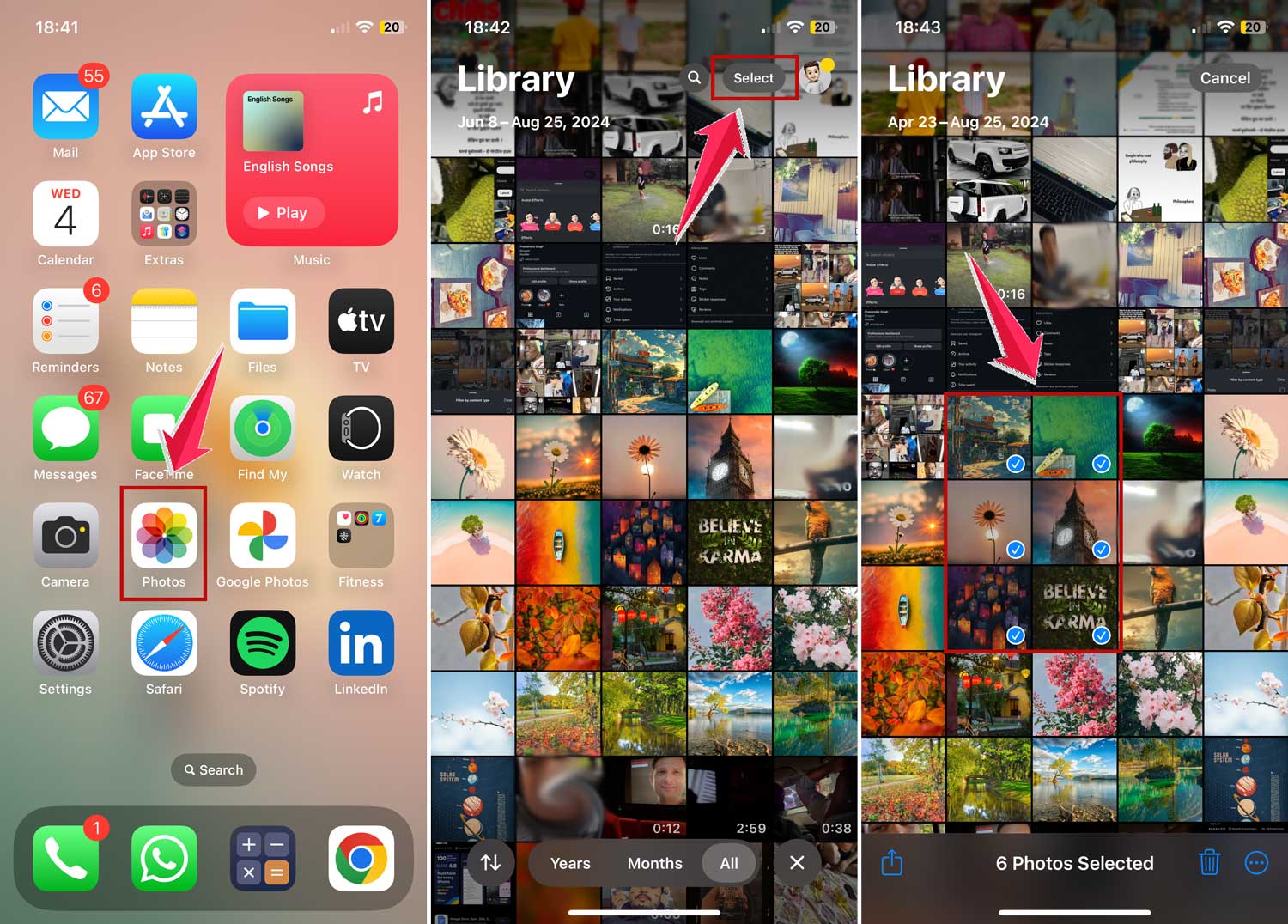
- Tap the three horizontal dots in the lower-left corner.
- Select Hide from the menu options.

That’s all it takes! Your selected media will now be moved to the hidden album.
Access Hidden Media on Your iPhone
If you need to view your hidden photos and videos, just follow these simple steps:
- Open Settings on your iPhone (look for the gear icon).
- Scroll down and tap on Apps.
- Then scroll down, look for Photos, and click on it.
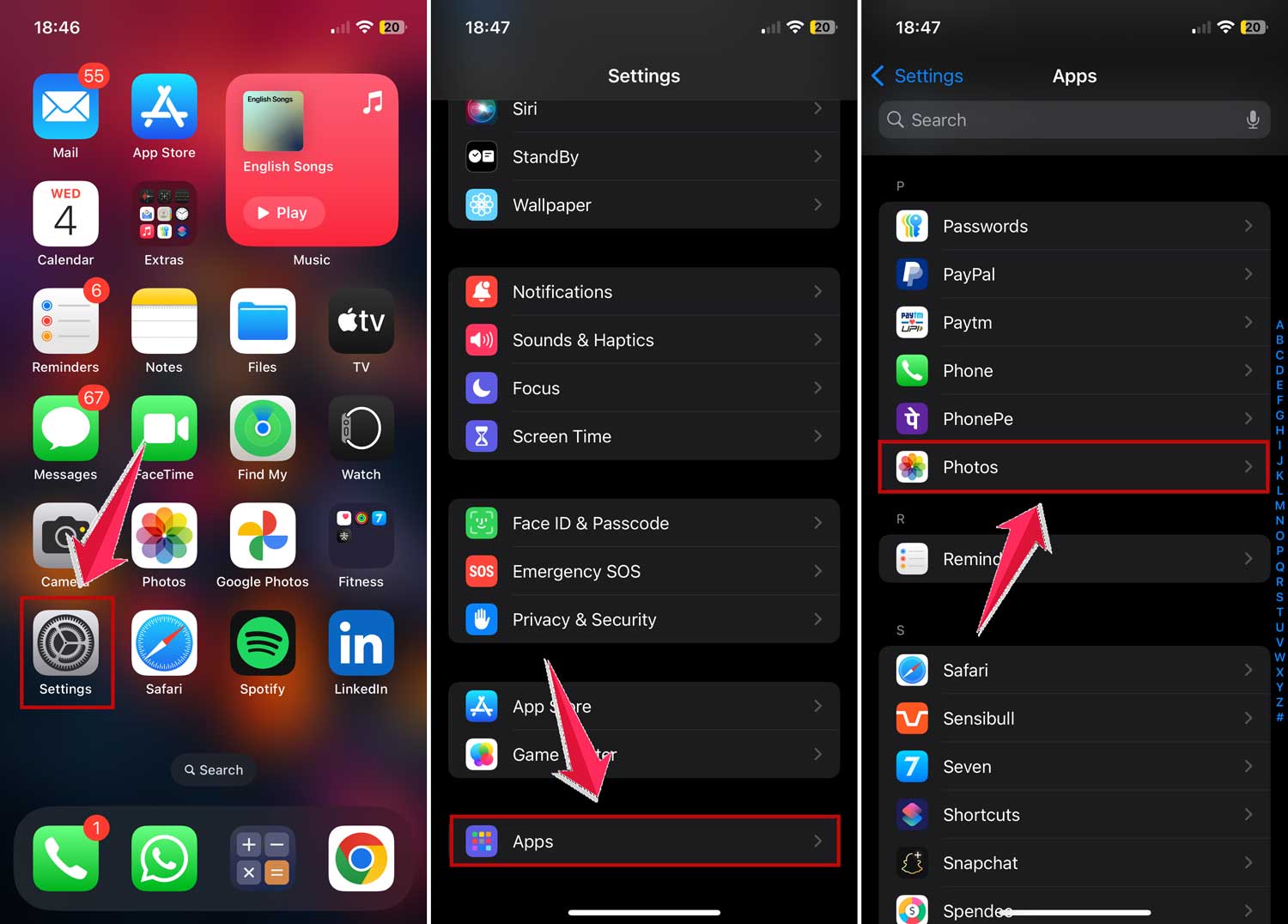
- Toggle on the Show Hidden Album switch to on. This makes the hidden album visible within the Photos app.
- Go back to the Photos app.
- Scroll down to the Utilities section and select Hidden Album to view your hidden media.
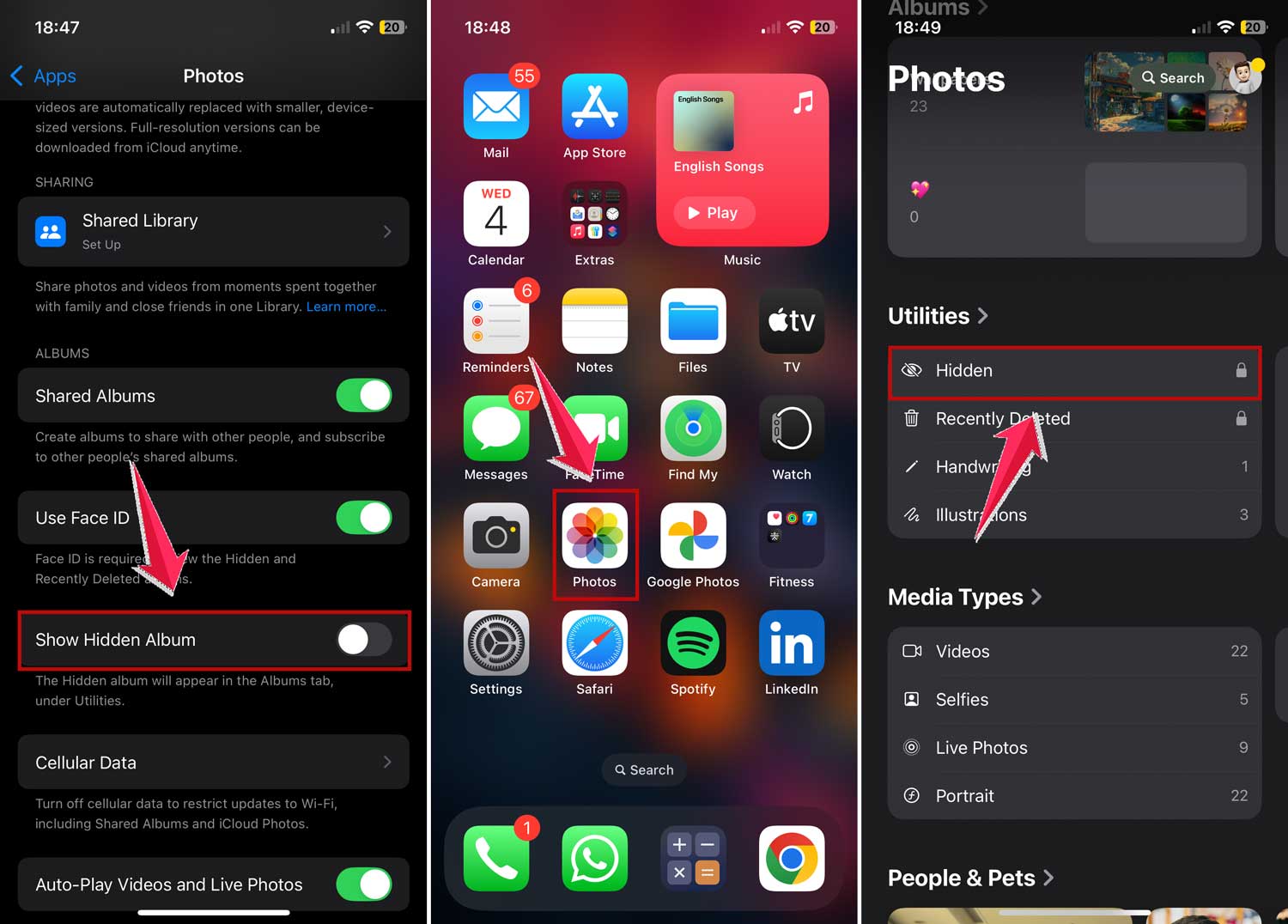
By following these steps, you can easily manage and view your sensitive media files securely on your iPhone!
The takeaway
In today’s digital world, keeping your private photos truly private can be a challenge. With thousands of pictures stored on our phones, it’s crucial to have a way to protect the ones we don’t want others to see.
Fortunately, there are several easy solutions available. Whether you’re using an Android phone or an iPhone, you have built-in options like Google Photos’ Locked Folder or the iPhone’s Hidden Album feature. For those wanting extra security, third-party apps like Vaulty, LockMyPix, and Gallery Vault offer additional protection. Samsung Galaxy users can take advantage of the Secure Folder feature for added privacy.
Many people think securing their photos is complicated or time-consuming, but it’s actually quite simple. With just a few taps, you can hide your sensitive photos from prying eyes. The most important thing is to take action – choose a method that works for you and set it up today.
Remember, your privacy matters. By taking a few minutes to secure your private photos, you’re protecting your personal moments and giving yourself peace of mind. Don’t wait – start safeguarding your digital memories now.
What’s your preferred method for keeping your private photos secure? Share your thoughts in the comments below!


