It’s frustrating, right? You find a new app, you’re excited to try it, and then—bam! You get a weird error saying it can’t access files. Just like that, your excitement turns into confusion.
So, what’s really going on here? Well, most apps need permission to access certain files on your device.
Maybe it’s to save a photo, read a document, or play a song. If they don’t get that access, they can’t do what they’re supposed to. And that’s when errors show up.
Now, here’s why this matters. If an app can’t access the files it needs, it might not work at all.
You could miss out on features, or worse, the app might keep crashing. Think of it like trying to cook dinner without being allowed in the kitchen—it’s just not going to work.
But don’t worry. I’m going to walk you through some super simple steps to fix this.
No confusing tech talk, no long instructions—just clear, easy things you can do right now. Let’s get your apps working again. Ready? Let’s go.
Why do apps get blocked from accessing files?
Before we fix the issue, it helps to know what’s causing it. File access errors usually happen for a few main reasons. Let’s break them down in plain English.
1. Permissions are the biggest reason
Apps need your permission to access files. If you said “no” when it asked, or if you never saw the request, the app can’t do its job. It’s like locking a door and forgetting you have the key.
2. System settings can block access too
Sometimes, your phone or computer’s privacy settings are too strict. Even if the app is fine, the system might say, “Nope, not allowed.” You’ll want to check those settings and loosen them up a bit.
3. Bugs and glitches mess things up
Apps and devices aren’t perfect. Sometimes a bug in the app or your operating system gets in the way. That’s why updates are so important—they often fix these hidden problems.
4. Antivirus software might be stopping it
Security software is supposed to protect you. But every now and then, it gets overprotective and blocks a safe app by mistake. You’ll want to check if that’s what’s happening.
5. Corrupted files can cause errors
If a file the app needs is broken or unreadable, the app might crash or give you an error. It’s like trying to open a book with missing pages. Sometimes, replacing or repairing the file helps.
Now that you know what might be going wrong, let’s fix it.
How to fix file access errors in apps
Alright, let me walk you through the things you can do to fix this. These steps are easy, and you can try them one by one until the problem goes away.
#1: Check and update app permissions
This is the first thing you should do. Most file access issues come from apps not having the permission they need.
Here’s how you can check:
- Open your device’s settings.
- Go to “Apps”.
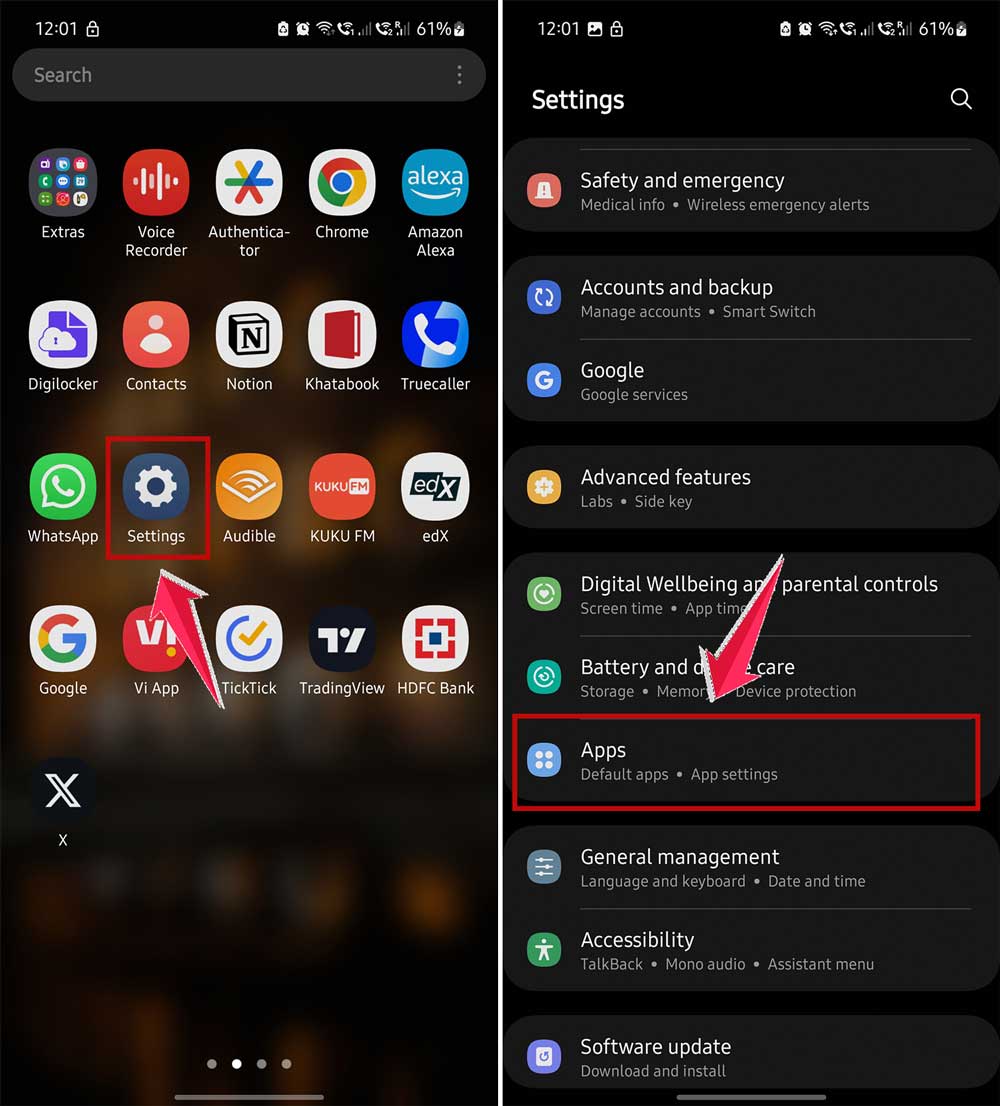
- Select the app that’s giving you trouble.
- Tap on “Permissions.”

- Make sure “Files and media” (or similar) is allowed.

If it’s turned off, turn it on. That might be all it takes to fix the problem.
#2: Adjust your system’s privacy settings
Sometimes the system itself blocks apps, especially on newer phones or computers. If you’ve already given the app permission and it’s still not working, this could be why.
Here’s what to do:
- Open your device’s settings.
- Go to “Privacy” or “Security.”
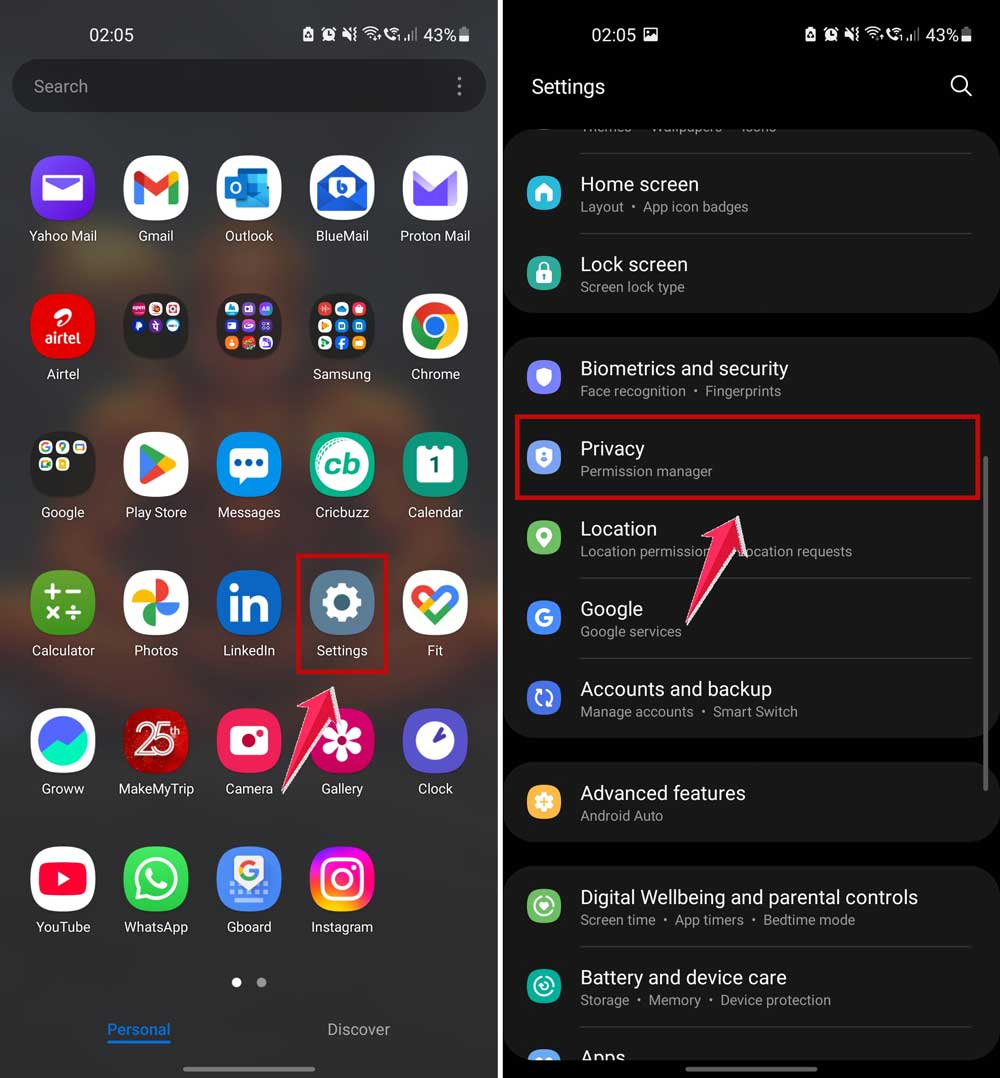
- Tap on Permission Manager.
- Look for “File and media access”.
- Make sure apps are allowed to access files.

Give it a try and see if that clears things up.
#3: Update your apps and device
Outdated software can be a real pain. Bugs in older versions might be causing the issue. Let’s fix that by updating everything.
Here’s how:
- Go to your app store.
- Check if the app has an update available. If it does, install it.

- Then, go to your device’s settings and check for a system update.

Once everything is updated, try the app again. You might be surprised how often this solves the problem.
#4: Temporarily disable your antivirus
Your antivirus is supposed to help you, but sometimes it gets in the way. If it thinks your app is unsafe, it might block it from accessing files, even if the app is perfectly fine.
Try this:
- Open your antivirus software.
- Look for a way to temporarily turn it off or pause protection.
- Test the app again while the antivirus is off.
- If it works now, add the app to your antivirus “safe list.”
- Don’t forget to turn your antivirus back on.
This step is just for testing. Always make sure your device stays protected.
#5: Repair or replace corrupted files
If the app is trying to open a file that’s broken, it might throw up an error. Let’s clean that up.
Here’s what you can do:
- Find the file the app is trying to access.
- Try opening it manually. If it doesn’t open, it’s probably corrupted.
- Delete the damaged file if you don’t need it.
- If it’s important, restore it from a backup.
Once the file is fixed or replaced, your app should work better.
Extra tips to keep things running smoothly
Here are a few more things you can do to avoid these problems in the future.
1. Clean up your device regularly
Remove apps you don’t use. Delete junk files. This keeps your device fast and avoids weird errors.
2. Stick to trusted apps
Always download apps from official stores. Avoid sketchy apps that ask for too many permissions.
3. Keep a backup of your important files
Use cloud storage or an external drive. If anything breaks, you’ll have a copy ready to go.
4. Read permissions before installing new apps
If an app wants access to things it doesn’t need, that’s a red flag. Choose another app if something feels off.
5. Stay up to date on security
Keep your device’s security settings updated. It helps you avoid future headaches.
The Takeaway
So, if your apps are getting blocked from accessing files, now you know what to do.
Most of the time, it’s just a simple permission issue or a setting that needs to be changed. Other times, it might be a bug or a file that’s acting up. Either way, now you’ve got the tools to fix it.
Start with checking permissions. Then move on to system settings, updates, antivirus checks, and file repairs.
These small steps can make a big difference. And remember, stay on top of updates and backups to avoid future problems.
Did this guide help you fix the issue? If it did, drop a comment below and let me know! I’d love to hear how it went—or help if you’re still stuck!