Let’s be honest—when Google Assistant doesn’t recognize your voice, it’s just plain frustrating. You try to ask something, and it acts like it doesn’t even know you.
You’re left repeating yourself, wondering what went wrong. I totally get it. It feels like you’re talking to a wall, not a smart assistant.
Now, Voice Match is supposed to make things easier by recognizing your voice. It personalizes your experience.
That means when you say “Hey Google,” it knows it’s you and gives you info that matters to you—like your calendar, reminders, or music preferences.
But when it doesn’t work? Yeah, it messes everything up. You lose that personal touch. And instead of feeling smart, it feels like a waste.
But don’t worry. You’re not alone in this, and the good news is—it’s usually something simple.
Stick with me, and we’ll go through everything step by step. By the end, your Voice Match should be working again, just the way you want it.
Why Google Assistant might not recognize your voice
Before we jump into the fixes, it helps to understand what’s going wrong. If you know the reason, it’s easier to fix. So here are some of the most common causes.
1. Voice samples don’t match anymore
Google Assistant learns your voice when you set it up. But if your voice changed—maybe you were sick, had background noise, or rushed through it—it might not match anymore. That’s when Assistant gets confused and doesn’t recognize you.
2. Your microphone isn’t working properly
If your mic is dusty, blocked, or just not picking up your voice well, Google Assistant can’t hear you clearly.
Even if you’re speaking right into it, a bad mic means no Voice Match. Make sure it’s clean and working.
3. Language settings don’t match
Sometimes, your phone speaks one language, and Google Assistant speaks another. That clash can stop Voice Match from working. You need both to be on the same language to keep things smooth.
4. The app needs an update
An old version of the Google app can cause all kinds of bugs, including Voice Match issues. Updates fix bugs and improve features. If you haven’t updated in a while, that could be the problem.
5. Too many users on the same device
If more than one person uses the same device, Google Assistant might get confused about who’s speaking. You need to make sure your Voice Match is set up just for you and not mixed in with someone else’s.
Now that we’ve gone over the possible reasons, let’s fix it. Ready?
How to fix Google Assistant Voice Match not working
Alright, here comes the good part. We’re going to go through all the steps that can help get your Voice Match working again. I’ll explain everything in simple words, and when you need to tap around on your phone, I’ll guide you through it.
#1: Check if your microphone is working
Let’s start with the basics. If your mic isn’t working, Google Assistant won’t hear you—no matter what.
Here’s what you can do:
- Try talking to your Assistant. If it doesn’t respond, open a voice recorder app and say something.
- If it doesn’t record your voice clearly, check if your phone case is covering the mic.
- Wipe the mic area gently in case there’s dust or dirt.
- Make sure your mic isn’t muted in any settings.
If the mic works fine in other apps, then we can move on. But if it doesn’t, you may need to get it checked.
#2: Re-train your voice for Voice Match
Sometimes, your Assistant just forgets your voice. It happens. Let’s remind it who you are.
Here’s how you can re-train it:
- Open the Google app.
- Tap your profile picture.

- Go to Settings > Google Assistant.
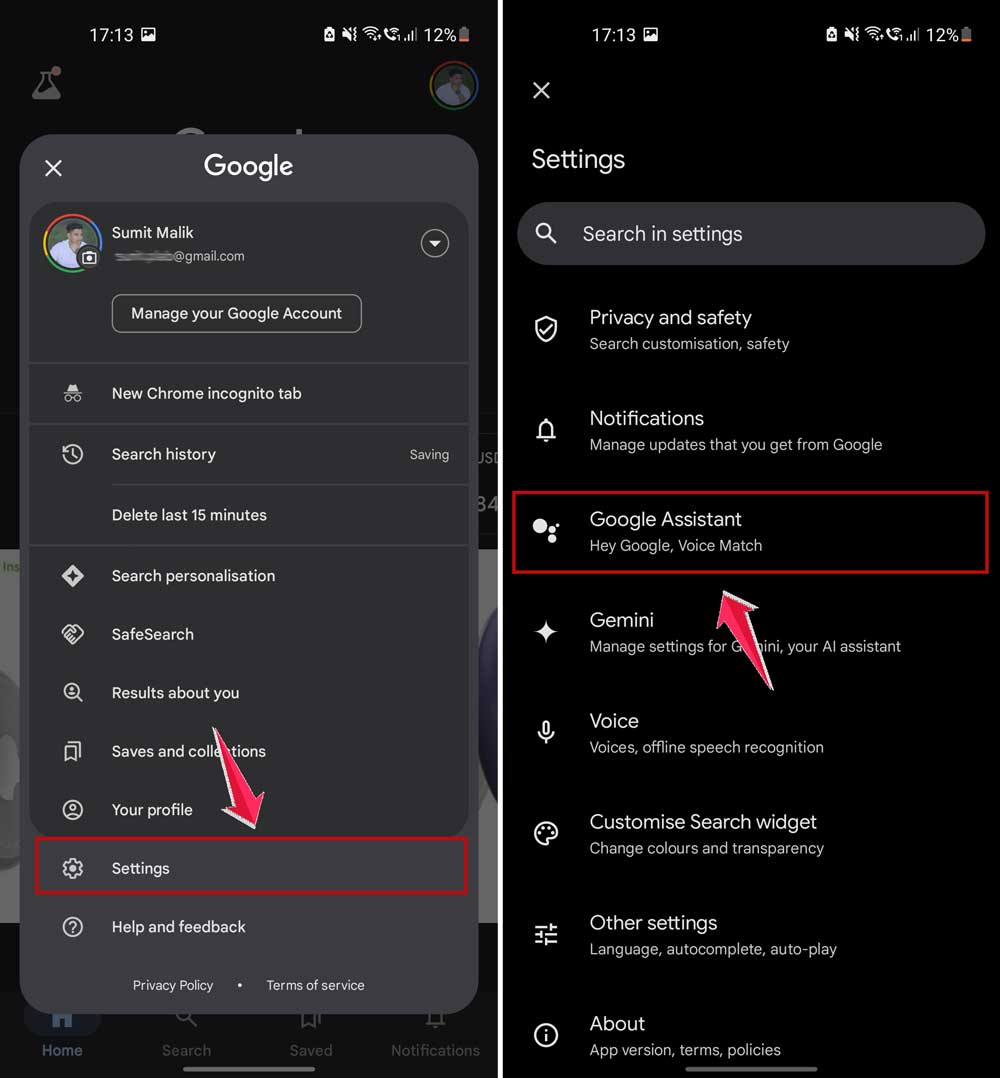
- Tap on Voice Match.
- Select “Retrain Voice Match Model“.
- Follow the steps on the screen to record your voice.

Do this in a quiet place so it gets a clean sample. Once done, you should notice a difference.
#3: Update your Google app
If your app is out of date, it can mess with Voice Match. Let’s fix that.
- Open the Google Play Store.
- Search for “Google“.
- If you see an “Update” button, tap it.

Once updated, restart your phone and test Voice Match again. It might just work now.
#4: Match your language settings
If your phone is in one language and Assistant is in another, they won’t work well together.
To check and fix this:
- Go to Settings on your phone.
- Tap on “Language & Input“.
- Check the language of your device.

- Then go to the Google Assistant settings and make sure it’s using the same language.

Now try speaking to your Assistant again. If the languages match, it should recognize you better.
#5: Restart your phone
I know it sounds simple, but restarting your phone can fix a lot of small bugs.
Here’s how:
- Hold the power button on your phone.
- Tap “Restart” when the option appears.

After the phone restarts, try using Voice Match again. This clears up memory issues and sometimes fixes everything.
Extra tips to make Voice Match work better
Now that we’ve gone through the main fixes, here are a few extra tips to keep things running smoothly.
1. Keep background noise low
When setting up Voice Match, make sure you’re in a quiet place. No TV, no music, no fans. The clearer your voice, the better Google learns it.
2. Sync your Google accounts
Make sure the same Google account is used across your devices. If your phone and Google Home are using different accounts, it can confuse Voice Match.
3. Adjust sensitivity settings
Go into your Assistant settings and look for the “Hey Google” Sensitivity option. If it’s too high, it might pick up background voices. Adjust it to a level where it hears you but not everything else.
4. Clear the app cache
Clearing the cache helps get rid of old junk data.
To do this:
- Go to Settings > Apps > Google.
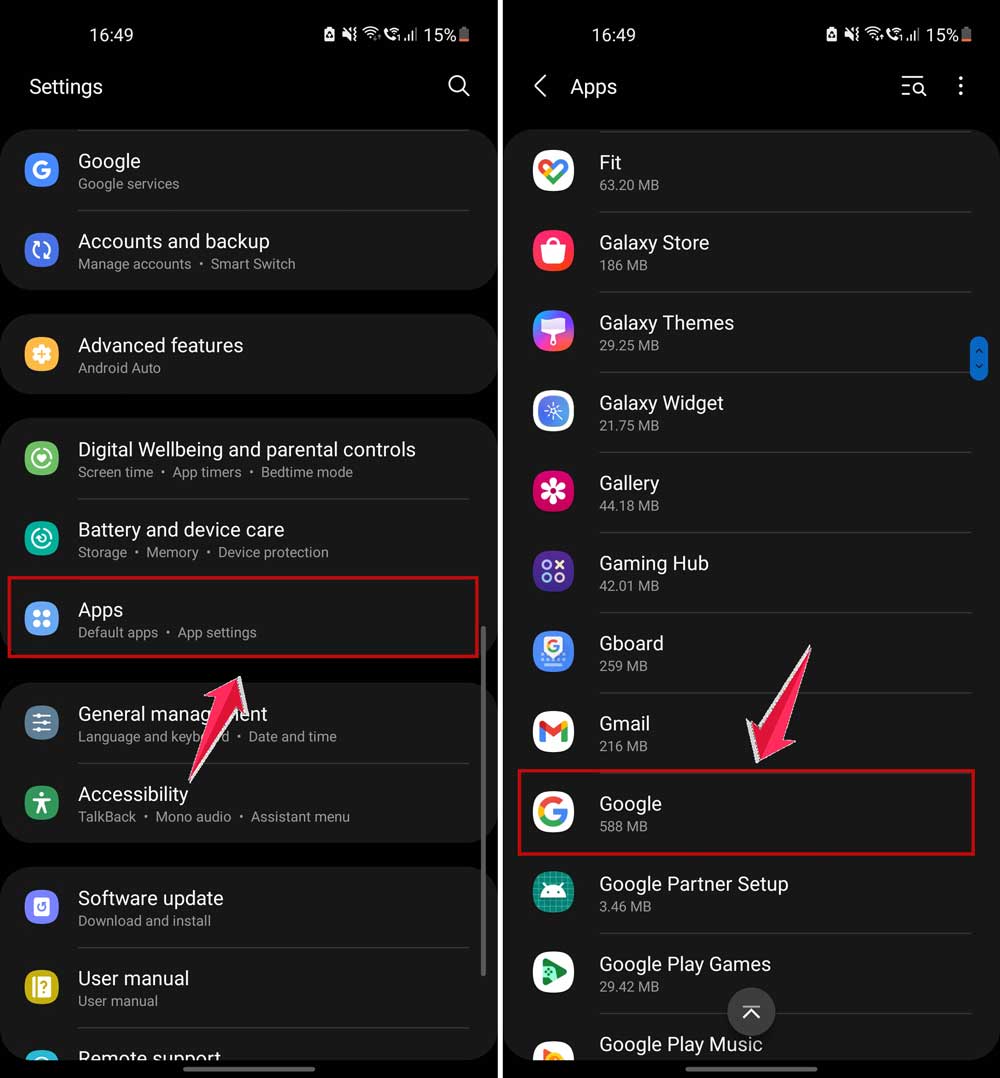
- Tap on “Storage”.
- Then tap “Clear Cache”.

Don’t worry—this won’t delete your data.
5. Speak clearly and consistently
You don’t need to shout, but make sure you’re speaking clearly. The more consistent your voice is, the easier it is for Google to learn and recognize it every time.
The takeaway
So, there you have it. Voice Match not working can be annoying, but it’s usually something simple.
Whether it’s a dusty mic, mismatched language settings, or just the need for a quick app update—now you know what to do.
One common myth? That this only happens to a few people. Nope—it’s more common than you think. The good news is, you’ve now got all the tools to fix it.
Go ahead, try these steps, and let me know how it goes. If you’ve got any more questions or tips of your own, drop them in the comments below. I’d love to hear what worked for you!