Is your iPhone showing an “iPhone Unavailable” message right now? Don’t panic because you’re not alone.
This frustrating error can leave you feeling helpless, especially if you need to use your phone urgently.
The “iPhone Unavailable” screen appears after multiple incorrect passcode attempts.
It’s a security feature designed to protect your data, but it can be a real headache if you’ve forgotten your passcode or if your phone gets locked accidentally.
You’re probably wondering how long you’ll be locked out and what you can do to regain access to your device.
In this article, we’ll walk you through several quick solutions to fix this issue.
Whether you’re dealing with a temporary lockout or a more serious situation, we’ve got you covered.
Let’s get your iPhone back in your hands and working again!
What is the “iPhone Unavailable” Message
Before we dive into solutions, let’s understand what this message means and why it appears.
The “iPhone Unavailable” screen is a security feature designed by Apple to protect your device from unauthorized access.
It typically appears after multiple incorrect passcode attempts.
This lockout mechanism is crucial in safeguarding your personal information from potential threats like theft or hacking attempts.
Here’s how the lockout progresses:
- After 5 incorrect attempts, 1-minute lockout.
- After 6 incorrect attempts, 5-minute lockout.
- After 7 incorrect attempts, 15-minute lockout.
- After 8-9 incorrect attempts, 1-hour lockout.
- After 10 incorrect attempts, iPhone becomes permanently locked.
Now that you understand why this happens, let’s explore how to fix it.
How to Fix the “iPhone Unavailable” Screen?
Method 1: Wait It Out (For Temporary Lockouts)
If you’re facing a temporary lockout (1 minute to 1 hour), the simplest solution is to wait for the timer to expire.
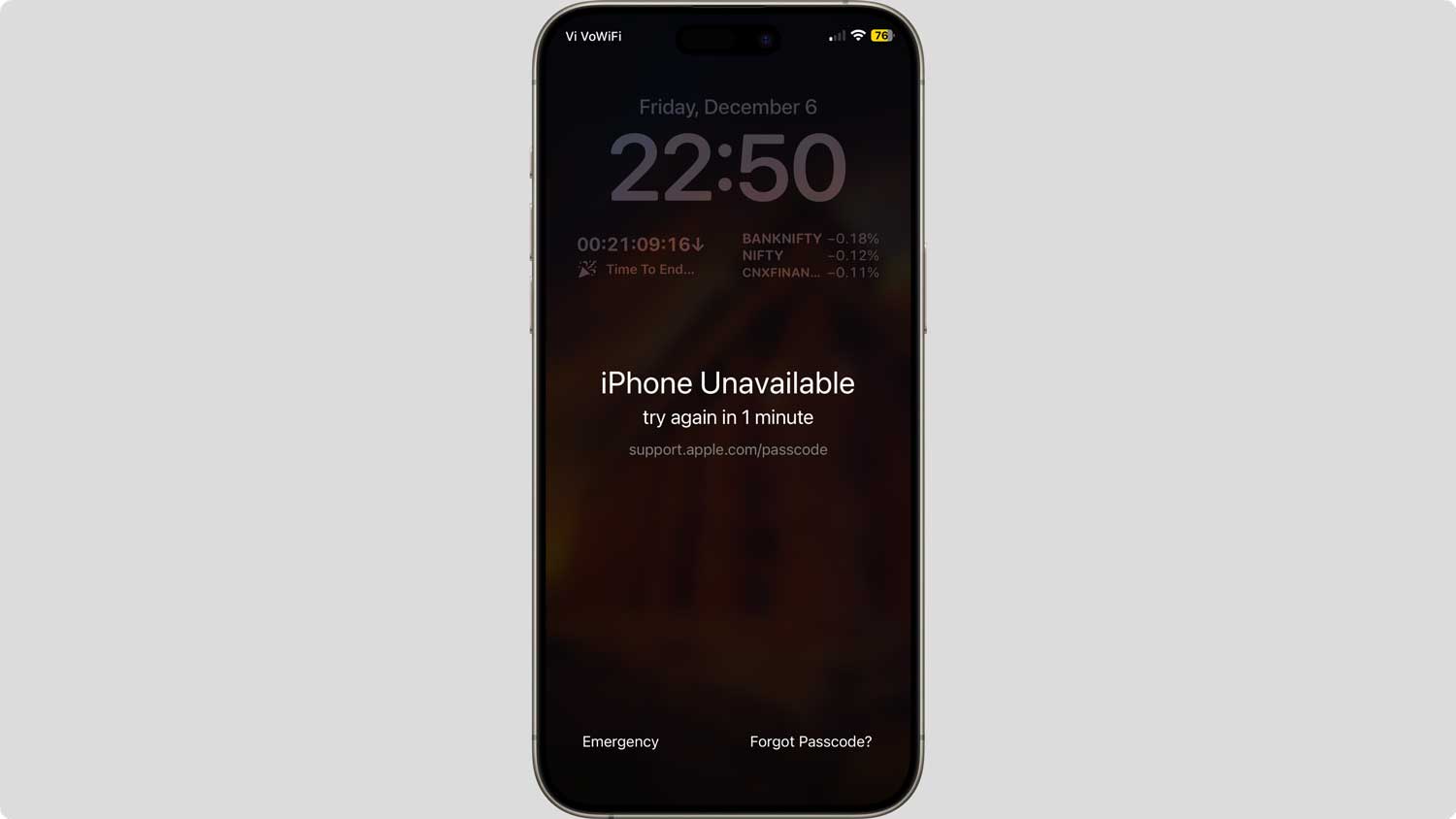
Once the waiting period is over, you can try entering your passcode again.
Remember to be careful and avoid making more mistakes, as this will increase the lockout duration.
Method 2: Use the “Erase iPhone” Option (iOS 15.2 and Later)
For devices running iOS 15.2 or later, Apple introduced an easier way to resolve this issue directly from the lock screen:
- Look for the “Erase iPhone” option at the bottom of the screen.
- Tap on it and confirm your choice to erase all content and settings.
- Enter your Apple ID password when prompted.
- Your iPhone will erase itself and restart as a new device.
This method is convenient, but remember that it will erase all data on your device.
Make sure you have a recent backup before proceeding.
Method 3: Use iTunes or Finder (For All iOS Versions)
If you can’t use the “Erase iPhone” option or have an older iOS version, you can use iTunes (on Windows) or Finder (on Mac) to restore your device:
- Connect your iPhone to your computer.
- Open iTunes or Finder.
- Put your iPhone in Recovery Mode:
- For iPhone 8 or later: Quickly press and release the Volume Up button, then Volume Down button. Press and hold the Side button until you see the recovery mode screen.
- For iPhone 7/7 Plus: Press and hold the Side and Volume Down buttons simultaneously until you see the recovery mode screen.
- For iPhone 6s or earlier: Press and hold the Home and Top (or Side) buttons simultaneously until you see the recovery mode screen.
- When prompted, choose “Restore” in iTunes or Finder.
- Wait for the process to complete, then set up your iPhone as new.
Method 4: Use iCloud’s Find My iPhone Feature
If you have Find My iPhone enabled, you can use iCloud to erase your device remotely:
- Go to iCloud.com on a computer or another device.
- Sign in with your Apple ID.
- Click on “Find iPhone”.
- Select your locked iPhone from the list of devices.
- Click “Erase iPhone” and confirm your choice.
This method works even if your iPhone is not connected to Wi-Fi or cellular data, as it will erase itself the next time it connects to the internet.
Method 5: Use a Third-Party Tool (Advanced Users)
For those comfortable with third-party solutions, tools like Tenorshare 4uKey can help bypass the “iPhone Unavailable” screen without needing your passcode or Apple ID.
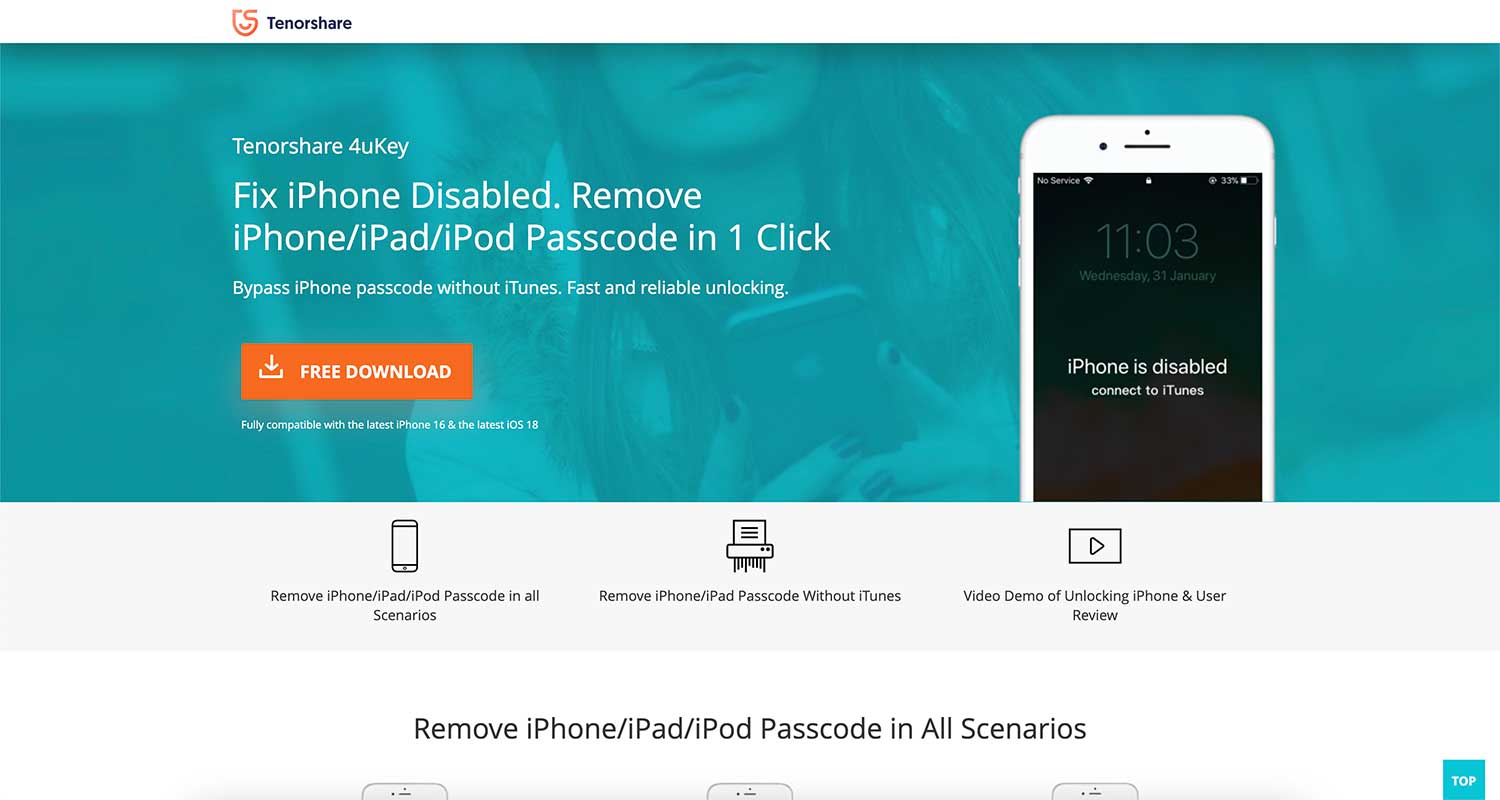
However, be cautious when using such tools, as they may void your warranty or compromise your device’s security.
How to prevent future “iPhone Unavailable” issues
You can take several steps to avoid getting locked out of your iPhone again. Here’s what you should do:
1. Use Face ID or Touch ID. Set up Face ID or Touch ID on your iPhone. These features let you unlock your phone with your face or fingerprint, reducing the chances of entering the wrong passcode.
2. Create a memorable passcode. Choose a passcode that’s easy for you to remember but hard for others to guess. Avoid using obvious numbers like birthdays or repeating digits.
3. Turn on the “Erase Data” feature. Go to your iPhone Settings and enable the option to erase all data after 10 failed passcode attempts. This adds extra security to your device.
4. Back up your iPhone regularly. Keep your iPhone backed up to iCloud or your computer. This way, you won’t lose important data if you need to erase your device.
5. Keep your iOS updated. Regularly update your iPhone’s software. These updates often include security improvements that can help prevent lockout issues.
What to do after you regain access to your iPhone
Once you’re back into your iPhone, take these important steps:
1. Restore your data from a backup. If you had to erase your device, restore your data from your most recent backup. This will bring back your apps, photos, and other information.
2. Update your passcode. Consider changing your passcode to something you’ll remember easily. You might also want to set up Face ID or Touch ID if you haven’t already.
3. Review your security settings. Take a look at your iPhone’s security settings. Make sure everything is set up correctly to protect your device and data.
The takeaway
The “iPhone Unavailable” message can be a frustrating obstacle, but it’s not insurmountable.
By understanding the reasons behind this security feature and following the methods we’ve discussed, you can regain access to your device and prevent future lockouts.
Remember, patience is key when dealing with temporary lockouts.
For more serious situations, options like the “Erase iPhone” feature, using iTunes or Finder, or remotely erasing your device through iCloud can help resolve the issue. Always ensure you have recent backups to avoid data loss.
Don’t let the fear of being locked out of your iPhone prevent you from using strong security measures.
Instead, focus on creating memorable passcodes, utilizing biometric authentication when possible, and keeping your device updated.
With these practices in place, you can enjoy the security benefits of your iPhone while minimizing the risk of lockouts.
Your iPhone is a powerful tool designed to keep your information safe.
By staying informed and prepared, you can navigate any security challenges that come your way.
Remember, a locked iPhone is frustrating, but a compromised one can be far worse.
Stay secure, stay smart, and keep enjoying all that your iPhone has to offer!