Ever tried installing an app, and suddenly—bam!—Google Play Protect stops you in your tracks? Yeah, that moment can be super frustrating.
You’re just trying to download something simple, and now it feels like your phone’s working against you. Don’t worry, you’re not alone. This happens to a lot of people.
So, what’s really going on here? Well, think of Google Play Protect as your phone’s personal bodyguard. It’s there to protect you from apps that might be harmful.
It constantly scans your phone for anything that looks suspicious—things like malware, apps trying to steal your data, or software coming from unknown sources.
Sometimes, though, it gets a little too careful. It might block an app you really want just because it doesn’t come from the Google Play Store or because it asks for a few too many permissions. Even if the app is safe, Play Protect might still say “nope.”
But here’s the good news: there are ways to fix this. You don’t need to be a tech expert. I’ll walk you through everything step by step, using simple language.
So, let’s get your app installed without risking your phone’s safety, alright?
Why Google Play Protect Blocks Some Apps
Let’s break down the main reasons why Google Play Protect might be blocking the app you’re trying to install. Once you understand the “why,” the “how to fix it” becomes way easier.
1. It’s Not From a Trusted Source
If the app isn’t from the official Google Play Store, Play Protect gets suspicious. It’s kinda like your phone saying, “Hold on, I don’t know this guy.”
So, if you’re downloading an app from a random website or third-party store, that’s probably the issue.
2. It Has Security Problems
Some apps have known bugs or flaws that hackers can take advantage of. Google keeps a list of these risky apps, and if yours is on that list, it’ll get blocked. It’s all about keeping your data safe.
3. It’s Asking for Too Much Info
Ever seen an app that wants access to your contacts, camera, location, microphone, and more, all at once? That’s a red flag.
Play Protect notices when an app is asking for more than it needs, and that’s when it steps in to stop it.
4. It’s Been Flagged as Dangerous
If an app has already been marked as malware or harmful software, Play Protect will shut it down right away. It’s doing its job to protect your phone from getting messed up.
Alright, now that you know the reasons, let’s move on to the fun part—fixing it.
How to Fix Google Play Protect Blocking an App
Okay, let’s fix this together. I’ll walk you through a few easy steps. Some of these are quick checks, while others need a little more action. Just follow along, and you’ll be good to go.
#1 Make Sure the App Is Actually Safe
Before anything else, stop and ask yourself: Can I trust this app?
If it’s from the Google Play Store, you’re probably fine. But if you found it online somewhere, double-check the website. Look at the app’s reviews, ratings, and developer details. If other users had a good experience, that’s a good sign.
Don’t ignore bad reviews, though. If people are saying it caused problems or didn’t work, maybe it’s best to skip that one.
#2 Keep Your Google Play Store Updated
You might be surprised, but an outdated Play Store can cause weird issues—like blocking safe apps.
Here’s how to check for updates:
- Open the Google Play Store on your phone.
- Tap your profile icon in the top-right corner.
- Go to Settings.
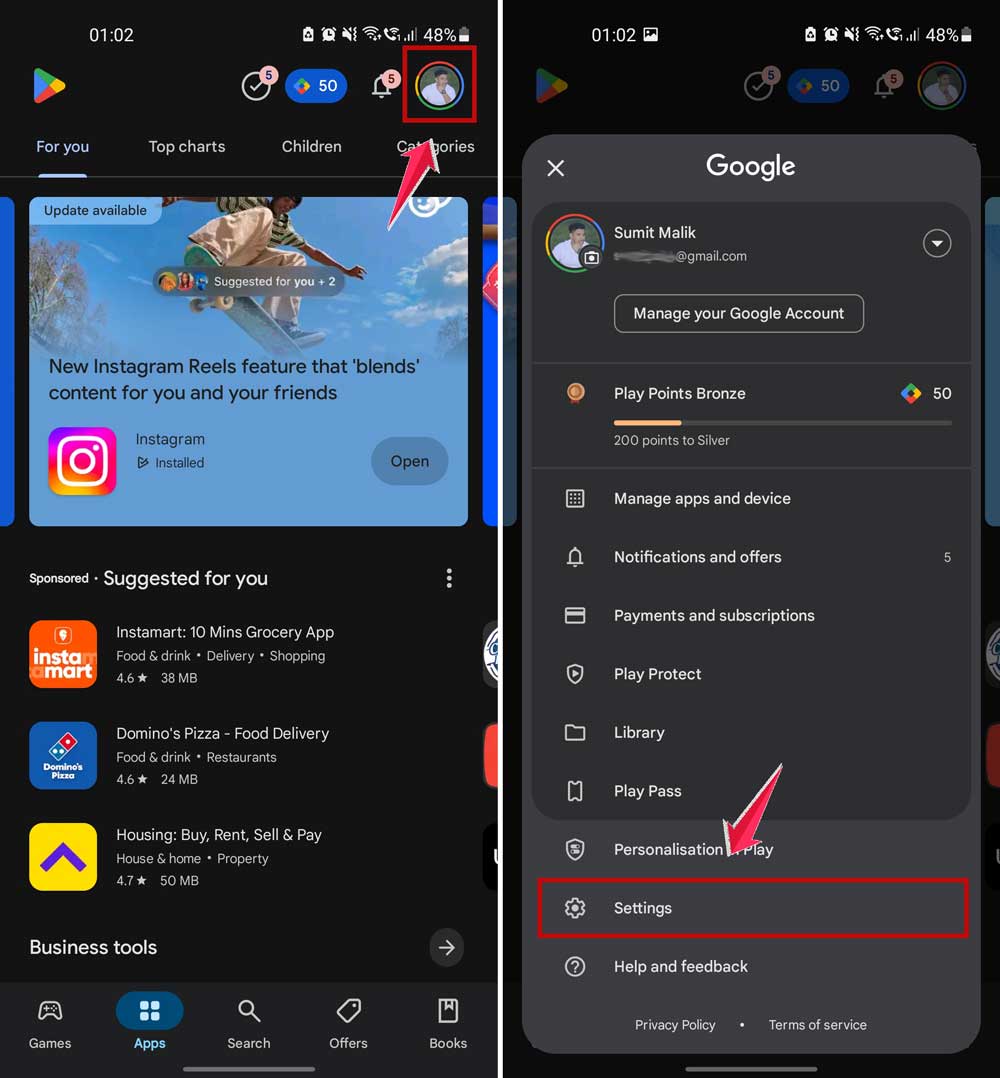
- Then scroll down and click on About.
- Look for the Play Store version and tap it.
- If there’s an update, install it. This helps your phone better recognize safe apps.

#3 Temporarily Turn Off Play Protect
Now, this step is only if you really trust the app. Maybe it’s something from your workplace or a developer you know. If that’s the case, you can turn off Play Protect just long enough to install the app.
Here’s how:
- Open the Google Play Store.
- Tap your profile icon.
- Go to Play Protect.
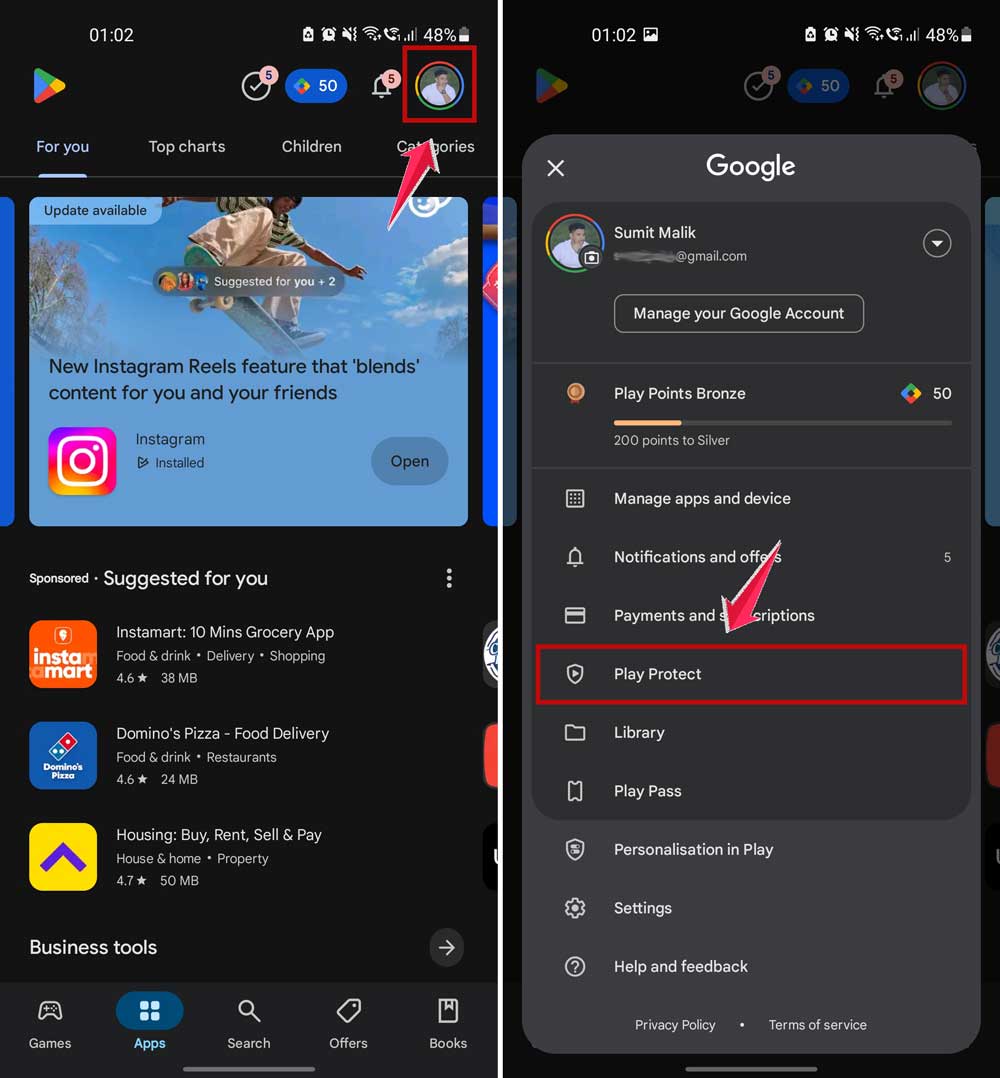
- Then click on the Settings icon in the top right corner.
- Toggle off “Scan apps with Play Protect”.

Install the app, then go right back and turn Play Protect back on. Seriously, don’t forget that part—it’s important for your phone’s safety.
#4 Reinstall the App from a Trusted Source
Sometimes, the installation just didn’t go right. Maybe a file got corrupted or something similar. Uninstalling and reinstalling the app can fix that.
Here’s what to do:
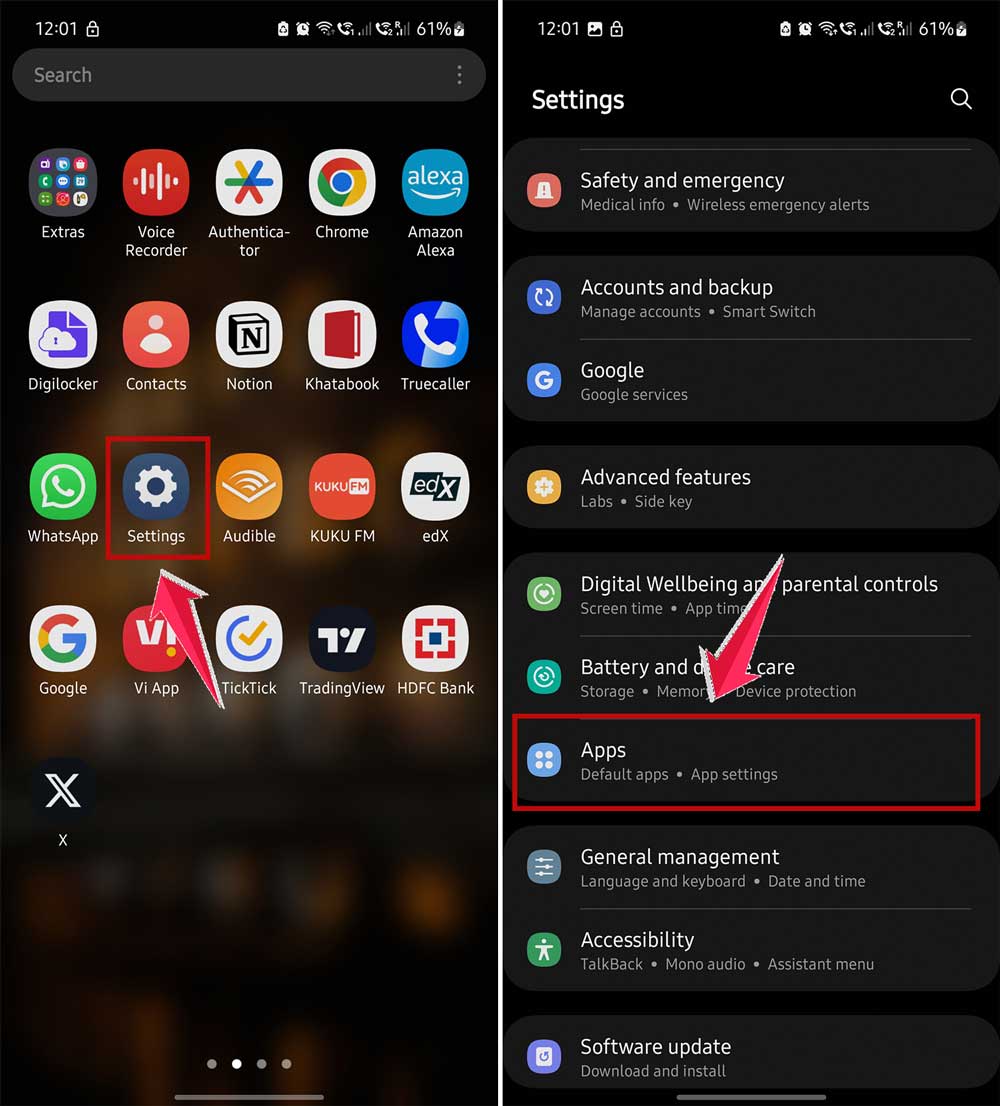
- Go to your phone’s Settings.
- Tap Apps or App Management.
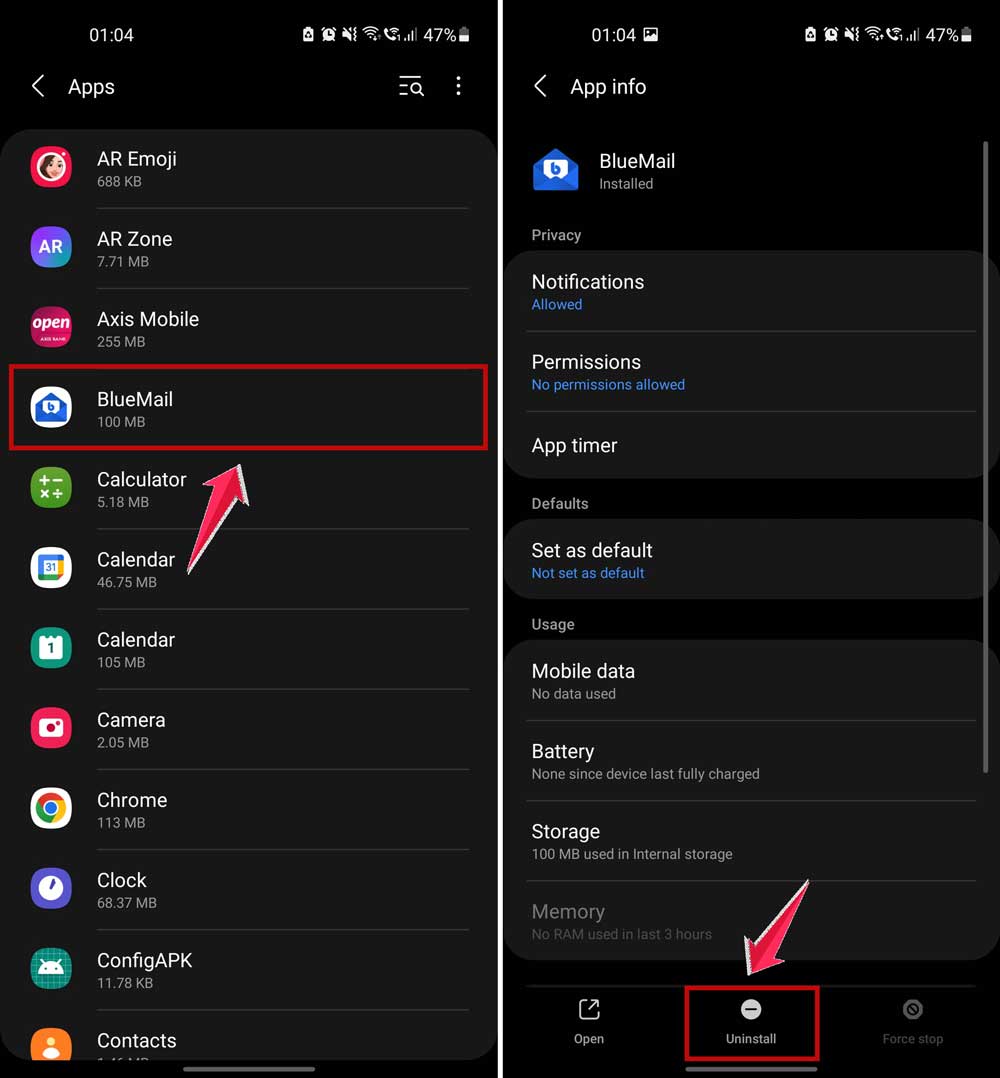
- Find the app and tap Uninstall.
- Now, reinstall the app—but this time, make sure it’s from a trusted source.
Give it a fresh start, and it might just work like it should.
#5 Reset App Preferences
Sometimes, your phone’s settings get all tangled up. Resetting app preferences can clear out weird conflicts without deleting any of your data.
Here’s how to reset them:
- Open Settings.
- Tap Apps.
- Tap the three-dot menu in the top-right corner.
- Select Reset app preferences.
- Confirm when asked.
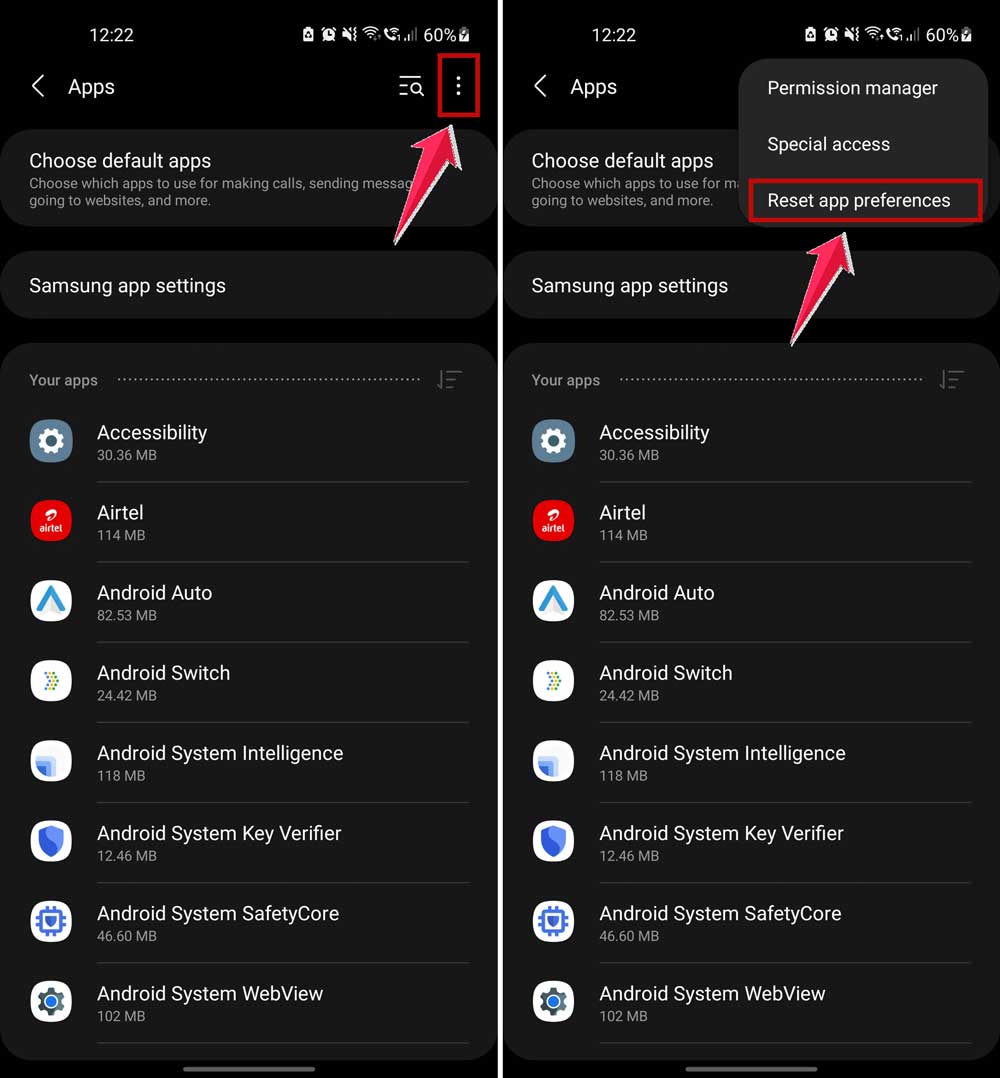
This won’t remove your apps or data. It just brings back default settings like permissions and disabled apps.
Extra Tips to Keep Your Phone Safe
Let’s talk about a few more things you can do to stay protected and avoid this whole mess next time.
1. Stay Up to Date
I know—it’s easy to hit “Later” on software updates. But those updates are important. They fix bugs and patch security holes. Make it a habit to check for updates regularly.
2. Add Extra Protection
Google Play Protect is solid, but you can add more protection with a good security app. Some antivirus apps offer real-time scanning, privacy checks, and even anti-theft tools.
3. Watch Those Permissions
If an app asks for too much access, think twice. Does it really need your location, camera, and contacts? Go to your phone’s settings and review app permissions often.
4. Stick to Trusted Sources
Seriously, don’t install apps from random websites. Stick to the Google Play Store or other trusted platforms. It’s just not worth the risk.
5. Use Two-Factor Authentication
Add an extra lock on your Google account. Two-factor authentication (2FA) makes it harder for anyone else to sneak into your account—even if they know your password.
The Takeaway
So, here’s the deal—Google Play Protect isn’t trying to ruin your day. It’s actually doing its job to keep your phone safe. Yes, it can be annoying when it blocks an app you really want. But it’s better to be cautious than to deal with a compromised device.
The good news? You now know how to work around it safely. Whether it’s checking the app’s source, updating the Play Store, or temporarily turning off Play Protect, you’ve got options. Just remember to stay smart—only install apps you trust and always turn your protections back on.
You’ve got this. And if something’s still not working, drop a comment. I’m here to help you figure it out.