Ever tried opening a PDF and nothing happens? You’ve tapped it again and again, double-checked the app permissions, and still—nothing. I get it. It’s frustrating. You might even feel like tossing your phone across the room. But hey, don’t do that just yet.
PDF files are everywhere these days. From school assignments to work documents, even receipts and forms—we rely on them for so much. So when your app refuses to open one, it’s not just an inconvenience. It can actually mess up your whole day.
Now, here’s the strange part: even after giving the app all the permissions it needs, it still won’t open the file. It feels like the app just doesn’t care, right? But here’s the thing—this usually happens because of a few common issues.
Maybe the file is corrupted, or it’s sitting in the wrong folder. Maybe the app is outdated, or your phone’s settings are blocking access without you even realizing it.
The good news? Most of these problems are easy to fix. You and I are going to walk through them together. Step by step. I’ll keep it simple, and we’ll get that PDF open again in no time.
Common reasons your PDF won’t open even with permissions
Let’s break it down. If your app has permission but still won’t open the PDF, here’s what might be going on:
#1 The file is not where the app expects it to be
If your app can’t find the file, it can’t open it. Simple as that. Sometimes files get moved by mistake, or saved in a weird folder.
Go ahead and check where the file is stored. Open your file manager and look for the PDF. If it’s not where you thought it was, search for the file name. Once you find it, move it to a folder the app can access.
#2 The PDF file is corrupted
If the file is damaged, no app can open it. This can happen if the download didn’t complete or the file was saved improperly.
Try this: open the file on another app or device. If it doesn’t work there either, delete it and download it again. A fresh copy usually solves the problem.
#3 Permission settings might still be glitchy
Even if you gave the app permission, sometimes it just doesn’t register right. It happens.
Try removing the app’s permissions, then give them again. Think of it like resetting the connection between the app and your files.
#4 Your app might be out of date
Apps get bugs. Developers fix them with updates. If your app hasn’t been updated in a while, that could be the problem.
Head to the app store and check for updates. If one’s available, install it and try opening the PDF again.
#5 Your phone’s storage settings could be blocking access
Sometimes it’s not the app—it’s your device. Your storage settings might be stopping the app from reaching your files.
Go into your settings and check if the app has storage access. If not, toggle it on. That small change could fix everything.
Fixing PDF Access Issues Even When Permissions Are Given
Now that we know what might be causing the issue, let’s fix it. You’ve already given permissions, but something’s still off. Time to go step by step and get that PDF working.
#1 Make sure the file is in the right place
Let’s start simple. If the app can’t find the file, it won’t open it. So, we need to check where the file is saved.
Here’s how:
- Open your phone’s file manager.
- Navigate to the folder where you think the PDF is saved.
- If it’s not there, search for the file name using the search bar.
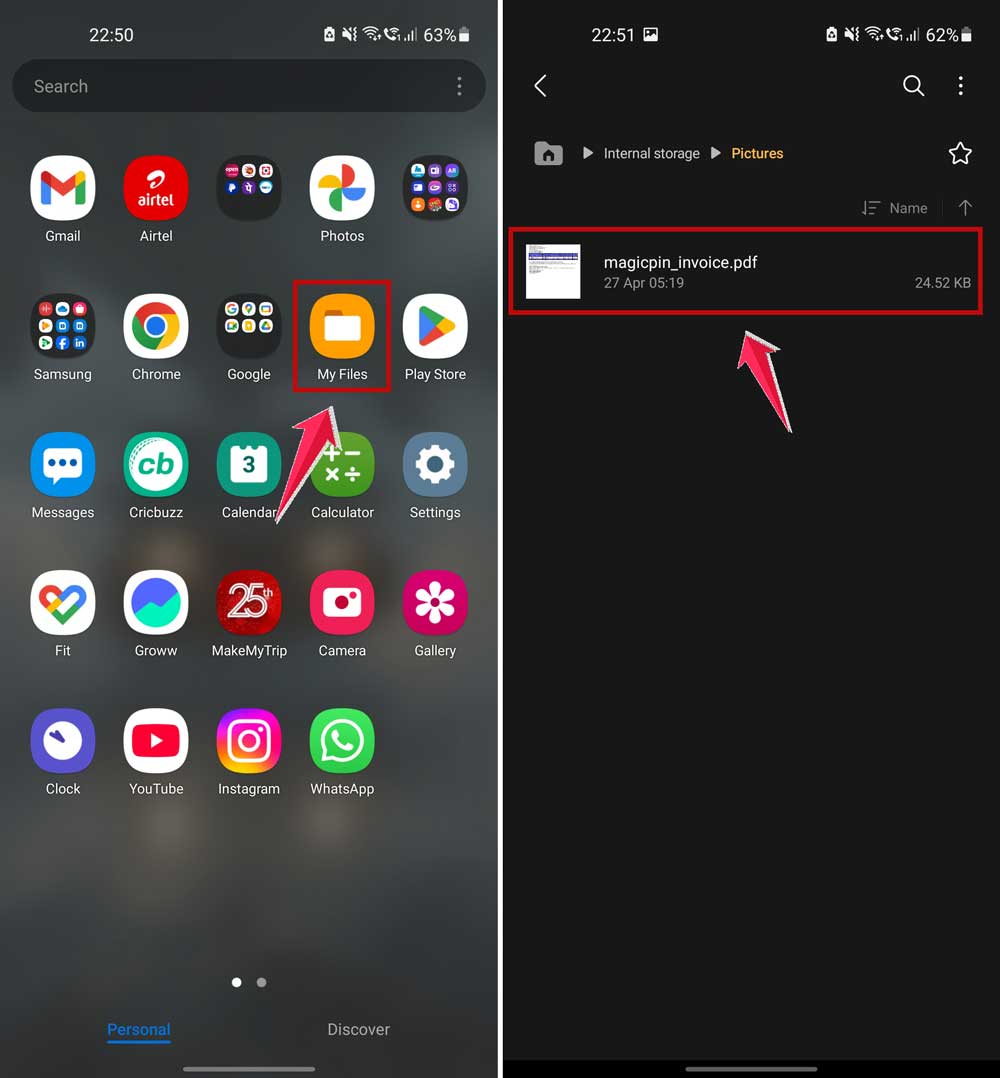
- Once found, move it to a folder that the app can access—like the Downloads or Documents folder.
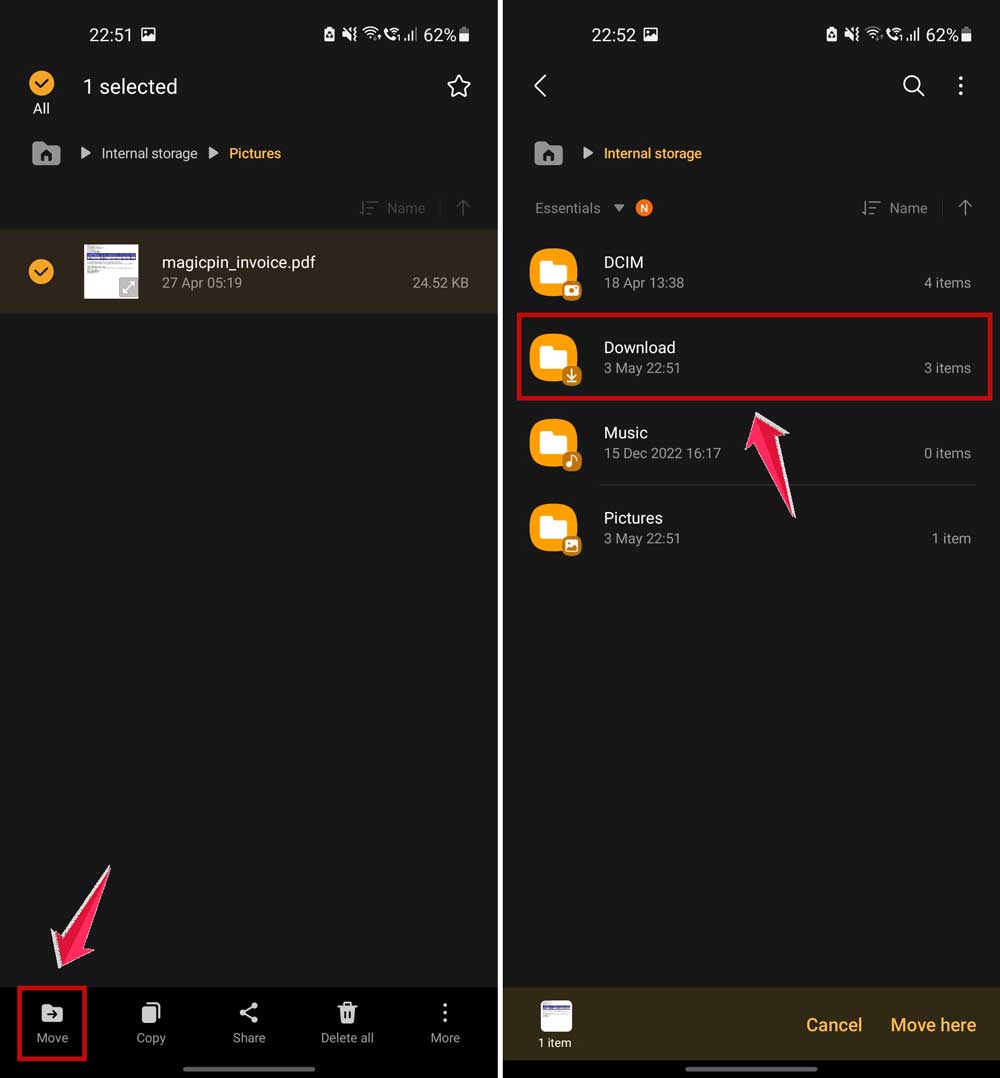
Once the file is in the right spot, try opening it again.
#2 Fix or download a new copy of the PDF
If the file is corrupted, nothing will open it. Let’s test that out.
Here’s what you can do:
- Try opening the PDF with a different app or on another device.

- If it doesn’t open there either, delete the file.
- Download it again from the original source.
Make sure the download finishes completely. If the file is large, give it a minute. A clean download usually works like a charm.
#3 Update the app you’re using
Apps need updates to keep working properly. If your app is outdated, it might struggle with new file types or permissions.
Here’s how to update it:
- Open your phone’s app store (Play Store or App Store).
- Search for the PDF app you’re using.
- If an update is available, tap Update.
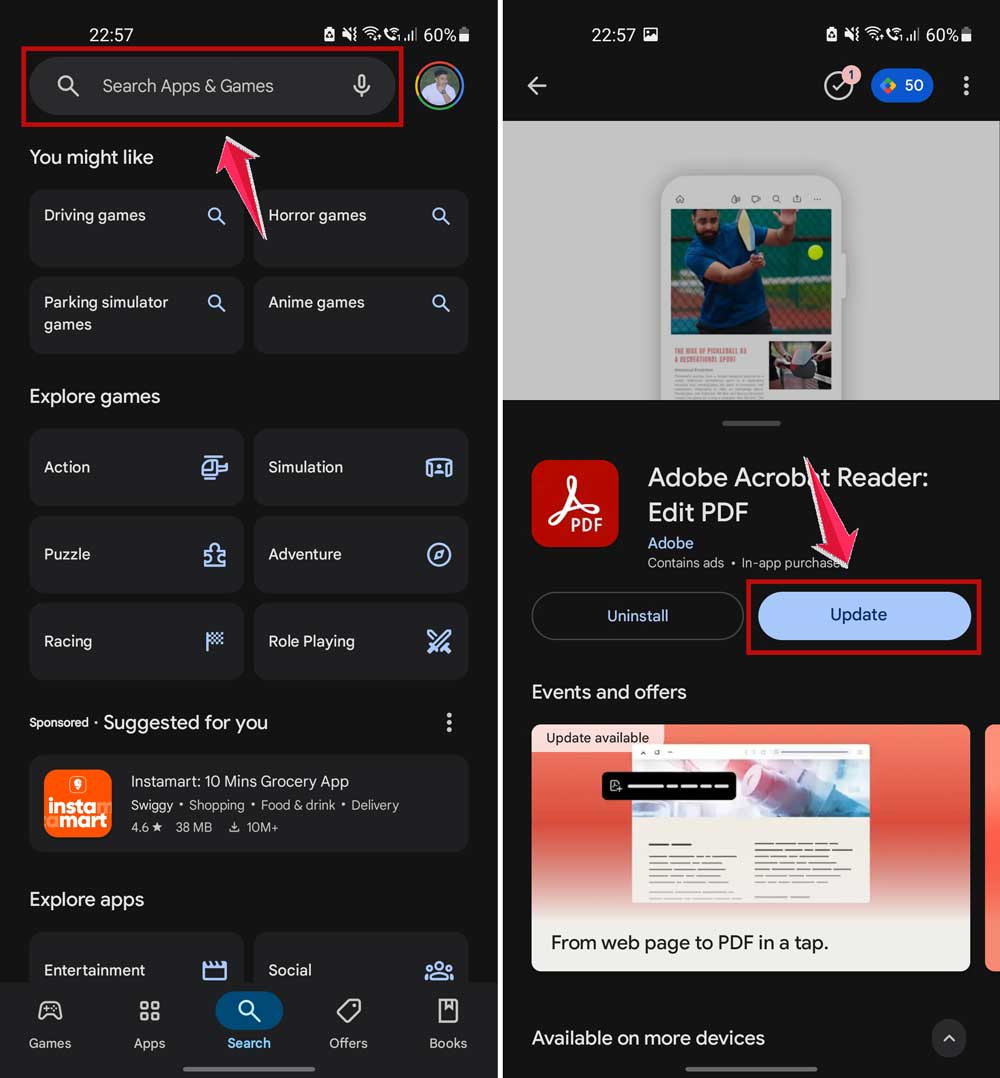
Once updated, try opening the PDF again. This step alone fixes the issue for a lot of people.
#4 Reset the app’s permissions
Even if you’ve already given permissions, resetting them can help. It’s like giving the app a fresh start.
Follow these steps:
- Go to your phone’s Settings.
- Select Apps or App Management.
- Find the app you’re using to open the PDF.
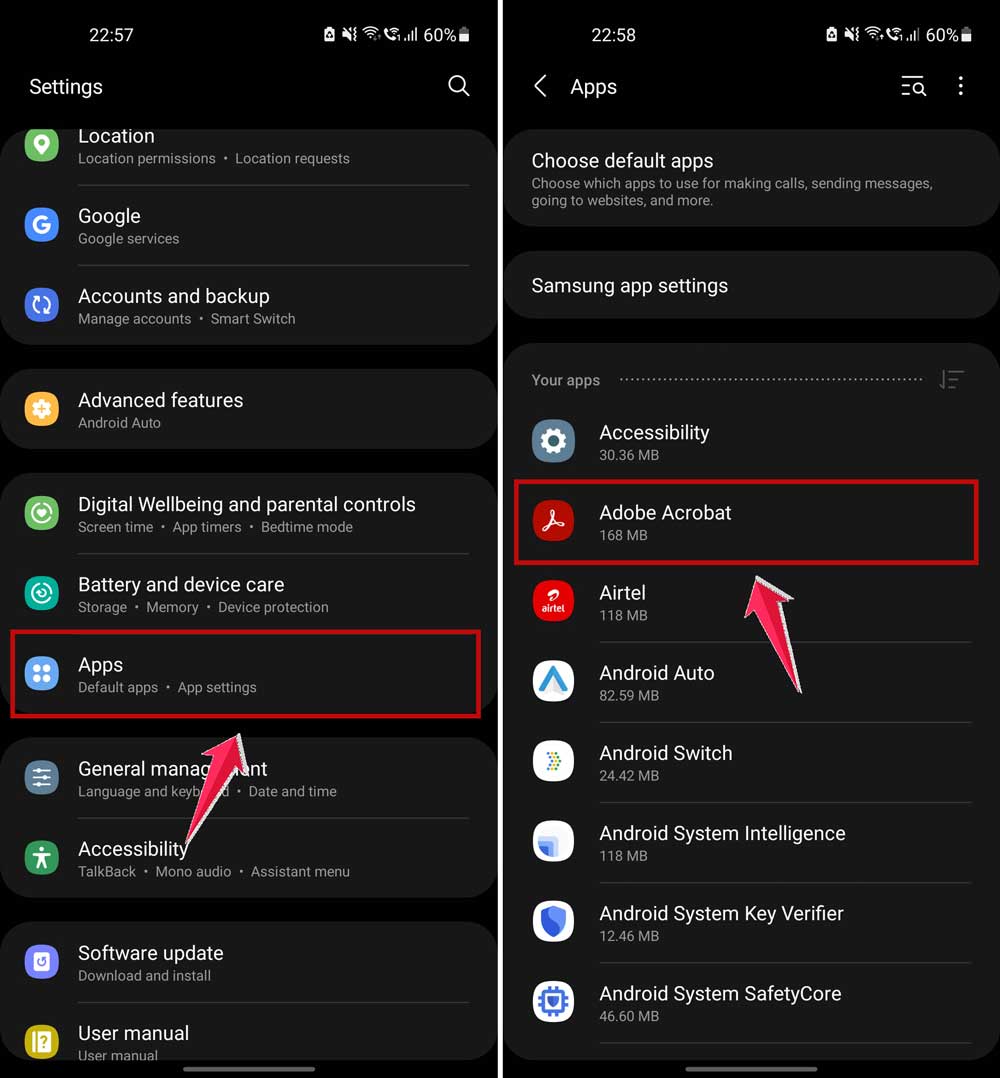
- Tap Permissions.
- Revoke all permissions, then grant them again.

After that, open the app and try the file again. You might be surprised how often this works.
#5 Check your storage access settings
Another common issue hides in your device’s storage settings. If the app doesn’t have access, it can’t do anything.
Here’s what to check:
- Open your phone’s Settings.
- Click on Apps.
- Look for app access permissions.
- Make sure your PDF app has access to internal storage.
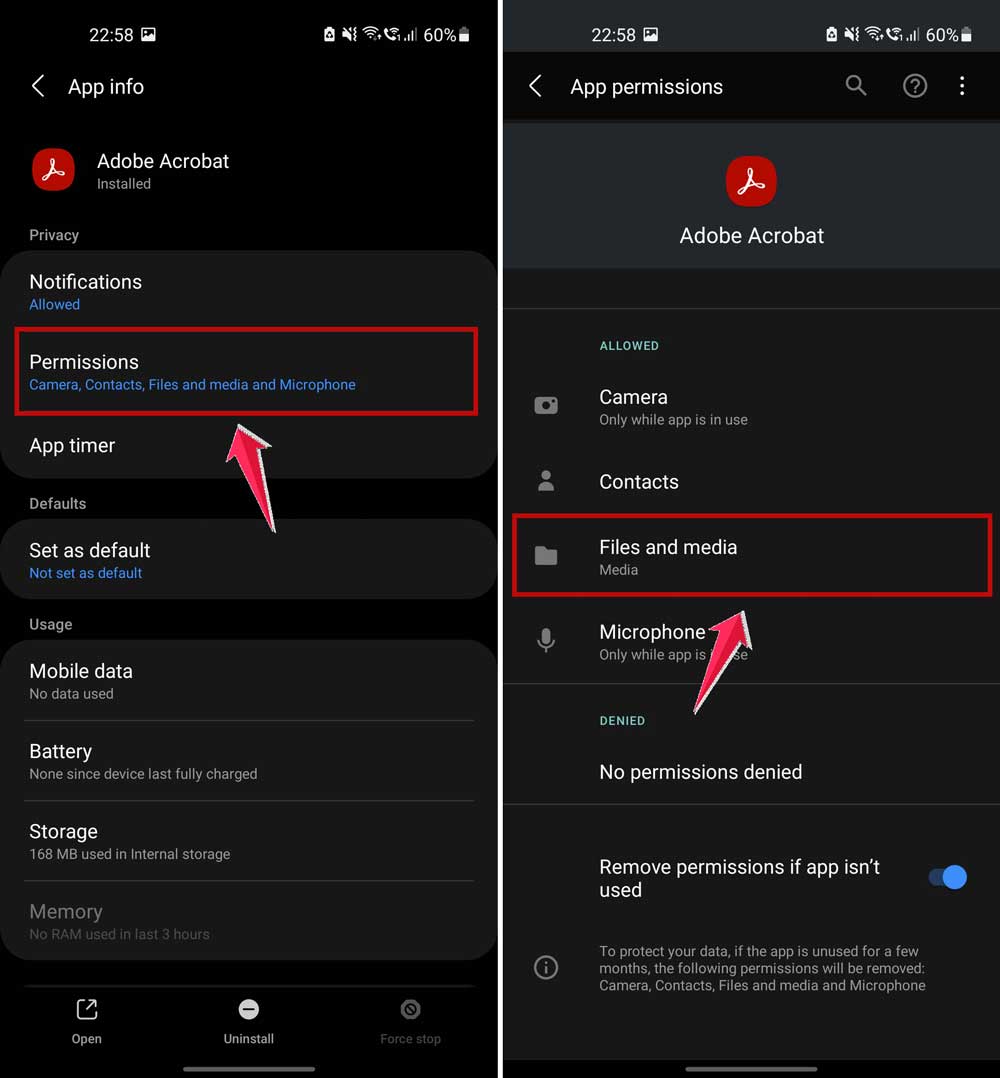
Sometimes, just turning a setting off and back on again can do the trick.
Extra Tips for That Stubborn PDF Issue
Tried everything above and still no luck? Don’t worry. Let’s try a few more things that can give your phone a little push.
1. Restart your device
It sounds simple, but it works. A restart clears out temporary glitches and gives your phone a fresh start. Go ahead—power it off, wait a few seconds, and turn it back on.
2. Close background apps
Too many apps running at once can slow things down. Swipe away unused apps or go to your task manager and clear them out. This frees up memory and might help your PDF app work better.
3. Toggle airplane mode
Switching on airplane mode for a few seconds, then turning it off, can reset your phone’s network and connection settings. Sometimes, that’s all it takes.
4. Check your antivirus app
Some antivirus apps block files they think are suspicious—even if they’re not. Open your antivirus app and check if it’s flagged your PDF app or file. If so, remove the block or whitelist the app.
5. Try another PDF source
If one file doesn’t work, try another. Download a different PDF from a trusted source and see if that opens. If it does, the issue may be with the original file.
The Takeaway
So, there you go. We’ve walked through every possible reason why your PDF isn’t opening, even though you’ve given all the right permissions.
Most of the time, it’s something small: a file in the wrong place, an outdated app, or a permission that needs a quick reset.
The best part? You don’t need to be a tech expert to fix it. You and I, we just tackled it step by step. Now it’s your turn—go ahead and try these solutions. One of them is bound to work.
Still stuck? That’s okay. Drop a comment below and let me know what’s going on. I’ll do my best to help you out.