Ever tried downloading a new app and your phone suddenly says, “Not enough space”? Yeah, it’s annoying.
You’re probably thinking, “Why can’t I just move some apps to the SD card and fix this?” Trust me, you’re not alone. This is a common problem a lot of Android users face.
Here’s what’s really going on. Sometimes, Android just doesn’t let you move apps to your SD card. And when that happens, it’s not just about storage.
It slows your phone down, makes updates harder, and takes up room you’d rather use for music, photos, or videos.
But hey, don’t stress. I’m here to walk you through everything. We’ll look at what’s causing the issue and how you can fix it, step by step.
Nothing technical, just easy-to-follow advice. By the end of this, your phone will feel lighter, faster, and way more usable.
What’s stopping apps from moving to the SD card?
Before we jump into the fixes, let’s figure out what’s actually getting in the way. Knowing the cause helps you apply the right solution instead of wasting time on stuff that won’t work.
1. Your Android version might be the issue
Some Android versions just don’t support moving apps to the SD card. If you’re using a newer version and this feature is gone, that could be the reason.
It’s not your fault—it’s how Android was built at that time.
2. Some apps are just not allowed to move
Yep, not all apps are designed to be moved. Developers sometimes block this feature to protect app performance or for security reasons.
So even if your phone supports it, the app might not.
3. Your SD card might be too slow or old
Sometimes, the problem isn’t with your phone or the app—it’s the SD card. If the card is slow or not fully compatible, it can stop apps from moving.
A faster SD card with a higher speed class really helps here.
4. Your phone manufacturer might have disabled the feature
Believe it or not, some phones just don’t allow app transfers to SD cards. It’s a decision made by the phone brand.
They might think it’s better for performance or security. If that’s the case, we’ll need to try a few workarounds.
Alright, now that we know what’s going on, let’s fix it. You don’t need to be a tech expert—I’ll guide you every step of the way.
Can’t move apps to SD card? Here’s how to fix it
#1 Check your Android version
Let’s start simple. We need to make sure your Android version supports this feature.
Here’s how you check:
- Open Settings on your phone.
- Scroll down and tap About Phone.
- Tap Software Information or something similar.

If you’re on Android 6.0 or above, you might have a feature called Adoptable Storage. This lets your SD card act like internal storage—pretty cool, right? If your version supports it, you’re good to try the next steps.
#2 Use your phone’s built-in settings
If your Android version allows it, you might be able to move apps using built-in options. Let’s try that.
Do this:
- Open Settings on your phone.
- Tap Apps or Application Manager.
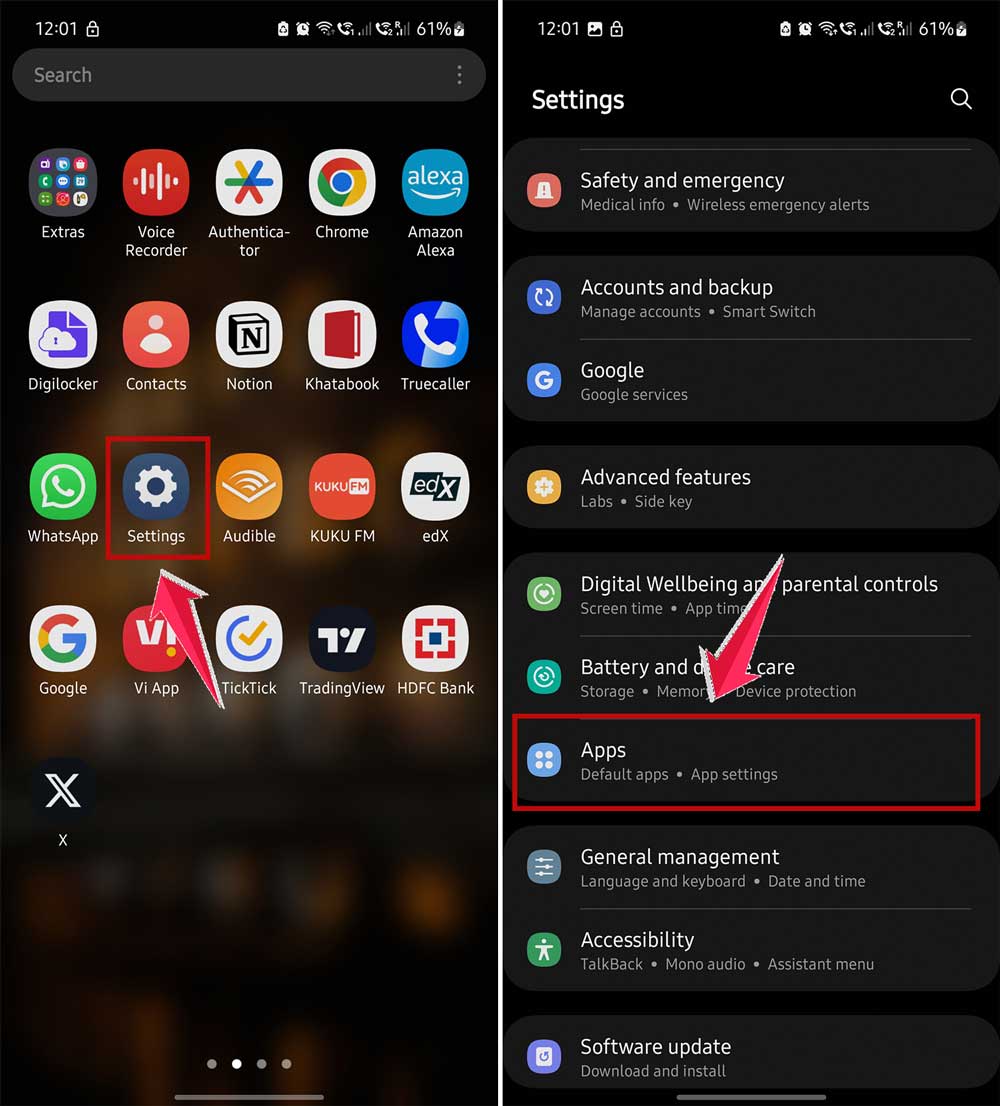
- Select the app you want to move.
- Tap Storage.

- If you see the option, tap Change and then select SD Card.

If the option is there—awesome! Move the app and enjoy the extra space. If not, don’t worry. We’ve got more ways to try.
#3 Format the SD card as internal storage
Sometimes, your SD card needs a fresh start. Formatting it can help your phone treat it like internal memory. Just make sure to back up important stuff first.
Here’s how to do it:
- Back up your SD card to a computer or cloud storage.
- Open Settings on your phone.
- Tap Storage.
- Select your SD card and tap Format as Internal.
This wipes the card clean and preps it for app storage. It’s a great way to boost performance, too.
#4 Use third-party apps to help
If your phone settings aren’t giving you the option, you can use third-party apps to do the job. These apps can move compatible apps to your SD card—even if your phone doesn’t make it easy.
Try one of these:
- AppMgr III (App 2 SD)
- Link2SD
Just download them from the Play Store. Once installed, they’ll guide you through the process. It’s like having an assistant do the moving for you.
#5 Use Developer Options to force it
Alright, this one’s a bit more advanced, but still pretty simple. If you’re feeling curious, we can unlock Developer Options and force apps to move to the SD card.
Here’s how:
- Go to Settings and tap About Phone.

- Tap Build Number seven to eight times until it says you’re a Developer.

- Now go back to Settings and tap Developer Options.
- Scroll down and enable Force allow apps on external.

This tells your phone, “Hey, let me move my apps.” It won’t work for every app, but it’s definitely worth trying. Just be careful not to mess with other settings in Developer Options if you’re not sure what they do.
And there you go! With these five methods, you’re now ready to move apps and free up space. Try them one by one, and see what works best for your phone. You’ve got this.
Some extra tips to make things even better
1. Clear out the digital junk regularly
Your phone collects clutter fast. Cached data, unused apps, and old files take up space without you noticing.
So, make it a habit to clear the cache and uninstall what you don’t use. Your phone will run smoother, and you’ll have more space for the stuff you actually care about.
2. Get a better SD card if needed
If your SD card is slow or outdated, it’s probably holding you back. Upgrade to a Class 10 or UHS-I card.
These are faster and more reliable for moving and running apps.
3. Always back up your data
Things can go wrong sometimes. That’s why it’s smart to back up your photos, apps, and files.
Use cloud storage like Google Drive or Dropbox so your stuff stays safe no matter what.
4. Keep your phone updated
System updates often bring performance improvements and bug fixes. So, go to Settings > System Updates and make sure you’re up to date. It might even fix app storage issues without you doing anything else.

The takeaway
Trying to move apps to your SD card can be frustrating—I totally get it. But now, you’ve got the tools to make it happen.
Whether it’s using your phone’s built-in settings, formatting the SD card, or trying helpful third-party apps, there’s a solution that’ll work for you.
Remember, not every app is movable. That’s just how some of them are built. But that doesn’t mean you’re stuck with no storage.
Follow the steps, try the tricks, and give your phone the breathing room it needs.
Got it working? Still stuck? I’d love to hear how it went for you. Drop a comment below and let’s chat about it!