Are you stuck because the apps you moved to your SD card just won’t open? Yeah, that’s frustrating.
You try to save space by shifting apps to the SD card, and now they’re just sitting there, refusing to launch. Feels like your phone is working against you, right?
But don’t worry—you’re not the only one facing this. This is a pretty common issue, and the good news is, it’s usually something simple.
Maybe your SD card isn’t fully compatible. It could be corrupted. Or maybe the apps just don’t like being there. Whatever the reason, we’re going to figure it out together.
In this guide, I’ll walk you through easy ways to fix the problem.
No tech jargon, no confusing steps—just real help you can follow right now. Ready? Let’s get started.
Why your apps might not be launching from the SD card
1. Your SD card might not be the right one
Let’s start simple. Not all SD cards work well with all phones. Some are too slow. Some just aren’t supported.
If your card doesn’t match what your phone needs, apps may not open at all. It’s like trying to use the wrong key in a lock—it just won’t turn.
2. Your SD card could be corrupted
This happens more than you think. If your card got corrupted—maybe from removing it too often or using it across different devices—your apps might not load properly. Your phone can’t read the data, so it just gives up.
3. Your card is too full or too slow
If your SD card is packed with photos, videos, and apps, it might not have the speed or space to handle more.
Some cards don’t have the read/write speed needed to run apps smoothly. Apps may freeze or crash before they even open.
4. Some apps just don’t run from SD cards
Yep, some apps are just picky. They’re designed to run only from internal storage. So, if you’ve moved one of those apps to the SD card, it might refuse to open, no matter what you do.
Alright, now that we’ve got a better idea of what could be wrong, let’s fix it step by step. Stick with me here—we’ll get your apps running again in no time.
How to fix apps that won’t launch from your SD card
#1 Check if your SD card is compatible with your phone
This is where you start. If your SD card isn’t fully supported by your phone, nothing else will work right. Check your phone’s specs and make sure the card speed and capacity are a good match.
Here’s how you do it:
- Open your phone’s Settings.
- Tap Storage.
- Look for your SD card and check the details—like size and type.
If it’s not listed properly or shows errors, your phone might not support it fully.
#2 Reformat the SD card
If your card is corrupted or acting weird, formatting it can help. But don’t forget to back up your files first—you’ll lose everything on the card.
Here’s how to format it:
- Go to Settings > Storage.
- Tap your SD card name.
- Choose Format or Erase SD card.
Once it’s done, try moving an app back and see if it works better.
#3 Clear the app’s cache and data
If a specific app won’t open, the cache might be clogged. Clearing it gives the app a fresh start.
Do this:
- Open Settings.
- Go to Apps or App Management.
- Select the app that won’t open.
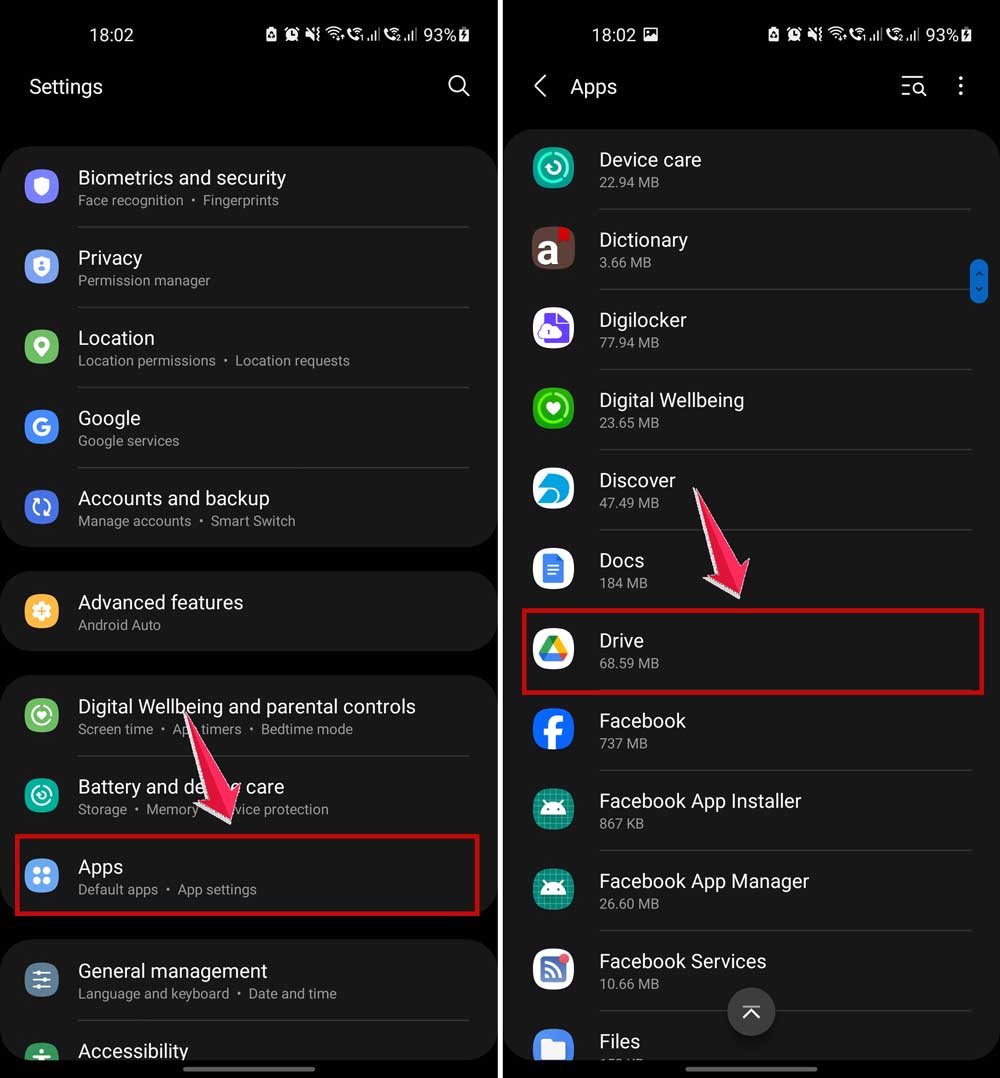
- Tap Storage.
- Tap Clear Cache and then Clear Data.
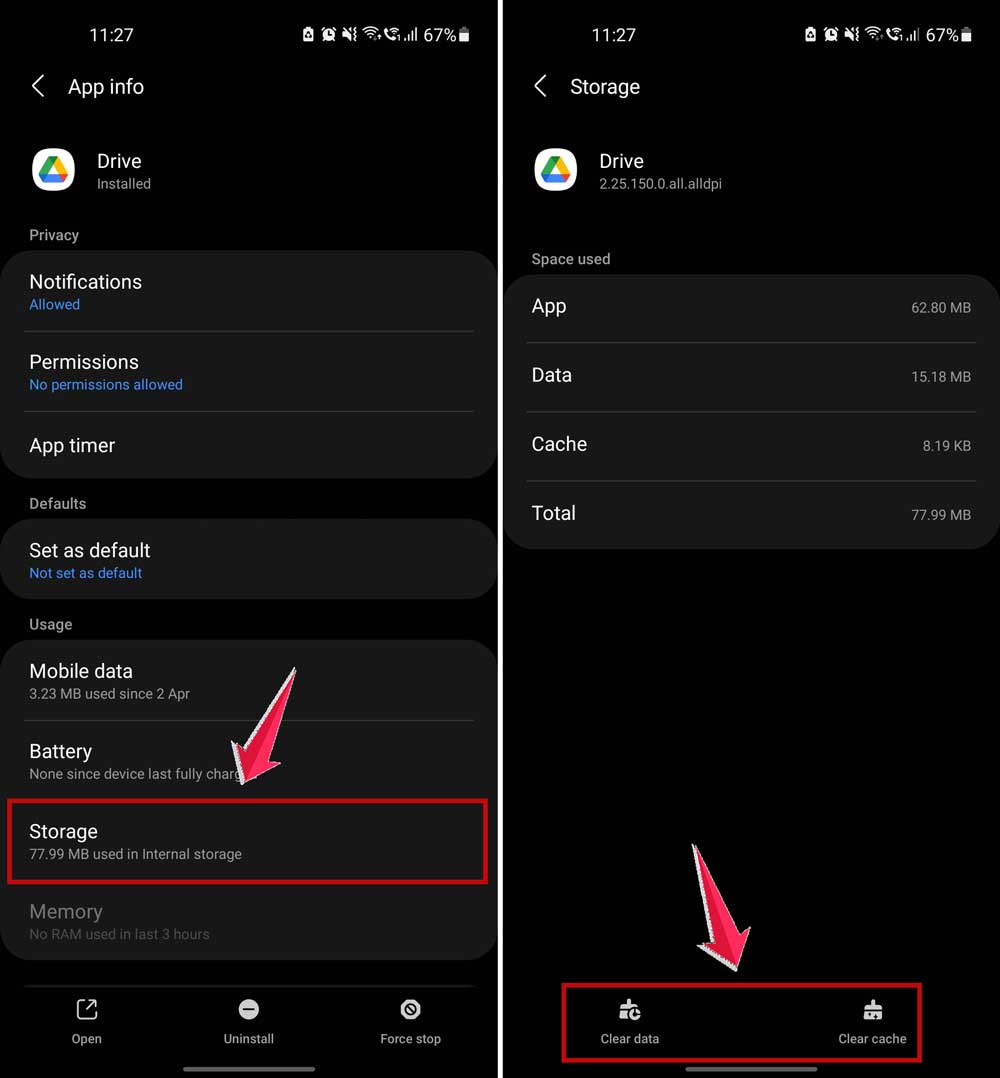
Now try launching the app again. It might just start working now.
#4 Move the app back to internal storage
Sometimes, the problem is that the app just doesn’t want to run from the SD card. Moving it back to internal storage can solve the issue.
Here’s how:
- Go to Settings.
- Tap Apps.
- Select the app.
- Tap Storage.
- Now tap on Change.
- Tap Internal storage.
Test it again. If it opens now, you know the SD card was the problem.
#5 Update your apps and your phone
Old versions of apps or system software can cause all sorts of weird issues. Updates often fix bugs and improve compatibility with SD cards.
Here’s what to do:
- Open the Google Play Store.
- Tap your profile icon and go to Manage apps & device.
- Tap Update All.

- Then, go to Settings > System > Software Update.

Once everything’s updated, try opening your apps again.
#6 Use a better SD card
If your current card is old or cheap, it might not be fast enough. A better-quality card with faster read/write speeds can make a huge difference.
Look for:
- Class 10 or UHS-I/UHS-II cards.
- Brands like SanDisk, Samsung, or Kingston.
It’s worth spending a bit more to avoid these problems in the future.
#7 Check app permissions
Apps need the right permissions to run from external storage. If something’s blocked, they might not open.
Try this:
- Open Settings.
- Go to Apps and select the app you’re fixing.
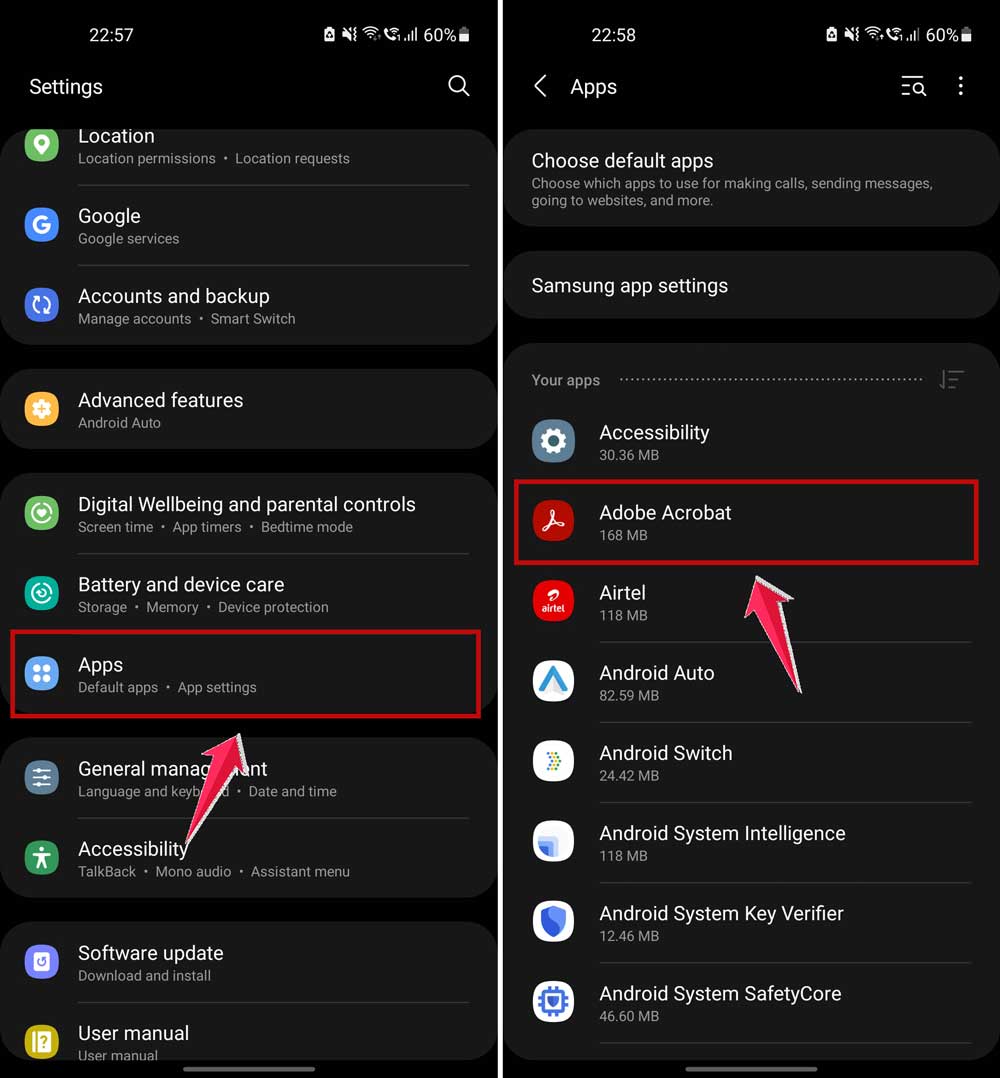
- Tap Permissions.
- Allow access to Storage if it’s turned off.
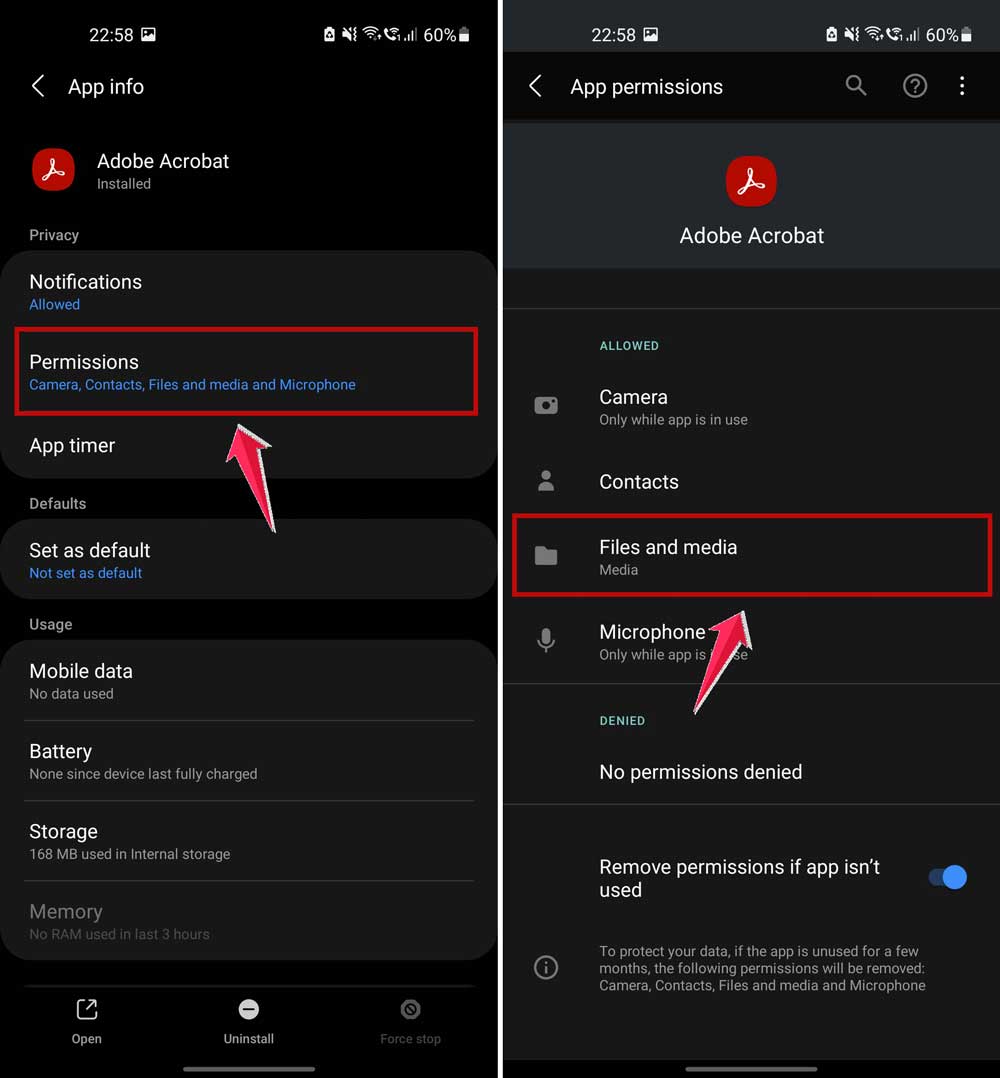
Now go back and try launching the app. Fingers crossed—it should work!
More tips to keep things running smoothly
1. Regularly back up your SD card
Don’t wait for something to go wrong. Get in the habit of backing up your SD card regularly. That way, if your card fails, you won’t lose anything important. Trust me, it’s a lifesaver.
2. Avoid using cheap SD cards
Cheap cards might save you money now, but they’ll cost you later. They wear out faster and cause more problems. Spend a little more upfront for a card that lasts.
3. Keep an eye on your phone’s performance
If your phone is slowing down, it might not be the SD card’s fault. Too many apps running in the background can drag everything down. Close what you’re not using and give your phone a breather.
4. Limit background data usage
Apps running in the background can eat up space and slow things down. Go into your settings and limit background data for apps you don’t need running all the time.
5. Clear out junk from time to time
Every now and then, delete unused files and apps. It frees up space and helps things run more smoothly, both on your phone and your SD card.
The takeaway
Let’s wrap this up. If your apps aren’t opening from the SD card, it’s probably something small, like compatibility, permissions, or a slow card.
We walked through steps like reformatting your card, moving apps back to internal storage, and updating software. These simple fixes can save you from a lot of stress.
And remember—don’t ignore the small stuff. Back up your files. Use a good SD card. Keep your phone clean and updated. These little habits keep your device running smoothly.
Give these tips a try and see what works for you. And hey, if you’ve got a solution I didn’t mention, drop it in the comments below. Let’s help each other out!