Have you ever been typing on your phone and suddenly felt a little buzz with every key you tap? That’s your keyboard vibrating. It’s called “haptic feedback,” and it’s there to let you know that your touch was registered.
Now, some people like it. It feels like a soft tap that confirms each key press. But for others, it’s just straight-up annoying. And if you’re trying to save battery, well, that tiny buzz might be using more power than you’d like.
Most phones come with this feature turned on by default. You might not even remember switching it on. Sometimes, an app update resets your settings.
Other times, you might’ve tapped something by accident. Either way, if you’re not into the buzz, don’t worry—I’ve got you covered.
In this guide, I’ll help you turn off keyboard vibration—or bring it back if you actually miss it.
We’ll go step by step for Android and iPhone, and I’ll even cover popular keyboard apps like Gboard and SwiftKey. Let’s fix this together and get your phone feeling just the way you want it.
What Causes Keyboard Vibration?
1. It’s Usually Turned On by Default
Most phones come with keyboard vibration already switched on. You might not even notice it at first. But once you do, it’s hard to ignore. It’s just one of those settings that’s quietly doing its thing in the background.
2. Updates Can Change Your Settings
Ever updated an app or your phone’s software and noticed something feels different? That’s because updates can reset your preferences.
So if your keyboard wasn’t vibrating before, and now it is, an update probably flipped the switch back on.
3. You Might’ve Changed It Without Realizing
Let’s be honest—we’ve all poked around in our settings and tapped something without meaning to. Maybe you were adjusting your ringtone or checking notifications, and somehow, the keyboard vibration got turned on. It happens!
4. It Can Be Distracting and Drain Battery
That little buzz? It might not seem like much, but it can throw off your focus. And yes, every vibration uses a bit of battery. It’s not a huge drain, but if you’re low on power, every bit counts.
5. It’s All About What You Prefer
Some people love the feedback. Others hate it. It’s really up to you. The good news is—you can control it. Whether you want to keep the buzz or turn it off completely, I’ll show you how to do it.
How to Enable or Disable Keyboard Vibration on Your Phone
Alright, let’s fix this. Whether you’re using Android, iPhone, or a third-party keyboard app, I’ll walk you through the steps.
Follow along, and let’s get your keyboard feeling just right.
#1 If You’re Using Android
Okay, Android users—this one’s for you. Android phones have different menus depending on the brand, but the steps are usually pretty similar.
Here’s how to turn off keyboard vibration:
- Open the Settings app on your phone.
- Scroll down and tap Sound & vibration or just Sound.
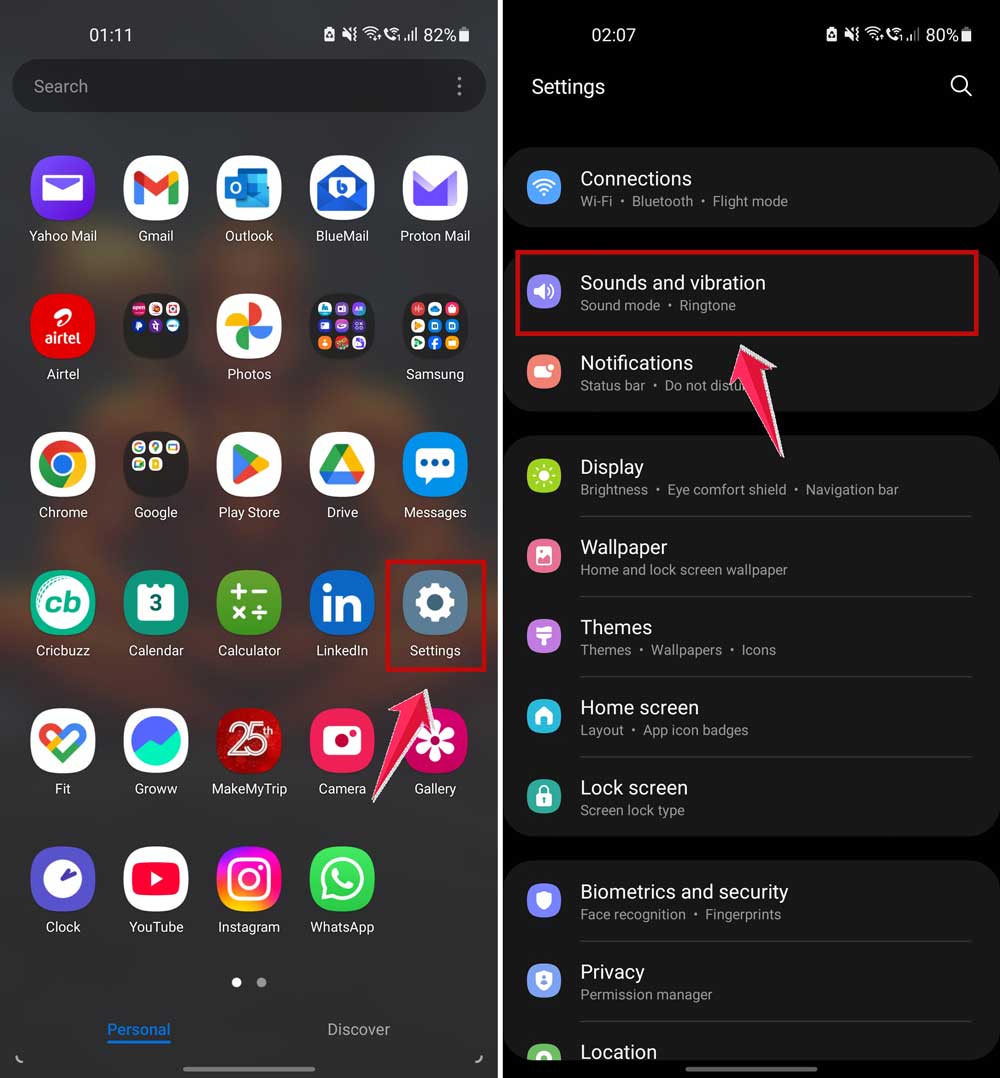
- Look for Keyboard feedback or Vibration. Tap on it.
- Now, find your keyboard under the Vibration section and disable it.
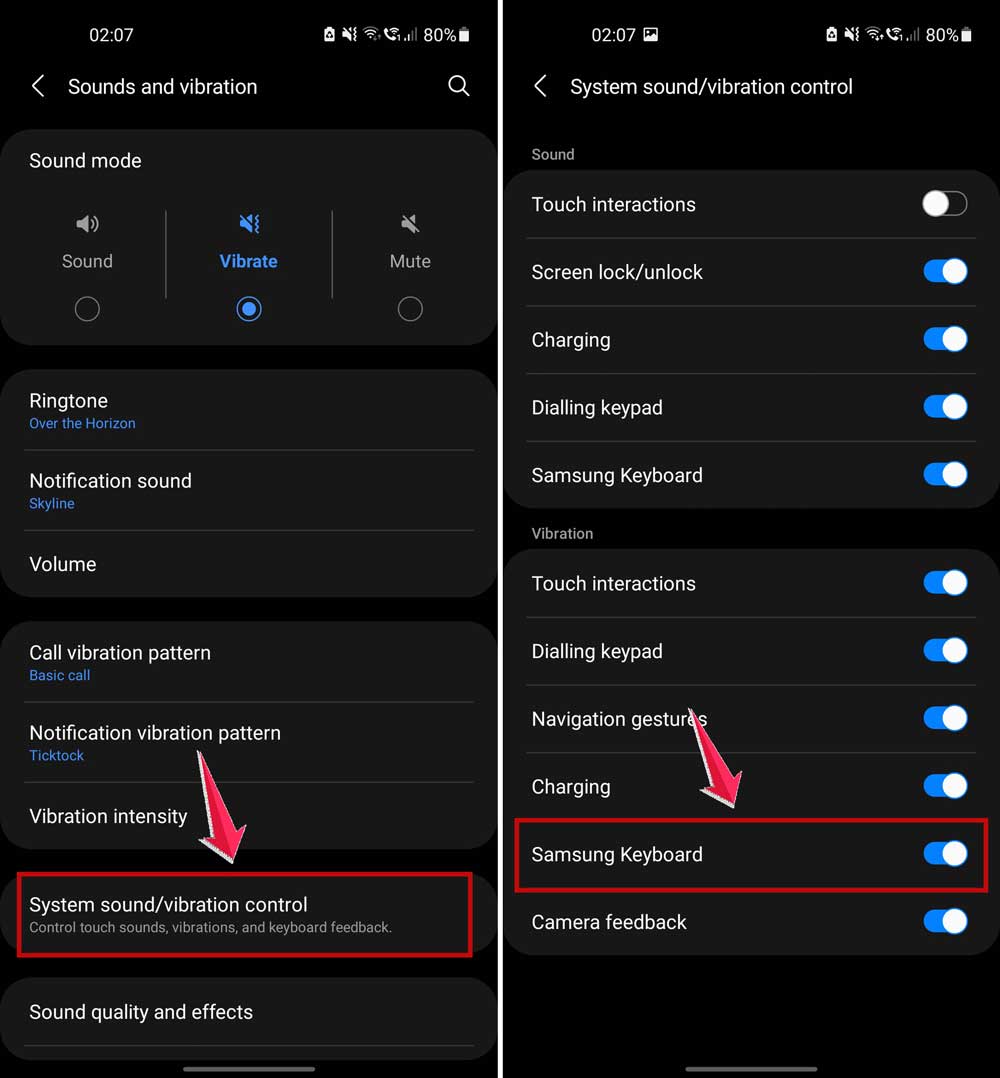
Still buzzing? Try restarting your phone. If that doesn’t help, the keyboard app might have its own settings causing it. Let’s check that next.
#2 If You’re on iPhone
Got an iPhone? The settings are a little different but still easy to follow.
Here’s what you need to do:
- Open your iPhone’s Settings.
- Scroll down and tap Sounds & Haptics.
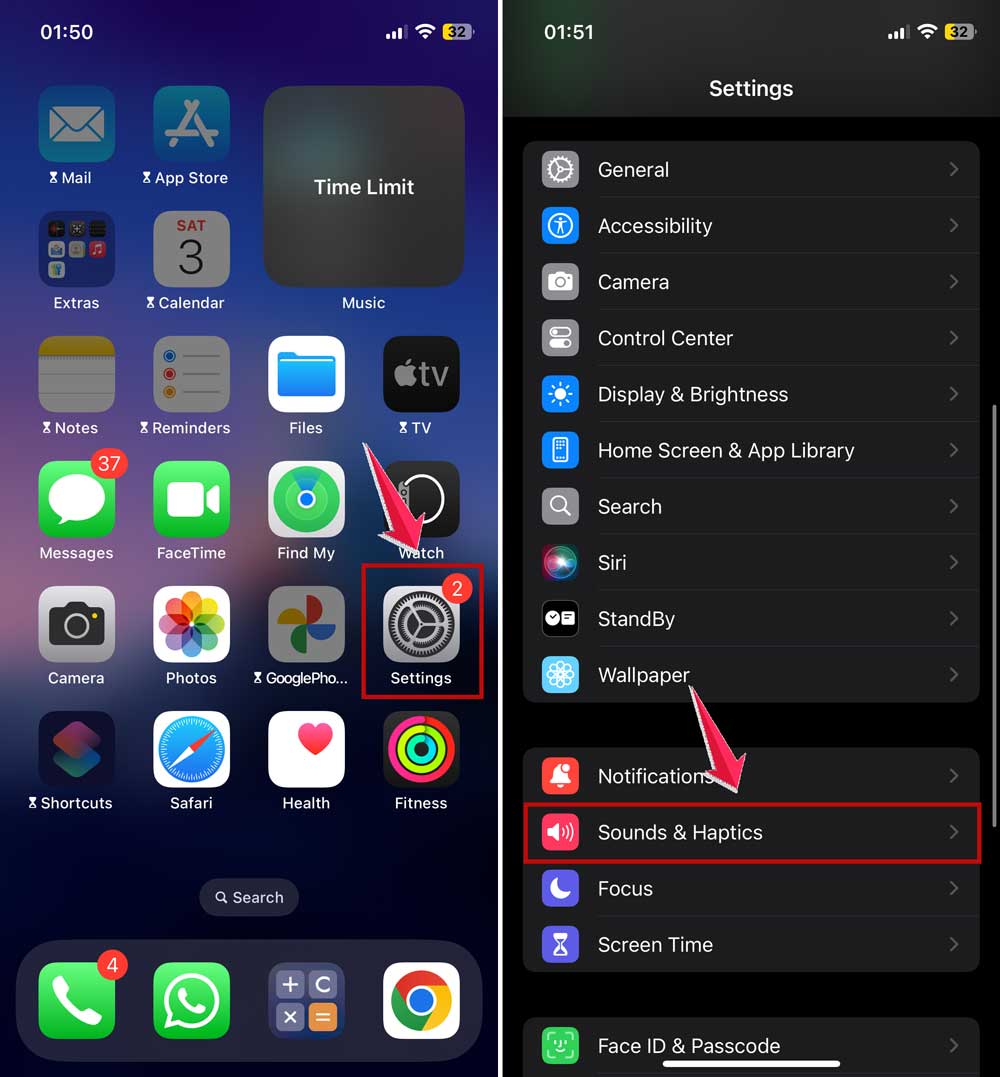
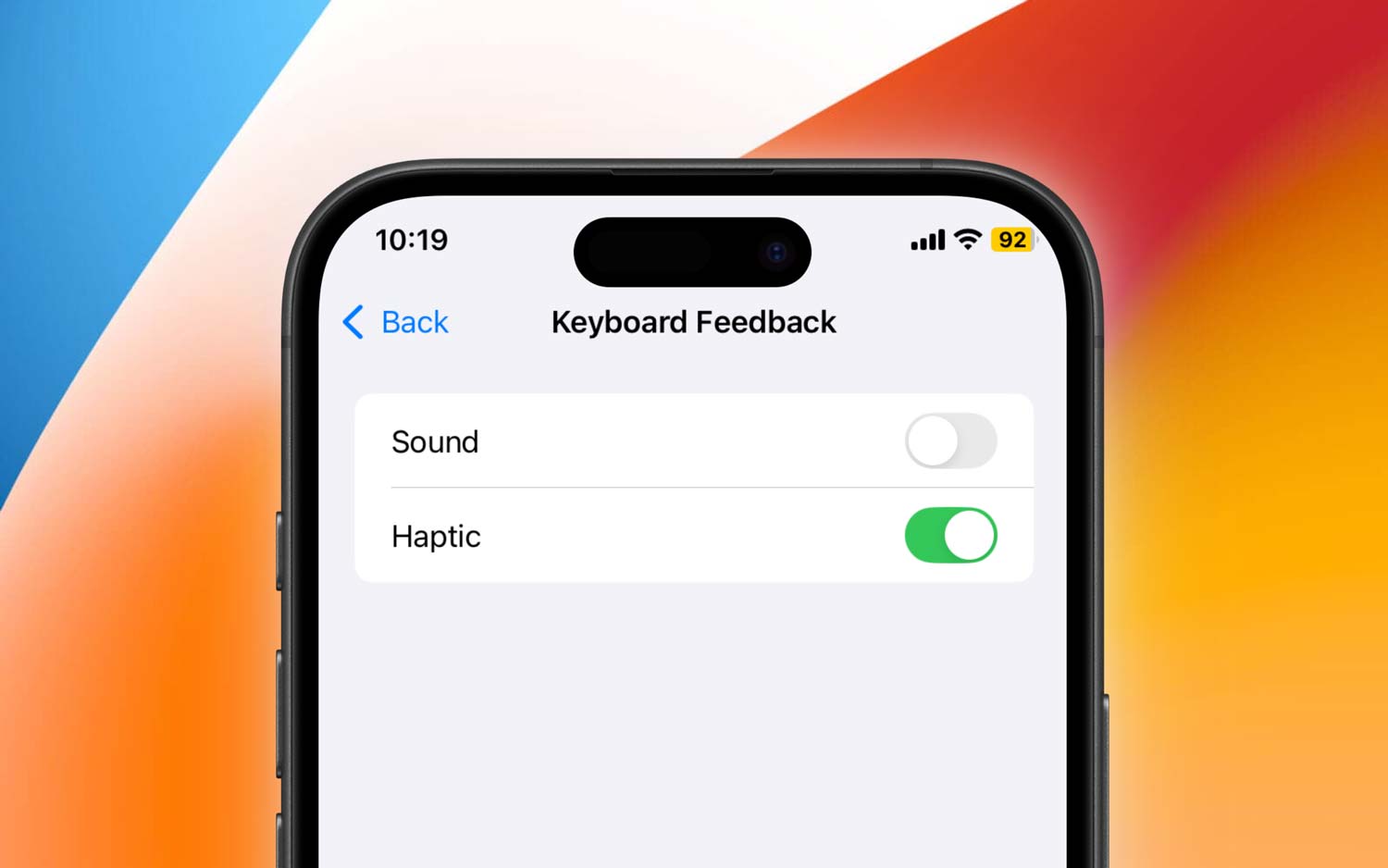
- Look for Keyboard Feedback.
- Tap it, and you’ll see Sound and Haptic.
- Toggle off Haptic to stop the vibration.
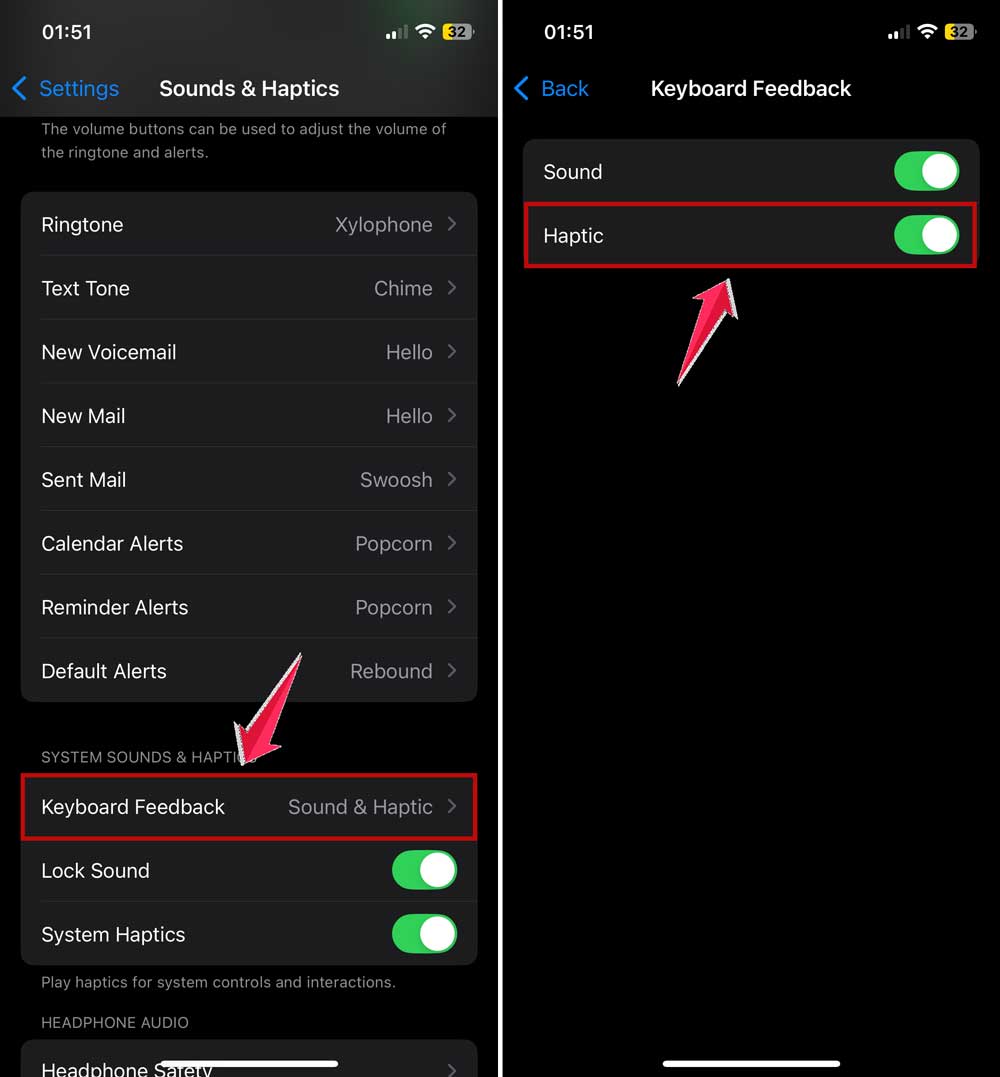
That’s it. If your phone is still vibrating, check if you’re using a third-party keyboard app like Gboard or SwiftKey. Those apps have their own settings too.
#3 If You’re Using Gboard, SwiftKey, or Other Third-party Keyboards
Now, if you’ve downloaded a different keyboard from the Play Store or App Store, it might be handling vibration separately from your phone’s default settings.
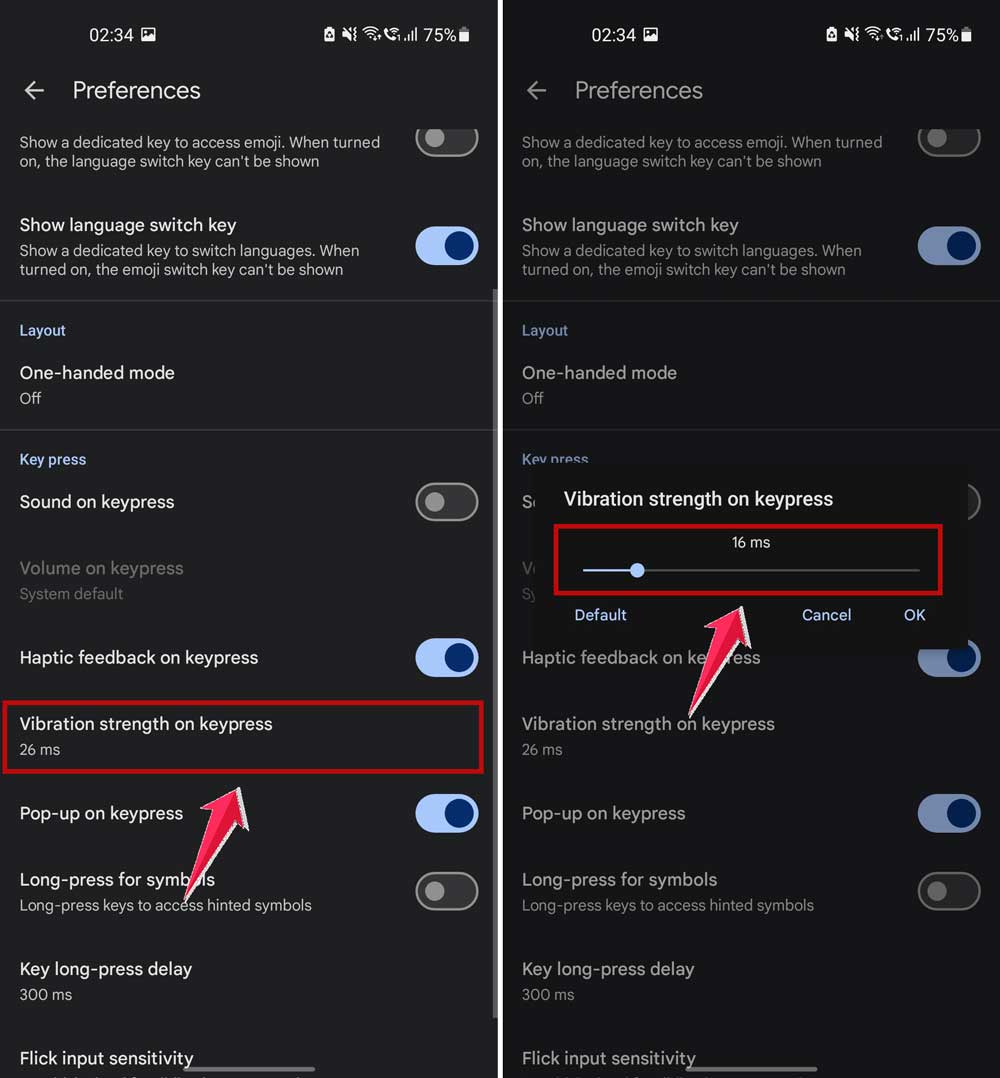
Here’s how to turn off vibration in Gboard:
- Open the Gboard app from your app drawer.
- Tap Preferences.

- Scroll down to Vibrate strength on keypress. Tap on it.
- Adjust intensity of “Vibrate strength on keypress”.
Using SwiftKey? Try this:
- Open the SwiftKey app.
- Go to Sound & vibration.
- Disable Keypress vibration or adjust intensity.

Every keyboard app is a little different, so take a minute to explore the settings. If you can’t find the option, try searching for “vibration” in the app’s help section or just uninstall and reinstall the app. That usually resets everything.
More Tips to Save Battery and Customize Your Phone
1. Battery Life is Precious – Tweak More Settings
Turning off keyboard vibration is a good start, but don’t stop there. Lower your screen brightness. Turn off background apps. Disable auto-sync for apps you don’t use often. All of these things can help your battery last longer.
2. Vibration Can Help with Accessibility
If you rely on vibration for feedback—maybe because of a vision issue or other reason—you don’t have to turn it off completely. Just adjust it to a level that works for you. It’s all about balance.
3. Make Your Keyboard Feel Like Yours
While you’re in the settings, why not personalize your keyboard? Change the theme, switch up the key layout, or increase the size. A keyboard that feels good to type on makes everything better.
4. Keep Your Phone Updated
Updates aren’t just about new features—they fix bugs too. If your keyboard is acting weird, a software update might be the solution. Always keep your system and apps updated for the best performance.
5. Use “Do Not Disturb” When You Want Quiet
Need a break from all the buzzing? Turn on Do Not Disturb. It mutes notifications, calls, and yes—even keyboard vibrations. It’s a quick way to get some peace without changing all your settings.
The Takeaway
So, what did we learn? That little buzz you feel when typing—it’s called keyboard vibration. Some people like it. Some don’t. And thankfully, you have full control over it.
You now know how to turn it off (or on) whether you’re using Android, iPhone, Gboard, or SwiftKey. You’ve also learned how it affects your battery and how to make your phone feel more like your own.
If vibrations help you type better, keep them. If they just annoy you, turn them off. It’s that simple. Your phone should work the way YOU want it to.
Go ahead—try out the tips above and see what works best for you. And hey, if you found a cool trick or have questions, drop a comment below. I’d love to hear how it went!