You know that frustration when you’re all cozy, watching your favorite show, and boom—a security scan pops up out of nowhere? It’s like your computer picked the worst moment to remind you it exists.
Annoying, right? Don’t worry, you’re definitely not the only one dealing with this.
These random scans can show up for a few reasons. Maybe your security software is outdated. Or the settings were changed without you even noticing. Sometimes, the scans are just scheduled at the wrong time.
And in some cases, it’s not even a real scan—it could be malware pretending to be one. That’s a bit scary, but we’ll handle it.
Why is this a big deal? Well, constant interruptions can really mess with your day. Whether you’re working, watching something, or just browsing, these pop-ups get in the way.
Even worse, if they’re fake alerts, they could lead to real problems for your system.
But here’s the good news. You can fix this. In fact, most of the time, it just takes a few small changes. I’m going to walk you through everything you need to do. ‘
Step by step. We’ll make sure your computer runs quietly in the background—just like it should.
What’s Causing These Scans to Show Up?
Before we jump into fixes, let’s figure out why these scans keep popping up. Knowing the cause makes it easier to stop them for good.
1. Keep Your Software Updated
Let’s be real—how many times have you clicked “remind me later” on a software update? I’ve done it too. But skipping those updates can cause frequent alerts.
Updates include security patches and bug fixes that stop unnecessary scans from running.
So, next time you see that update notification, go ahead and let it run. It could save you from a lot more annoying pop-ups later.
2. Check Your Settings, They Might Be Off
Sometimes, the settings in your security software get changed—either by accident or during an update. That can make the software act weird, like running scans at random.
Take a few minutes to look through the settings. Make sure nothing looks off. You might find an option that’s been turned on that you don’t even need.
3. Scheduled Scans Should Fit Your Schedule
Security scans are important, but they shouldn’t interrupt your work or downtime. If your software is set to scan at the wrong time, it’s going to keep getting in your way.
Go into the settings and change the scan schedule to a time when your computer is on but you’re not using it—maybe early morning or late at night. That way, scans won’t interrupt you.
4. Watch Out for Malware Playing Tricks
Here’s something you might not expect: not all security scans are real. Some are fake alerts created by malware. They’re made to look like your regular antivirus, but they’re trying to trick you.
That’s why it’s super important to use a trusted malware scanner now and then. It can help you figure out if what you’re seeing is real or something more dangerous.
Alright, now that you know what might be causing the problem, let’s move on to fixing it.
How to Stop Those Security Scans from Popping Up
Let’s fix this together. These pop-up scans don’t have to be part of your daily life. You can take control with just a few easy steps.
#1 Don’t Ignore Security Software Settings
If scans are running at bad times, your software might be set to do that automatically. The first thing you should do is check your settings.
Take a minute to open the app and look around. It’s usually pretty easy to find the scan schedule and change it. Here’s how:
- Open your security software.
- Go to the Settings or Configuration area.
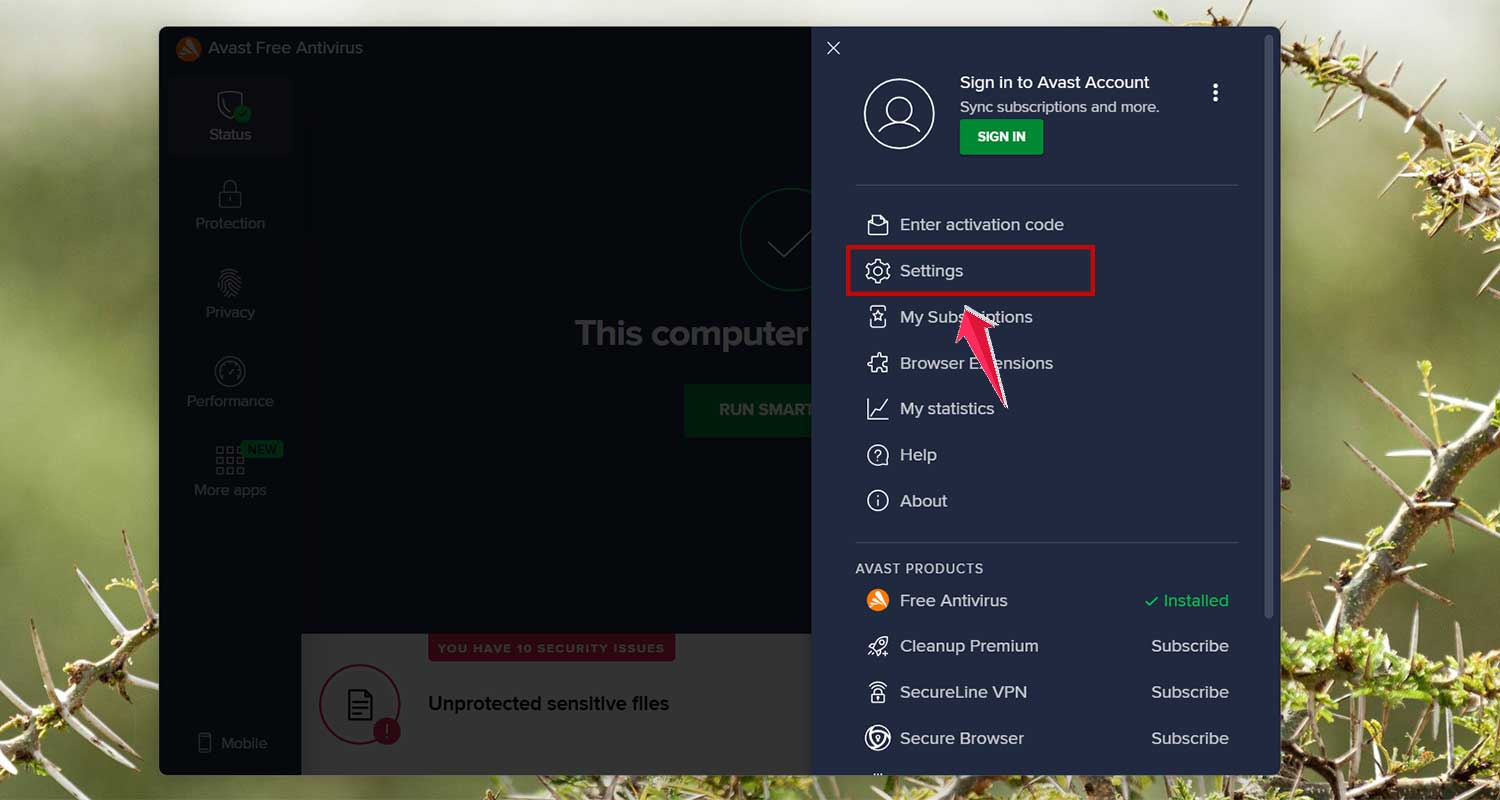
- Look for the Protection option.
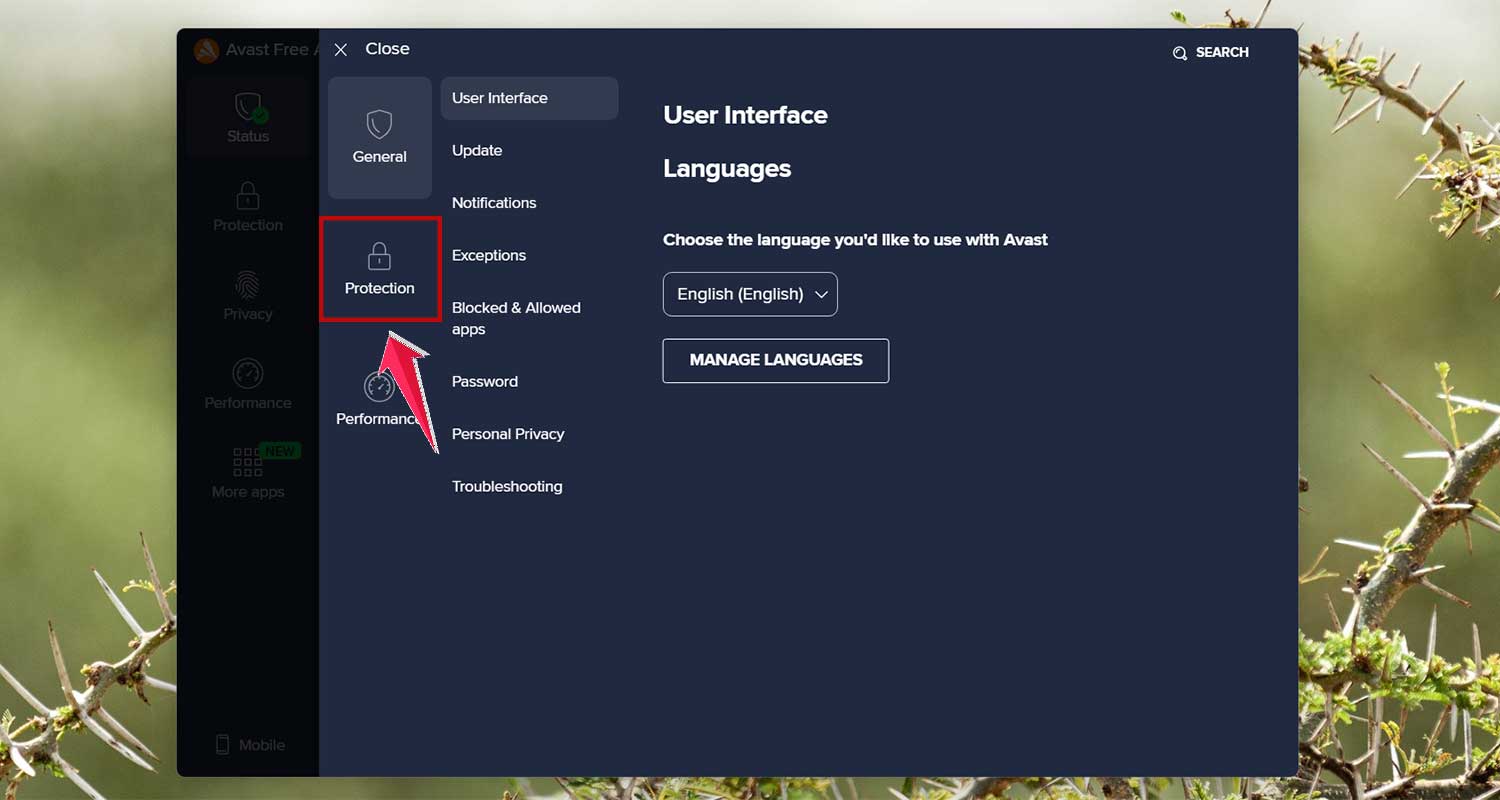
- Look for something like Scan Schedule or Automation.
- Change the time to something that works better for you, like when you’re not using the computer.
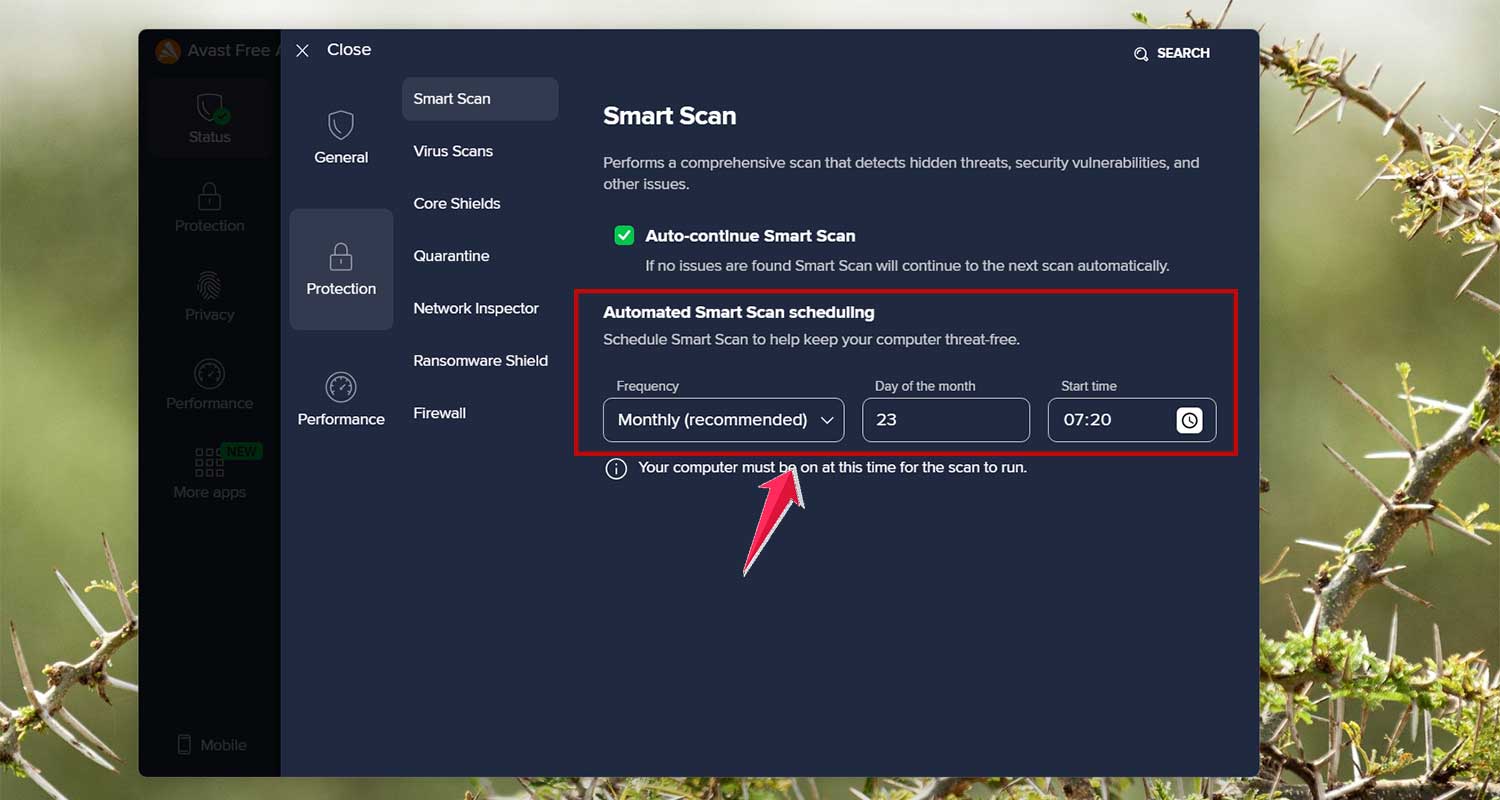
This small tweak can make a big difference.
#2 Make Sure Your Software Stays Updated
Old software can be a big reason for annoying alerts. If your antivirus or system tools are out of date, they might start popping up with reminders or errors.
Let’s fix that:
- Open your antivirus or security software settings.
- Go to the Update tab.
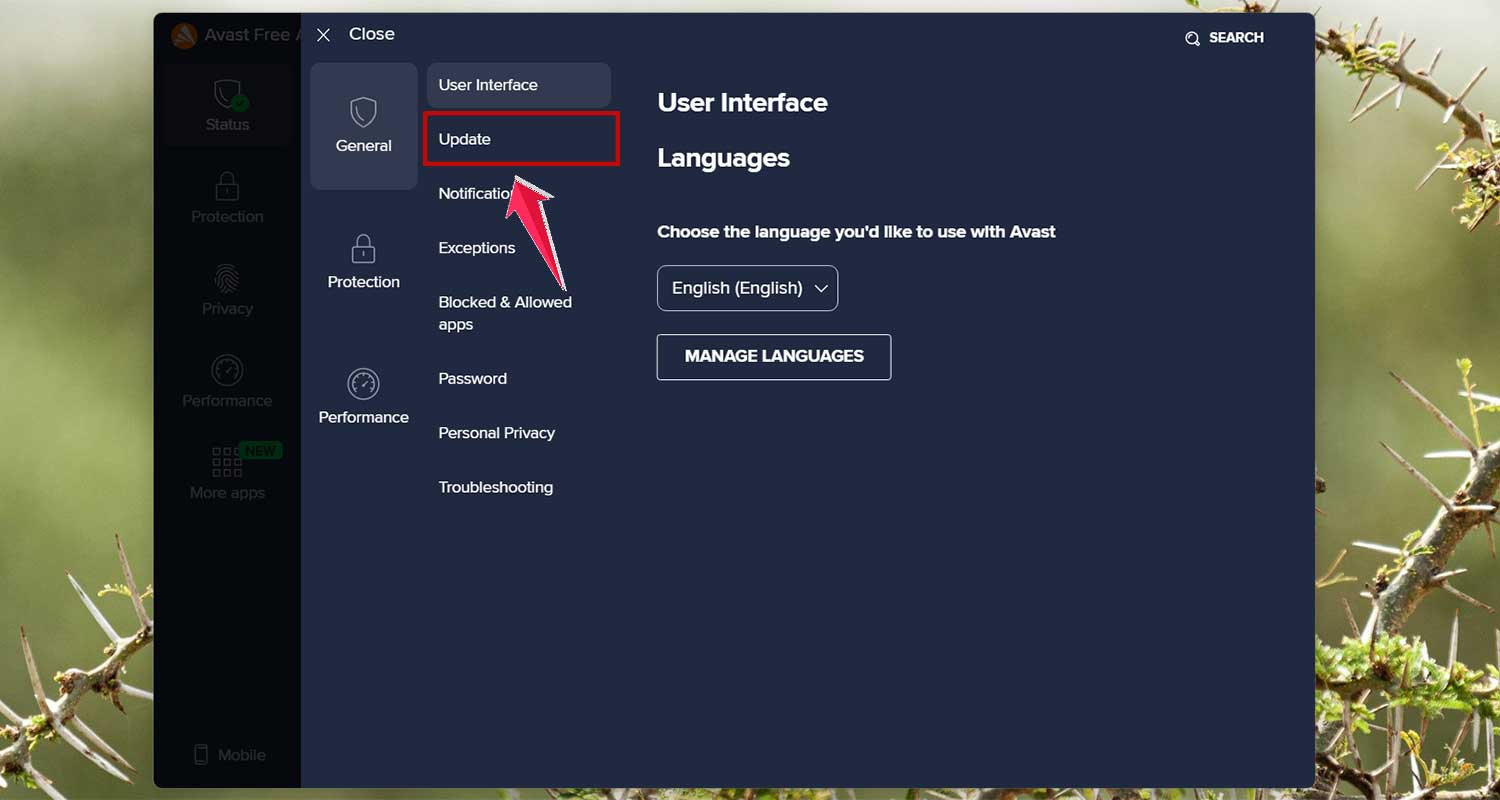
- Click Check for Updates.
- If updates are available, go ahead and install them.
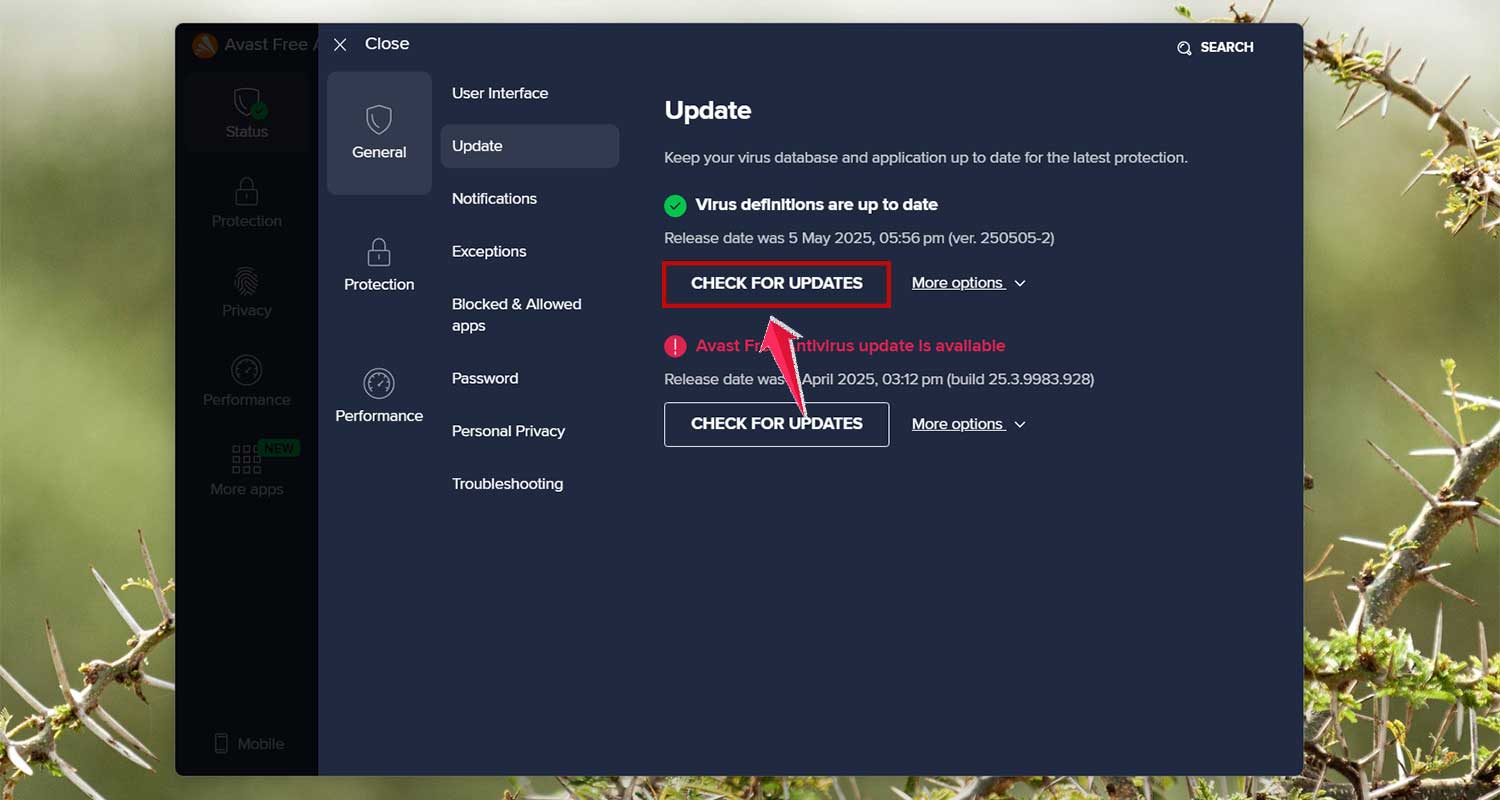
Doing this regularly helps prevent bugs and keeps everything running smoothly.
#3 Adjust Scheduled Scan Times to Work for You
Let’s say you like to relax in the evening and suddenly—bam!—a scan starts running. That’s not what you want.
Here’s how to fix it:
- Open your antivirus program.
- Go into the Settings or Preferences section.
- Look for Scheduled Scans or Scan Timing.
- Pick a time when you’re not using your computer heavily. Maybe when you grab lunch or after work.
This way, the scans still happen, but quietly in the background.
#4 Ditch Programs You Don’t Trust
Sometimes, it’s not even your antivirus causing the problem. You might have picked up a rogue program that’s pretending to be one.
Let’s clean that out:
- Open your Control Panel or Settings on Windows.
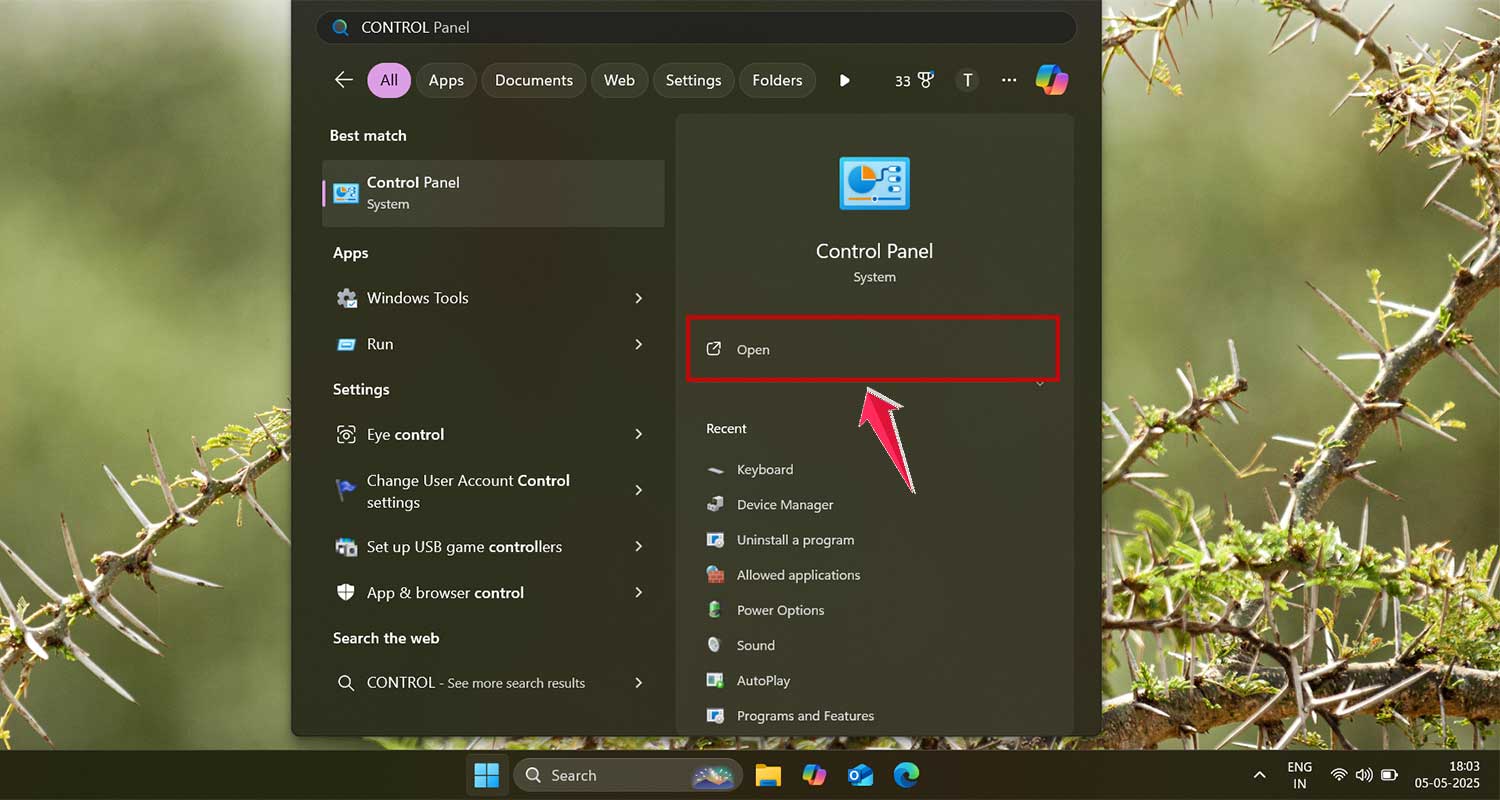
- Click on Programs or Apps.
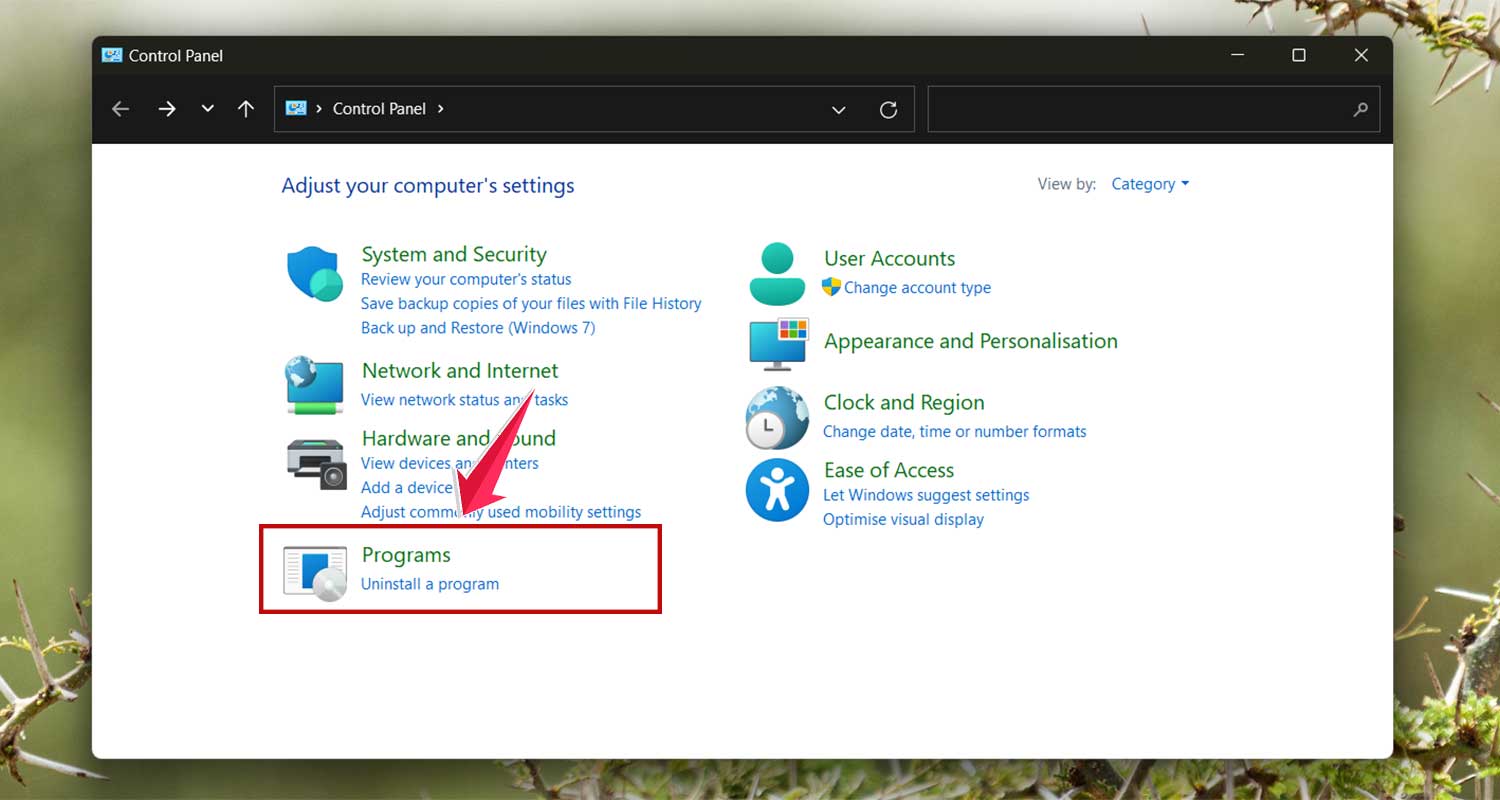
- Go to Programs and Features.
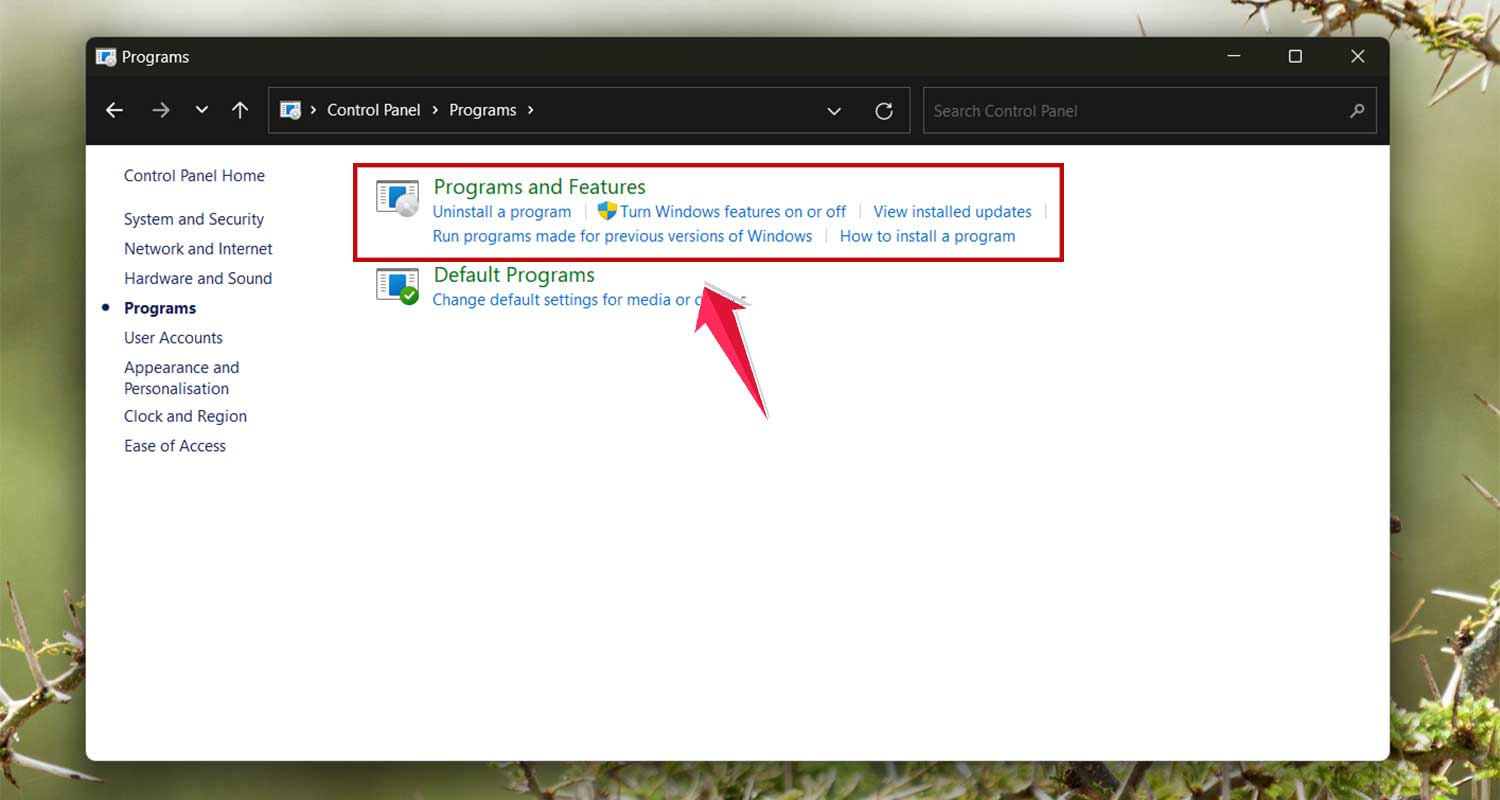
- Look for anything strange—apps you didn’t install or don’t remember using.
- Click Uninstall on anything suspicious.
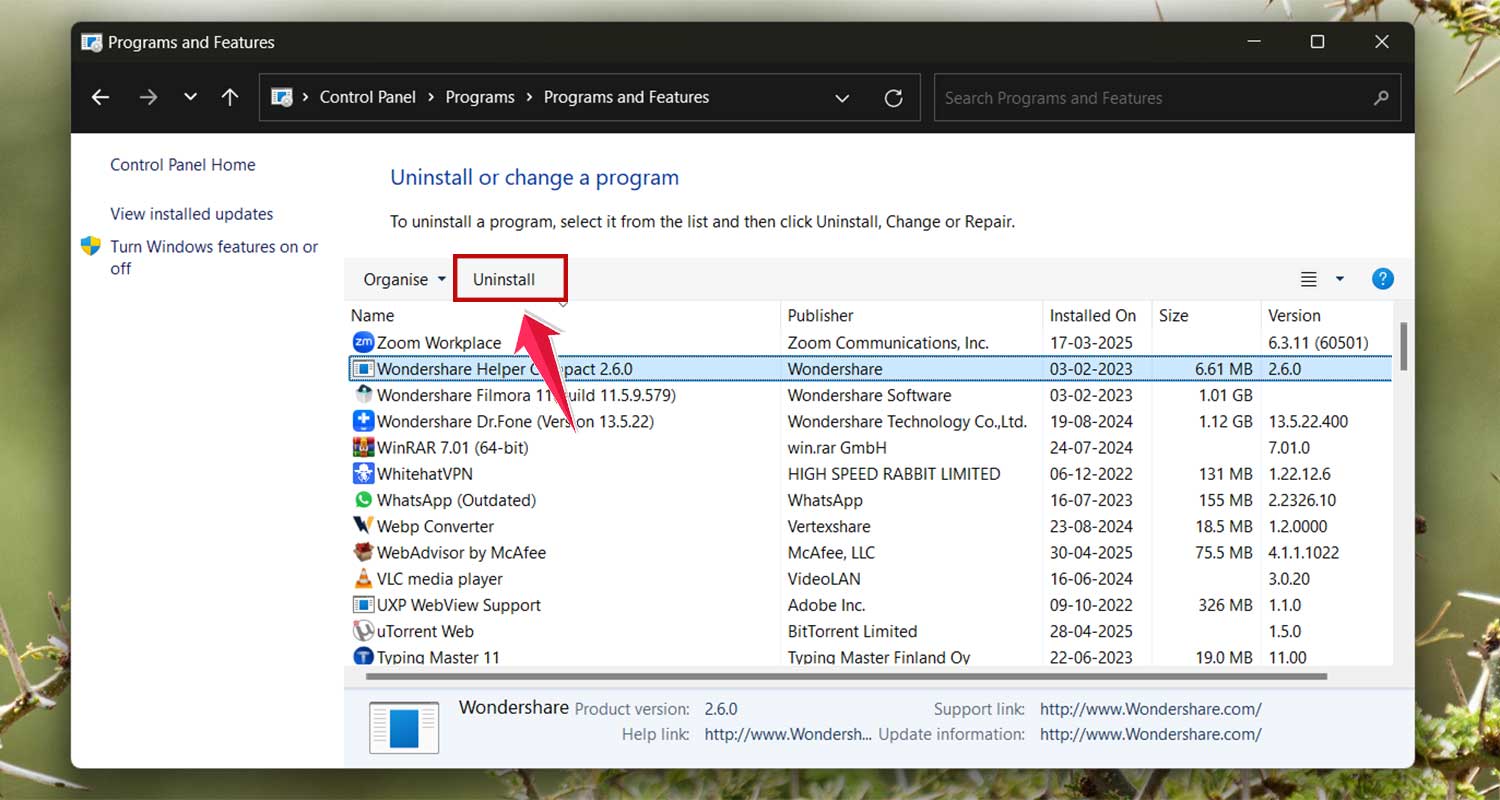
Your system will feel lighter, and those fake alerts will stop.
#5 Run a Trusted Malware Removal Tool
If you’ve done all this and things still feel off, it might be time to run a deep scan. A trusted malware tool can find hidden problems that your main antivirus might miss.
Here’s what you do:
- Download a tool like Malwarebytes or Norton Power Eraser.
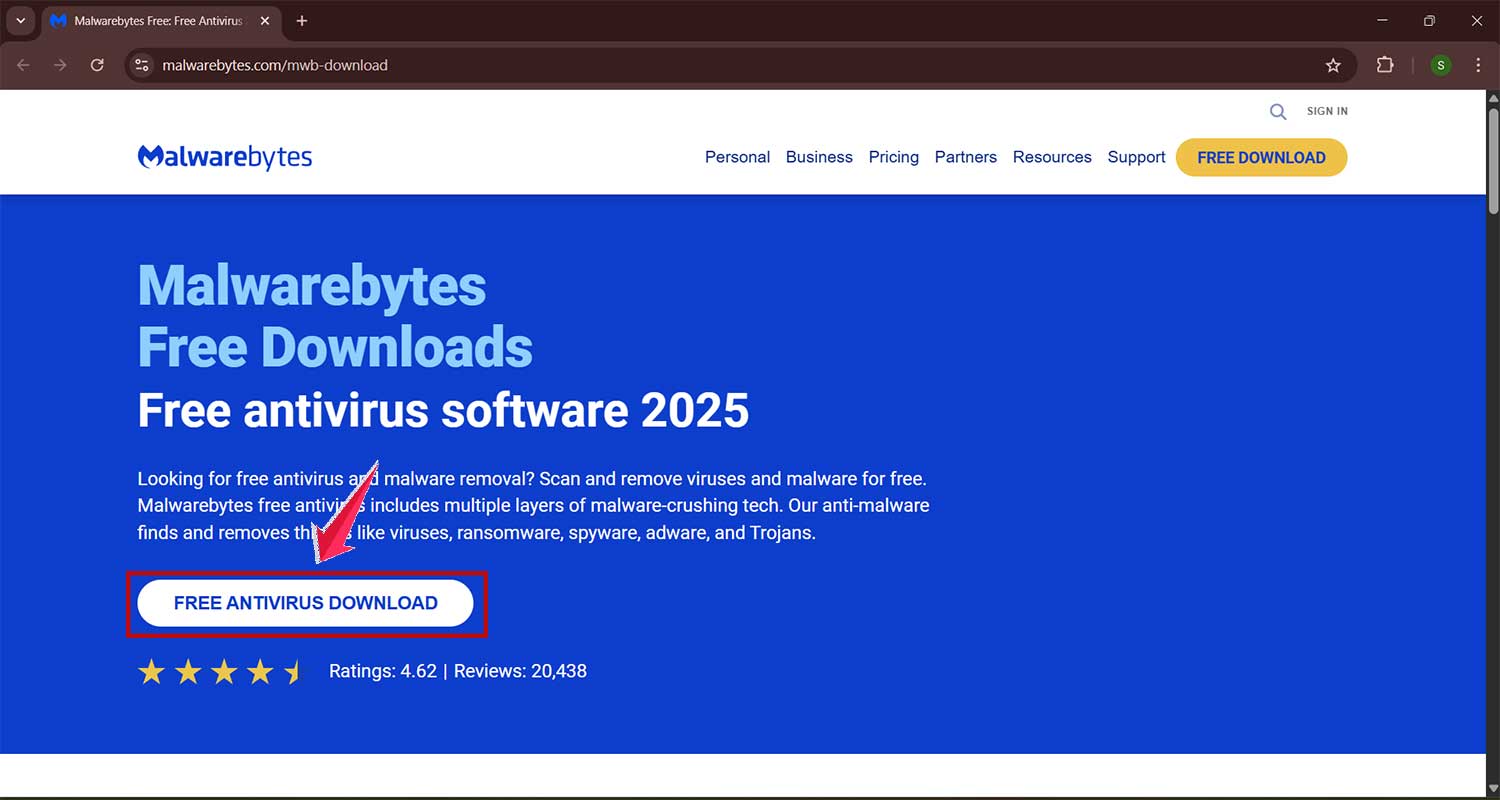
- Install the tool and open it.
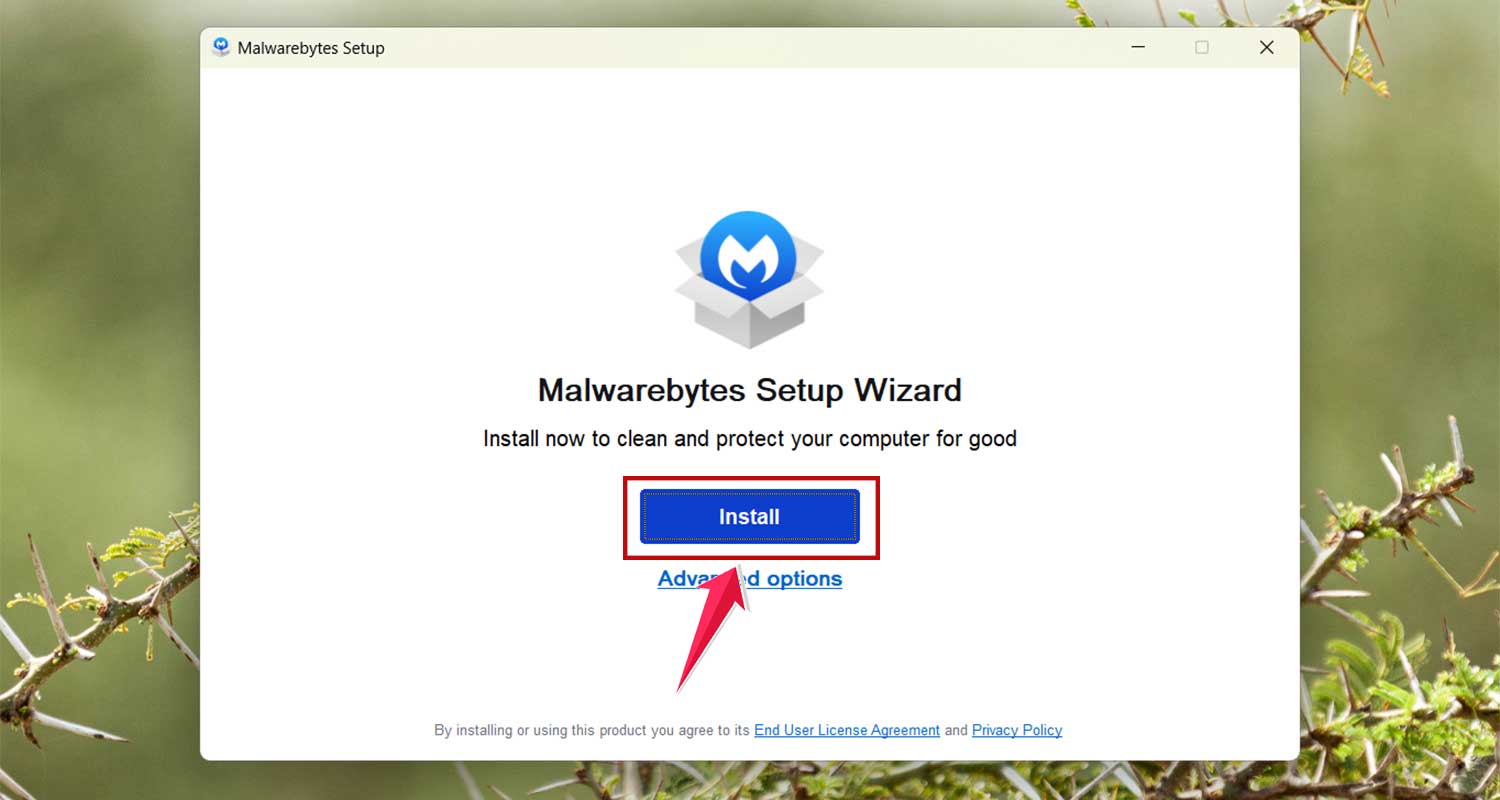
- Run a full system scan.
- Follow the steps to remove anything suspicious it finds.
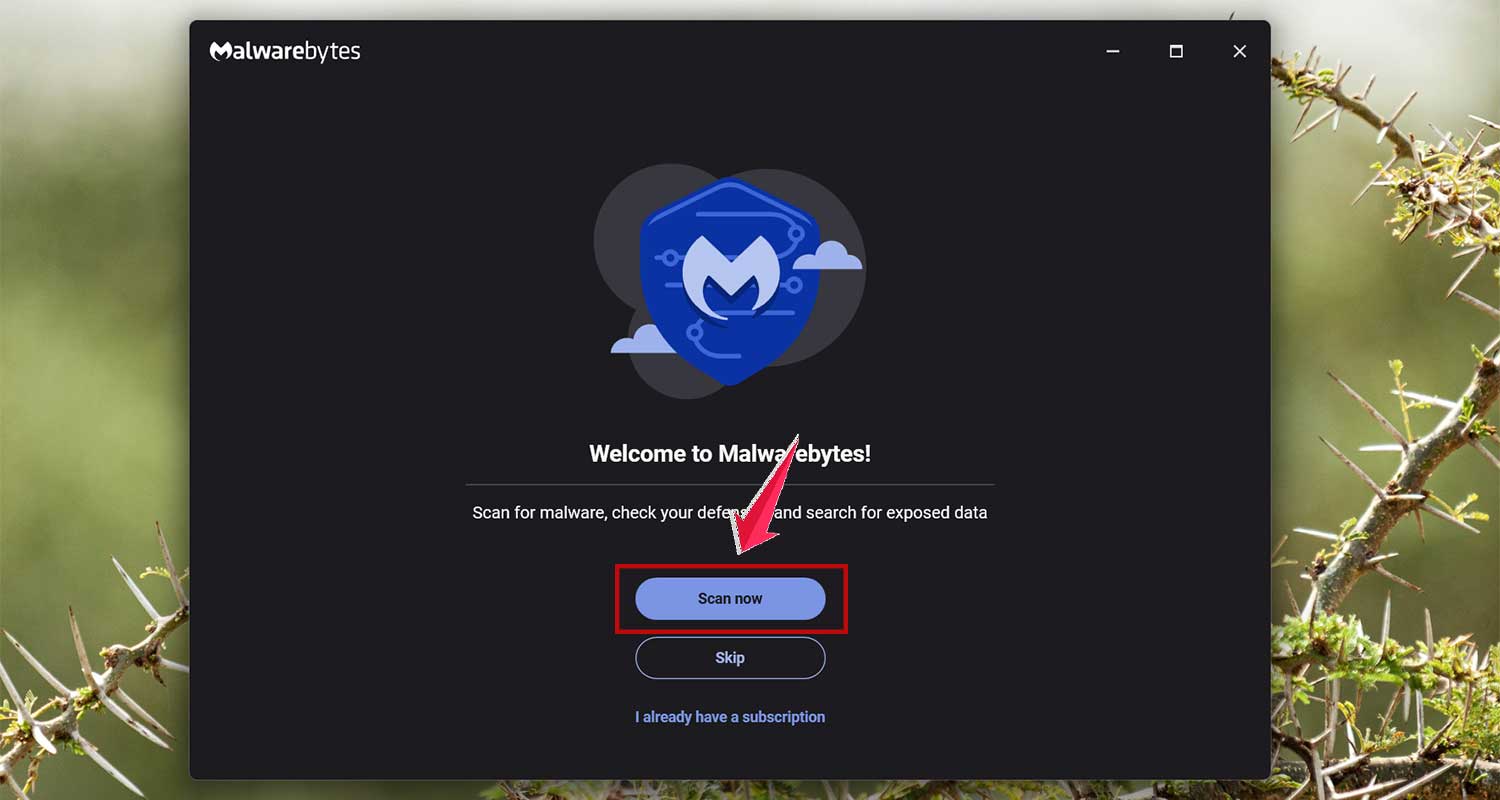
Once it’s done, restart your computer and see if the problem is gone. Most of the time, this clears everything up.
These steps should help you take back control of your computer. You deserve a system that works quietly in the background—not one that keeps yelling at you.
Extra Tips to Keep Your System Happy
You’ve already done the hard part. Now, let’s keep things running smooth with a few extra habits.
1. Always Backup Your Data
Things go wrong sometimes. Having a backup means you won’t lose your photos, documents, or anything else important. Use cloud storage or an external drive—whatever works best for you.
2. Keep Real-Time Protection Enabled
This is like having a guard who never sleeps. It catches threats before they cause problems. Make sure it’s turned on in your antivirus settings.
3. Restart Your Computer Now and Then
It sounds simple, but restarting clears out clutter and refreshes your system. Try to do it at least once a week.
4. Limit Programs at Startup
Too many apps running when your computer starts can slow everything down. Open your Task Manager and turn off anything you don’t need at startup.
5. Run System Checkups Regularly
Once in a while, run a full scan and check for updates on all your software. Staying on top of this stuff keeps problems away.
The Takeaway
Let’s be honest—those random security scans can be a real pain. But now you know why they happen and how to stop them.
From updating your software to running malware tools, these small steps make a big difference.
And remember, not every pop-up means your system is in danger. Sometimes, it’s just a setting that needs a little adjustment.
So don’t panic—just tweak things here and there, and you’ll be back to a smooth, quiet computer life in no time.
If you’ve got a tip that worked for you—or if you’re stuck on something—drop a comment below. I’d love to hear how it’s going for you!