Our existence in the digital universe revolves around high-definition video productions in 2025-from 8K vlogs to immersive VR activities. Large file sizes are slow to upload, create huge storage burdens, and often cause compatibility issues while sharing via Viber, WhatsApp, or other social media.
Compression videos allow the video size to be decreased without sacrificing important quality, which allows for accelerated transfers, seamless playback, and increased support for more devices.
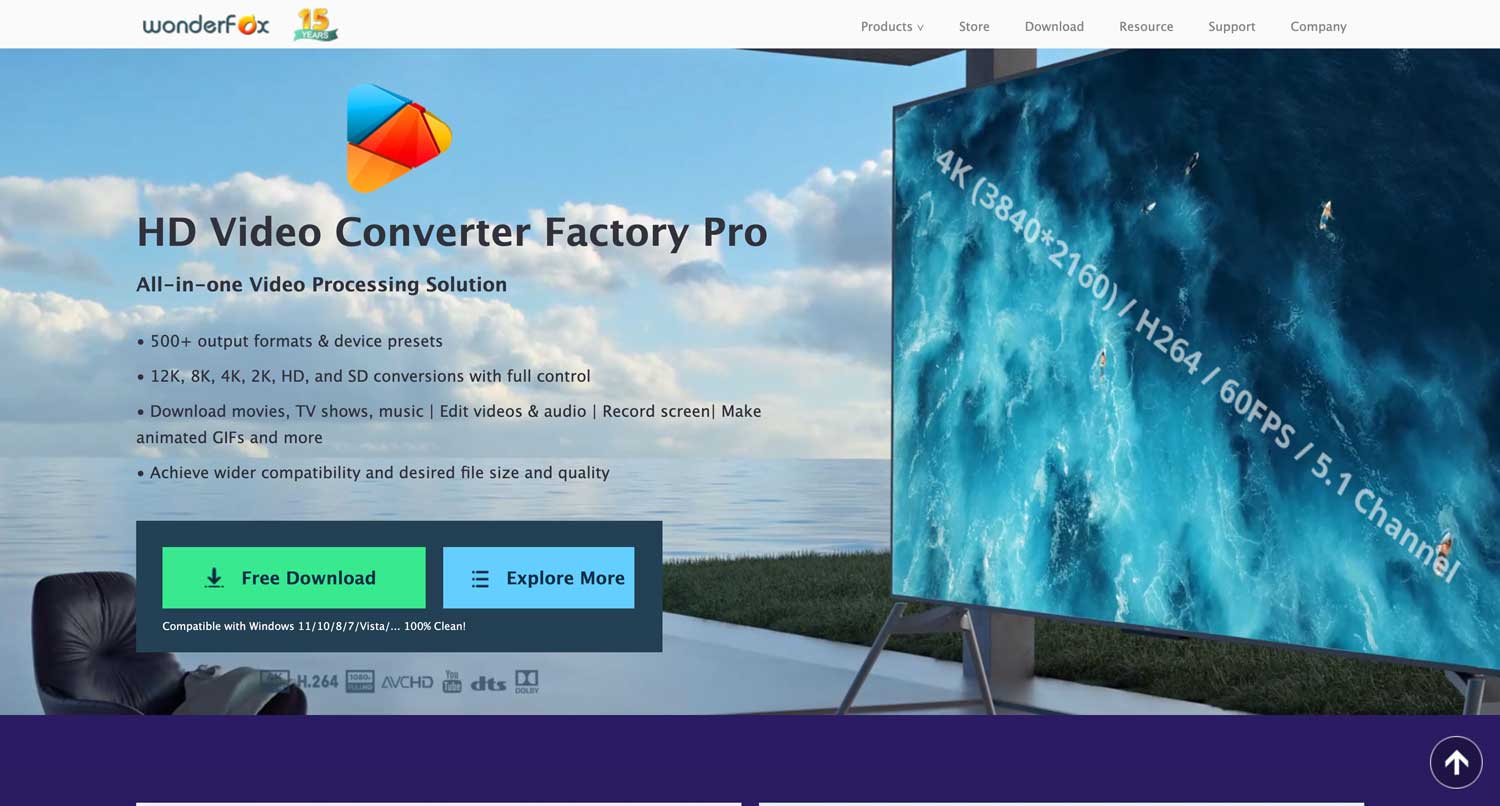
WonderFox HD Video Converter Factory Pro is a superstar tool that aims to make the procedure of video compression easier than ever while maintaining professional results.

Why Choose WonderFox HD Video Converter Factory Pro?
With its multi-functionality, speed, and user-friendliness, this award-winning software stands out in 2025. Whatever your use-whether as a creator, business professional, or casual user-WonderFox HD Video Converter Factory Pro makes video shrunken into fine bits for easy sharing.
We start by inspecting some of its most outstanding features and then move on to some bonus functions that make life easy.
Key Features of WonderFox HD Video Converter Factory Pro
1. Download HD Videos from 1,000+ Websites
Before compression, you might want to source some of the materials. WonderFox HD Video Converter Factory Pro directly downloads videos from sites like YouTube, Dailymotion, Liveleak, and other sites into the standard of 4K/8K resolution. This comes in handy for making use of pre-created content or for archiving benefits.
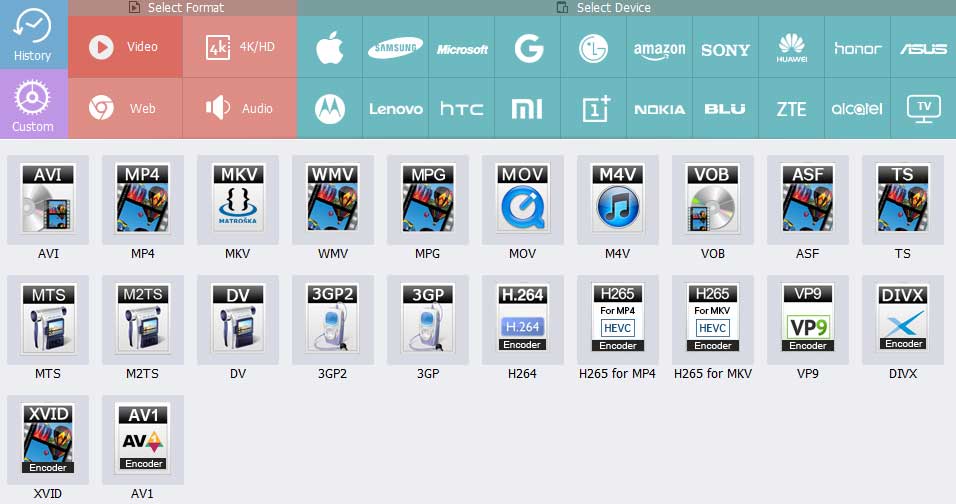
2. Batch Convert Videos to 600+ Formats & Devices
Compatibility is king. WonderFox is meant to save outputs for any of the following: iPhone, android, gaming systems, and some historical devices, even before converting a huge number of files to a small number of files by formats such as MP4, MKV, MOV, or HEVC (H.265) for optimal compression.
The “device preset” for digital imaging provides a fluent experience in using any screen.
3. Equipped with Basic Video Editing Tools
Trim unwanted sections, adjust brightness/contrast, add watermarks, or merge clips before compression. These edits let you refine content while reducing file size—ideal for social media snippets or professional presentations.
4. Bonus Features to Enhance Your Video Processing Experience
- Screen Recorder: Capture tutorials, gameplay, or video calls in HD.
- GIF Creator: Turn video clips or images into animations for sharing.
- Batch Audio/Video Conversion: Process tens of files at once.
- External Subtitles: Embed subtitles for multilingual audiences.
- Custom Ringtone Maker: Trim audio tracks for personalized phone alerts.
- 50x Processing Speed: Support GPU acceleration for lightning-fast conversions.
- Multi-Video Compression: Reduce large files (e.g., 4GB to 200MB) without quality loss.
How to Compress Video Size with 0 Quality Loss?
Almost every messaging platform limits video uploads to 50MB-200MB, Therefore, making it a pressing need to compress videos for Viber, WhatsApp, Instagram, etc. as this would be done with WonderFox HD Video Converter Factory Pro:
- Step 1: First, download and install WonderFox HD Video Converter Factory Pro on your computer. After the installation is finished, open the program.
- Step 2: Click on “Converter” and then add files to the software interface. You can also add more videos if you want to compress them in bulk.
- Step 3: From the “Output Format” section, here is a variety of formats for you to choose from. Formats like mp4 with appropriate settings are much recommended for better compression. Some formats may be more specific with respect to compression ratio along with retaining good quality.
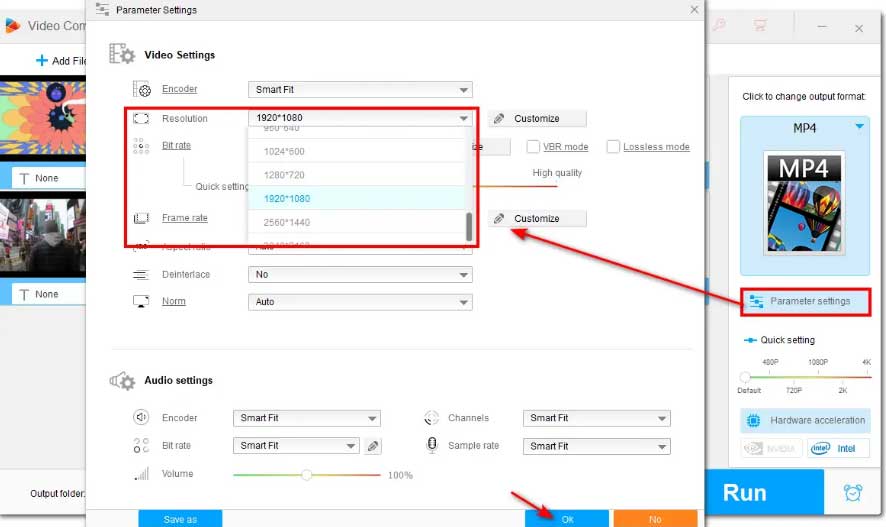
- Step 4: In the settings of the output format chosen, there are some parameters below the resolution, bitrate, and frame rate which can be changed. Reducing resolution (for example, going from 1080p to 720p) and setting a lower bitrate will significantly shrink the size of the video. However, don’t take them down too far as quality goes because the video will be substandard. But after those changes, you might want to check to see if the quality is still acceptable.
- Step 5: Press “Run,” and this initiates the software into action for Compressing the video according to your settings. The progress bar will also give you an idea of how much it has completed. Depending on the video dimensions and how elaborate the settings are, this could take anywhere from a couple of seconds to many minutes. After it is done, you will find the video in a designated output folder, which makes sharing over Viber very easy.
Final Thoughts
In 2025, efficient video compression is non-negotiable. The best and quick solution comes with WonderFox HD Video Converter Factory Pro, as its speed is unmatched along with its versatility as well as an intuitive design.
Now, whether you are sharing through Viber, uploading to YouTube, or archiving projects, this tool will ensure that your videos do not take up space, leaving no negative impact on your video.