I get it. You pull out your phone to snap a quick photo, but then—boom—“Storage Full” pops up. That’s frustrating, right? You’re not alone. A lot of us deal with this. It’s one of those annoying things that just sneaks up on you.
What’s really going on here? Well, your apps are probably hoarding space. They download updates, save files, and just sit there, eating up your storage. Then there are all the photos, videos, and memes we keep piling on.
They may seem small, but together, they can fill up your phone fast. And don’t forget about cached data—those hidden files your apps save to “help” load faster. Over time, they become digital clutter.
Why should you care? Because when your storage is full, your phone slows down. Apps crash, you can’t install updates, and you’re stuck deleting stuff just to take one more picture. But here’s the good news—it doesn’t have to be this way.
You’ve got a tool built right into your Android phone that can help. It’s called Storage Manager, and we’re going to use it to clean things up. Stick with me, and I’ll show you how to make your phone feel brand new again.
Why does your Android phone run out of space so fast
Let’s talk about the usual suspects. These are the reasons your storage fills up before you know it.
1. Apps take up more space than you think
Apps are sneaky. You install one, and it seems small. But then it starts saving updates, files, and other junk over time.
Some apps even download extra content without telling you. Slowly but surely, they start hogging your storage.
2. Photos and videos start to pile up
We all love taking pictures—vacations, birthdays, random stuff. But here’s the thing: they add up. Especially if you’re recording in HD or 4K.
Before you know it, your gallery is holding hundreds (or thousands) of files, and your storage is screaming for help.
3. Cached data builds up quietly
This one’s easy to miss. Apps save cached files to load faster. Sounds good, right? But these files don’t always go away on their own. Over time, they build up and take a big chunk of space.
You don’t even see them, but they’re there—just sitting, doing nothing.
4. System files stick around
Your phone updates itself, and that’s great. But sometimes, it leaves behind system files you don’t need anymore.
You can’t always see them, but they’re still using up space. It’s like cleaning your house but forgetting to take the trash out.
Feeling overwhelmed? Don’t worry. Now that you know what’s causing the problem, let’s fix it step by step.
How to clean up storage using Android’s Storage Manager
Alright, ready to clean things up? Let’s walk through the fixes together. I’ll explain everything in simple terms, and I’ll only use steps when you need to press something on your phone.
#1 Turn on Storage Manager to clean up automatically
Let’s start with the easiest fix. Storage Manager is a built-in feature on Android that helps you delete old stuff you don’t need, like photos that are already backed up to the cloud. It works in the background, so you don’t have to keep checking your storage every day.
Here’s how to turn it on:
- Open your Settings app.
- Scroll down and tap Battery and device care.
- Then tap on the three dots in the top right corner.
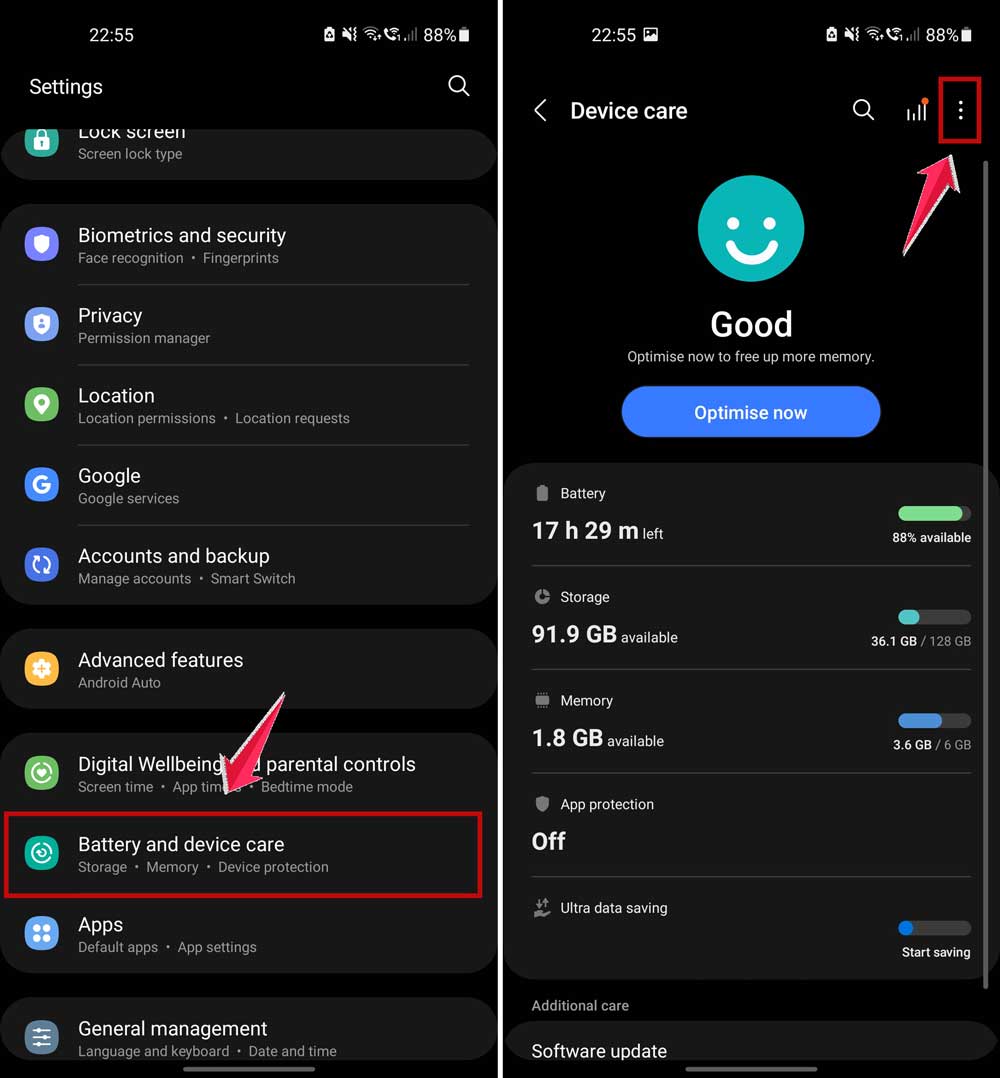
- Now, click on Storage Booster.
- Turn on Auto delete unnecessary data.

That’s it. Now your phone will automatically delete backed-up files after a certain time. It’s like having a little helper keeping things tidy.
#2 Free up space manually when you need to
Sometimes, you want to be the one in control. That’s totally fine. You can go in and choose exactly what to delete. This is great for getting rid of old downloads, unused apps, or random files sitting around.
Here’s what to do:
- Go to Settings.
- Tap Battery and device care.
- Click on the three dots in the top right corner.
- Tap Storage booster.
- Tap to Free up space.
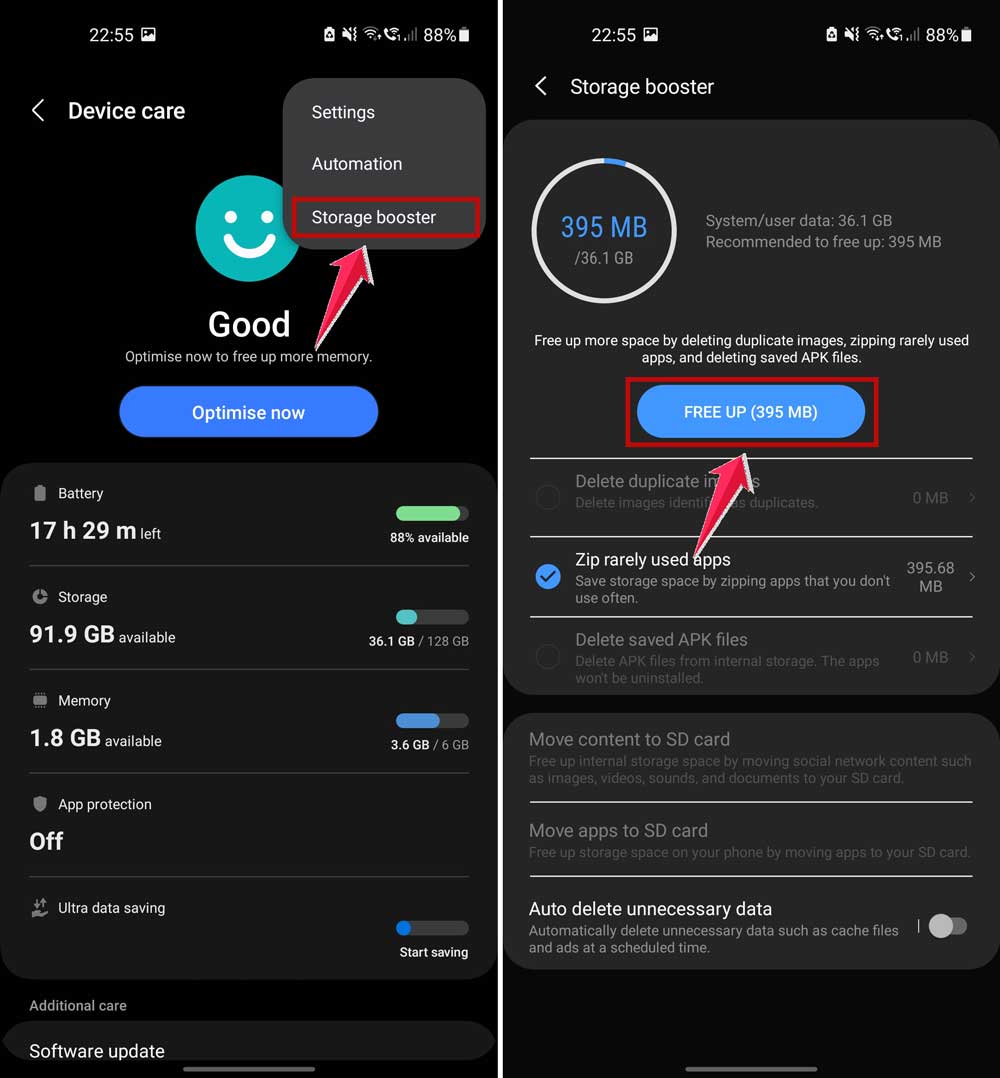
From here, you’ll see a list of stuff you can delete. Take a few minutes to go through it. Remove anything you don’t use or need anymore. You’ll be surprised how much space you can get back.
#3 Clear cached data from apps
Remember those hidden files we talked about earlier? Time to kick them out. Clearing the cache won’t delete your personal stuff—it just removes temporary files that apps saved.
Here’s how to do it:
- Open Settings.
- Tap Apps or Manage Apps.
- Pick an app that takes up a lot of space. Take Google Drive as an example.
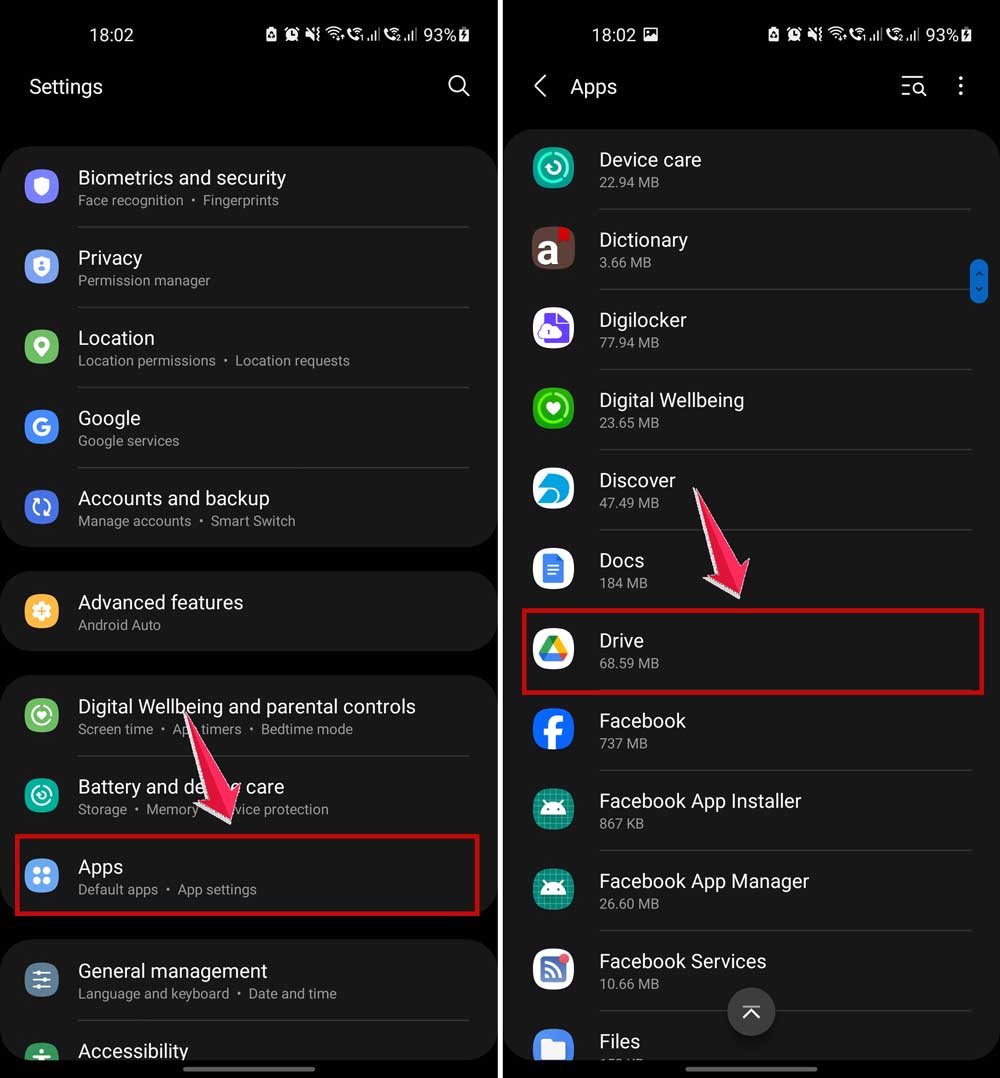
- Tap Storage.
- Then tap Clear Cache.
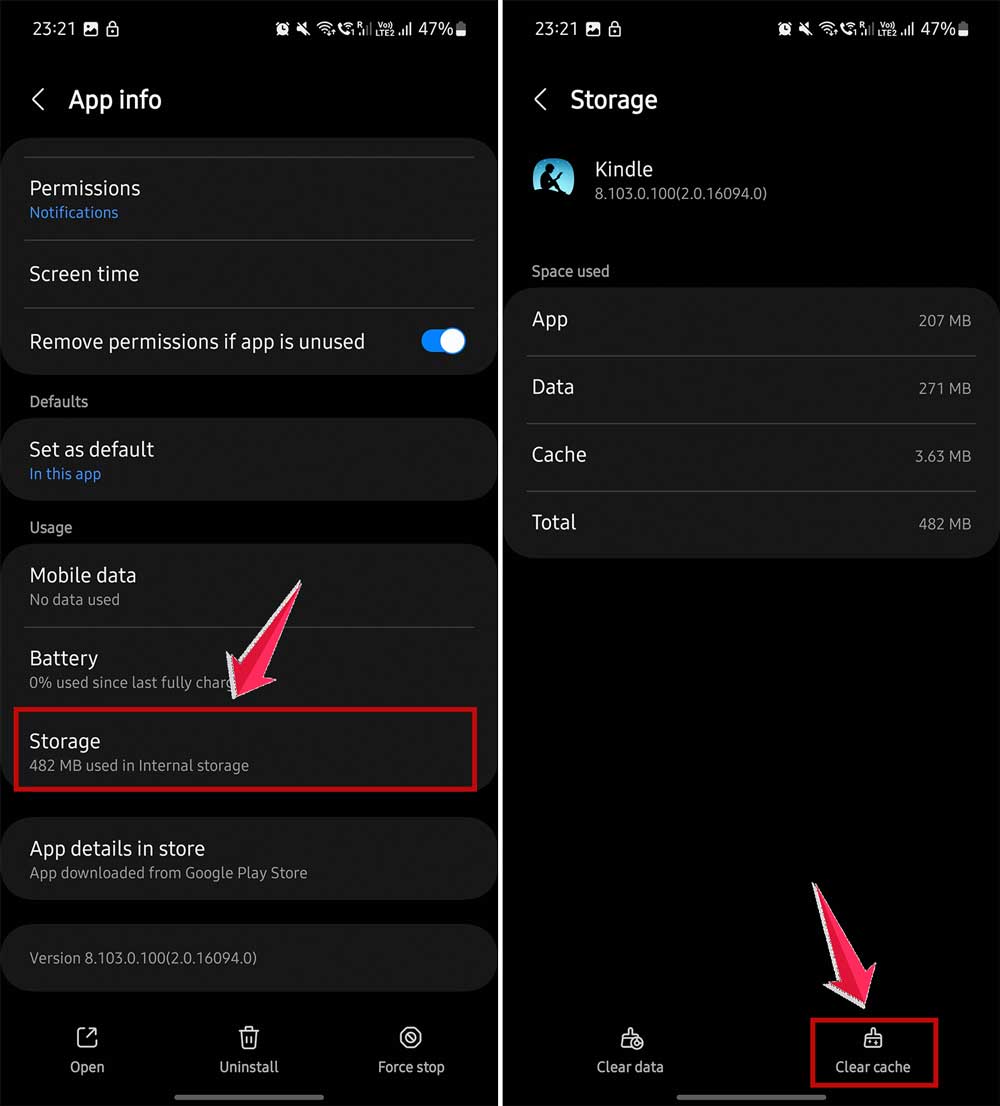
Do this for a few apps that you use often. Your phone will still run fine, and you’ll free up some space instantly.
#4 Disable or uninstall apps you don’t use
Let’s be honest—there are probably apps on your phone you haven’t opened in months. They’re just sitting there, taking up space. Time to let them go.
Here’s what you can do:
- Go to Settings.
- Tap Apps.
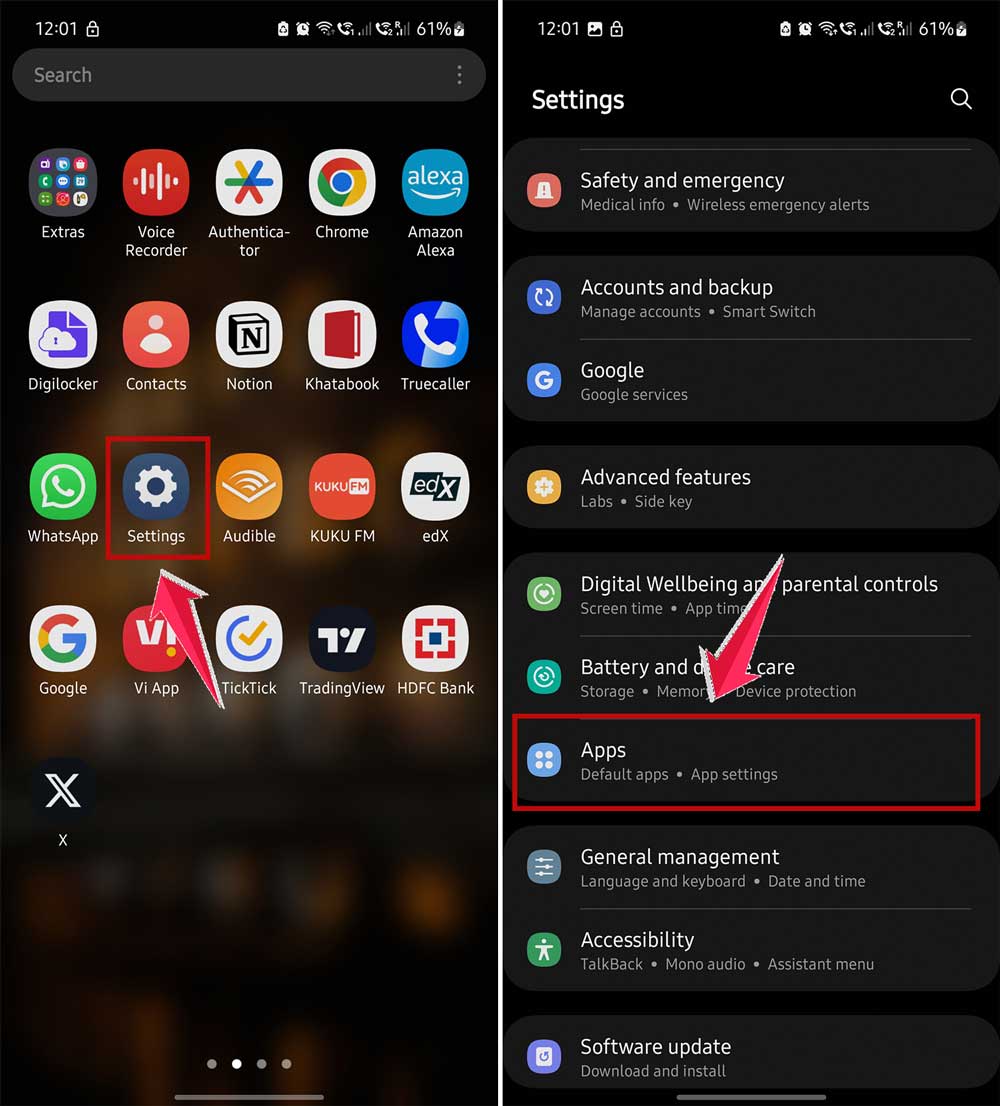
- Scroll through the list and find apps you don’t use.
- Tap the app, then tap Disable or Uninstall.
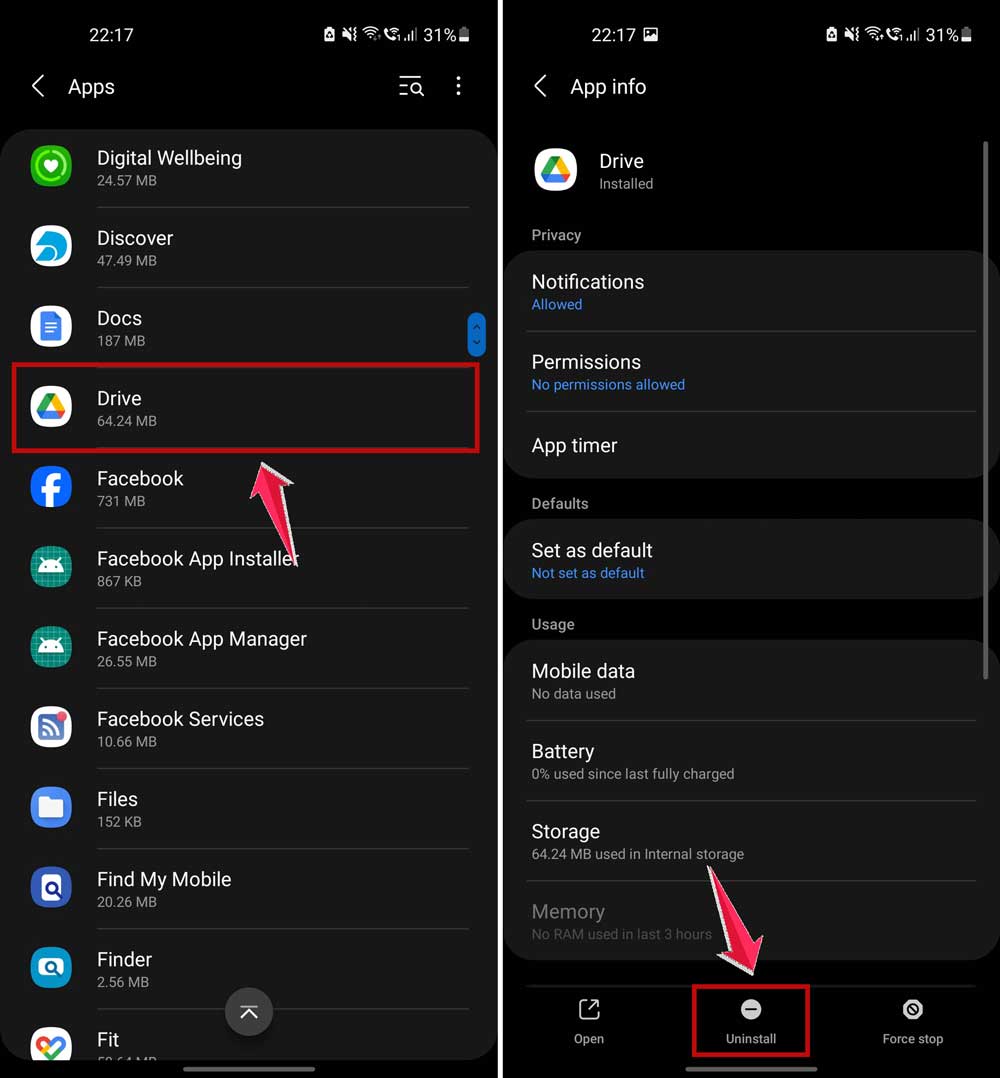
If you ever need them again, you can reinstall them. But for now, they’re just clutter.
#5 Check your Downloads folder
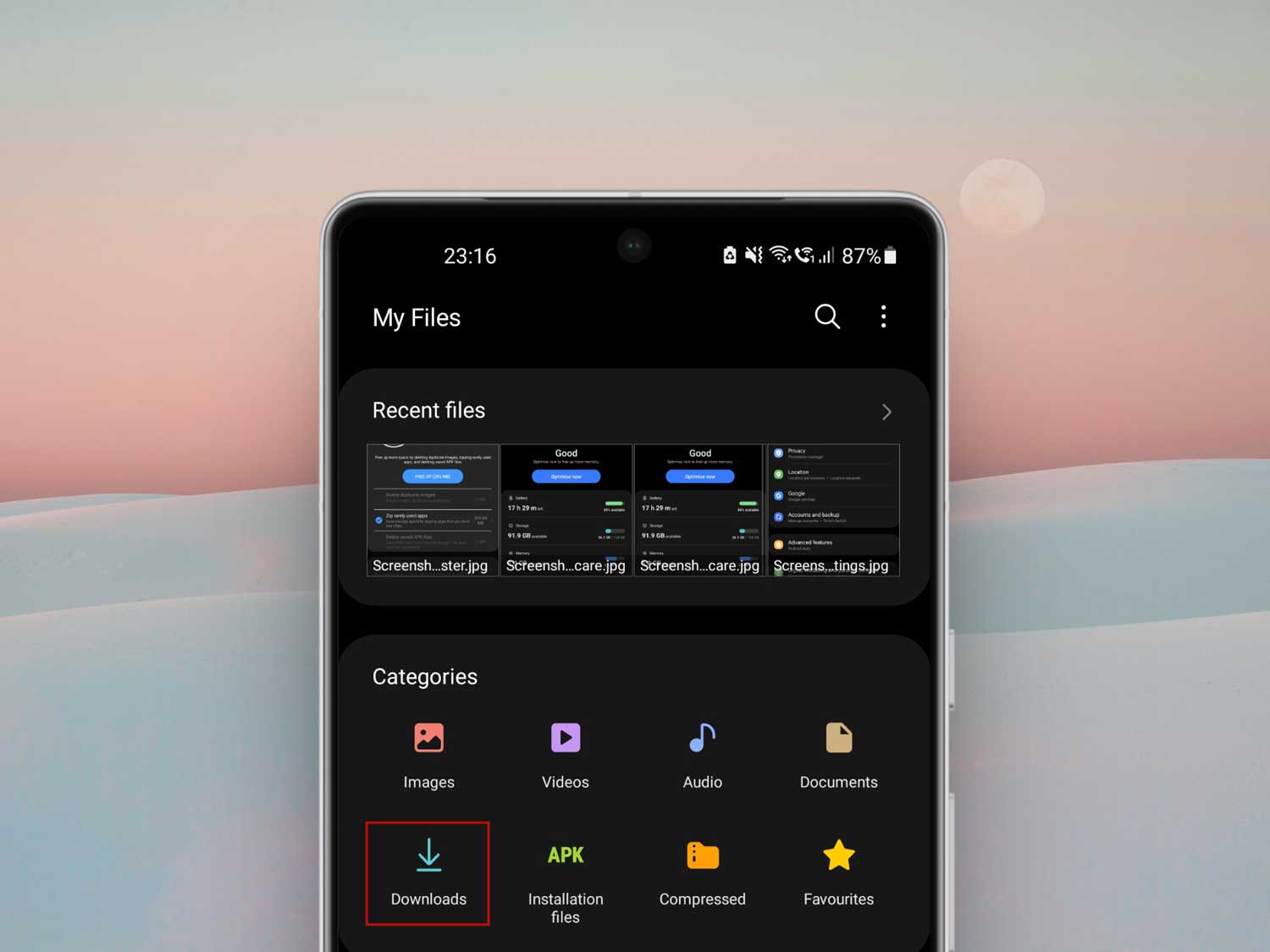
This one’s easy to forget. Your Downloads folder is like the junk drawer of your phone. Old PDFs, photos, and random files pile up here.
Take a minute to open your file manager and go to the Downloads folder. Delete anything you don’t need anymore. It’s a quick win.
#6 Move your photos and videos to the cloud
Photos and videos take up the most space for many of us. But there’s no need to keep them all on your phone. Use cloud services like Google Photos to back them up.
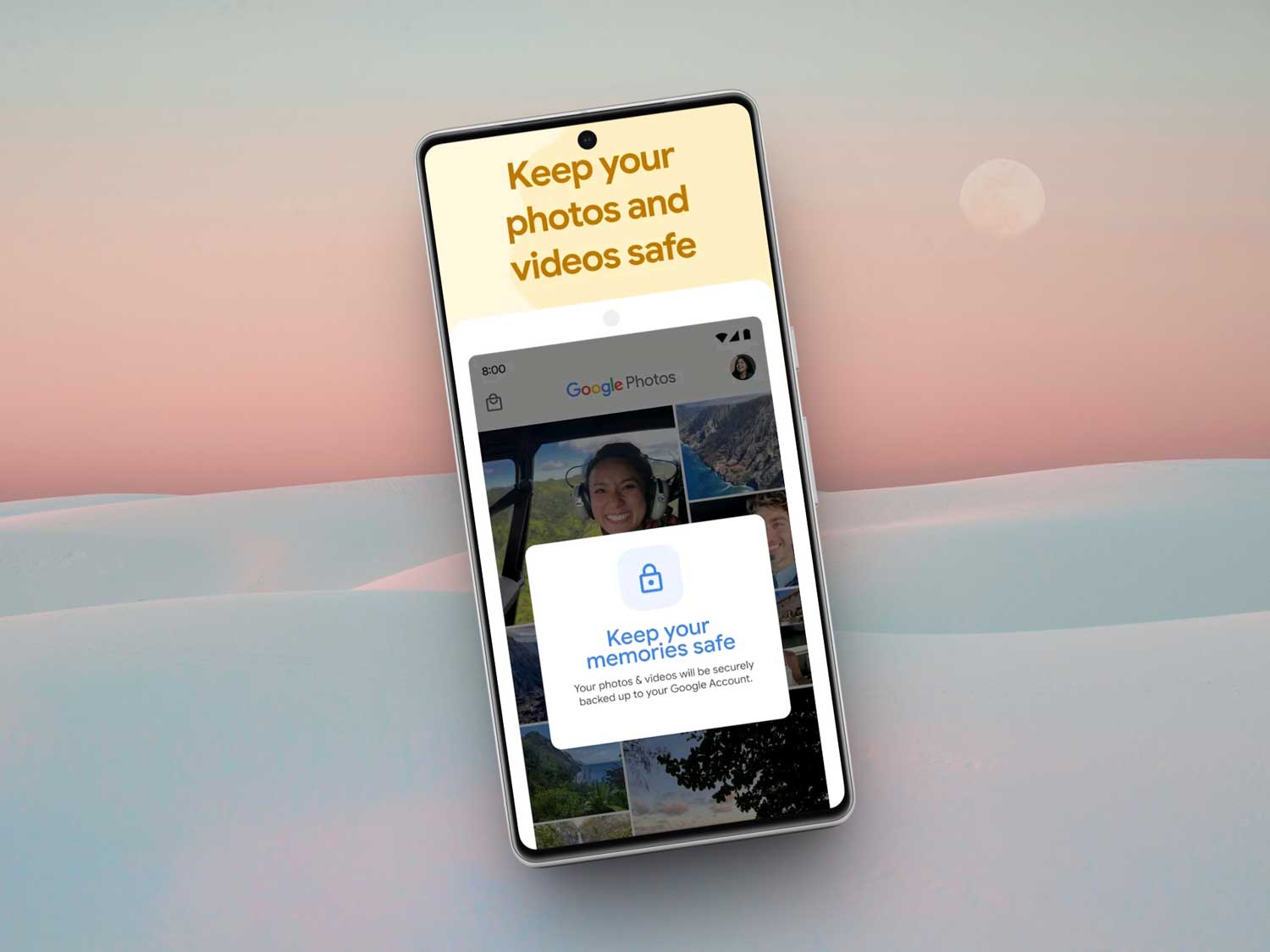
Once they’re backed up, you can delete them from your device. Don’t worry—they’ll still be safe and easy to access whenever you want.
Extra tips to keep your Android clean
Here are a few more ideas that’ll help you stay ahead of the clutter.
1. Use cloud storage regularly. Make it a habit. Back up your photos and videos to the cloud every week. This keeps your gallery clean and saves space fast.
2. Set up auto-delete. Some phones let you set an auto-delete for temporary files. Use that feature. It clears out old junk you forgot even existed.
3. Keep your phone updated. Software updates often fix bugs and improve storage efficiency. Don’t skip them.
4. Try the lite versions of apps. Many popular apps have “lite” versions. They do the same thing but take up less space.
5. Use Files by Google. This app shows you what’s taking up space and gives smart suggestions on what to delete. Super helpful.
The Takeaway
Let’s be real—running out of space on your phone is annoying. But now you know what causes it and, more importantly, how to fix it.
From apps hoarding space to cached files building up, it all adds up over time. But with a few smart moves, you can take back control.
Start by turning on Storage Manager and backing up your photos to the cloud. Then, go in and clear out the cache, delete unused apps, and clean your Downloads folder. These small steps make a big difference.
And remember—clearing the cache won’t delete your important stuff. It just kicks out the junk.
Your phone should feel smoother now, with more room for the things you actually care about. So go ahead, take that photo, install that app, and enjoy a faster, lighter Android.
Got more tips that worked for you? Drop them in the comments below—I’d love to hear what’s helped you free up space!