So, you’re probably here because you need to know how to check your word count in Google Docs. It’s a simple thing, right? But when you’re working on an essay, blog post, or report, it matters more than you think.
You don’t want to go over your word limit, and you don’t want to fall short either. Keeping track of your word count helps you stay on point, hit your target, and avoid frustration.
The good news is, Google Docs makes it super easy to check. Whether you’re on your laptop or mobile or even just need to check a specific section, it’s quick and simple.
So, let’s dive in. By the end of this, you’ll be a pro at managing your word count without breaking a sweat.
How to check word count on a computer (desktop or laptop)
#1 Using the tools menu
The easiest way to check your word count on a computer is through the tools menu. Here’s how:
- Open your Google Doc.
- Click on “Tools” in the top menu bar.
- Select “Word count” from the dropdown menu.
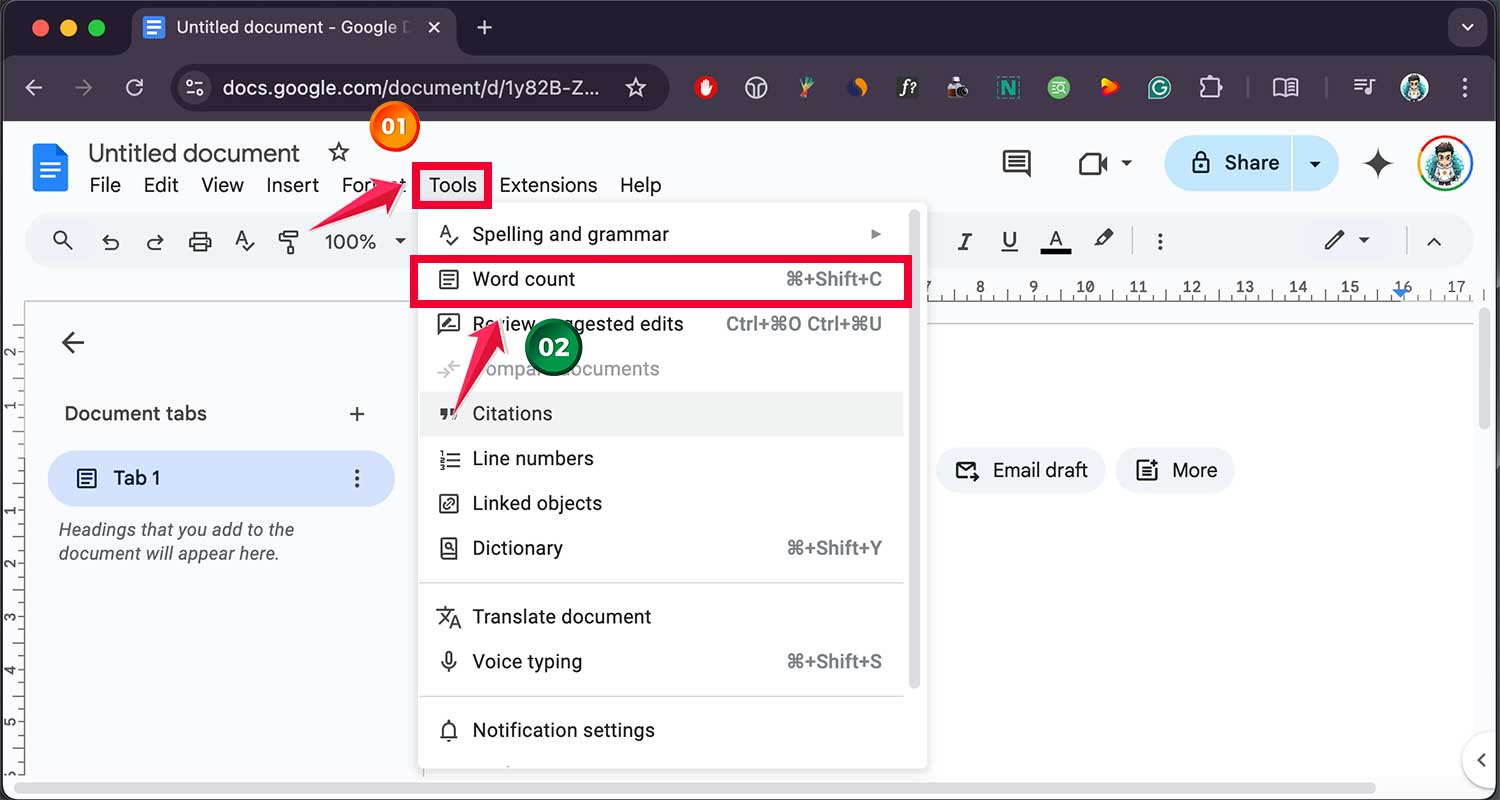
A pop-up window will appear, showing the total word count, page count, and character count (with and without spaces). It’s a quick way to get an overview of your document’s stats.
#2 Keyboard shortcuts
If you’re looking for speed, use a shortcut:
- On Windows, press Ctrl + Shift + C.

- On Mac, press Command (⌘) + Shift + C.

This instantly opens the word count window, saving you clicks. It’s perfect for frequent checks without breaking your writing flow.
#3 Count words while typing
Want to see your word count in real-time? Google Docs lets you enable a live word counter:
- Open the word count window using the tools menu or a shortcut.
- Check the box labeled “Display word count while typing”.
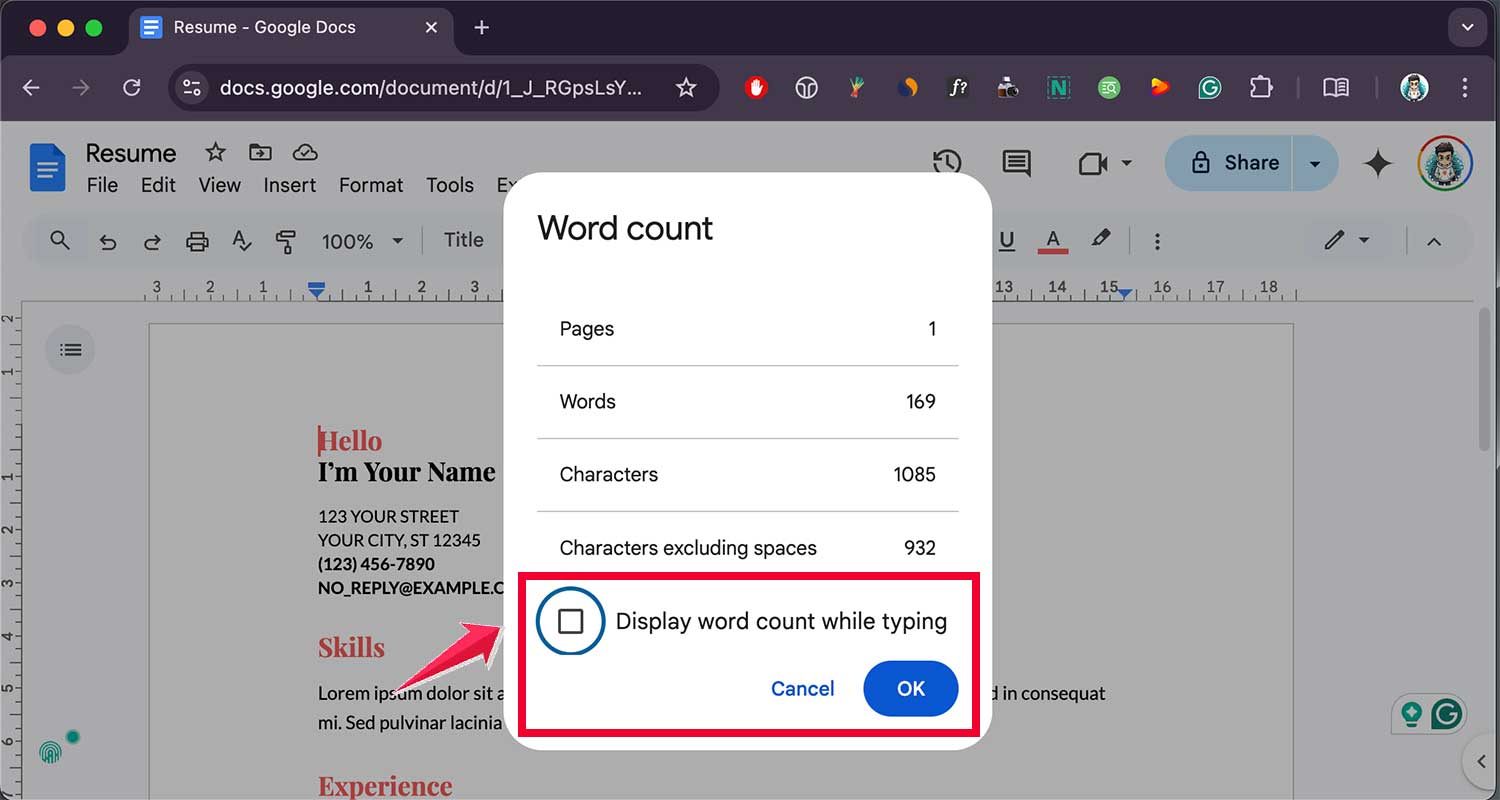
Once enabled, a small word count display will appear in the bottom-left corner of your document, updating as you write. It’s a great feature for writers who need to hit specific targets without stopping to check manually.
How to check word count on Android
Checking your word count on an Android device is simple with the Google Docs app. Here’s how to do it:
- Open the Google Docs app on your Android phone or tablet.

- Open the document you want to check.
- Tap the three-dot menu in the top-right corner of the screen.

- Scroll down and tap “Word count”.

A pop-up will appear, showing the total word count, character count (with and without spaces), and page count for your document.
How to check word count on Android iPhone or iPad
The process is nearly identical for iOS users. Follow these steps:
- Launch the Google Docs app on your iPhone or iPad.
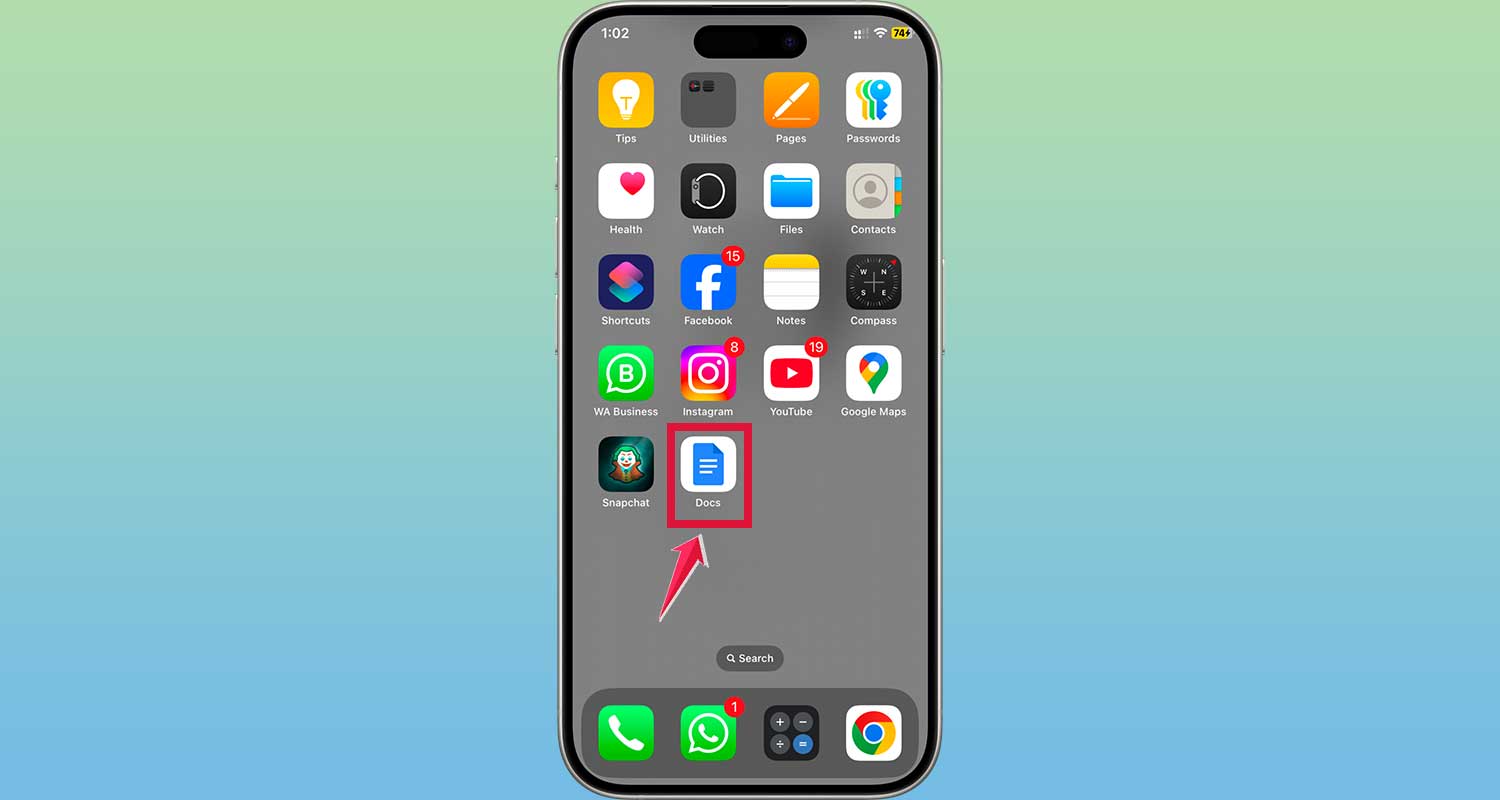
- Open your document.
- Tap the three-dot menu in the top-right corner.
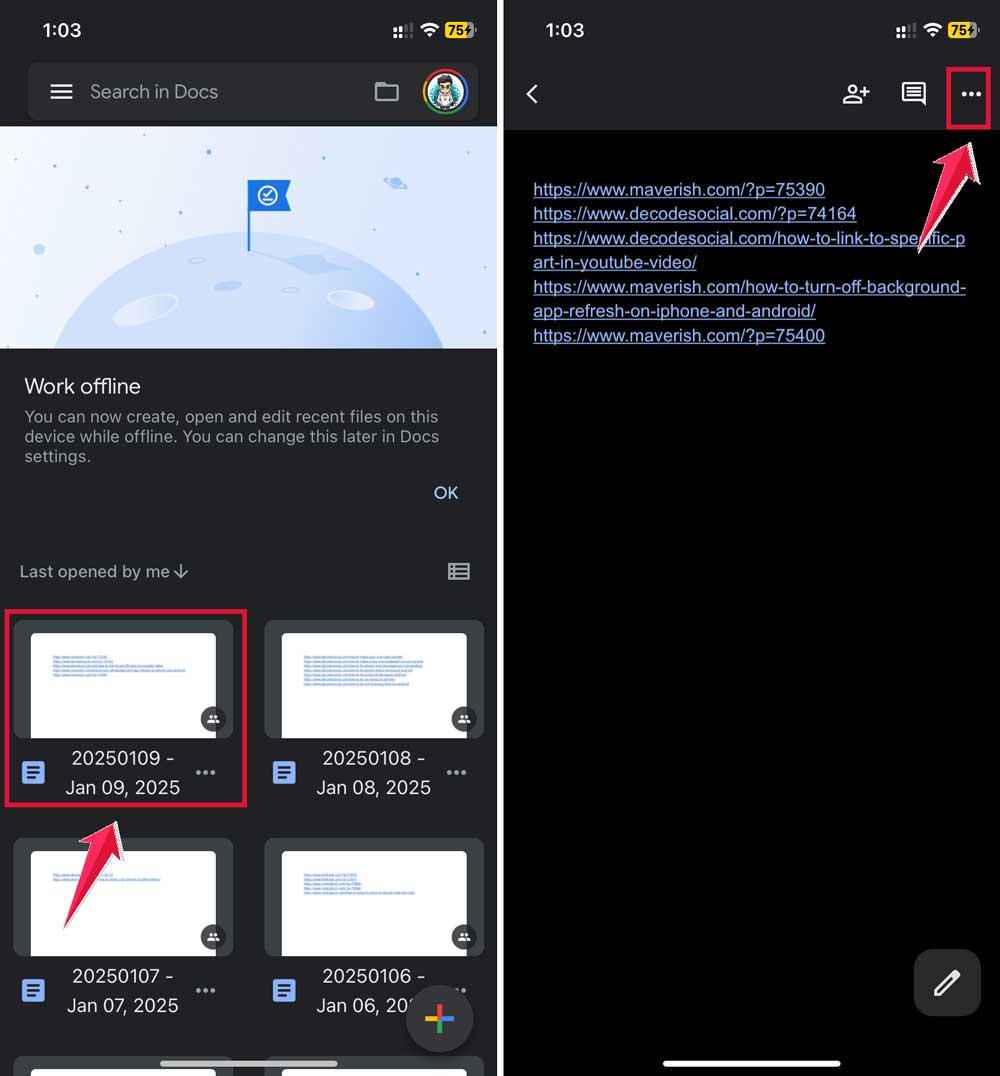
- Select “Word count” from the menu options.
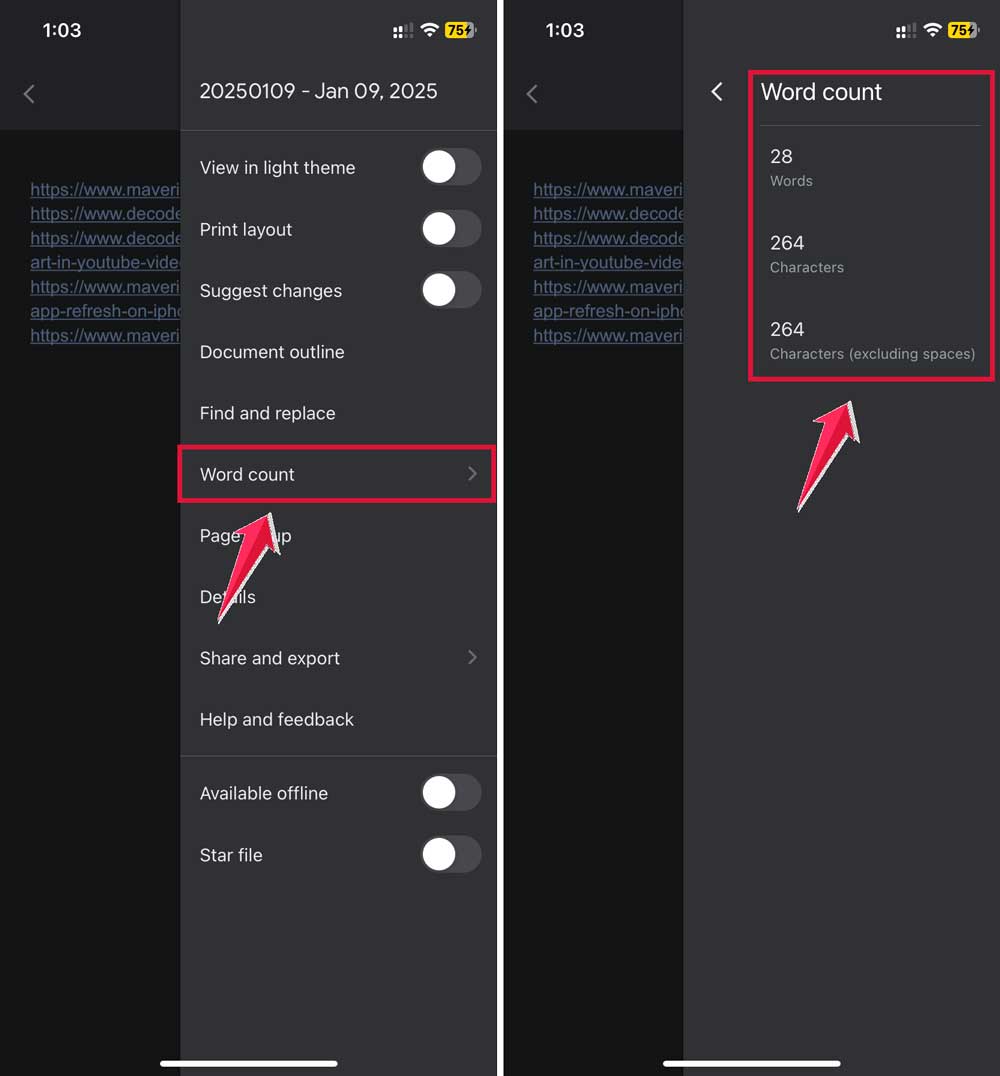
Just like on Android, a pop-up will display the relevant stats for your document.
How to check word count for a specific section
Sometimes, you don’t need the word count for the entire document—just a specific section. Google Docs makes this easy with its word count feature.
Here’s how to do it:
- Highlight the text you want to analyze by clicking and dragging your cursor over it (desktop) or tapping and holding (mobile).
- On a computer, go to Tools > Word count or press Ctrl+Shift+C (Windows) or Command+Shift+C (Mac).
- On mobile devices, follow the steps to check word count in the app.
- (tap the three-dot menu and select “Word count”).
A pop-up will display the word count for your highlighted text alongside the stats for the full document. For example, it might say “120 of 1,500 words”, helping you see how much of the total word count comes from that section.
How word counts are calculated? What’s included and what’s excluded while counting words?
Let’s talk about what Google Docs actually counts when it gives you a word count.
Most of your visible text gets counted – that’s the main content you write in your document. This includes all the words in your paragraphs and any text you put in tables. Even numbers count as words, so “123” counts as one word.
What about links? Google Docs counts parts of URLs as separate words. So if you have something like “https://example.com” in your document, it might count as multiple words. Keep this in mind if you’re working with a strict word limit.
Let me give you a quick list:
- All text in the main body of the document.
- Links: URLs are counted as words (e.g., “https://example.com” might count as three words).
- Text in tables: Every word in a table counts.
- Numbers: Numbers like “123” count as one word.
But not everything makes it into the word count. Your headers and footers don’t count, and neither do footnotes. If you’re collaborating with others, don’t worry about comments or suggestions affecting your word count – they’re not included either.
- Headers and footers: Any text in these sections is excluded.
- Footnotes: Footnotes won’t count towards your total.
- Comments and suggestions: If you’re collaborating, these won’t affect the count.
What about special characters? Things like “#” or “@” aren’t counted as words on their own, but they will show up in your character count. Speaking of character count, Google Docs can show you this too – both with and without spaces, which can be handy if you need it.
Troubleshooting: When word count isn’t working
If you’re having trouble checking your word count in Google Docs, don’t worry. Most issues can be solved quickly. Here’s what you can try:
1. The word count window doesn’t open: Refresh your browser by pressing Ctrl + R (Windows) or Command + R (Mac). If this doesn’t work, close the document and reopen it.
2. Word count isn’t updating in real-time: Ensure the “Display word count while typing” option is enabled. If it’s already on, disable and re-enable it to refresh the display.
3. Word count feature is missing: Make sure you’re signed into your Google account and have editing access to the document. Viewing or suggesting mode won’t allow word count adjustments.
4. Errors on mobile devices: Update the Google Docs app to the latest version. If the issue persists, try uninstalling and reinstalling the app.
5. Browser-related glitches: Clear your browser’s cache and cookies, then restart it. Alternatively, try opening Google Docs in a different browser.
If none of these fixes work, it may be an issue with Google Docs itself. Visit the Google Workspace Support page or use the Help option in the app to report the problem. You can also check the Google Workspace Status Dashboard to see if there are any ongoing service disruptions.
The takeaway
You’ve learned that knowing how to check your word count is a must for staying on track with your writing. Whether it’s a school project, blog post, or work report, tracking your word count ensures you meet guidelines and keep your content clear and focused.
With Google Docs, it’s easy to check your word count. Use the tools menu, turn on real-time updates, or check sections of text. And remember, you can do all this on your mobile device, too.
The most important thing? Managing your word count is key to staying organized and hitting your writing goals. So, use these tips to make your process smoother and stress-free.
Have you tried these tips? Let me know in the comments below!