You use your phone all the time, right? Watching videos, texting, scrolling endlessly. But have you ever stopped to think about what it might be doing to your body?
I’m not talking about addiction or screen time.
I’m talking about something called SAR.
What is SAR and why does it matter?
SAR means Specific Absorption Rate. It measures how much radiation your body absorbs from your phone.
Every device emits some radio frequency (RF) energy while on. SAR shows how much of that energy your body takes in, especially when the phone is near your head or in your hand.
Don’t worry. This doesn’t mean your phone is unsafe. Every phone must meet safety standards set by government authorities.
Most countries have a limit, usually 1.6 W/kg averaged over one gram of tissue. That’s the maximum your phone can emit.
Yes, your phone is designed to stay below that limit. Still, it’s wise to check. Even if something meets the rules, you deserve to know what your body is exposed to.
How much SAR value is safe for the head and body
If you’re in the US or India, stick with devices that stay below 1.6 W/kg.
In Europe, the limit is slightly higher at 2.0 W/kg, but the testing method is different.
Either way, knowing your SAR value gives you more control. You get to decide how close or far you want that phone from your head. It’s just about awareness, not fear.
Let’s look at a few iPhone examples
Just to give you an idea, here are some SAR values of common iPhones.
| Apple iPhone Model | Head SAR | Body SAR |
|---|---|---|
| iPhone 3GS | 1.19 W/kg | 0.67 W/kg |
| iPhone 4 | 1.17 W/kg | 1.19 W/kg |
| iPhone 4S | 1.18 W/kg | 1.18 W/kg |
| iPhone 5 | 1.06 W/kg | 1.19 W/kg |
| iPhone 5C | 1.19 W/kg | 1.18 W/kg |
| iPhone 5S | 1.18 W/kg | 1.18 W/kg |
| iPhone 6 | 1.18 W/kg | 1.19 W/kg |
| iPhone 6 Plus | 1.19 W/kg | 1.14 W/kg |
| iPhone 6S | 1.14 W/kg | 1.14 W/kg |
| iPhone 6S Plus | 1.12 W/kg | 1.14 W/kg |
| iPhone SE | 1.14 W/kg | 1.14 W/kg |
| iPhone 7 | 1.11 W/kg | 1.14 W/kg |
| iPhone 7 Plus | 1.09 W/kg | 1.1 W/kg |
| iPhone 8 | 1.14 W/kg | 1.08 W/kg |
| iPhone 8 Plus | 1.19 W/kg | 1.19 W/kg |
| iPhone X | 1.12 W/kg | 1.19 W/kg |
| iPhone XR | 1.13 W/kg | 1.16 W/kg |
| iPhone XS | 1.19 W/kg | 1.18 W/kg |
| iPhone XS Max | 1.16 W/kg | 1.17 W/kg |
| iPhone 11 | 1.14 W/kg | 1.17 W/kg |
| iPhone 11 Pro | 1.16 W/kg | 1.18 W/kg |
| iPhone 11 Pro Max | 1.16 W/kg | 1.17 W/kg |
| iPhone SE (2nd Gen) | 1.17 W/kg | 1.20 W/kg |
| iPhone 12 | 1.17 W/kg | 1.19 W/kg |
| iPhone 12 Mini | 1.19 W/kg | 1.19 W/kg |
| iPhone 12 Pro | 1.17 W/kg | 1.19 W/kg |
| iPhone 12 Pro Max | 1.17 W/kg | 1.20 W/kg |
| iPhone 13 | 1.18 W/kg | 1.19 W/kg |
| iPhone 13 Mini | 1.19 W/kg | 1.19 W/kg |
| iPhone 13 Pro | 1.20 W/kg | 1.19 W/kg |
| iPhone 13 Pro Max | 1.18 W/kg | 1.20 W/kg |
| iPhone SE (3rd Gen) | 1.20 W/kg | 1.20 W/kg |
| iPhone 14 | 1.15 W/kg | 1.16 W/kg |
| iPhone 14 Plus | 1.14 W/kg | 1.15 W/kg |
| iPhone 14 Pro | 1.15 W/kg | 1.15 W/kg |
| iPhone 14 Pro Max | 1.15 W/kg | 1.07 W/kg |
| iPhone 15 | 1.12 W/kg | 1.09 W/kg |
| iPhone 15 Pro | 1.14 W/kg | 1.16 W/kg |
| iPhone 15 Pro Max | 1.07 W/kg | 1.11 W/kg |
As you can see, even top models get close to the limit. That’s why checking your own model makes sense.
So how do you find your phone’s SAR value?
7 Ways to Check Mobile Radiation (SAR Value)
I’ll show you. Here are 7 simple ways to check the radiation level of your phone. Whether you use Android or iPhone.
Let’s start with the fastest one.
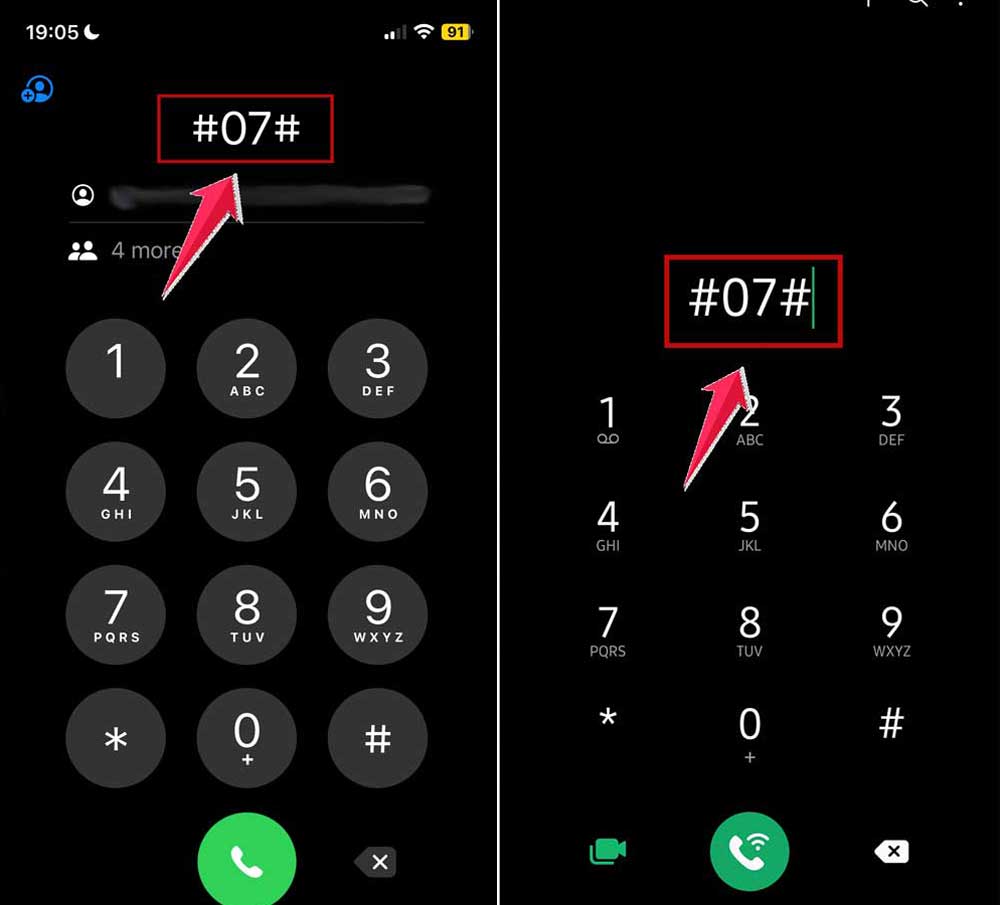
#1 Use the USSD Code on your phone’s dialer
One of the quickest ways to find your device’s RF exposure is through the Phone app.
You know, it works on most phones, no matter if it is an iPhone or an Android. The code is always the same.
Just open your phone’s dialer and type this code: *#07#. And now tap the call button.
On Android phones, it might directly show the SAR value on your screen.
If you’re using an iPhone, it opens a screen that says “RF Exposure.” Tap it.
You’ll see a link at the bottom. Tap that too. It takes you to a webpage showing your model’s exact SAR details.
Quick. Clean. Done in seconds.
#2 Visit the phone manufacturer’s website
This method works great if you know your exact phone model.
Every phone brand publishes SAR details on their official site. You’ll usually find it in the support or legal section.
First, figure out your phone model name. You can find it on the back of your phone, on the box, or under Settings > About Phone.
Then go to your brand’s website. For example:
If you use an iPhone, search for “Apple SAR value list.” If it’s a Samsung, search for “Samsung SAR value list.”
Let me give you some popular phone companies links to check:
Tap on the result that comes from the official brand website. That’s where you’ll get the most accurate and up-to-date info.
#3 Look at your phone’s box
If you’ve still got your phone’s original packaging, flip it over.
Many brands print the SAR value right on the box. Usually near the IMEI barcode or the label on the back.
It’s often in small print. But it’s there.
So before you throw that box away, take a peek.
#4 Open your user manual
Your phone’s user manual might sound boring. But hidden inside it is a section on RF exposure.
That’s where you’ll usually find your SAR value.
If you don’t have the physical manual, you can just go to your brand’s website. Search for your phone model’s user manual or safety guide.
Once you find the PDF version, hit Ctrl + F (or Command + F) and search for the word “SAR.”
It’ll take you straight to the right section.
#5 Check your phone’s settings
Some phones let you check SAR values directly inside the settings.
On Android phones, try this:
Go to Settings. Tap About Phone. Then go to Legal Information. Tap Safety Information or RF Exposure.
You’ll see the SAR values listed there for both head and body.

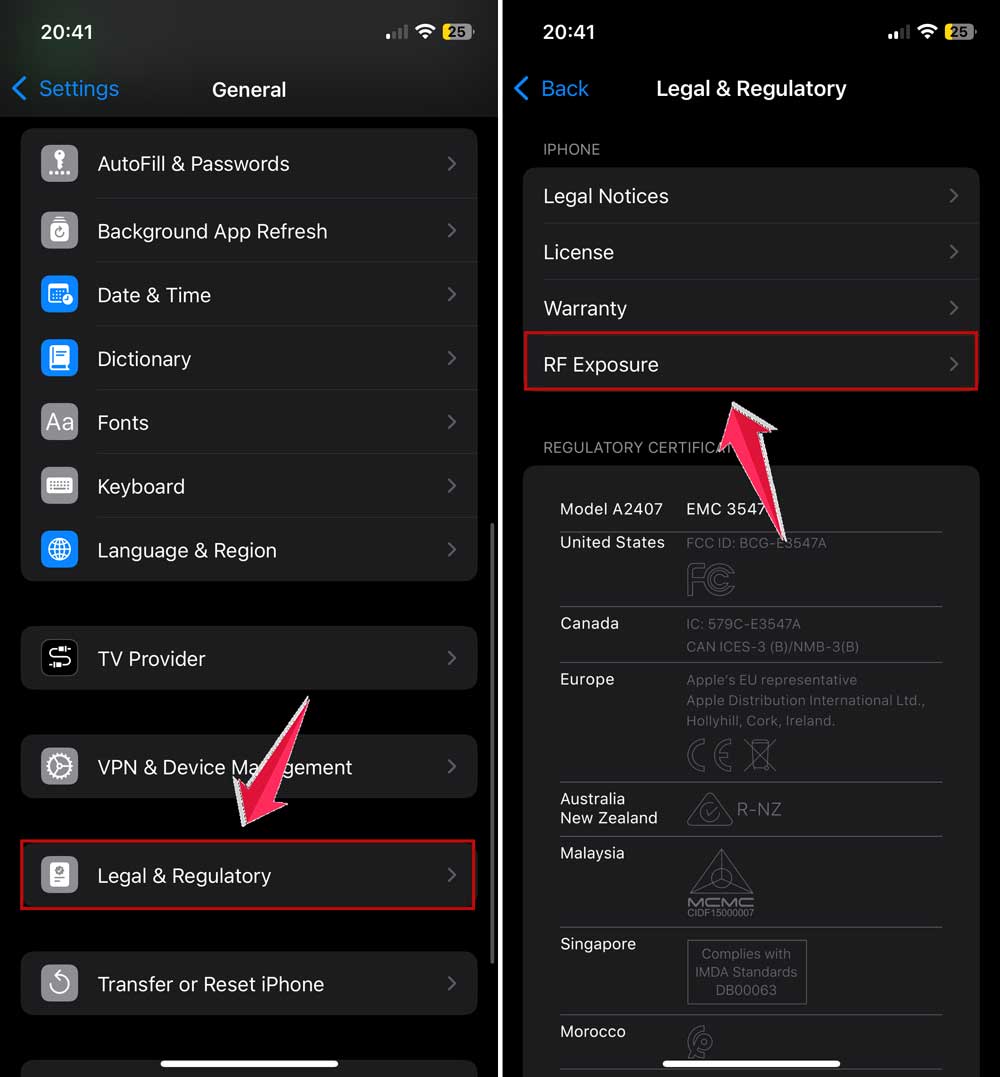
On iPhones, the steps are slightly different:
Go to Settings. Tap General. Tap Legal & Regulatory. Then tap RF Exposure.
You’ll get a link that takes you to the official RF data for your iPhone.
#6 Just Google it. But be careful
Let’s say you don’t have time to dig around your phone or box. You can always do a quick Google search.
Type something like:
- SAR value of Samsung Galaxy A52.
- SAR value of iPhone 13 Pro.
You’ll get tons of results. But here’s the thing: not all sources are reliable.
Stick with links from official brand websites, trusted tech blogs, or databases like the FCC or BfS (the German radiation protection office).
Don’t blindly trust random websites that look shady or outdated.
#7 Use the FCC website (only if you really need to)
If your phone is certified by the FCC (which most phones are), you can find SAR details using its FCC ID.
Where do you find the FCC ID?
Sometimes it’s printed on the back of the phone or under the battery. Newer phones might list it in the Settings under Legal Information.
Once you have the FCC ID, do this:
Go to the FCC ID Search page. Type the first few characters in the first box. Type the rest of the ID in the second box. Click Search.
The system will pull up your phone’s details, including SAR info.
This method is a bit technical, so treat it as your last option.
What else can you do with this info?
Now that you’ve got your SAR value, you might be wondering. What next?
Honestly, it’s not about panicking. It’s about awareness.
If your phone’s SAR value is close to the limit, you can:
Keep calls short. Use speakerphone more often. Avoid sleeping with your phone under your pillow.
Don’t press it tightly against your body all the time. Keep it a bit farther from your ear during long calls.
These little habits make a difference over time.
The takeaway
So there you go. Seven real ways to check your phone’s SAR value.
You now know what it means, why it matters, and how to find it in under two minutes.
This isn’t about fear. It’s about making smart choices.
Your phone keeps you connected to the world. But now, you’re also connected to what it’s doing in the background.
Use this knowledge well. Stay curious. And keep that device a little bit safer for your head, your health, and your peace of mind.