Are you staring at your Microsoft Word screen right now, wishing it wasn’t so bright? Or maybe you’re struggling to read your document in a dark room? You’re not alone. Many Word users find themselves in your shoes, looking for a way to make their writing environment more comfortable.
The good news is, you can easily change Word’s appearance to suit your needs. Whether you want a bright, clean look for daytime work or a darker, eye-friendly mode for late-night sessions, Word has options for you.
In this guide, you’ll learn exactly how to switch between light and dark modes in Microsoft Word.
We’ll walk you through the process step by step, so you can adjust your screen right away. No more squinting or eye strain – you’re just a few clicks away from a more comfortable writing experience.
Ready to give your eyes a break and make Word work better for you? Let’s jump in and make those changes now!
What are Office themes, and why do they matter to you?
Ever feel like your Word document looks a bit… bland? Or maybe too bright late at night? That’s where Office themes come in. They’re like customizable color schemes for your Microsoft Office apps, including Word.
Think of Office themes as different outfits for your software. They change how Word looks, from the top menu bar all the way down to your writing area. Right now, you have three main options to choose from:
- Light theme: This is your classic, bright look. It’s great for daytime work or when you need high contrast.
- Dark theme: Perfect for working in low light. It can help reduce eye strain and looks pretty sleek too.
- Use system setting: This option makes Word match whatever theme your computer is using. It’s handy for keeping everything consistent.
By picking the right theme, you can make Word more comfortable to use and even reduce eye fatigue.
Why should you consider using light mode in Word?
Ever wonder why most books and papers use black text on white backgrounds? There’s a good reason for it, and it applies to your Word documents too. Let’s talk about why you might want to switch to light mode:
- Easy on the eyes in bright spaces: If you’re working in a well-lit office or outdoors, the light mode can help you see your text more clearly. No more squinting at a dark screen in the sunlight!
- Familiar and readable: We’re used to reading dark text on light backgrounds. It’s how most printed materials look, so your brain finds it natural and easy to process.
- Great for long writing sessions: Believe it or not, many people find light mode less tiring for extended periods of reading or writing. It can help you stay focused without straining your eyes.
- Better for sharing or presenting: If you’re working on a document you’ll show to others, light mode often looks more professional and is easier for groups to read together.
How do you switch to light mode in Word?
Feeling ready to brighten up your Word? Here’s a simple guide to switch to light mode:
- Open Microsoft Word on your computer.
- Look for the “File” tab in the top-left corner and click it.
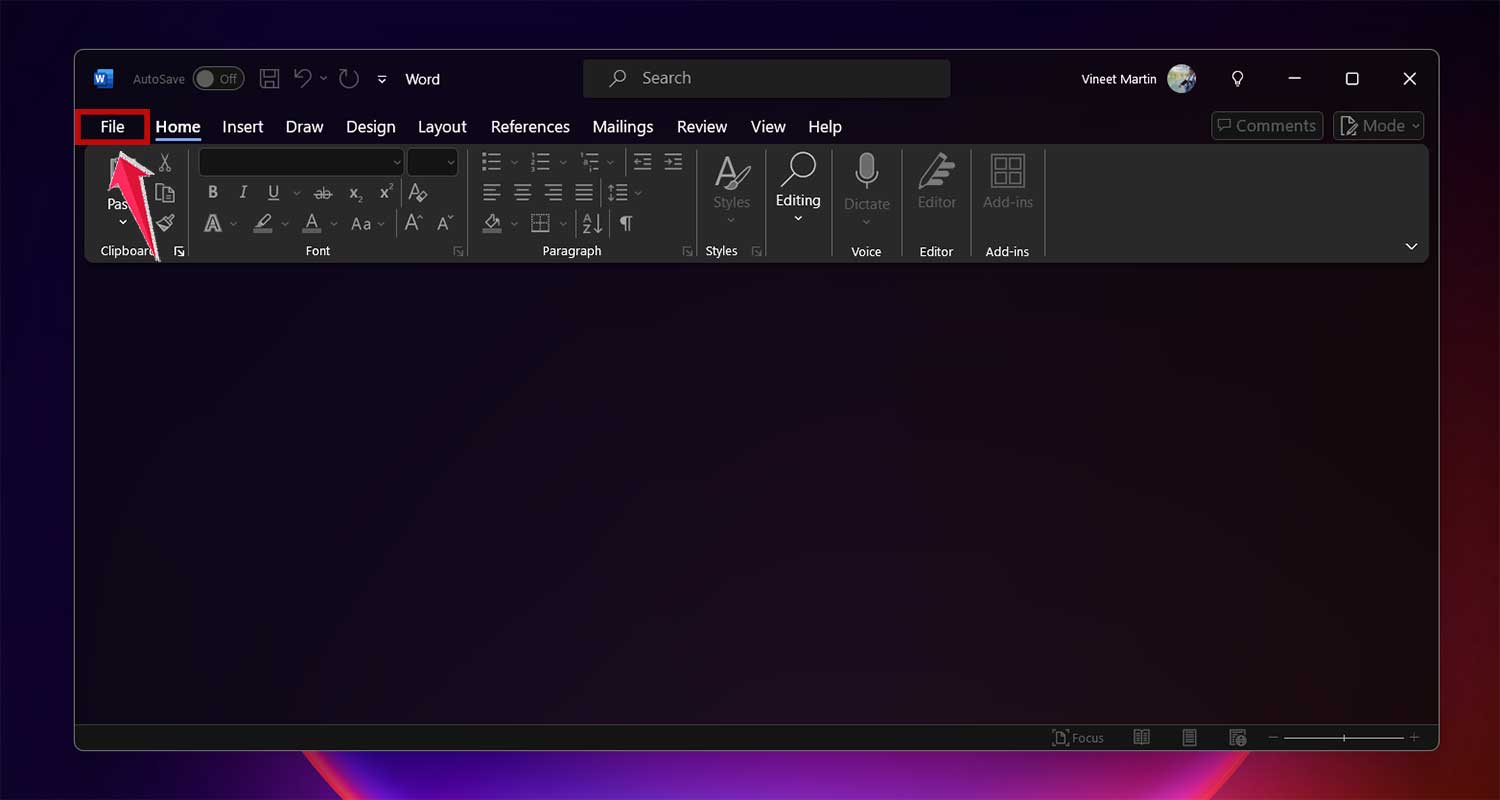
- On the left side of the screen, you’ll see “Account”. Give that a click.
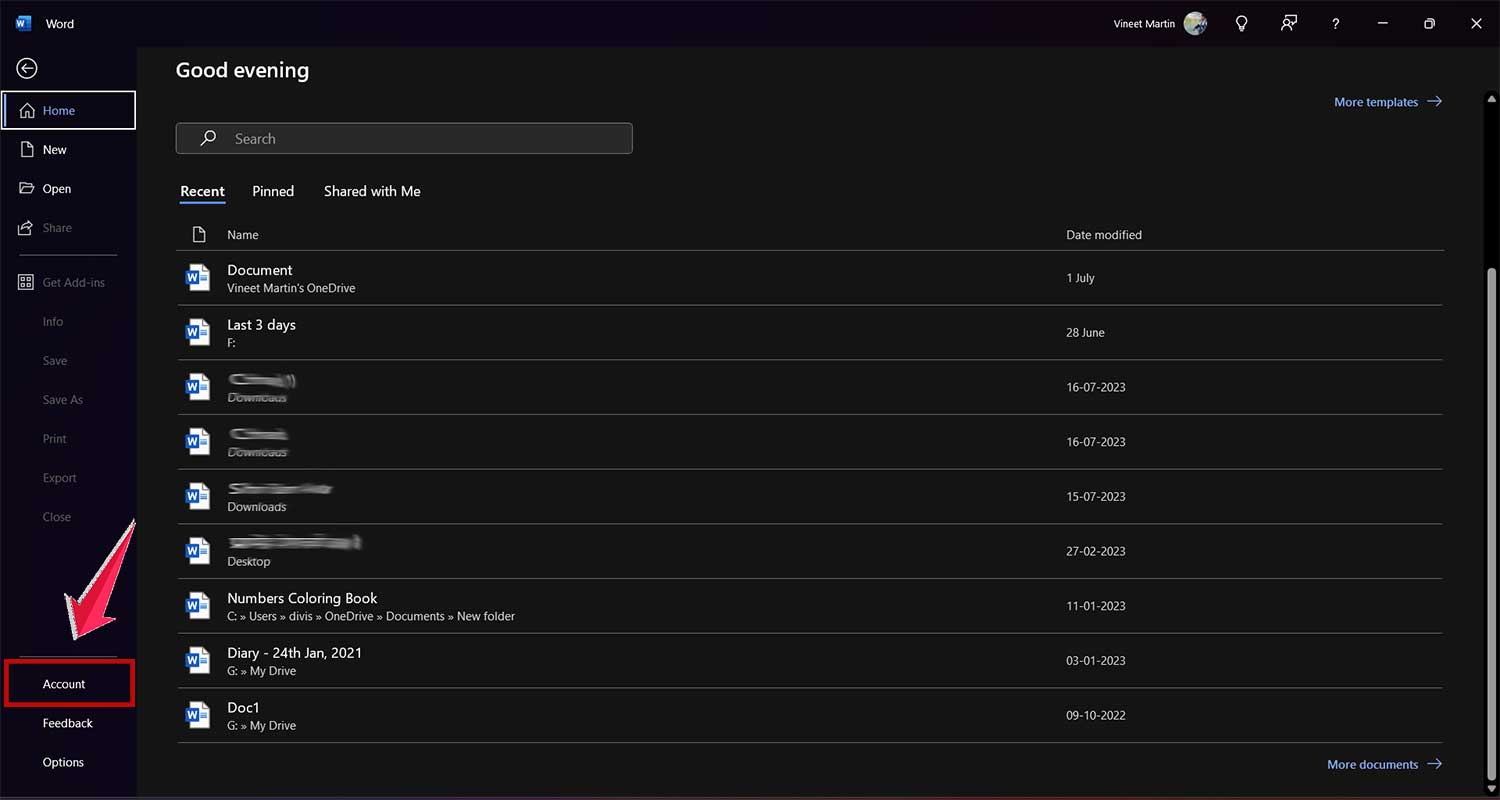
- Now, find the “Office Theme” dropdown menu. It’s usually right there on the Account page.
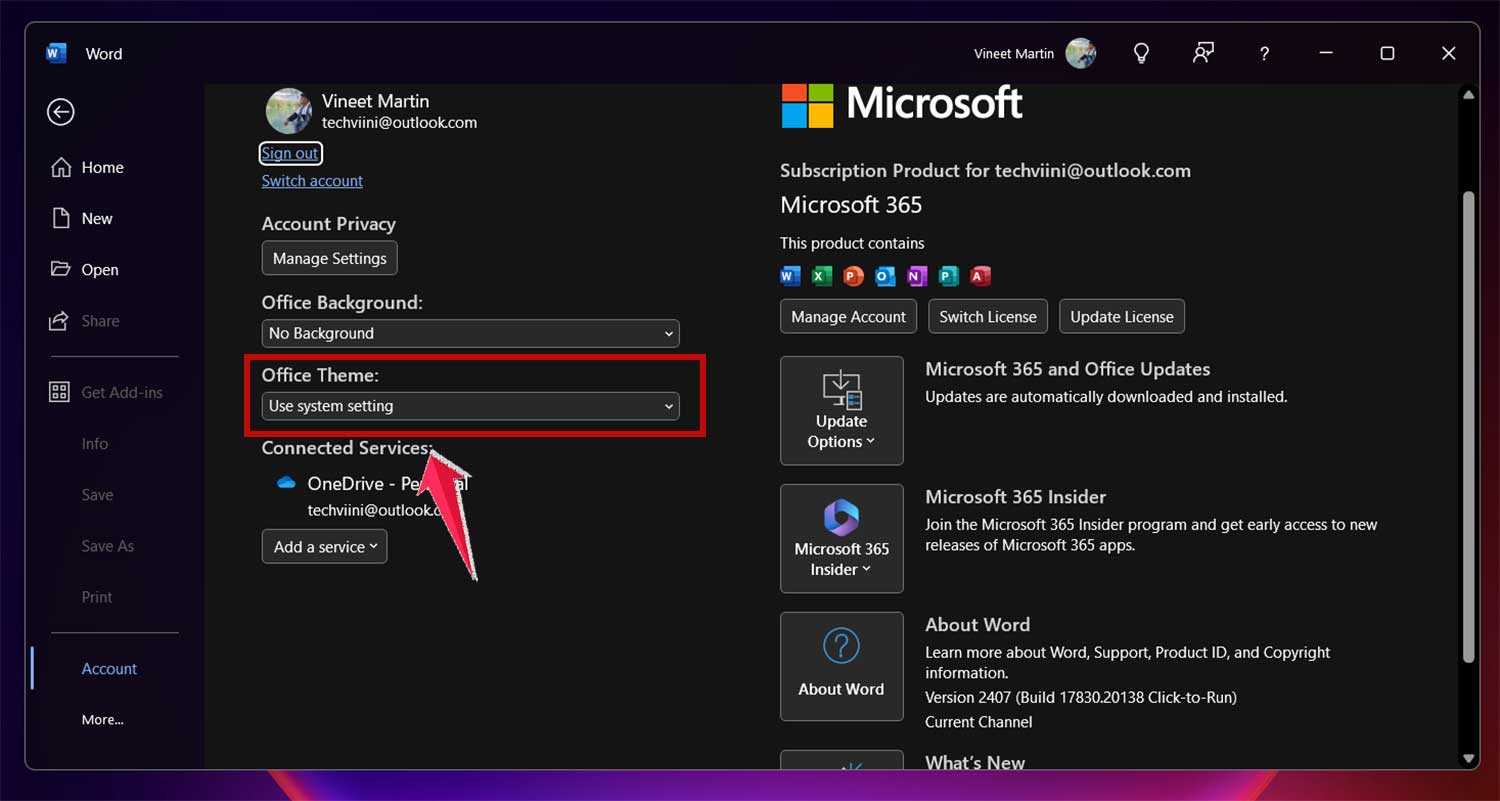
- Click the dropdown and choose “White” from the options.
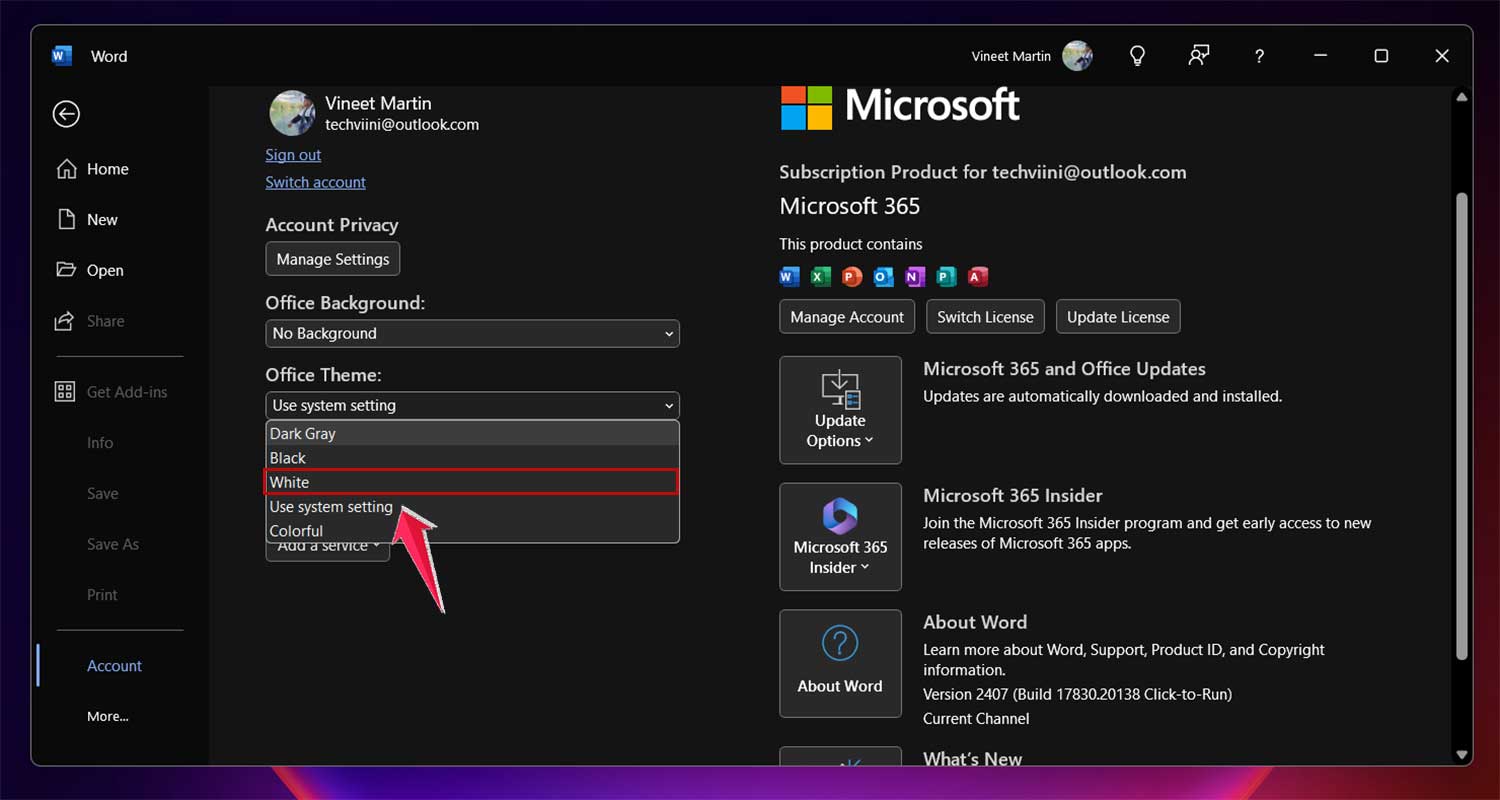
That’s it! Your Word interface will immediately switch to light mode.
Can you change the theme from the Options menu?
Yes, you can! If you prefer, here’s another way to make the switch:
- With Word open, click on the “File” tab again.
- This time, scroll all the way down and click on “Options”.
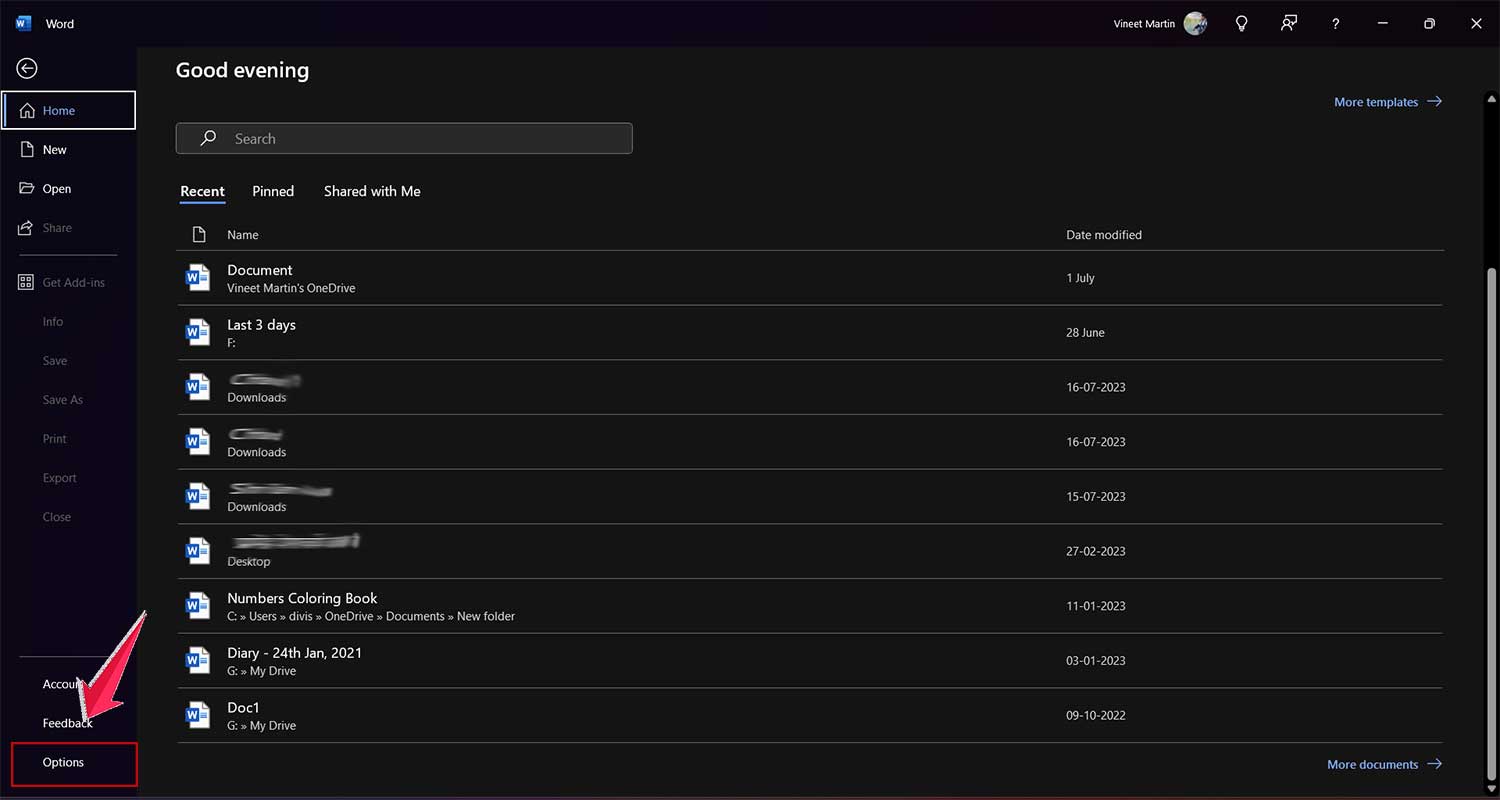
- In the new window that pops up, you’ll be in the General tab. Look for “Personalize your copy of Microsoft Office”.
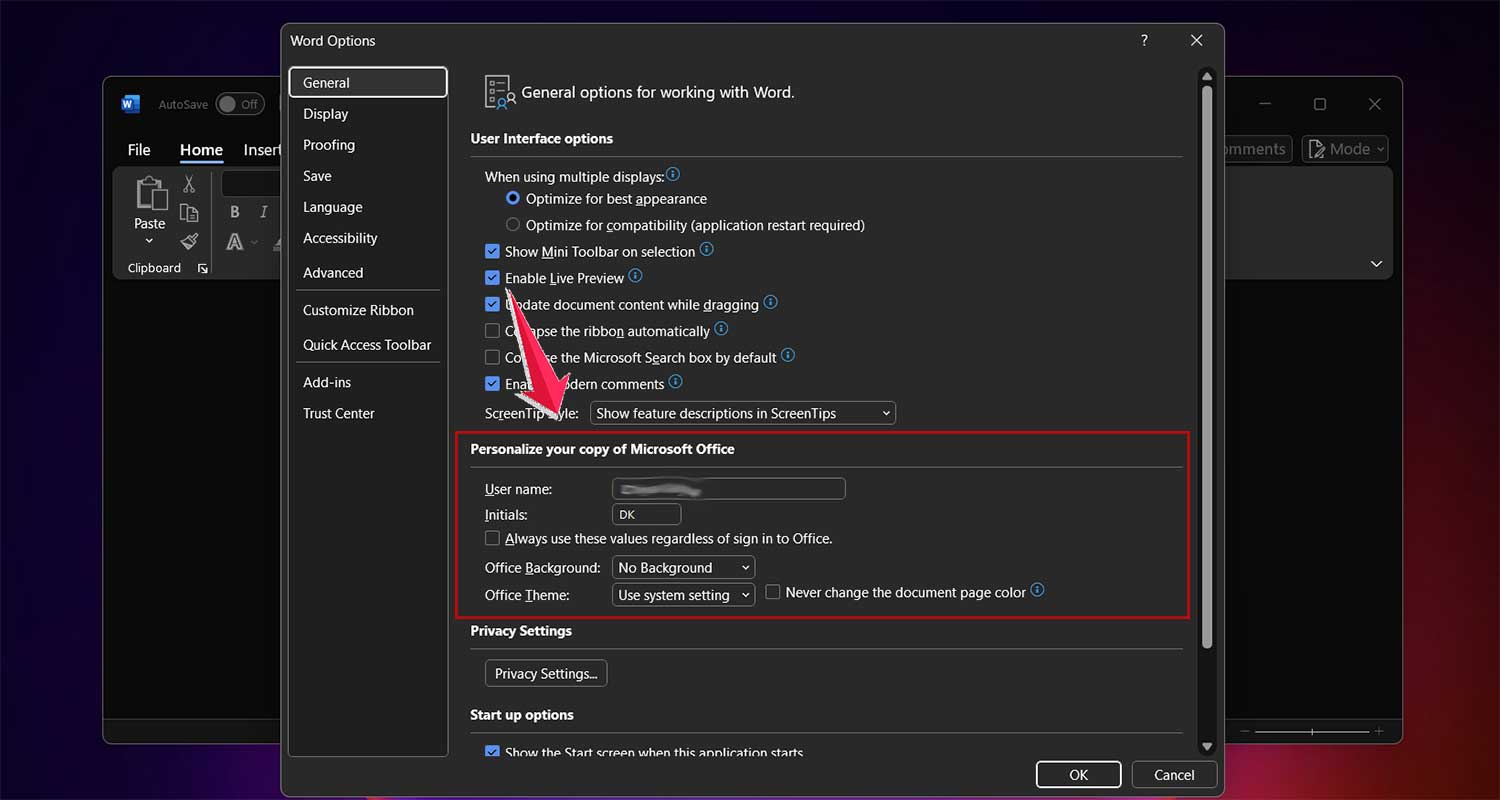
- Under that, you’ll see the “Office Theme” dropdown. Click it and select “White”.
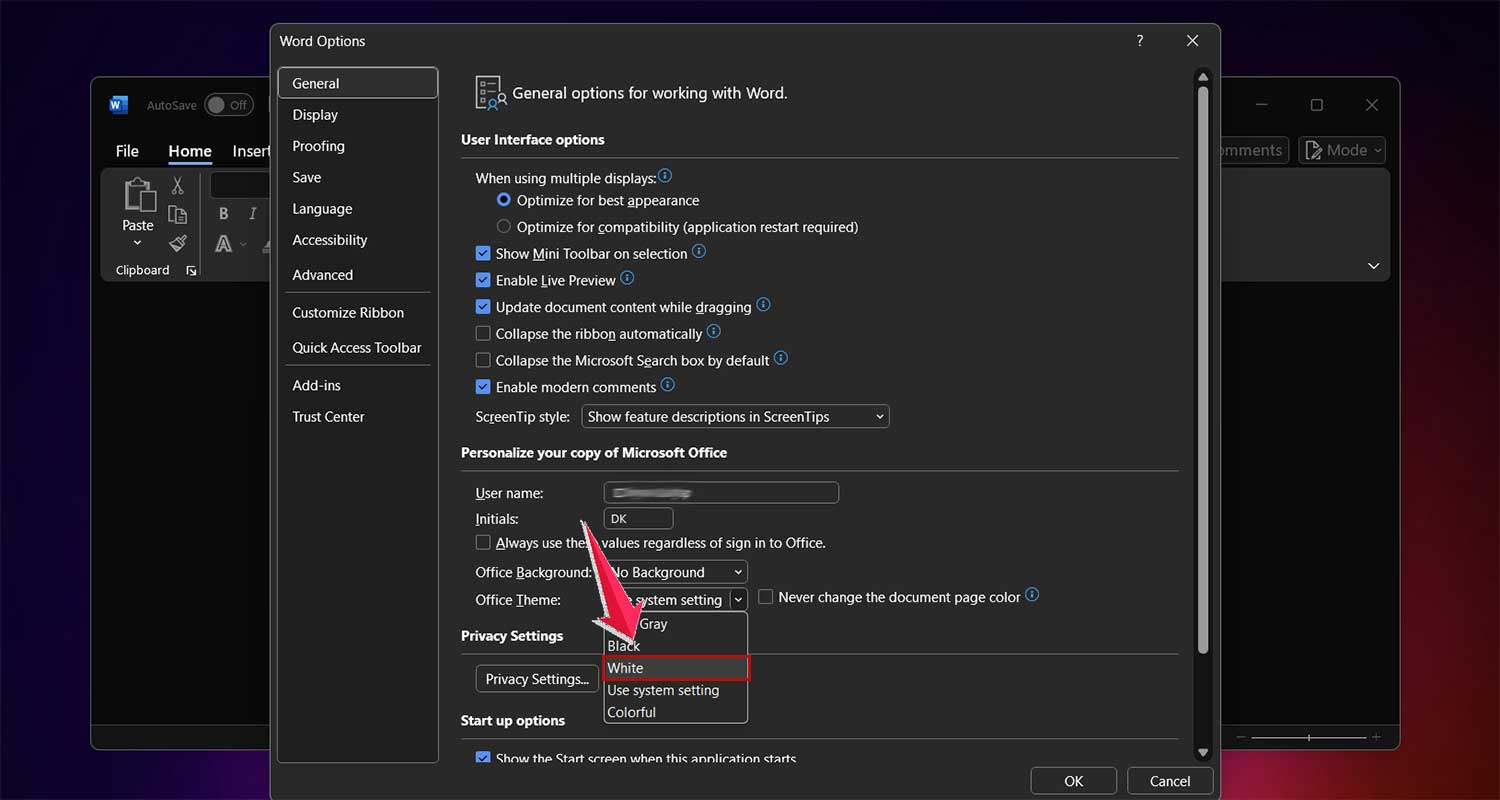
- Click “OK” at the bottom of the window to apply your changes.

There you have it! Two easy ways to switch to light mode. Choose whichever method feels more comfortable for you. Your eyes will thank you!
How do you enable dark mode in Word?
Feeling like your Word is too bright, especially during those late-night writing sessions? Let’s switch things up and turn on dark mode. It’s easier on your eyes and can help reduce glare from your screen. Here’s how to do it:
- Open Microsoft Word and click on the “File” tab in the top-left corner.

- Select “Account” from the options on the left side of the screen.
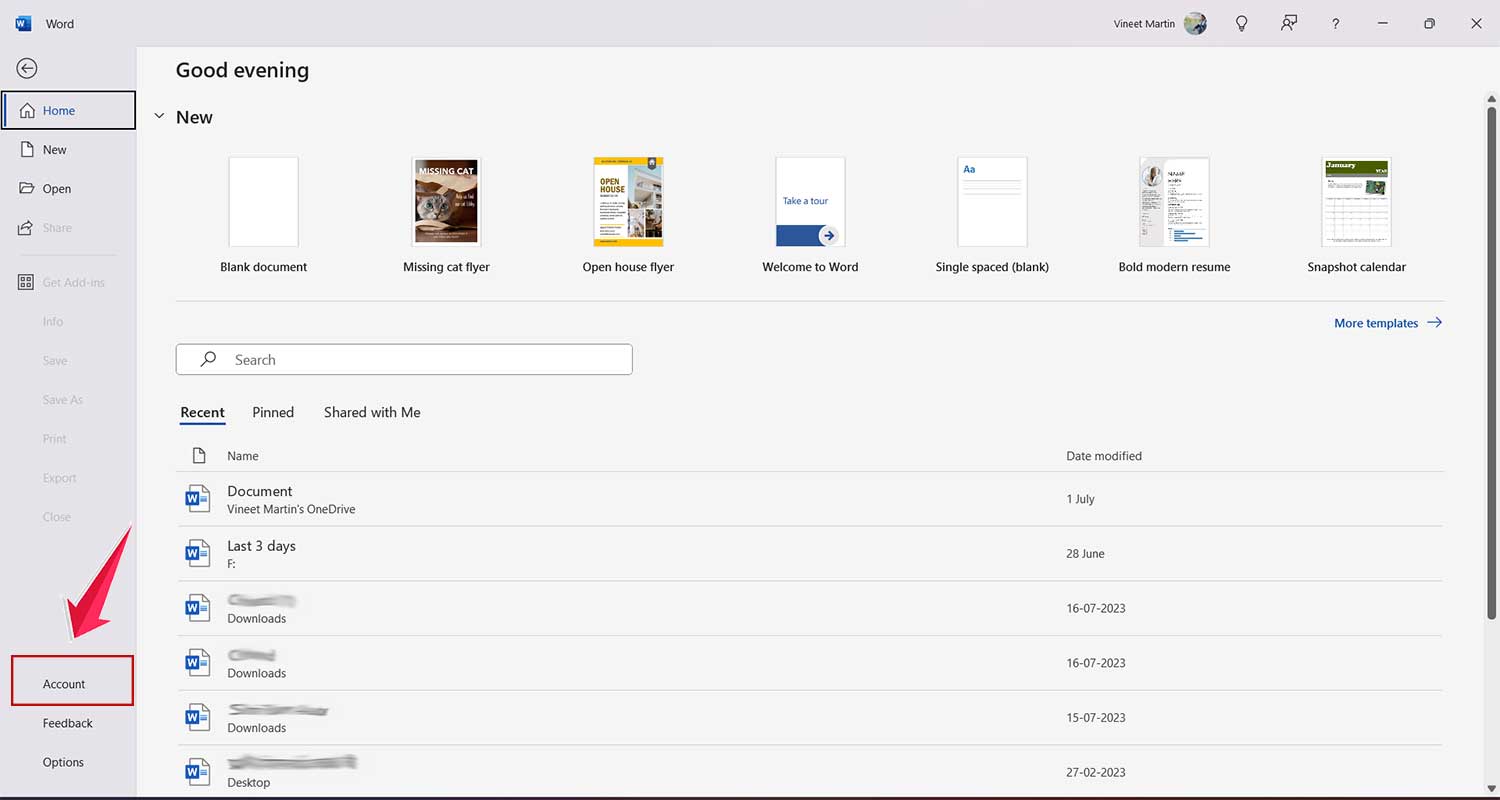
- Look for the “Office Theme” dropdown menu on the right side of the window.
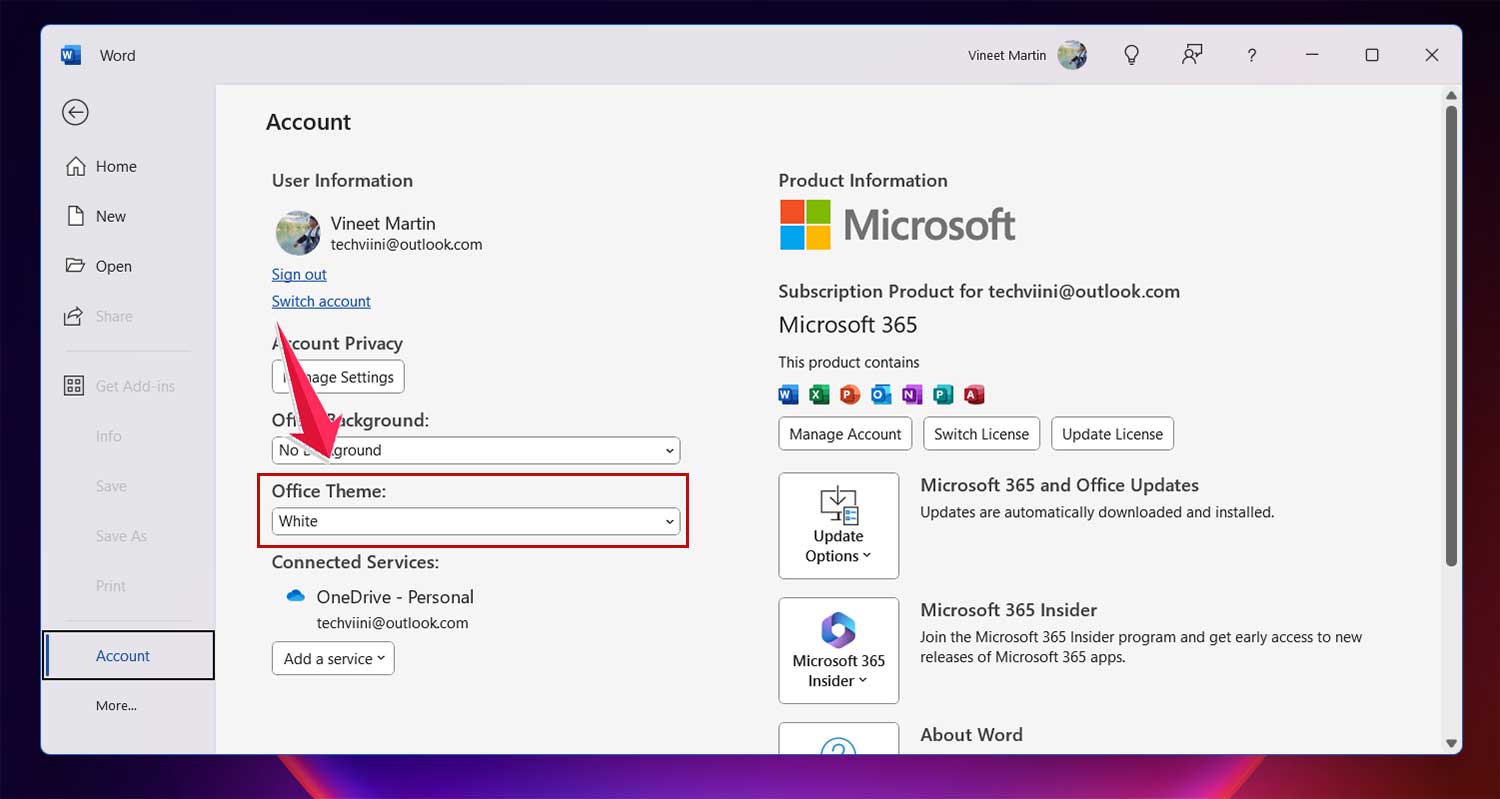
- Click on the dropdown and choose “Black” instead of “White”.
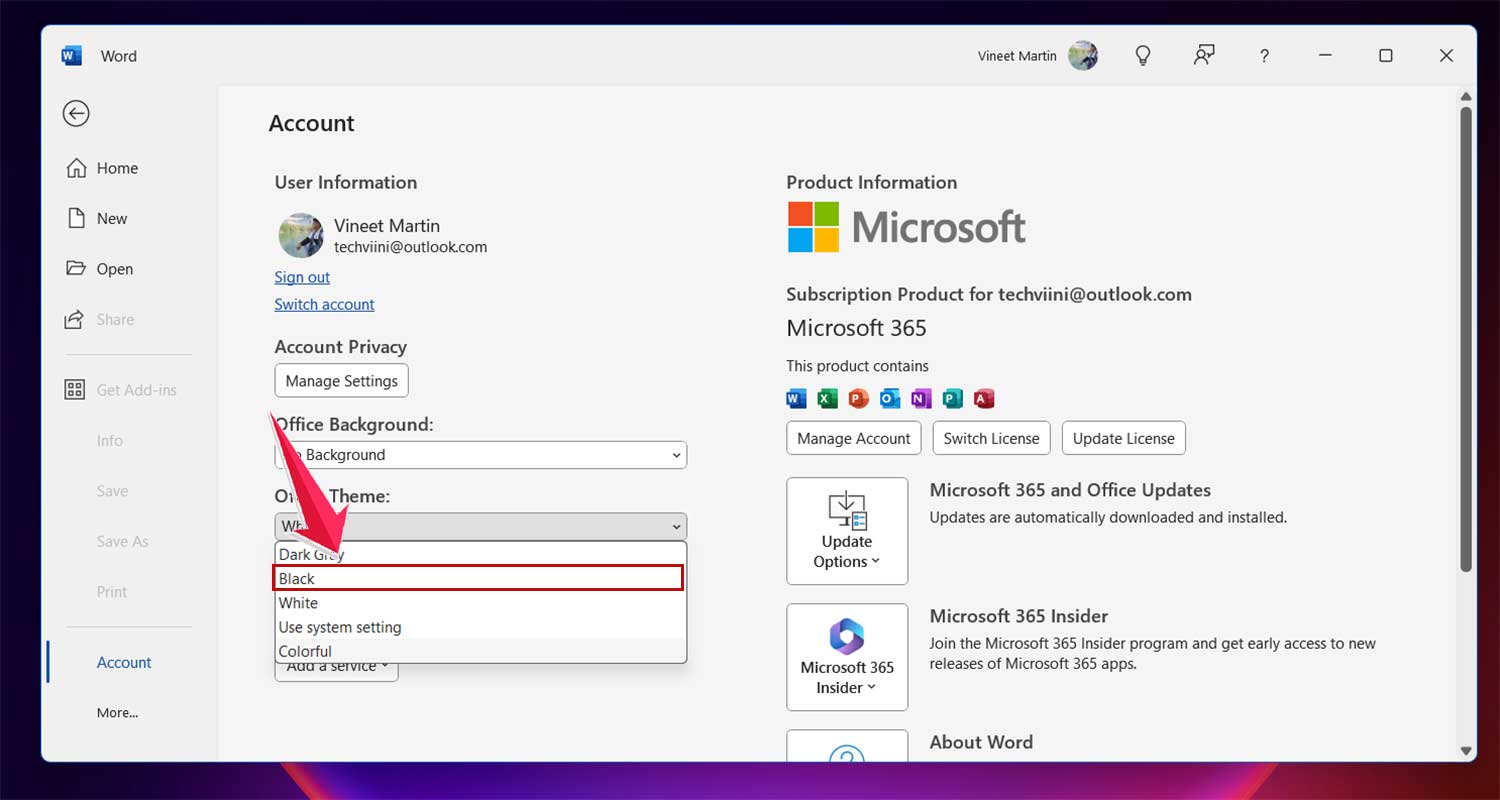
- Watch as your entire Word interface transforms! The toolbars, menus, and even your writing area will switch to a darker color scheme.
That’s all there is to it! Your Word is now in dark mode, perfect for low-light environments or when you want to reduce eye strain. Remember, you can always switch back to light mode using the same steps if you need to.
How can you quickly switch between light and dark modes?
Need to change your Word’s look on the fly? Good news – you can switch between light and dark modes with just a few clicks. Here’s how:
- First, make sure you’re in dark mode.
- Look at the top of your Word window and find the “View” tab.

- In the “View” tab, search for a button called “Switch Modes”. It looks like a little sun or moon icon.
- Click this button, and voila! Your writing area will switch between light and dark.
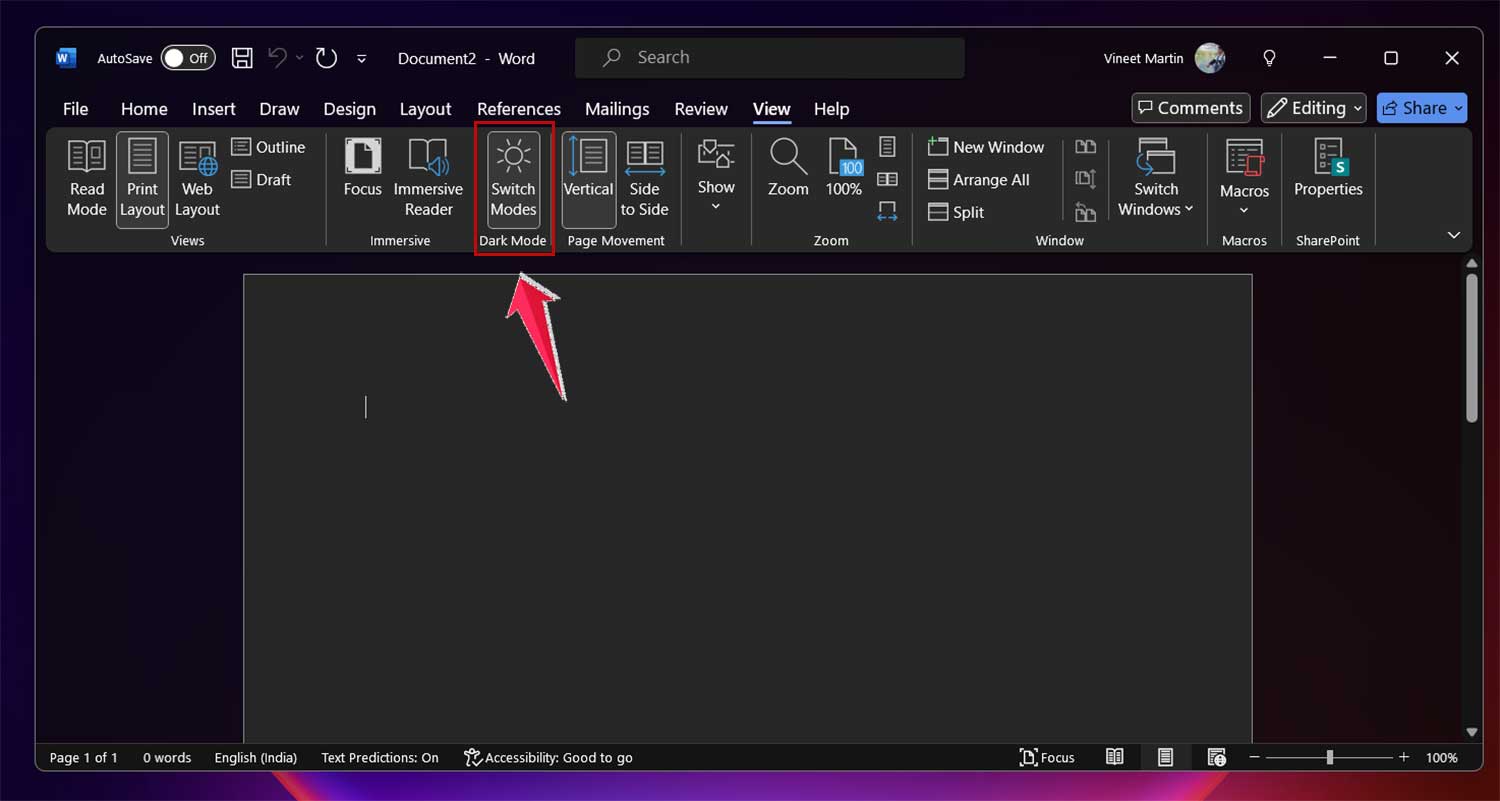
This quick toggle is perfect when you need to adjust for changing light conditions or to reduce eye strain.
Can you have a dark interface with a light writing area?
Absolutely! Some people love this combo for the best of both worlds. Here’s how to set it up:
- Click on “File” in the top-left corner.

- Select “Options”, then “General”.

- Find the “Office Theme” dropdown and choose “Black”.

- Hit “OK” to apply your changes.

Now, you’ve got a sleek, dark interface around a bright, easy-to-read writing area. It’s like having a white page in a stylish dark frame!
The takeaway
You’ve now got the power to make Word work for you, whether you’re burning the midnight oil or working in bright sunlight. Changing between light and dark modes isn’t just about looks – it’s about making your writing experience more comfortable and productive.
Remember, you can quickly switch modes using the “Switch Modes” button in the View tab. This means you can easily adapt to changing light conditions throughout your day. And if you like a bit of contrast, you can even set up a dark interface with a light writing area.
Don’t think changing themes is a hassle – it’s quick and easy. With just a few clicks, you can transform your Word environment to suit your needs.
The key is to experiment and find what works best for you. Your eyes will thank you, and you might even find yourself writing more efficiently.
So why not give these options a try right now? Customize your Word experience and see how it feels. A more comfortable workspace could be just what you need to boost your focus and creativity.