You probably say “Hey Google” a dozen times a day. But let’s be honest. It gets boring. You want to change it up.
Maybe even give your Google Assistant a new name to make it feel more personal.
So, can you do it?
Not exactly. You can’t rename it the way you’d rename a pet. Google doesn’t let you change “Google Assistant” to something like “Jarvis” or “Tony.” It’s a brand, just like Siri or Alexa.
But here’s the good news. You can change how you wake it up.
That means instead of saying “Hey Google” all the time, you can set up another phrase or turn that phrase off altogether.
Let me show you how.
Can you fully change the name of Google Assistant?
No. Not yet. You can’t say “Hey Jarvis” or “Hey Assistant” and expect it to respond.
That’s because Google Assistant is a fixed brand. Google hasn’t made custom names available like Amazon does with Alexa alternatives like “Echo” or “Computer.”
Still, you can change the wake word (on supported devices), the language, the voice, and even the routines it follows. So in a way, you’re customizing the experience. just not the name.
If Google ever adds full naming options, it’ll be a game-changer. But for now, this is as close as it gets.
How to change the wake word for Google Assistant
You’re not changing the name. You’re changing how you call it. Think of it like a shortcut.
To do it.
- Open the Google Home app on your smartphone or tablet.
- Tap on your settings icon in the bottom right corner.
- Look for “Assistant settings” and tap on it.
- Select “Assistant” from the menu.
- Tap on “Assistant devices” and choose the device you want to change.
- Scroll down until you find “Hey Google,” and tap on it.
- You’ll see a list of alternative wake words. Pick the one you like.
That’s it. You’ve got yourself a more fun, more personalized command.
Note: Not all devices support alternate wake words yet. But Google’s adding more flexibility with time.
What is Google Assistant?
If you’ve never really used it. or just said “Hey Google” to check the weather. Google Assistant is your digital helper. It listens, understands, and talks back. You ask, it does.
It can play music, set alarms, control lights, send texts, and even make phone calls. all by voice. It works on your phone, smart speaker, smart display, and even some headphones and TVs.
Think of it like your invisible tech sidekick.
How to make Google Assistant speak a different language
Maybe you want to talk in German. Or Spanish. Or both. Google Assistant can handle that.
Before you change the language, make sure your phone and speaker are connected to the same Wi-Fi. That keeps everything smooth.
Now, follow these steps.
- Open the Google Home app on your phone.
- Look for your Account button in the top right corner. It looks like a little person icon. Tap on it.
- In your account settings, find the section for languages.
- Now, you can choose your preferred language from the list.
Done. Now your Assistant will respond in the new language you chose. And yes, it can understand two languages at once.
How to turn off “Hey Google” detection
Sometimes you just want peace. No voice activation. No surprises.
You can turn off the wake phrase easily.
- Open the Google Home app on your device.
- Tap on your profile icon in the top right corner.
- Look for “Assistant settings” and tap on it.
- Select “Assistant” from the menu.
- Scroll down to find “Google Assistant” and tap on it.
- Here, you’ll see a toggle switch to turn Google Assistant on or off. Switch it off to deactivate.
Now, your Assistant won’t respond to “Hey Google” unless you manually activate it.
What to do if Google Assistant isn’t responding
You’re saying “Hey Google,” but nothing happens. Feels like it’s ignoring you?
It’s probably just a setting. Or a tiny bug.
Let’s fix it.
- Open the Google or Google Home app.
- Tap your profile icon.
- Go to “Settings.”
- Scroll to “Assistant.”
- Make sure “Google Assistant” is turned on.
Still no response?
You can try restarting your phone or speaker. If it is still not responding, I will advice updating the Google app. You can clear the app cache as well.
If all else fails, unplug your speaker and plug it back in. That usually wakes it up.
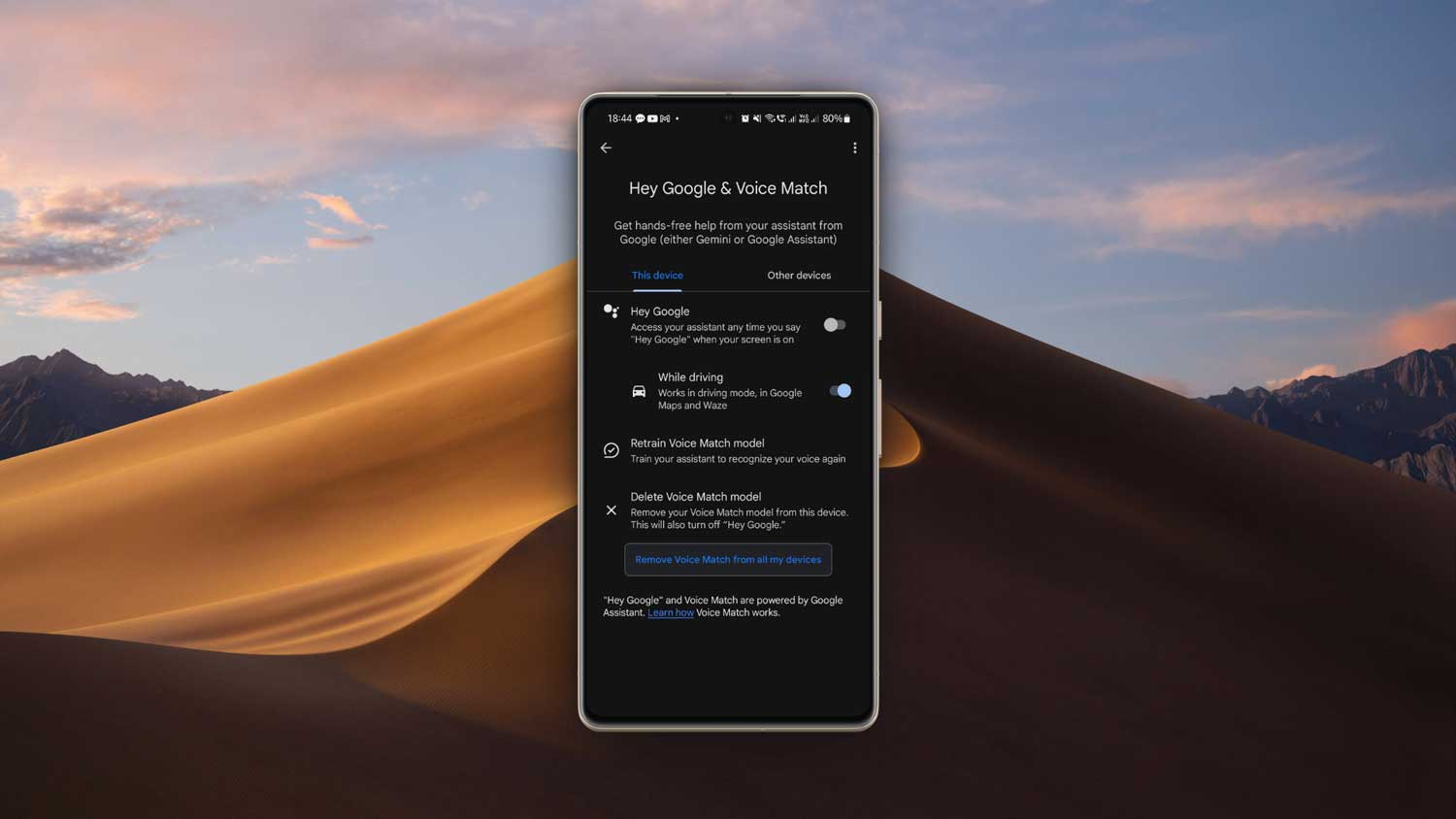
How to activate “Hey Google” again
If you turned it off and want it back, no worries. You can reactivate the wake phrase anytime.
If you’re using the Google app:
- Open the Google app on your smartphone or tablet.
- Tap your profile picture in the upper right corner.
- Go to “Settings“.
- Tap on “Voice Assistant“, then “Voice Match“.
- Turn on the switch for “Hey Google“.
If you’re using the Google Home app:
- Open the Google Home app on your device.
- Tap your profile icon in the top right corner.
- Find “Assistant settings” and tap on “Assistant“.
- Scroll to “Assistant devices” and select your device.
- Find “Hey Google” and switch it on.
Just like that, it’ll start listening again.
Why does Google Home sometimes activate by itself?
If you’ve ever had your speaker light up when you didn’t say anything, you’re not crazy. It happens.
Background noise confuses it. Maybe your TV said something that sounded like “Hey Google.” Or maybe someone on a podcast triggered it.
Software glitches can also cause random activations.
If you want Google Home to make fewer mistakes less then you can move your speaker away from TVs and loud areas. Try to lower background volume.
If none of that works, reset the device. But remember that it erases your settings.
The takeaway
You may not be able to rename Google Assistant, but you can definitely make it feel more like your own.
Change the wake word. Pick a new language. Turn it on or off anytime. Control how and when it responds.
All of this gives you more control over how you interact with your device. It becomes more natural. More “you.”
Google Assistant is built to help. not to be stuck in a rigid box. With a few small tweaks, it can feel like it’s designed just for you.
So next time you say “Hey Google,” remember. You’ve got options. And if you ever feel like switching things up, now you know exactly how.
Got a fun name you wish you could call your Assistant? Drop it in the comments. Let’s see what the next best alternatives are.