Ever checked your phone bill and thought, “Wait, how did it get this high?” Yeah, it’s a terrible feeling. Your phone quietly munches through your mobile data without even asking you. Sneaky, right?
Let’s talk about something important. Some apps are like little data hogs. They keep using your internet in the background even when you’re not using them. It’s frustrating and unfair.
Why does this matter so much? Well, maybe you’re on a limited data plan. Or maybe you just want your apps to mind their own business.
Either way, this isn’t just about saving your data. It’s also about saving your phone’s battery life. So, it’s a double win!
But hang tight. Here’s the good news — you can take back control. You can block these greedy apps and save your data for when you really need it.
And guess what? It’s super easy. Let’s dive in and fix this together. Step by step. You’re going to love how simple it is.
Apps are eating your data silently
Here’s the thing. Some apps just don’t know when to stop. They run quietly in the background. They keep checking for updates.
They refresh content. They send notifications. Even when you’re not touching your phone, they’re busy using up your data.
And you don’t even realize it until the damage is done. It’s like leaving a faucet running when you’re not home. Total waste, right?
Apps like social media, emails, weather widgets, and even some games are the usual culprits.
They just keep nibbling away at your precious data without any warning. That’s why you need to stop them before they eat up your whole allowance.
Are you on a limited data plan?
Let’s be real — not everyone has an unlimited data plan. Most of us have a set amount. And if you go over it? Hello, extra charges!
Here’s the deal. Most apps don’t need to be connected to the internet all the time. They just want to.
Blocking access for the non-essential ones will make your data last longer. And it can seriously save you from those nasty surprise bills.
Trust me, once you set it up, you’ll wonder why you didn’t do it sooner.
Apps don’t need internet 24/7
Think about it. Do you really need every single app to be online all the time? Nope.
Your map app? You only need it when you’re traveling. Music streaming? Only when you’re listening. Most of the time, apps can chill without gobbling up your data.
By blocking them when you’re not using them, you’re keeping your data safe. Plus, you’re making your phone’s life a lot easier. Freedom feels good, doesn’t it?
Boost battery life while you’re at it
Here’s a bonus. When apps aren’t running wild in the background, your phone’s battery life gets a major boost.
Less background activity means less battery drain. So, by managing your data smartly, you’re giving your battery a well-deserved break.
And honestly, who doesn’t want their phone to last longer through the day? It’s a win-win you can’t ignore.
How to block specific apps from using mobile data
Alright, enough talk. Let’s get to the action. I’ll walk you through how to block apps from using your mobile data. Step by step. No stress. Let’s do this together.
#1: Block apps on Android
If you’re using an Android phone, you’re in luck. It’s super easy to control app data there.
Here’s how you do it:
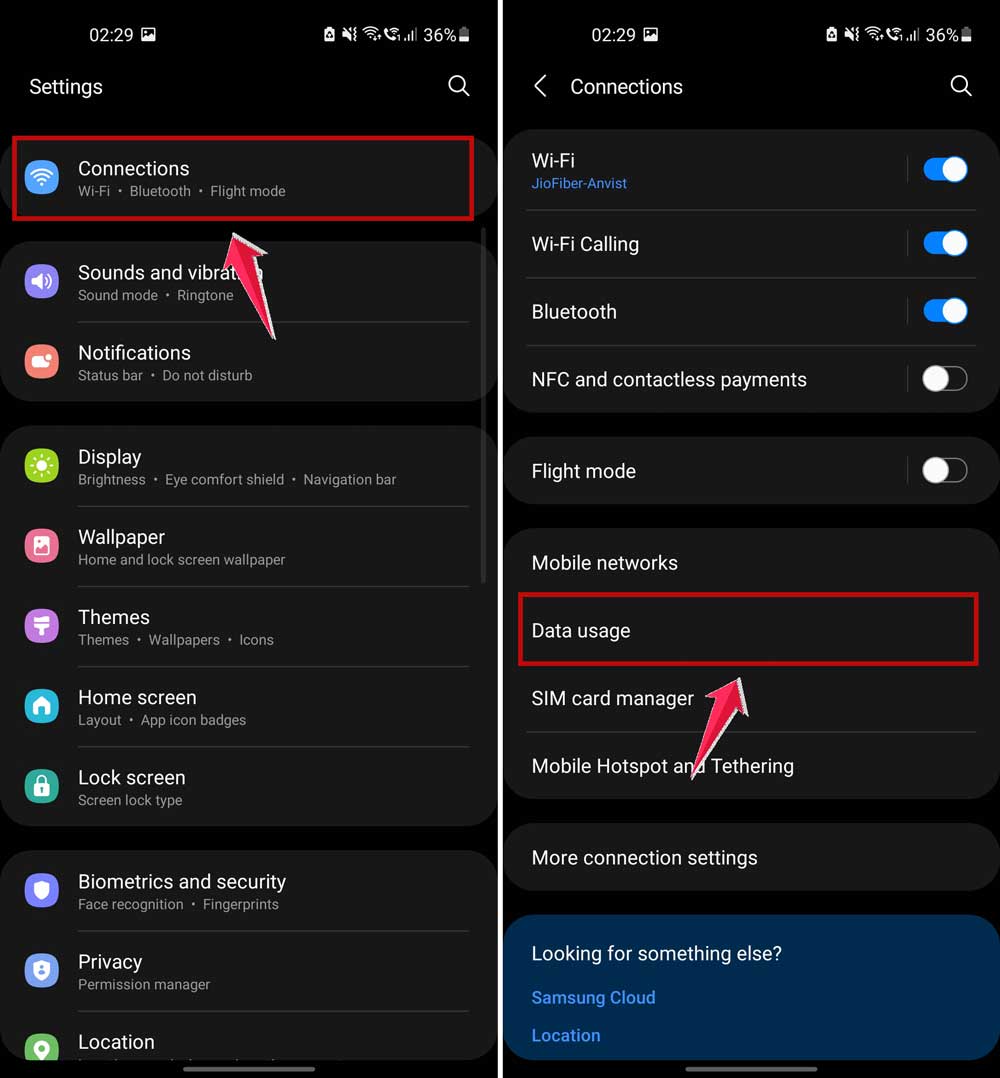
- Open your Settings app.
- Tap Connections.
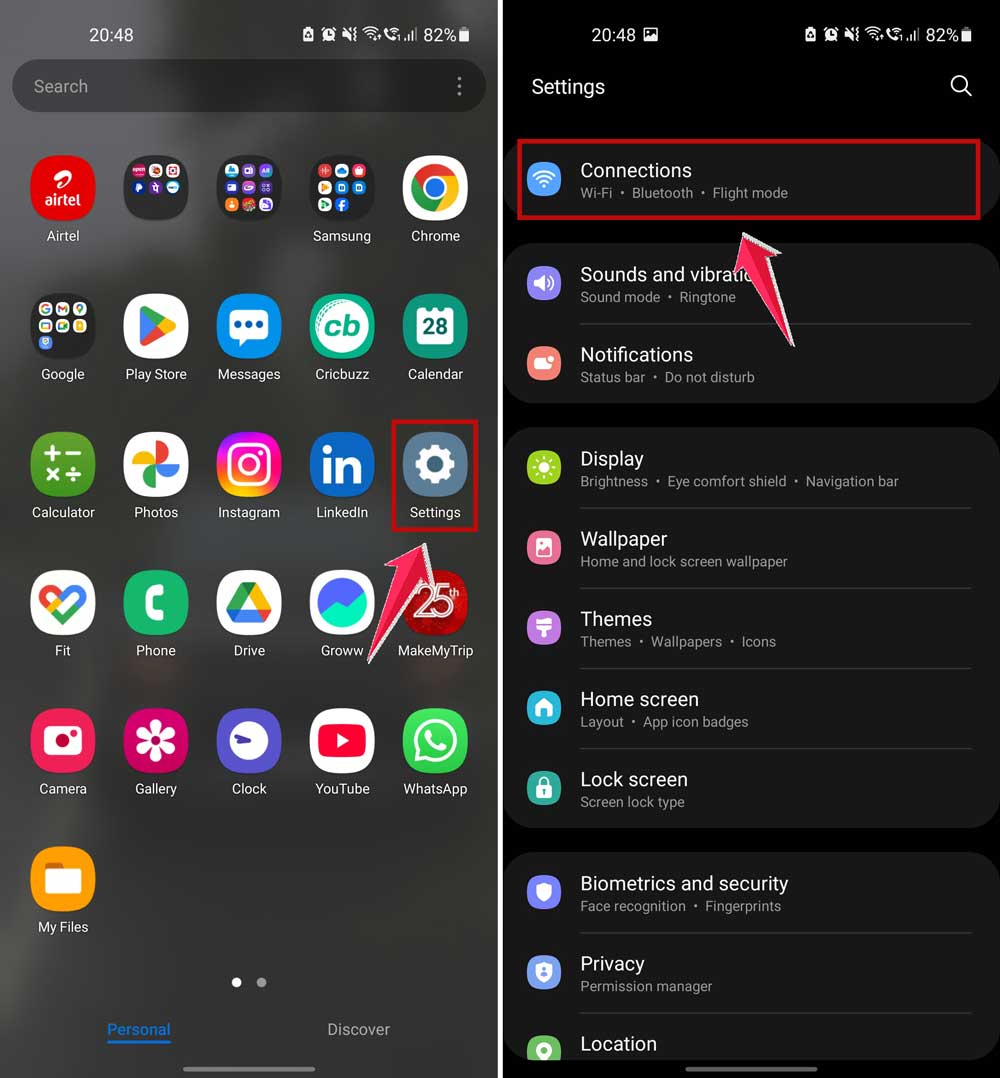
- Find and tap on Data Usage.
- Tap on Mobile data usage. Here, you’ll see which apps are using your data.
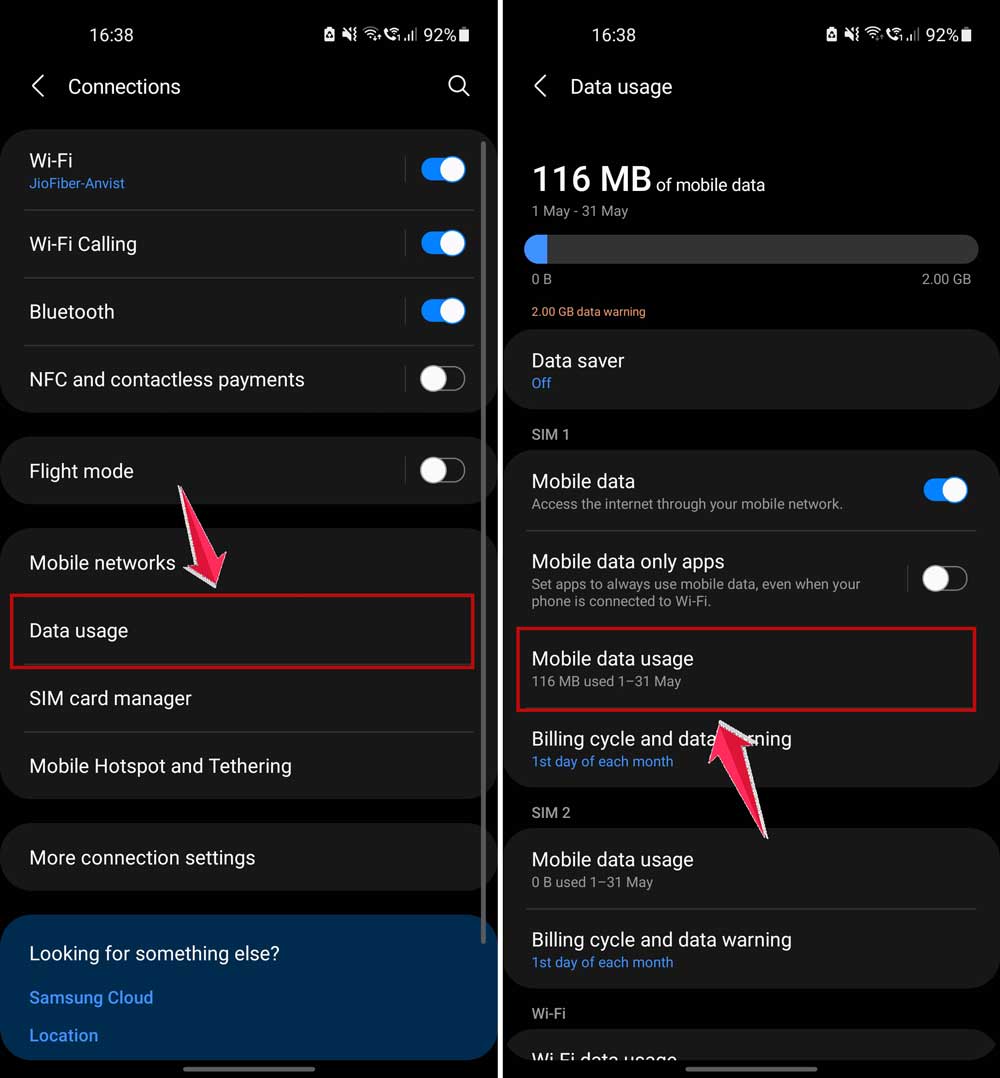
- Pick the app you want to control.
- Toggle off Background data.
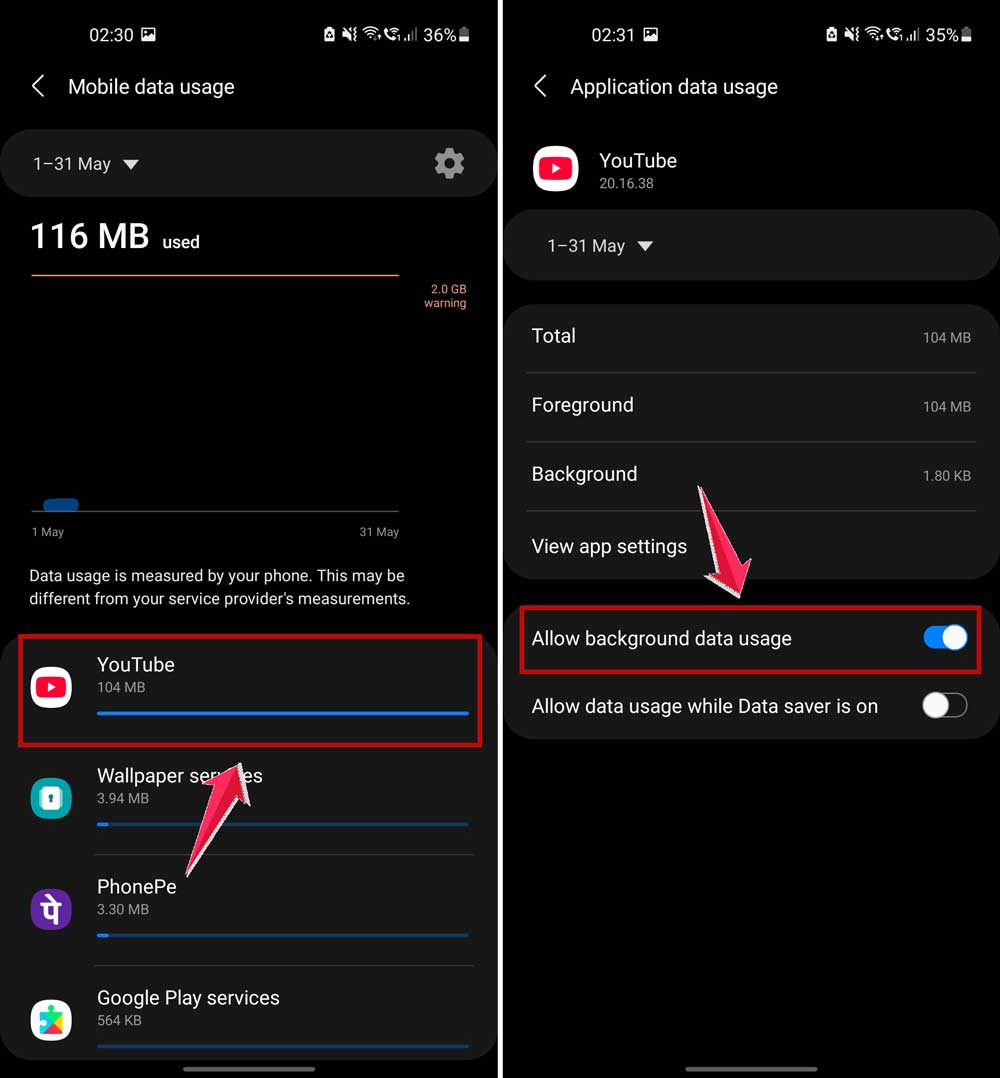
And boom! That app can only use data when you open it. No more sneaky background munching.
Now, a quick tip. Some apps might still try to reconnect after updates. So, check back once in a while to make sure they’re still behaving.
#2: Block apps on iPhone (iOS)
Got an iPhone? No worries. You can easily stop apps from using mobile data, too.
Here’s what you need to do:
- Open your Settings app.
- Tap Cellular or it might show as Mobile Data.
- Scroll down and you’ll see a list of apps.
- Find the apps you want to restrict.
- Toggle off the data switch next to them.
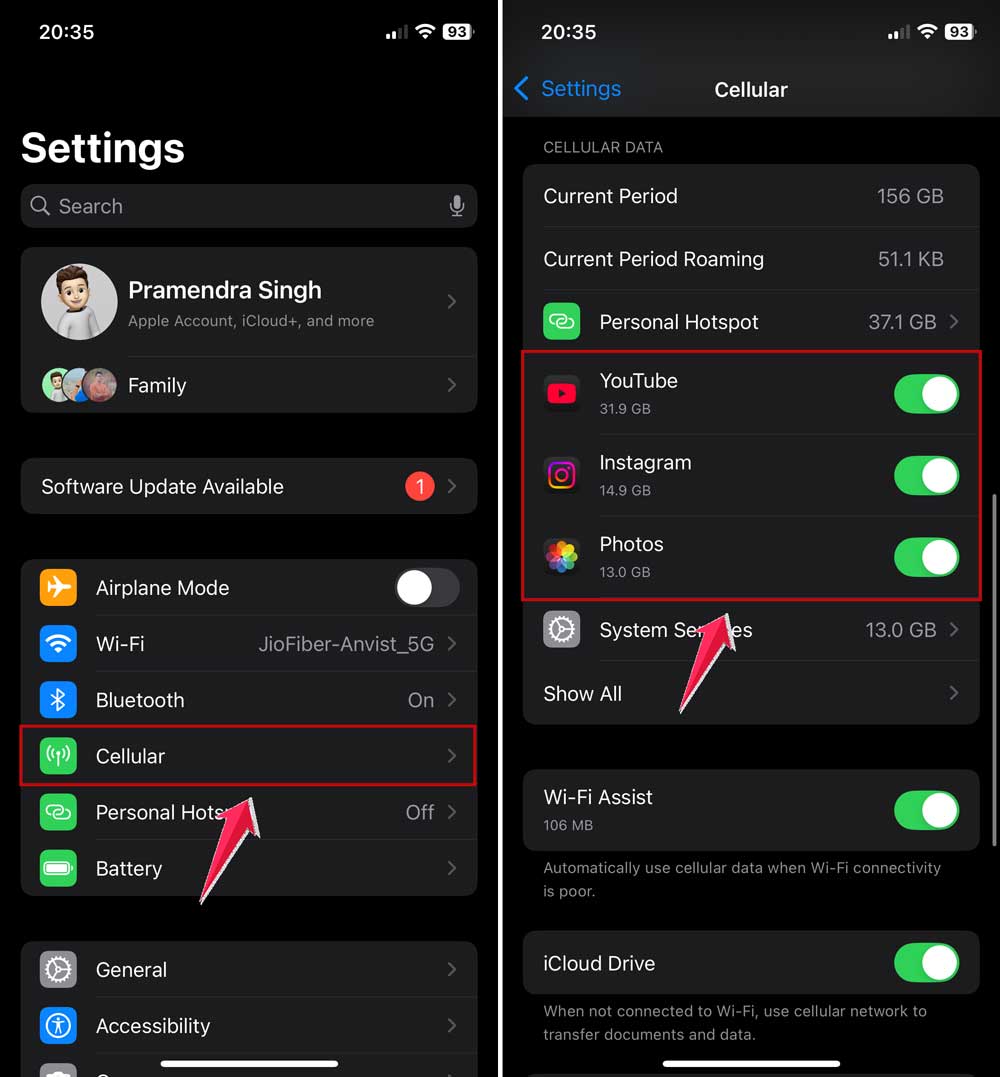
That’s it. Those apps won’t touch your mobile data anymore unless you allow them again.
One small heads-up: some apps might not work properly without mobile data. So, only block the ones you’re sure about.
#3: Use third-party apps for more control
Want even more control? There are apps for that too.
Here’s how you can do it:
- Open the Play Store or App Store.
- Search for trusted data manager apps like “NetGuard” or “My Data Manager.”
- Download and install one with good reviews.
- Open the app and set data restrictions for apps that you want to control.
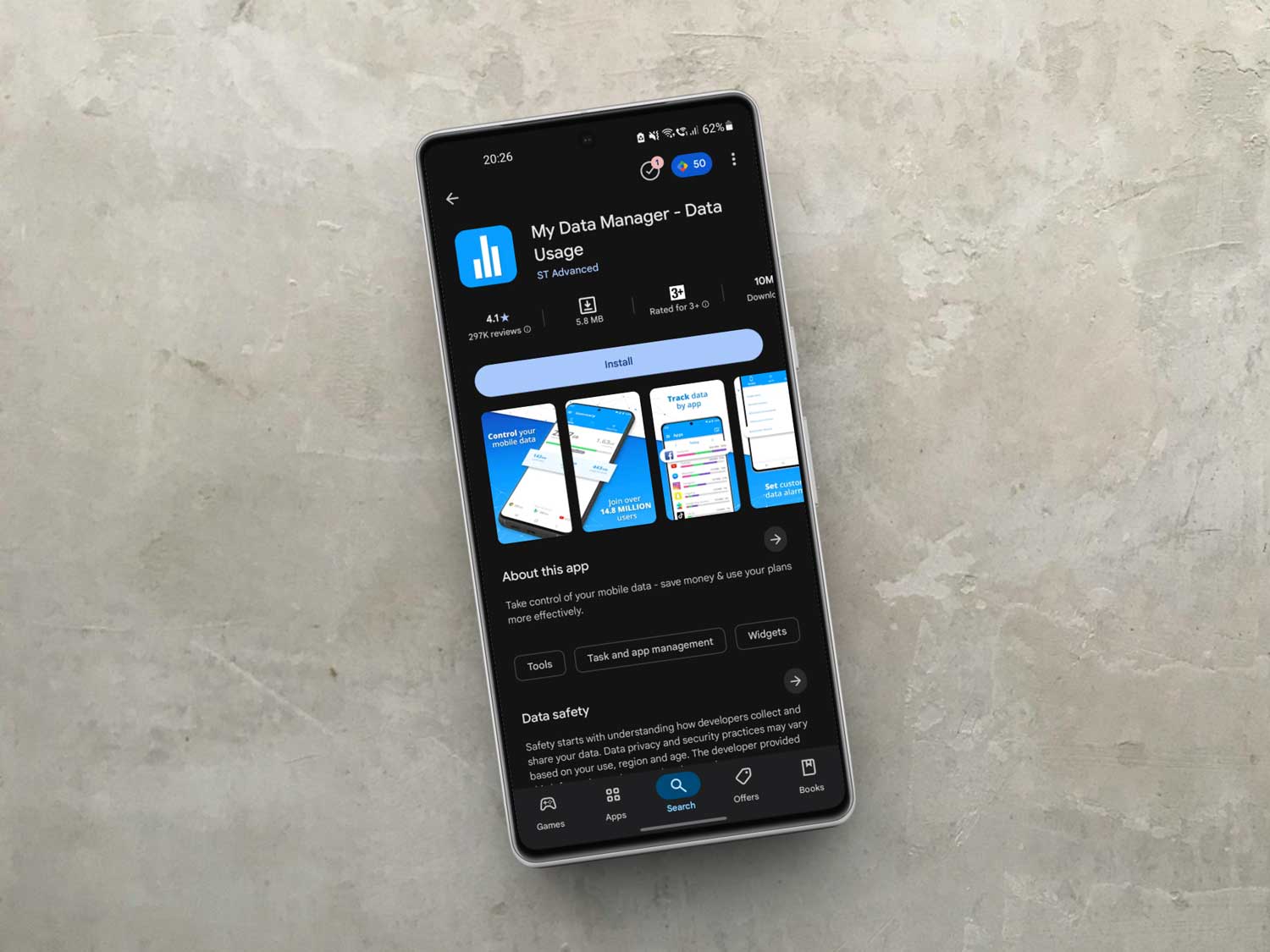
Many of these apps let you fine-tune exactly how and when apps can use data. It’s like having a personal data bodyguard watching your back.
Just make sure you pick a reputable app. Read the reviews before downloading.
Small win: know when it’s right
Here’s something to remember. You don’t need to block every single app.
Think about which apps are important. Maybe your email or banking apps need constant access. That’s okay. Let them be.
But apps like games, social media, random shopping apps? Yeah, they can wait.
Managing data isn’t just about saving gigabytes. It’s about keeping your phone running smoothly and your battery lasting longer too.
And don’t forget — after installing new apps or updates, always double-check your settings. Some sneaky apps might try to grab permissions again. Stay sharp!
Extra tips to save even more data
Alright, you’re already doing great. But let’s take it a step further with a few more easy tips.
1. Use Wi-Fi when you can
Whenever you’re home, at work, or in a café, switch to Wi-Fi. It’s faster, more stable, and doesn’t eat up your mobile data.
Plus, it’s usually safer when you’re on a trusted network. So, make Wi-Fi your best buddy.
2. Schedule night-time updates
Updates can be sneaky data eaters too. Set your phone to update apps only when connected to Wi-Fi.
Most phones let you schedule updates during the night. So you wake up to fresh apps without using any mobile data. Smart, right?
3. Disable auto-play on social media
Ever scroll through Facebook or Instagram and videos just start playing? Total data trap.
Go into your social media settings and turn off auto-play. This way, videos only play when you tap them. You see what you want, and save tons of data.
4. Set a data warning limit
Give yourself a little safety net.
- Open your Settings.
- Tap on Connections > Data Usage.
- Tap on Billing cycle and data warning.
- Enable Data Warning and set a Data Warning limit.
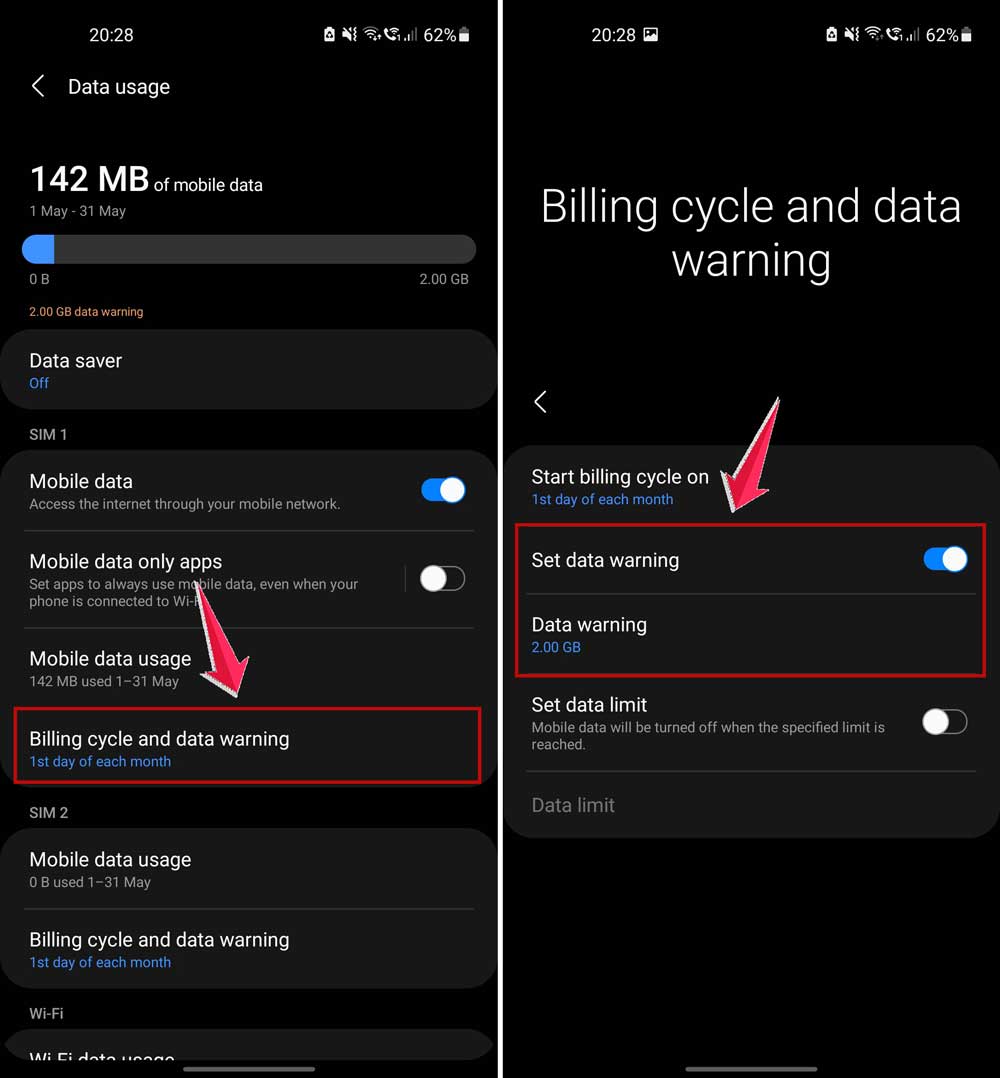
Your phone will alert you when you’re getting close to your limit. It’s like a friendly nudge to slow down.
5. Download offline content
Love Netflix, Spotify, or YouTube? Download your favorite shows, movies, or playlists while you’re on Wi-Fi.
This way, you can enjoy them later without burning through your mobile data. Easy and smart!
The Takeaway
So, there you have it. No more apps secretly gobbling up your limited data.
If you’re tired of surprise bills and fast-draining batteries, now you know what to do. Toggle off background data for apps on Android.
Turn off mobile data access for apps on iPhone. Use Wi-Fi whenever you can. And don’t let auto-play videos sneak up on you.
A lot of people think every app needs to stay connected all the time. But guess what? They really don’t. It’s just a myth.
By taking just a few minutes today, you’ll save your data, your battery, and your sanity. Take back control now—it’s easier than you think.
Got any questions or tips you want to share? Drop a comment below! I’d love to hear how it goes for you! 😊