You’ve just taken a great photo, but something’s missing. Maybe you want to add a funny caption, a memorable date, or some important details. Don’t worry – adding text to your photos is easier than you might think.
Whether you’re holding your smartphone or sitting at your computer, you have the tools to enhance your images with text. You don’t need to be a tech expert or have fancy software. In fact, you probably already have everything you need right at your fingertips.
In this guide, you’ll learn simple ways to add text to your photos, no matter what device you’re using. Whether you have an iPhone or Android phone, a Mac, or a Windows PC, we’ll walk you through the steps. Ready to make your photos more expressive and informative? Let’s get started!
How to add text to your photos using your phone or computer
Adding text to your photos is a great way to make them more expressive or informative. Whether you’re using a phone or a computer, here’s how you can easily add text to your images using the latest operating systems.
1. Add text to photos on your iPhone
So, you’ve got an iPhone, and you want to add some text to your photos? Great choice! iOS 18 has made this process even smoother than before.
Whether you’re looking to add a witty caption to your latest selfie or label that breathtaking sunset, you’re in the right place. Let’s walk through this together – it’s easier than you might think!
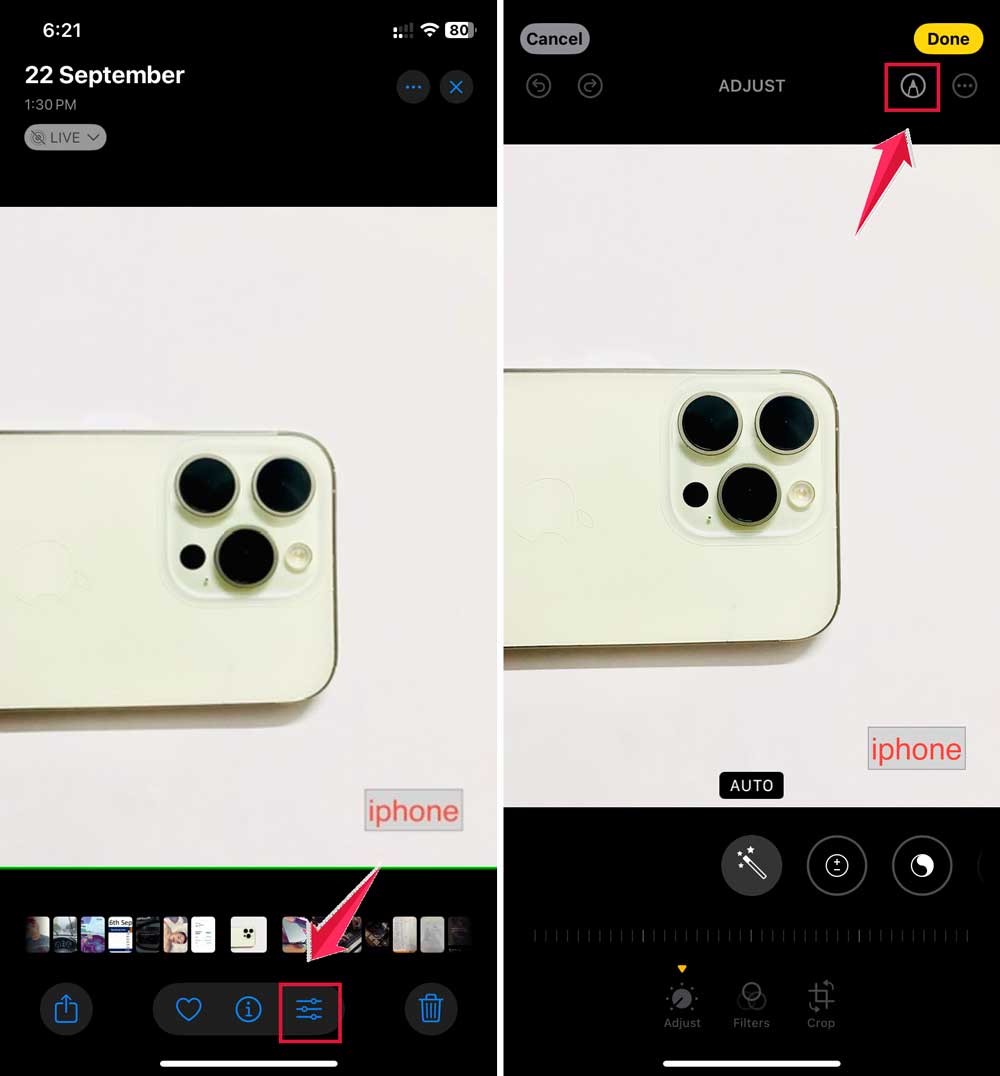
- Open the Photos app and select the photo you want to edit.
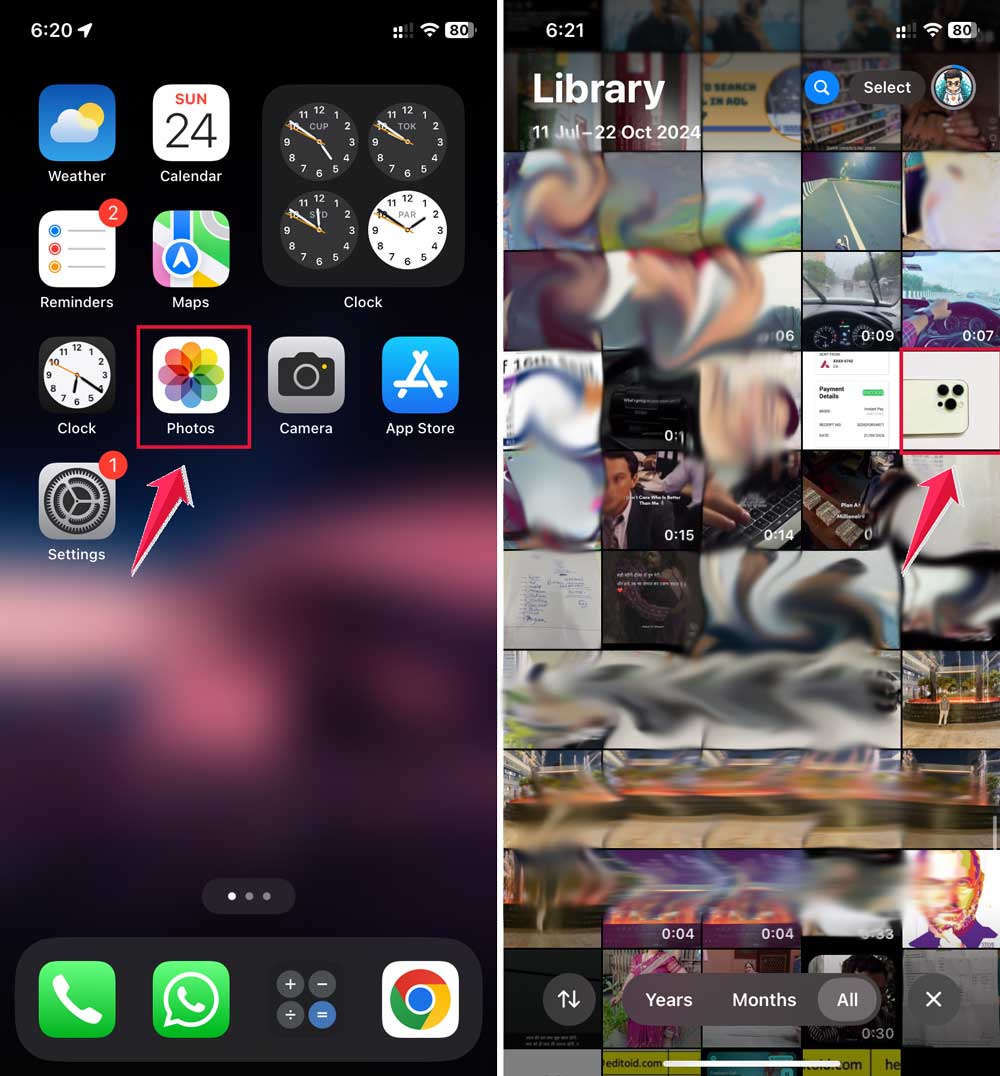
- Tap “Edit” in the top right corner.
- Choose “Markup” from the menu that appears.
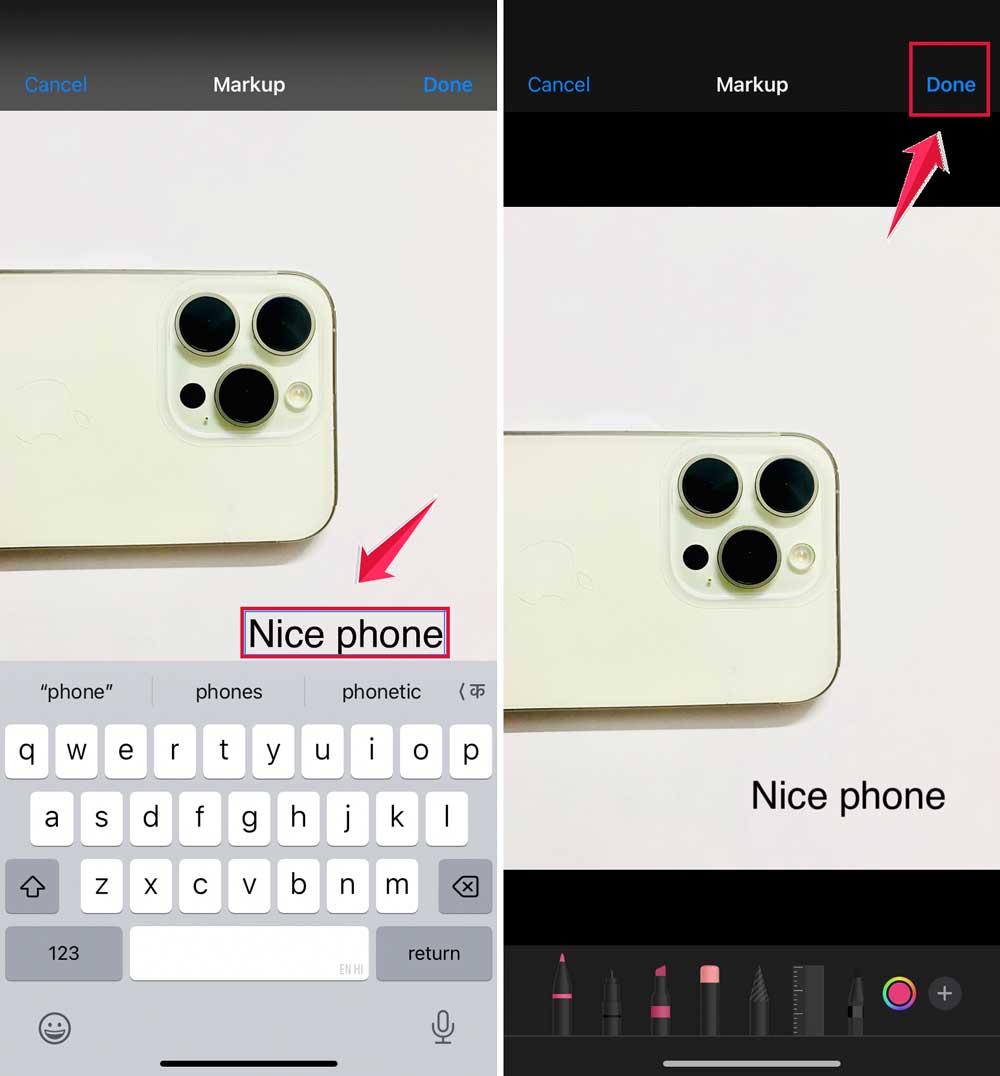
- Tap the plus (+) icon in the Markup toolbar.
- Select “Text” from the options.

- A text box will appear on your image. Tap it to type your message.
- Use the blue dots to resize the text box, and drag it to position it where you want.
- To change the font or color, tap the “aA” icon at the bottom.
- When you’re done, tap “Done” in the top right corner.
2. Add text to photos on your Android phone
Android users, don’t worry – you’re not left out of the text-adding fun! If you’re running Android 14, you’ve got a powerful tool right at your fingertips with Google Photos.
It’s perfect for adding those finishing touches to your images, whether it’s a date, a location, or just a funny comment. Ready to give it a try? Here’s how you can do it:
- Open Google Photos and select the photo you want to edit.
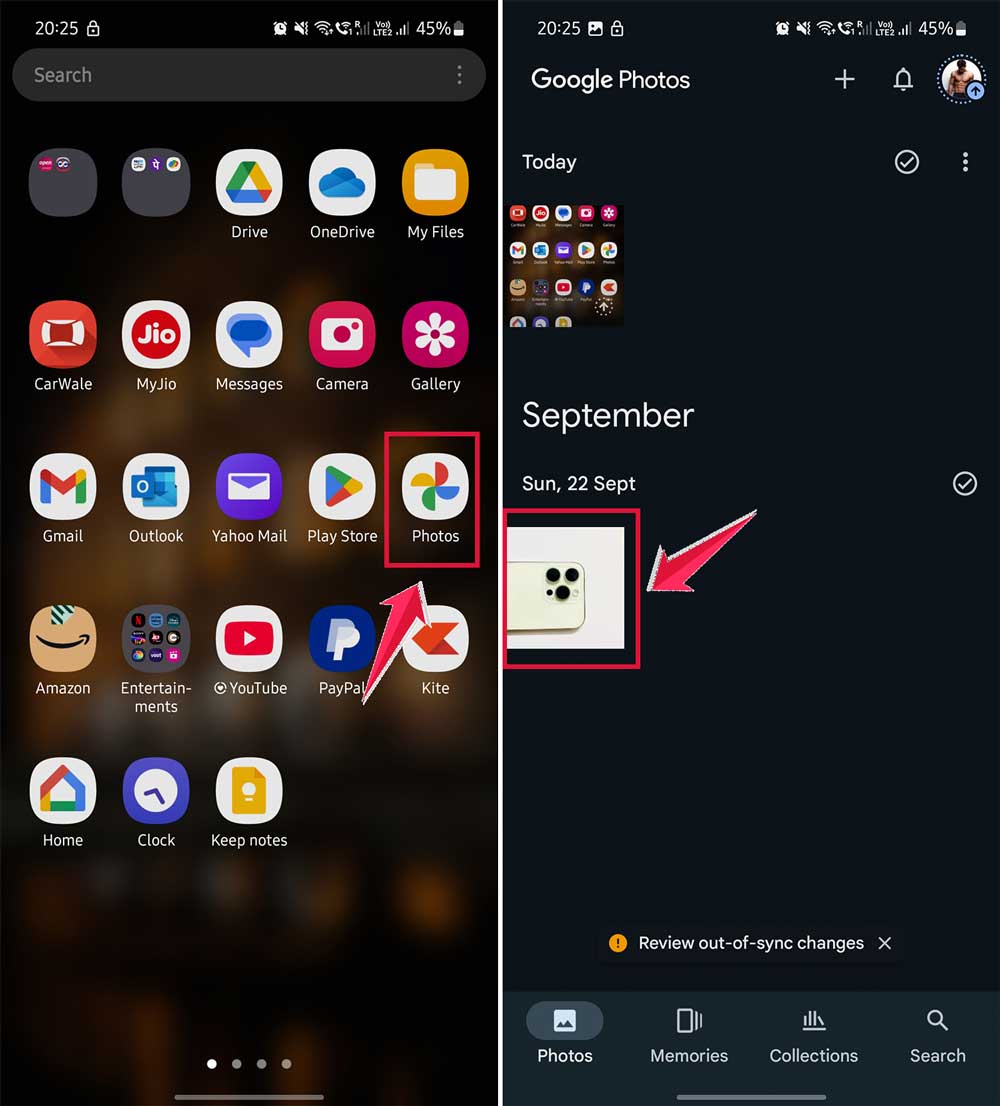
- Tap “Edit” at the bottom of the screen.
- Scroll to and tap on “Markup”.
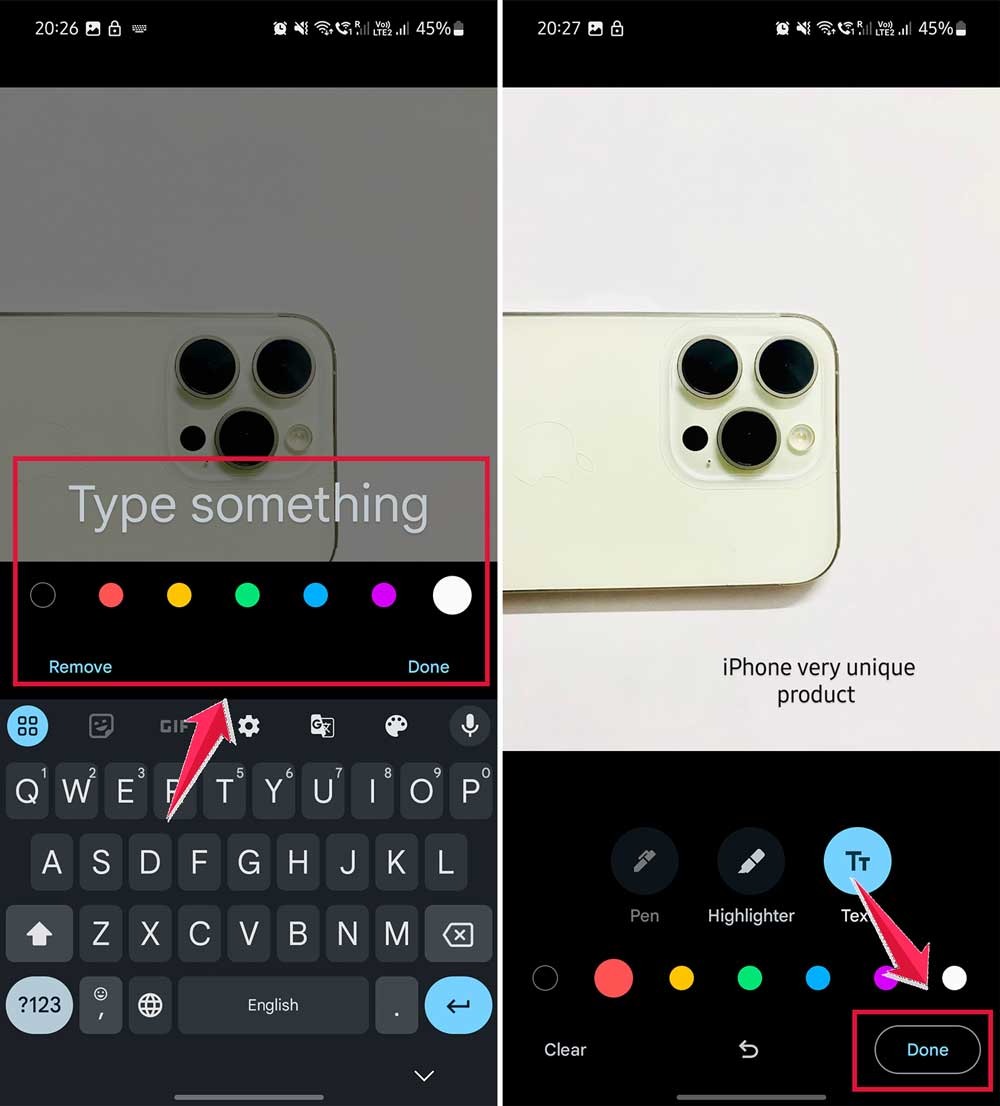
- Tap the “Text” tool.

- Type your message in the text box that appears.
- Use the color palette to choose a color for your text.
- Drag the text to position it on the photo.
- Pinch to resize the text.
- Tap “Done” to save your changes.
3. Add text to photos on your Mac
Mac users, you’re in for a treat! If you’re running macOS Sonoma, you’ve got some fantastic built-in tools for adding text to your photos. The Photos app on your Mac is more powerful than you might realize.
Whether you’re preparing images for a presentation or just want to add some context to your vacation snapshots, this feature is incredibly handy. Let’s dive in and see how it works:
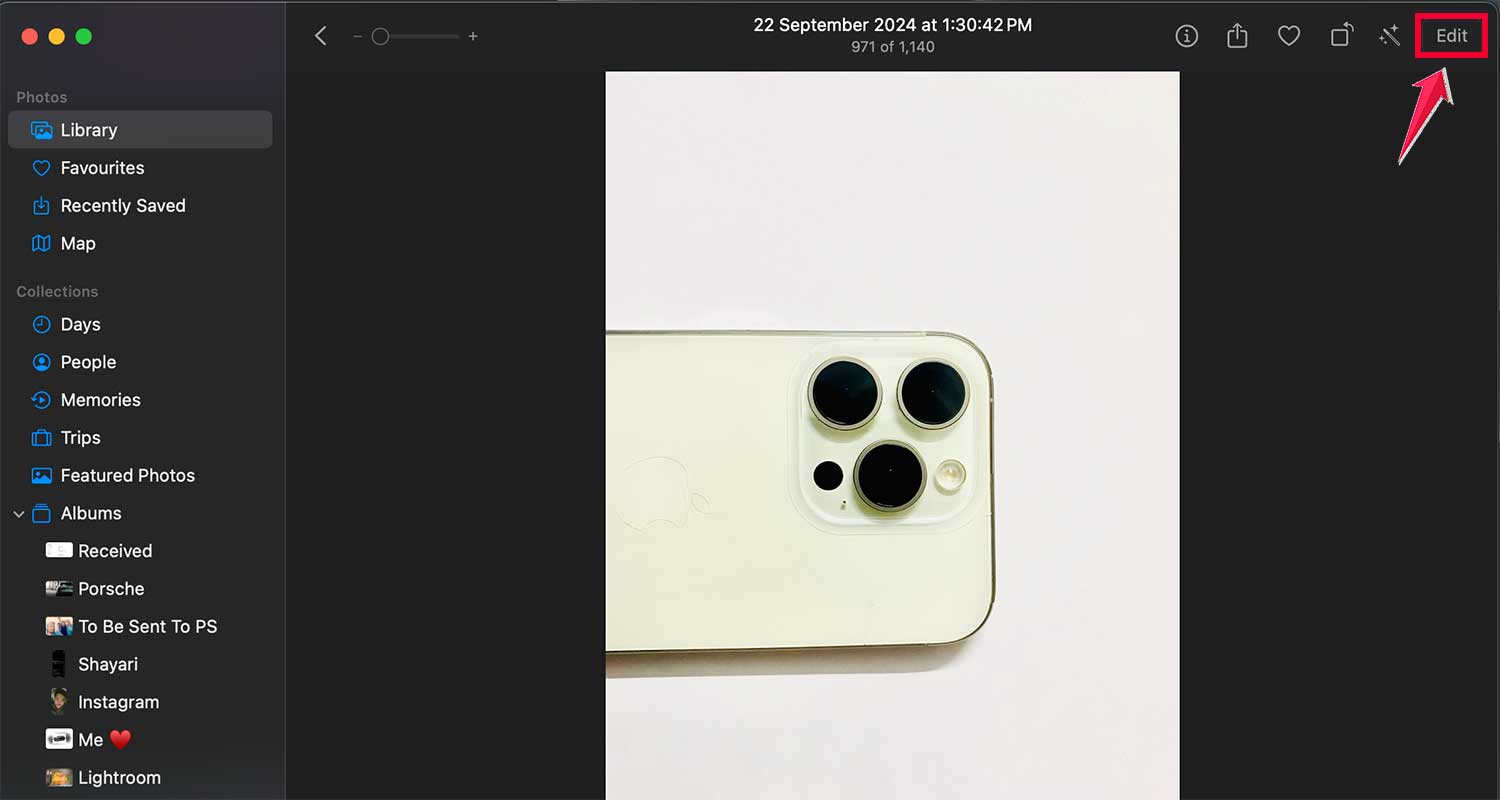
- Open the Photos app and select your image.
- Click “Edit” in the top right corner.
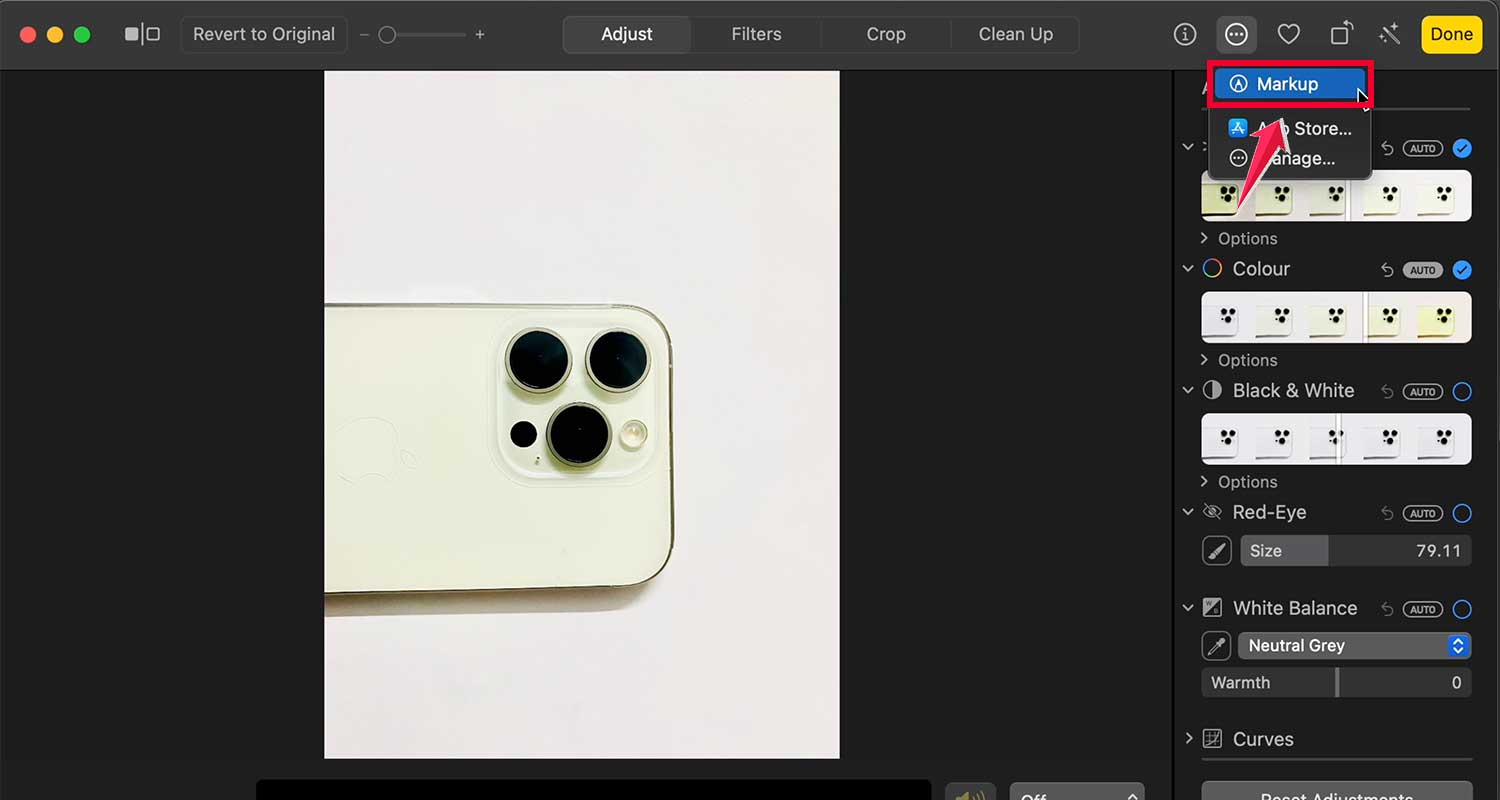
- Click the More (…) icon in the top right.

- Choose Markup.
- Click the Text icon (it looks like a “T” in a box).

- A text box will appear on your image. Type your message.
- Use the Format button in the toolbar to change the font, size, and color.
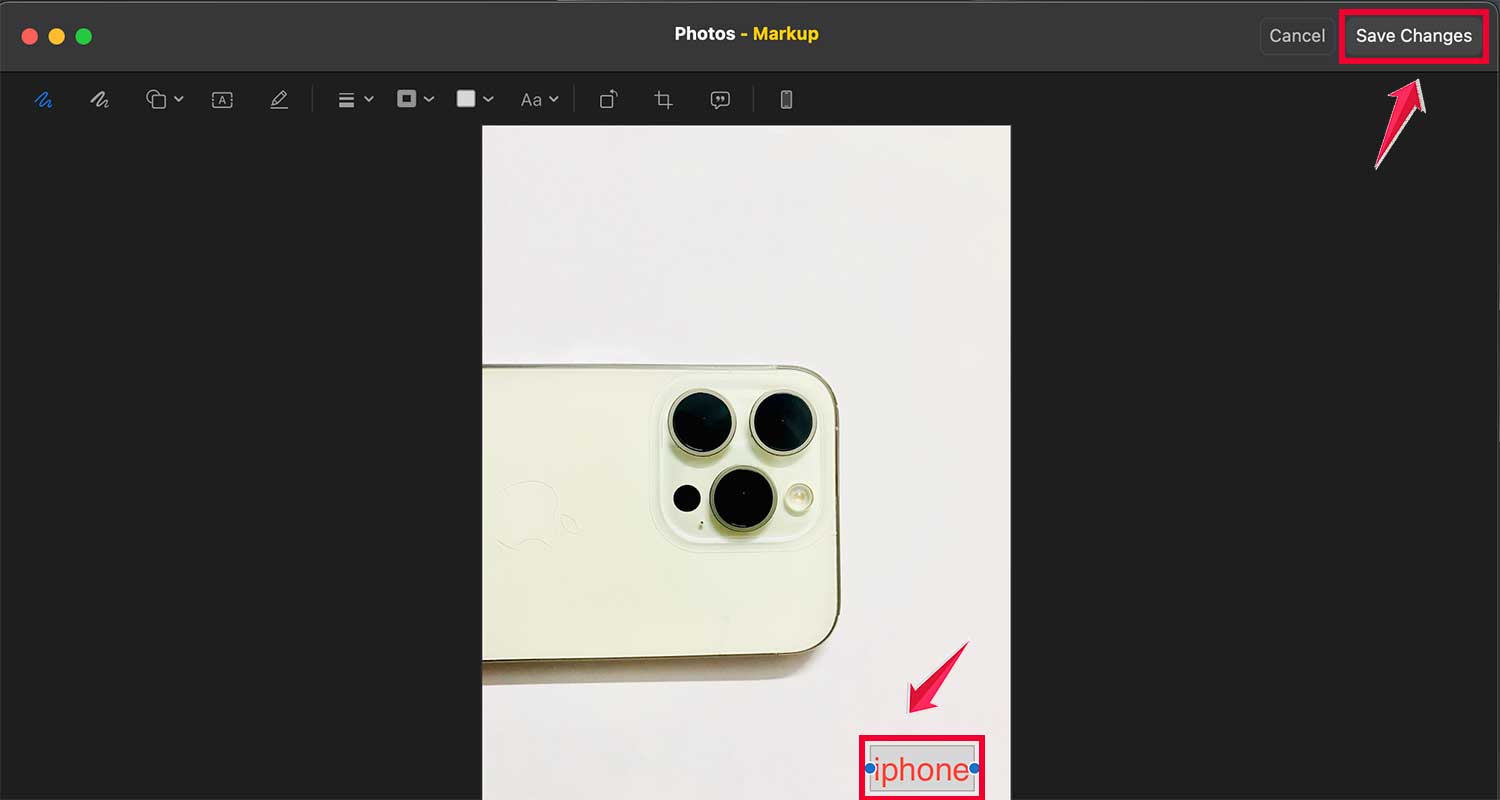
- Click “Done” to save your changes.

4. Add text to photos on your Windows 11
Windows 11 users, you’re not left out of the photo-editing party! The Photos app in Windows 11 has some great features for adding text to your images.
Whether you’re creating a meme, labeling a family photo, or adding a motivational quote to your desktop background, these tools make it easy. Ready to see how it’s done? Follow along with these steps:
- Open your photo in the Photos app.
- Click “Edit” in the top toolbar, then choose “Draw”.
- Click the “Add text” button (it looks like “A”) in the toolbar.
- Click on the image where you want to add text and type your message.
- Use the text toolbar to adjust font, size, color, and alignment.
- Drag the text box to reposition it if needed.
- Click “Done” in the top right corner to save your changes.
Remember, practice makes perfect! Don’t be afraid to experiment with different fonts, colors, and placements to make your photos stand out. The more you play around with these tools, the more comfortable you’ll become with them.
Before you know it, you’ll be adding text to your photos like a pro. So go ahead, give it a try, and see how it can bring your photos to life. Have fun adding text to your photos!
The takeaway
Adding text to your photos is easier than you might think, no matter what device you’re using. Whether you have an iPhone, Android phone, Mac, or Windows PC, you now have the tools to make your pictures more meaningful and fun.
The best part is you don’t need to be a tech expert to do this. All the apps we’ve talked about – Photos on iPhone and Mac, Google Photos on Android, and the Photos app on Windows – are designed to be user-friendly. They give you the power to add dates, captions, or even jokes to your images with just a few taps or clicks.
Some people think you need expensive software or advanced skills to edit photos, but that’s not true. These built-in tools are powerful enough for most of what you might want to do. Remember, the goal isn’t perfection – it’s about making your photos more personal and expressive.
So why not give it a try? Pick a favorite photo and add some text to it. You might be surprised at how much it changes the image and the story it tells. The more you practice, the better you’ll get at choosing the right words, fonts, and colors to make your photos truly stand out.
What do you think about adding text to photos? Share your thoughts in a comment below!