Are you planning a road trip or running multiple errands today? You’re probably wondering how to map out all your stops efficiently. Don’t worry, Google Maps has got you covered.
Adding stops to your route on Google Maps is a game-changer, but it’s not always obvious how to do it. Whether you’re on your computer at home or using your phone on the go, you might be scratching your head trying to figure it out.
Here’s the good news: you’re in the right place. This guide will walk you through exactly how to add stops to your Google Maps route, step by step. You’ll be planning multi-stop journeys like a pro in no time.
Ready to make your travels smoother? Let’s jump right in and get you on your way.
How to add multiple stops on Google Maps
You’re planning a trip with several stops, and you’re wondering how to map it all out. Don’t worry, it’s easier than you might think! Here’s how you can add multiple stops on Google Maps, whether you’re using your computer or your phone.
1. Add multiple stops on your computer
- Open Google Maps in your web browser.
- Click the blue “Directions” button next to the search bar.

- Enter your starting point and final destination.

- To add more stops, click the “Add destination” option (it looks like a “+“) below your final destination.

- You can type in the location or just click on the map to add a stop.

- Need to change the order? Just drag and drop the destinations in the list.
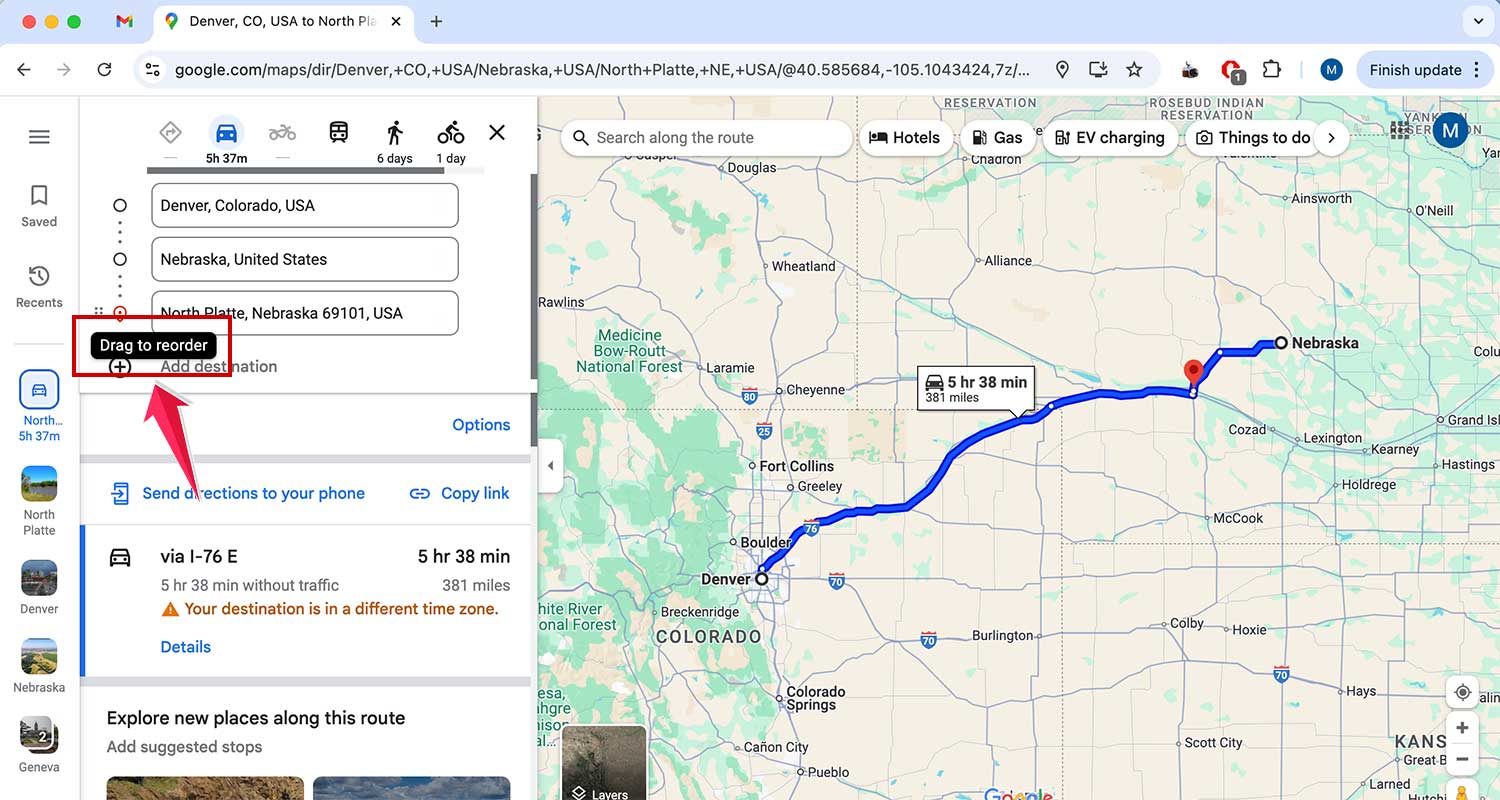
Remember, you can add up to 9 stops total, not including your starting point.
2. Add multiple stops on your phone:
- Open the Google Maps app on your Android or iPhone.
- Tap the Blue directions button at the bottom of the screen.
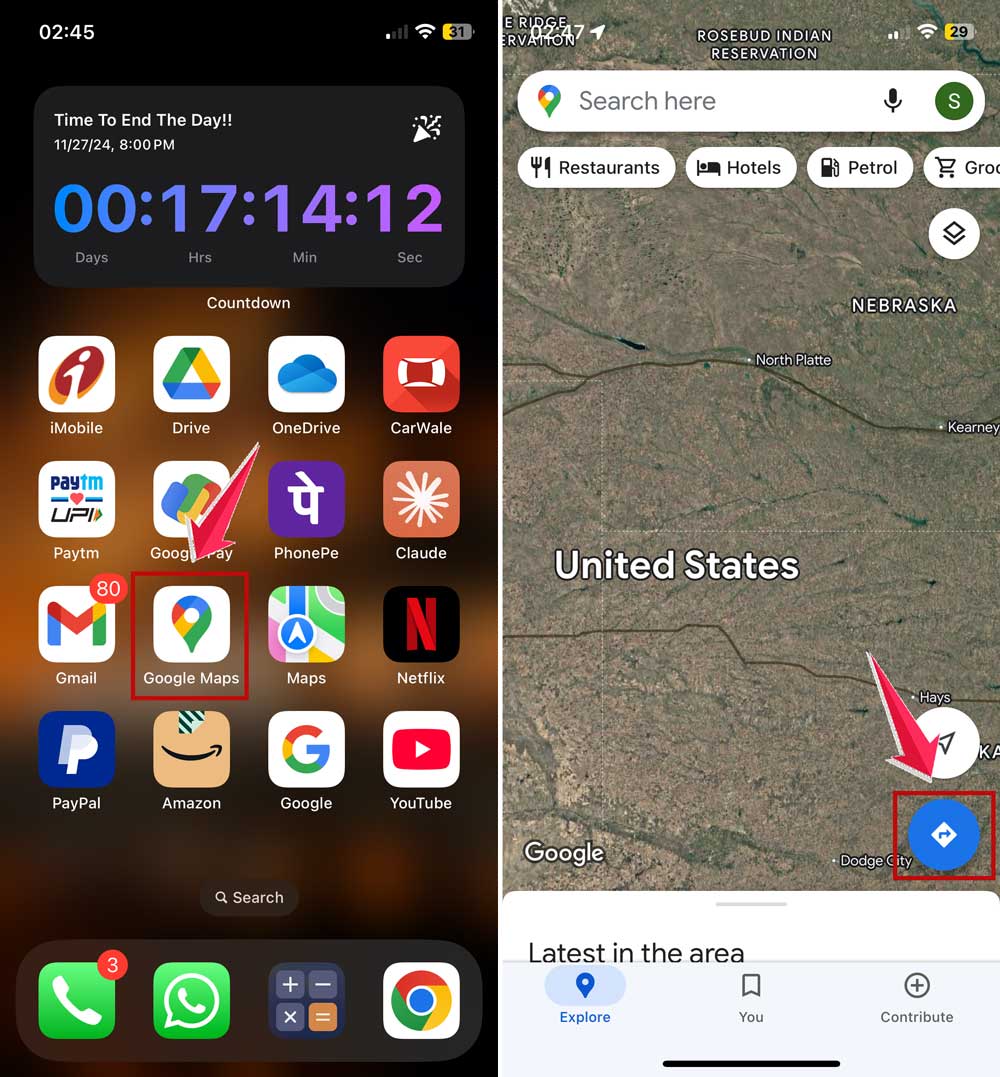
- Enter your starting point and final destination.
- To add more stops, tap the three dots in the top-right corner.
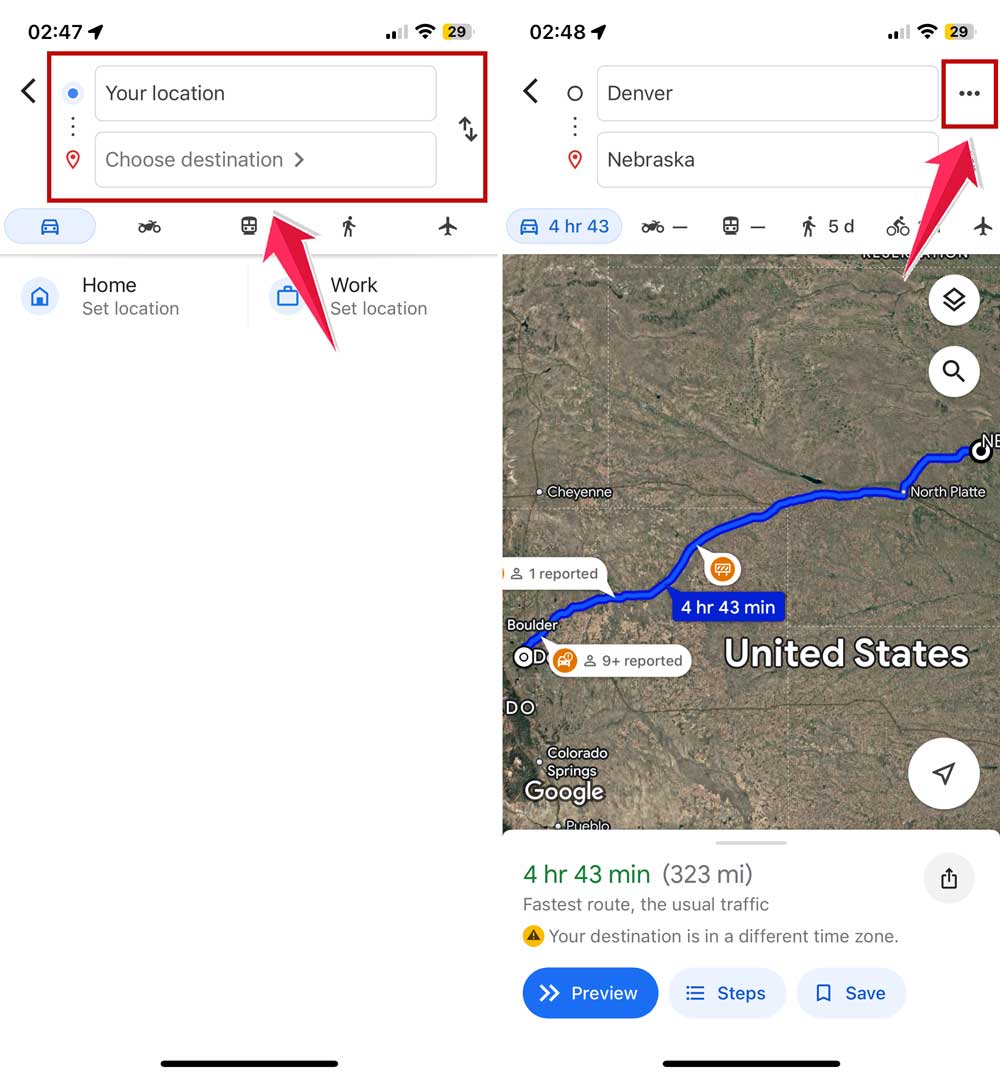
- Then choose “Add stop”.
- To change the order, press and hold a destination, then drag it where you want it.
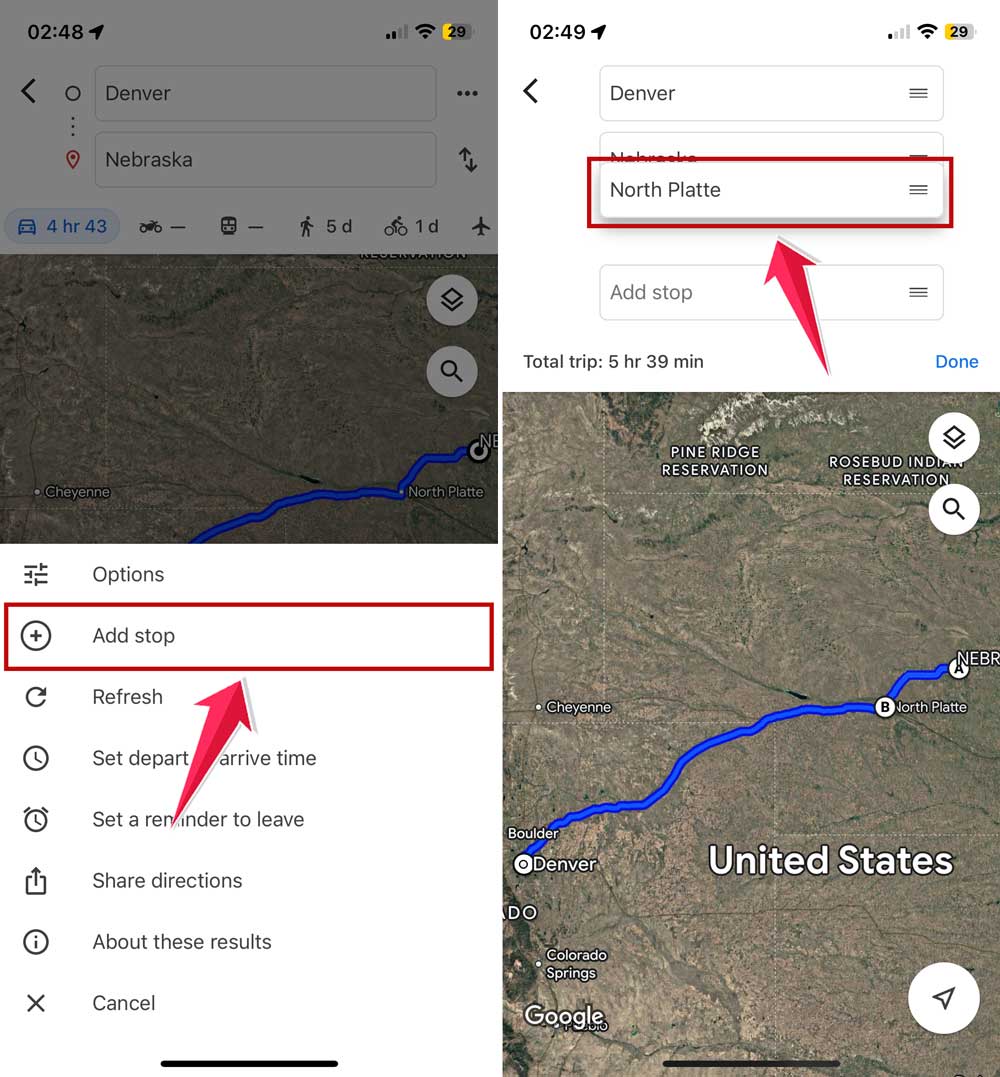
- Tap Done. When you’re happy with your route, tap “Start” to begin navigation.

Here’s a handy tip: You can plan your route on your computer and then send it to your phone. Just click on the “Send directions to your phone” option after planning your route.
Remember, you can add stops for driving, cycling, or walking routes. It now also works for some public transit routes, but availability may vary by location.
How to add more than 10 stops on Google Maps
So, you’ve got a big trip planned with lots of stops? You might have noticed that Google Maps only lets you add up to 10 stops. But don’t worry! There’s a neat trick to get around this: it’s called Google My Maps.
Google My Maps is like a supercharged version of regular Google Maps. It’s free and part of Google Workspace. Think of it as creating a custom map, just like you’d create a Google Doc. You can also share and edit it with others.
Here’s how you can use My Maps to plan a route with more than 10 stops:
- Go to Google My Maps. You can find it by searching or going directly to “google.com/mymaps“.
- Click on “Create A New Map”. It’s like starting a new document but for maps!
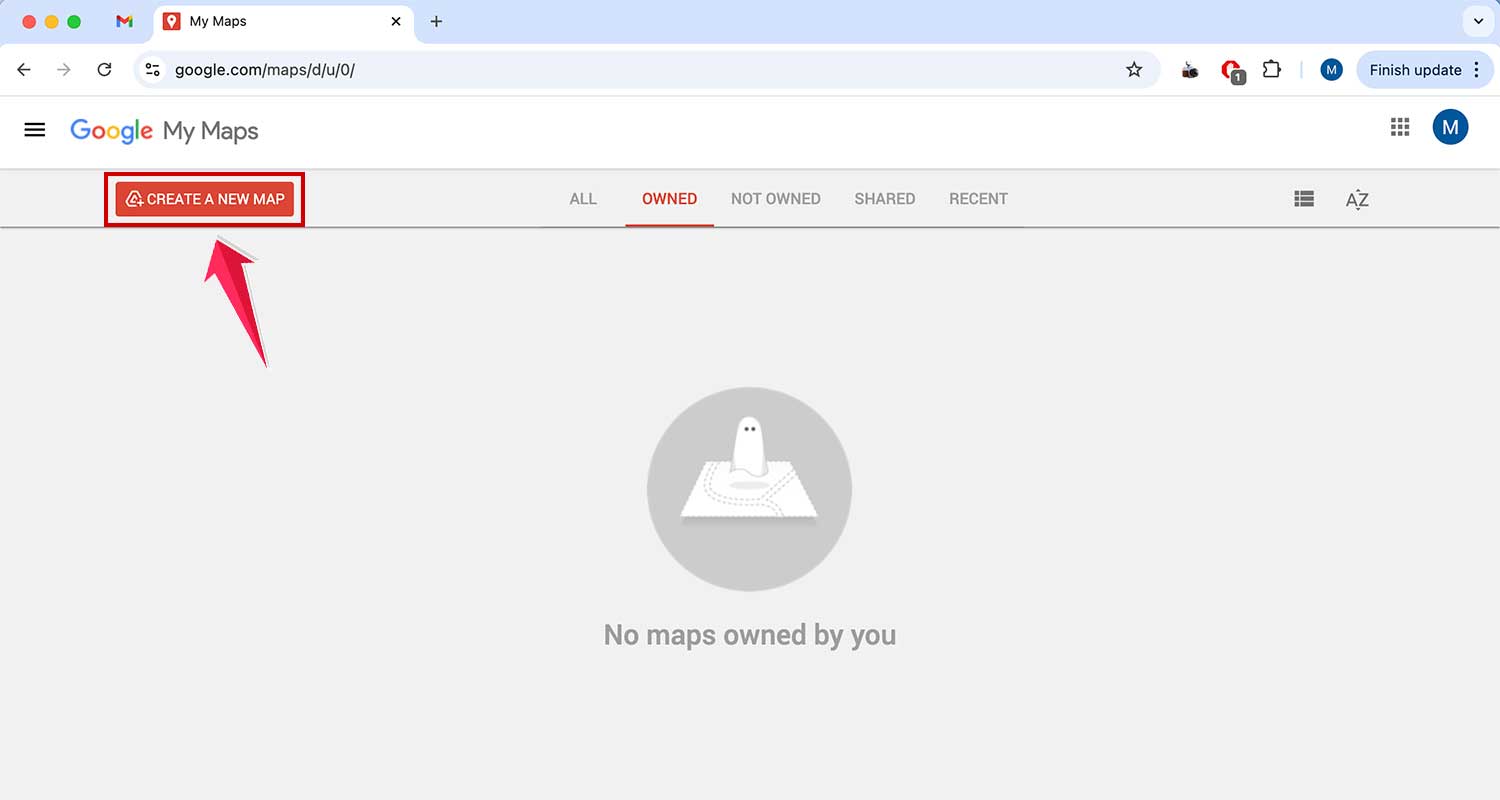
- Look for the “Add directions” icon under the search bar. Click on it to start plotting your route.
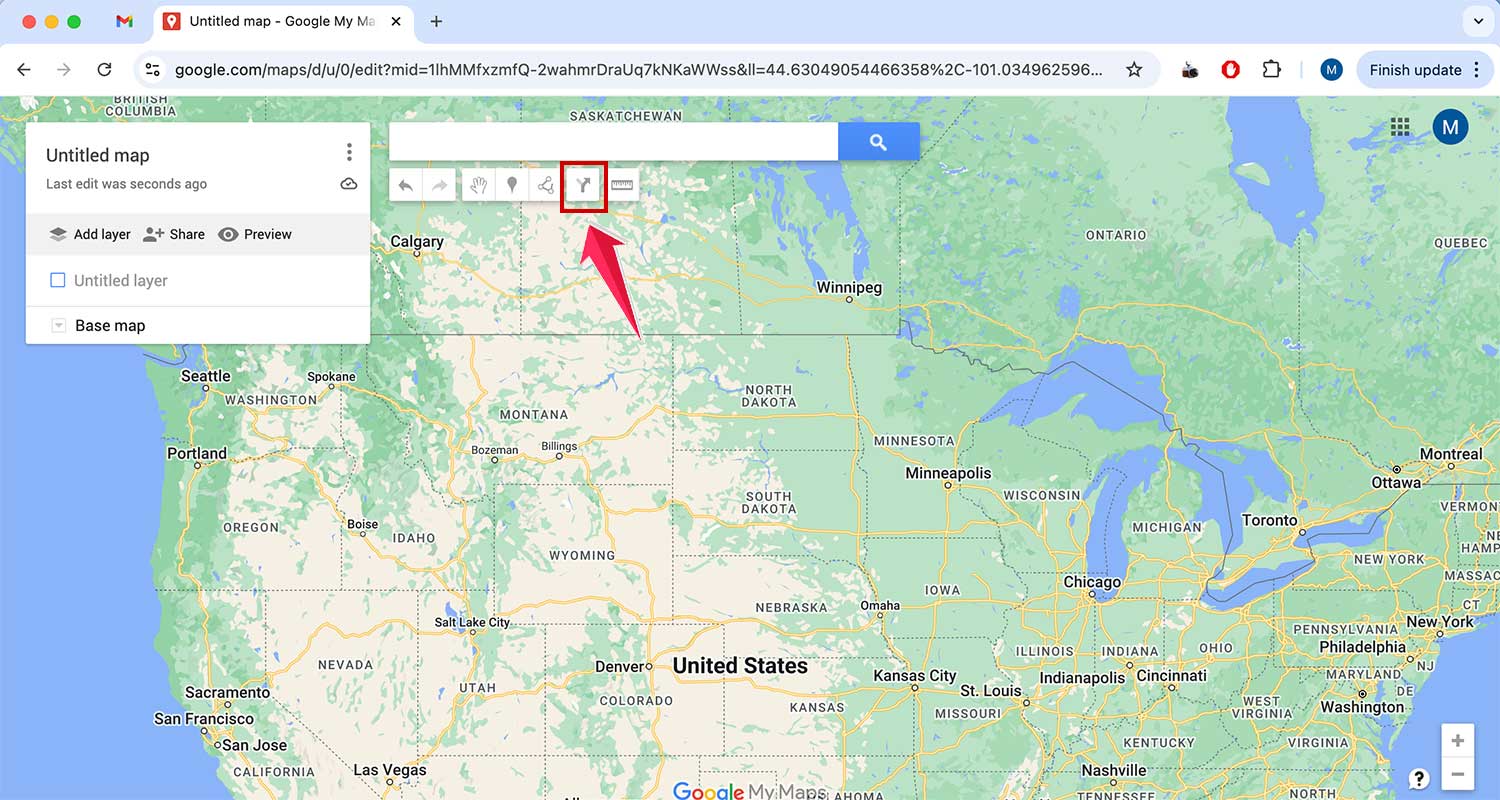
- Add your first 10 stops. When you hit the limit, don’t panic!
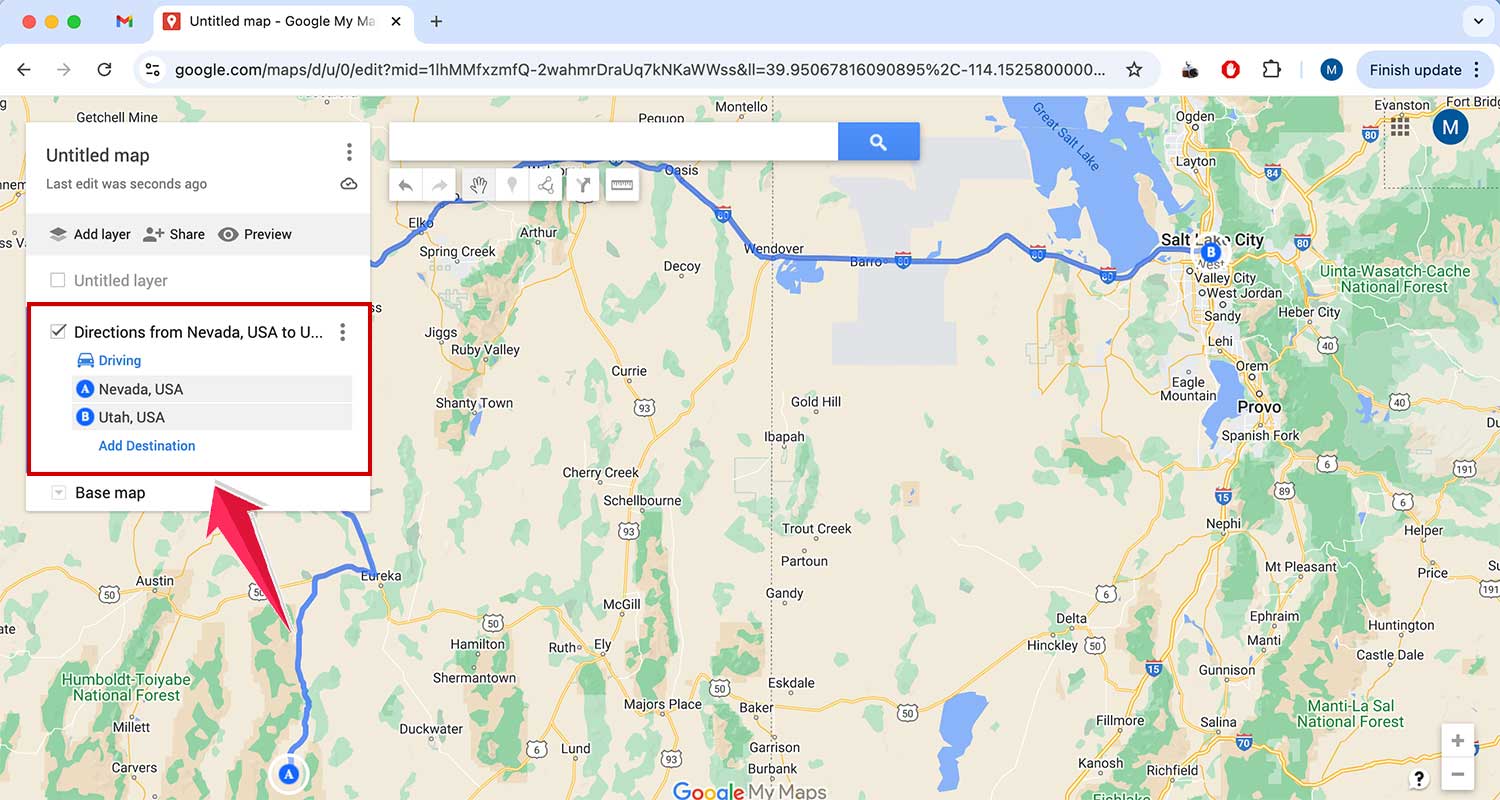
- Just click “Add directions” again. This starts a new layer on your map.
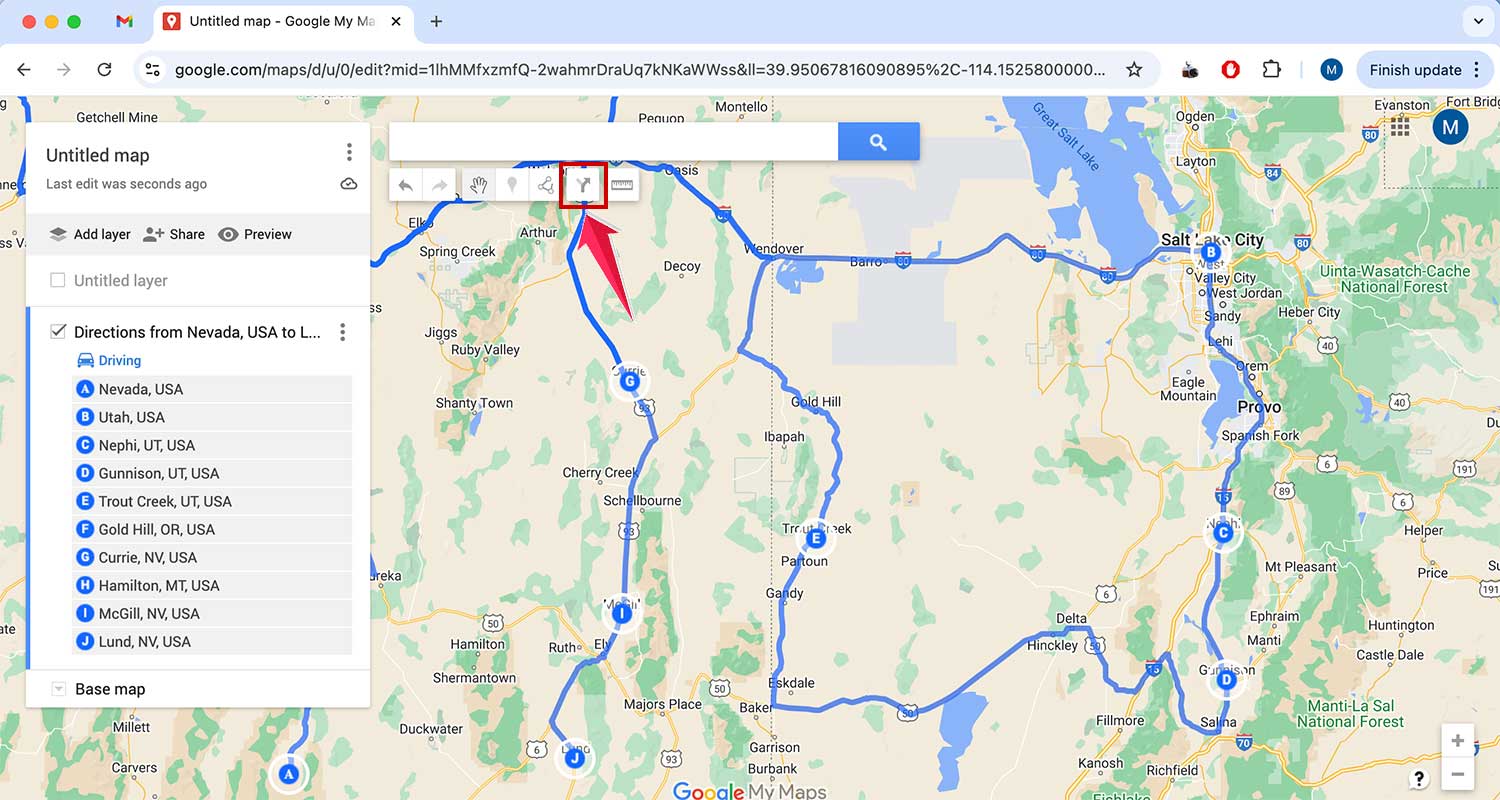
- Keep adding layers as needed. You can have up to 10 layers, which means you could potentially add 100 stops in total!
- For each new layer, start with the last stop from your previous layer. This keeps your route connected.
Here’s a cool feature: you can customize your route by clicking and dragging the route line. This lets you choose specific roads if you want to take a scenic detour or avoid certain areas.
With My Maps, you’re no longer limited by the number of stops. It’s perfect for planning those epic road trips or complex multi-stop journeys.
How to mark and label your stops on Google Maps
Want to make your route more personal and easier to follow? Good news! While Google Maps might not let you draw directly on the map, you can still add your own special touch by labeling your stops.
Here’s how you can add labels to your stops:
- Open Google Maps and search for the place you want to label. It could be a specific address or a landmark.
- Once you’ve found your spot, scroll down in the information panel. Look for the option that says “Add a label” and tap on it.

- Now comes the fun part! Type in whatever you want to call this place. Maybe it’s “Grandma’s House” or “Best Ice Cream Shop“. Hit “Enter” when you’re done.
- Your label will now show up in two places: in the description of the location and right on the map itself, just above the official name.

Why is this helpful? Well, imagine you’re planning a big day out with lots of stops. Instead of trying to remember “that cafe on 5th street“, you can label it “Lunch Stop“. Or if you’re house hunting, you could label potential homes as “Dream House 1“, “Dream House 2“, and so on.
These labels are your own personal markers. They won’t show up for anyone else, but they’ll make your map uniquely yours. It’s like leaving little breadcrumbs for yourself as you plan your route.
The takeaway
Google Maps is more powerful than you might think when it comes to planning trips with multiple stops. Whether you’re using your computer or your phone, you’ve got some great tools at your disposal.
Remember, you can add up to 10 stops directly in Google Maps. That’s perfect for most day trips or errands. But if you’re planning a longer journey, don’t forget about Google My Maps. This handy tool lets you add up to 100 stops, which is great for those epic road trips or complex itineraries.
One thing people often overlook is the labeling feature. It’s a simple way to make your map more personal and easier to navigate. Instead of trying to remember addresses, you can give each stop a name that means something to you.
The most important thing to take away? Don’t be afraid to explore these features. Play around with Google Maps and My Maps. Add some labels and plan a multi-stop route.
What do you think? Do you have any questions about using Google Maps for your trips?