Are you sitting in front of your Excel spreadsheet right now, scratching your head about how to add up some numbers? Don’t worry, you’re not alone. Millions of people use Excel every day, and many of them started exactly where you are.
Maybe you’re trying to total up your monthly expenses, or perhaps you’re working on a sales report for your job. Whatever the reason, you’ve realized that manually adding numbers is time-consuming and prone to errors. That’s where Excel formulas come in handy.
Think of Excel formulas as shortcuts that do the math for you. They’re like having a super-smart calculator built right into your spreadsheet. And the best part? You don’t need to be a math whiz or a computer expert to use them.
In this guide, you’ll learn how to use a simple formula to add numbers quickly and accurately. Whether you’re using Excel on your work computer, your personal laptop, or even on your Mac, these steps will work for you.
How do you start using Excel formulas?
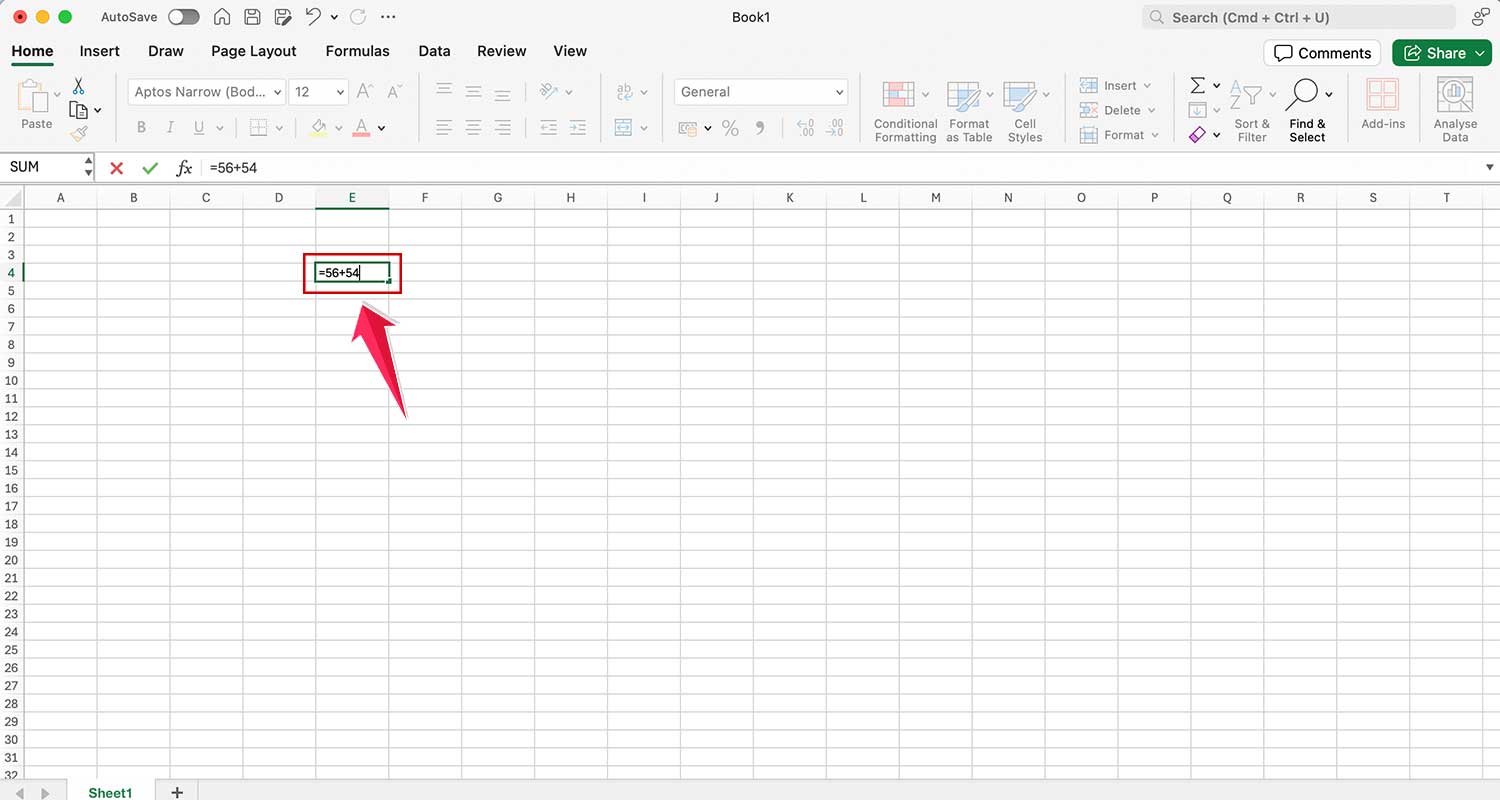
- The magic symbol. Every formula starts with an equal sign (=). This tells Excel you’re about to do some math.
- Adding numbers. Use the plus sign (+) for addition. For example, type =5+3 in a cell and press Enter. Excel shows the result: 8.
- Getting results. After typing your formula, press Enter. Excel calculates and displays the answer instantly.
What are cell references, and why should you use them?
Cell references are a powerful feature in Excel that can make your work much easier and more efficient. Let’s dive into what they are and why you should use them:
1. Understanding cell references
Think of a cell reference as an address for each box (or “cell“) in your spreadsheet. Just like houses have addresses, cells have their own unique identifiers.
For example, the top-left cell is called A1, the one to its right is B1, and the one below A1 is A2. This system helps you pinpoint exactly where your data is located.
2. Using cell references
Instead of typing numbers directly into your formulas, you can tell Excel where to find the numbers. Here’s a simple example:
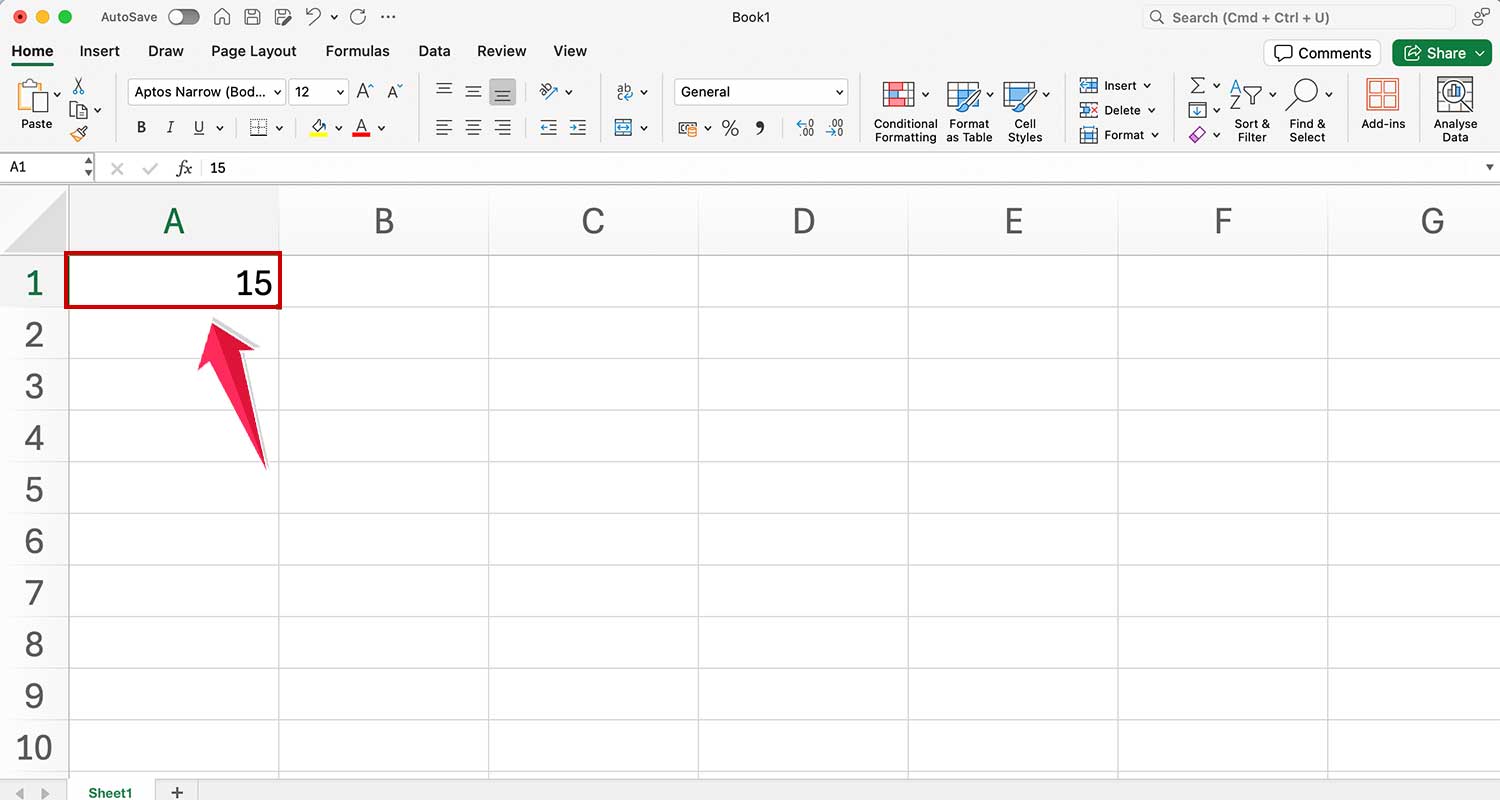
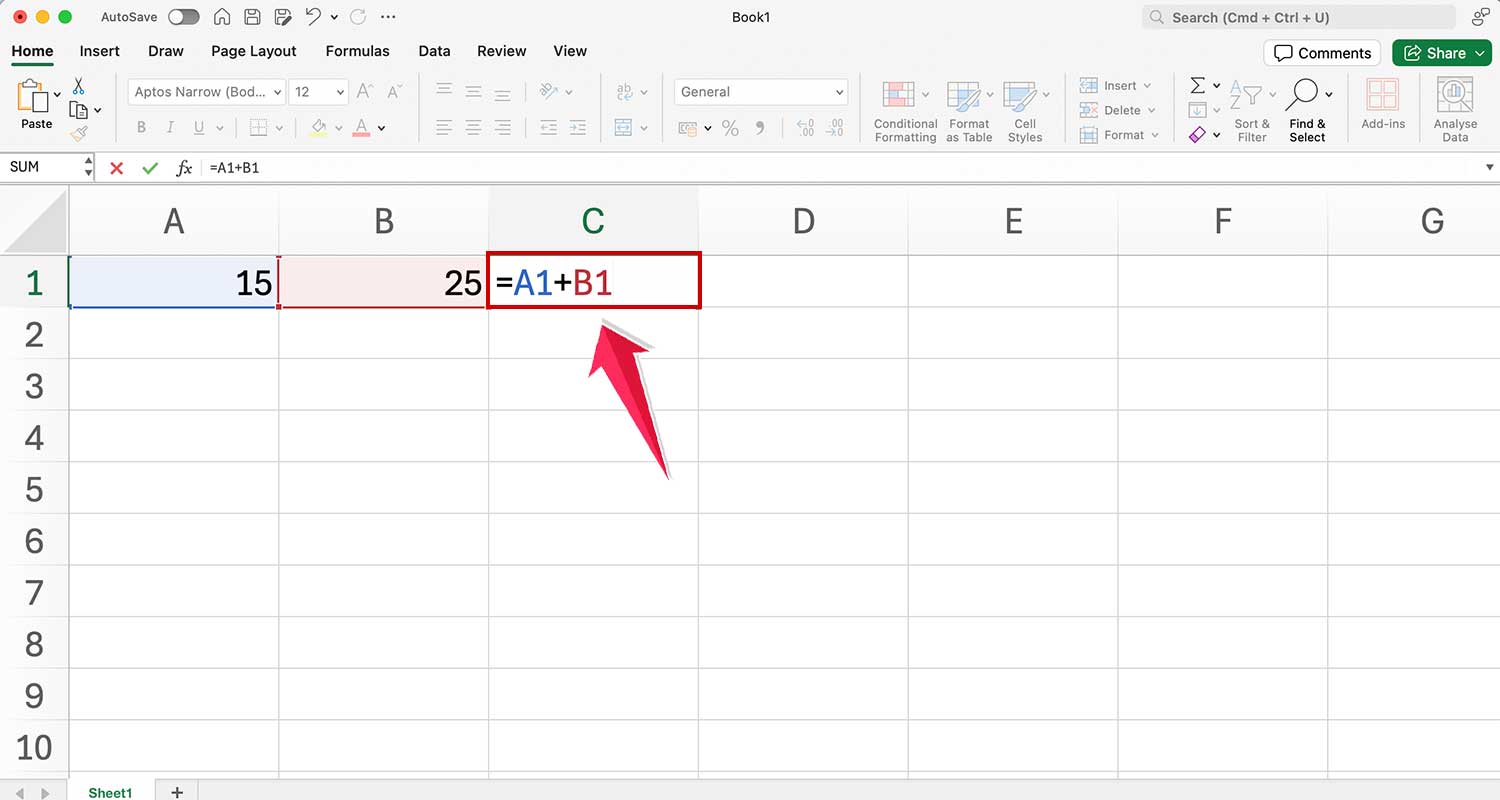
- Put 15 in cell A1.
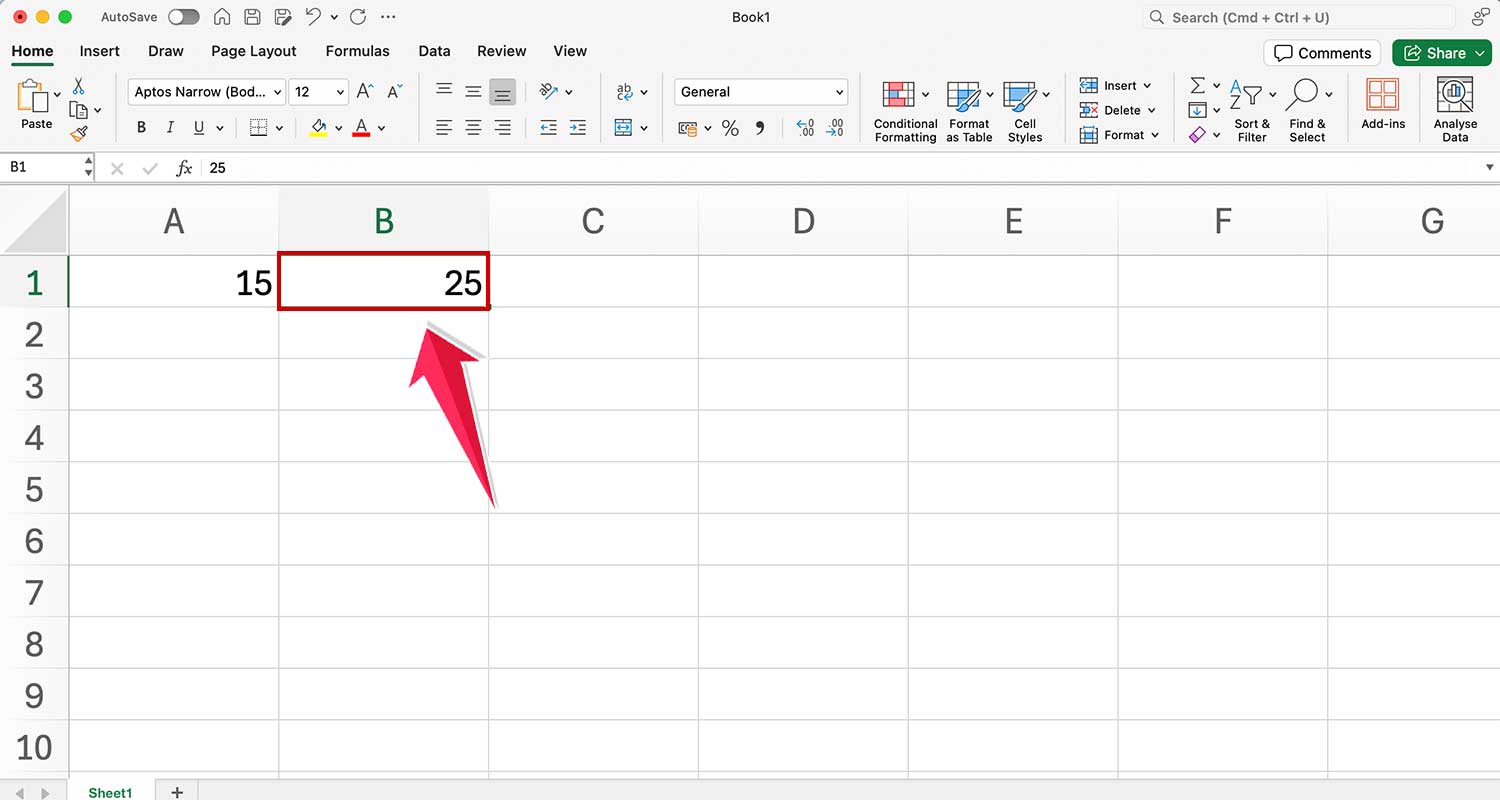
- Put 25 in cell B1.
- In cell C1, type =A1+B1 and press Enter Excel will show 40 in C1. It’s added the numbers for you by looking at the contents of A1 and B1.
3. The big advantage
If you change the numbers in the referenced cells, your total updates automatically. Try changing 15 to 20 in A1.

You’ll see that C1 immediately updates to 45. This feature saves you time and reduces errors, especially when working with large datasets.
How can you create formulas without typing?
Excel has a nifty feature that can save you time and reduce errors when creating formulas. Let’s walk through this user-friendly method:
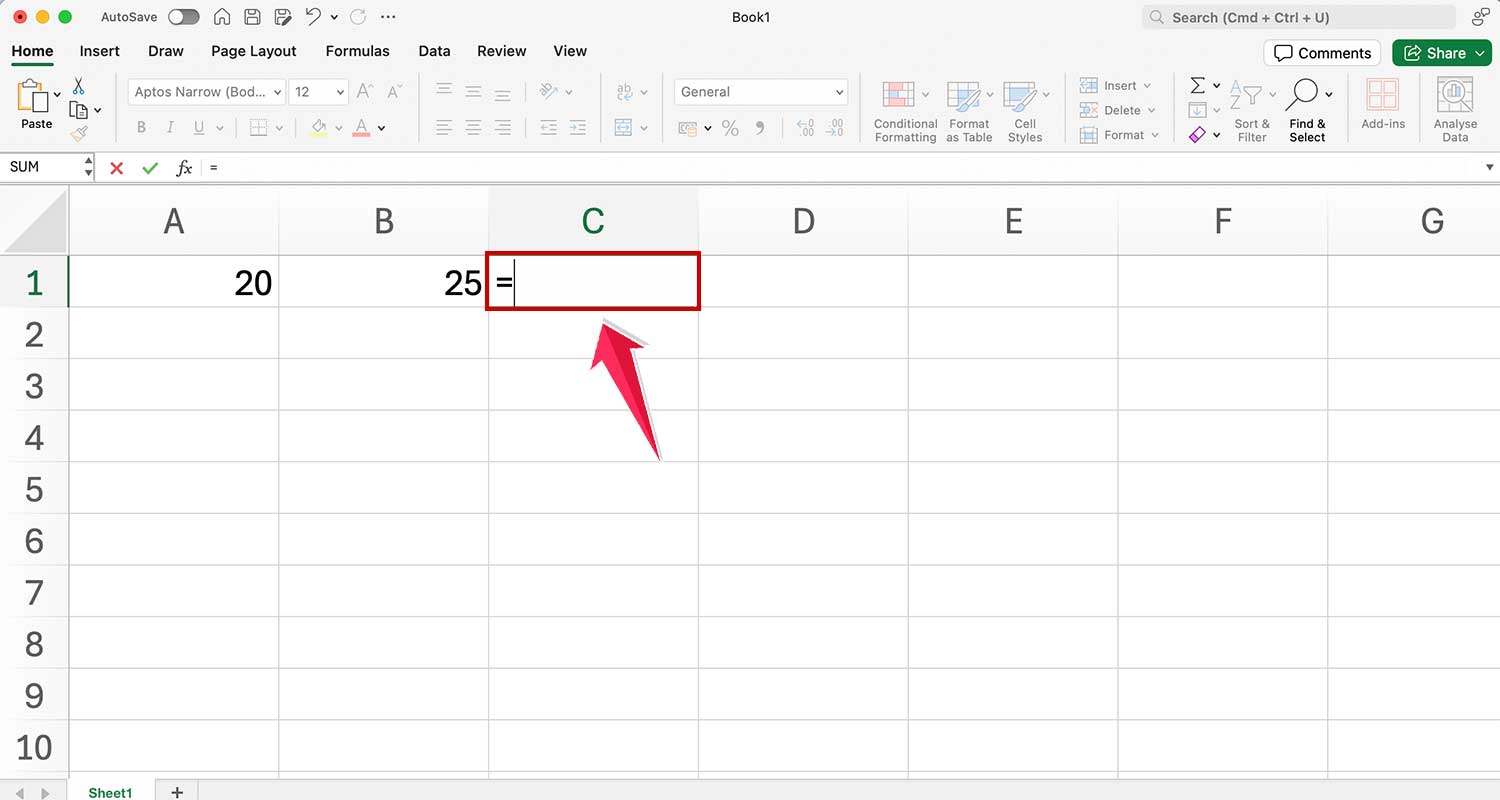
1. Start with the equal sign
First, click on the cell where you want your result to appear. Then, type an equal sign (=). This tells Excel you’re about to create a formula.
2. Use the point-and-click method
Here’s where the magic happens:
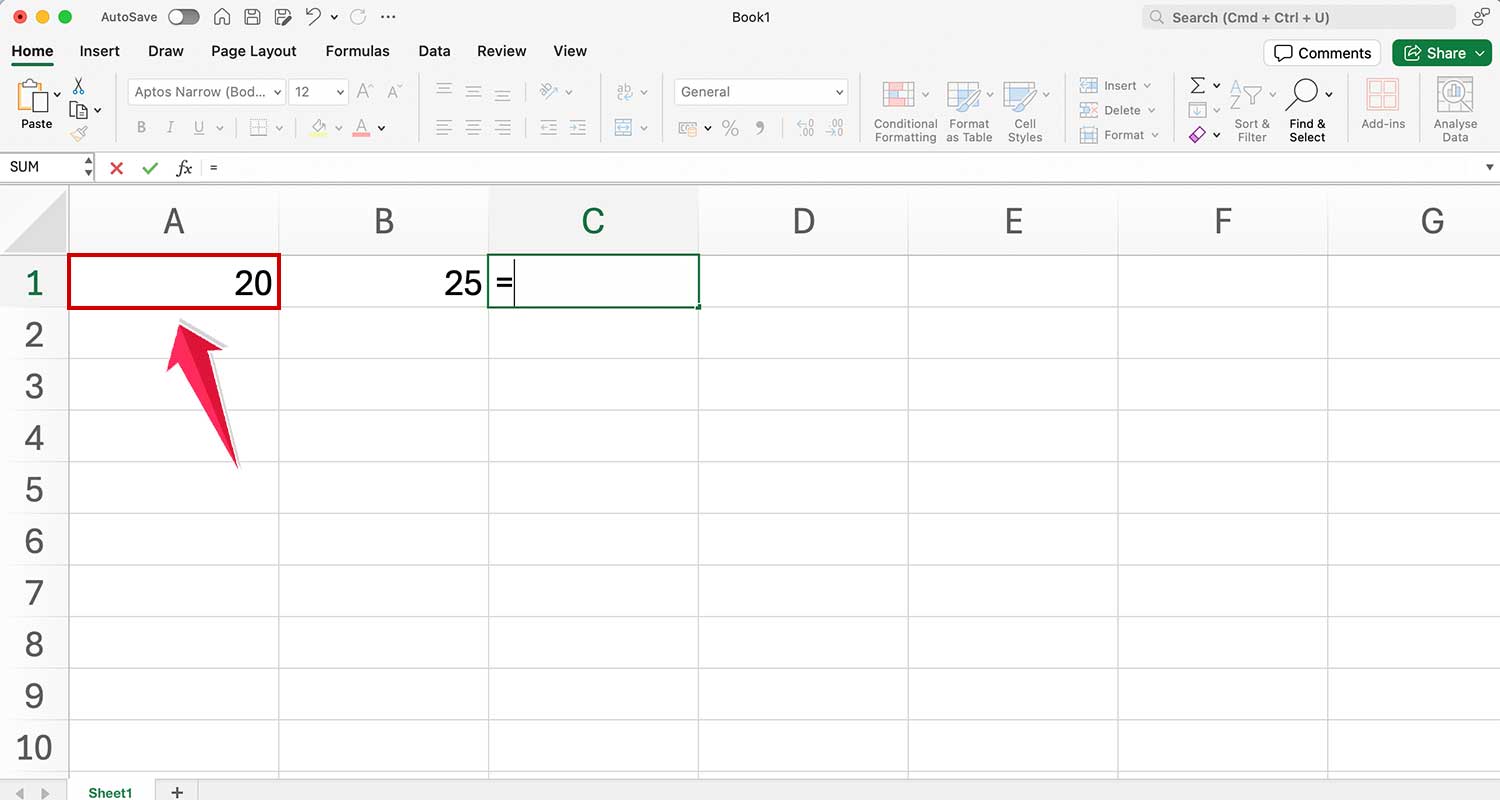
- After typing =, click on the first cell you want to include in your calculation.
- Type the operation sign (like + for addition).
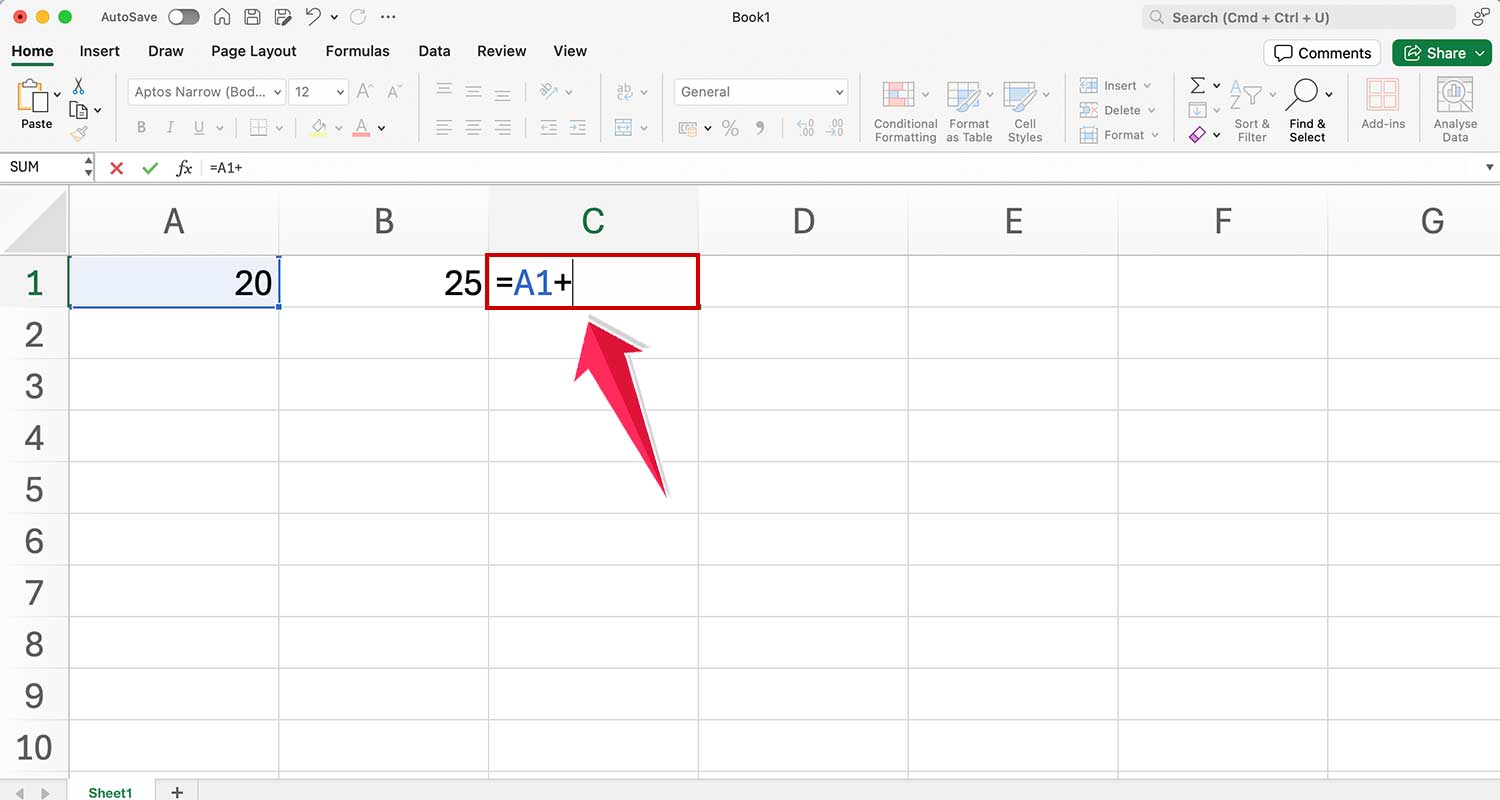
- Now, click on the second cell you want to include.
- Press Enter.
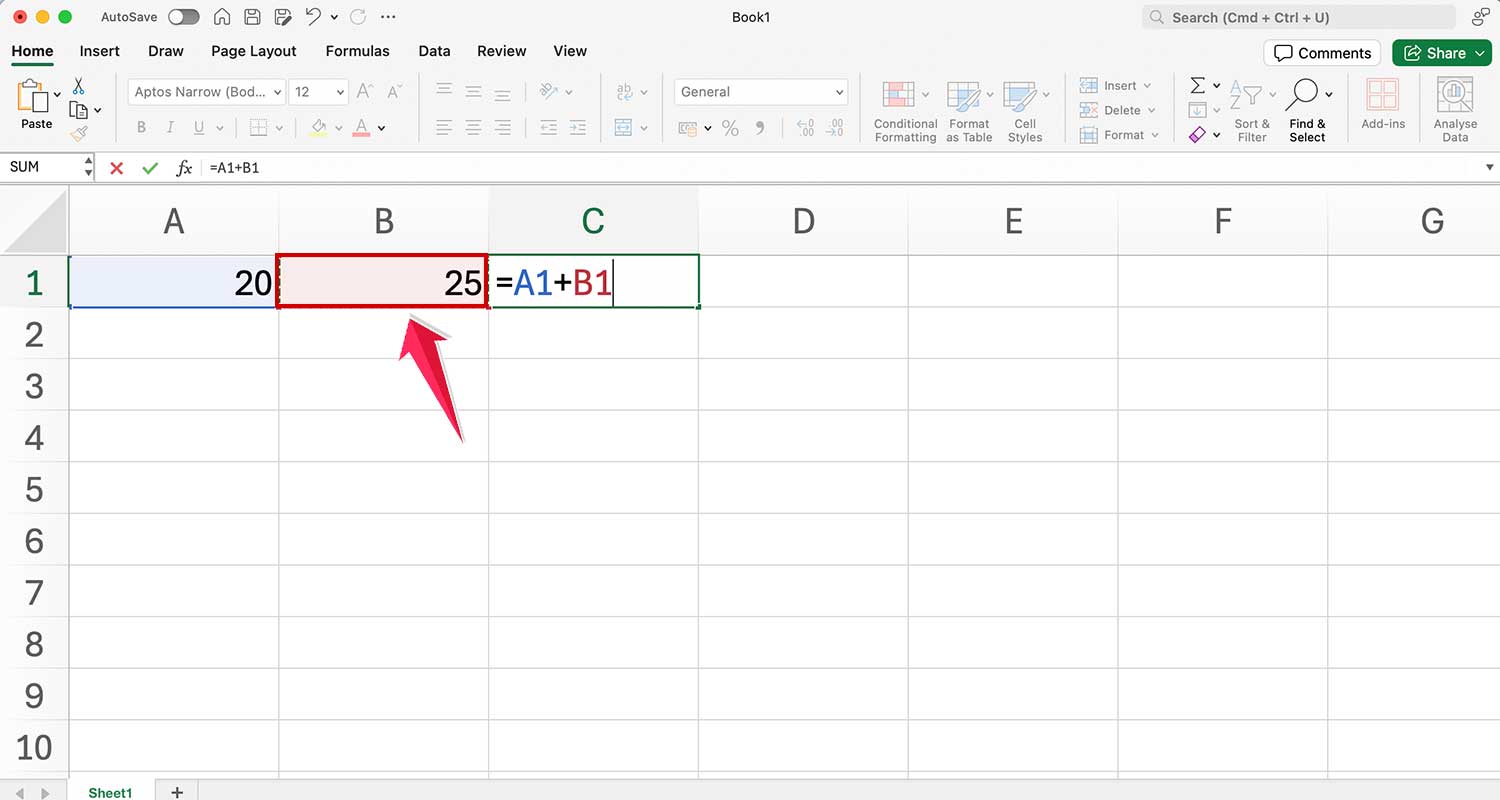
For example, if you want to add cells A1 and B1, you’d type =, click A1, type +, click B1, then press Enter.
3. Excel’s smart assistance
As you click on cells, Excel automatically inserts the correct cell references into your formula. This means you don’t have to remember cell addresses or worry about typos.
Ready to practice with a real-world example?
Let’s create a simple monthly budget:
- In A1, type “Rent” and in B1, enter 800.
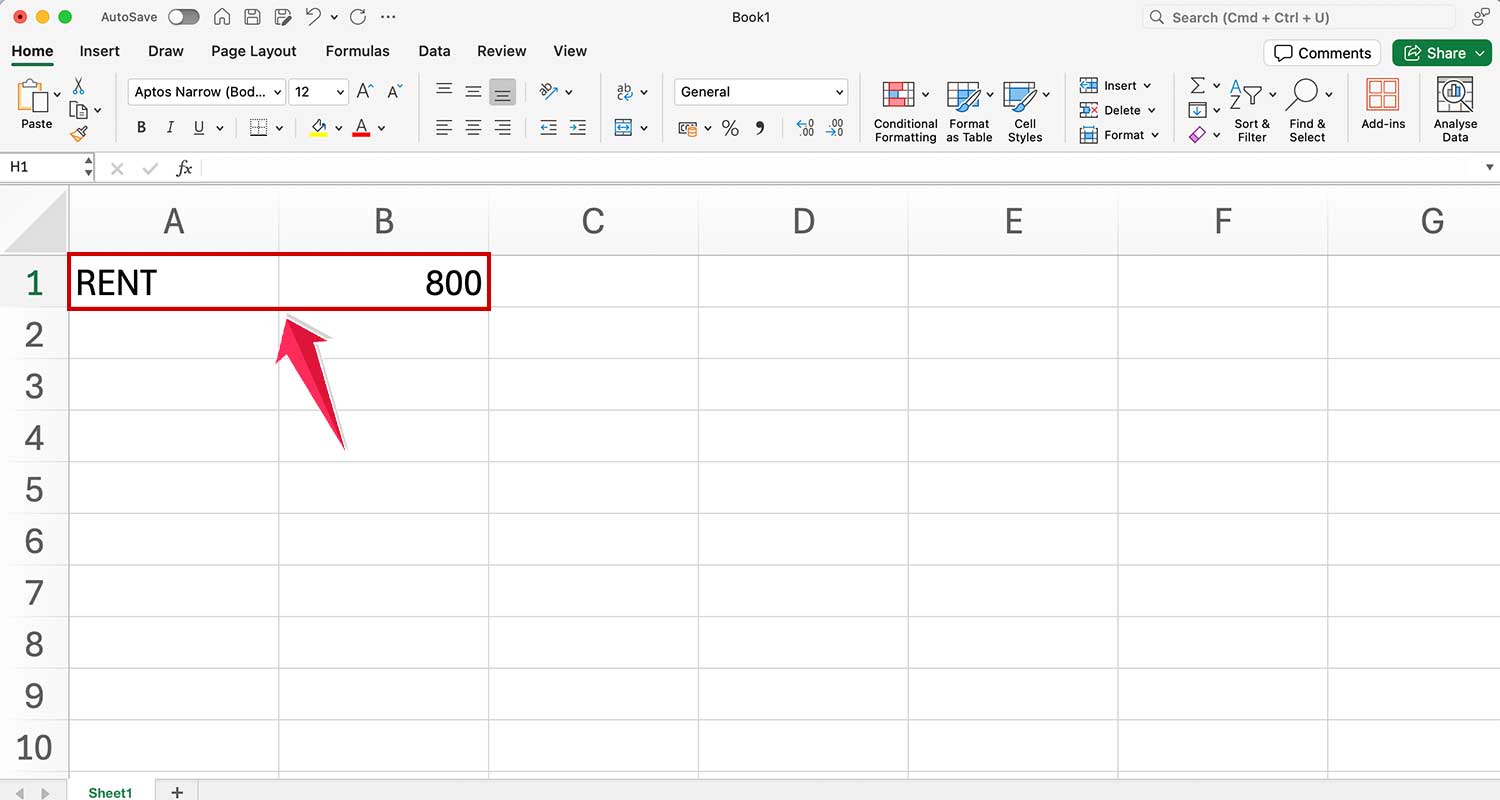
- In A2, type “Groceries” and in B2, enter 300.
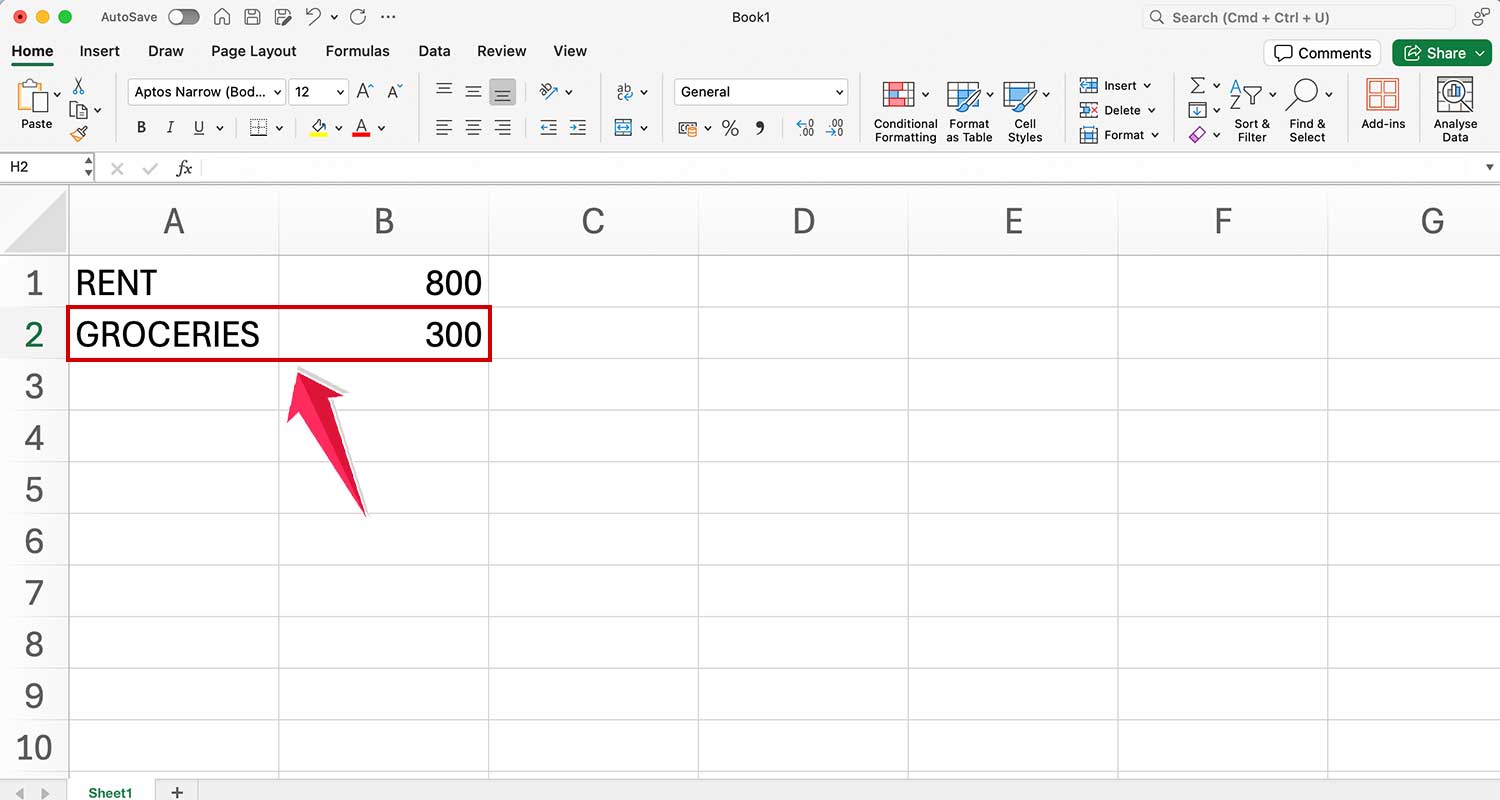
- In A3, type “Total” and in B3, enter the formula =B1+B2

Now you have your total expenses! If costs change, just update B1 or B2, and your total adjusts automatically.
Remember, practice makes perfect. Don’t be afraid to experiment – you can’t break Excel by trying formulas. Keep at it, and soon you’ll be adding numbers like a pro!
The takeaway
Excel formulas are powerful tools that can transform your data management. You’ve learned that every formula starts with an equal sign (=) and how cell references make your spreadsheets dynamic. Remember, you don’t need to be a math expert – Excel does the calculations for you.
The point-and-click method simplifies formula creation, reducing errors and saving time. As you practice, you’ll find Excel becoming an invaluable ally in your work, whether you’re managing budgets or analyzing complex data sets.
Don’t be afraid to experiment with different formulas. Start simple and gradually tackle more complex calculations. With each spreadsheet you create, you’re building skills that will serve you well in countless professional scenarios.
Excel’s capabilities extend far beyond what we’ve covered here. As you grow more confident, explore advanced features to further enhance your productivity and data analysis skills.
We’d love to hear about your Excel journey. What formulas have you found most useful? Any challenges you’ve overcome? Share your experiences in the comments below!