Ever opened Steam, tried to launch a game, and suddenly got a message saying it’s already running? But when you look around, nothing’s open.
No game window. No loading screen. Just… nothing. I get it. It’s annoying. You just want to play, not troubleshoot.
This problem pops up more often than you’d think. Steam sometimes thinks a game is still running even after you’ve closed it. It’s like Steam’s stuck in the past and hasn’t realized the game is gone.
When this happens, you can’t open the game again—or any other game for that matter. Steam blocks you until it’s “sure” the game is closed.
Now, if you’ve got limited gaming time or just don’t want to deal with these hiccups, you’re not alone. This issue can totally mess with your plans.
But don’t worry. You don’t need to be a tech expert to fix it. I’m going to walk you through what’s happening and how you can solve it step by step. Let’s get you back in the game.
What causes Steam to think a game is still running?
Let’s break this down so it actually makes sense. If Steam says your game is running but it’s not, there are usually just a few things going on behind the scenes.
And once you know what they are, fixing them becomes way easier.
1. Steam just bugs out sometimes
Yeah, it happens. Steam is great, but like any other app, it’s not perfect. Sometimes it just glitches and thinks a game is still open when it’s clearly not.
This can happen after a crash or even a normal shutdown. Keeping Steam updated helps, but we’ll get to that later.
2. Background tasks didn’t close properly
Sometimes when you close a game, it doesn’t fully exit. It just hides and keeps running in the background.
You can’t see it, but it’s still there, using system resources and confusing Steam. We’ll use Task Manager later to shut these down manually.
3. Other programs might be interfering
There could be another app—maybe your antivirus or another game launcher—that’s messing with Steam.
These programs can block Steam from properly closing or starting games. It’s rare, but it happens.
So now that we know what’s going on, let’s go fix it. I’ll walk you through each solution, step by step.
Steam says your game is running – Let’s fix it
Alright, let’s roll up our sleeves. I’m going to show you several ways to fix this issue. Start with the first one, and move down the list if it doesn’t work.
Most of the time, one of these will do the trick.
#1 Check for background processes
This is the most common fix. Sometimes your game is still running in the background, even if it looks like it’s closed. Here’s how to shut it down:
- Press Ctrl + Shift + Esc to open Task Manager.

- Look through the list of running apps and background processes.
- Find the game that’s supposedly running.
- Click on it, then hit End Task in the bottom-right corner.
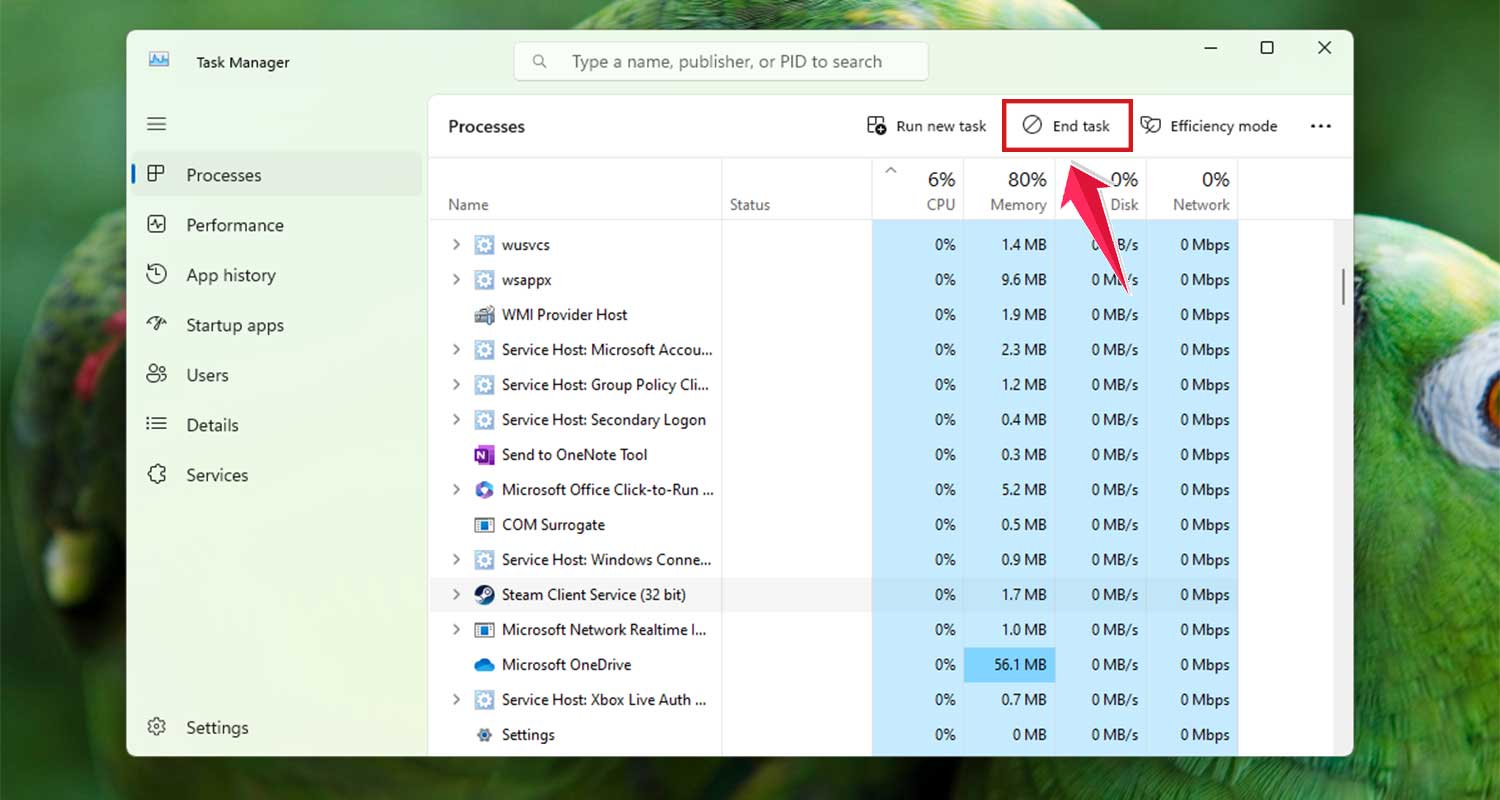
Once that’s done, try opening the game again in Steam. It should work just fine now.
#2 Restart Steam
If closing the game in Task Manager didn’t work, restarting Steam might help. Sometimes, Steam just needs a quick break.
- Right-click the Steam icon in the system tray (bottom-right corner of your screen).
- Select Exit.
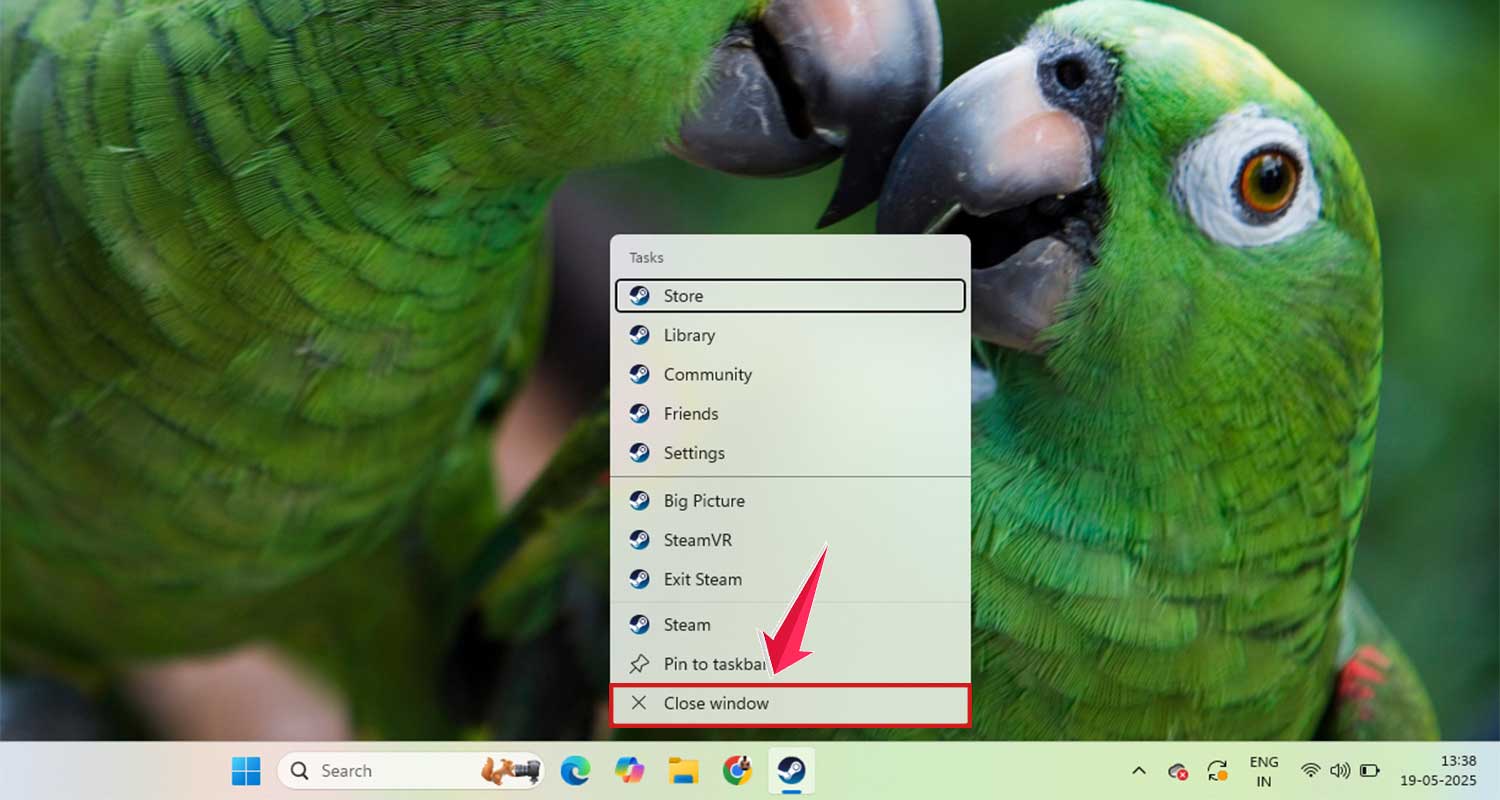
- Wait a few seconds.
- Launch Steam again.
Now, go ahead and try launching your game. A fresh start usually clears out Steam’s confusion.
#3 Reboot your computer
If restarting Steam doesn’t help, try restarting your whole computer. This clears out any stuck background processes that might be lingering.
- Save anything you’re working on.
- Click the Start menu, then hit Restart.

Once your PC is back on, open Steam and try again. This simple step often works wonders.
#4 Verify game files
Sometimes the game files themselves are broken or missing something. Steam has a built-in tool to check and fix this.
- Open your Steam Library.

- Right-click the game that’s causing trouble.
- Click Properties.

- Go to the Installed Files tab.
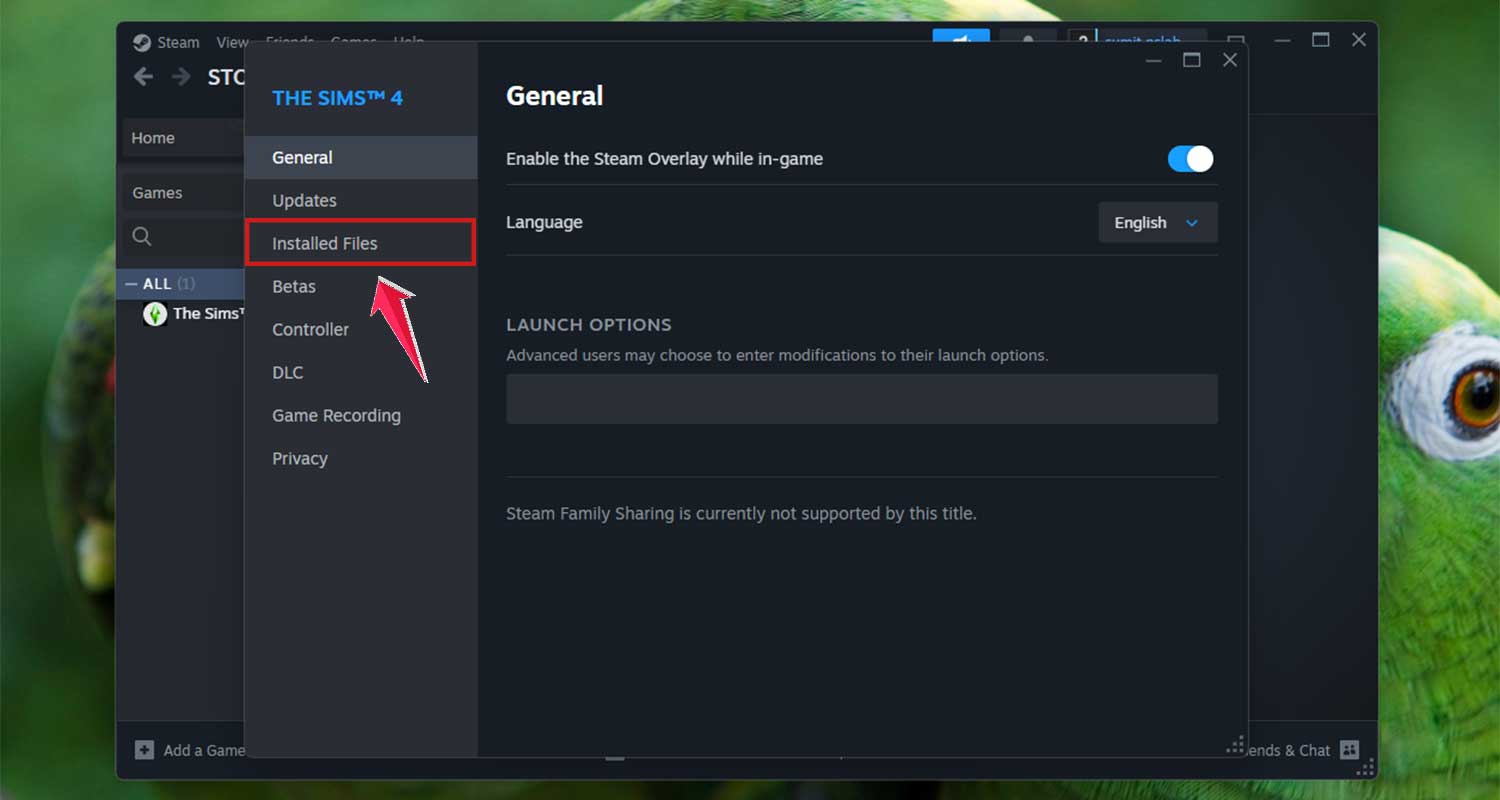
- Click Verify integrity of game files.
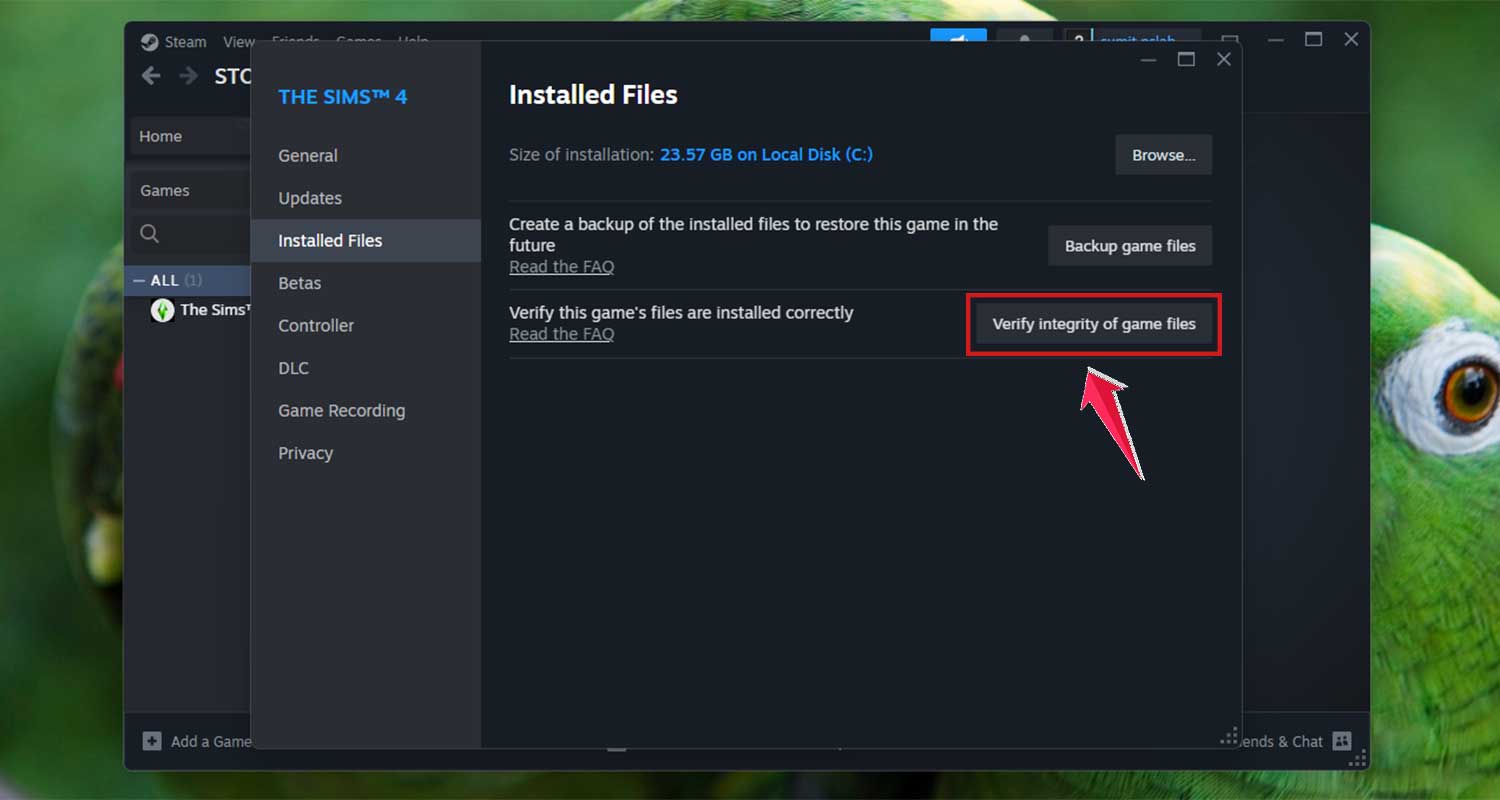
Steam will scan your game files and fix anything that’s wrong. It might take a few minutes, so hang tight.
#5 Update Steam
Running an outdated version of Steam can lead to weird bugs like this. Always make sure you’re using the latest version.
- Open Steam.
- Click on Steam in the top-left corner.
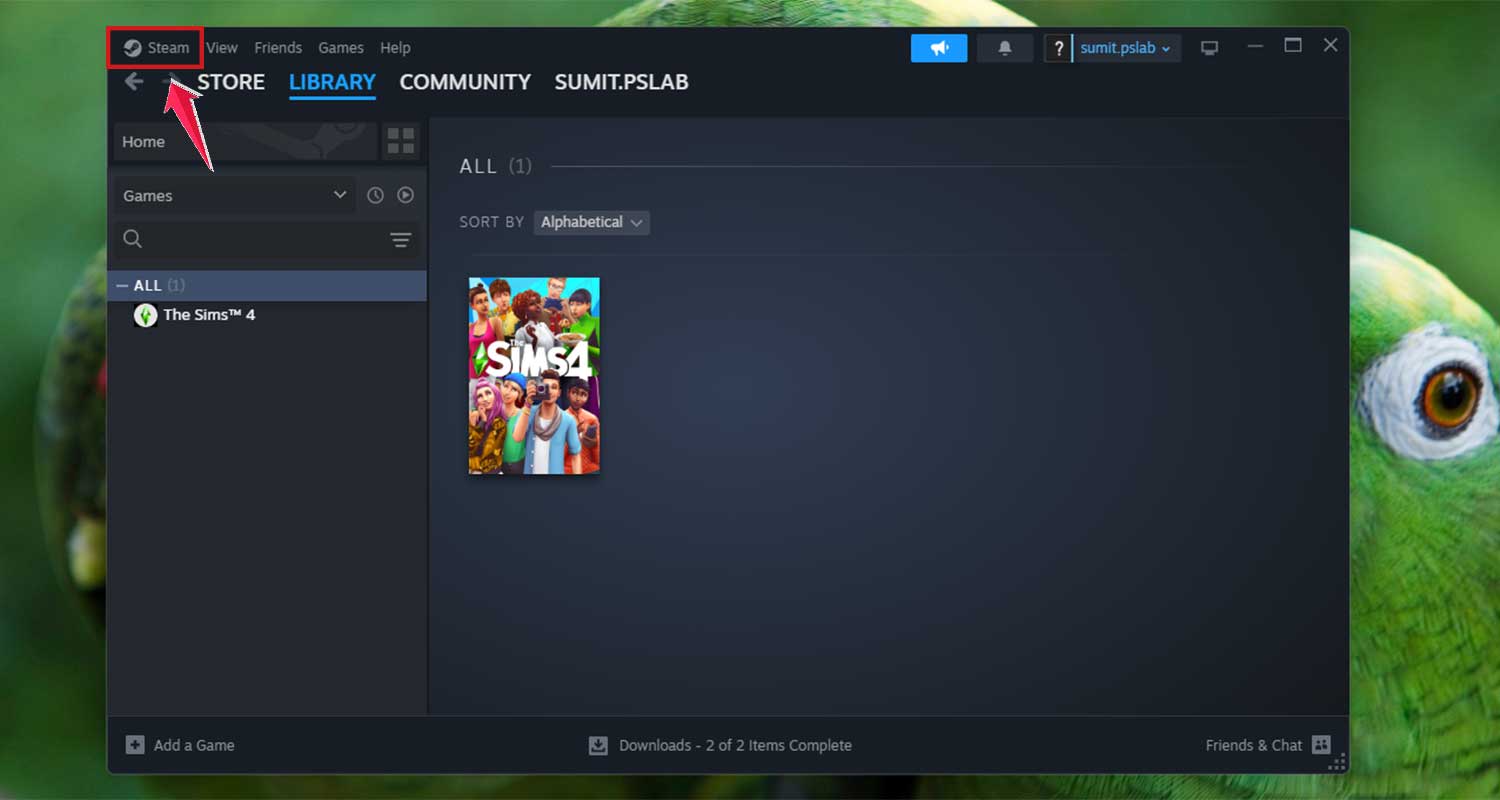
- Select Check for Steam Client Updates.
- Install any updates if available.
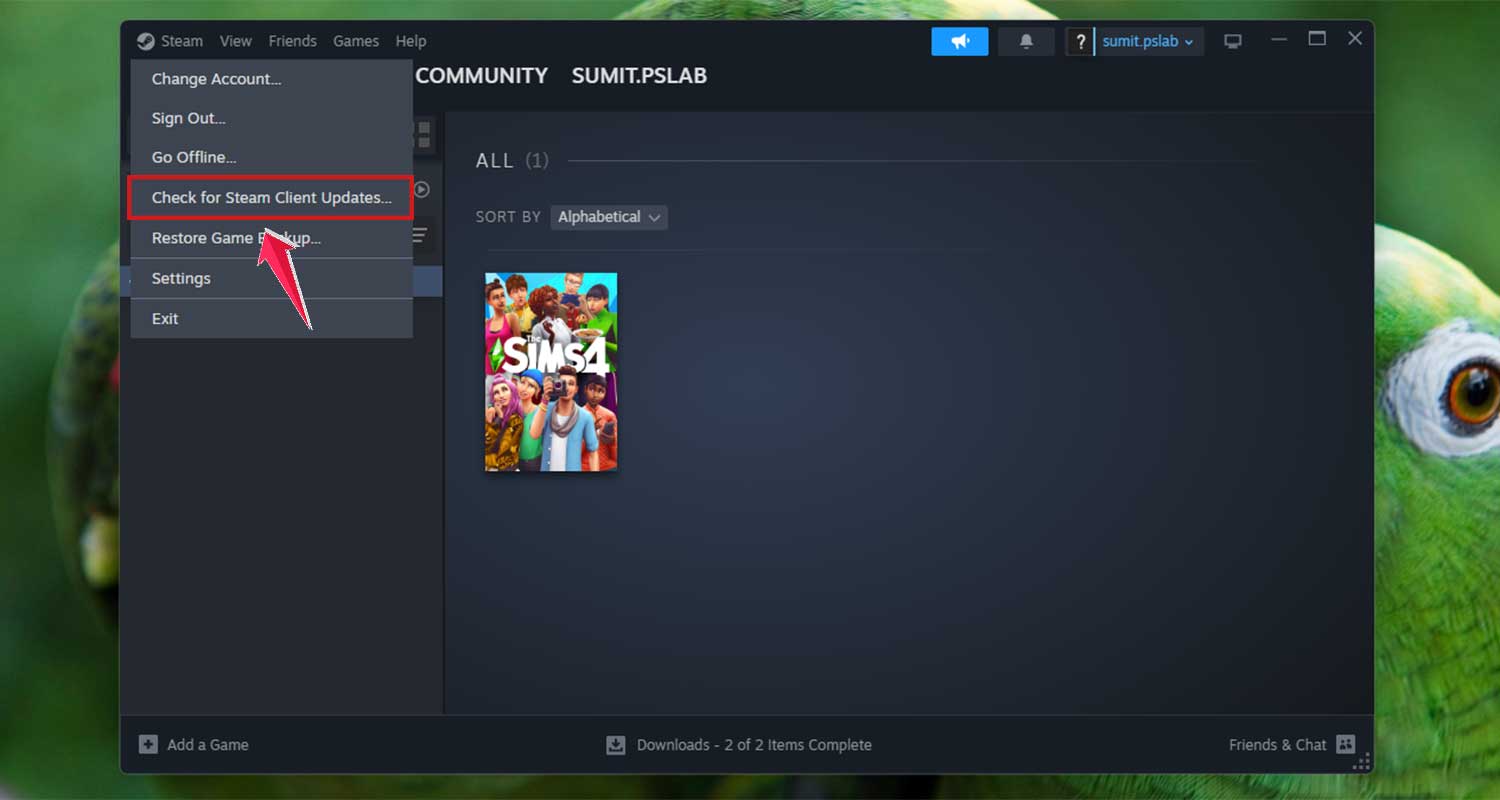
After updating, restart Steam and try launching your game again. This simple step can save you a lot of trouble.
#6 Clear Steam’s download cache
Steam stores temporary data called cache. Sometimes, this gets corrupted and causes problems.
- Open Steam.
- Click Steam in the top-left corner.
- Go to Settings (or Preferences on Mac).

- Click on Downloads.
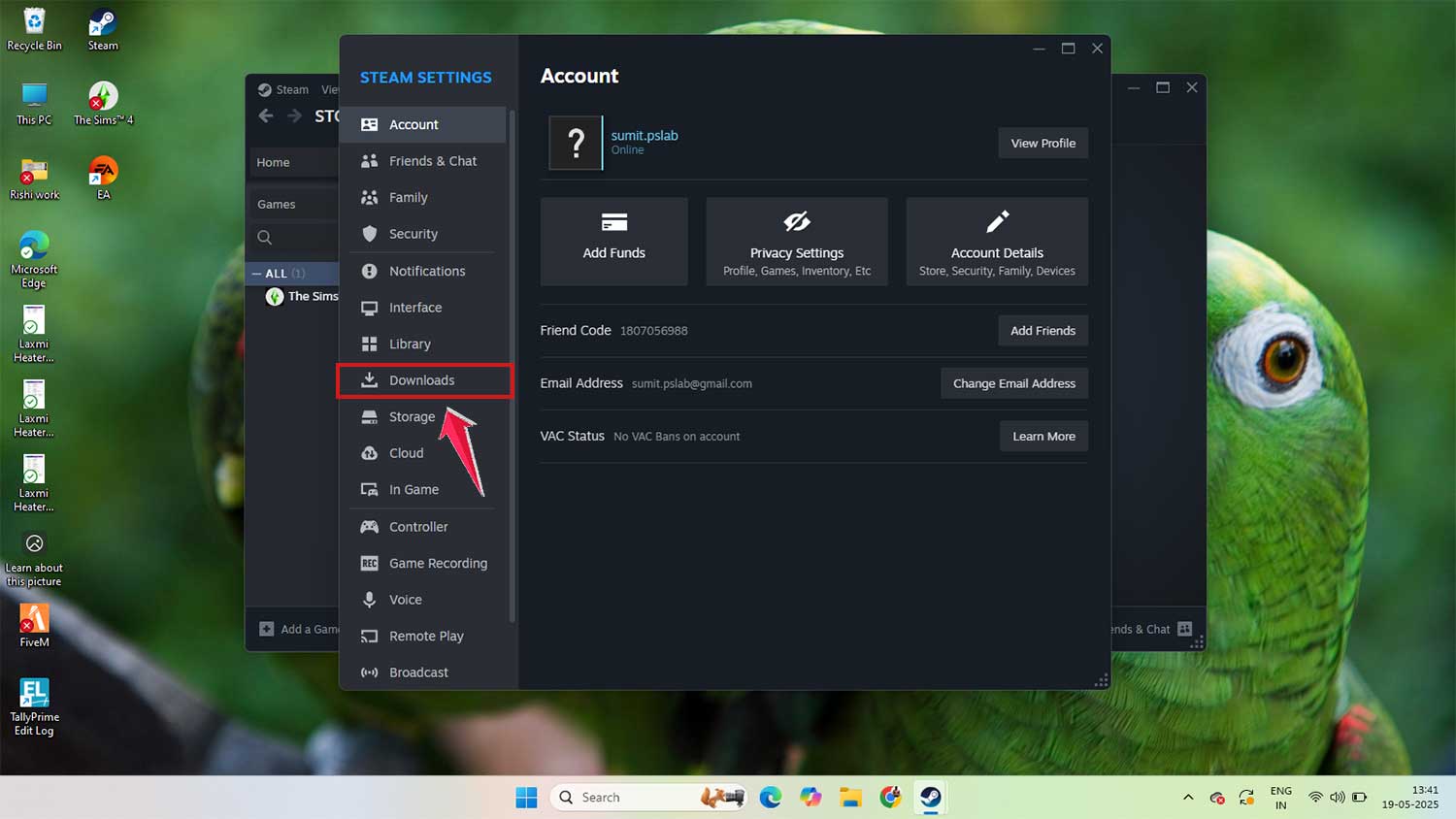
- Hit Clear Download Cache.
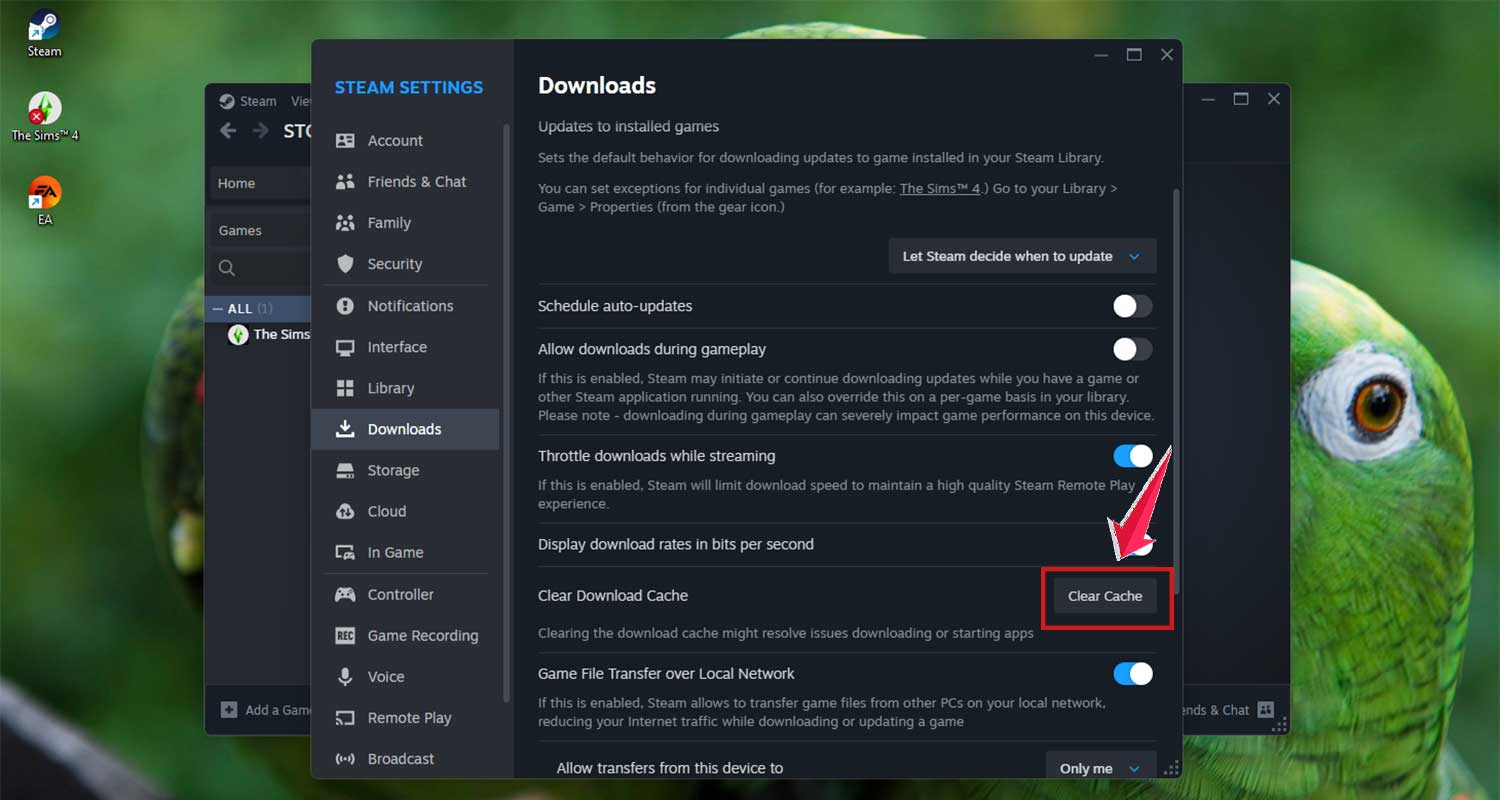
Steam will restart, and you’ll need to log in again. After that, check if your game launches normally.
#7 Run Steam as administrator
Steam might not have the permissions it needs to properly close or start games. Running it as an admin can help.
- Close Steam completely.
- Right-click the Steam shortcut on your desktop.
- Select Run as administrator.
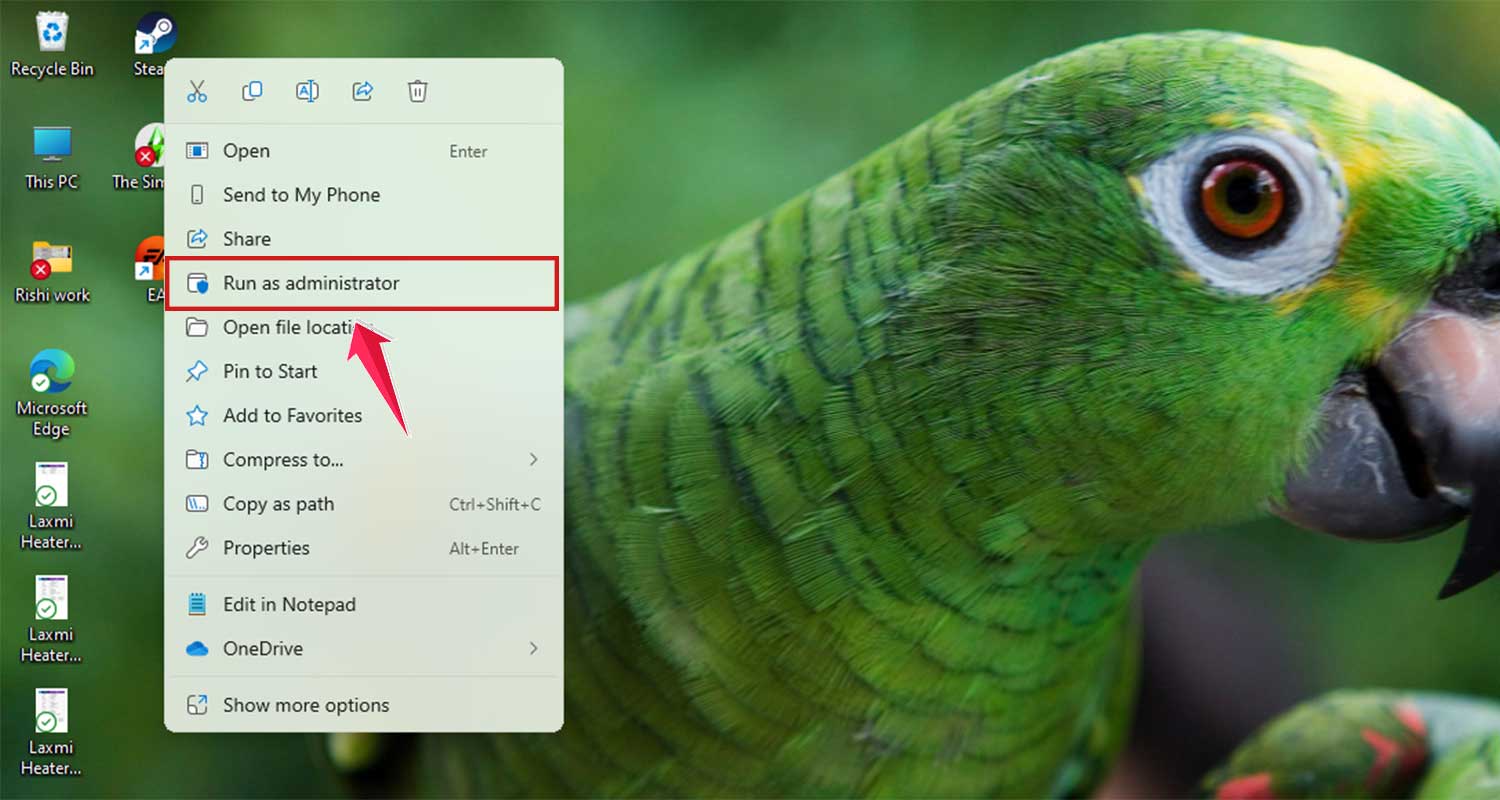
This gives Steam the access it needs to manage your games correctly.
#8 Disable other apps that might interfere
If you have antivirus software or other gaming tools running, they might be getting in the way.
- Close any unnecessary background apps.
- Temporarily disable your antivirus (just for testing).
- Restart Steam and try again.
If your game works now, you’ll know one of those apps was the problem.
#9 Contact Steam Support
If none of the above fixes worked, don’t worry. You’ve done your part. Now it’s time to let the pros handle it.
- Go to the official Steam Support website.
- Search for your issue or select your game.
- Follow their steps or submit a request.
Steam’s support team is good at solving problems like this. And hey, it’s always okay to ask for help.
The Takeaway
Let’s wrap this up. Steam saying your game is running when it’s not? Yeah, it isn’t very pleasant—but it’s also fixable. You’ve now got a full list of ways to solve it.
Start by checking if the game is still running in the background using Task Manager. If that doesn’t work, try restarting Steam or even your whole computer.
Still stuck? Use Steam’s tools to verify game files, clear the download cache, or run it as administrator.
Most people think this kind of issue needs a reinstall or something extreme. But honestly, it’s usually something small. You’ve got everything you need to fix this yourself—and fast.
If you’ve got any other tips or found a method that worked for you, feel free to drop a comment below.
We’re all gamers here, and sharing helps everyone. Happy gaming!