You’re staring at your phone, waiting for that little typing bubble to pop up on Snapchat… but nothing’s happening. Frustrating, right? You’re not alone—this happens to a lot of people.
That typing indicator is like a sign that someone’s replying. When it doesn’t show up, you’re left wondering if they’re still there or just ghosted you.
So, what’s going on? Well, it could be something really simple. Sometimes, Snapchat just glitches. Other times, it’s your internet or the app itself that’s acting up.
You might even have a setting turned off without realizing it.
But here’s the good news—you can fix this. And no, you don’t need to be a tech expert. I’m going to walk you through everything step by step.
We’ll look at what causes this issue and how you can get that typing bubble back. Stick with me, and we’ll sort it out together.
Why You Might Not See the Typing Indicator
1. Your app might be glitching
Sometimes, apps just bug out. It’s not your fault, and it’s not something you did wrong. Snapchat might just be having a moment. These little hiccups happen when something inside the app doesn’t load the way it should.
A glitch like this can stop the typing bubble from showing—even if someone is actually typing. So, if it’s not showing up, don’t panic. It could be a temporary bug that goes away on its own or after a quick fix.
2. You might be using an old version of Snapchat
If you haven’t updated Snapchat in a while, that could be the reason. Older versions of the app can have bugs that were already fixed in newer updates.
Updates don’t just bring new features—they also fix problems like this one. So, if your app is outdated, it might be time to head to the app store and hit that update button.
3. Your internet connection might be weak
Snapchat needs a strong internet connection to work properly. If your Wi-Fi is slow or your mobile data is spotty, the app might not show real-time stuff like the typing bubble.
Before you start trying other fixes, take a second to check your connection. Try opening another app or website to see if things are running slow. If they are, your internet might be the problem.
4. Your privacy settings might be blocking it
Sometimes, your phone’s privacy settings can stop Snapchat from working the way it should. If notifications or background data permissions are turned off, you might not see the typing indicator.
It’s easy to overlook these settings, but they make a big difference. A quick check can save you a lot of confusion.
How to Fix Snapchat Not Showing Typing Indicator
Alright, let’s roll up our sleeves and fix this. I’ll walk you through each step and keep things simple. You don’t need to be a tech genius—just follow along.
#1: Update Snapchat
Let’s start with the easiest fix. If your Snapchat isn’t up to date, it could be missing important bug fixes.
Here’s how to check for updates:
- Open your app store (Google Play Store or Apple App Store).
- Search for Snapchat.
- If you see an ‘Update’ button, tap it.
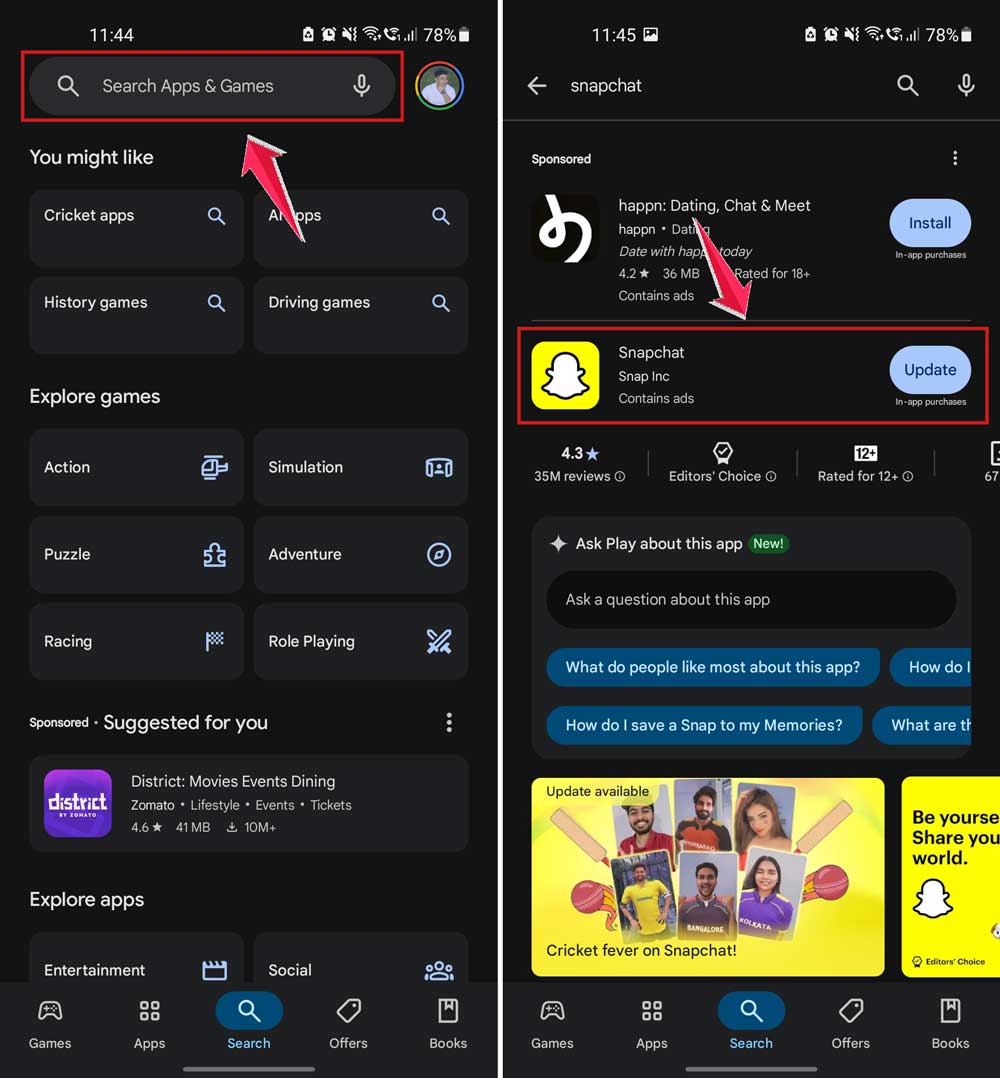
Once it’s updated, open the app again and see if the typing bubble shows up.
#2: Check your internet connection
A weak or unstable connection can stop Snapchat from showing real-time updates.
Here’s what you can do:
- Try switching between Wi-Fi and mobile data to see which one works better.
- If you’re on Wi-Fi, restart your router. Just unplug it, wait 10 seconds, and plug it back in.
- Open another app like YouTube or Instagram. If they’re slow too, your internet is probably the issue.
Fixing your connection might be all it takes.
#3: Clear Snapchat’s cache
Snapchat saves temporary files (called cache) to help things load faster. But sometimes, that cache gets messy and causes problems.
Here’s how to clear it:
- Open your phone’s Settings.
- Find Apps or Application Manager.
- Scroll down and tap Snapchat.
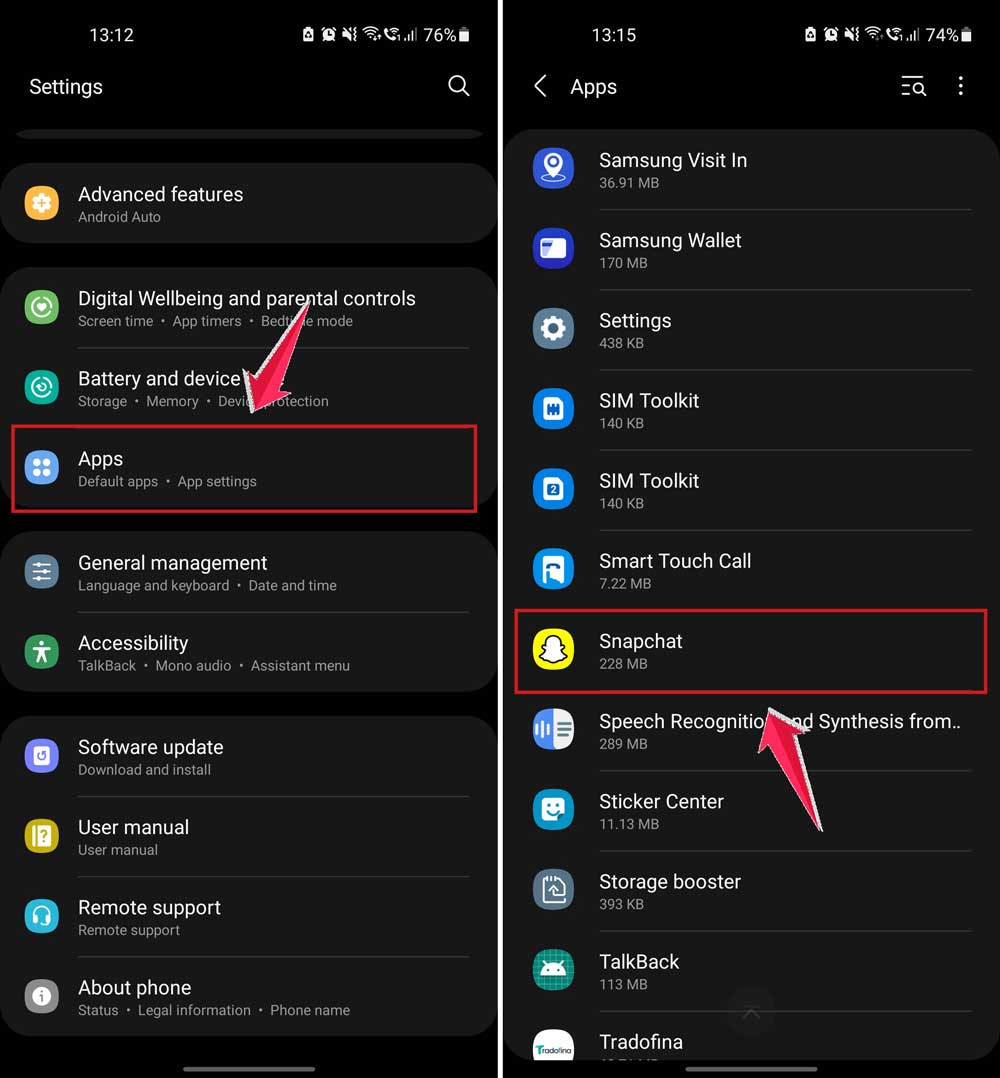
- Tap Storage, then hit Clear Cache.

This won’t delete your messages or photos—it just clears the temporary files.
#4: Reinstall Snapchat
Still having trouble? Try deleting Snapchat and reinstalling it. It sounds like a big step, but it’s actually really easy and often works.
Here’s how:
- Uninstall Snapchat from your phone.

- Restart your device.

- Go back to the app store and reinstall Snapchat.

This gives the app a fresh start and clears out any hidden bugs.
#5: Check your privacy settings
Let’s make sure Snapchat has permission to work properly.
Do this:
- Open your phone’s Settings.
- Tap Apps.
- Find Snapchat.
- Make sure it has access to Internet, Notifications, Files & Media, and Background Data.

If any of these are turned off, Snapchat might not be able to show the typing indicator.
That’s it! Try each of these steps one by one. After each fix, open Snapchat and check if the typing bubble shows up. If not, move on to the next one. We’ll get it working again.
Some Extra Tips to Try When Snapchat’s Being Fussy
Still no luck? Let’s try a few more things.
1. Restart your phone. Sometimes, a simple restart can fix random bugs. Just turn your phone off, wait a few seconds, and turn it back on.
2. Log out and log back in. Go to your profile in Snapchat, scroll down, and tap Log Out. Then log back in. This refreshes your session and might bring the typing bubble back.
3. Check Snapchat’s server status. Snapchat itself might be down. Search “Snapchat server status” online and see if others are having the same issue. If they are, all you can do is wait.
4. Close other apps running in the background. Too many apps open at once can slow down your phone. Close the ones you’re not using and see if that helps.
5. Contact Snapchat support. If nothing else works, reach out to Snapchat support from the app. Go to Settings > Help and follow the steps to send a message.
The Takeaway
Not seeing the typing bubble on Snapchat can be annoying, especially when you’re waiting for a reply. But the good news?
It’s usually something small and easy to fix.
We covered the most common reasons, like outdated apps, weak internet, or permissions being off.
Most of the time, just updating the app or clearing the cache can fix it. Don’t forget to check your privacy settings too.
Start with the simple stuff. Go step by step. You’ll probably have that little typing bubble back before you know it.
And if not, Snapchat support is there to help.
Did these tips help? Still stuck? Drop a comment below and let me know. I’m here to help!