You just opened Snapchat, checked your messages, and there it is. The word “Opened” staring back at you. But wait… your friend swears they didn’t see it.
Or maybe you just know they didn’t. That’s frustrating, right? It feels like Snapchat is playing tricks on you. You send a message, and instead of getting a reply, you get confusion.
So, what’s really going on here?
When Snapchat shows “Opened,” it usually means the snap or message was viewed. But sometimes, it shows that status even when the other person hasn’t actually read it.
Yeah, it’s weird. And you’re not the only one dealing with it. Many users see the same thing, and it can make you feel like someone’s ignoring you, even if they’re not.
This glitchy behavior can happen for different reasons.
Sometimes, it’s a notification bug. Other times, the app opens in the background and marks something as read without anyone actually opening it. Then there are those random technical glitches that come out of nowhere and mess with your messaging.
But don’t worry. You’re not stuck with this problem. In this guide, I’ll walk you through what causes it and, more importantly, how to fix it.
Stick with me, and we’ll get your Snapchat working the way it should. You’ve got this.
Why does this happen in the first place
Let’s take a minute to understand what’s behind this. Knowing the cause helps you fix it faster. Here are the most common reasons Snapchat says “Opened” when it shouldn’t.
1. Notifications can mislead you
Sometimes, your phone’s notifications are too quick to react. They might show a snap as opened when your friend hasn’t even looked at it yet.
Maybe they just swiped the notification away, or maybe Snapchat glitched while sending the alert. Either way, it can show “Opened” even if no one tapped on the message.
2. App bugs mess things up
Snapchat is always updating, and with updates come bugs. Some bugs affect how messages are marked. So even if your friend didn’t open your snap, the app might say they did. It’s not personal — it’s just a glitch.
3. Accidental app openings
Ever left Snapchat running in the background? Maybe your friend did. If the app is open and they swipe around or tap something by accident, it might register the snap as opened.
Even if they never meant to view it. It’s like Snapchat is too eager to mark things as read.
4. Internet issues confuse the app
If your or your friend’s internet is spotty, Snapchat might get confused. A snap might get delivered, but before it fully loads or opens, the app could mark it as “Opened.”
That’s just bad timing and a poor connection.
Okay, now that we know what’s going on, let’s walk through the actual fixes. These are real, simple steps you can take right now to stop Snapchat from showing false “opened” statuses.
Most of them take just a few minutes, so let’s get started.
Snapchat says “Opened” but it wasn’t? Try these fixes
Alright, now we’re getting into the good stuff. Here’s what you can do to stop this from happening again.
#1: Check and reset your notification settings
Let’s start with the basics. If your notifications are acting up, they could be causing the problem. Resetting them can clear any confusion.
Here’s how to do it:
- Open the Snapchat app.
- Tap your profile icon in the top-left corner.
- Tap the gear icon (Settings) in the top-right.

- Scroll down and tap Notifications.
- Toggle off all options, wait a few seconds, and toggle them back on.

This refreshes how Snapchat handles alerts and might stop those false “opened” messages from popping up.
#2: Make sure your Snapchat app is up to date
An outdated app can cause all kinds of weird problems, including this one. Updates often include bug fixes that solve these issues.
To check for updates:
- Go to the App Store (iPhone) or Google Play Store (Android).
- Search for Snapchat.
- If you see an Update button, tap it.
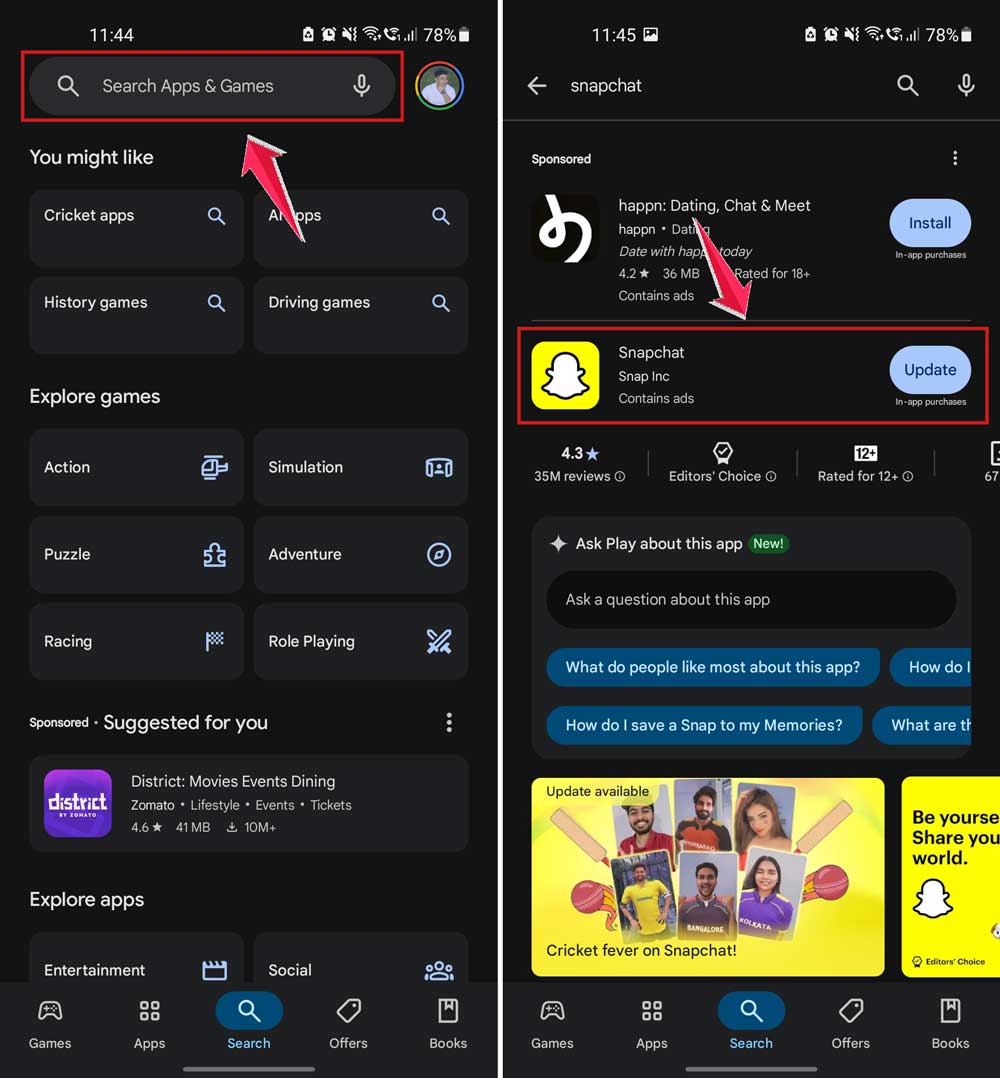
Once updated, open Snapchat again and see if the issue is gone.
#3: Restart your phone
This might sound too simple, but it works. Restarting your phone clears temporary glitches and gives your apps a fresh start.
Here’s what to do:
- Hold down the power button on your phone.
- Select Restart (or Power Off, then turn it back on).

After your phone restarts, open Snapchat and check if things look better.
#4: Check your internet connection
Slow or unstable internet can confuse Snapchat. It might say a message was opened when it was just delivered.
Try this:
- Switch off your Wi-Fi and turn it back on.
- If you’re using mobile data, toggle Airplane Mode off and on again.
- Move closer to your router or try a different network.
A strong, stable connection helps Snapchat work correctly.
#5: Log out and log back in
Sometimes, Snapchat just needs a little nudge. Logging out and back in can refresh your session and fix syncing problems.
Here’s how:
- Open Snapchat.
- Tap your profile icon.
- Go to Settings (gear icon).
- Scroll down and tap Log Out.
- Close the app, reopen it, and Log In again.
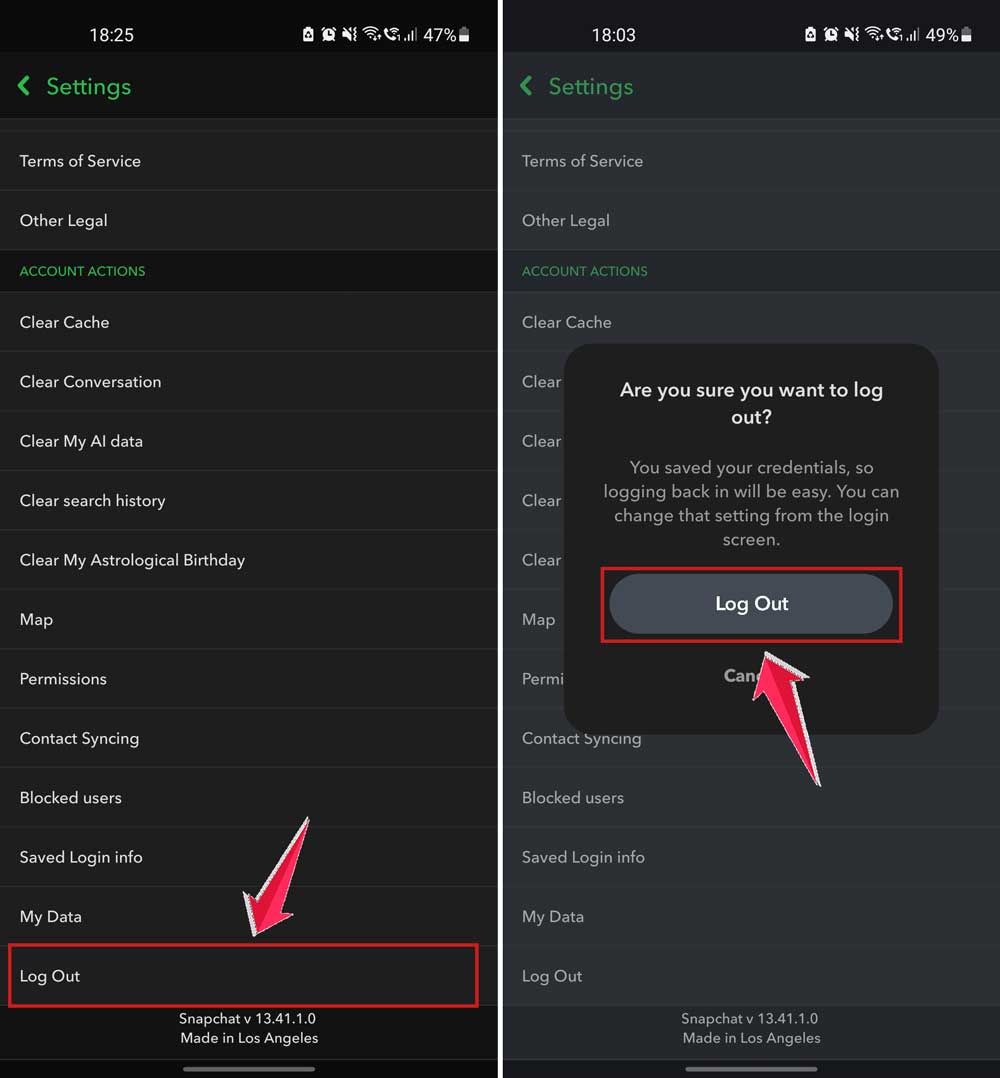
This can realign your account with Snapchat’s servers and clear up message status errors.
#6: Clear Snapchat’s cache
Old saved data can mess with how Snapchat works. Clearing the cache gives it a fresh start.
- Go to your phone’s Settings.
- Tap Apps or App Management.
- Select Snapchat.
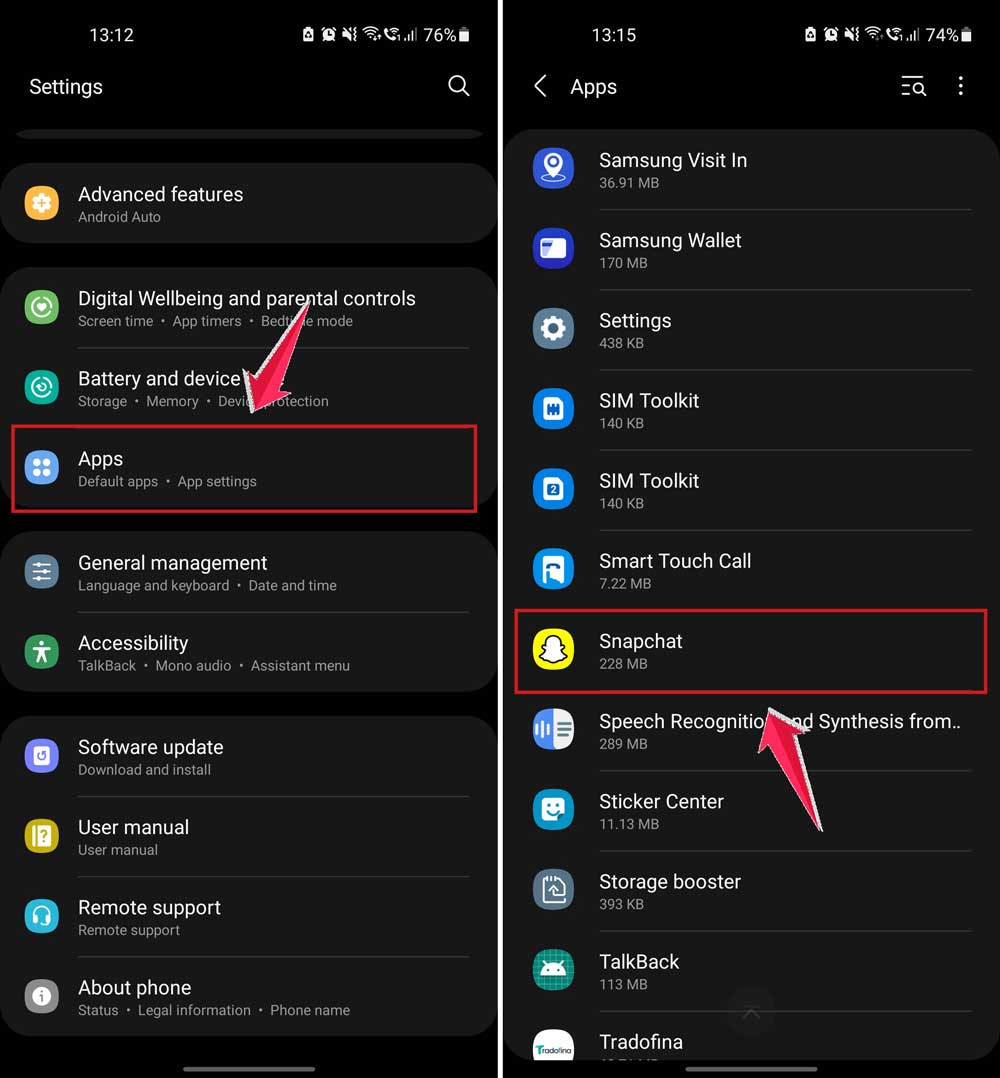
- Tap Storage, then tap Clear Cache.

This won’t delete your messages or account — just the junk files.
#7: Update your phone’s software
It’s not just the Snapchat app that needs updates. Your phone’s software matters too.
- Go to your phone’s Settings.
- Tap System or Software Update.
- Tap Check for Updates and install if available.
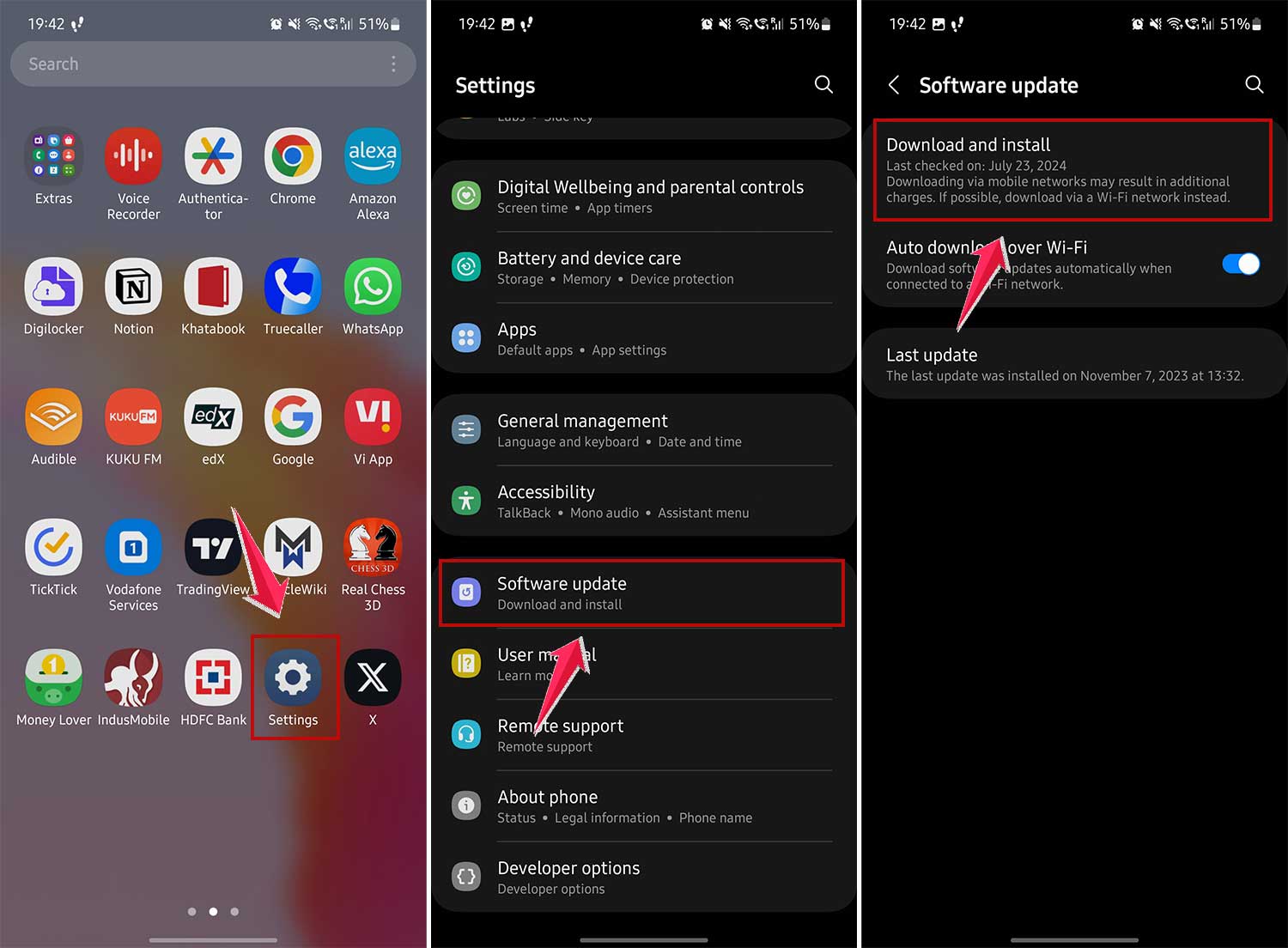
This helps your phone and apps work better together.
#8: Check app permissions
Snapchat needs certain permissions to function properly. If something’s off, it could cause display issues.
- Go to Settings on your phone.
- Tap Apps, then Snapchat.
- Tap Permissions and make sure everything Snapchat needs is turned on, like Files and media permissions.

#9: Boost your Wi-Fi or switch to data
If your Wi-Fi is weak, try switching to mobile data or getting closer to your router. A strong connection keeps Snapchat from glitching out.
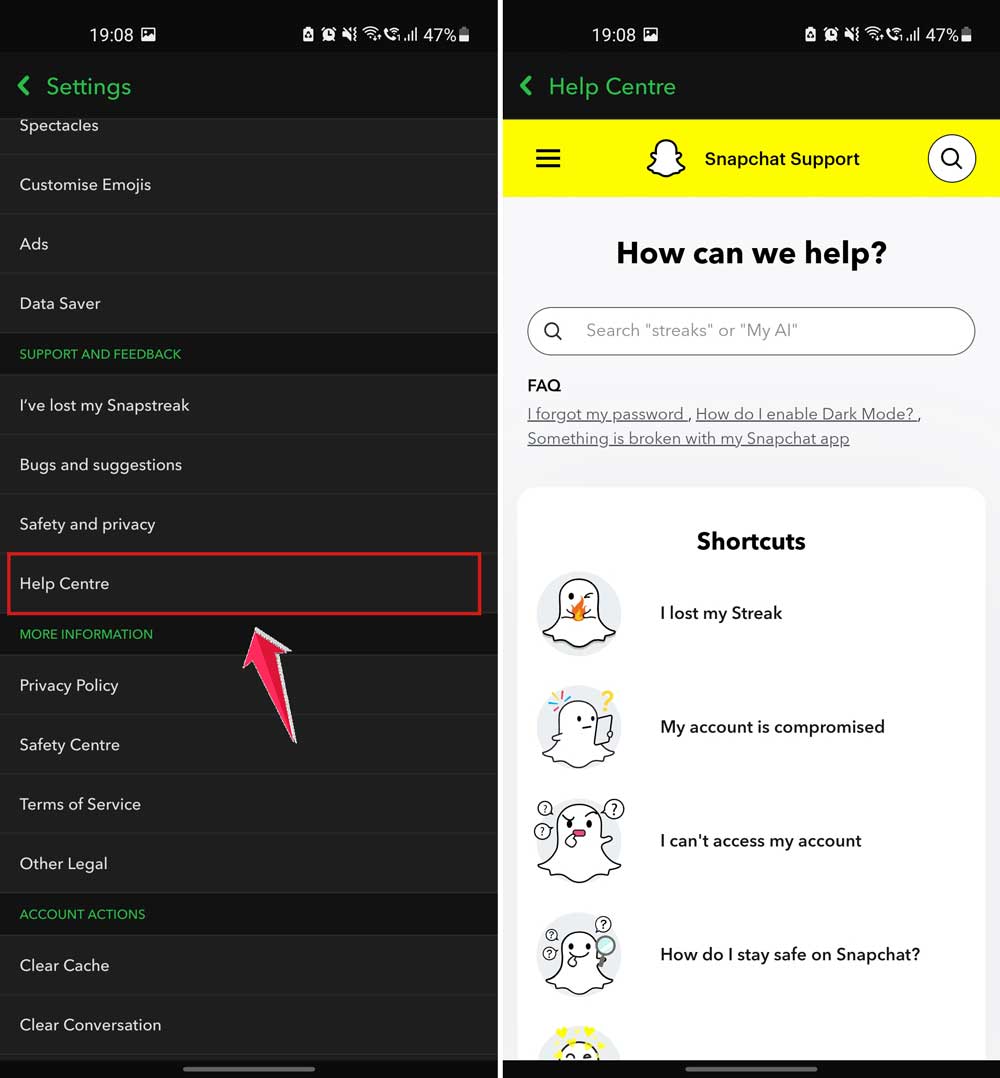
#10: Contact Snapchat support
Still stuck? Don’t be afraid to ask for help. Snapchat’s support team can take a deeper look.
- Go to Settings in the Snapchat app.
- Tap Help Centre or search for your issue.
- Follow the steps to contact support or report a bug.
The takeaway
Dealing with Snapchat saying “Opened” when it wasn’t? Yeah, it’s frustrating. But now you know. It’s usually just a glitch or a small tech issue.
Most of the time, updating your app, checking your notification settings, or restarting your phone will fix it.
A lot of people think they’re being ignored when really, it’s just Snapchat being, well… Snapchat. So don’t jump to conclusions. Try these fixes first.
Little changes can make a big difference. And if something still feels off, Snapchat support is always there to help.
Hopefully, this guide cleared things up. Got a tip of your own? Or still stuck? Drop a comment below. I’d love to hear from you.