Let’s be real — when you buy a new Mac, you expect everything to run fast, smooth, and without any hiccups. So when you open Safari and it starts dragging, it feels a bit unfair, right? You’re not alone. A lot of people notice this, even on brand-new machines.
Safari lag can be super frustrating. You wait longer for websites to load, videos buffer forever, and sometimes you even wonder if something’s wrong with your Mac. But here’s the thing — most of the time, it’s not a serious issue. In fact, it usually comes down to a few simple things that can be fixed pretty quickly.
Whether it’s too many tabs open, old data piling up, or just a Wi-Fi hiccup, we’re going to walk through it all together. You don’t need to be a tech expert. I’ll guide you step by step, in plain language, just like a friend helping you out.
By the end of this guide, your Safari should feel brand new again. So, let’s jump right in and figure out what’s slowing things down.
What’s slowing down Safari on your Mac?
Before we fix anything, let’s talk about what might be causing the slowdown. You might be surprised how small things can have a big impact.
1. Too many open tabs
If you’ve got a bunch of tabs open, your Mac is doing a lot of work in the background. Each tab takes up memory, and over time, this can slow everything down.
Try closing tabs you’re not using — especially the ones playing video or loading heavy content. Your Mac will thank you.
2. Website data piling up
Every time you visit a website, Safari stores little bits of data like cache and cookies. This helps pages load faster the next time, but too much of it can actually slow things down. Cleaning this up clears space and lets Safari breathe.
3. Extensions causing trouble
Safari extensions add features, sure. But some of them can be buggy or outdated, and they might be slowing your browser down. It’s worth checking which ones you really need and removing the rest.
4. Outdated software
Your Mac and Safari need to stay updated. If you’ve been skipping those update notifications, it could be part of the problem. Updates often fix bugs and improve performance.
5. Your internet connection
Let’s not forget the Wi-Fi. If your connection is weak or unstable, Safari will feel slow even if your Mac is fine. Restarting your router or switching networks can help.
Now that we know the possible causes, let’s go step by step and fix them.
How to Fix Safari’s Speed on Your New Mac
Alright, time to roll up your sleeves. These fixes are simple, and you can do them right now. Let’s get your Safari running like it should.
#1: Close Some Tabs
Too many tabs open? Yeah, I’ve been there too. But honestly, having 15 tabs loaded is like asking your Mac to juggle while running a marathon.
Here’s what to do:
- Look at the tabs you have open.
- Bookmark the ones you might need later.
- Close the ones you’re not actively using.
Just doing this can free up memory and speed things up almost instantly.
#2: Clear Cache and Cookies
Think of cache and cookies like digital clutter. They build up over time and can make Safari sluggish.
Here’s how to clear them:
- Open Safari.
- Click Safari in the top-left corner, then choose Settings.
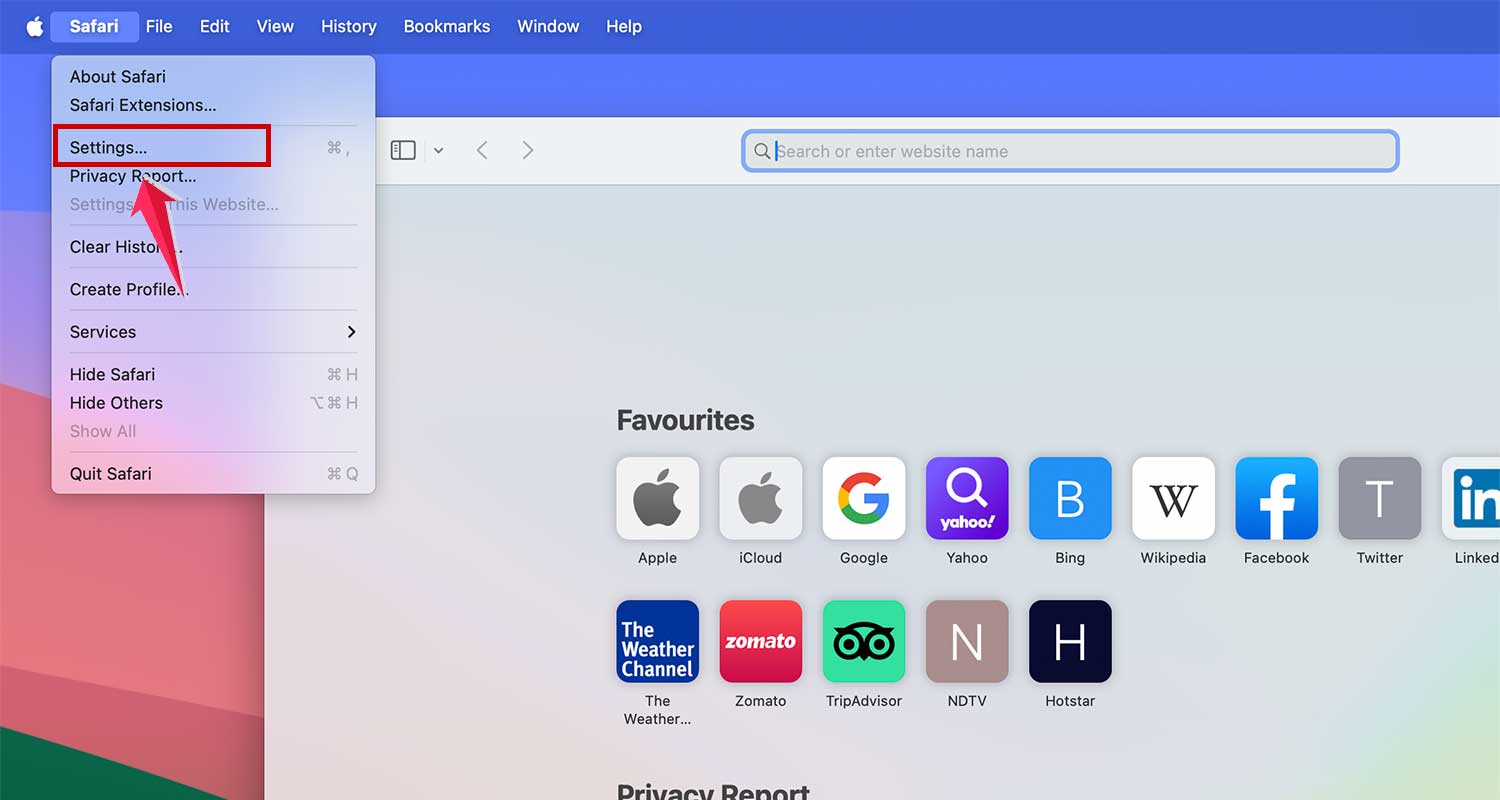
- Go to the Privacy tab.
- Click Manage Website Data.
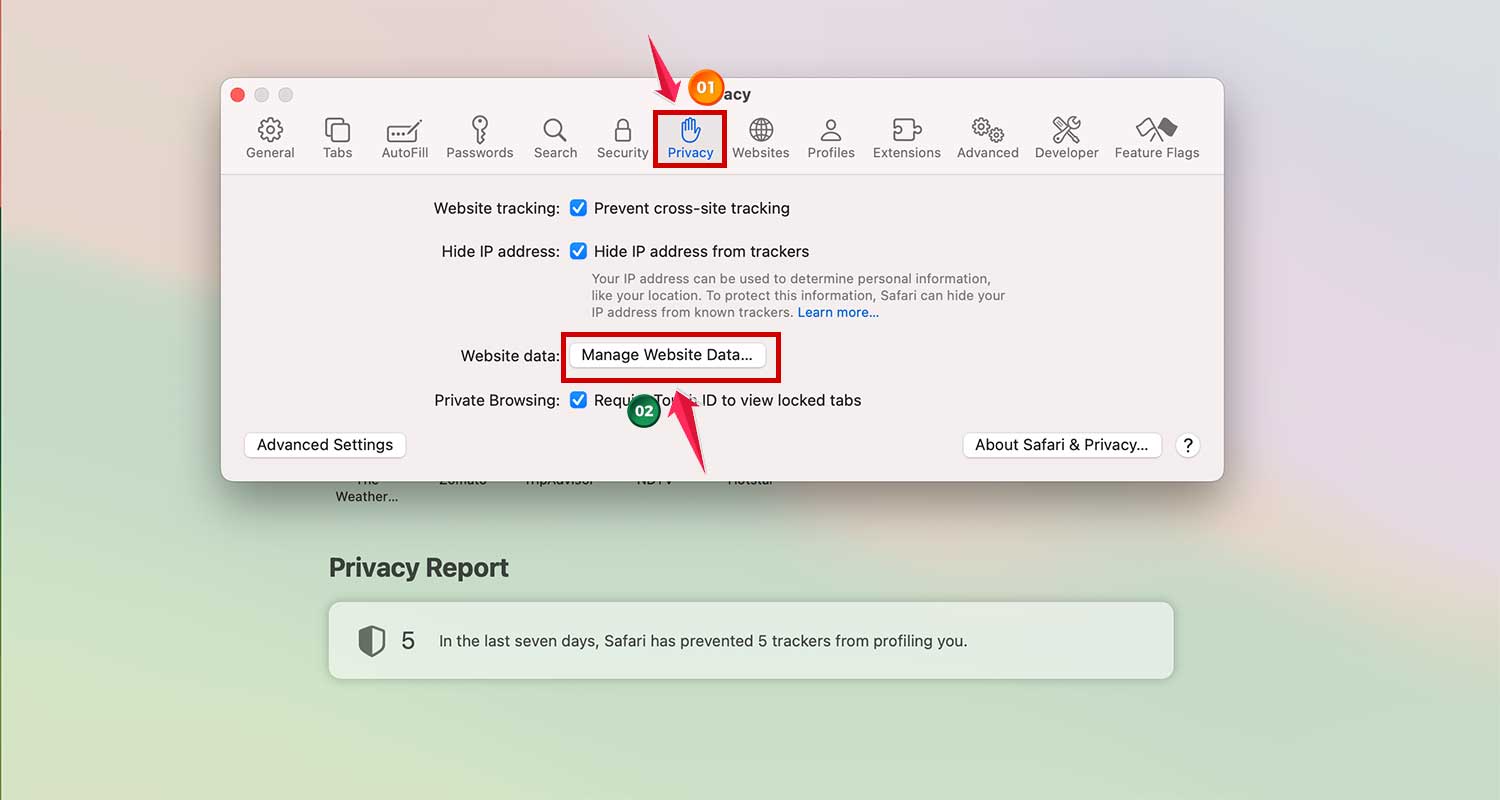
- Then hit Remove All.

This clears out all the stored website data. Safari will start fresh, and you’ll likely notice a speed boost.
#3: Disable Unnecessary Extensions
You might not even remember installing some of these. Extensions run in the background and can slow things down, especially if they’re outdated.
Here’s how to manage them:
- Click Safari in the menu bar, then choose Settings.
- Go to the Extensions tab.
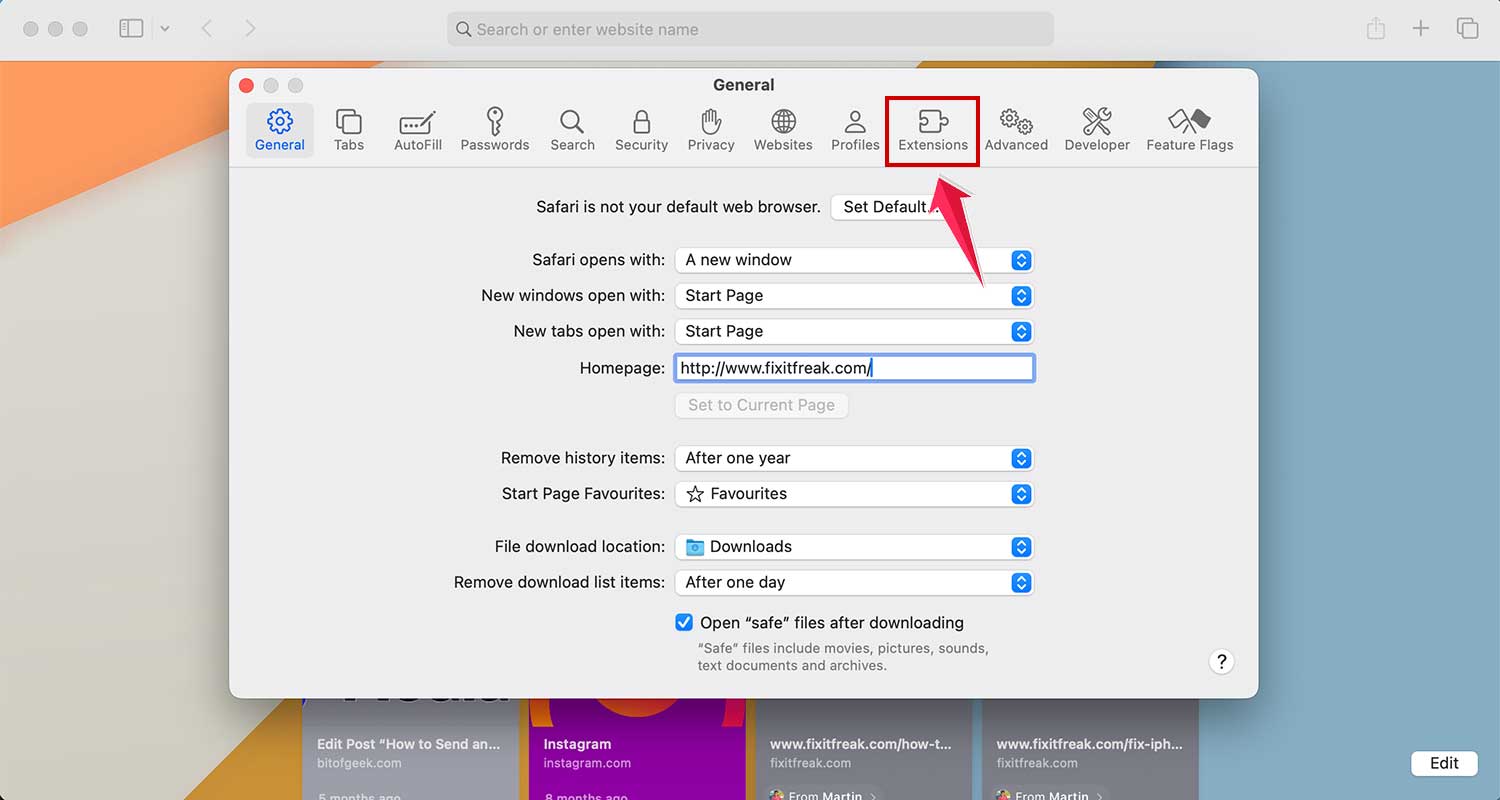
- Uncheck any extension you don’t use often.
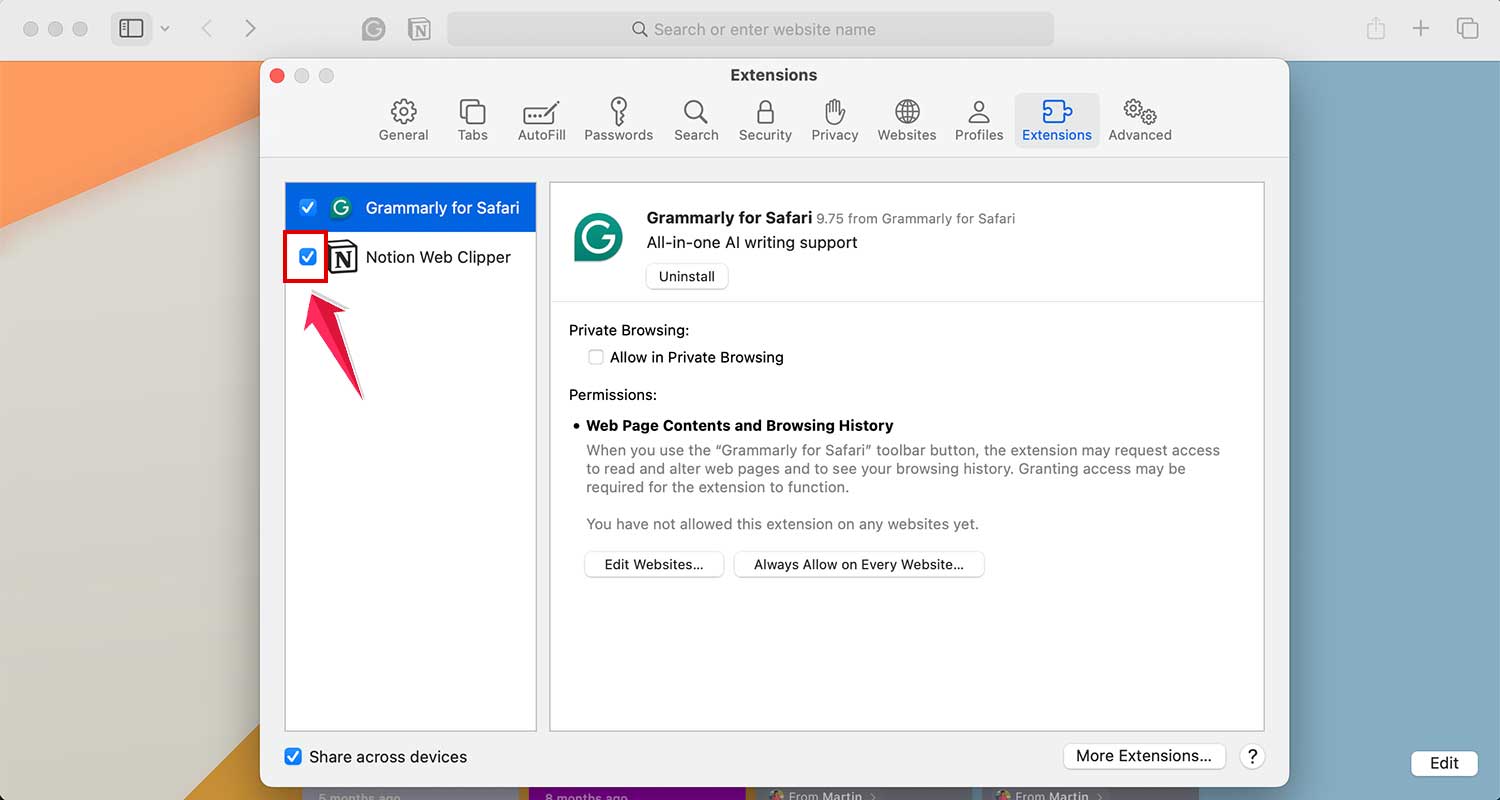
You can always turn one back on later if you miss it. But fewer extensions usually mean faster browsing.
#4: Update Software
Updates often include bug fixes and performance improvements. If you haven’t updated in a while, now’s the time.
Here’s how:
- Click the Apple logo in the top-left corner.
- Go to System Settings (or System Preferences).

- Click General, then Software Update.
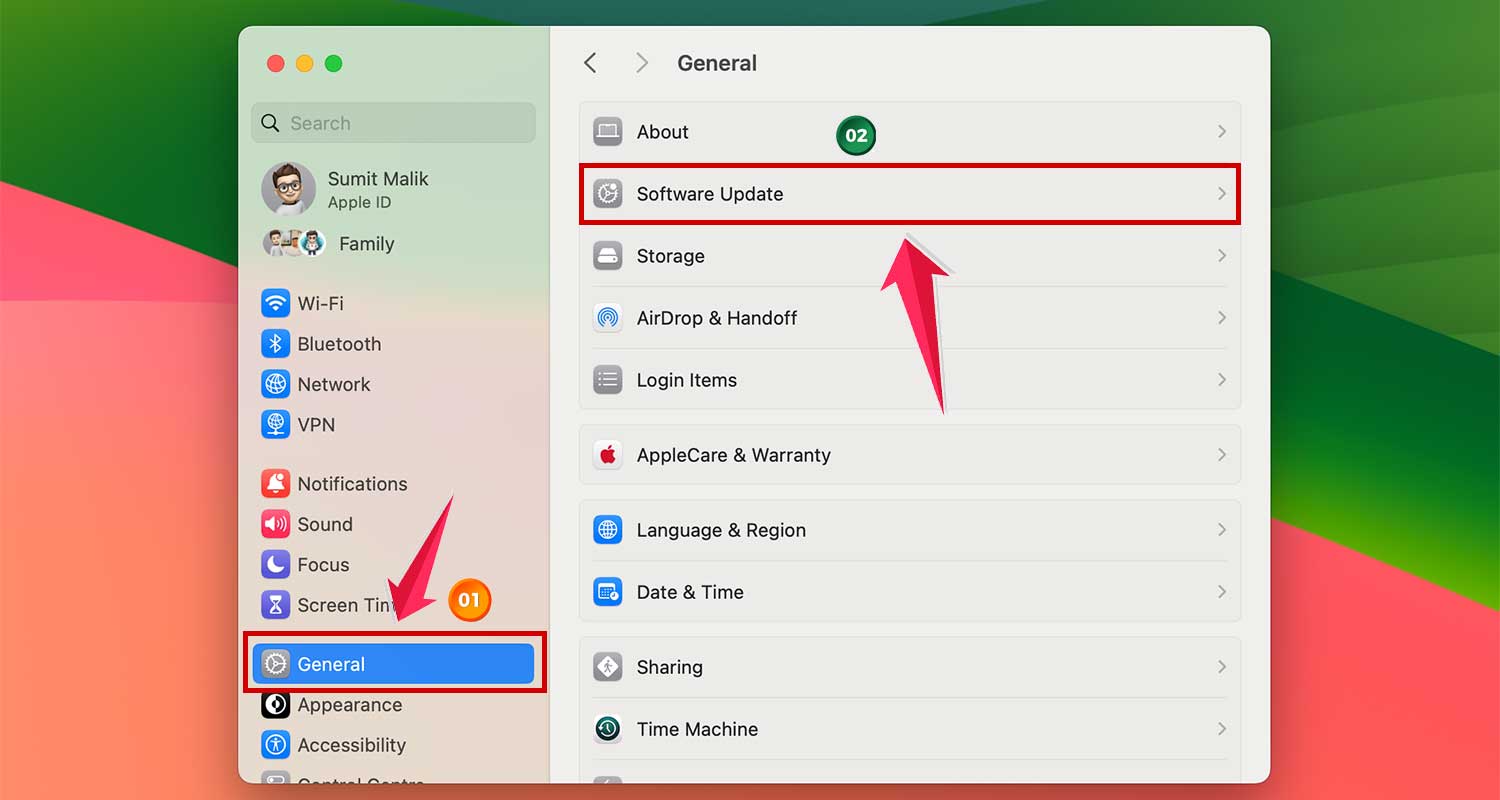
- If there’s an update available, click Update Now.
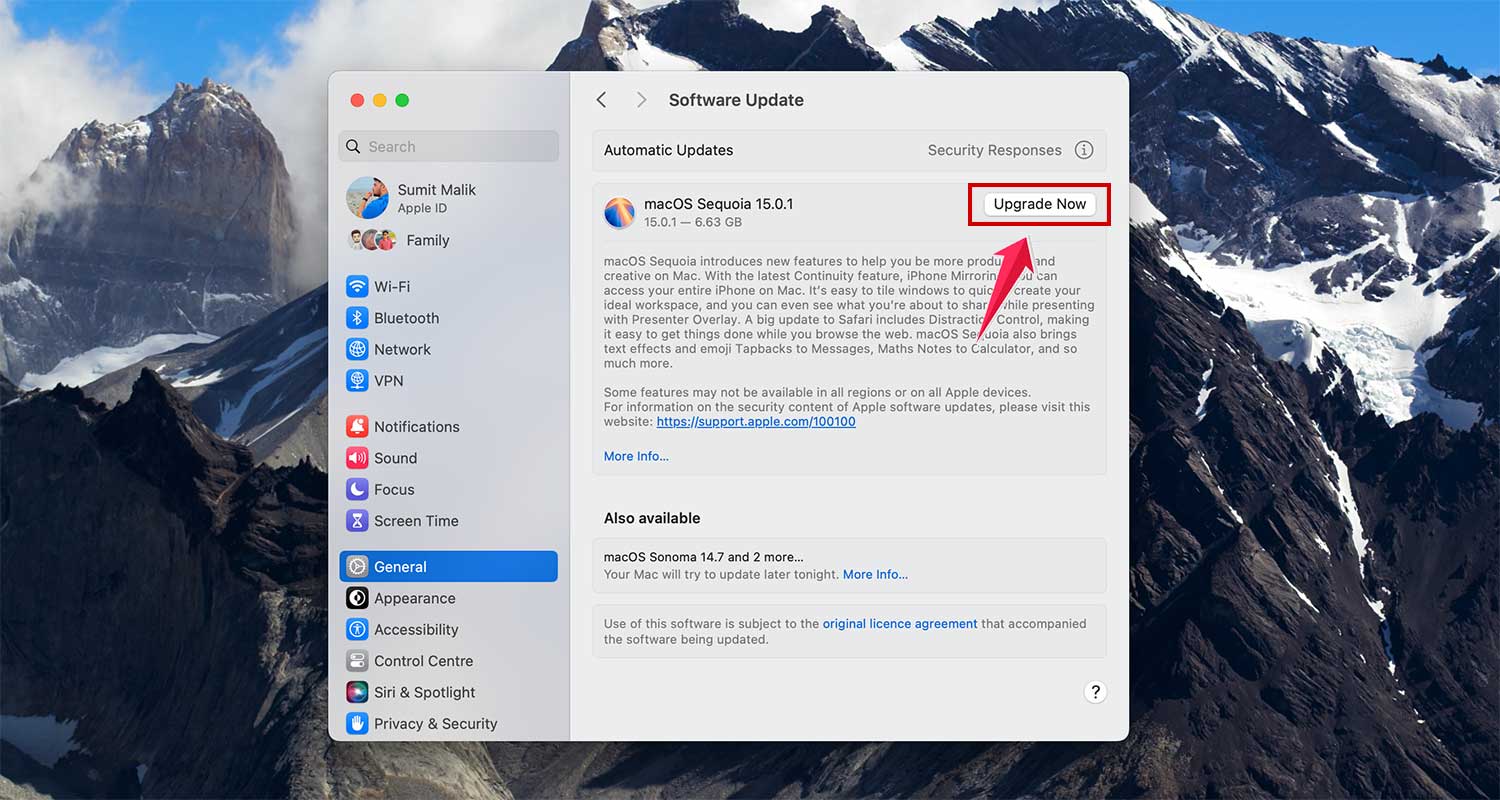
Also, make sure Safari is up to date. If you update macOS, Safari usually gets updated too.
#5: Check Your Network Connection
Sometimes, Safari feels slow because your internet is slow. Let’s make sure that’s not the issue.
Try this:
- Make sure your Mac is connected to the right Wi-Fi network.
- Restart your Wi-Fi router if pages aren’t loading.
- If possible, switch to a wired connection for more stability.
Still slow? Try running a speed test to check your internet speed. If it’s low, you might want to reach out to your provider.
#6: Use Reader Mode for Cleaner, Faster Pages
Some websites are filled with ads, pop-ups, and other stuff that slows everything down. Reader Mode clears the clutter so you can focus on the content.
Here’s how to use it:
- When you’re on an article page, look for the Reader icon (four lines) in the address bar.

- Click it, and boom — the page is cleaner and loads faster.
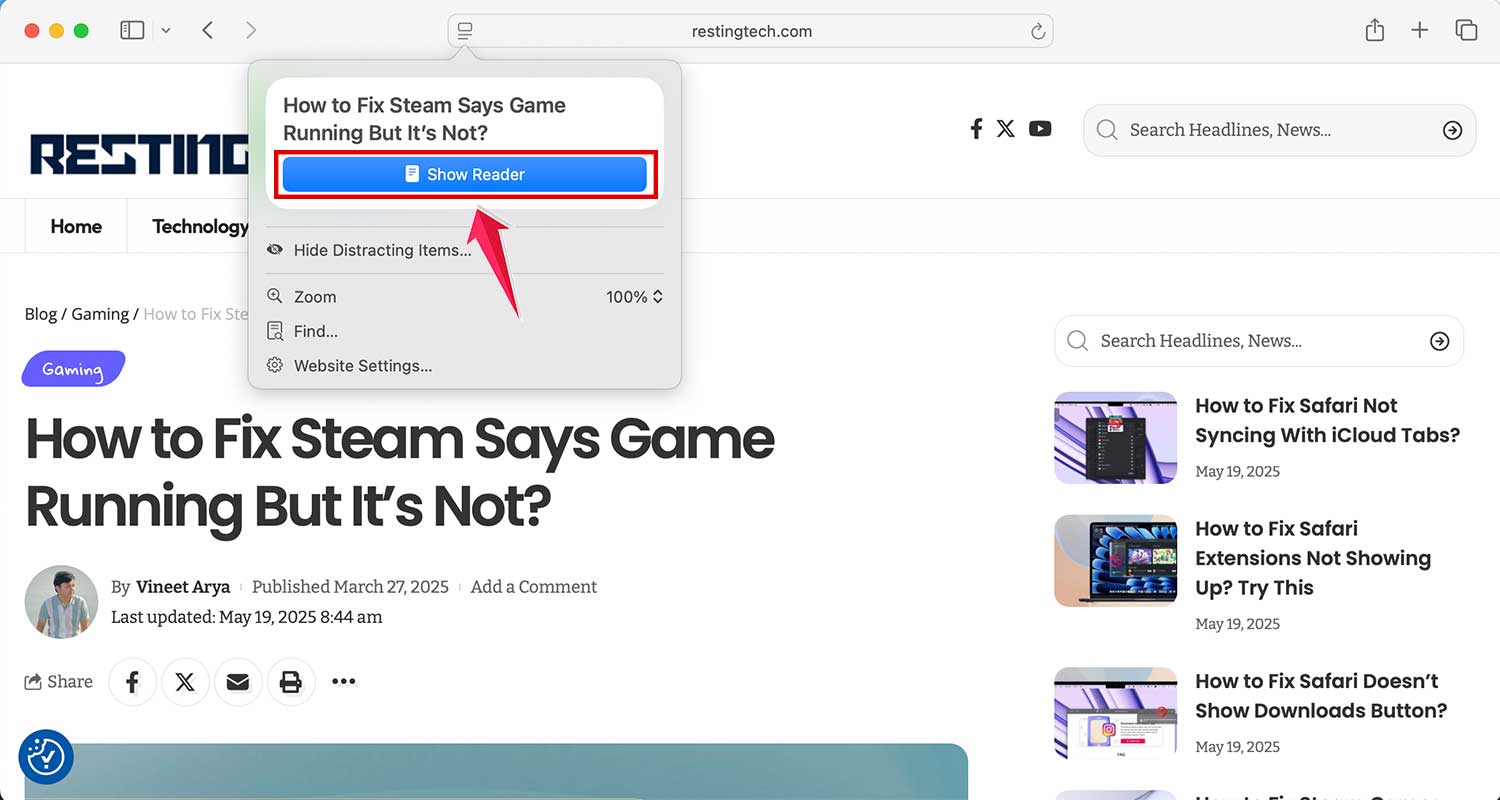
It won’t work on every page, but when it does, it’s a game-changer.
#7: Turn Off Background Processes
Your Mac might be busy doing other stuff in the background. Let’s see what’s running.
Here’s what to do:
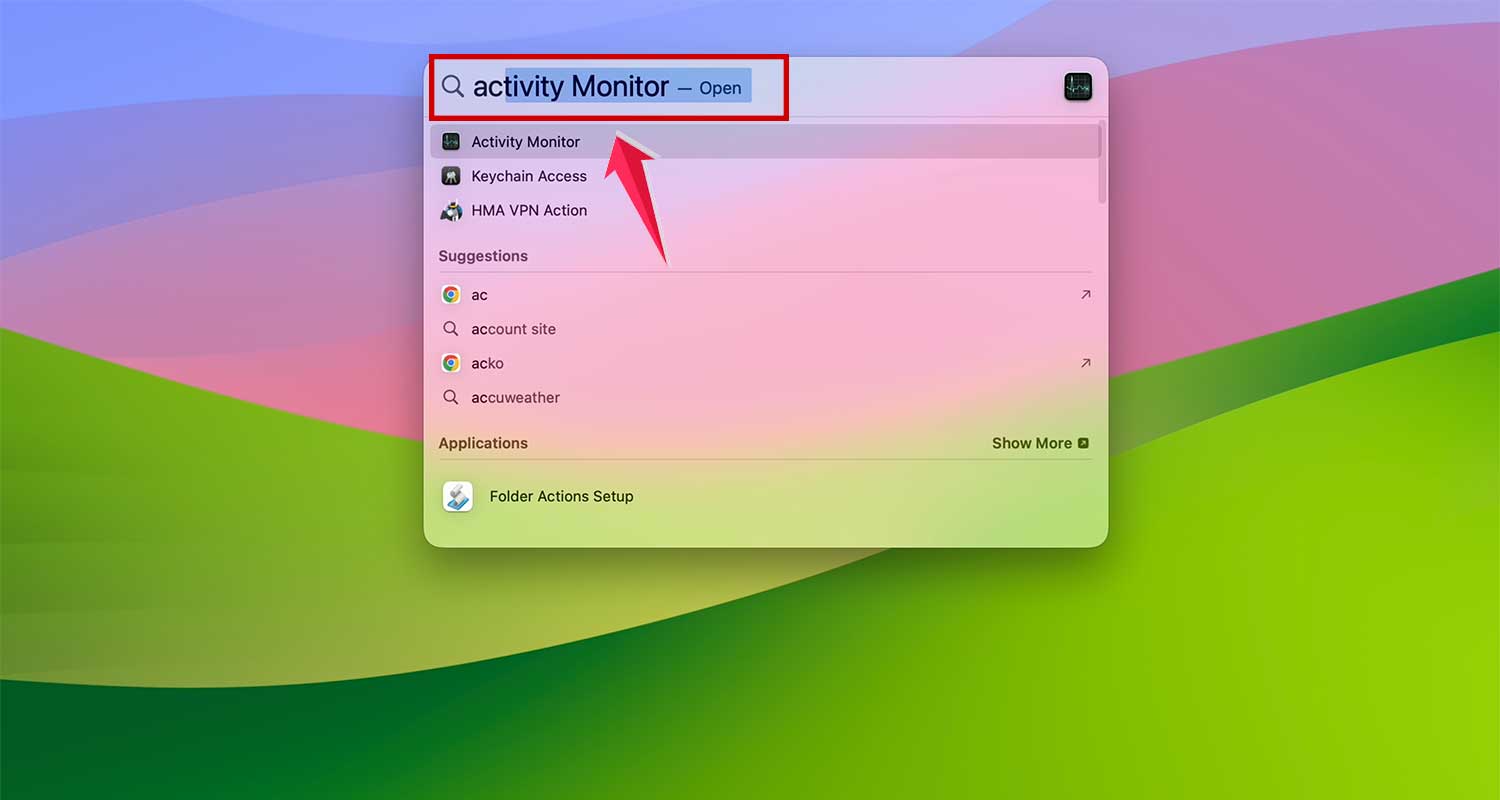
- Press Command + Spacebar. Search and open Activity Monitor.
- Click the CPU tab to see what’s using up power.
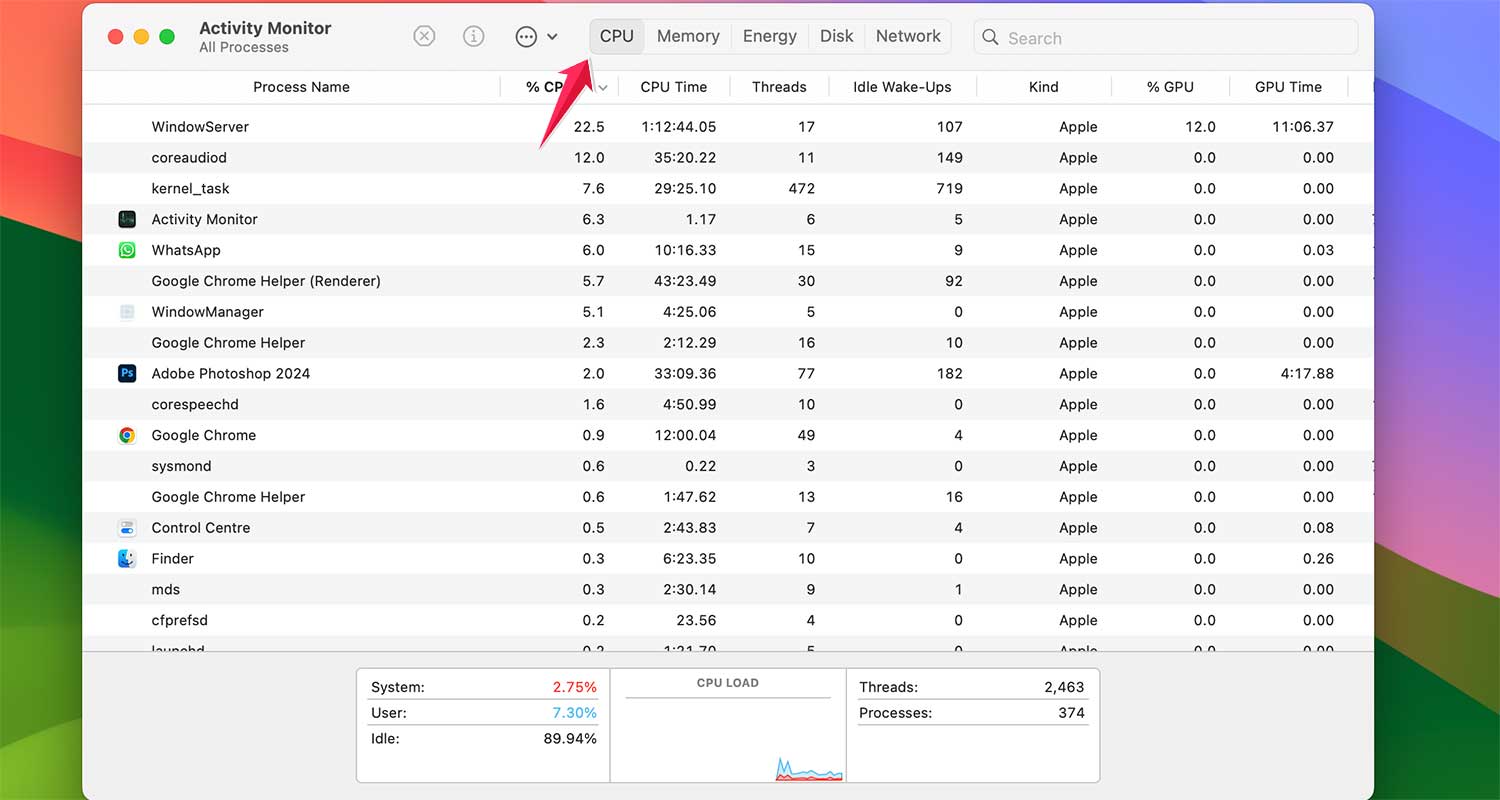
- If you see something you’re not using, click it, then click the X at the top to quit it.

Now your Mac can focus on Safari instead of background tasks.
#8: Restart Safari Every Now and Then
We all love leaving tabs open, but Safari needs a break too. Restarting it clears up memory and gives it a fresh start.
Just close Safari completely, wait a few seconds, and then reopen it. That’s it. Do this once in a while to keep things smooth.
#9: Try a Different DNS
Your Mac uses DNS to find websites. Some DNS servers are faster than others. You can switch to a quicker one like Google or Cloudflare.
Here’s how:
- Go to System Settings.
- Select Network.
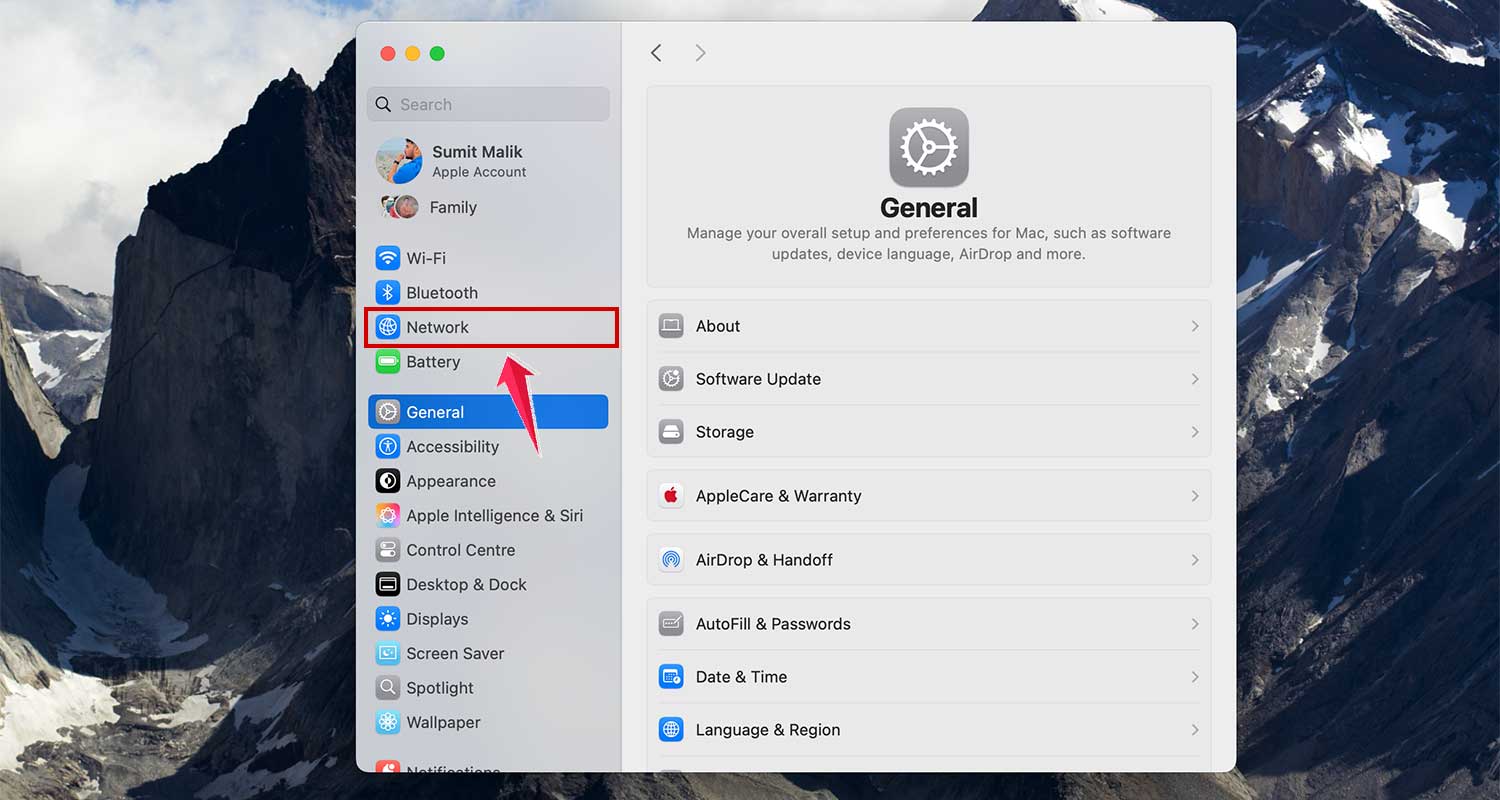
- Click on Wi-Fi.

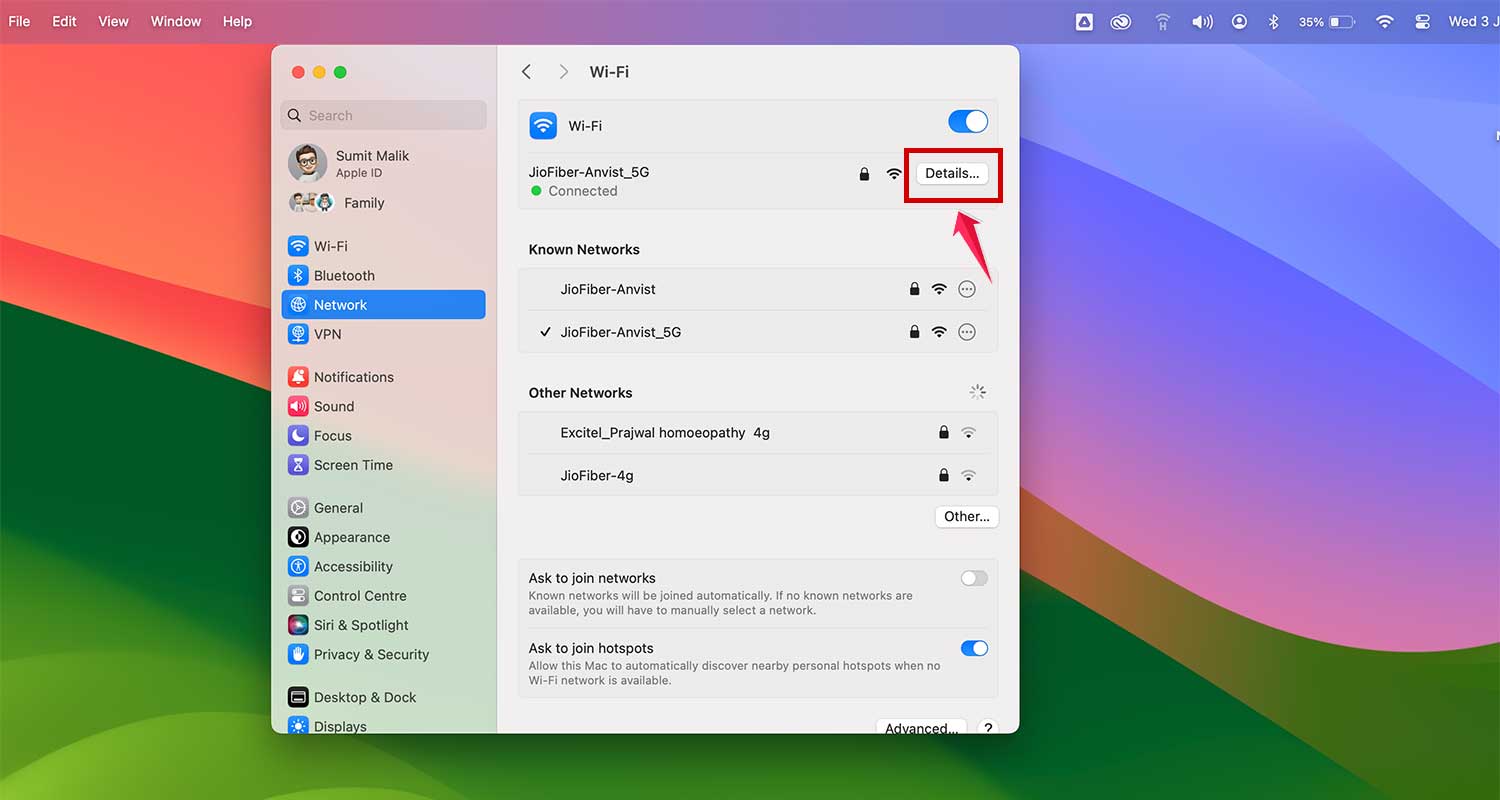
- Then choose your Wi-Fi.
- Click Details.
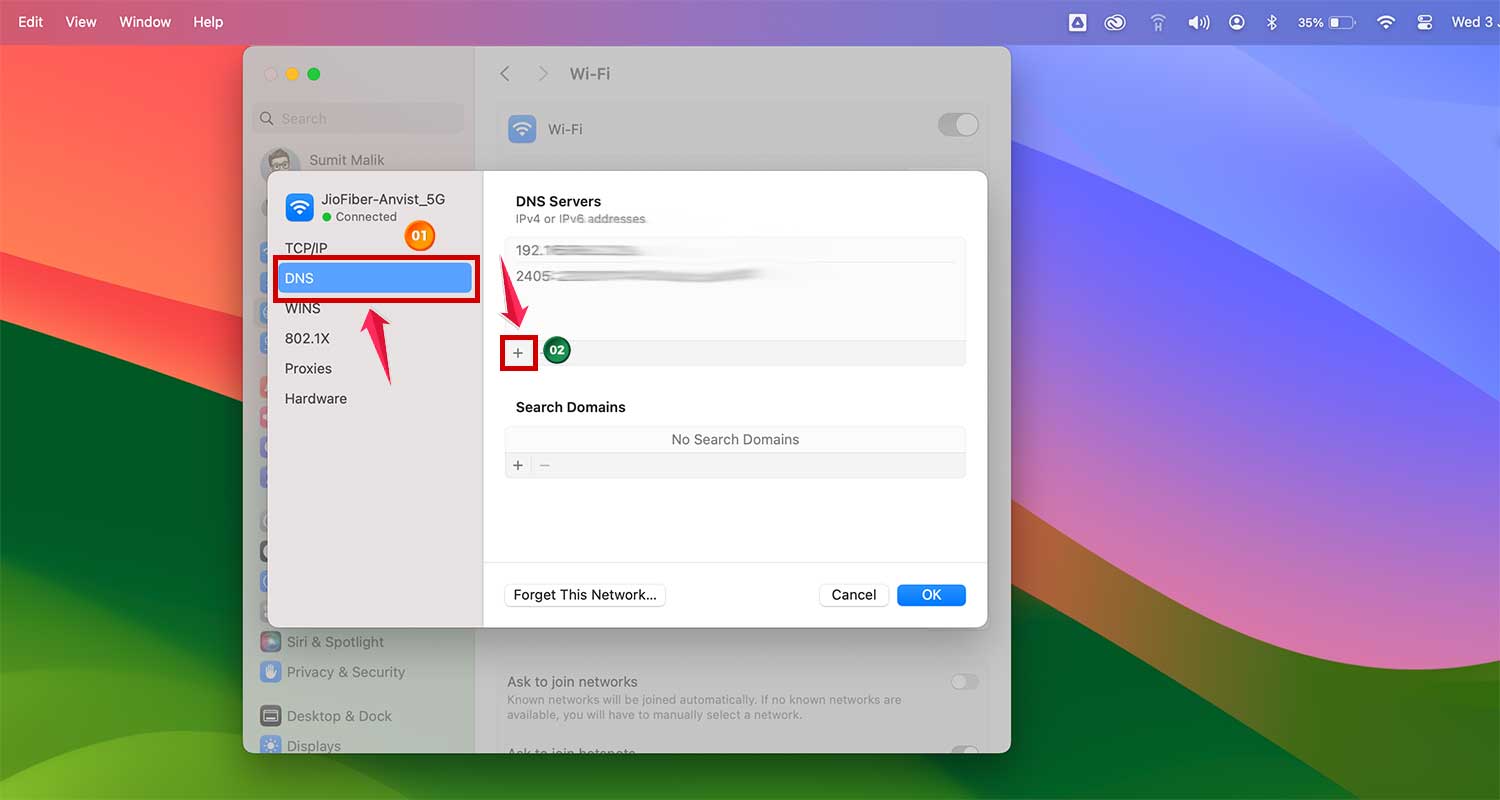
- Then go to the DNS tab and click the + icon.
- Now add these:
- Google: 8.8.8.8.
- Cloudflare: 4.4.4.4.
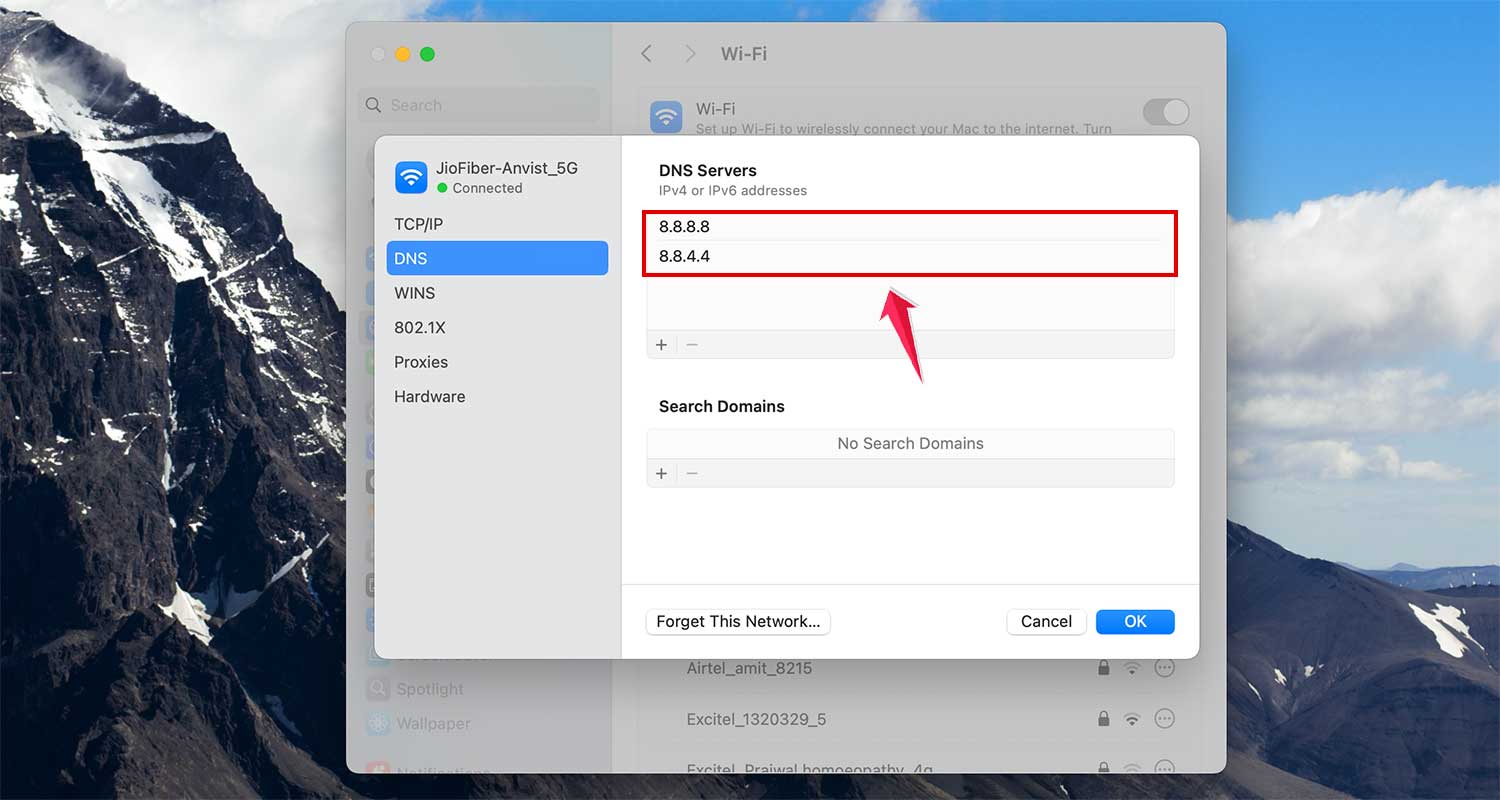
Hit OK and try loading a page. You might notice a nice speed boost.
#10: Free Up Disk Space
When your Mac’s storage is almost full, it can slow down everything, including Safari.
Check your space:
- Open System Settings.
- Go to General > Storage.
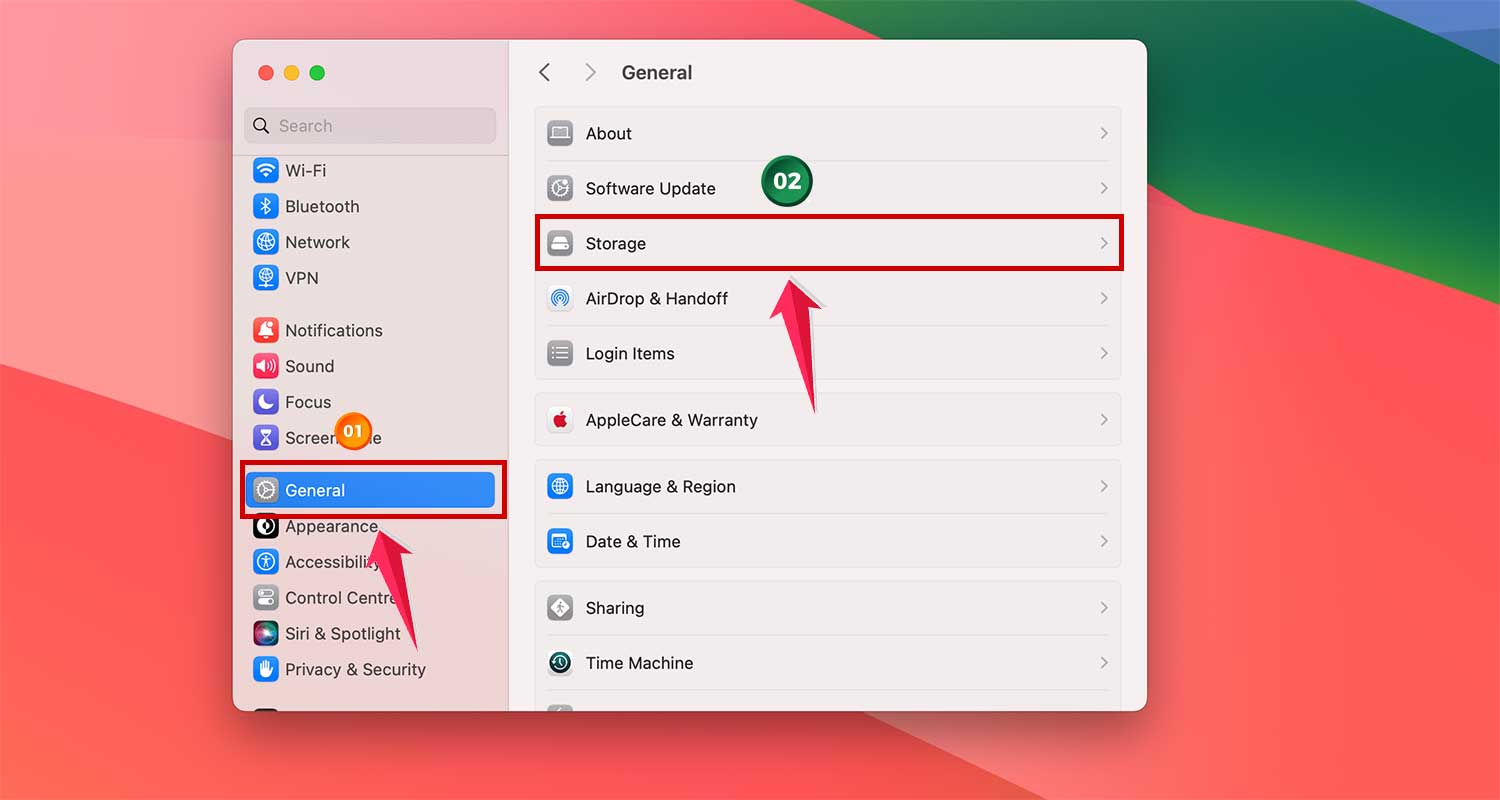
If it’s nearly full, delete old apps, large files, or move stuff to iCloud or an external drive. Giving your Mac more space can make a big difference.
The Takeaway
So, your new Mac isn’t loading web pages as fast as you hoped? It happens, and it’s usually not a big deal. Safari can slow down for lots of small reasons — too many tabs, outdated software, or even your internet connection.
But the good news? Most of the time, you can fix it yourself. Try closing some tabs, clear out those cookies, or update your system. Even simple things like restarting Safari or switching your DNS can help a lot.
And remember, even brand-new Macs need a bit of cleanup now and then. You’ve got this. Just try the steps we walked through, and you’ll see the difference in how fast Safari runs.
Got any other tips that worked for you? Let me know in the comments — I’d love to hear them!