

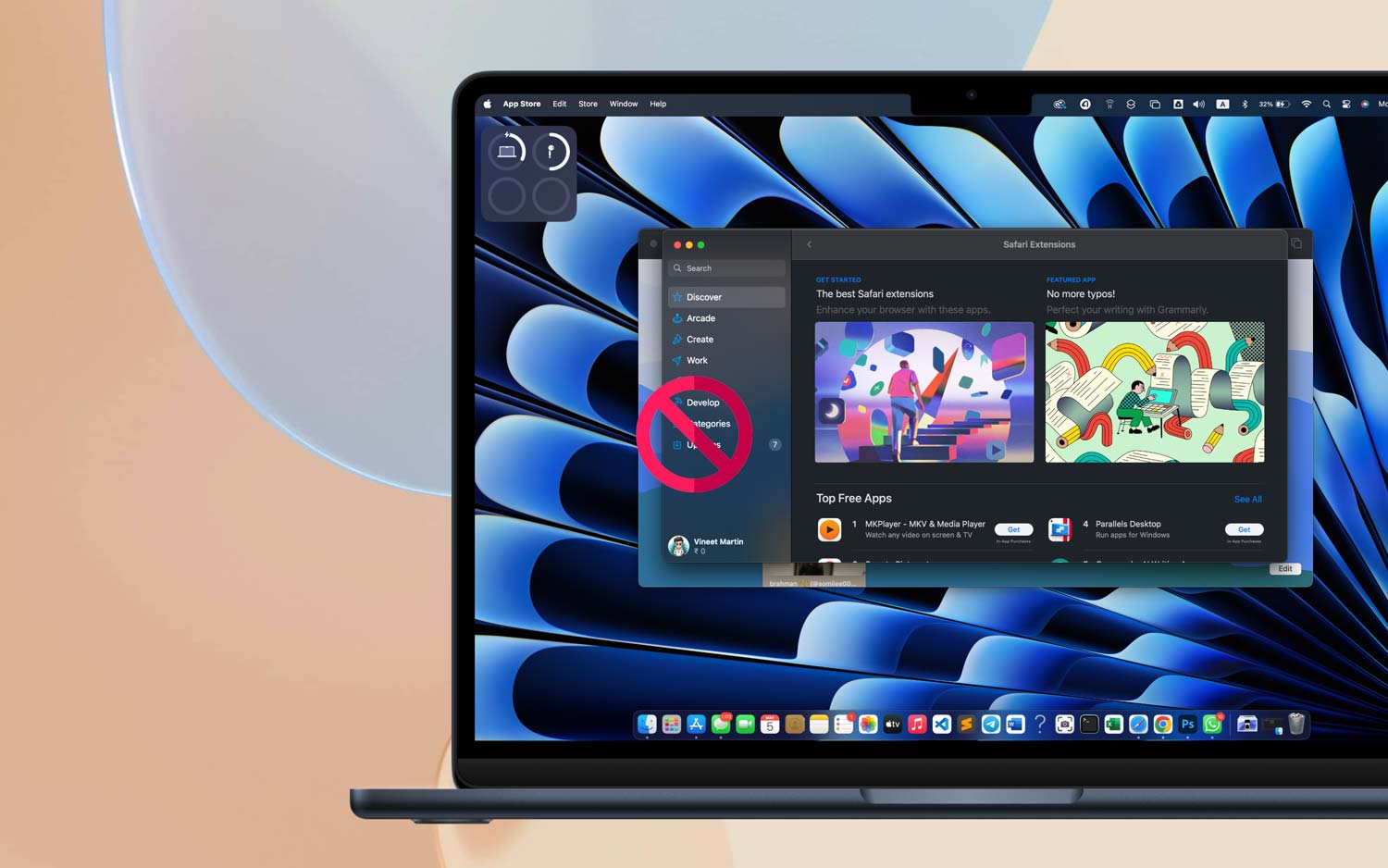
If your Safari extensions suddenly vanished, I get it—it’s annoying. You rely on those little tools to make your browsing smoother, faster, and honestly, just more fun. So when they go missing, it feels like something’s off, right?
Don’t worry, though. You’re not the only one dealing with this. It happens more often than people think. Usually, it’s a small issue hiding somewhere—maybe Safari needs an update, or there’s a setting that got changed without you noticing.
Sometimes it’s a bad internet connection, or maybe the extension itself isn’t working with your current Safari version.
The good news? These problems are usually easy to fix. You just need to go through a few steps, and you’ll likely have everything back up and running.
I’ll walk you through it, step by step. Let’s get those extensions back where they belong and make Safari feel like home again.
Let’s talk about what might be causing this
1. It could be your Safari version
If Safari hasn’t been updated in a while, some extensions might stop working. Apple regularly updates Safari to fix bugs and improve compatibility.
If you’re running an older version, that could be the reason your extensions vanished.
2. Extensions might not be compatible anymore
Even if an extension worked before, a Safari update can sometimes break things. Developers need to update their extensions too.
If they haven’t done that yet, those extensions might stop showing up or working properly.
3. Check if your extensions are just turned off
It’s easy to miss this one. Sometimes, Safari just disables extensions. Maybe it happened during an update, or maybe it was done by accident.
Either way, it’s worth checking your settings to make sure they’re still enabled.
4. Corrupted files can cause issues
If the extension files got corrupted, they might not load at all. This can happen for many reasons—maybe a bad install, or a system glitch.
You might need to uninstall and reinstall them to fix the problem.
5. Internet connection problems can stop extensions from loading
Yes, your connection matters too. If Safari can’t connect properly, it might not be able to load or activate extensions.
A weak or unstable internet connection can cause all sorts of small issues like this.
So now that you know what might be going on, let’s move on to the part where we fix everything. Ready? Let’s go step by step.
How to fix Safari extensions not showing up
#1: Update your Safari browser
Let’s start with the easiest fix—updating Safari. If your browser is outdated, it might not support the latest versions of your extensions. Apple’s updates usually include fixes for bugs and compatibility issues, so this step is important.
Here’s how to update Safari:
- Click the Apple menu at the top-left corner of your screen.
- Go to System Settings.

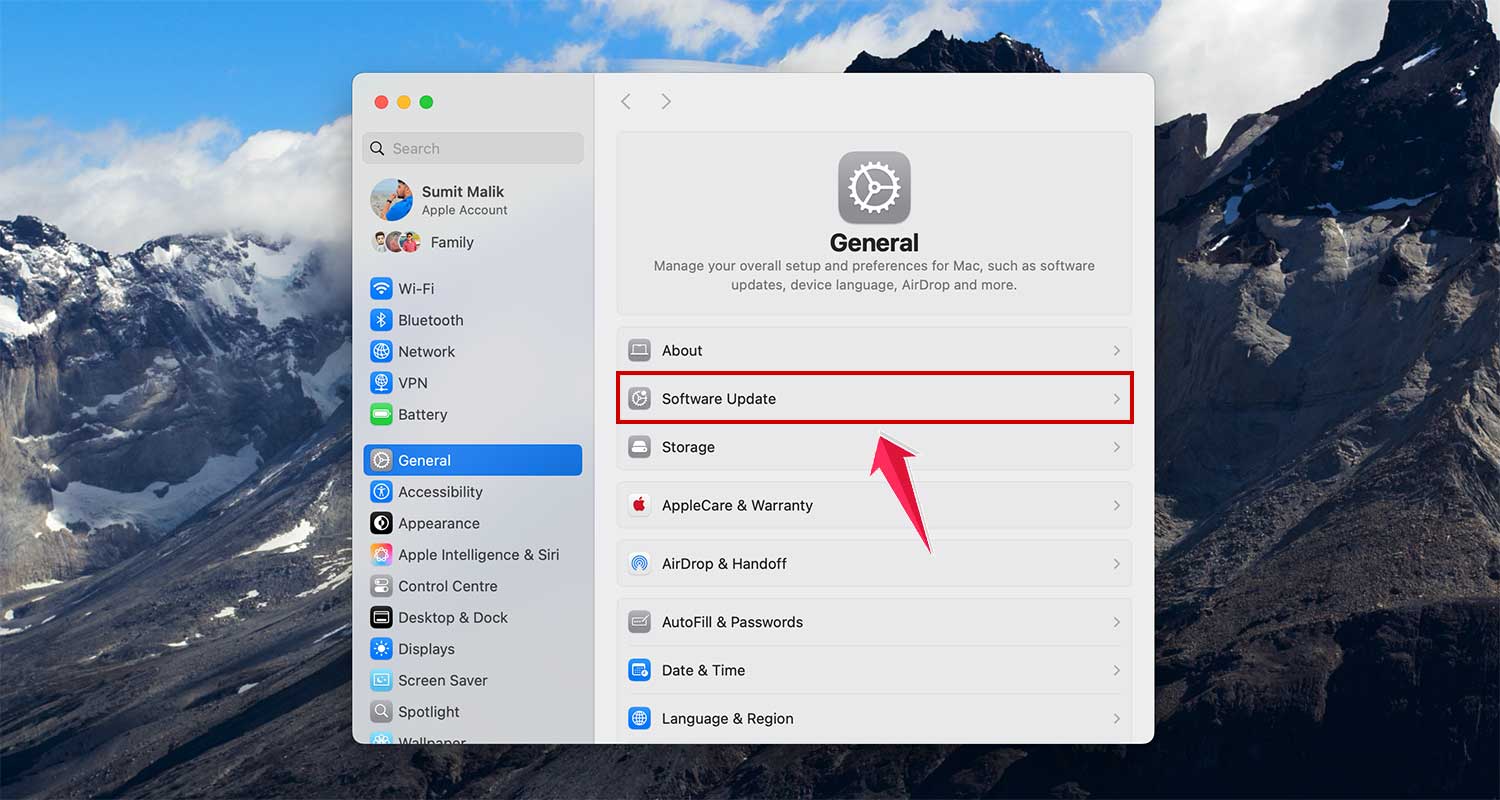
- Then go to General > Software Update.
- If there’s an update available, click Update Now.
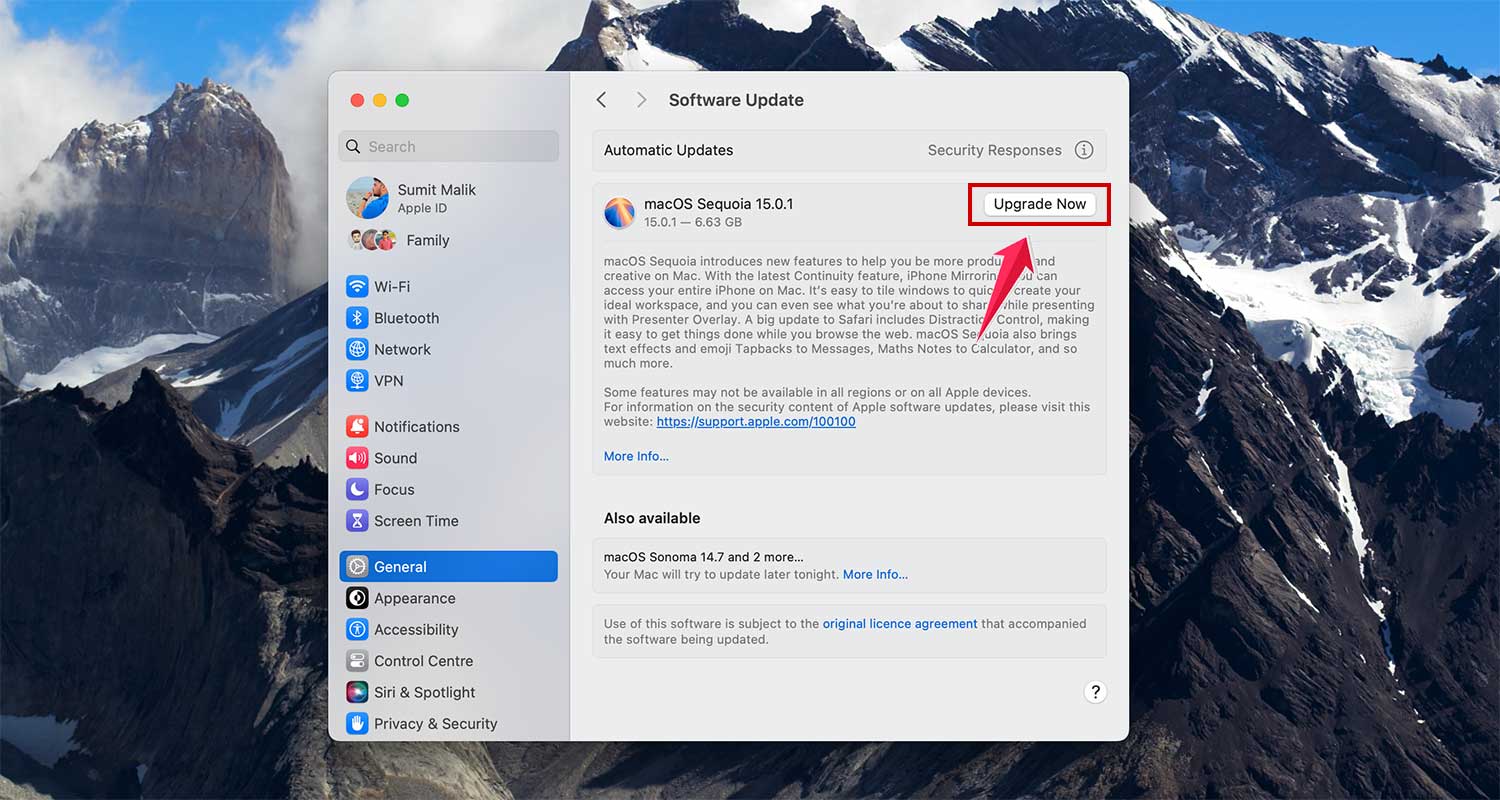
Once it’s done, open Safari again and check if your extensions are back.
#2: Check if your extensions are still compatible
Sometimes the extension itself isn’t the problem—it just doesn’t work with the current Safari version. Let’s double-check that.
To check compatibility:
- Open Safari.
- Click on Safari in the top menu, then choose Settings.
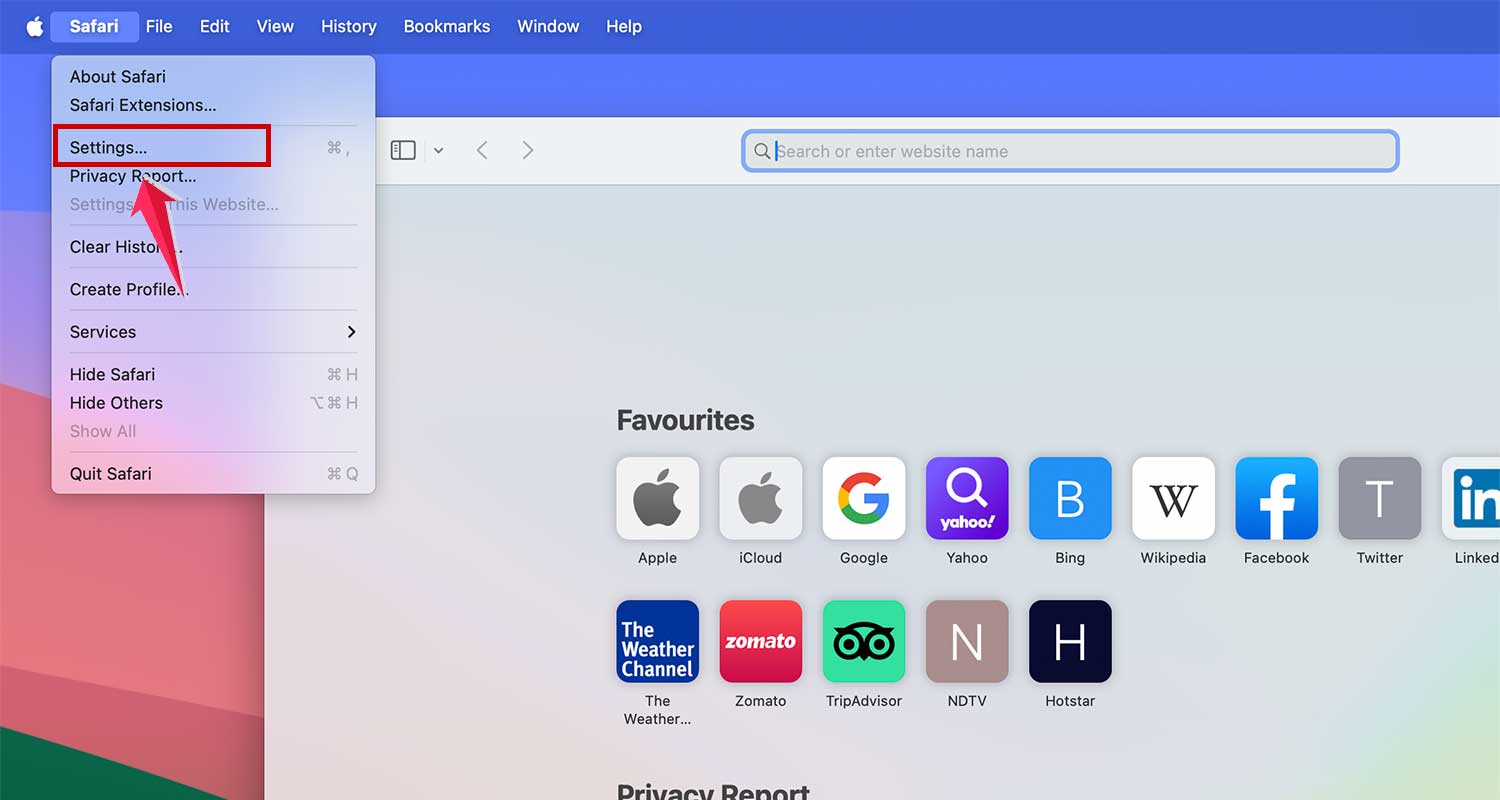
- Click the Extensions tab.
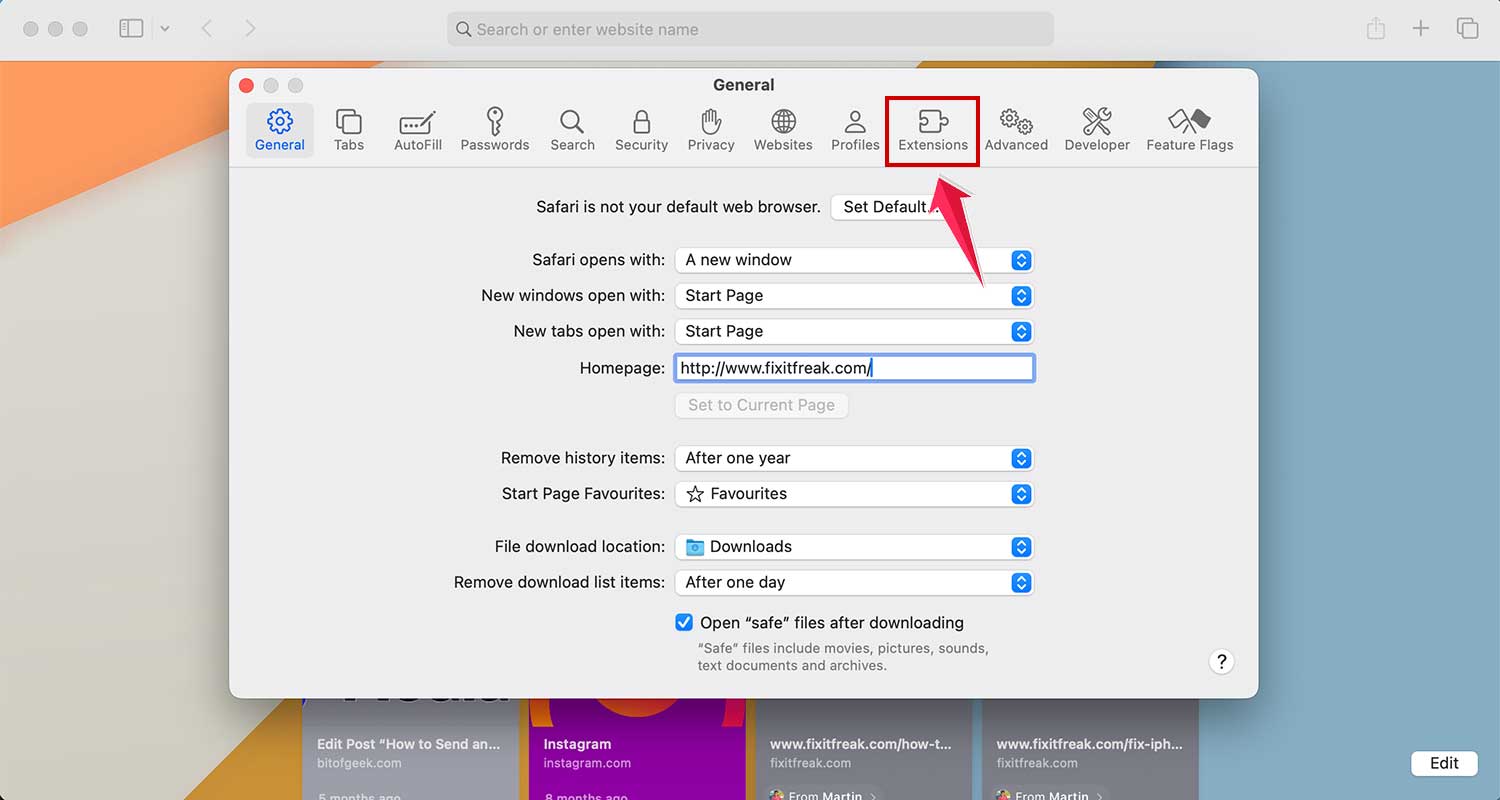
Look at the list of installed extensions. If any are grayed out or show an error icon, that’s likely a compatibility issue. You may need to check the App Store for an updated version or visit the developer’s website.
#3: Make sure your extensions are enabled
This one’s easy to fix. Your extensions might just be turned off. Let’s check that quickly.
Here’s how:
- Open Safari.
- Go to Safari > Settings.
- Click the Extensions tab.
- Look for the extension you want and make sure it has a checkmark next to it.

If it’s unchecked, just click the box to turn it back on. That might be all you need to do.
#4: Reinstall the extension
If the extension is still acting up, it might be corrupted. Don’t worry—it happens. A fresh install usually fixes it.
To reinstall:
- Go to Safari > Settings > Extensions.
- Uncheck the extension and click Uninstall.

- Then, open the App Store or Safari Extensions Gallery.
- Find the extension and install it again.
Give Safari a quick restart after reinstalling, then check if it shows up again.
#5: Check your internet connection
This might sound too simple, but a weak or unstable connection can stop Safari from loading extensions properly. Let’s check your Wi-Fi.
To test your connection:
- Try opening a few websites. Are they loading fast?
- If not, try restarting your Wi-Fi router.
- You can also try switching to a different network or using a mobile hotspot.
Once your connection is stable, restart Safari and check your extensions again.
Other quick tips to keep things running smoothly
1. Clear cache and cookies regularly
Think of it as cleaning out the junk drawer. Over time, Safari builds up a lot of stored data. Clearing your cache and cookies can help it run faster and prevent weird bugs like missing extensions.
2. Restart your device
Sometimes, all it takes is turning your Mac off and back on. It resets the system and clears out temporary issues. If you haven’t done this in a while, give it a try.
3. Reach out to Apple Support if nothing works
Still stuck? It’s okay. Apple Support is there for a reason. You can chat with them online, call, or visit an Apple Store. They’ll help you figure it out.
4. Update your macOS too
Safari is part of your Mac’s operating system, so keeping macOS updated helps avoid bugs and issues. Don’t skip this one—everything works better when your system is current.
5. Try a different extension
If one specific extension keeps causing trouble, maybe it’s time to try another one. Many tools do the same thing. Head to the Safari Extensions Gallery and look for alternatives that work better with your setup.
The takeaway
I know—losing your Safari extensions out of nowhere can be frustrating. But as you’ve seen, most of the time it’s not a big deal.
It could be something as simple as a disabled extension or an outdated Safari version.
Start with the basics—check for updates, make sure your extensions are turned on, and reinstall anything that seems broken.
Don’t forget to check your internet too. These small steps often fix the issue without much effort.
And hey, if it still feels stuck, don’t be afraid to reach out to Apple Support or try a different extension that works better. You’ve got options, and you’re not alone in this.
If you’ve fixed the issue or found a tip that helped, drop a comment below. I’d love to hear what worked for you. Let’s help each other out!


