Is your laptop suddenly silent? You’re not alone. Sound problems are one of the most common issues laptop users face, and it can be incredibly frustrating when you’re trying to watch a video or listen to music.
Right now, you’re probably wondering why your laptop speakers aren’t working. There could be several reasons, ranging from simple software glitches to more complex hardware issues. The good news is that you can often fix these problems yourself without needing to take your laptop to a repair shop.
In this article, you’ll discover nine different ways to troubleshoot and fix your laptop’s speaker problems. We’ll walk you through each method step-by-step, using language that’s easy to understand even if you’re not tech-savvy.
By the time you finish reading, you’ll have a toolkit of solutions to try. So, let’s get started and bring the sound back to your laptop. With a bit of patience and these tips, you’ll hopefully be enjoying your audio again in no time.
What Causes Laptop Speakers to Stop Working
When your laptop speakers go silent, the culprits can range from simple sound settings to more complex issues. Here’s how to troubleshoot and fix the common problems that might be silencing your device:
1. Sound settings issues. Sometimes, the problem is as simple as your speakers being muted or the volume set too low. It’s an easy fix, but it’s often overlooked.
2. Incorrect speaker configuration. Your laptop might not be using the right speakers. If your computer thinks it should be sending sound to a device that’s not connected, you won’t hear anything from your built-in speakers.
3. Outdated or faulty drivers. Drivers are the software that helps your computer communicate with its hardware. If your audio drivers are outdated or corrupted, your speakers might not work properly.
4. Hardware problems. In some cases, the issue could be physical. Your speakers might be damaged or disconnected inside your laptop.
How to Fix Laptop Speakers That Don’t Work
Got silent laptop speakers? Don’t worry. Let’s walk through some simple fixes you can try without any special tools or skills. Here’s how to get your laptop’s sound back.
1. Check if it’s muted
First, make sure your laptop isn’t accidentally muted. Look for the speaker icon in the bottom right corner of your screen. If you see an X next to it, that means it’s muted.
Just click on it to unmute. Also, check your laptop for any physical mute buttons or function key shortcuts that control sound.

2. Try headphones
Plug in a pair of headphones or earbuds. Your laptop should automatically switch the sound to the headphones when you plug them in.
If you can hear sound through the headphones, the problem might be with your laptop’s speakers or the software that manages the audio output.
3. Check the audio sensor
Sometimes, the sensor that detects when headphones are plugged in can get stuck. This makes your laptop think headphones are connected when they’re not, so it doesn’t play sound through the speakers.
Try gently plugging and unplugging your headphones a few times. You can also carefully use a toothpick to nudge the sensor, but be very gentle to avoid damage.
4. Adjust your playback device
If you’ve recently used wireless headphones or an external monitor, your laptop might still be trying to send sound to them. To fix this, left-click the speaker icon in the bottom right corner of your screen.
See which device is selected for playback. If it’s not your laptop speakers, click on the current device’s name and choose your laptop speakers from the list.
5. Run the sound troubleshooter
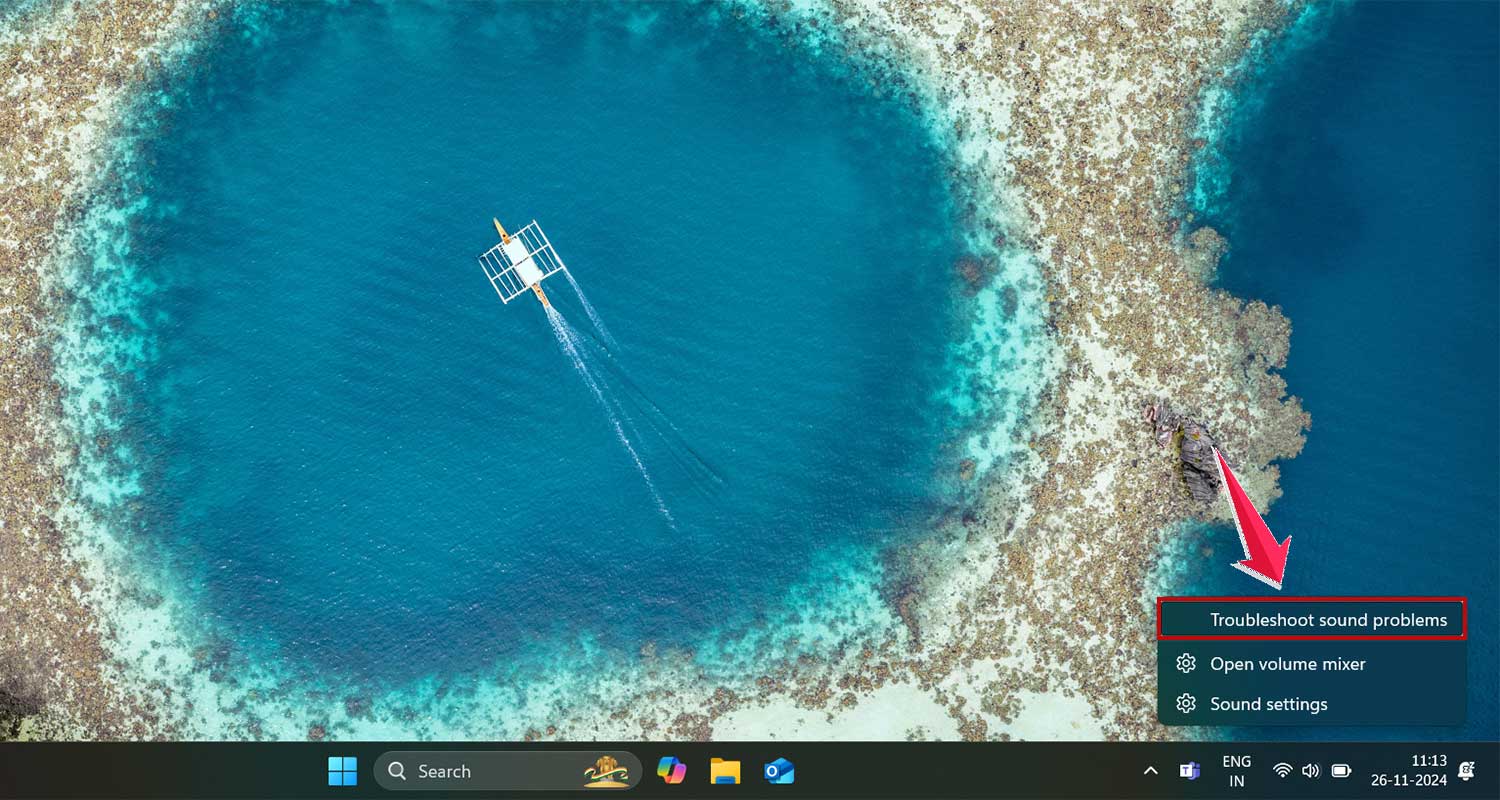
Windows has a built-in tool to help diagnose and fix sound issues. To use it, right-click the speaker icon, select “Troubleshoot sound problems,” and follow the instructions on your screen. It might take a few minutes, but it’s worth trying as it can often fix the problem automatically.
6. Disable audio enhancements
Sometimes, audio enhancements can interfere with sound output. Here’s how to turn them off:
- Go to Control Panel.
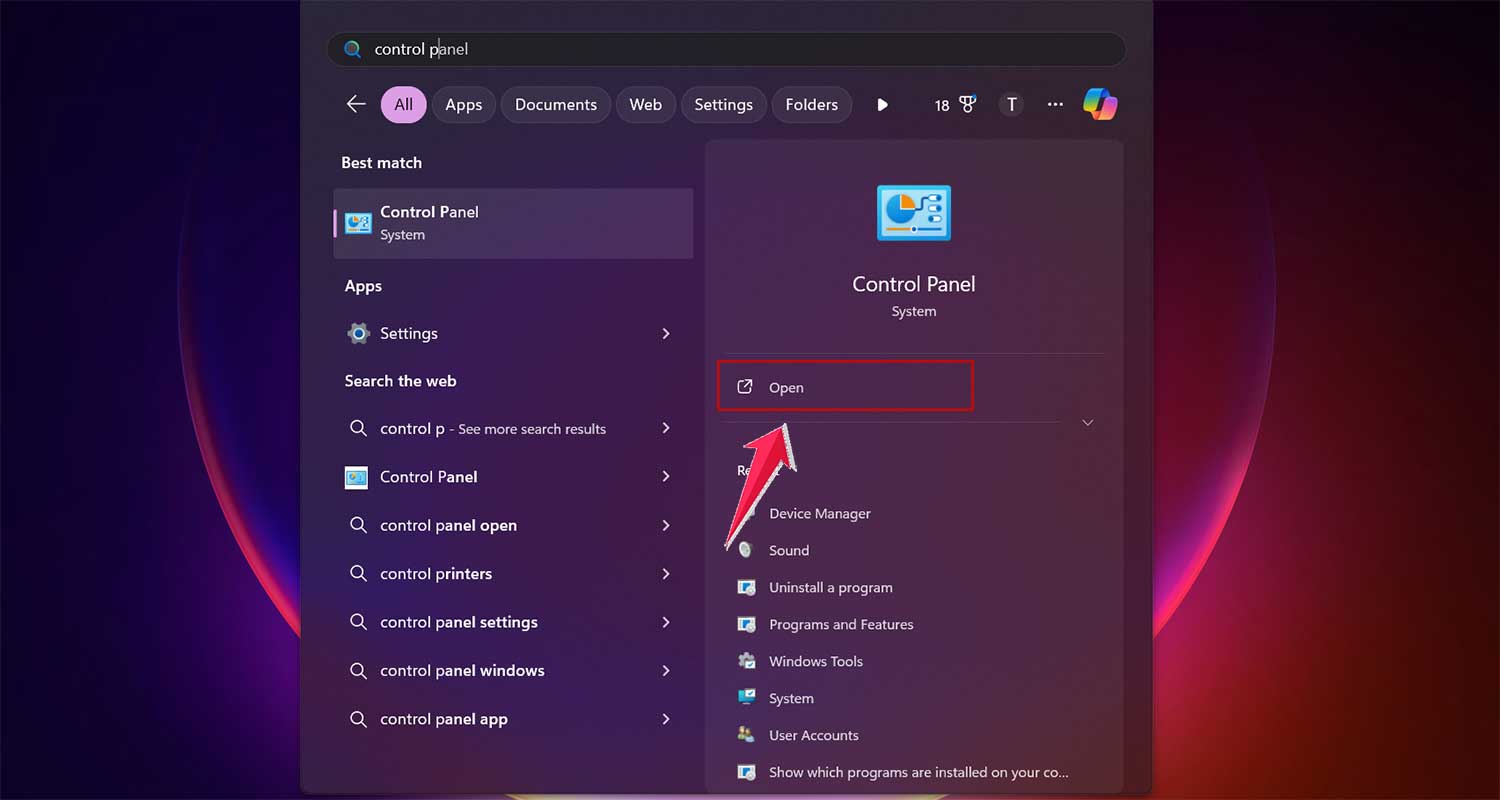
- Then click on Hardware and Sound.

- Now find and click on the Sound.
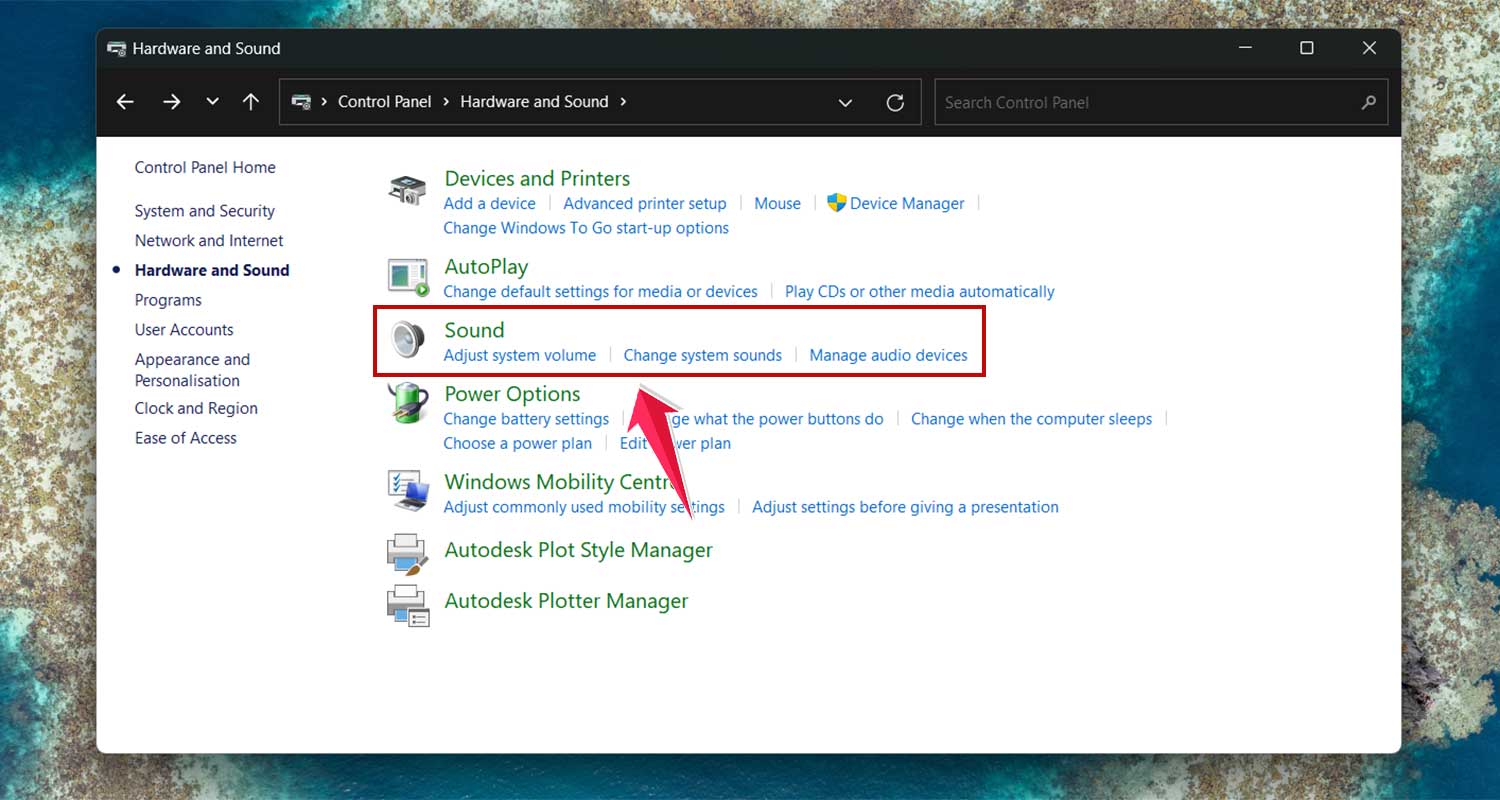
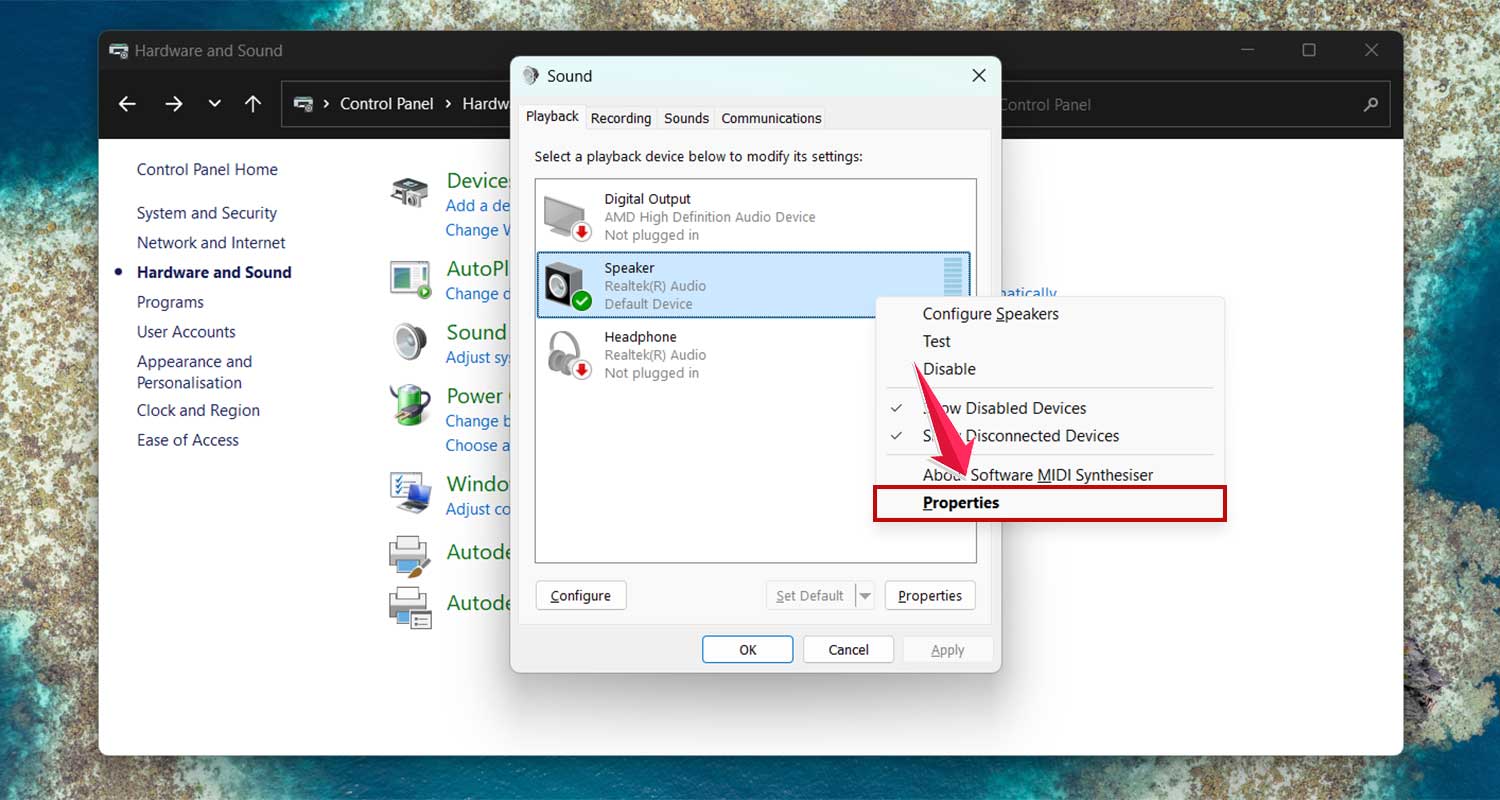
- In the Playback tab, right-click your speaker device and choose Properties.
- Go to the Advanced tab and uncheck the box that says “Enable audio enhancements.”
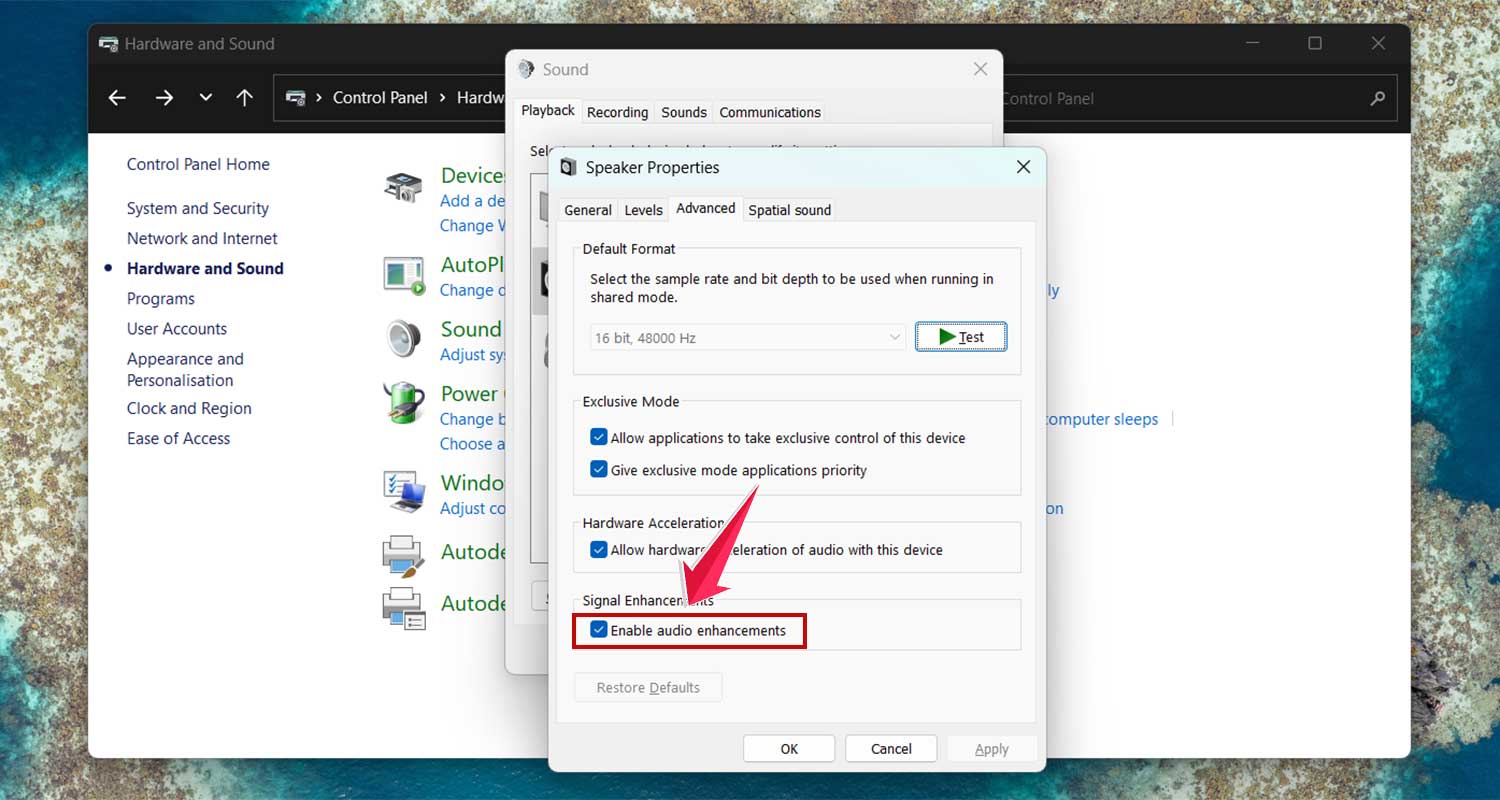
If this fixes your sound, you might want to keep enhancements off. But updating your audio driver might solve the underlying issue and let you turn enhancements back on later.
7. Update audio drivers
Outdated or corrupted drivers could be why your speakers aren’t working. Here’s how to check for updates:
- Open Device Manager (you can search for it in the Start menu).
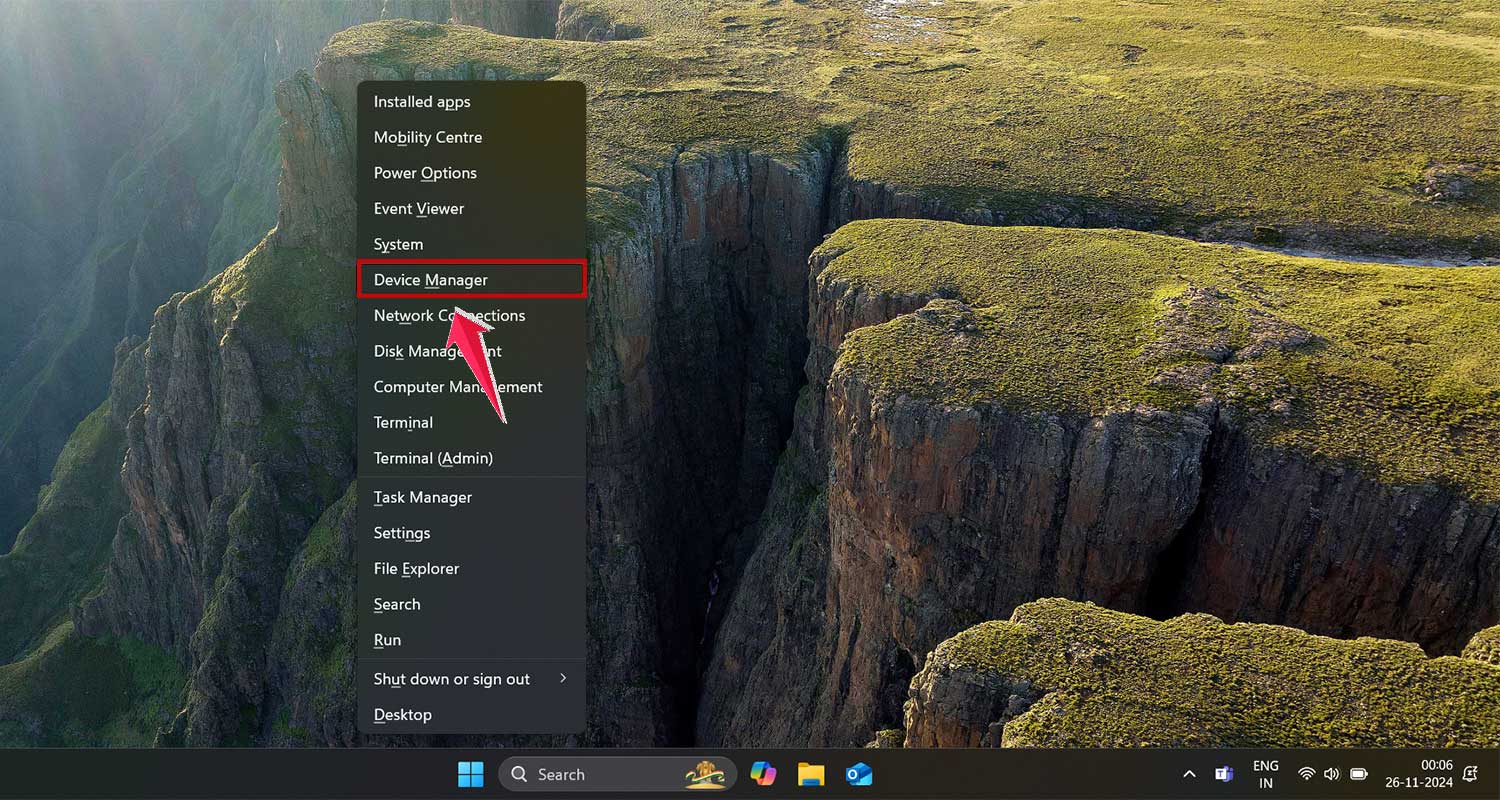
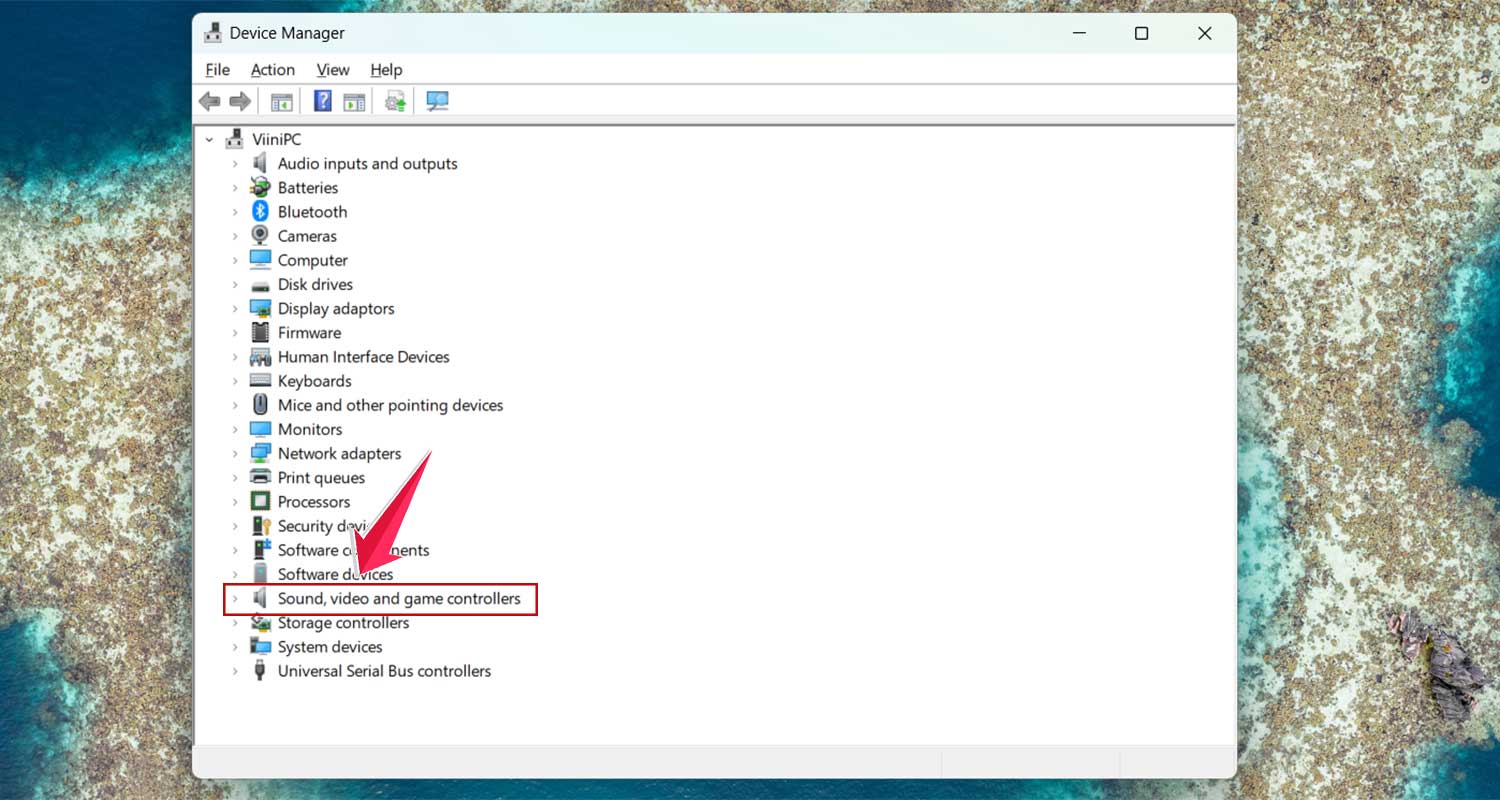
- Expand the “Sound, video, and game controllers” section.
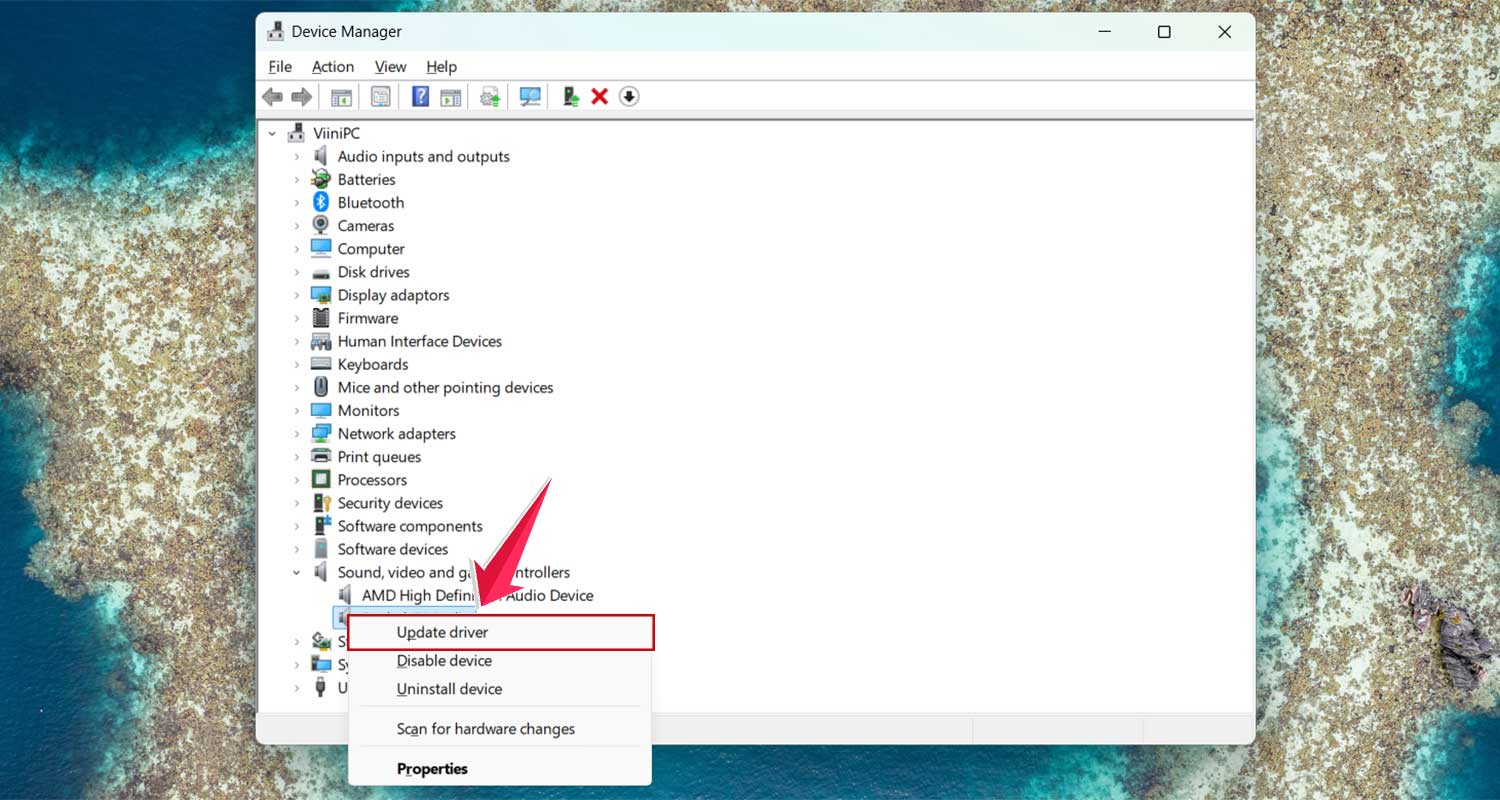
- Right-click your audio device and select “Update driver.”
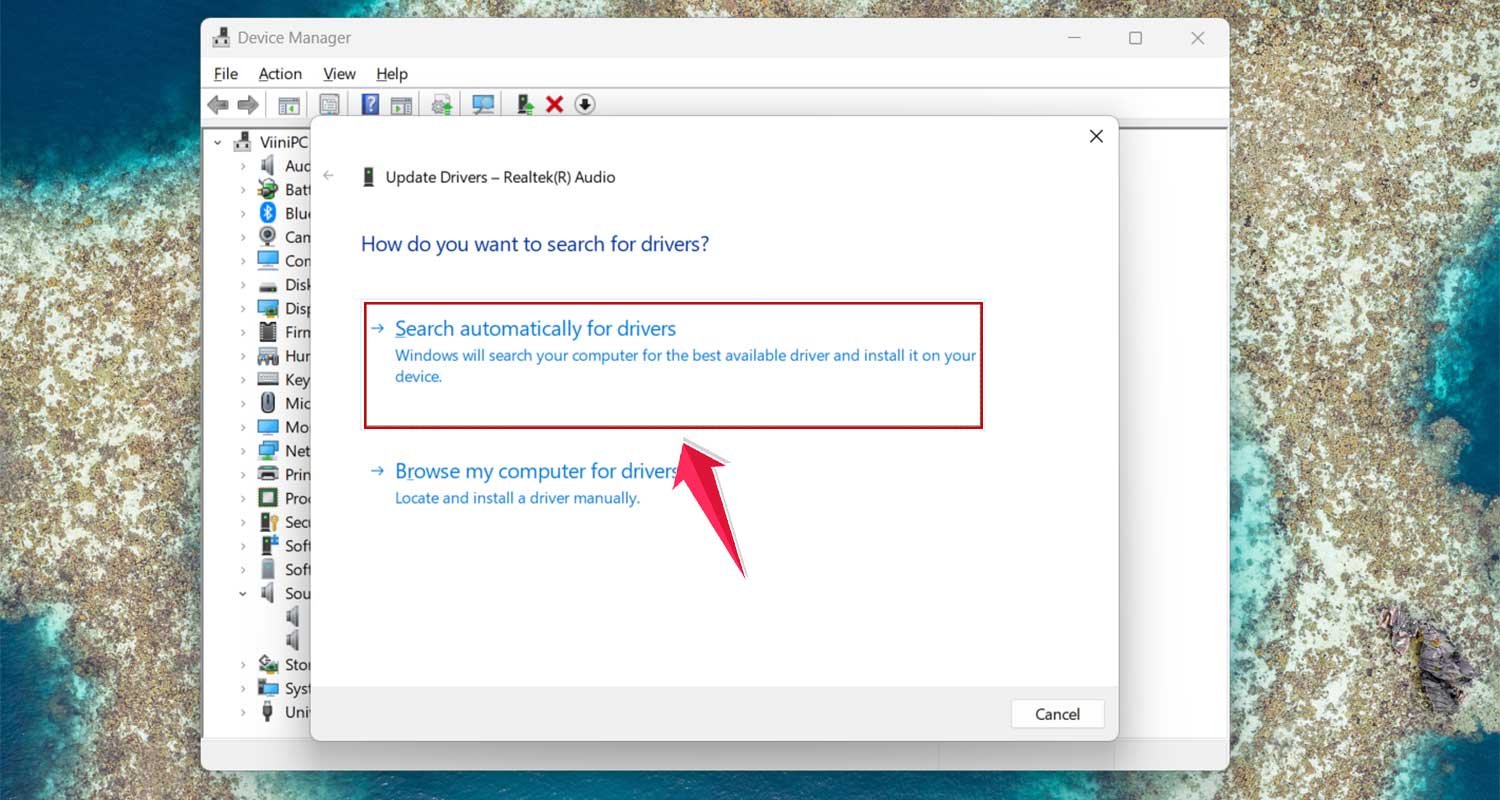
- Choose “Search automatically for drivers” and follow the prompts.
If you think the driver might be corrupted, you can uninstall it from the same menu by choosing “Uninstall device.” Then restart your laptop, and Windows will automatically reinstall a fresh driver.
8. Check for physical issues
If none of the software fixes work, there might be a physical problem with your speakers. Before you open up your laptop, check if it’s still under warranty. If it is, it’s best to send it in for professional repair to avoid voiding the warranty.
If you’re comfortable with tech and have the right tools, you can try opening your laptop to check the speakers. Look for any visible damage to the speakers or wires. But be careful – opening your laptop can be risky if you’re not sure what you’re doing.
9. Get professional help
If you’ve tried everything and your speakers still aren’t working, it might be time to take your laptop to a professional. Sometimes the problem is too complex to diagnose or fix at home. A certified technician can thoroughly examine your laptop and fix the issue, saving you time and preventing further problems.
Remember, getting your laptop’s sound back often just takes a bit of patience and systematic troubleshooting. Try these steps one by one, and hopefully, you’ll be enjoying your laptop’s audio again soon.
The takeaway
Laptop speaker issues can be frustrating, but they’re often fixable with some simple troubleshooting. We’ve explored several solutions, from checking if your speakers are muted to updating your audio drivers. These steps can often resolve the problem without needing professional help.
It’s important to remember that not all speaker issues are due to hardware problems. Many times, it’s a software setting or driver issue that’s causing the silence. Don’t assume you need to replace your speakers or your entire laptop just because the sound isn’t working.
In the end, the key is to be patient and methodical. Try each solution step by step. If you’ve gone through all the software fixes and still can’t get your speakers working, don’t be afraid to seek help from a professional technician.
They have the expertise to diagnose and fix more complex issues. The most important thing is to get your laptop’s sound working again so you can fully enjoy your device.
We’d love to hear about your experiences. Have you encountered laptop speaker issues? What solutions worked for you? Share your thoughts in the comments below.