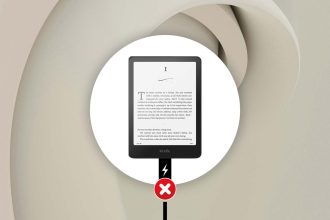
Oh no, is your Kindle acting up? You’re all set to read your favorite book, maybe with a cup of tea in hand, and suddenly—it’s stuck.
The screen won’t change, the power button does nothing, and you’re just staring at it, wondering what went wrong. Frustrating, right?
Let me tell you, you’re not alone. This kind of thing happens more often than you’d think. Maybe your Kindle’s battery is completely drained.
Or maybe the software just froze. Sometimes it’s a small thing like overheating, or your device hasn’t had a software update in a while. And yes, even a tiny crack or bump can cause problems.
Now, why does this matter? Because your Kindle isn’t just a device—it’s your reading companion.
Whether you’re into thrillers, romance, or self-help books, you rely on it to deliver your stories. When it doesn’t work, it messes with your downtime, your travel plans, and even your sleep routine if you’re a nighttime reader.
But hey, don’t worry. We’re going to walk through some easy steps together to get your Kindle back on track. No tech degree needed. Just follow along, and we’ll fix it.
What’s Going Wrong With Your Kindle?
If your Kindle won’t turn on, freezes, or just isn’t responding, there could be a few reasons behind it. Let’s go through the most common ones. You might even recognize your issue right here.
1. Your Battery Might Be Too Low
If your Kindle’s been sitting around unused or hasn’t been charged in a while, the battery might be completely drained.
When that happens, it won’t respond to anything—not even the power button. It needs a solid charge before it can wake up.
2. A Software Glitch Could Be Bugging You
Sometimes the software just gets stuck. Maybe an update didn’t finish properly. Maybe a bug slipped in. Either way, a quick reset usually helps.
3. Physical Damage Could Be an Issue
Even if your Kindle looks fine, a small drop or bump might have caused internal damage. A cracked screen or broken internals can stop it from working right—even if you don’t see anything obvious on the outside.
4. You Might Have Outdated Firmware
If your Kindle hasn’t been updated in a while, it could be running into compatibility issues. Outdated firmware can cause glitches, slowness, or freezing screens.
5. Watch Out for Overheating
Your Kindle doesn’t like being too hot. If it’s been in the sun or wrapped in a blanket, it might overheat and shut down to protect itself. It usually needs to cool down before it starts working again.
So, did one of these sound familiar? Great! That’s a good sign. If not, no worries—we’re about to try some fixes that cover all these issues and more.
Let’s Fix Your Kindle Together
Alright, let’s roll up our sleeves and get to work. These are simple fixes, and I’ll walk you through each one. Take your time, and let’s see if we can bring your Kindle back to life.
#1. Give Your Kindle a Full Charge
Let’s start with the basics. Your Kindle might just be out of power. It happens, especially if you haven’t used it in a while.
Here’s what you should do:
- Plug your Kindle into a wall outlet using the original power adapter if possible.
- Leave it charging for at least one hour without trying to turn it on right away.
- If you don’t see a charging light, try a different outlet or cable to rule out charger issues.
Once it’s charged a bit, try turning it on again. Still not working? Let’s move to the next step.
#2. Try a Soft Reset
Sometimes your Kindle just needs a quick refresh. Think of it like a gentle push to get back on track.
Here’s how:
- Press and hold the power button for about 40 seconds. Don’t let go early.
- After 40 seconds, release the button and wait a few moments.
- You should see the screen flash or the Kindle logo appear. That means it’s rebooting.
If the screen stays blank, don’t panic. Try charging it again and repeating the soft reset.
#3. Check for Physical Damage
Take a good look at your Kindle. Tilt it under the light and check the screen, the edges, and the back.
Things to look out for:
- Cracks, dents, or scratches that might suggest it was dropped.
- Wobbly buttons or loose parts that feel off.
- If it looks damaged, your best move is to contact Amazon support for help.
Even if there’s no visible damage, something inside might be off. But let’s try the next fix before assuming the worst.
#4. Update Your Kindle Software
Outdated software can cause all sorts of weird bugs. If your Kindle turns on but acts slow or glitchy, it might need an update.
Here’s how to check:
- Connect your Kindle to Wi-Fi.
- Go to Settings > Device Options > Advanced Options > Update Your Kindle.
- If the update option is grayed out, you’re already up to date.
- If it’s active, tap it and let your Kindle do its thing.
Updates often fix bugs, improve performance, and keep your Kindle running smoothly.
#5. Cool Off an Overheated Kindle
Your Kindle might just be too warm to function properly. If it’s been in the sun, a hot car, or under blankets, here’s what to do.
Try this:
- Move your Kindle to a cooler place, like a shaded room or near a fan.
- Let it sit for 30 minutes without trying to turn it on.
- Once it cools down, try a soft reset again.
If overheating was the issue, this should bring it back to life. If not, don’t worry—we still have more to try.
Extra Tips to Keep Your Kindle in Great Shape
You’ve tried the main fixes, but it’s also smart to take care of your Kindle so it doesn’t act up again. Here are a few simple habits that help.
1. Power Down Regularly. Give your Kindle a little break now and then. Power it off completely once every couple of weeks. That way, it clears out small bugs and refreshes itself.
2. Keep Your Kindle Clean. Use a soft cloth to wipe the screen and body. Dust, dirt, or even fingerprints can get in the way of smooth performance.
3. Manage Storage Smartly. Too many books? Try deleting the ones you’ve already finished. You can always re-download them from your Amazon account later. A lighter Kindle runs faster.
4. Protect from Extreme Conditions. Don’t leave your Kindle in the car on a hot day or near a heater. Try to keep it in a comfy room temperature environment.
5. Stay in Wi-Fi’s Range When Needed. When you want to update or sync books, make sure your Kindle has a strong connection. A weak signal can mess with downloads and updates.
These small habits can go a long way in keeping your Kindle healthy and ready for your next reading session.
The Takeaway
So, your Kindle was being stubborn. Maybe it wouldn’t turn on, or the screen was frozen. But as we saw, most of the time it’s not a big deal. A full charge, a soft reset, or a quick software update can work like magic.
It’s easy to think something is broken when it stops working, but with just a little patience, you can fix it yourself. And now that you know what to do, you’re ready to tackle these problems before they ruin your reading plans.
Your Kindle is meant to be a stress-free reading companion. These tips will help you keep it that way. Give them a try, and soon you’ll be back to flipping pages and enjoying your books.
Got questions or want to share what worked for you? Drop your thoughts in the comments!