Are you staring at your Android phone right now, frustrated by that “No Connection – Retry” error in the Google Play Store? Don’t worry, you’re not alone.
This pesky error affects millions of Android users every day, stopping them from downloading new apps or updating their favorites.
You’re probably wondering why this is happening and how to fix it fast. Maybe you’re trying to download a new game for your commute, or you need to update an important app for work. Whatever the reason, this error is standing in your way.
The good news is that solving this problem is often simpler than you might think. In this guide, you’ll find easy-to-follow steps to get your Google Play Store working again.
We’ll cover everything from quick fixes you can try right now to more in-depth solutions if the problem persists.
Why does the Google Play Store keep saying “No connection – Retry”?
1. Your internet connection is causing problems
The most common culprit behind the “No connection – Retry” error is a shaky internet connection. If your Wi-Fi is unstable or your mobile data is acting up, Google Play Store can’t communicate properly with its servers.
This is like trying to have a phone conversation in an area with a poor signal – the message just doesn’t get through.
2. Your app cache is overloaded
Think of your app cache as a storage closet. Over time, it can get cluttered with old, unnecessary data.
When this happens, the Play Store app might struggle to find the information it needs. A full or corrupted cache can lead to connection errors, just like how a messy closet can make it hard to find what you’re looking for.
3. Your device’s date and time settings are incorrect
Surprisingly, your phone’s date and time settings play a crucial role in how apps function. If these settings are off, Google Play Store might get confused.
It’s like showing up to a meeting on the wrong day – nothing works quite right. Incorrect time settings can cause the Play Store to think there’s a problem with its connection to the servers.
4. Your Play Store language settings don’t match your device
If you’ve accidentally changed your Play Store language or it doesn’t match your device’s language settings, it can lead to unexpected errors.
It’s similar to trying to read a book in a language you don’t understand – things just don’t make sense, and errors can occur.
5. You’re using an outdated version of Google Play Store
Just like any app, Google Play Store needs regular updates to function properly. If you’re using an old version, it might not be compatible with your current Android system or the latest server protocols.
This can result in connection errors, much like how an old key might not work on a newly changed lock.
6. There are issues with your Google account
Your Google account is the backbone of your Android experience. If there are syncing problems or other issues with your account, it can affect Google Play Store’s functionality.
This is similar to having trouble accessing your bank account – without proper authentication, you can’t perform the actions you want.
How to fix the “No connection – Retry” error in Google Play Store
When you’re faced with the “No connection – Retry” message in Google Play Store, don’t worry. Here are some simple steps you can take to get things working again.
1. Restart your Android device
Sometimes, the simplest solution is the most effective. Restarting your phone can often fix the “No connection – Retry” error. Here’s why it helps:
- It clears out temporary glitches that might be causing the problem.
- It refreshes your phone’s memory, giving it a clean slate to work with.
To restart your Android device:
- Find the power button on your phone (usually on the side).

- Press and hold it until a menu appears.
- Tap “Restart” and wait for your phone to turn off and on again.

2. Clear Google Play Store cache
Clearing the Play Store’s cache can often solve connection issues. Think of the cache as a storage area that sometimes needs cleaning out. Here’s how to do it:
- Open your phone’s Settings app.
- Scroll down and tap on “Apps” or “Application Manager”.
- Find and tap on “Google Play Store” in the list of apps.
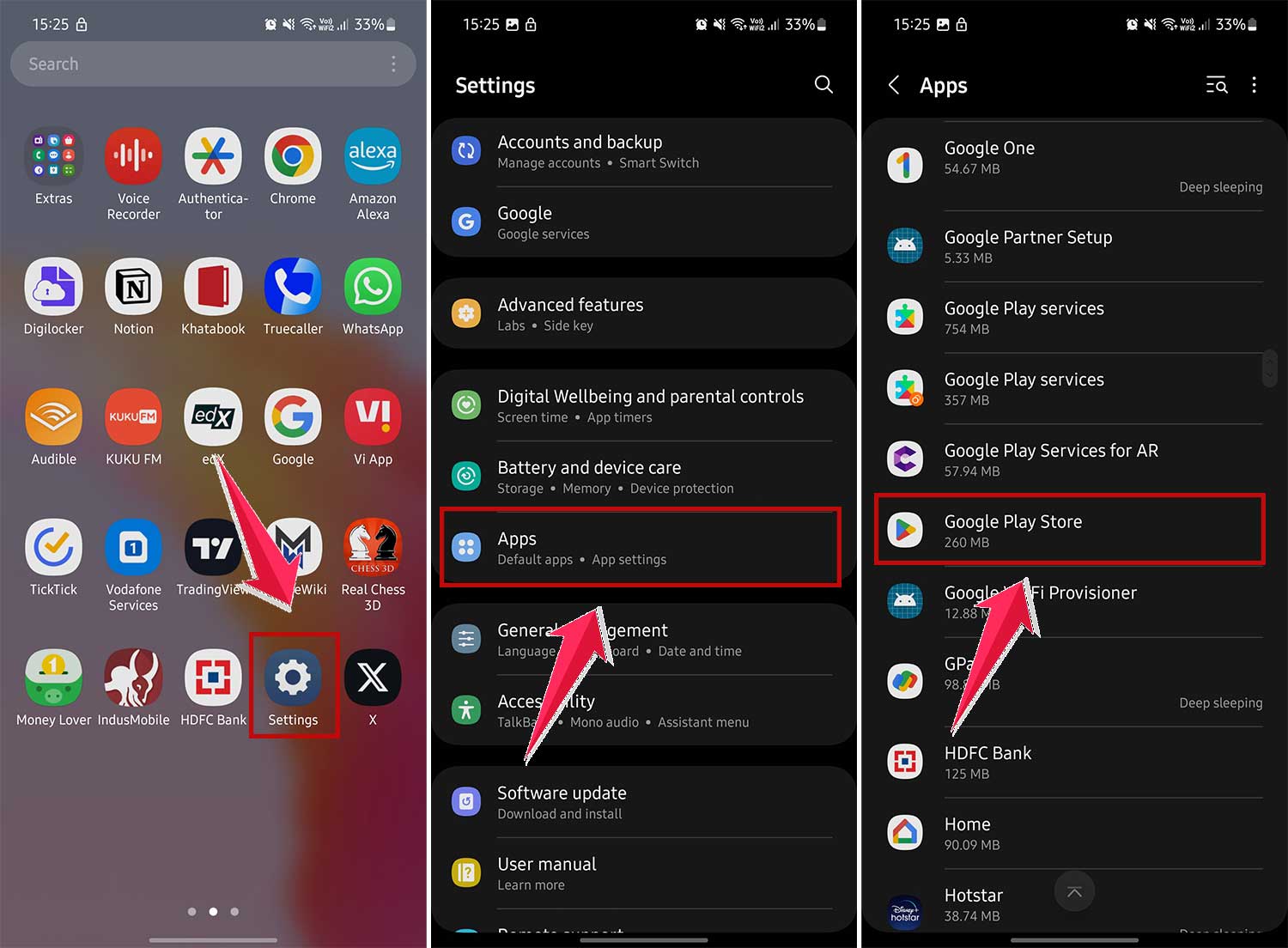
- Tap on “Storage”.
- Tap “Clear Cache”.
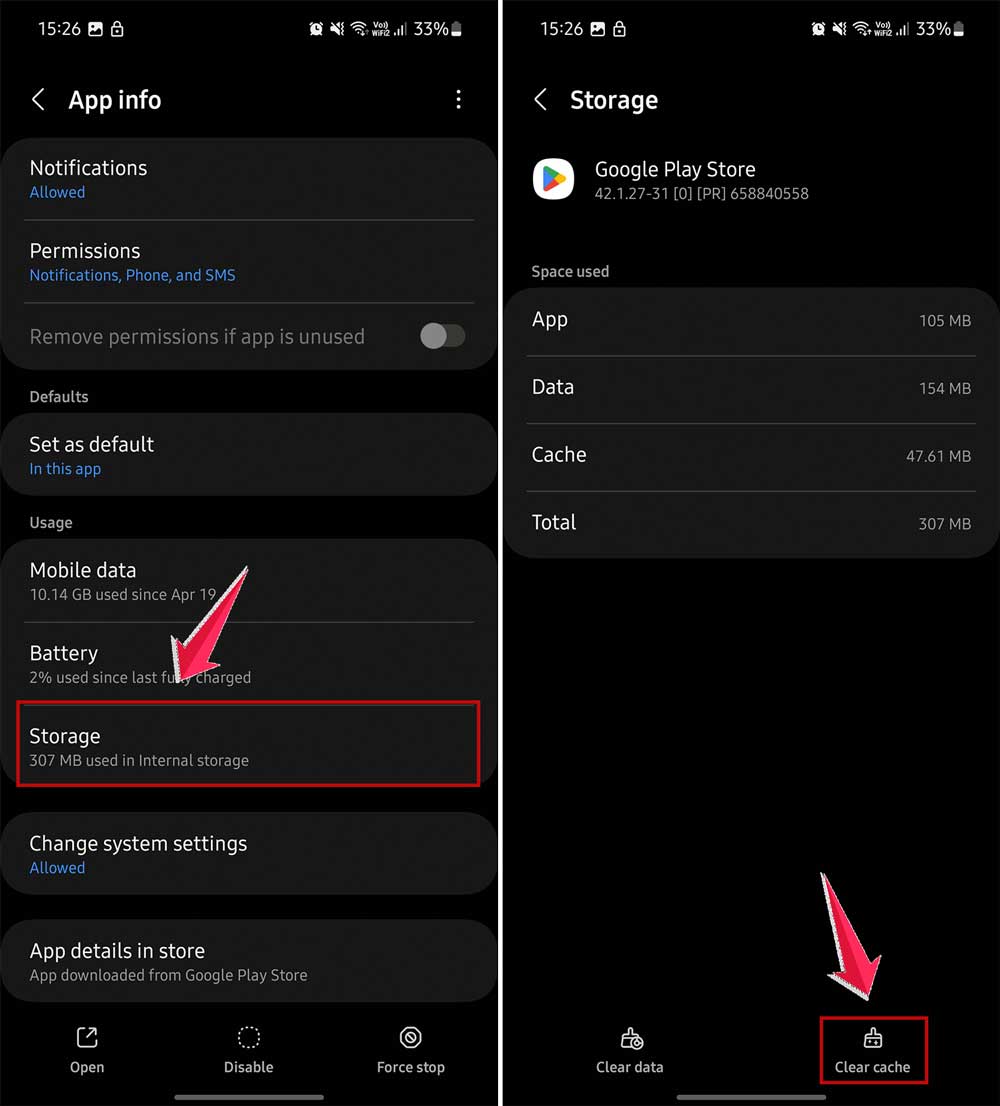
This process removes temporary data that might be causing problems without deleting any important information.
3. Check your date and time settings
Believe it or not, incorrect date and time settings can cause Play Store errors. To fix this:
- Open your phone’s Settings app.
- Scroll down and tap on “General Management” or “System”.
- Tap on “Date and Time”.
- Turn on “Automatic Date and Time”.
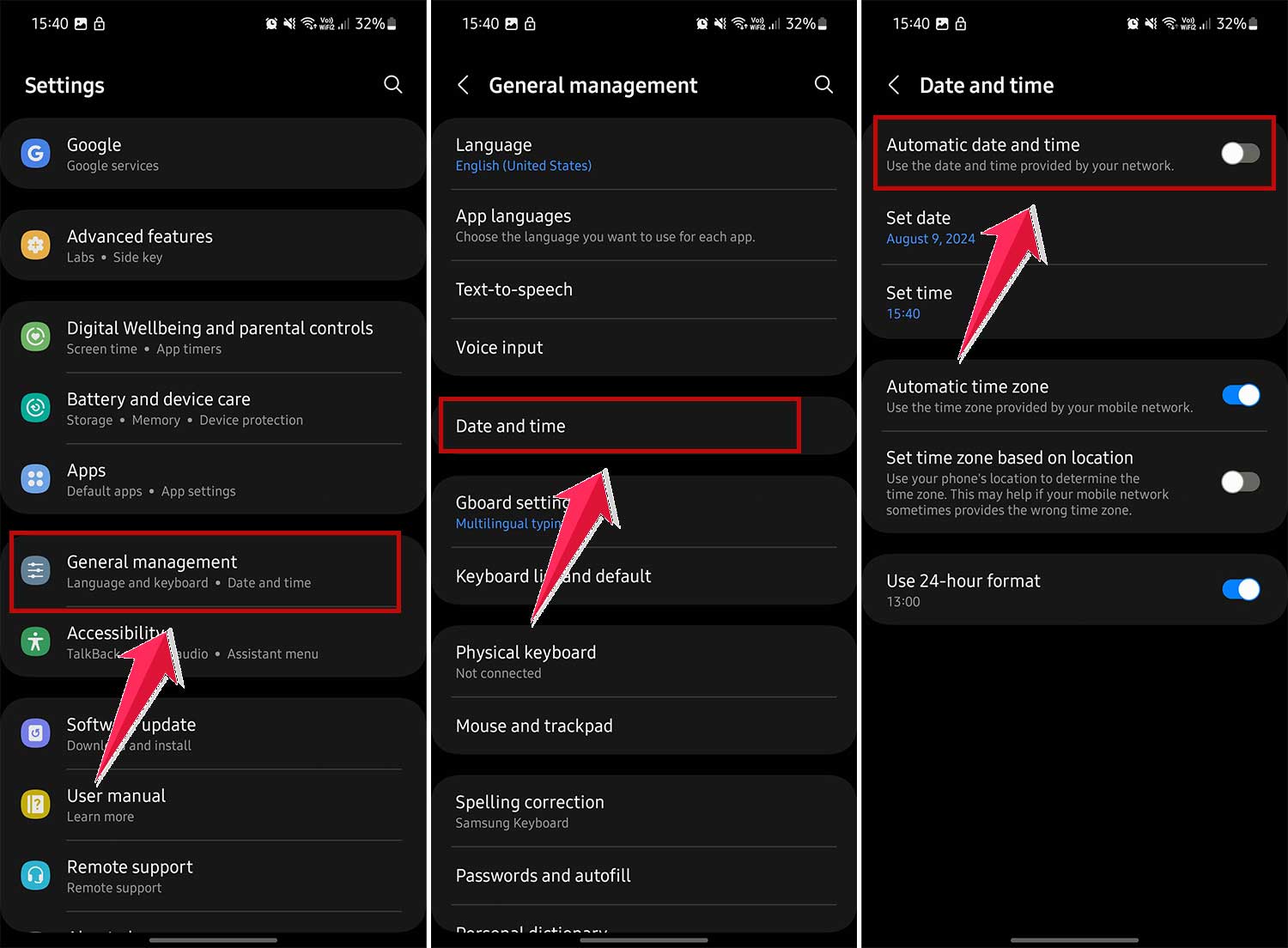
By letting your phone set the time automatically, you ensure it’s always correct, which can help resolve connection issues with the Google Play Store.
4. Log out and back into your Google account
If you’re still seeing the “No connection – Retry” error, try logging out of your Google account and then logging back in. This can give the Play Store a fresh start. Here’s how to do it:
- Open your phone’s Settings app.
- Tap on “Accounts” or “Accounts and Backup”.
- Click on Manage Accounts, find your Google account, and tap on it.
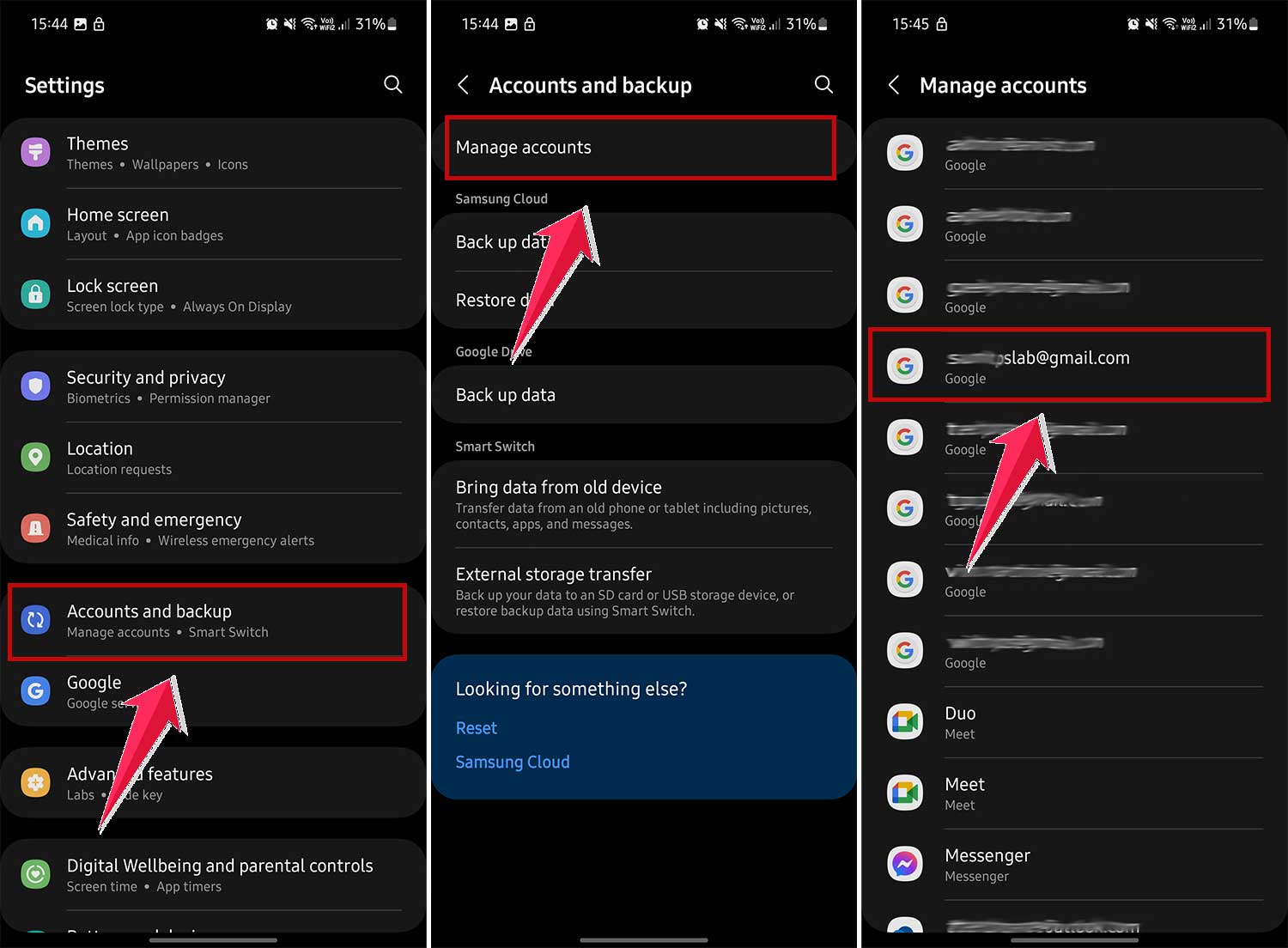
- Tap “Remove Account” and confirm when prompted.
- Go back to “Accounts” and tap “Add Account”.
- Choose “Google” and follow the steps to log back in.
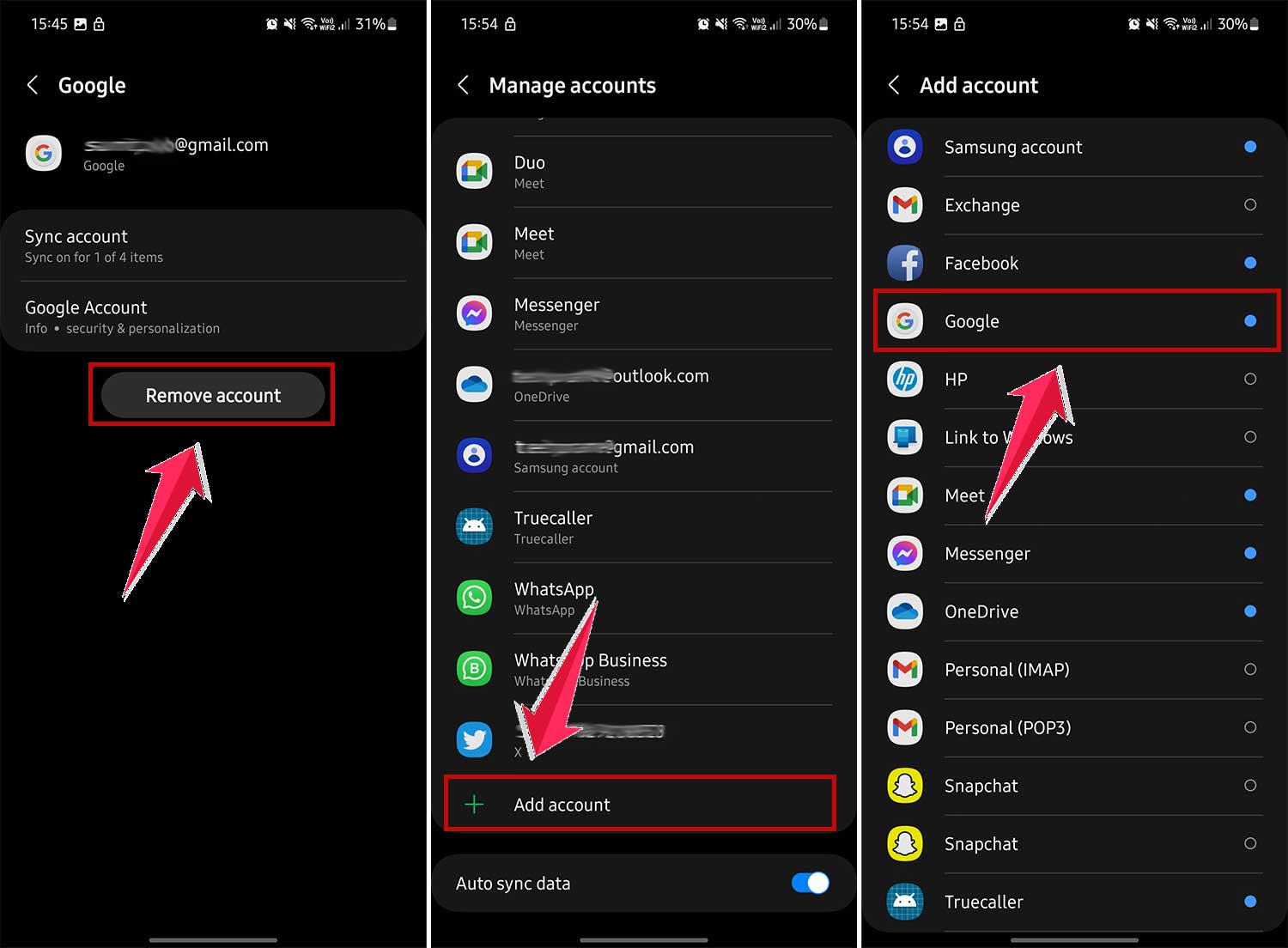
After you’ve logged back in, open the Play Store. You might need to accept some terms, but then it should work smoothly.
5. Uninstall Google Play Store updates
Sometimes, the latest update can cause problems. If you’re still having issues, try uninstalling recent updates to the Play Store app. Here’s how:
- Open your phone’s Settings app.
- Tap on “Apps” or “Application Manager”.
- Find and tap on “Google Play Store”.
- Tap the three dots in the top right corner.
- Tap “Uninstall Updates” and confirm when asked.
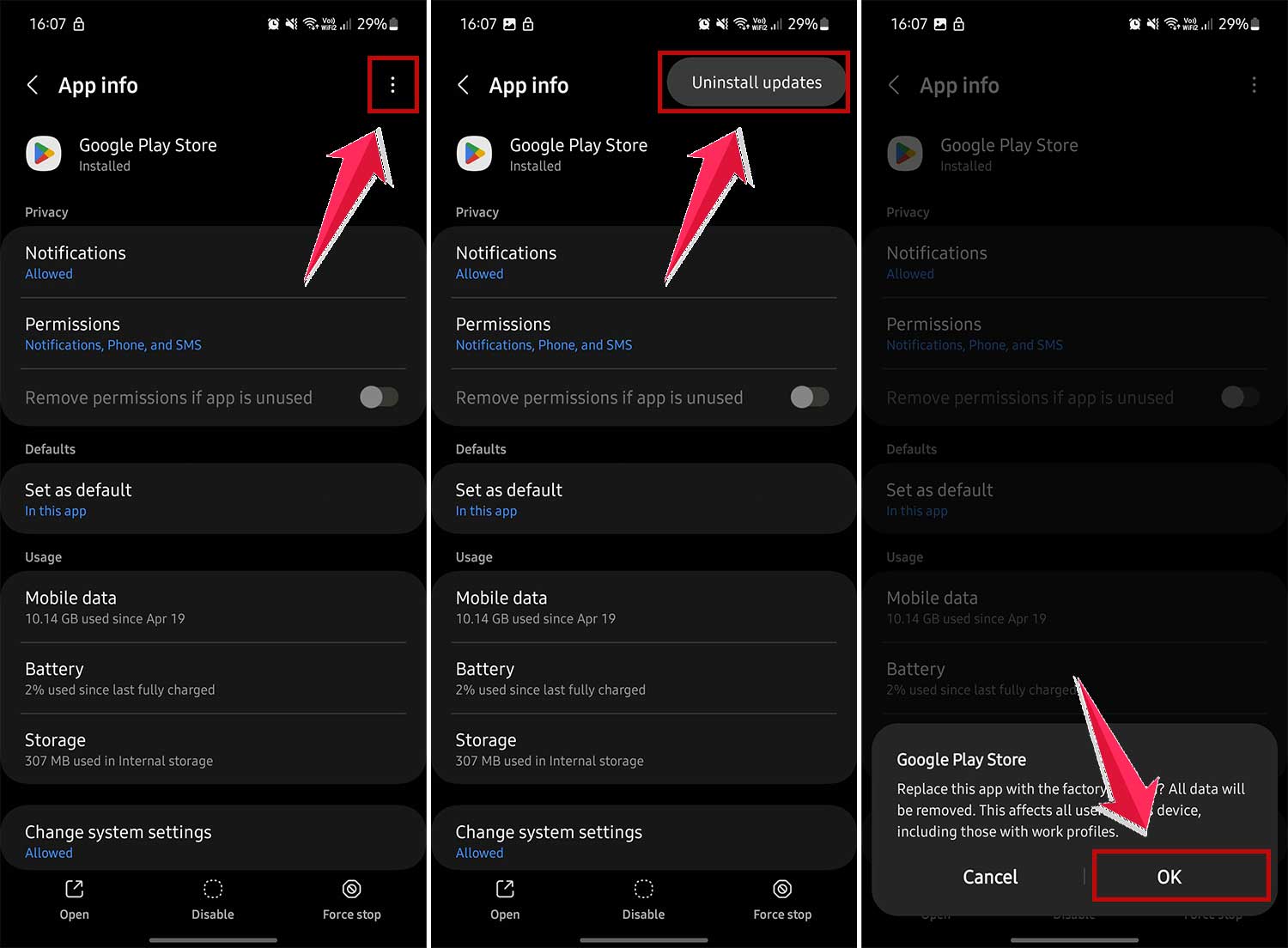
After doing this, restart your phone. When you open the Play Store again, it should be back to its original version, which might work better.
6. Disable or uninstall your VPN
VPNs are great for privacy, but they can sometimes cause problems with the Play Store. If you’re using a VPN, try turning it off:
- Check if a VPN is active by looking for a key icon in your status bar.
- Open your phone’s Settings app.
- Click on “Connections” or “Network Connections.”
- Now click on “More connection settings”

- Look for “VPN” and turn off the VPN or tap on it and select “Disconnect”.
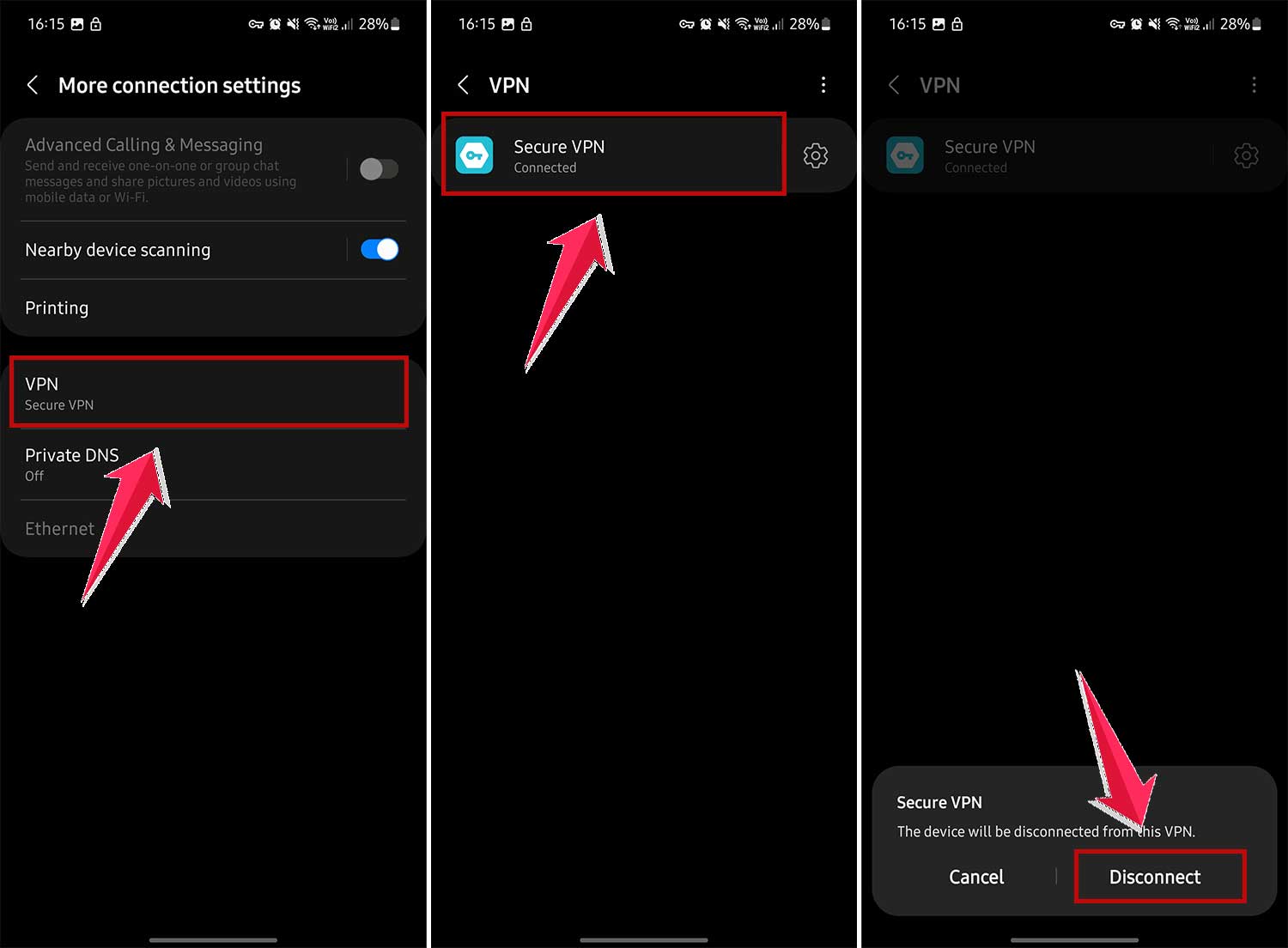
If you want to completely remove the VPN:
- Go to your phone’s Settings.
- Tap on “Apps” or “Application Manager”.
- Find your VPN app and tap “Uninstall”.
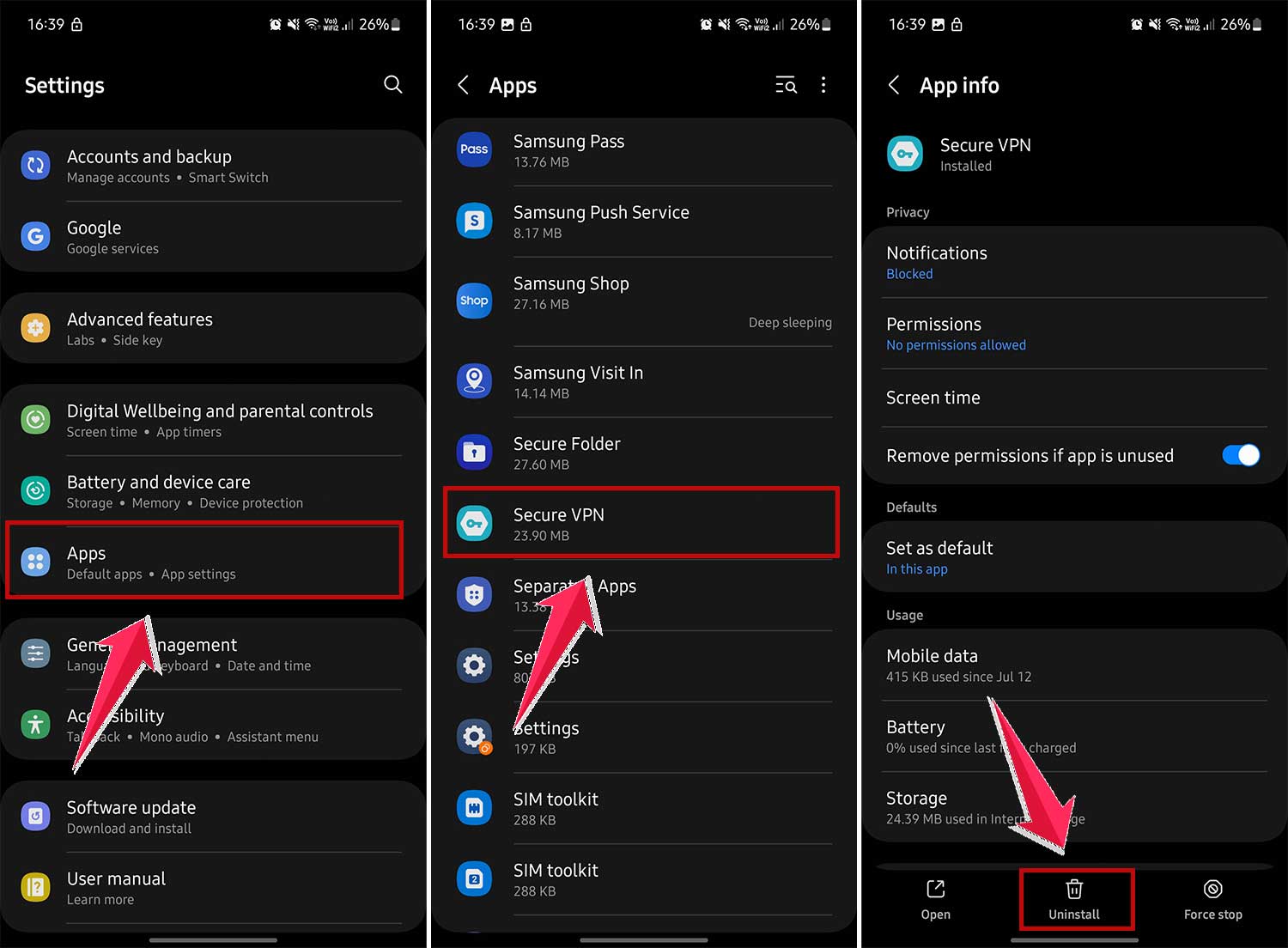
After turning off or removing your VPN, try using the Play Store again. It should work better without the VPN interfering.
7. Clear Google Services Framework cache
If you’re still having trouble, try clearing the Google Services Framework cache. This can help reset the core services your phone uses to talk to Google apps. Here’s how:
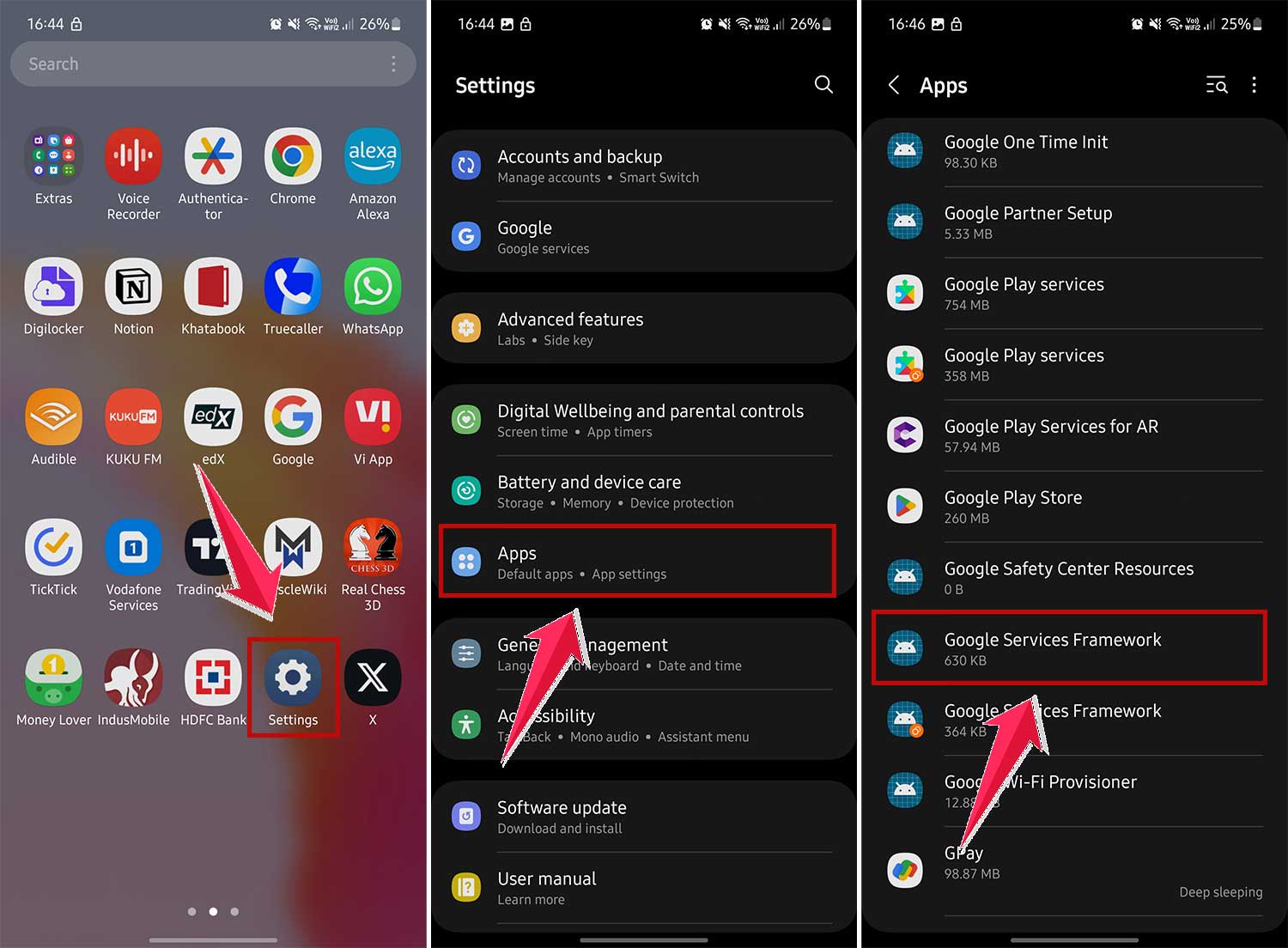
- Open your phone’s Settings app.
- Tap on “Apps” or “Application Manager”.
- Find “Google Services Framework”. You might need to tap “Show system apps” to see it.
- Tap on “Storage”.
- Tap “Clear Cache”.
- You can also tap “Force Stop” to completely restart the app.
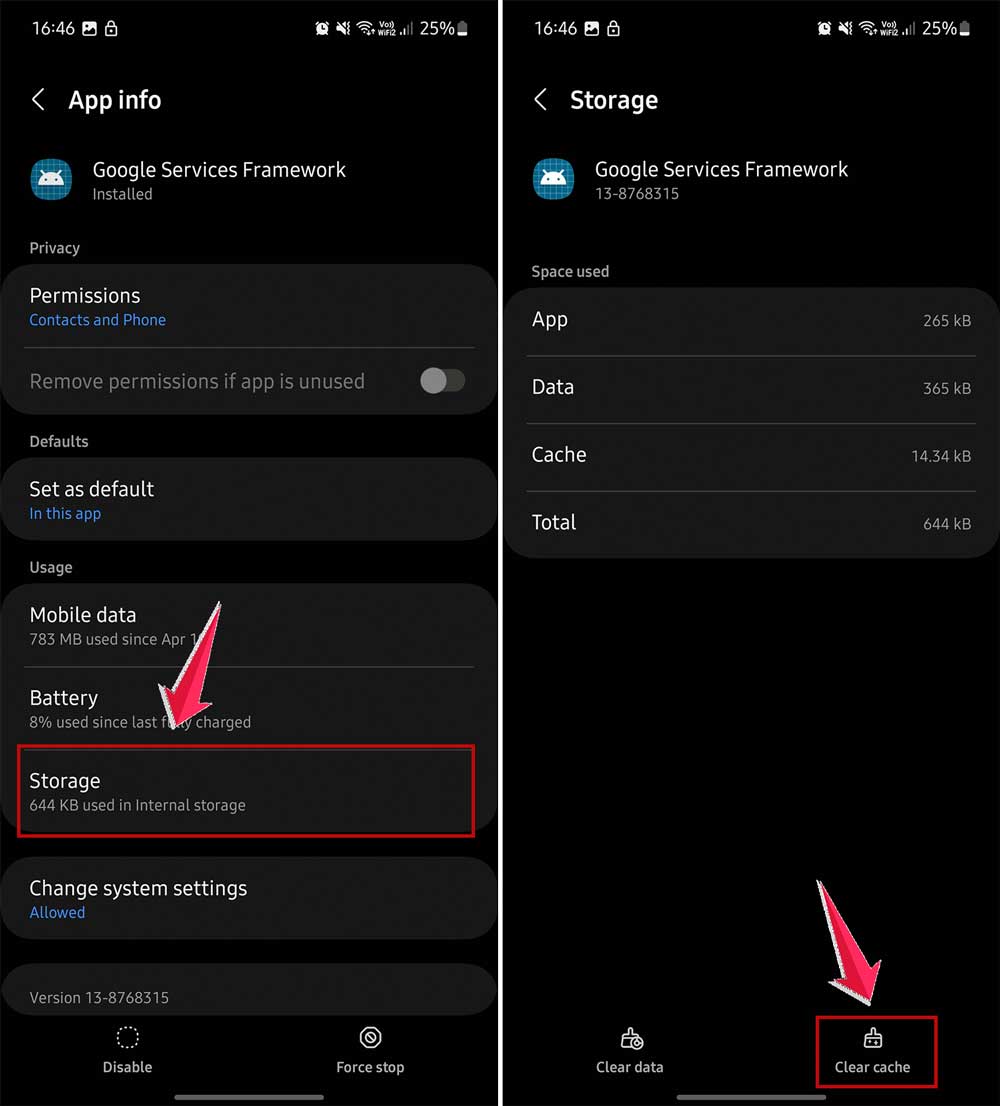
After doing this, restart your phone. This gives your device a fresh start with a clean Google Services Framework.
8. Clear Google Play Services data
If nothing else has worked, try clearing the Google Play Services data. This is like doing a deep clean of your phone’s app management system. Here’s how:
- Open your phone’s Settings app.
- Tap on “Apps” or “Application Manager”.
- Find and tap on “Google Play Services”.
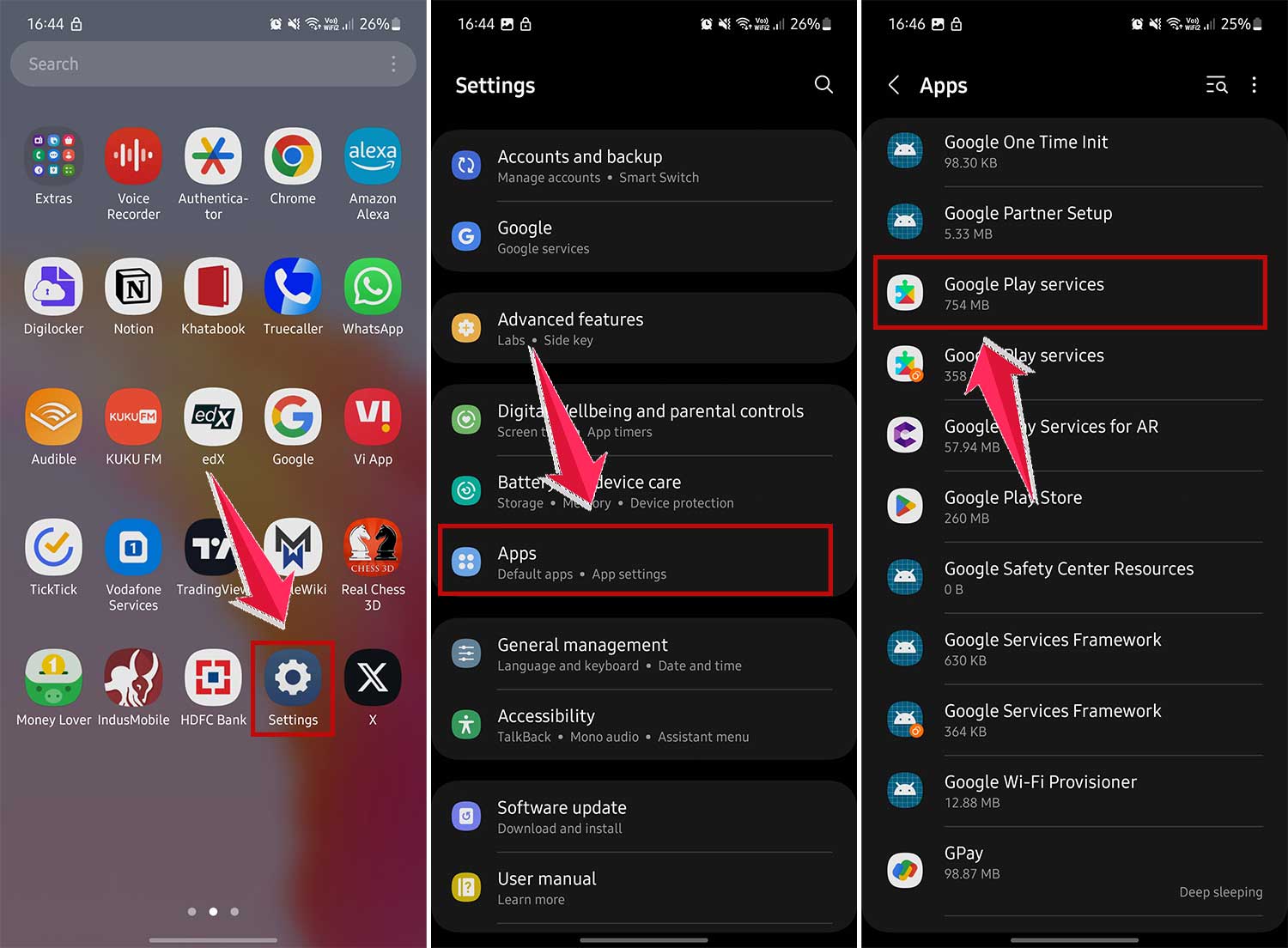
- Tap on “Storage”.
- Then tap on “Manage Storage,”
- Now tap “Clear All Data”.

This will remove all stored information for Google Play Services. Restart your phone afterward, then try using the Play Store again.
9. Factory reset your device
If you’ve tried everything and still can’t get the Play Store to work, a factory reset might be your last option. This will erase everything on your phone and return it to how it was when you first got it. Before you do this:
- Back up all your important data. You can use Google Drive or transfer files to another device.
- Remember that this will erase all your apps, settings, and personal data.
To factory reset your phone:
- Open your phone’s Settings app.
- Tap on “General Management” or “System”.
- Tap on “Reset” or “Reset options”.
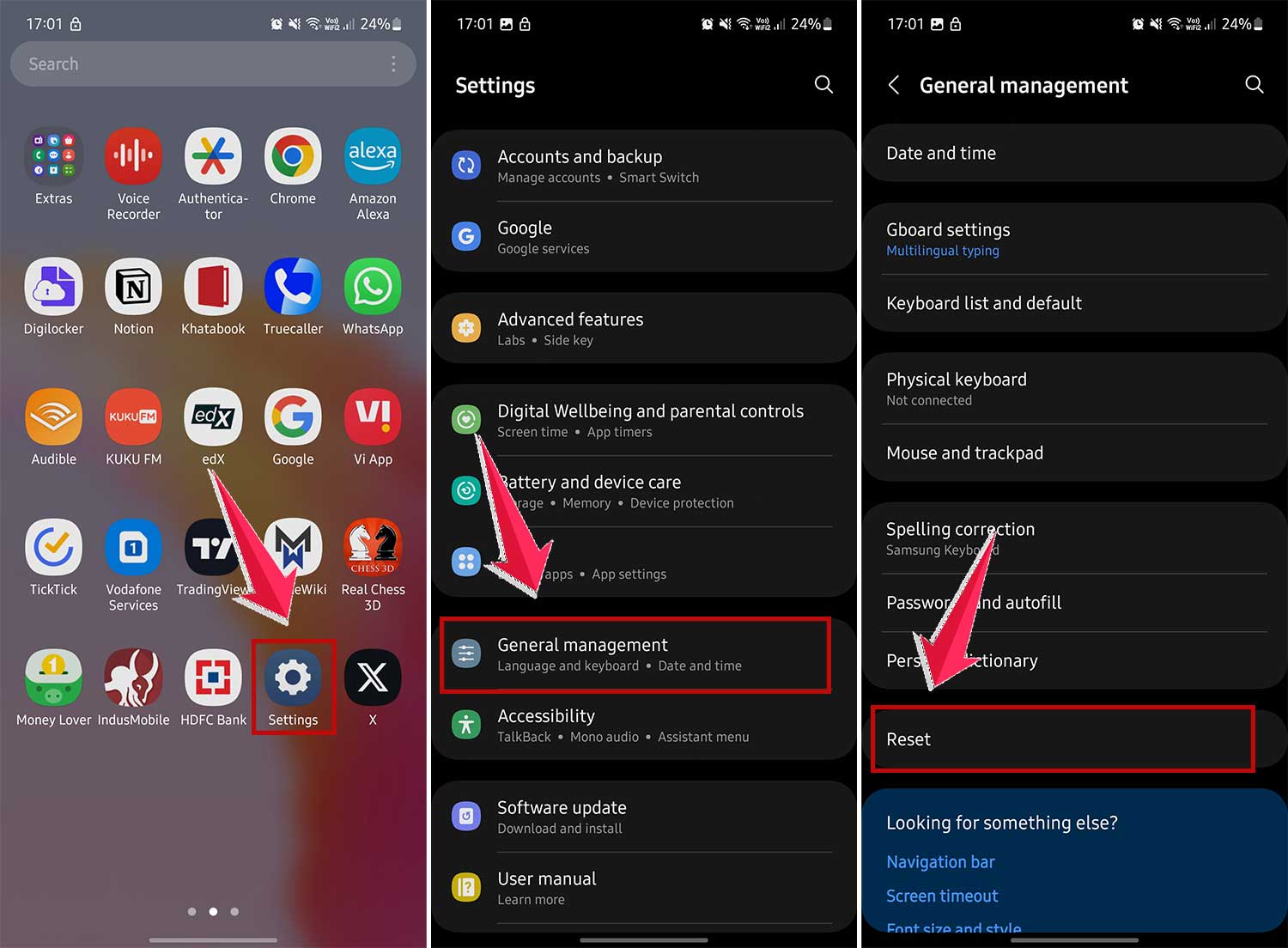
- Choose “Factory data reset”.
- Read the warning, then tap “Reset” if you’re sure.
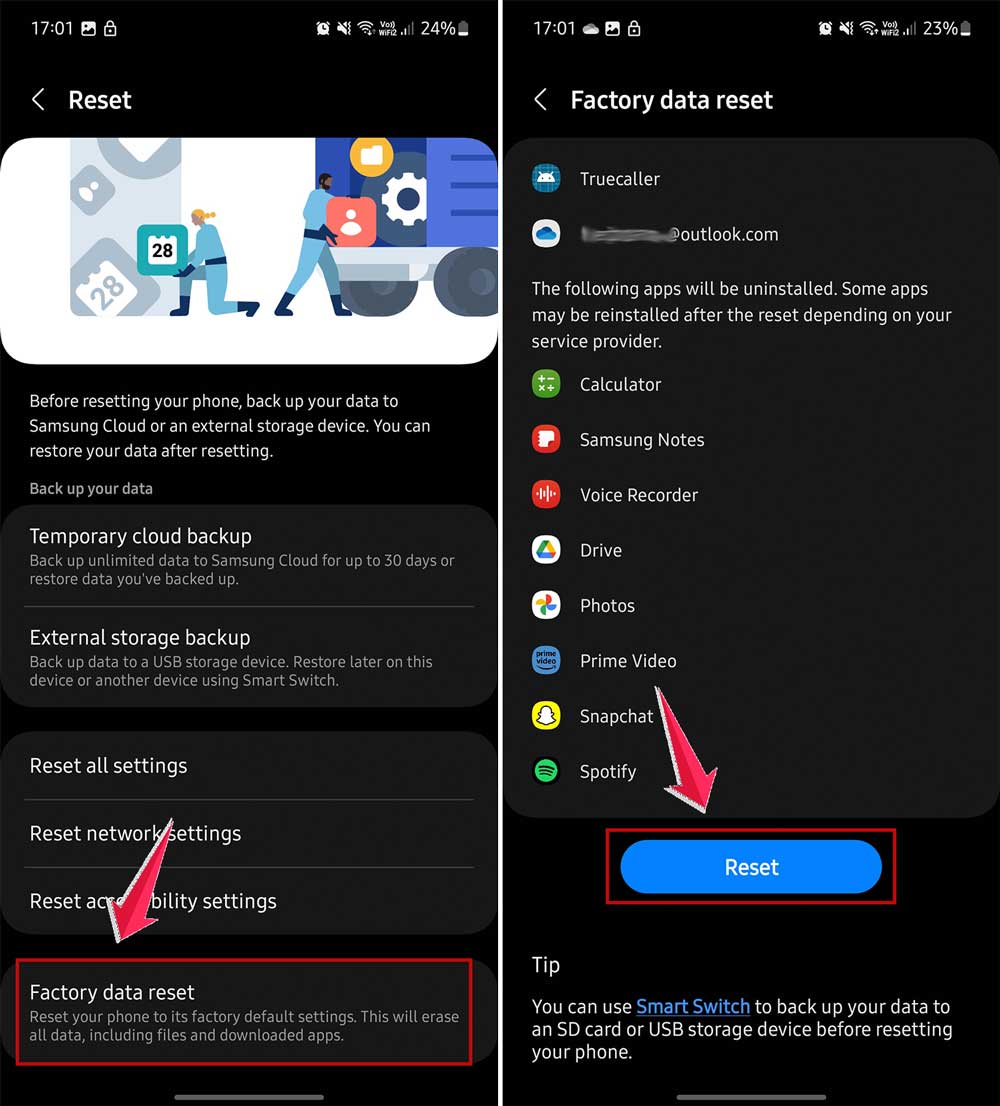
After the reset, set up your phone like it’s new. Then, try using the Play Store again. It should work without the error now.
Remember, a factory reset is a big step. Only do this if nothing else has worked and you’re comfortable setting up your phone from scratch.
The takeaway
Encountering that No connection – Retry error in the Google Play Store can be a real pain, but don’t let it get you down. You’ve got this! We’ve walked through several solutions, from quick fixes to more involved steps.
Remember, start simple. A quick restart or clearing the Play Store cache might do the trick. If not, try checking your date and time settings or logging out and back into your Google account.
For stubborn cases, you might need to uninstall Play Store updates or clear Google Play Services data.
Keep in mind that these errors are usually temporary and fixable. You don’t need to be a tech expert – just take it step by step. Be patient with yourself and your device. If one method doesn’t work, try the next.
Your Android device is meant to make life easier, not harder. With these tips, you’ll likely be back to downloading apps in no time. And if you’re still stuck? Don’t hesitate to reach out for help. You’ve got this!