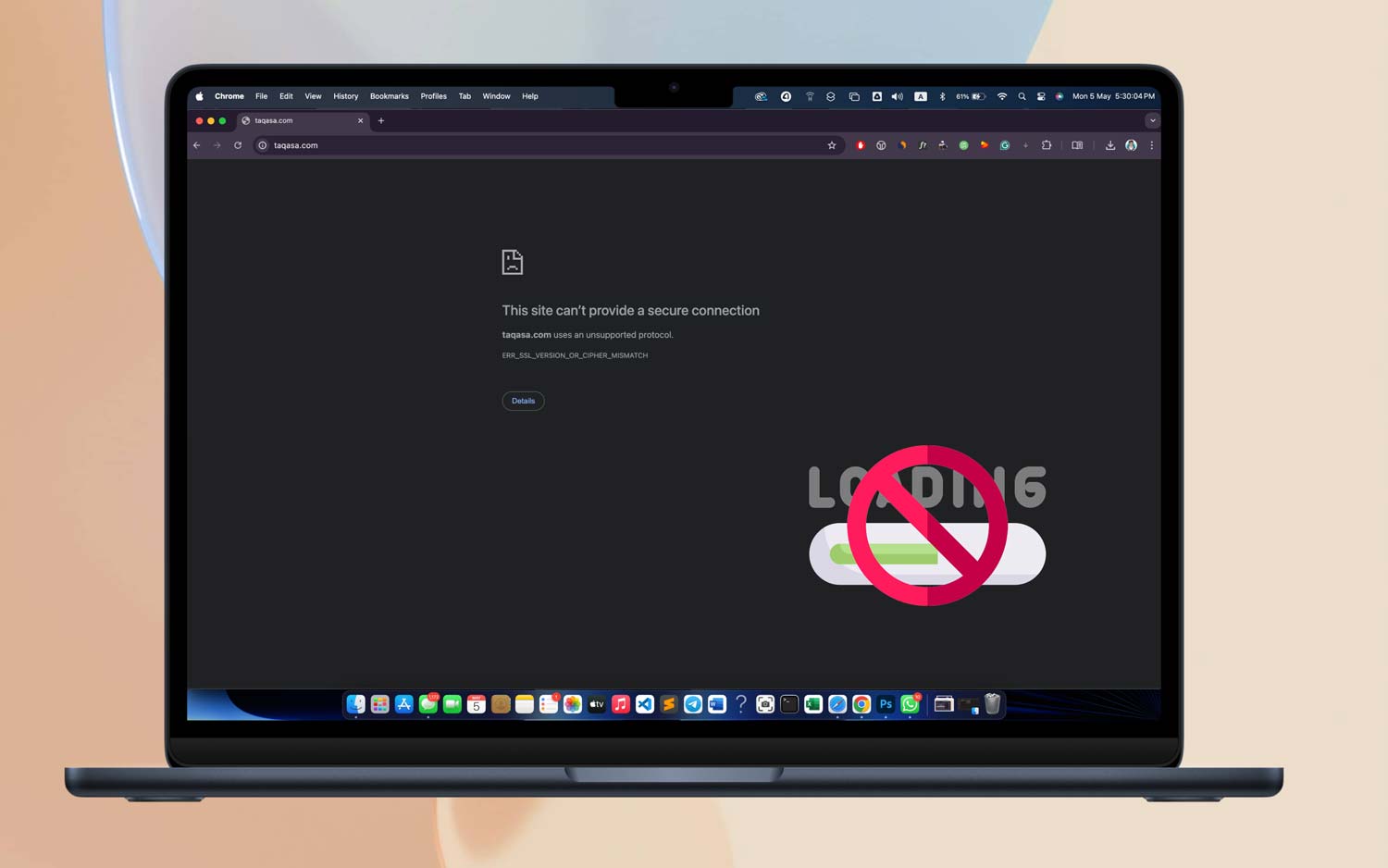
You’re online. Your internet’s working. But Chrome? It’s just sitting there, refusing to load anything. Frustrating, right?
Especially when everything else—like YouTube, WhatsApp, or email—is working just fine.
This issue is more common than you’d think. And no, you’re not alone. You might be trying to get some quick research done, submit a form, or just load your favorite site—and Chrome just won’t play along. It’s annoying, and honestly, it can throw off your whole day.
That’s why I’m here. I’ll walk you through some easy steps to fix Chrome when it won’t load pages even though your internet is up and running.
These are simple, everyday fixes that anyone can try. No tech jargon. No complicated stuff. Just straight-up advice that works.
Let’s fix this together. By the end of this guide, you’ll be back to smooth browsing—no freezes, no blank pages, no stress.
Why Chrome Might Not Be Loading Pages
Before we jump into the fixes, let’s quickly look at what could be going wrong. Knowing what’s happening helps you fix it faster.
1. Sometimes, your internet connection glitches. Even if your Wi-Fi is on, it might not be stable. A quick reset can help.
2. Chrome might be outdated. If you haven’t updated it in a while, that could be the reason it’s not working right. Updates fix bugs and keep things running smoothly.
3. Too much cache and cookies can slow Chrome down. Over time, Chrome stores a lot of temporary data. If that builds up too much, it can cause problems loading pages.
4. Extensions may be causing trouble. Some Chrome extensions don’t play nice. One of them could be blocking your pages without you knowing.
5. DNS settings can go wrong. This affects how your computer connects to websites. If these settings are off, Chrome might not be able to find the pages you’re trying to visit.
6. Antivirus software might be interfering. Sometimes, it blocks Chrome from opening pages it thinks are unsafe—even when they’re totally fine.
Now that you know what could be causing the issue, let’s fix it together.
How to Fix Chrome Not Loading Pages, Even When the Internet Works
#1 Clear Cache and Cookies
Let’s start with the easiest fix. If Chrome hasn’t been cleaned up in a while, it could be overloaded with cache and cookies. This can slow things down or stop pages from loading altogether.
Here’s what you can do:
- Open Chrome.
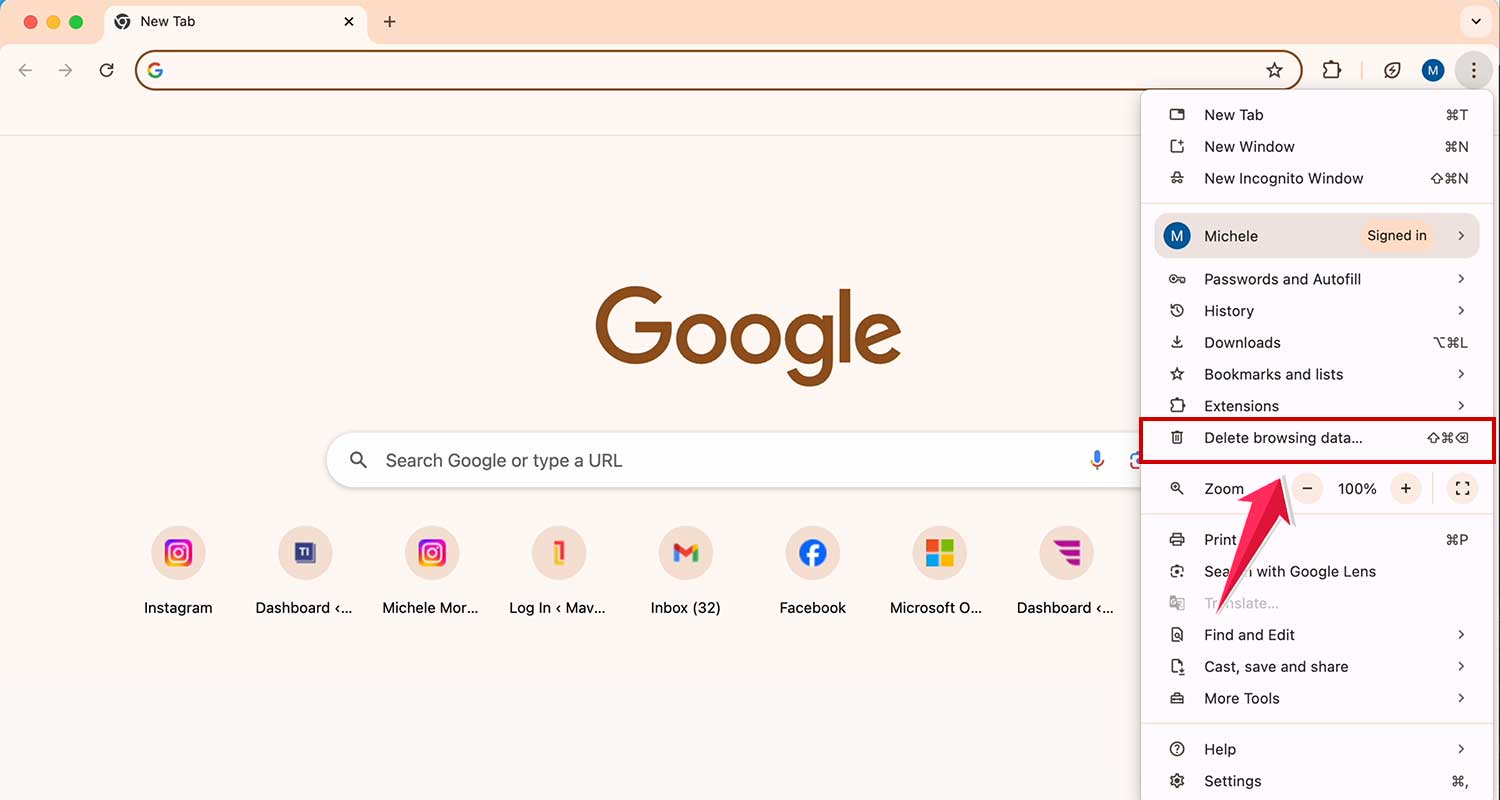
- Click the three-dot menu on the top right.

- Scroll down and click Delete browsing data.
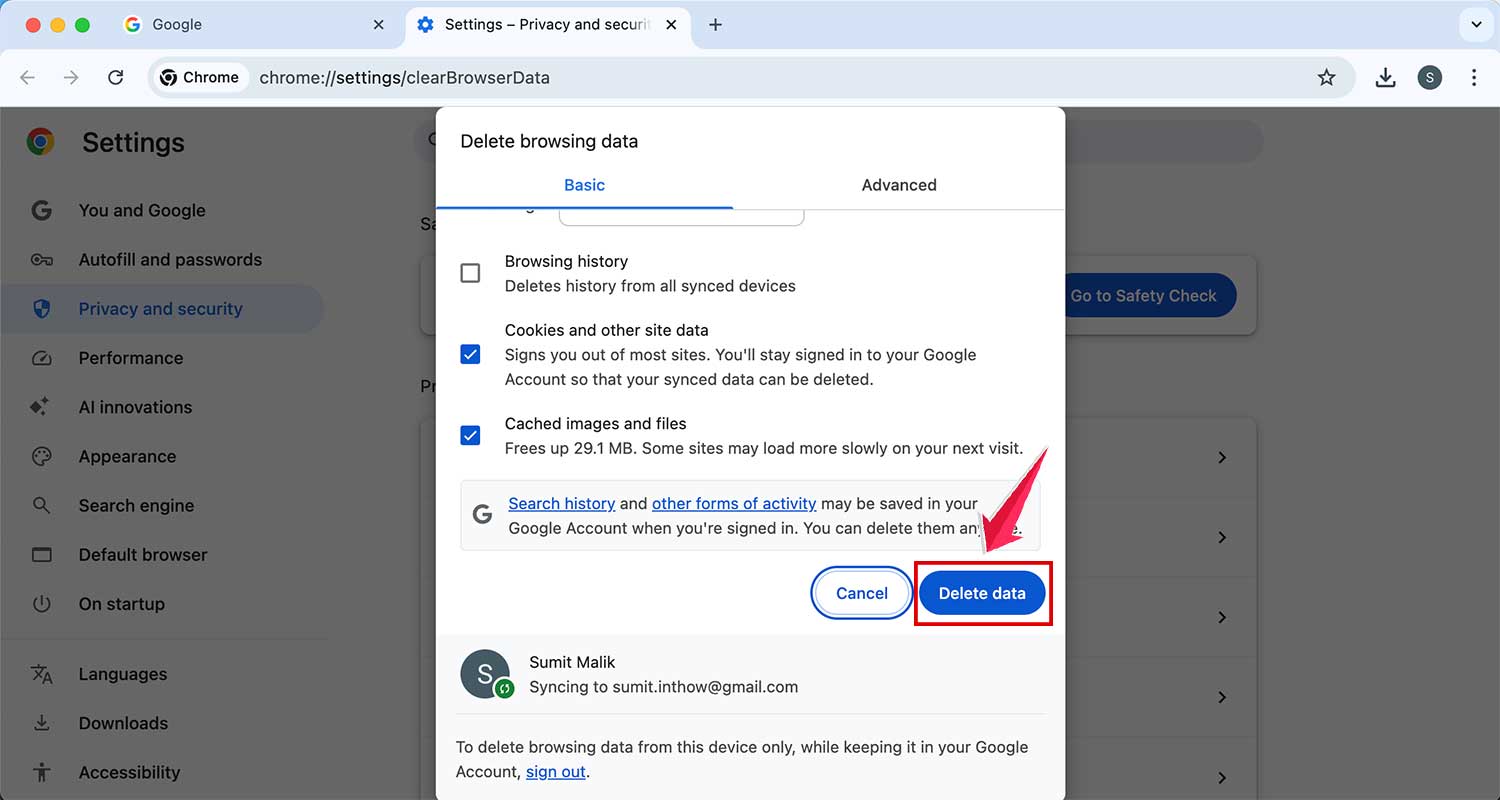
- Choose Cookies and other site data, and Cached images and files.

- Click Delete data.
Once done, close Chrome and open it again. Try loading the site now. Better?
#2 Disable Extensions
Extensions are cool, but sometimes they mess things up. One bad extension can break everything. Let’s test that.
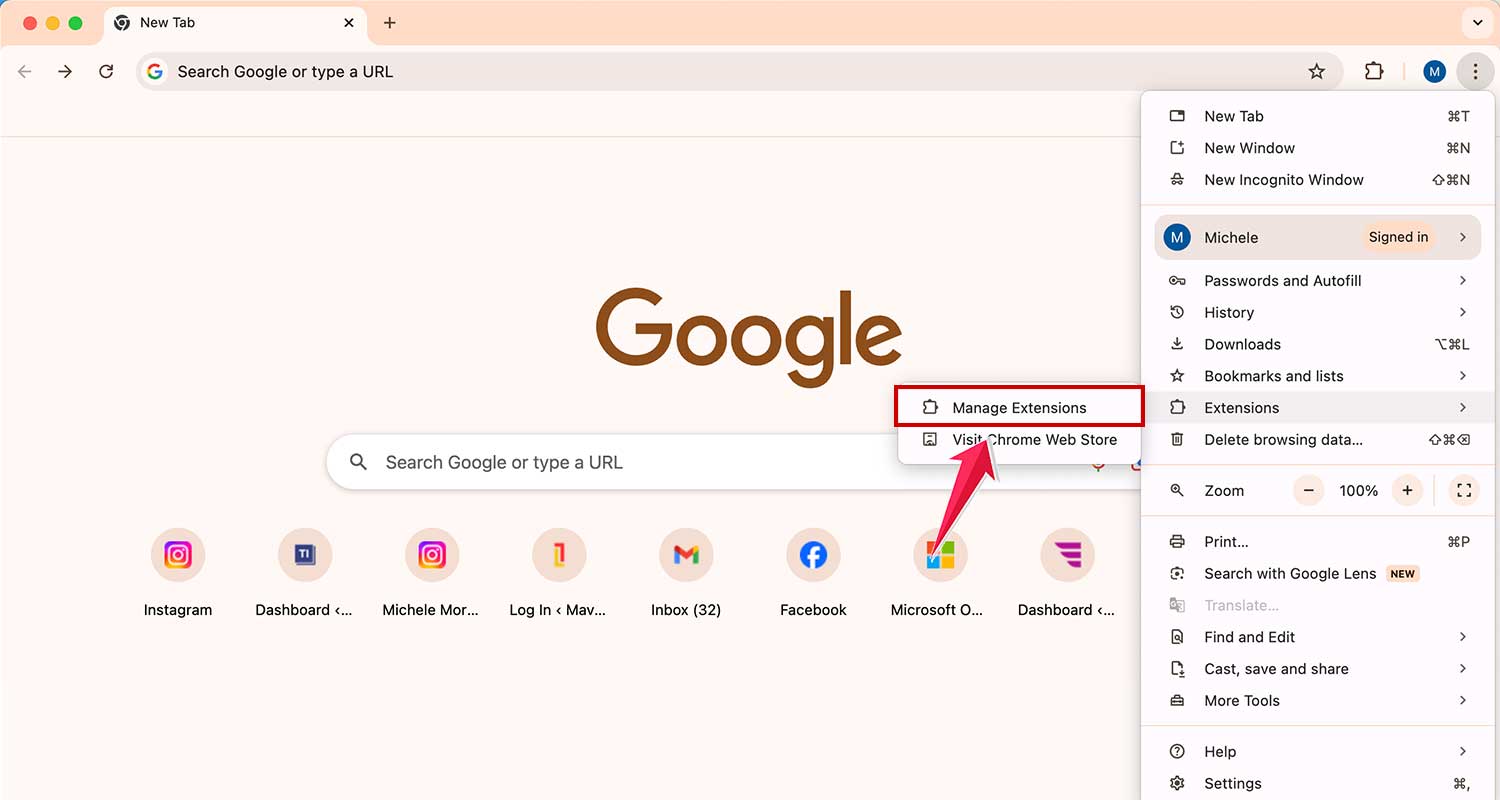
- Click on the three dots in the top right corner.
- Go to Extensions > Manage Extensions.
- Turn off all the extensions using the toggle switch.
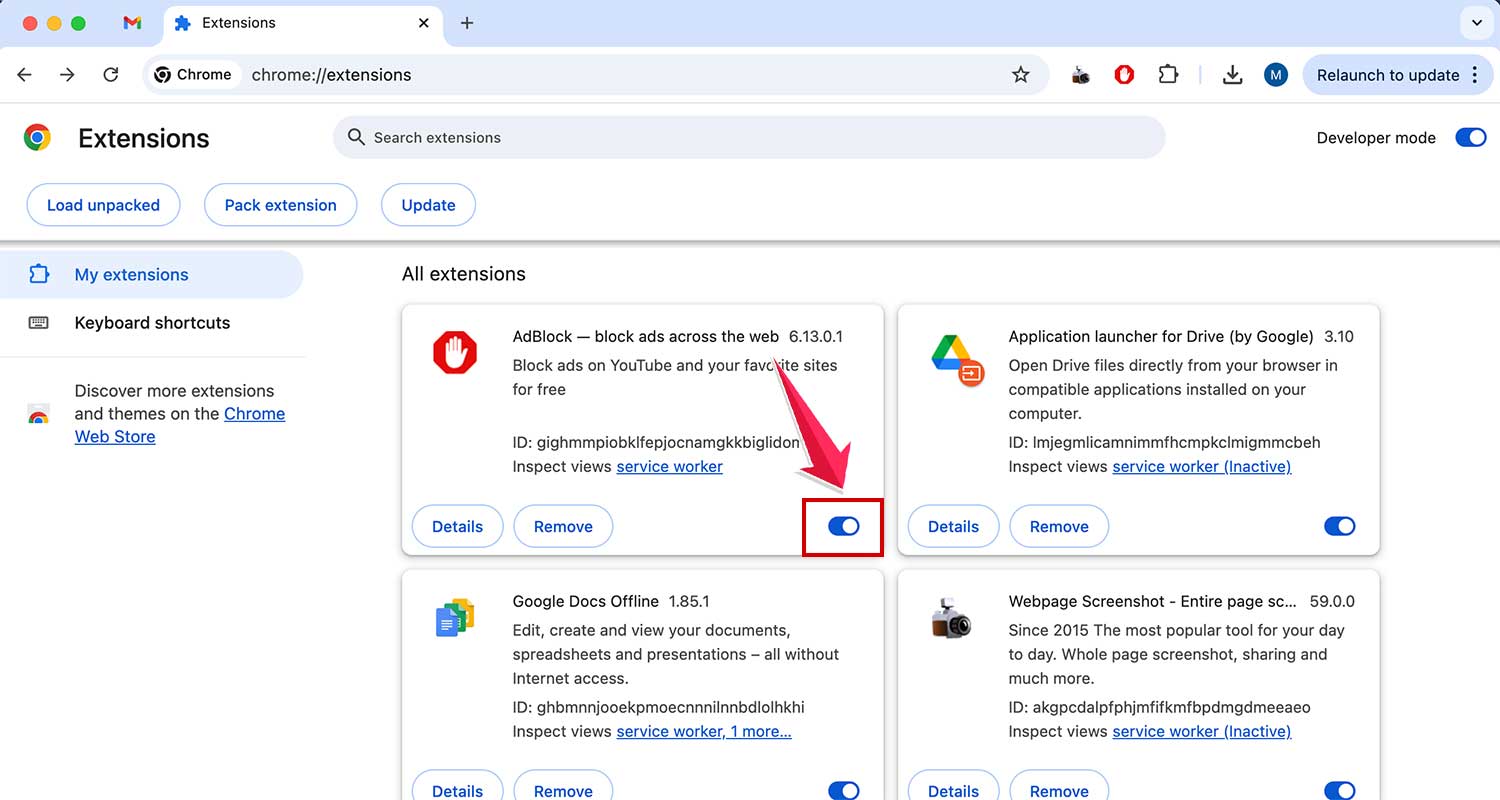
Now refresh your page. If Chrome works now, turn extensions back on one by one. That way, you’ll find which one was causing the problem.
#3 Update Chrome
If Chrome is out of date, it can misbehave. Let’s check if it needs an update.
- Click the three-dot menu in the top right.
- Go to Help > About Google Chrome.
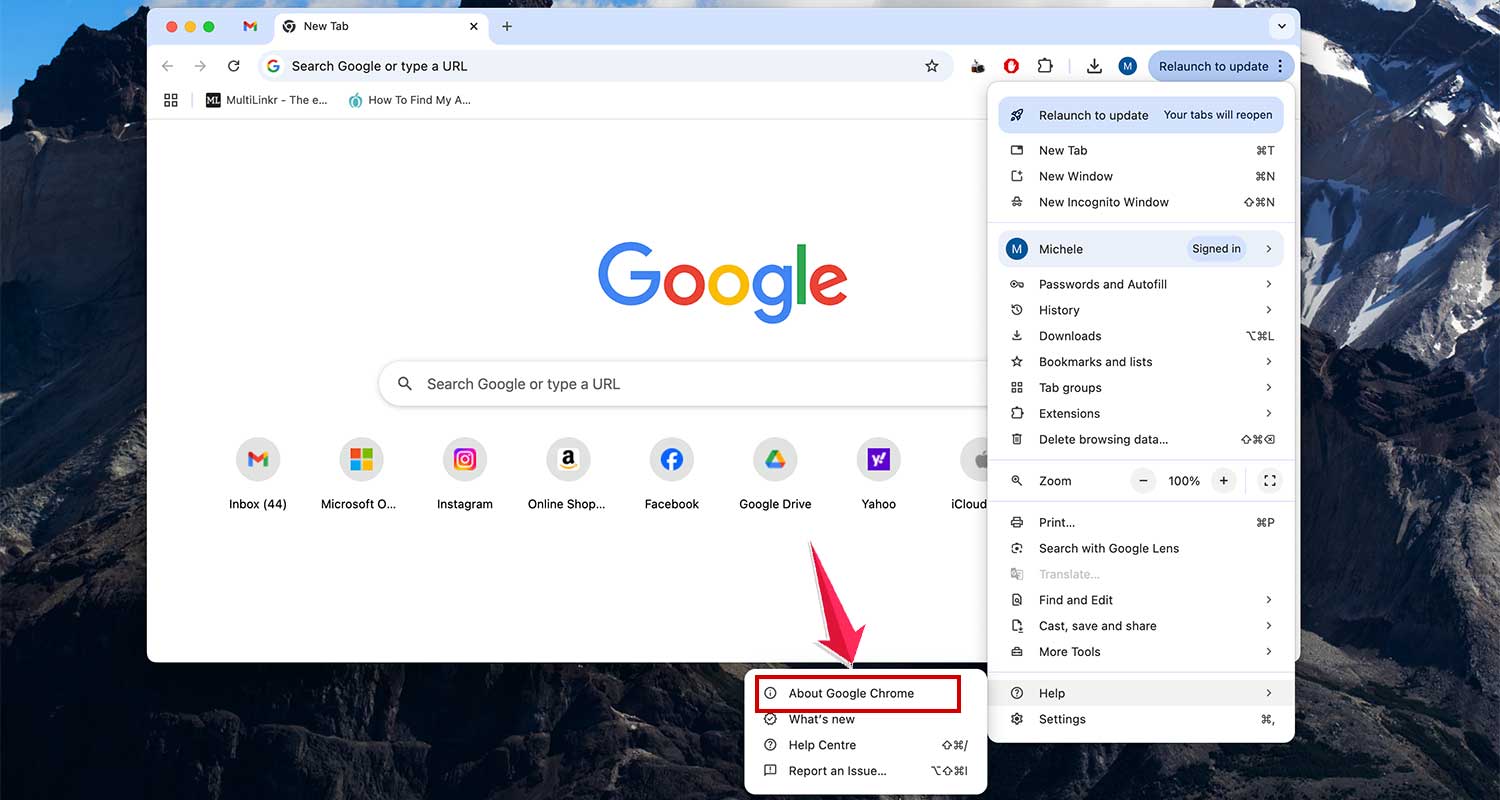
- Chrome will automatically check for updates here.
- If there’s an update, click Relaunch after it installs.
Once updated, try using Chrome again. It might just work fine now.
#4 Reset DNS Settings
If pages still aren’t loading, your DNS settings might be the problem. Let’s reset them.
On Windows:
- Search for CMD in the Start menu.
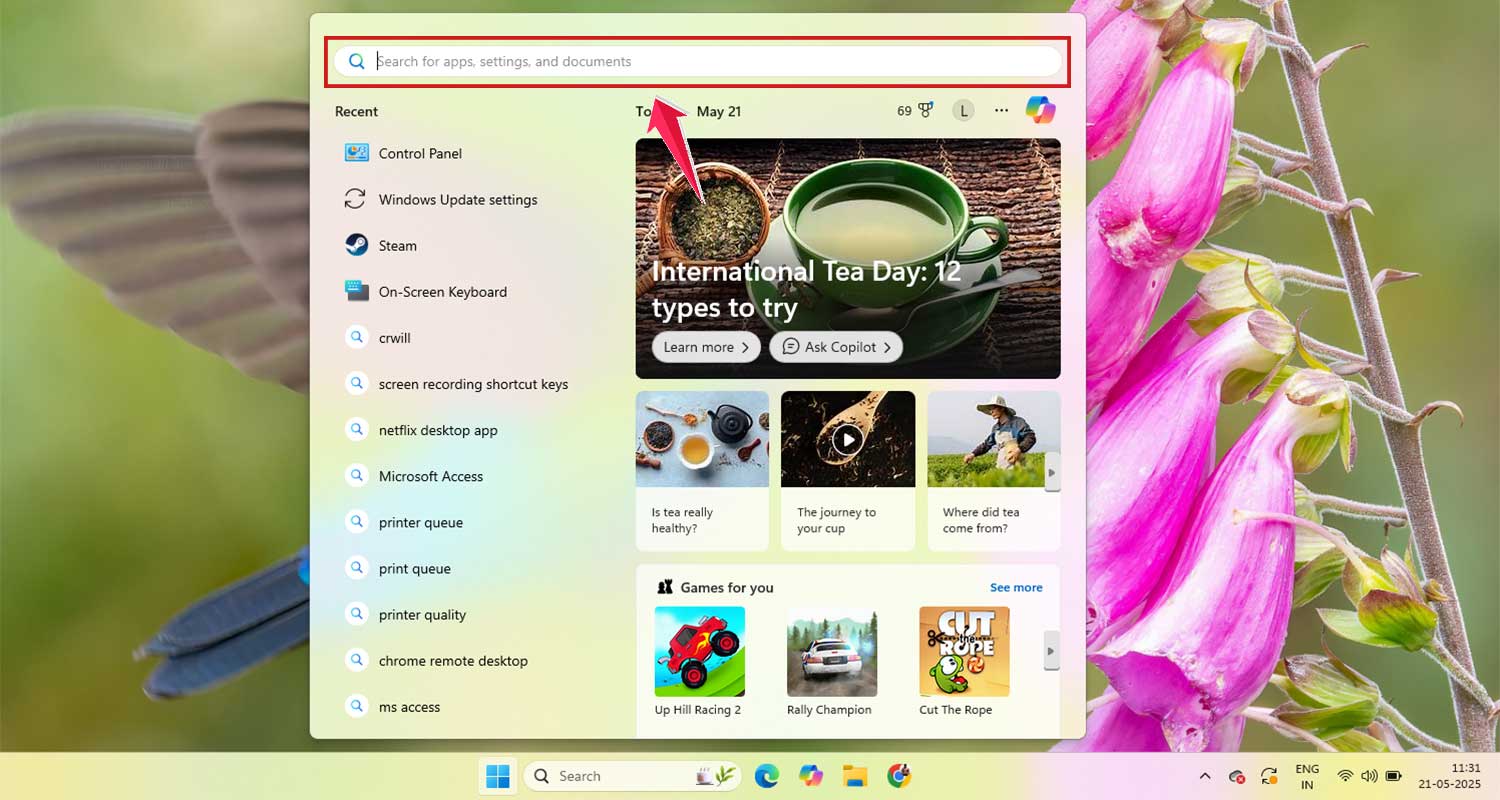
- Choose Run as administrator.
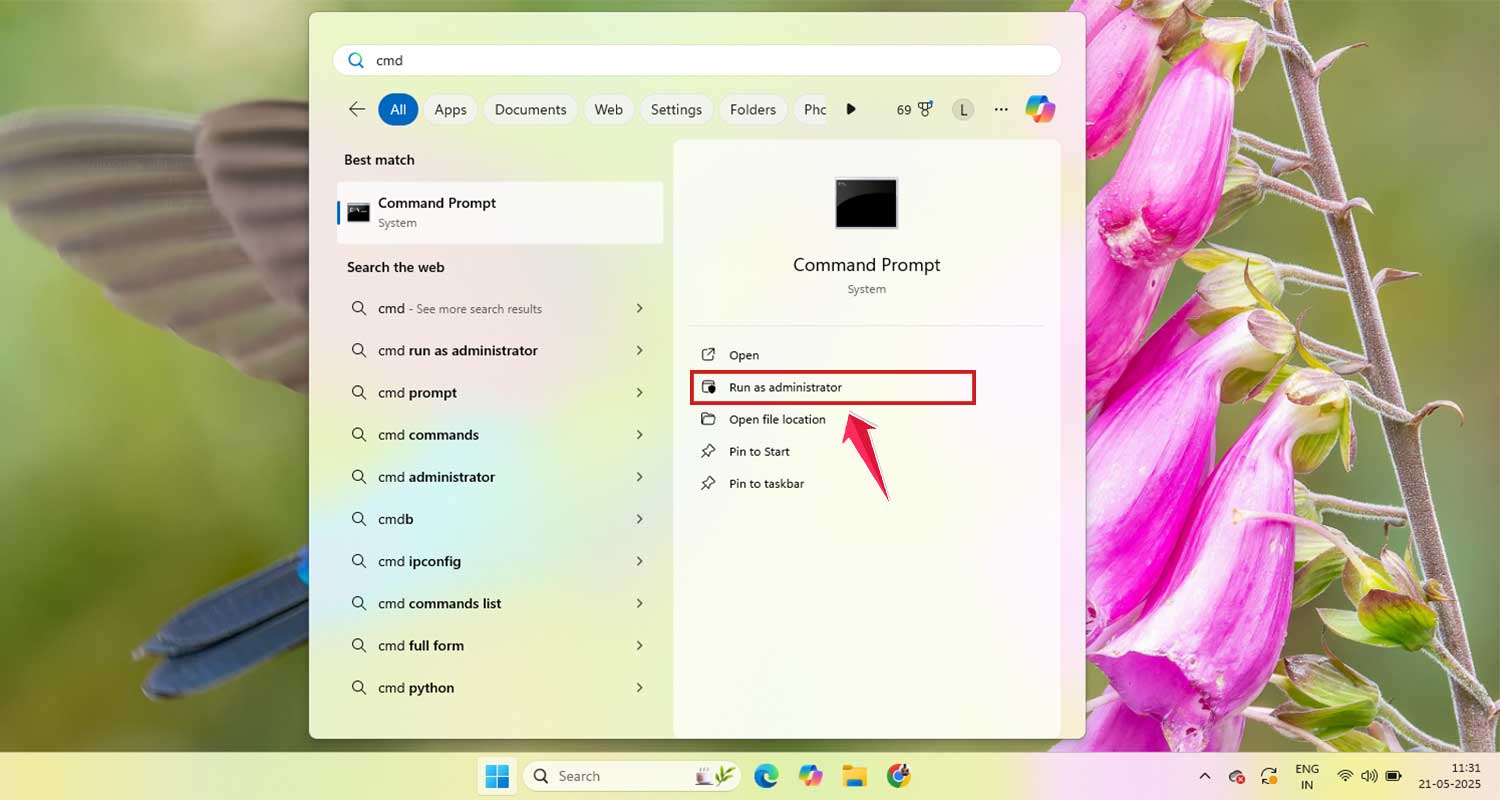
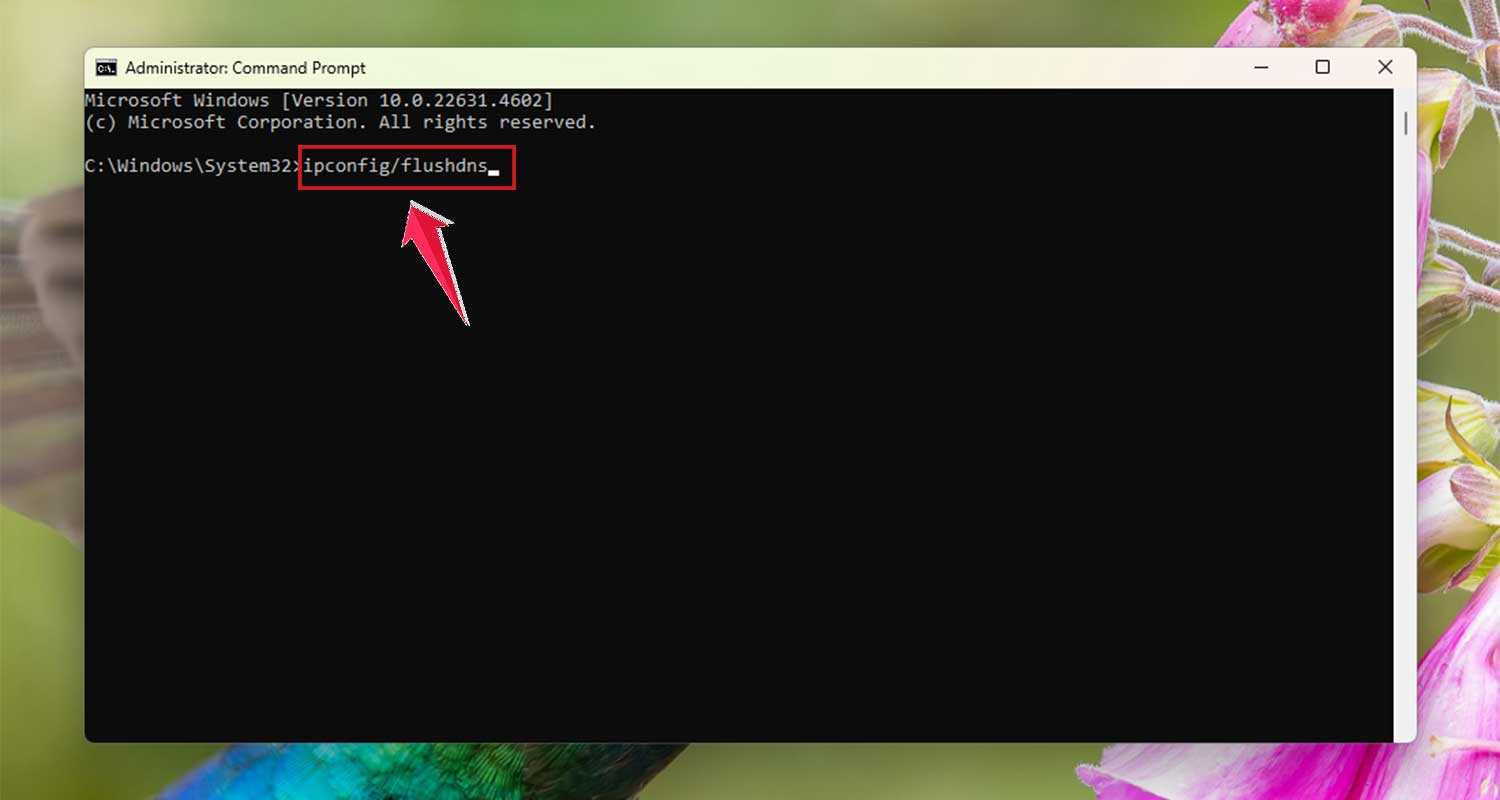
- Type ipconfig /flushdns and press Enter.
On Mac:
- Go to System Settings > Network.
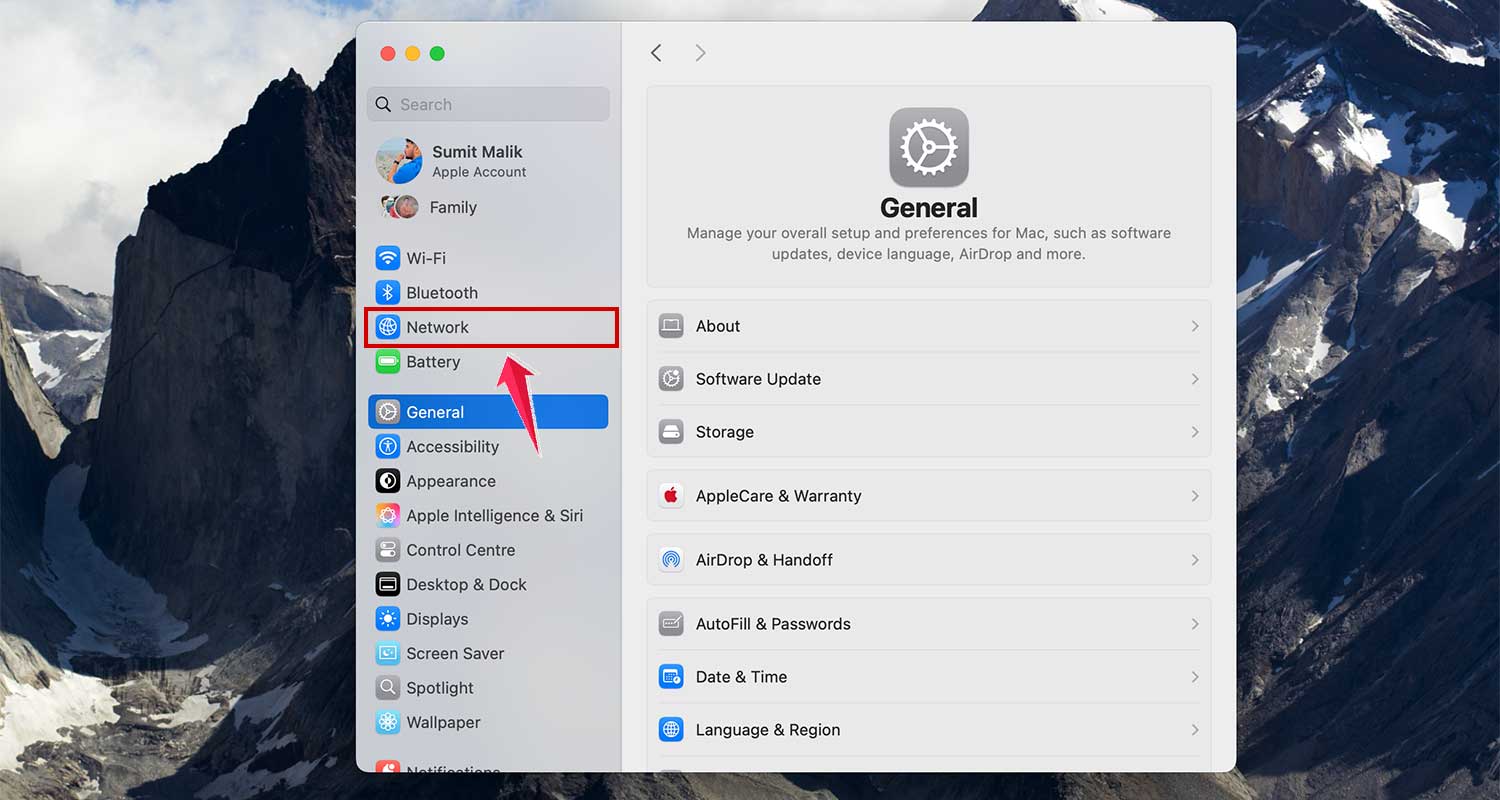
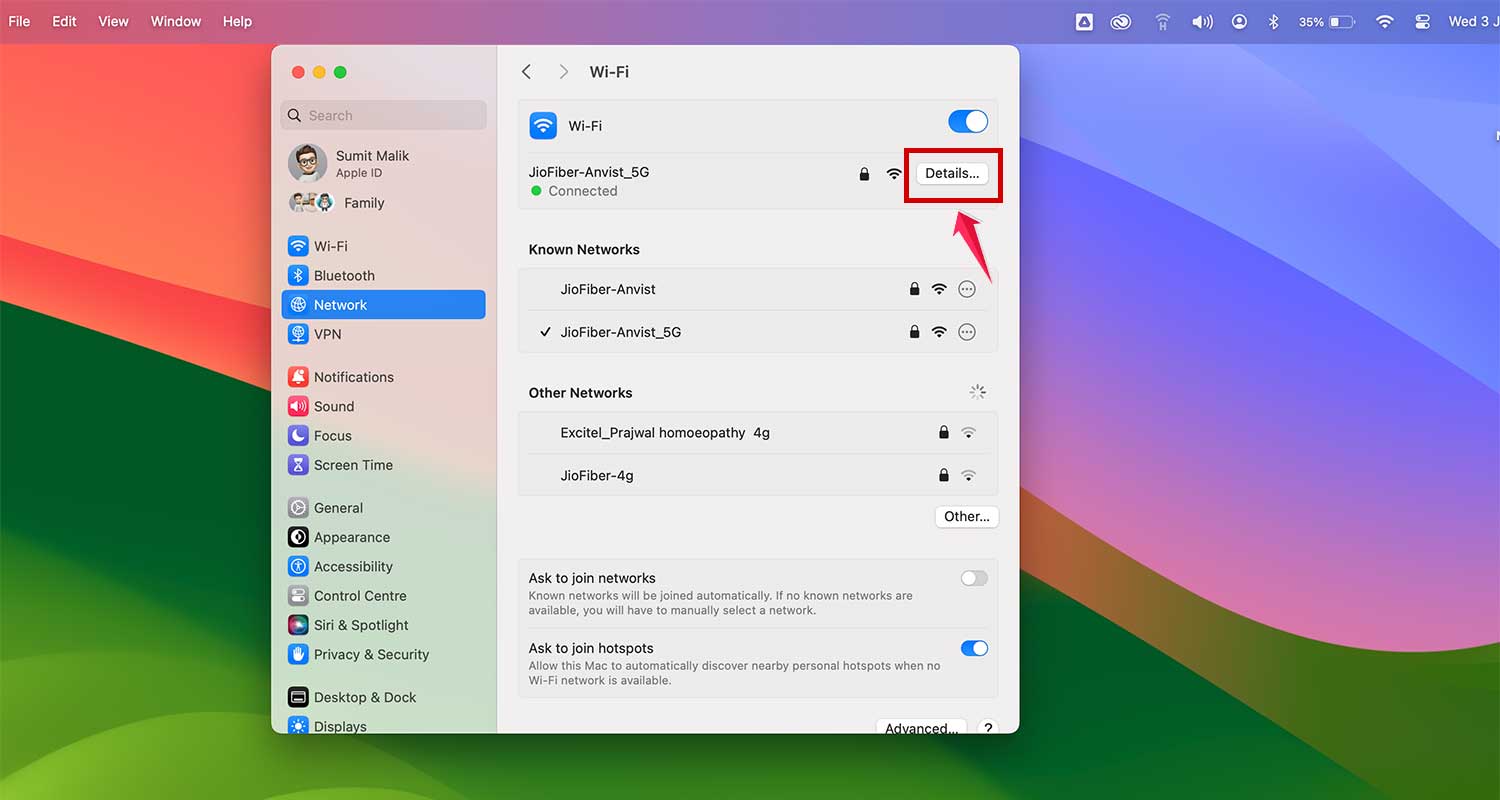
- Tap on Wi-Fi.

- Select your current network, and click Details.
- Find the DNS tab and remove any custom DNS settings.
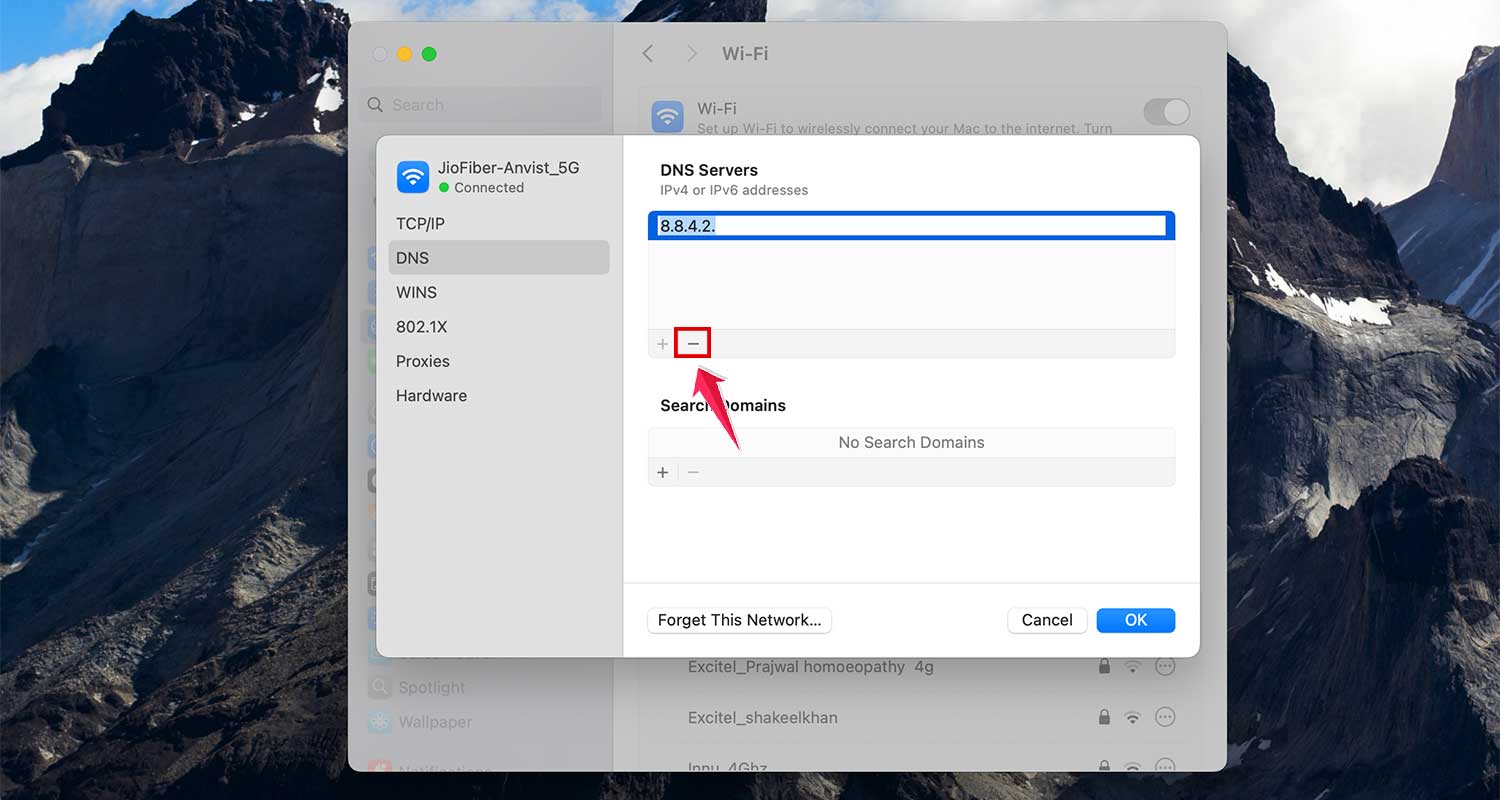
- Click OK and reconnect.
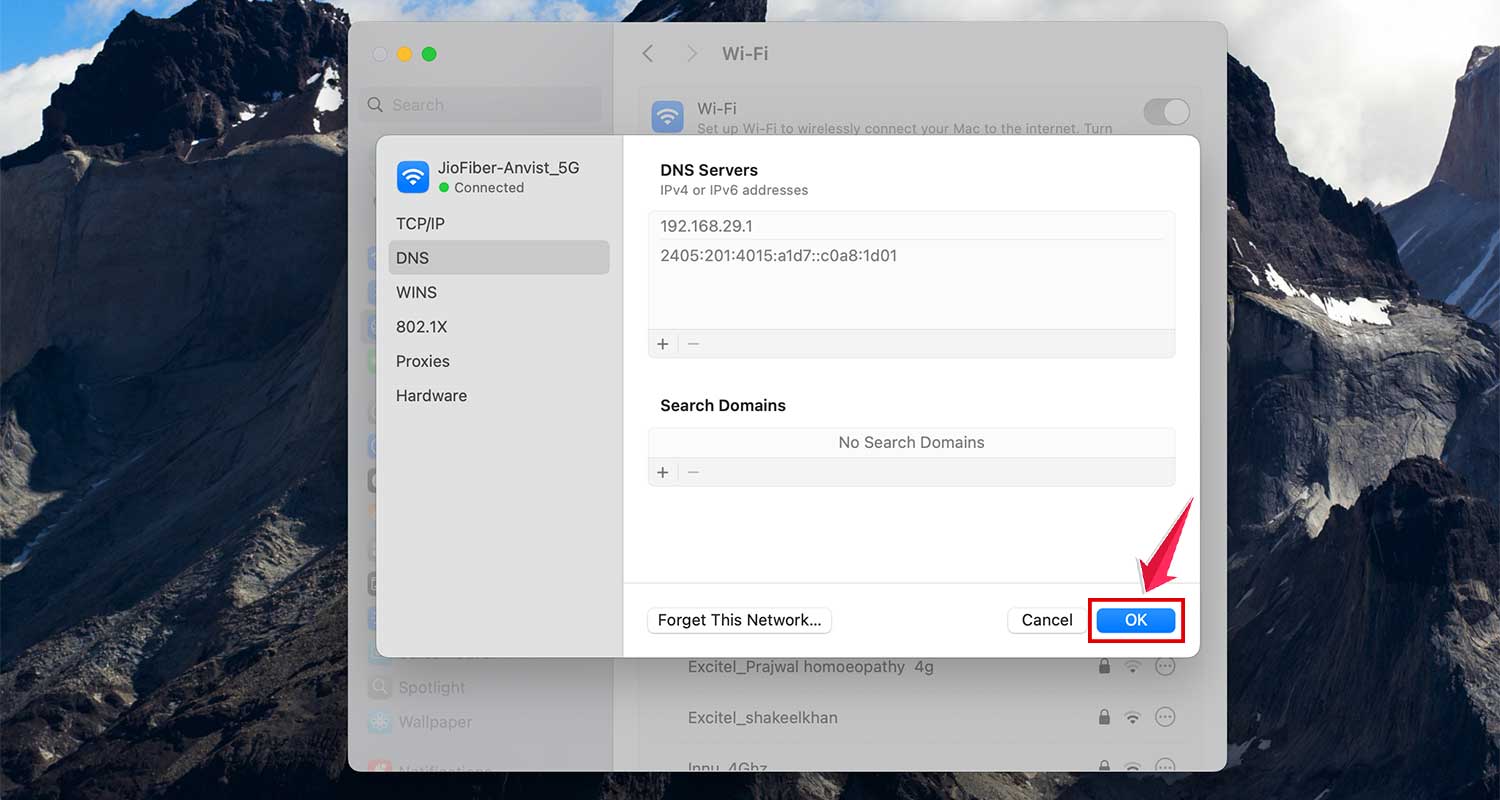
Try loading Chrome again after this. It should help.
#5 Temporarily Disable Antivirus or Firewall
Your antivirus or firewall might be blocking Chrome from loading pages. Let’s test if that’s the issue.
- Open your antivirus software.
- Look for a setting to disable real-time protection or firewall.
- Turn it off temporarily and try using Chrome.
If Chrome works now, your antivirus is the problem. You can add Chrome as an exception or adjust the settings so it doesn’t block safe sites.
#6 Restart Your Router
It might sound basic, but trust me—it works more often than not.
- Unplug your router from the power source.
- Wait about 10-15 seconds.
- Plug it back in and wait for the connection to come back.
Once it’s back online, try Chrome again. Fingers crossed, it’s working now.
#7 Try Incognito Mode
Incognito mode runs without cache, cookies, or extensions. It gives you a clean slate to test if something else is interfering.
- Click the three-dot menu and select New Incognito Window.
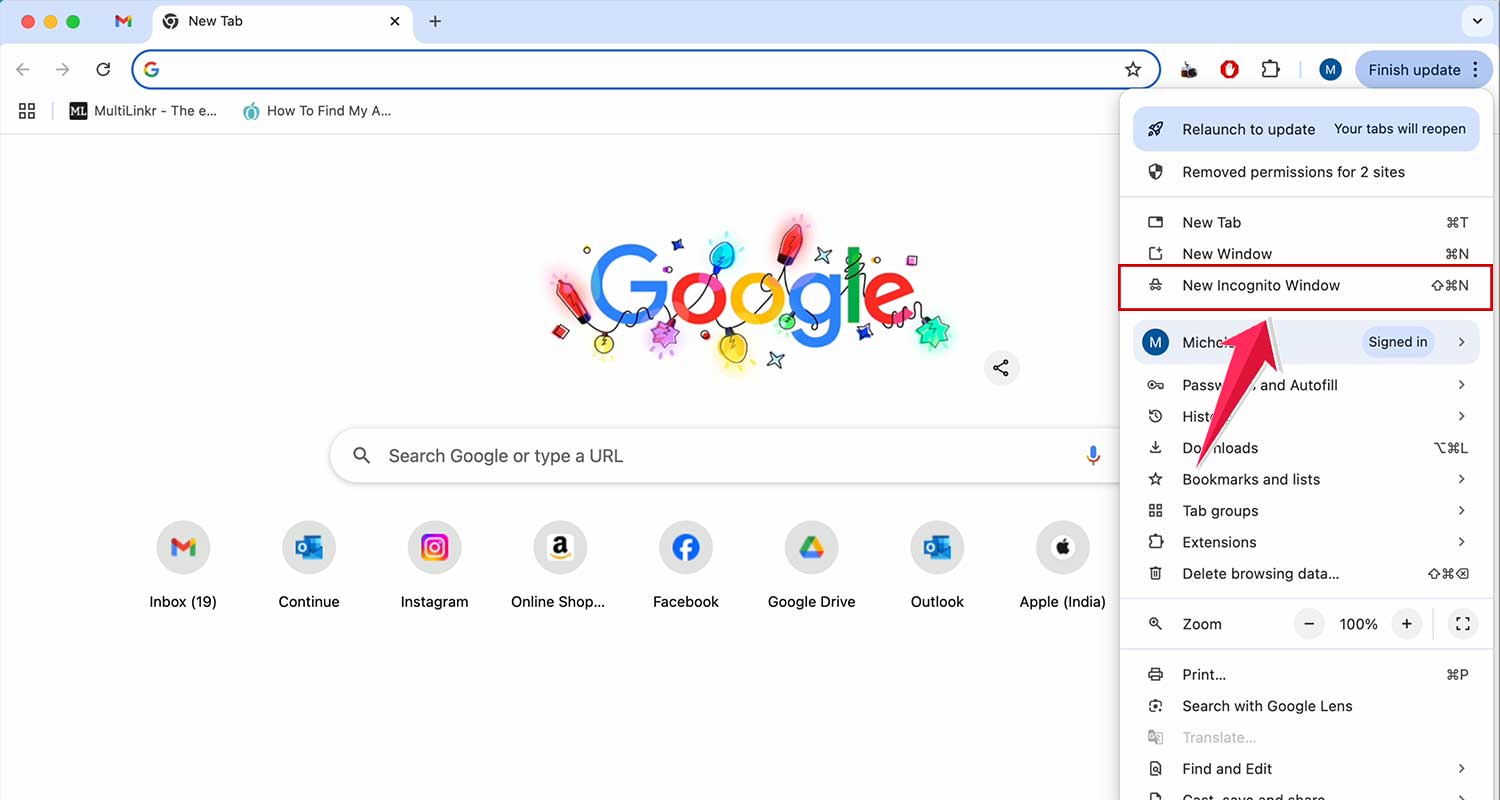
Try opening the same site in this window. If it loads, the issue is likely with your cache or extensions.
#8 Close Background Apps
Other apps might be hogging your internet or computer resources. Let’s shut them down.
- Close apps like Zoom, Spotify, or anything that uses a lot of internet or memory.
This frees up resources so Chrome can work better.
#9 Check Your Proxy Settings
Sometimes, proxy settings change without you knowing. Let’s make sure that’s not what’s blocking Chrome.
- Go to Settings > Network on your computer.
- Look for Proxy settings and make sure it’s turned off unless you use one.
With the right settings, Chrome should load pages without a problem.
Extra Tips to Keep Chrome Running Smoothly
1. Use Incognito Mode when you want to test if something like extensions or cookies is causing issues. It gives you a fresh environment to browse.
2. Close unused apps that may slow down your computer or eat up internet speed. Chrome will thank you for it.
3. Always keep Chrome updated to avoid bugs and speed issues. Updates bring security patches and performance boosts too.
4. Run a malware scan every now and then. Malware can quietly mess with your browser without you knowing.
5. Clean up cache and cookies regularly. This keeps Chrome light and fast, just the way it should be.
The Takeaway
So, your internet’s working, but Chrome just won’t load pages. Super annoying, I know. But now, you’ve got a full set of easy fixes to try—clearing cache and cookies, checking for updates, resetting DNS settings, and even adjusting your antivirus.
Most of the time, it’s something simple causing the issue. You don’t need to be a tech expert to fix it. Just follow the steps we talked about. Try one, then another. You’ll find the one that works for you.
Still stuck? It’s okay. Drop your question in the comments and I’ll help you out. Let’s get your Chrome back to normal—fast and frustration-free.
Have a question or need help? Drop a comment below!